




Google Sheets is not only a powerful spreadsheet tool, but it’s completely free to use. With an increasingly impressive list of tools, features, and add-ons, you can use Google Sheets to do practically anything: performing basic calculations or lookups, creating complex dashboards, or building custom apps using the API and Google Apps Script.
In this post, you will learn what Google Sheets is and how to use it. You will start with the basics you need to get started, including how to get Google Sheets, how to create your first spreadsheet, how to navigate Google Sheets, how to format cells, and how to switch to and from Microsoft Excel. Finally, you will learn about some of the more advanced features to help you get the most out of your data.
What is Google Sheets?
Google Sheets is a spreadsheet program included in the Google Docs Editors Suite, along with other free, web-based software like Google Docs, Google Slides, Google Forms, and Google Sites. While it offers similar functionality to Microsoft Excel, there are differences between the two regarding multiple aspects. To learn more about this topic, check out our post on the differences between Google Sheets and Excel.
How to use Google Sheets: The basics
Whether you’re completely new to spreadsheet software or you’re switching from another program, like Microsoft Excel, there are some things you need to know to get started.
How to get Google Sheets?
The first thing you need to do is access Google Sheets. Since the program is web-based, you can access it from practically any device or browser, though Google Chrome allows you to use extra features, like working offline.
How to create your first spreadsheet?
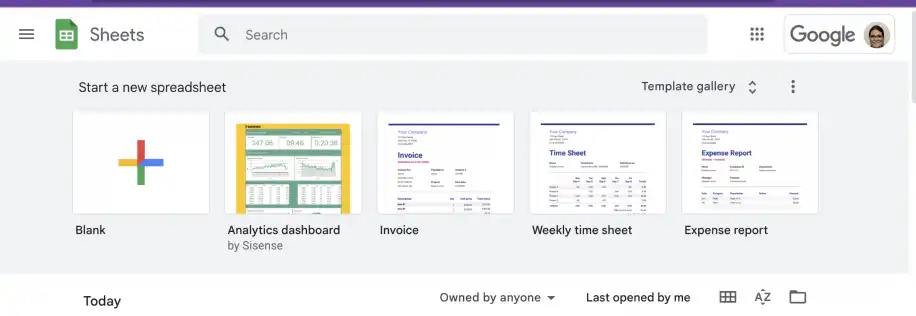
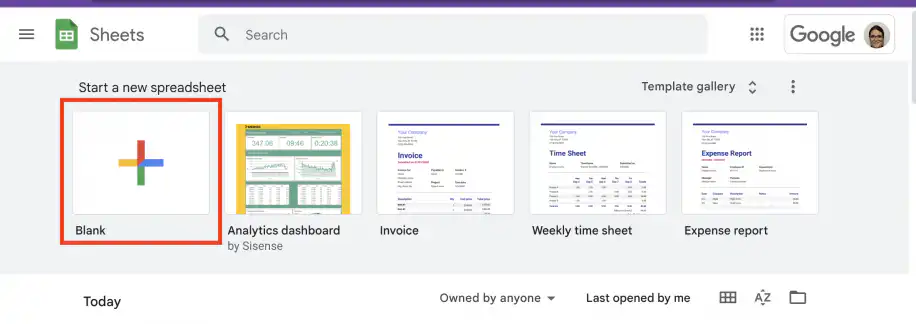
Now that you know how to access Google Sheets, it’s time to create a spreadsheet. From the main page, you can create a blank spreadsheet, use a free Google Sheets template, or open an existing file.
Toolbar
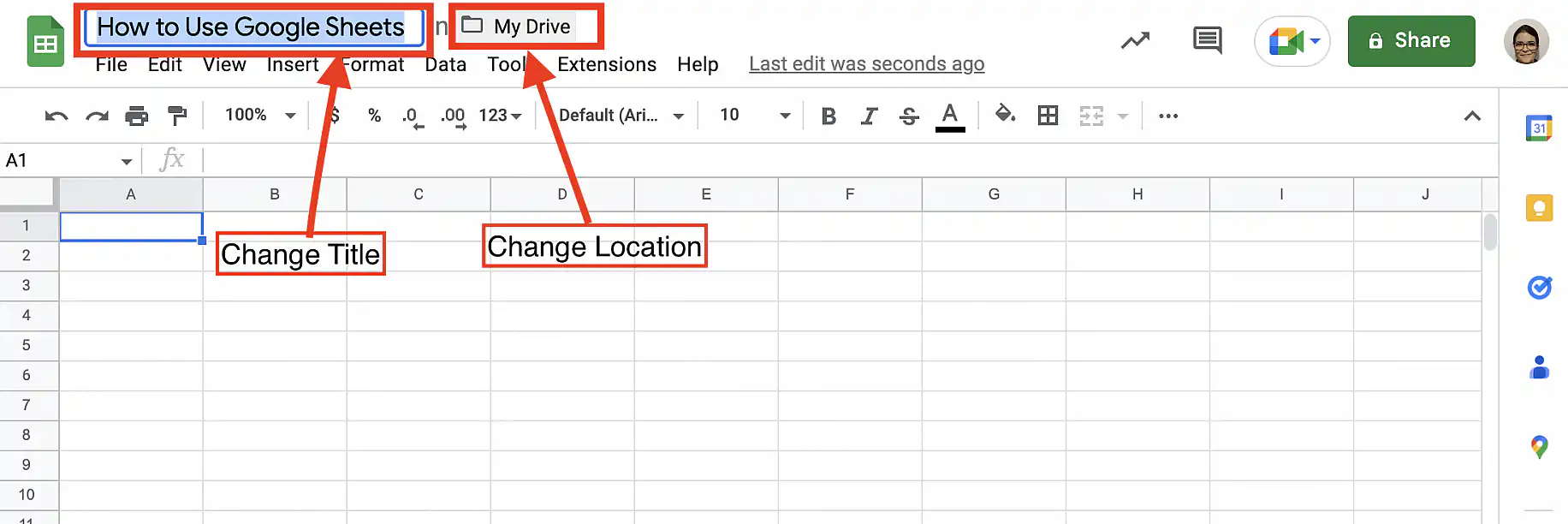
The toolbar provides quick access to frequently used features, including formatting.

How to format cells?
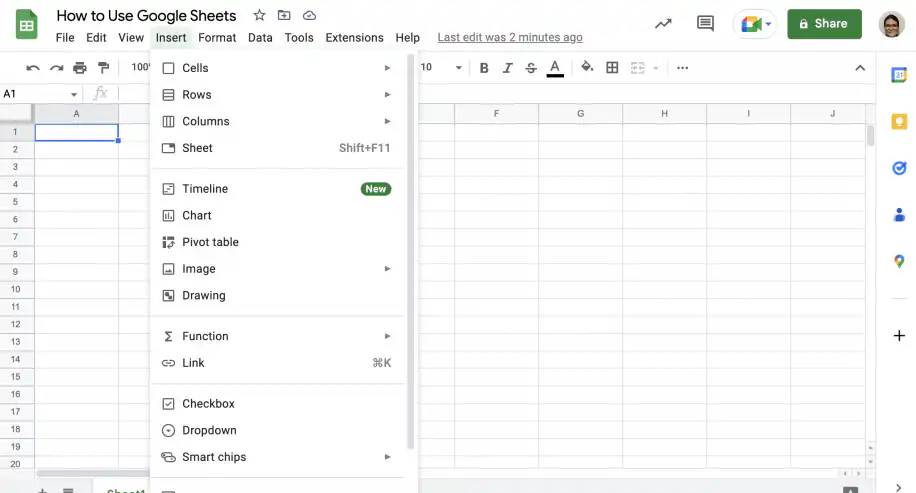
You can format cells by using the toolbar or by accessing the ‘Format’ menu. The screenshot below shows the wide range of number formats available.
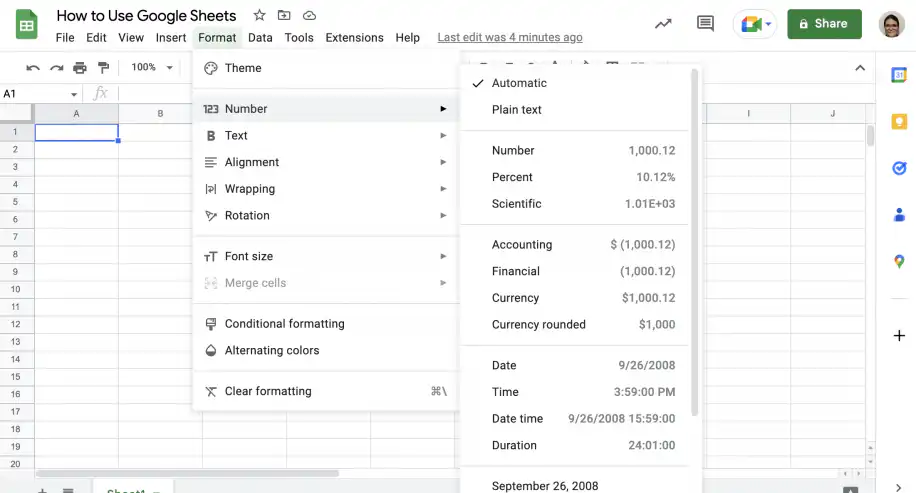
To learn how to use more advanced formatting tools, check out our guide on how to use conditional formatting in Google Sheets.
How to filter & sort data cells?
To quickly filter and sort your data, select one of the headers and go to Data > Create a filter.
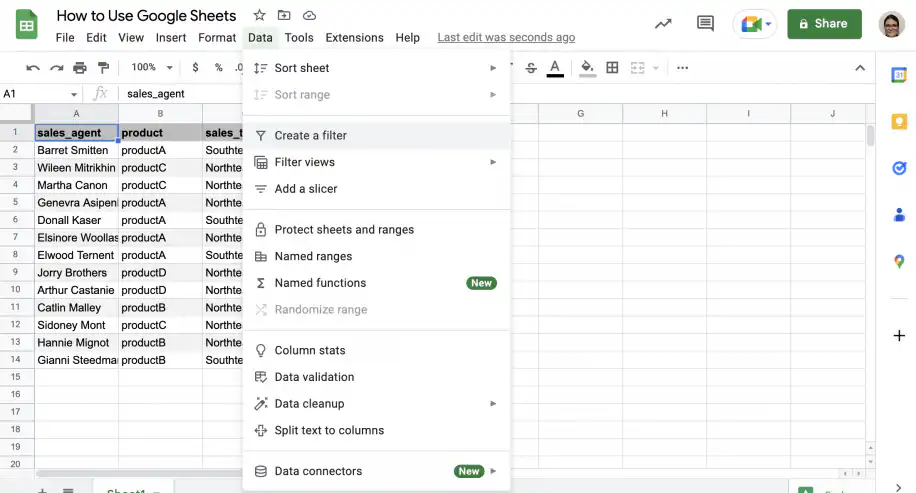
Click on any of the filter symbols to quickly sort, filter, or search the column’s data.
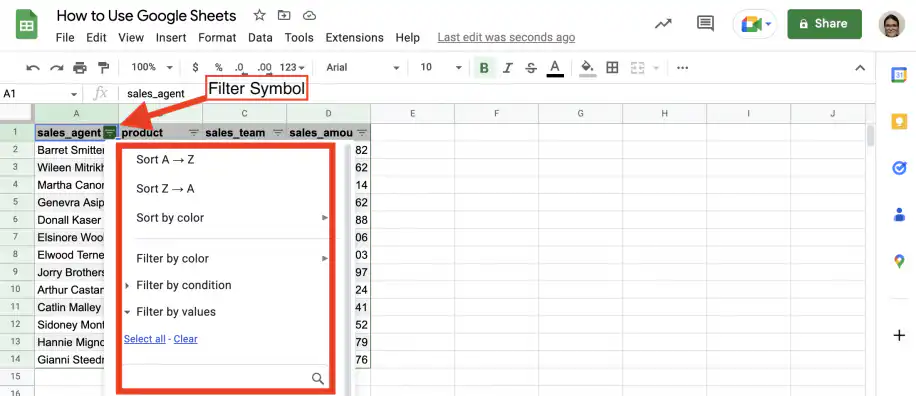
To learn more about filtering data without affecting other users, check out this article on how to create and use Google Sheets filter view.
How to switch to and from Microsoft Excel?
Fortunately, it’s easy to convert Microsoft Excel files to the Google Sheets format and vice versa. For step-by-step instructions on how to do this, see the articles below:
Google Sheets formulas
Google Sheets offers many built-in functions in a variety of areas: time/date, engineering, filter, financial, Google functions, information, logical, lookup, math, operator, statistical, text, database, parser, array, and web. However, you can also create your own formulas by typing them in directly or using Google Apps Script to write complex functions in JavaScript.
To learn more about formulas in Google Sheets, check out our guide on 100+ functions and formulas for Google Sheets and Excel.
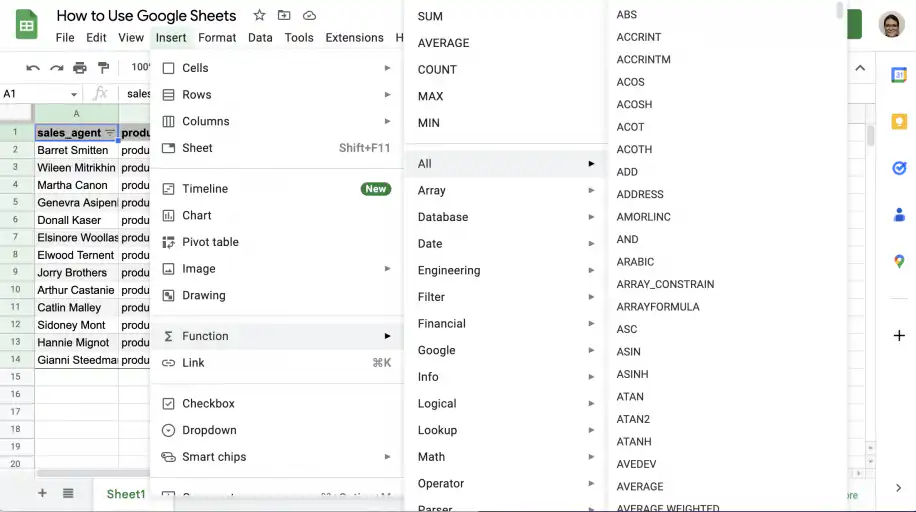
1. Whether you use a built-in function or write your own formula, you always start with the equal sign.
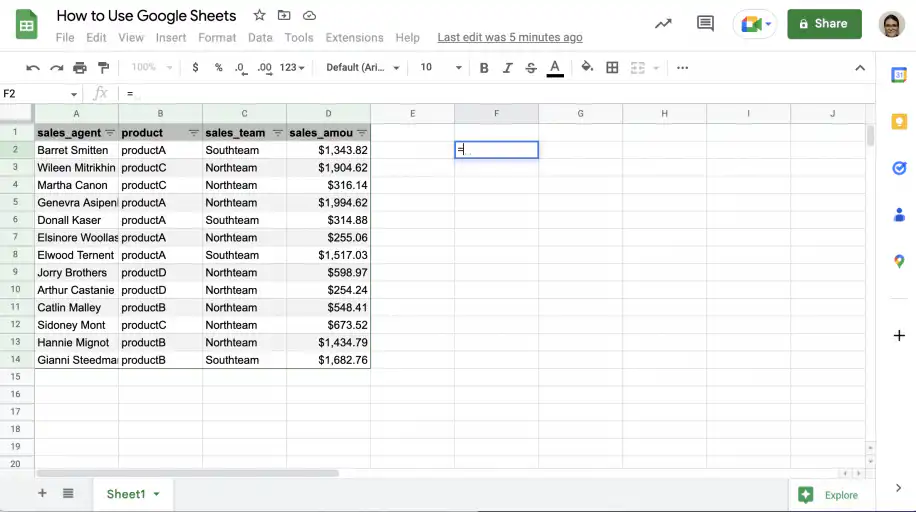
2. For example, say you simply want to add one value to another. You can type the values directly into the formula:
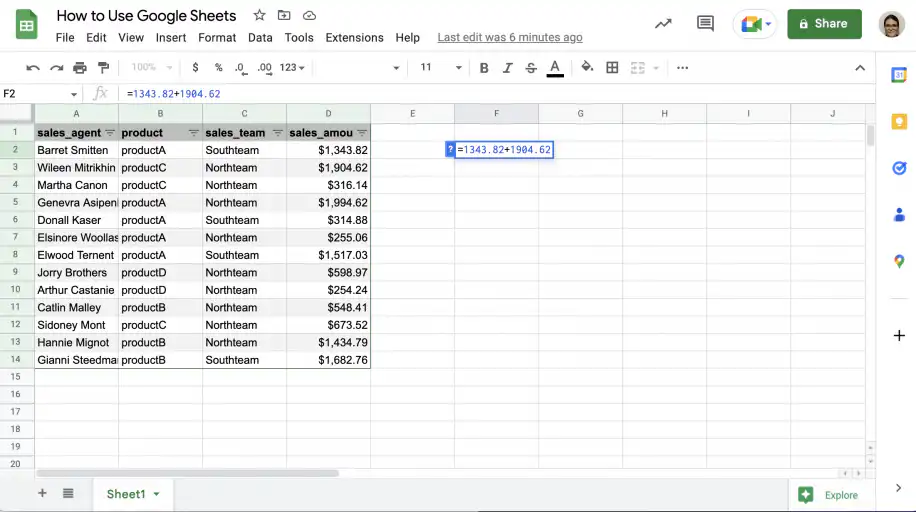
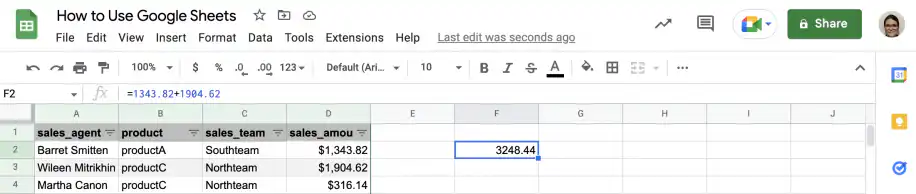
3. Press ‘Enter’ to get the result.
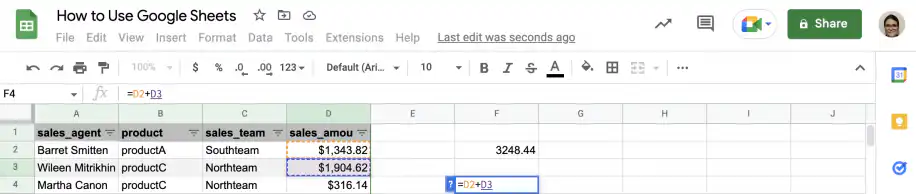
4. However, you can also select the cells containing the values instead of typing them. This reduces the chances of errors and allows you to select the values quickly and avoid mistakes.
5. However, by using built-in functions, you can easily perform calculations on multiple values at the same time. For example, you can use SUM to add a whole column of values, as shown below.
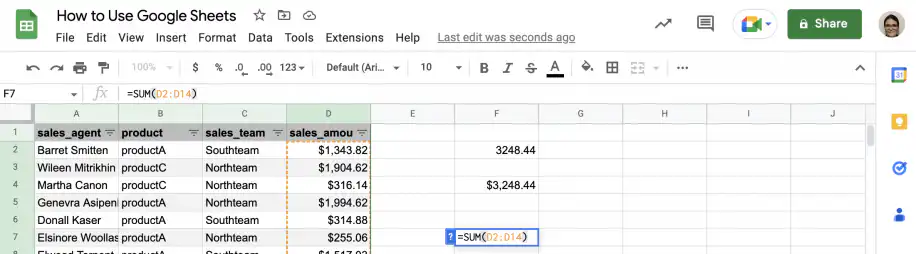
6. You can perform other operations just as quickly, like finding the average for the values we previously summed.
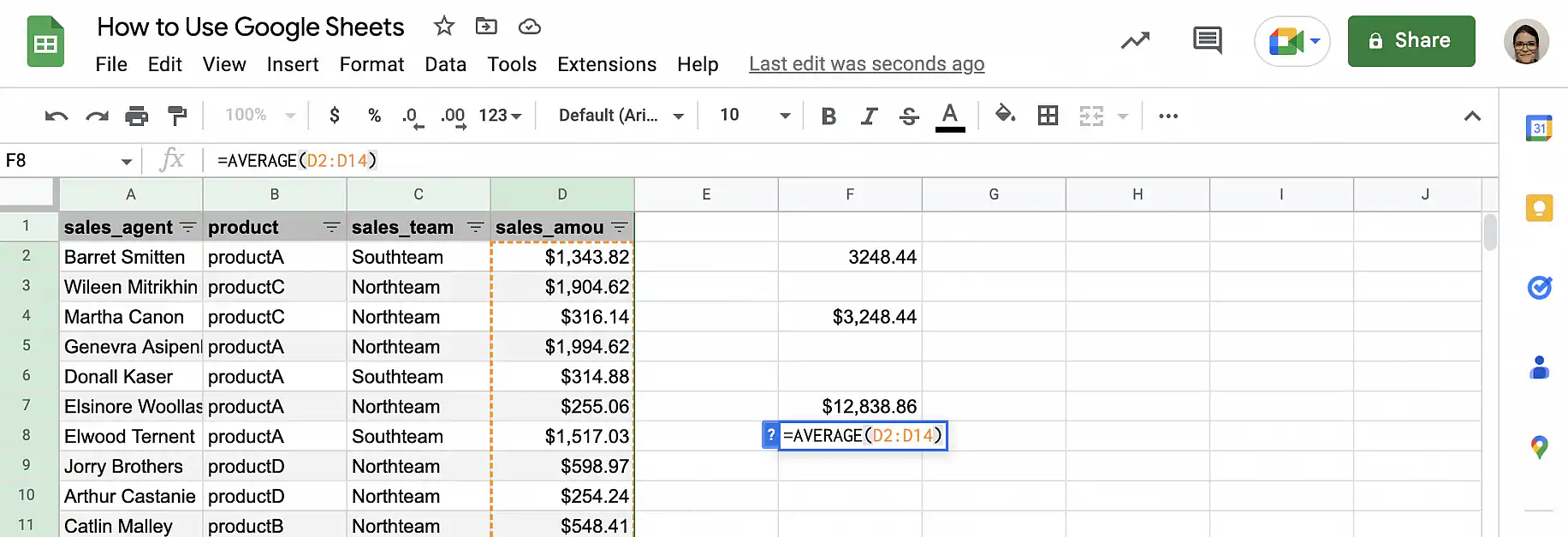
7. Finally, let’s get the count of values in our column.
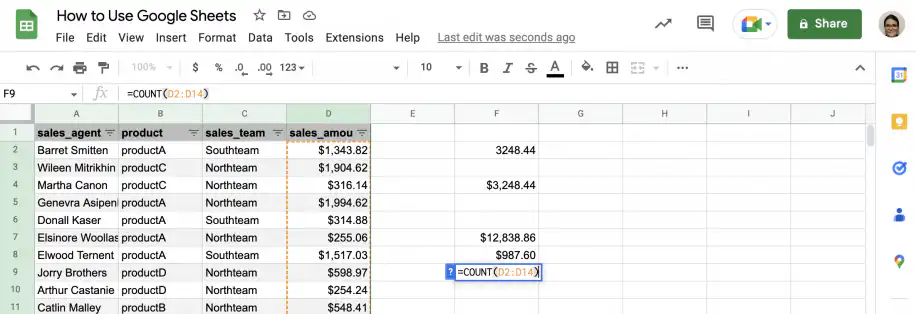
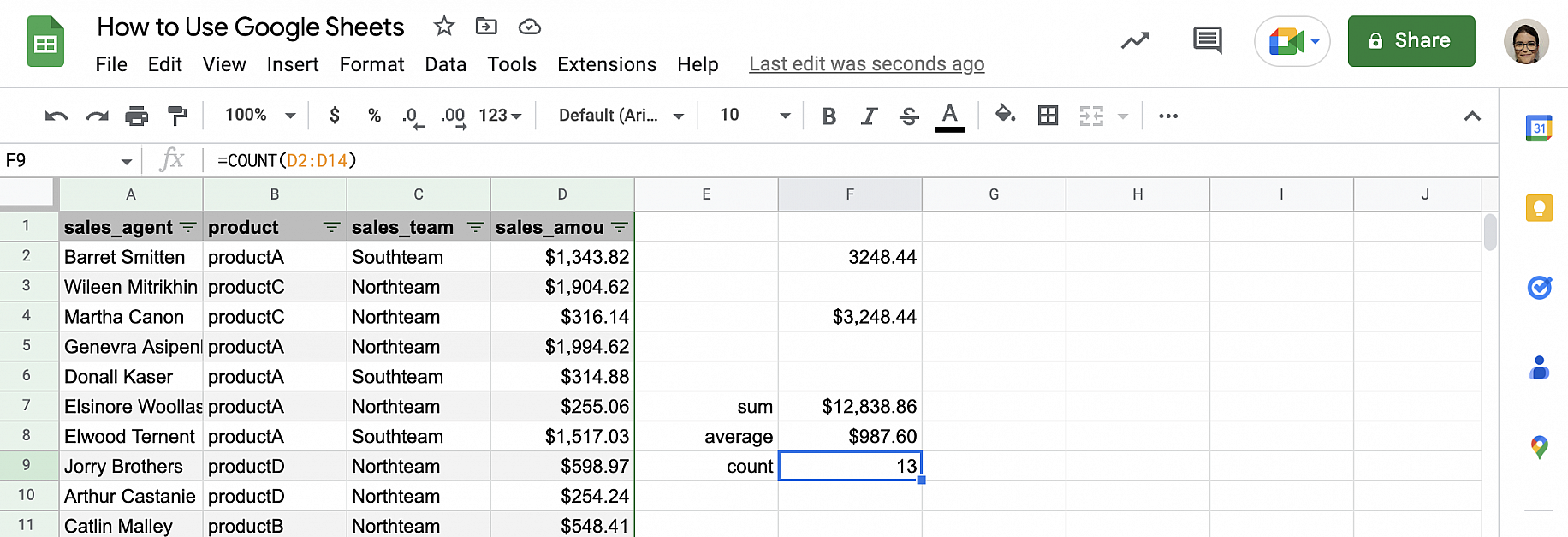
8. That’s it. In just a few seconds, you have the sum, average, and count of the values in that column.
Google Sheets for collaboration
One of the benefits of using a web-based spreadsheet like Google Sheets is improved collaboration and sharing. You can share the spreadsheet or parts of it, manage permissions, make and respond to comments, and view all changes and their authors for all versions of the Google Sheet.
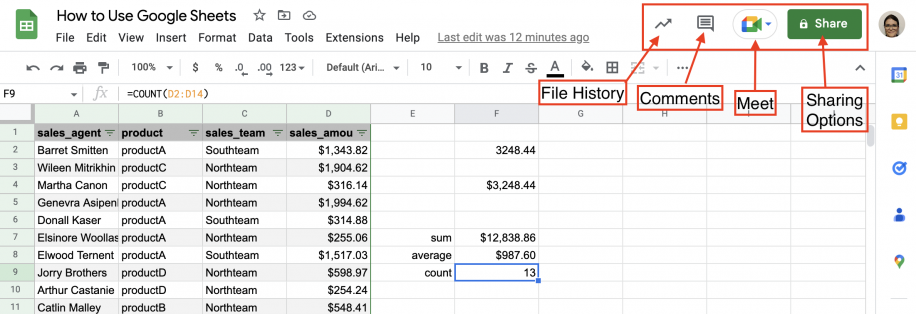
To learn more about collaboration and sharing in Google Sheets and protecting your spreadsheets by setting up the proper security permissions during the process, check out the guides below:
Google Sheets sharing and collaboration guides
- How to Share Google Sheets
- How to share only one tab in Google Sheets
- How to collaborate on Google Sheets
- How to make Google Sheets editable (by multiple users)
- How to get Google Sheets notifications after an edit?
Google Sheets security and permissions guides
Google Sheets shortcuts
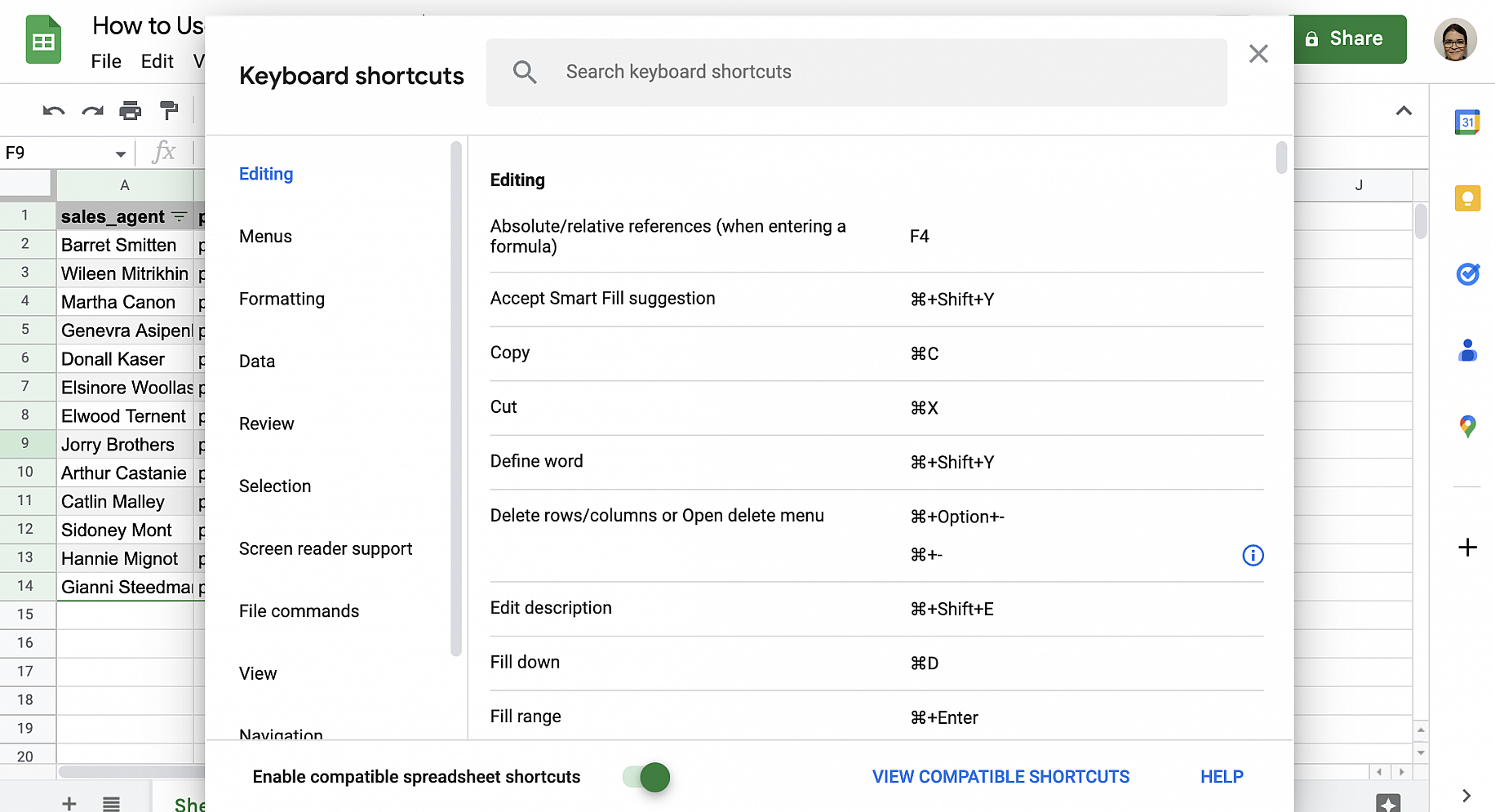
If you like to use shortcuts, you can access the list of Google Sheets keyboard shortcuts by going to Help > Keyboard shortcuts.
Extend Google Sheets’ functionality
Once you’ve mastered the basics, you may be interested in extending Google Sheets’ functionality. Fortunately, Google Sheets provides advanced tools that allow you to build on its basic functionality.
Macros
You can automate simple, repetitive tasks in Google Sheets by creating Macros. These macros record your actions within Google Sheets and automatically generate the JavaScript code required to repeat those actions. Therefore, you don’t need to know anything about JavaScript to record and run Macros. However, if you are familiar with JavaScript, you may want to consider using Google Apps Script.
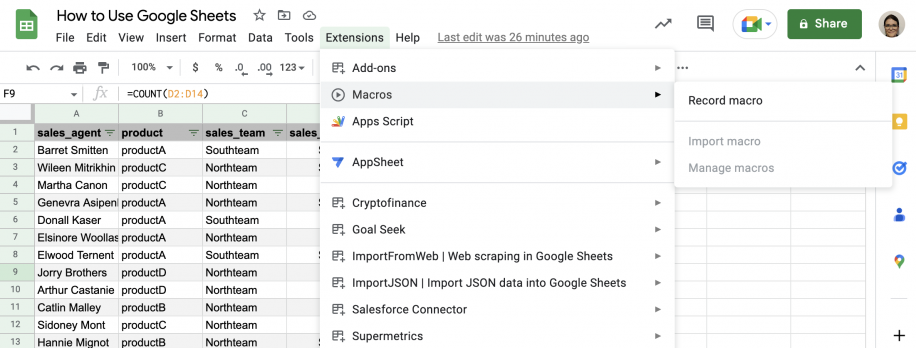
To learn more about using Macros in Google Sheets, check out this post on Google Sheets macros: enable, create & use them.
Google Apps Script
If you’re familiar with JavaScript or open to learning it, Google Apps Script opens a whole new world of possibilities. You can easily create functions and apps using the many libraries available. These include all the elements of Google Sheets, as well as other Google apps and services. To learn more about Google Apps Script, check out our guide on how to use Google Apps Script in Google Sheets.

Google Sheets API
The Google Sheets API allows you to manipulate Sheets data from outside Google Sheets. You can manipulate it programmatically using your preferred programming language or through any app or platform that lets you connect to an API. This allows you to use your Google Sheets spreadsheets as databases. To learn more about this topic, read this article on Google Sheets API: What It Is and How to Use It.
Google Sheets add-ons & integrations
In addition to all the tools already mentioned, you can always extend functionality further by adding any of the numerous add-ons available for Google Sheets.
For the top add-ons and integrations, check out our list of the top 5 Google Sheets add-ons for marketing. Also, below, you can find guides on how to use some of the most popular Google Sheets add-ons.
Conclusion
If you’re looking for a spreadsheet program, Google Sheets is a great choice. It’s free, web-based for easier collaboration, features an increasingly long list of tools, features, functions, and add-ons, and it’s easy to build on using Google Apps Script or the API. It’s up to you whether you want to use it to perform simple calculations or build complex apps. When your data sits in several spreadsheets, Sheetgo, an AI-powered data automation platform, can connect them and keep the numbers up to date.
You now know what Google Sheets is and the basics to get you started: how to get Google Sheets, create a spreadsheet, navigate the interface, switch to and from Excel, format cells, and filter and sort data. You also know about some of its more advanced features like formulas, shortcuts, and collaboration.
You also know about features that can greatly extend the functionality of your spreadsheets, like the Google Sheets API, Google Apps Script, and numerous add-ons. To learn even more about Google Sheets, check out these in-depth guides below.
Google Sheets data import guides
- Import Google Sheets data into another sheet
- Linking Google Sheets: How to reference another sheet?
- IMPORTRANGE in Google Sheets: The ultimate guide
- How to use the IMPORTXML formula in Google Sheets
- How to use the IMPORTHTML Google Sheets formula
- How to use the Google Sheets IMPORTDATA formula
- How to import CSV to Google Sheets automatically
- How to use Google Forms to collect data in a spreadsheet?
Google Sheets data editing guides
- How to combine Google Sheets by merging multiple sheets
- How to add a checkbox in Google Sheets
- How to create dropdown lists in Google Sheets
- How to search in Google Sheets? (multiple methods)
- How to use the Google Sheets SPARKLINE function

 English
 Español
 Português do Brasil
 Français