


If you’re ever working with large amounts of data, you need to know how to search in Google spreadsheets. Beyond the many practical options that enable you to fine-tune your search, simply knowing how to find specific cells will save you enormous amounts of time and energy. So, whether you want to search for duplicates, replace values, or just know the shortcut to finding the cell you need, learning how to search in Google spreadsheets is vital.
How to search in Google Sheets using Find?
If, at some point, you want to locate a group of cells from your Google Sheet containing a particular value or text, you can do this using what is called the Find option. The easiest way to use this option is with the shortcut explained here.
For the following step-by-step example, we’re going to search for cells containing the letter ‘X’:
1. Open the Google Sheet from which you want to work.
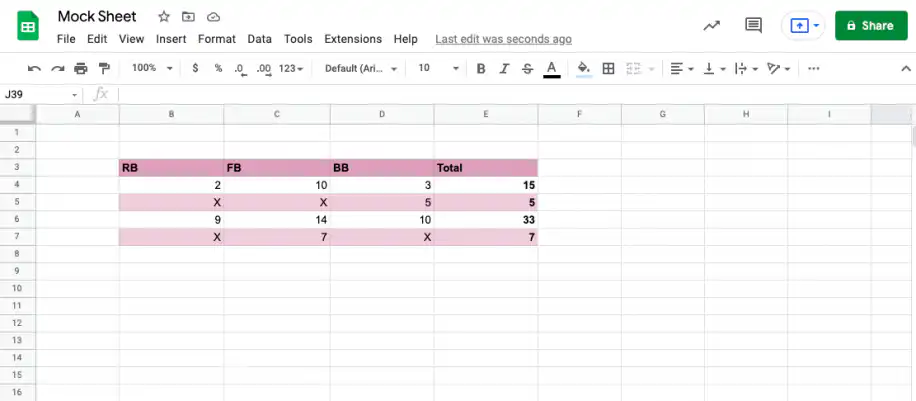
2. Press Ctrl + F / cmd + F and a search bar should appear in the top-right of your sheet.
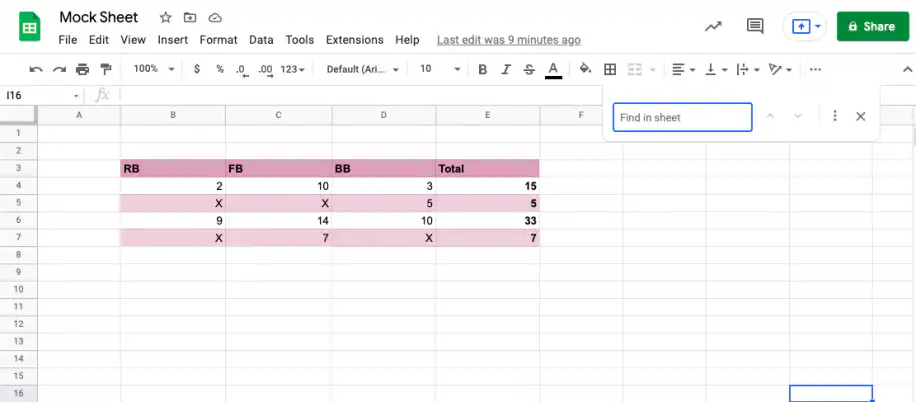
3. Type in ‘X’.
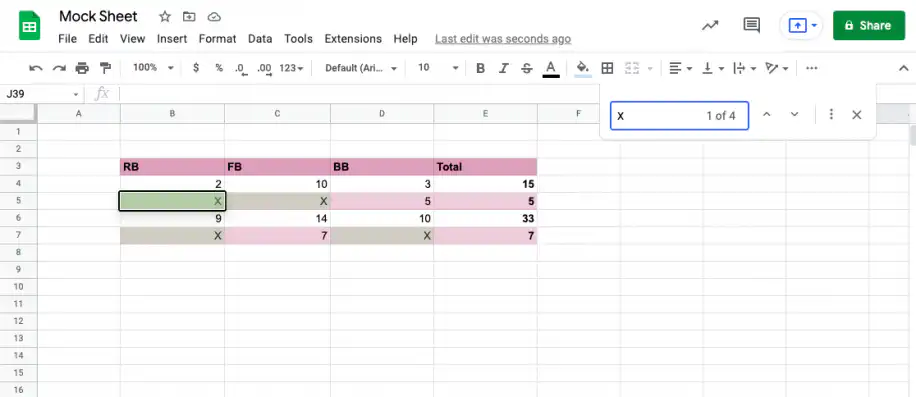
This should highlight all the cells containing ‘X’ in your Google Sheet.
Use the up and down arrows beside the Find search bar to skim through the highlighted cells.
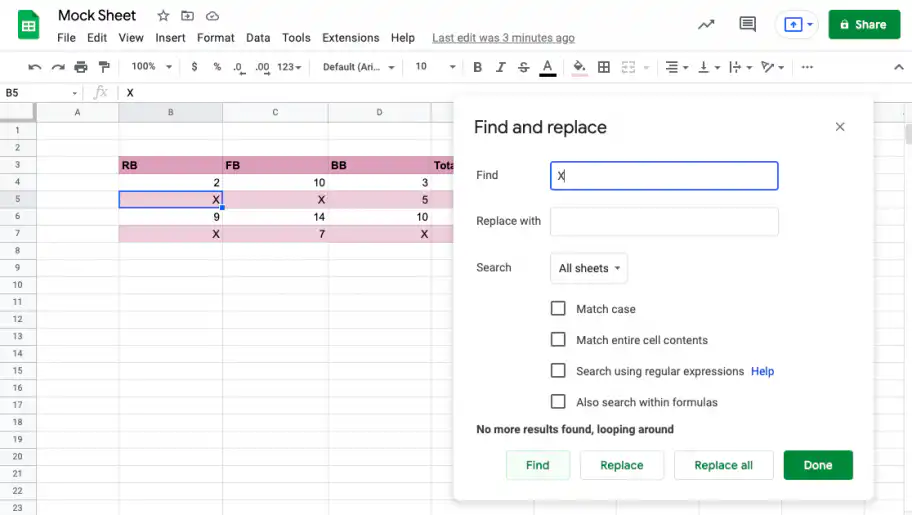
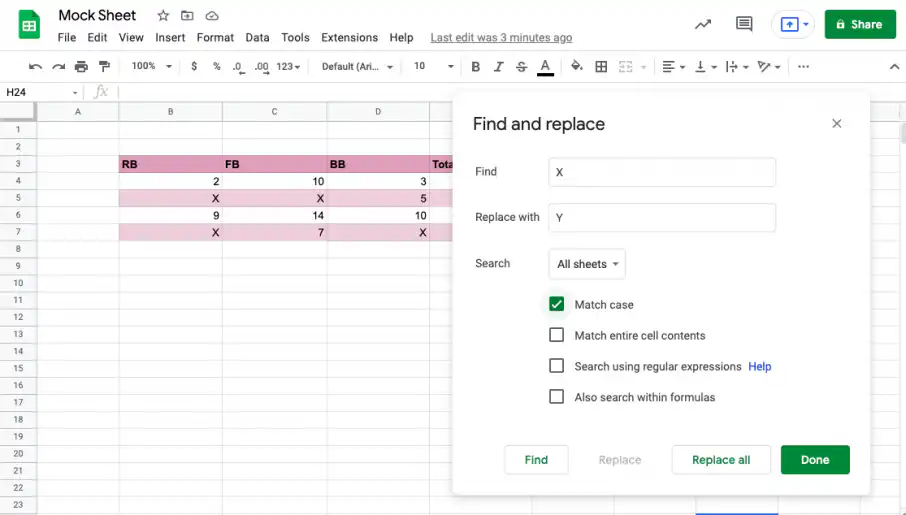
The Find bar only searches the sheet you have open, not the other tabs in your file. To search all sheets in Google Sheets at once, use Find and Replace and set Search to All sheets, as shown below.
This method for finding cells is rapid and easy. However, if you want to change something about all of these cells (e.g., change X to Y), you would be better off using the Find and Replace option detailed in the following section.
How to search in Google Sheets using Find and replace?
Once again, we have a Google Sheet containing many different values. Our mission in this example is to locate all the cells containing ‘X’ and change their values to ‘Y’.
For the first example, you’ll learn how to locate cells and then change their values individually:
1. Go to Edit > Find and Replace. A dialogue box should open.
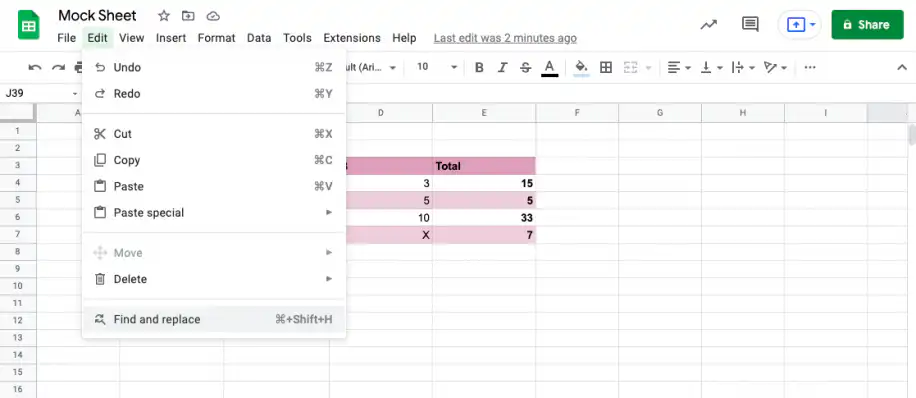
2. Type ‘X’ into the search bar labeled Find and click “Find”.
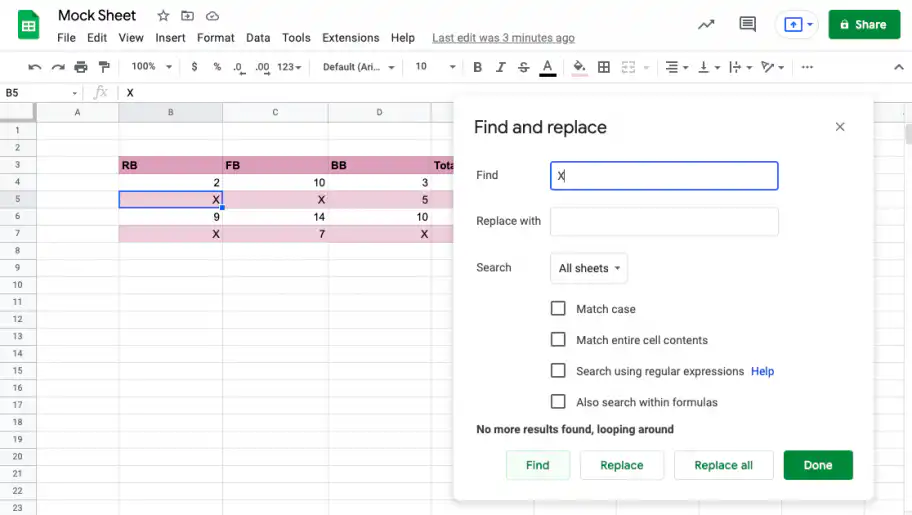
3. Type ‘Y’ into the search bar labeled “Replace with”.
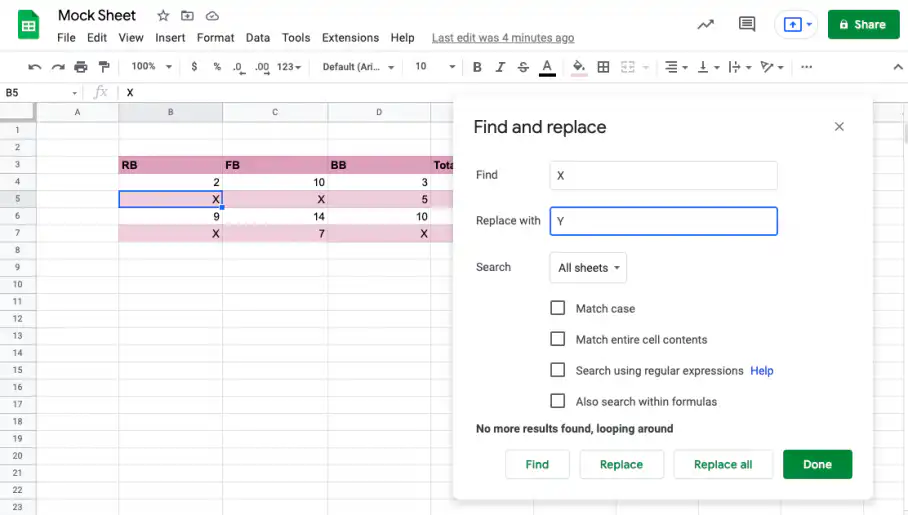
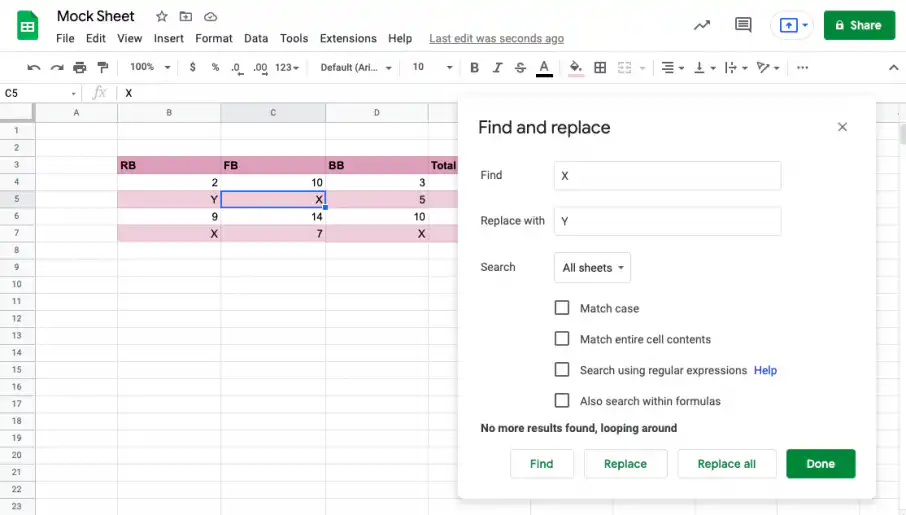
4. Click “Replace” to replace the first ‘X’ with a ‘Y’, and so on.
5. Click “Done” when you finish.
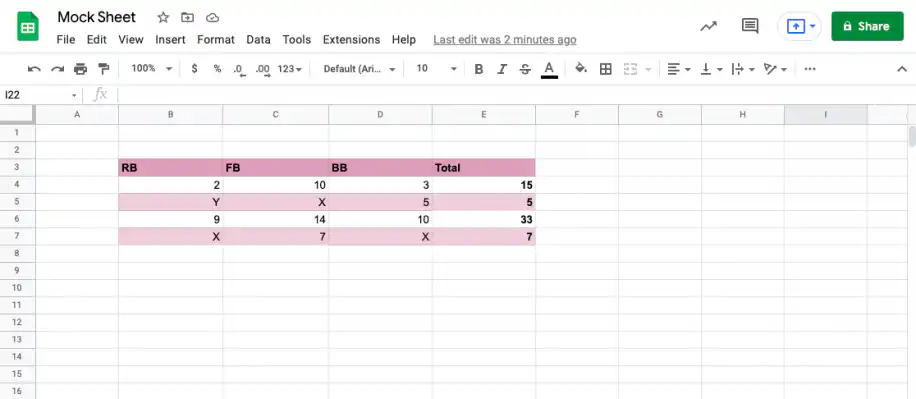
For the second example, you’ll learn how to locate cells and then change all of their values simultaneously:
1. Go to Edit > Find and Replace. A dialogue box should open.
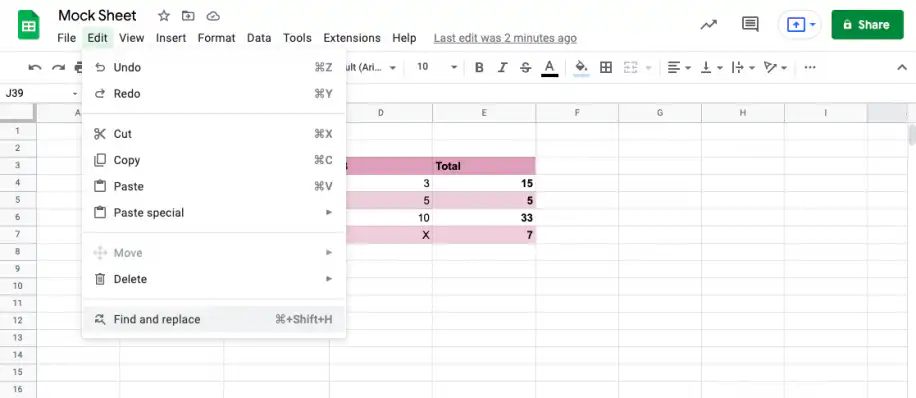
2. Type ‘X’ into the search bar labeled Find and click “Find”.
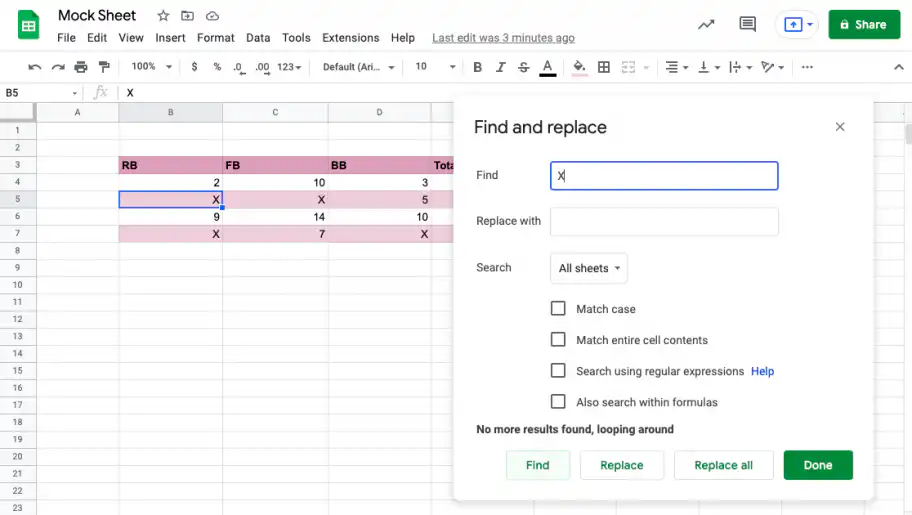
3. Type ‘Y’ into the search bar labeled Replace with.
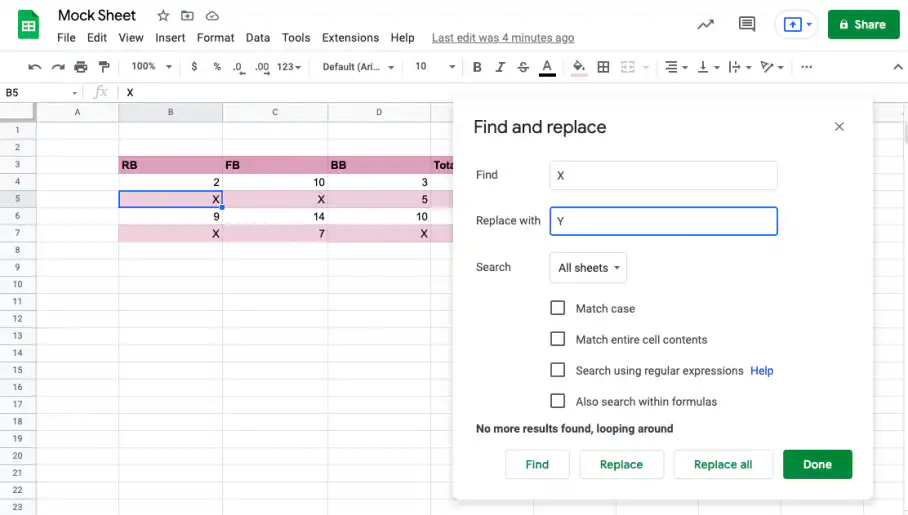
4. Click “Replace all” – instead of “Replace” – to immediately replace every ‘X’ with a ‘Y’.
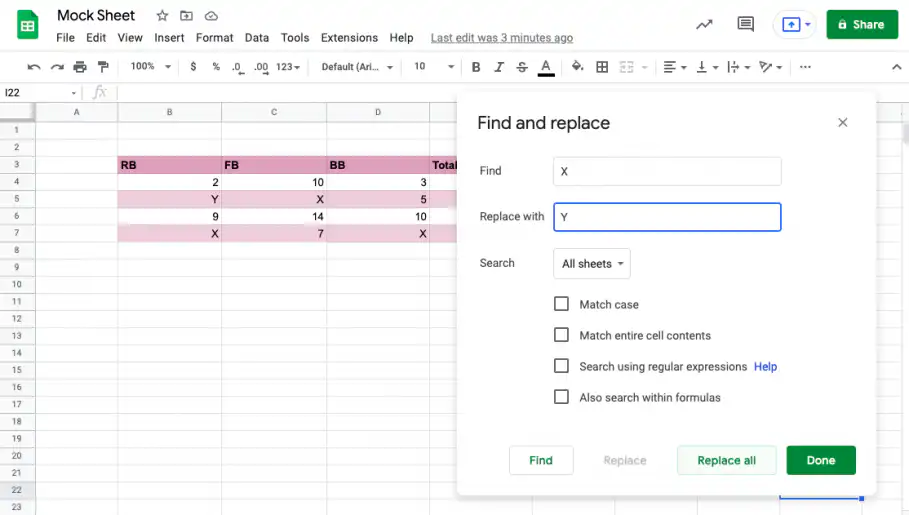
5. Click “Done”.
How to find and replace in all sheets, the current sheet, or a range of cells
For the sake of demonstration, the following three examples will assume you want to replace all the chosen values simultaneously using the Replace all option.
How to search all sheets in Google Sheets and replace values
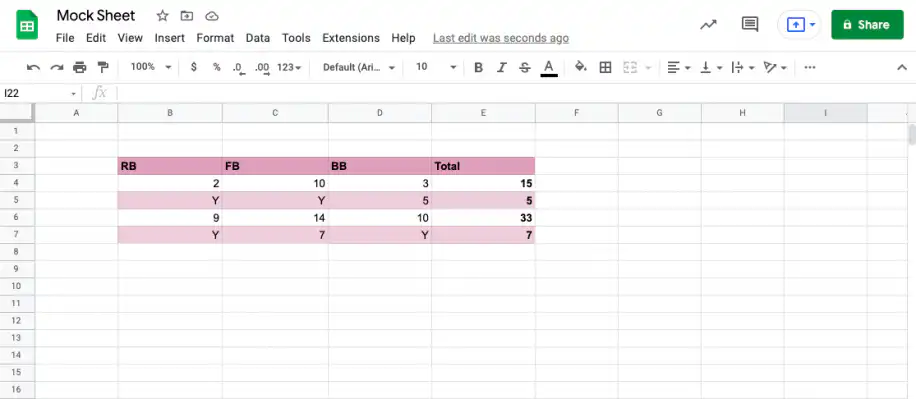
1. Go to Edit > Find and Replace. A dialogue box should open.
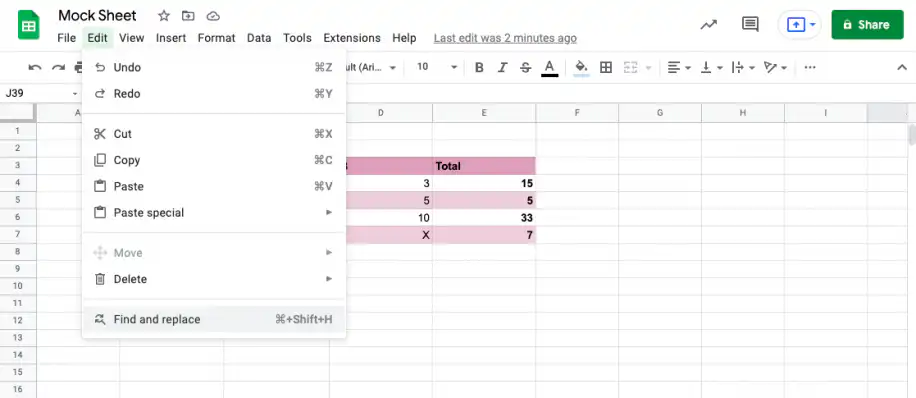
2. Type ‘X’ into the search bar labeled Find and click “Find”.
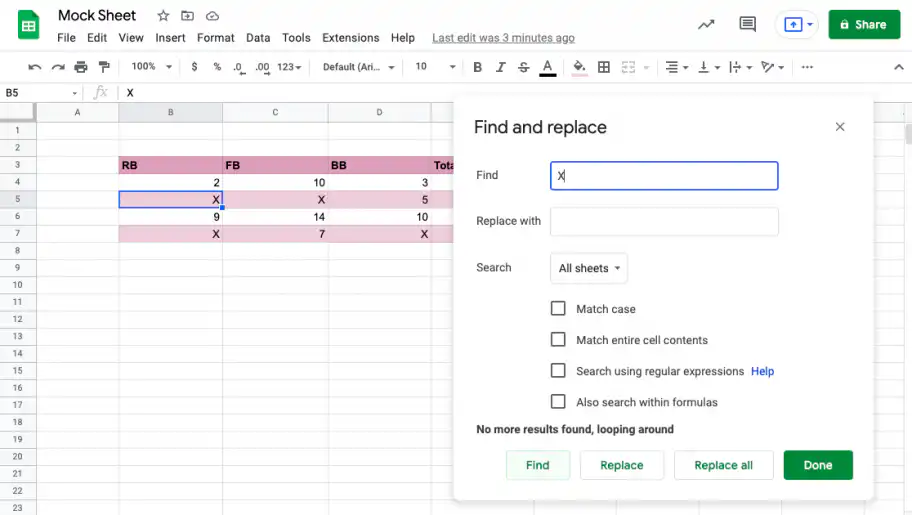
3. Type ‘Y’ into the search bar labeled Replace with.
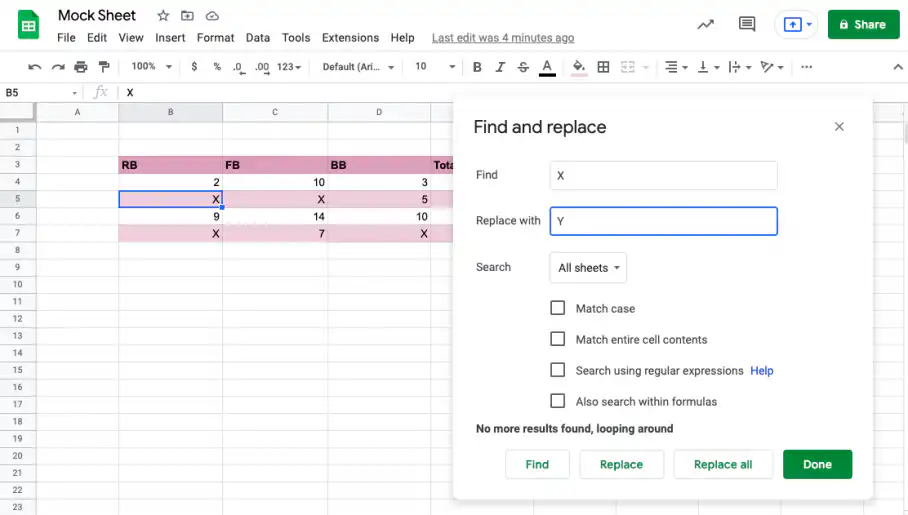
4. Click the drop-down menu labeled Search and select “All sheets”.
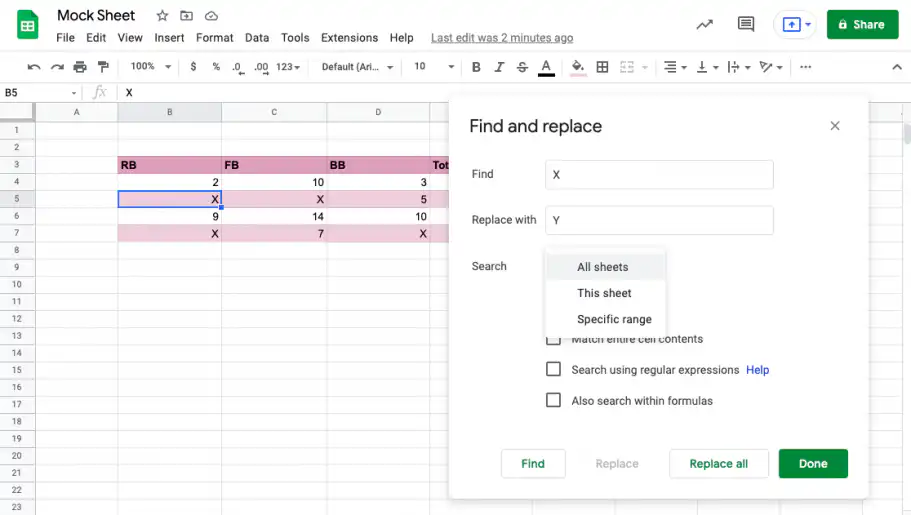
5. Click “Replace all” to immediately replace every ‘X’ with a ‘Y’ in all your Google Sheets.
How to find and replace in your current sheet
1. Go to Edit > Find and Replace. A dialogue box should open.
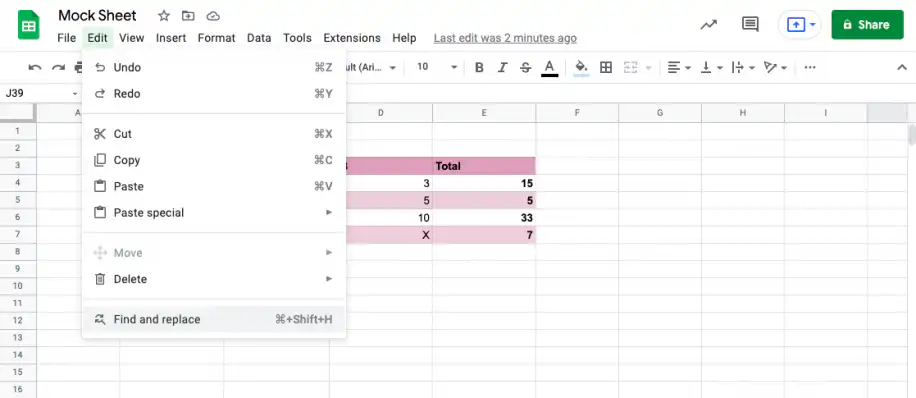
2. Type ‘X’ into the search bar labeled Find and click “Find”.
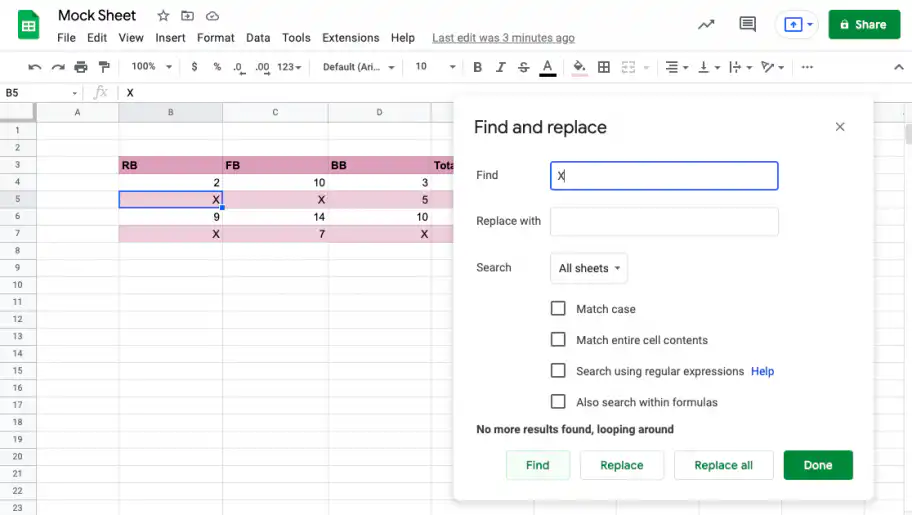
3. Type ‘Y’ into the search bar labeled Replace with.
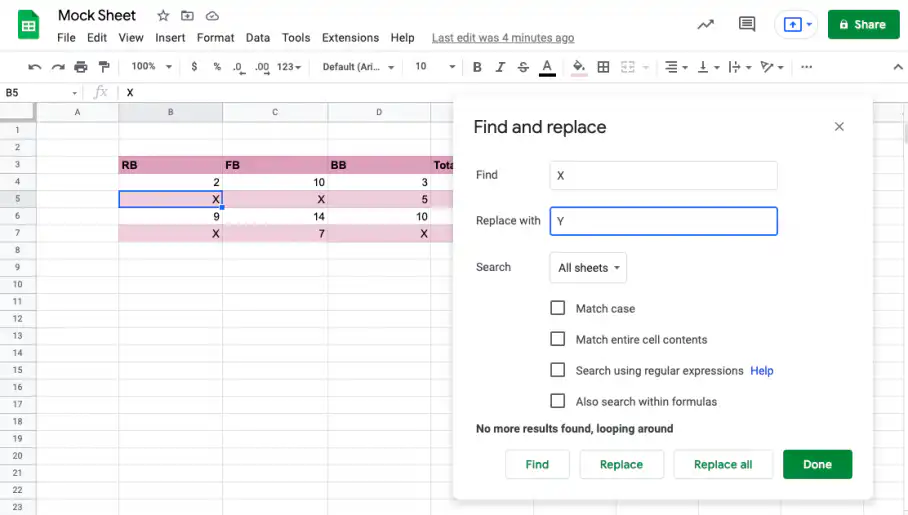
4. Click the drop-down menu labeled “Search” and select “This sheet”.
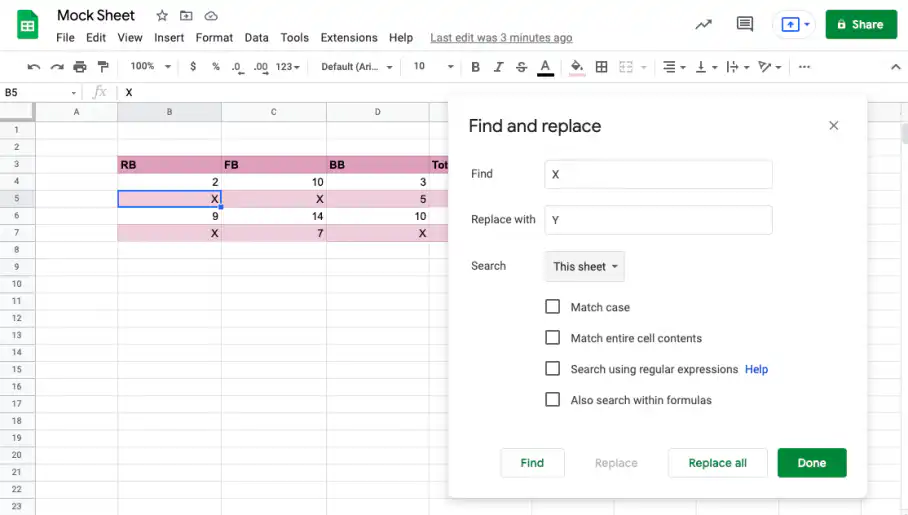
5. Click “Replace all” to immediately replace every ‘X’ with a ‘Y’ in that Google Sheet.
How to find and replace in a range of cells
1. Go to Edit > Find and Replace. A dialogue box should open.
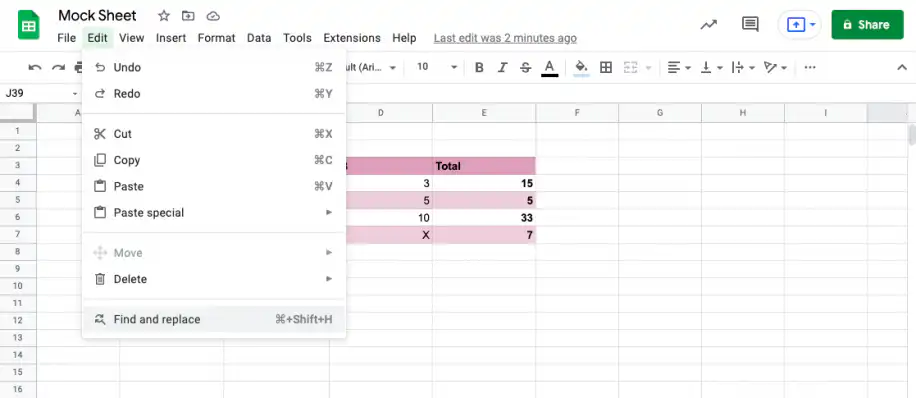
2. Type ‘X’ into the “Find” search bar, and click “Find”.
3. Type ‘Y’ into the search bar labeled “Replace with”.
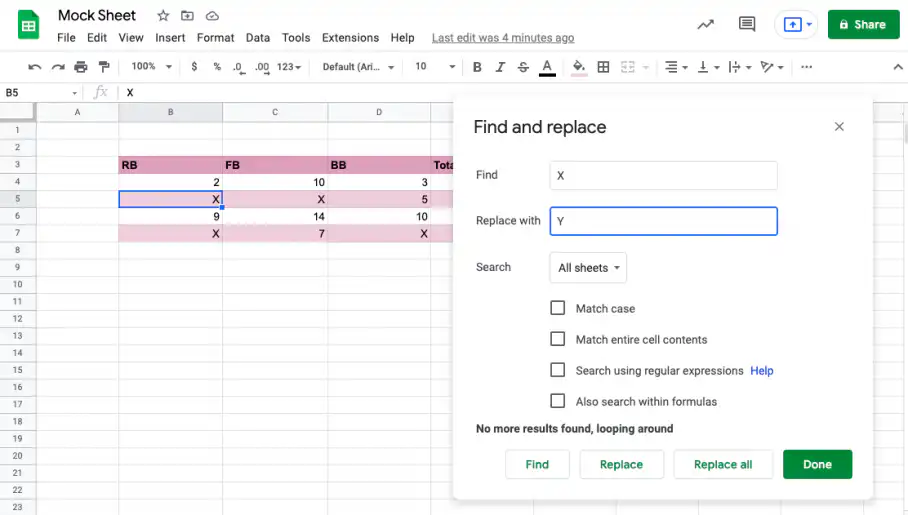
4. Click the drop-down menu labeled Search and select “Specific range”.
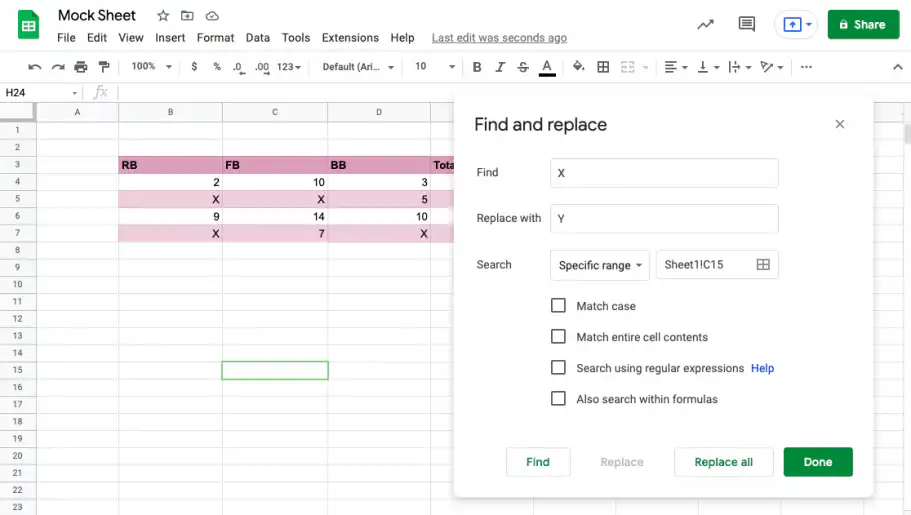
5. Input the references of the cell range you want to use (e.g., B3:C7).
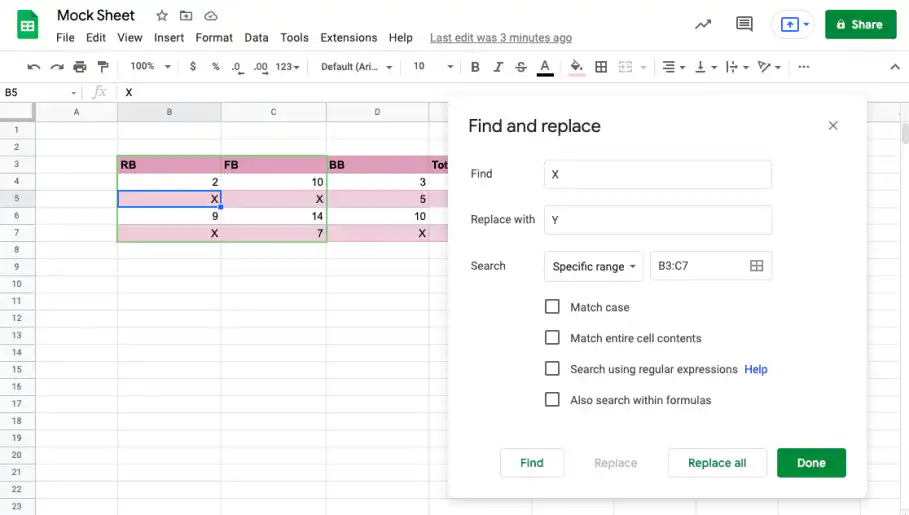
6. Click “Replace all” to immediately replace every ‘X’ with a ‘Y’ within your given range.
Find and replace options
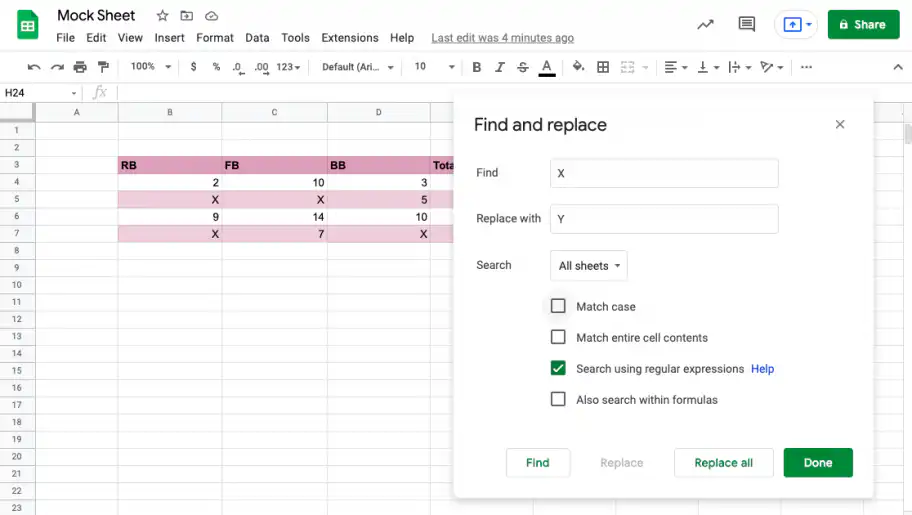
In the Find and Replace dialogue box, you can see that there are four tickable boxes below the options we’ve already discussed. Appropriately ticking these boxes enables you to tweak your parameters to search Google Sheets more precisely.
The following sections will explain how to use each of these options:
Match case
This refers to upper and lower-case letters. If you tick this box and type upper case ‘X’ into the search bar labeled Find, Google Sheets will not highlight lower-case ‘x’ in the result.
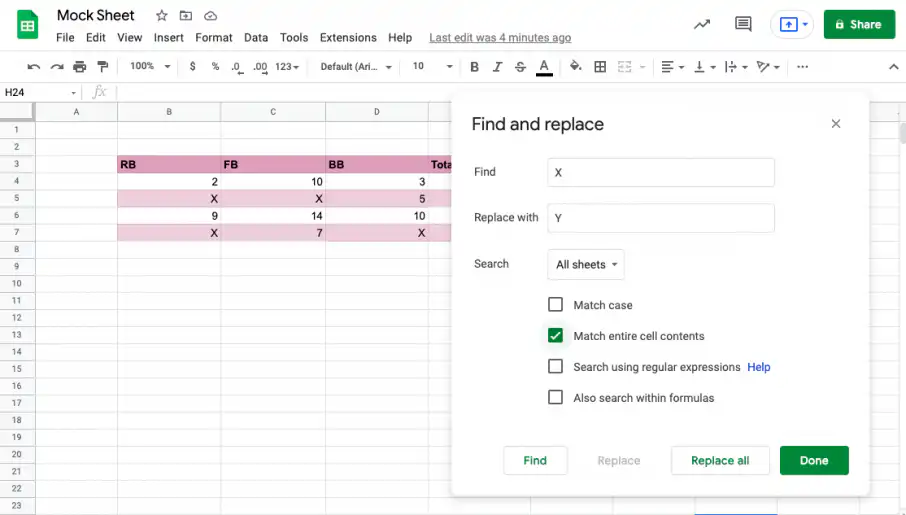
Match entire cell contents
Ticking this box means that the search will only highlight cells containing precisely what you have put into the search bar labeled Find – no less, no more. For example, you should tick this box if you want to locate all the cells containing ‘X’ but exclude those containing ‘XY’.
Search using regular expressions
As you should see, Google has placed a Help link beside this option. This link will bring you to a better understanding of regular expressions and how to Find and Replace them.
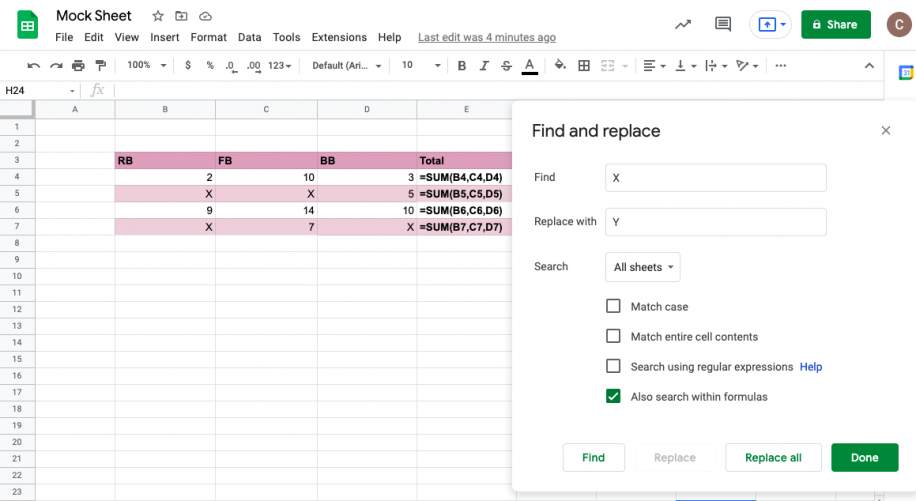
Also search within formulas
This final option will not only search through the range but also within the formulas used on your Google Sheets.
How to search for duplicates in Google Sheets?
When working with a lot of data, you can accidentally duplicate values, rows, or columns. While this is not a huge problem, people often don’t notice it, leading to significant miscalculations further down the line.
For this reason, you should know how to locate and remove duplicates. The following example will show you in steps how to remove duplicates from a range using the Remove duplicates feature:
1. Select the data range potentially containing duplicates.
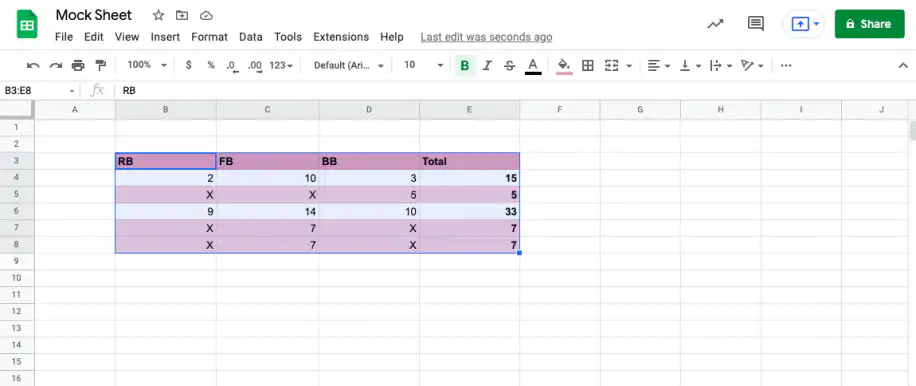
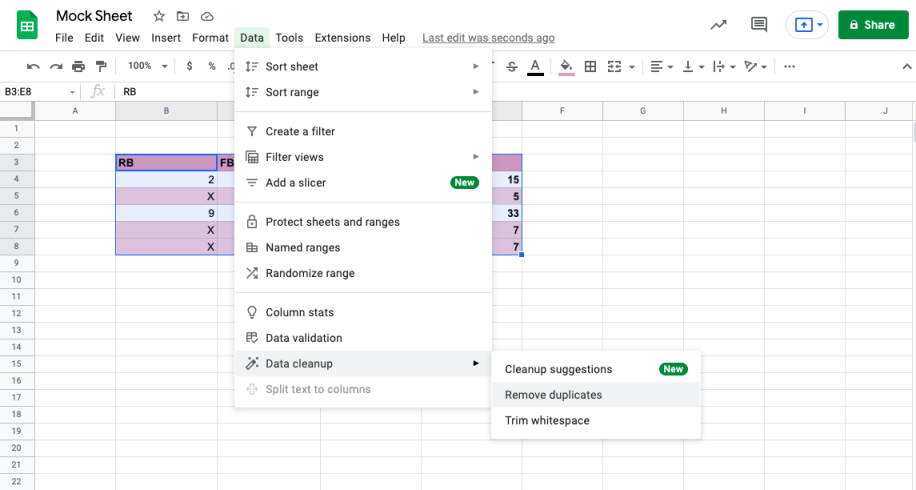
2. Go to Data > Data cleanup > Remove duplicates.
3. Tick the box labeled Select all in order to search all of your chosen range.
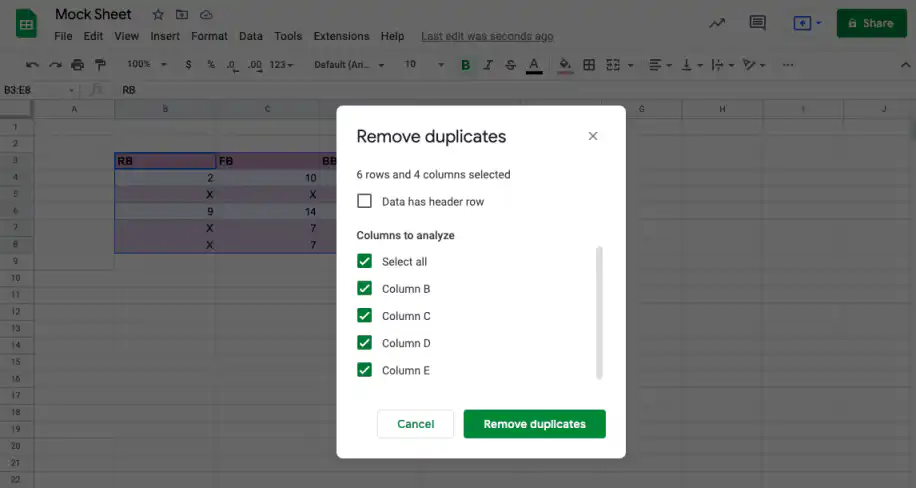
4. Click “Remove duplicates” to bring up a confirmation window that tells you what was found and removed.
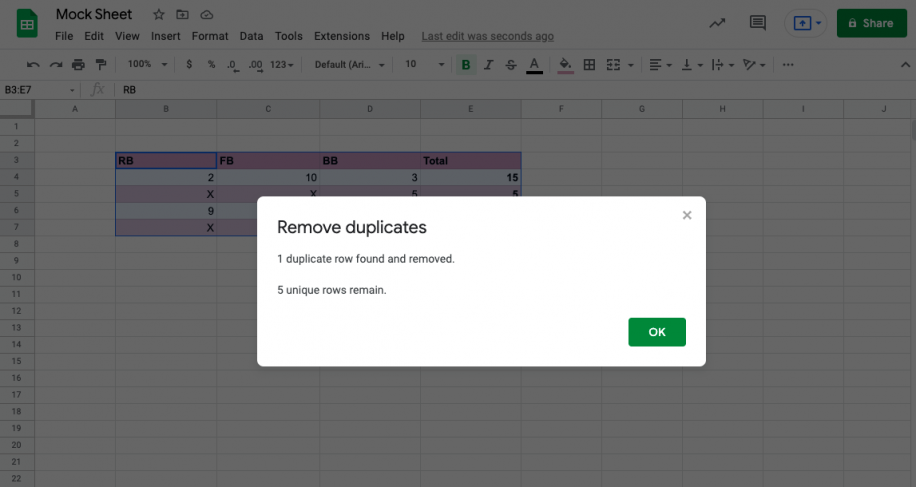
How to highlight duplicates in Google Sheets?
Sometimes you may not want to remove duplicates but only separate them from the rest of the data, and you can do this by highlighting duplicates in Google Sheets.
These steps will demonstrate how to use the Color Highlighting function:
1. Select the data range potentially containing duplicates.
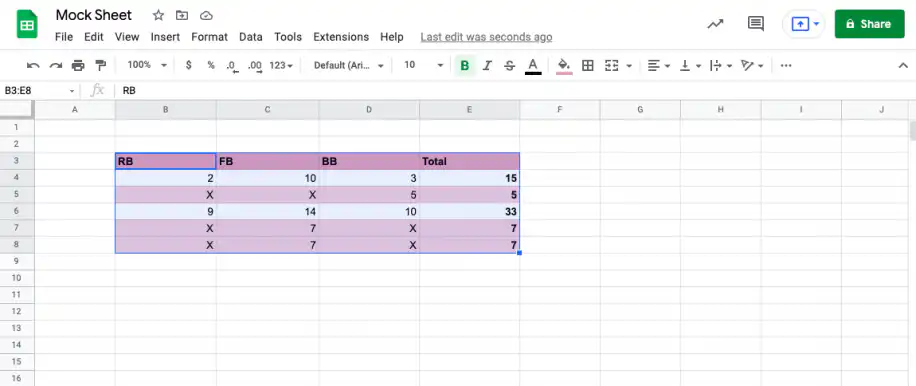
2. Go to Format > Conditional formatting to open a sidebar.
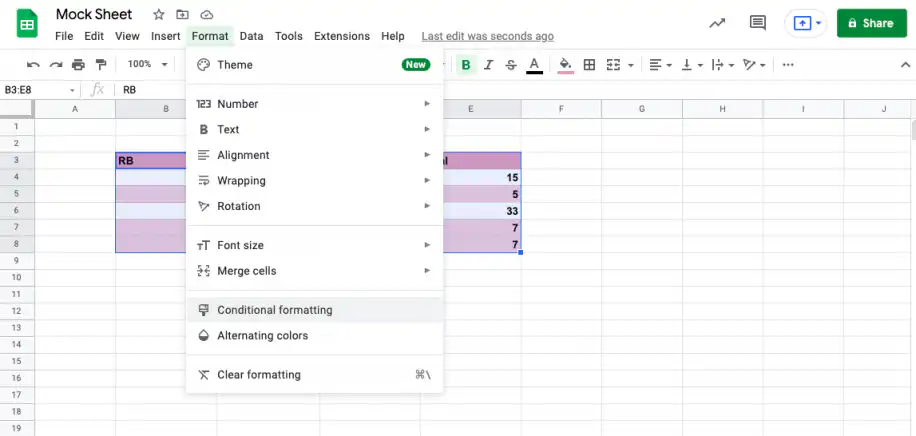
3. Select “Custom formula is…” from the drop-down menu labeled Format rules.
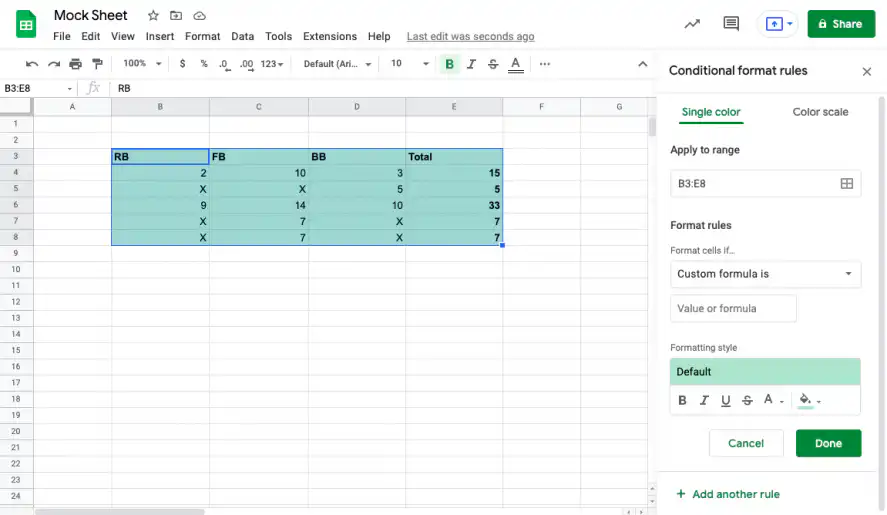
4. Input a formula of your choice. In my case, I put: =countif(A:A,A1)>1.
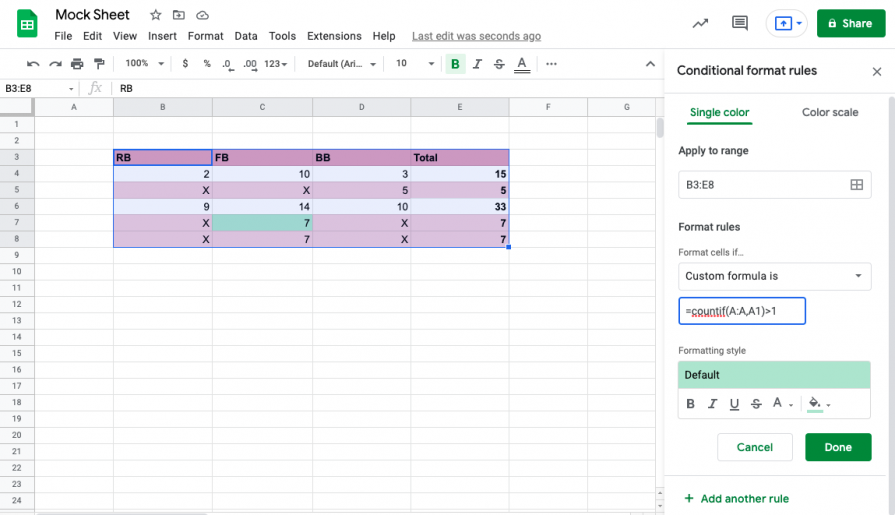
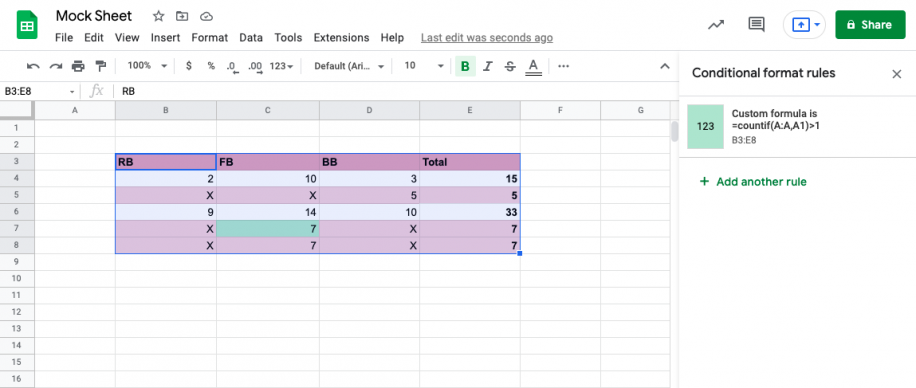
- 5. Click “Done” when you see the desired values highlighted on the sheet.
Conclusion
As you can see, knowing how to search in Google spreadsheets is a core skill that can save you a lot of time when working with large amounts of data. Not only can you use shortcuts to find cells that you’re looking for, but you can also refine your search with details. You can then use the Find and Replace option to replace one or all of the values you want on a sheet, all sheets, or within a given range with the click of a button.
Duplicates are another source of pain for some Google Sheets users, so having the technique for locating and removing or highlighting them can save you much stress going forward. Thankfully, Google Sheets also has an iOS and Android app that offers nearly all the same tools as the desktop version.
To find text inside a cell with a formula instead of a menu, use the SEARCH function in Google Sheets. For more examples of replacing values, see this guide to find and replace in Google Sheets. The Google Sheets keyboard shortcuts guide lists the shortcuts for these menus.

 English
 Español
 Português do Brasil
 Français