


The IMPORTXML Google Sheets function lets you import data from structured data types like HTML and XML. It also supports data import from CSV, TSV, RSS and ATOM XML feeds. This makes it a great tool to import data from websites for web scraping or data mining.
IMPORTXML reads a page that is live on the web, through its URL. It isn’t the way to load an .xml file saved on your computer.
Syntax
=IMPORTXML(url, xpath_query, locale)
- url – the address of the structured web page from which you want to import data. There are two ways to include this:
- As a fully qualified location in the form of text between quotations (for example, “https://en.wikipedia.org/wiki/Tiger_Woods”)
- As a reference to a cell that holds the url.
- xpath_query – this is the XPath query to run on the structured data. Simply put, this specifies the information we are trying to fetch. For instance, using “//h1/@id” gives all the id attributes within the anchor <h1> tags on the page. Check out XPath syntax guidelines for detailed instructions.
If this is new to you, you may be a bit confused when looking at the xpath_query parameter. But it is just as powerful as it is confusing, so we encourage you to look into it.


IMPORTXML example
=IMPORTXML(url, "all the hyperlink titles in the page")
In the example below, I import the data into cell B3, so that’s the destination to include in the formula.

The formula I used included the url in quotations as previously mentioned. It uses the Xpath query “//a/@title” to fetch all the hyperlink titles within the article.
Give the formula a try! You will be warned that the spreadsheet is trying to send and receive data, just allow it to get all the information.
=IMPORTXML(“https://en.wikipedia.org/wiki/Tiger_Woods“, “//a/@title”)
Below is what you’ll see as Google Sheets tries to fetch the data. The higher the number of nodes in the structured data file, the longer it will take to import the data.

While the data import is in progress, the cell in which you typed the formula looks like it generated an error.
However, it isn’t an error, but just a temporary state. This means that the data is loading. Hover your mouse over the cell to see the following description.

As soon as Google Sheets loads the data, the error disappears. You’ll notice the data extends from the formula cell (B3) to the right and further down.
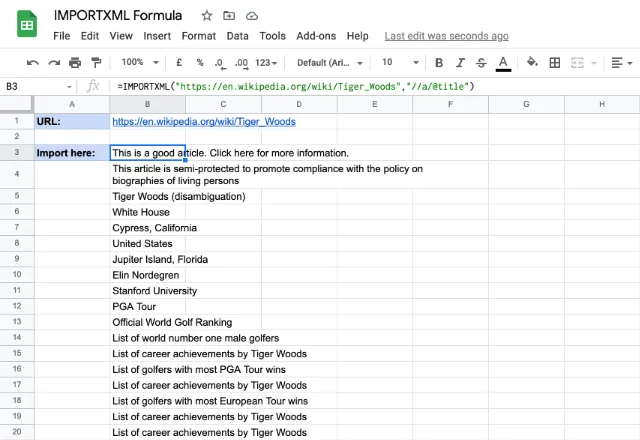
This is an auto expanding function, meaning all the values fetched will be included in the cells below it.
It’s important that you keep the expected area of the result clear of any values. Otherwise, IMPORTXML formula will result in a #REF! error.
For example, the following image demonstrates what happens if you have any values within that range.

In this example, in the cell B1, I have stored the url to the page from which I am trying to import the header information.
I’ll use that cell as a reference in the IMPORTXML formula:
=IMPORTXML(B1,"//h2")
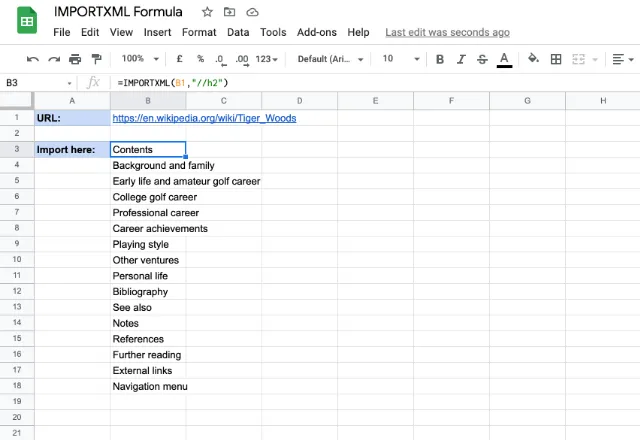
As you can see, the data being pulled here is different from the previous example, even though the URL is the same.
This time, I have a list of the headers in the article. This could be useful for a variety of reasons. If there’s other information that you want to import from the URL, I encourage you to read more about XPath queries.
More XPath examples for IMPORTXML
The xpath_query decides what IMPORTXML pulls from the page. These queries cover the most common jobs. Replace the URL with the page you want to read, or point to a cell that holds it.
Scrape every link on a page
=IMPORTXML("https://en.wikipedia.org/wiki/Tiger_Woods", "//a/@href")
This returns the address of every link on the page, one per row. Links to other pages on the same site usually come back as relative paths, such as /wiki/PGA_Tour. If you use “//@href” instead, you also get the href of other tags, such as stylesheets and icons.
Scrape only external links
=IMPORTXML("https://www.example.com/", "//a[starts-with(@href, 'http') and not(contains(@href, 'example.com'))]/@href")
The query keeps links that start with http, which leaves out relative paths, and then removes any link that points back to the same domain. Replace example.com with the domain of the page you’re reading.
Get the canonical URL of a page
=IMPORTXML("https://www.example.com/page/", "//link[@rel='canonical']/@href")
The canonical link is the version of a page that its owner marks as the preferred one, to avoid duplicate content. This query returns that single URL.
Other useful queries
//titlereturns the page title.//meta[@name='description']/@contentreturns the meta description.//*[@id='main']returns the element whose id is main.//div[contains(@class, 'price')]returns every div with price among its classes.
For data that sits in a table or a list, the IMPORTHTML formula is usually simpler.
Importxml could not fetch url
Naturally, this error message in Google Sheets usually means that there was a problem fetching the data.
This error can occur due to various reasons, such as:
- Invalid URL: Double-check that the URL provided in the IMPORTXML function is correct, including http or https. The page may also have moved to another address.
- Network issues: Sometimes, this error may be the result of temporary network issues. Just wait a bit and try again.
- Access restrictions: The website you’re trying to access may have restrictions in place. If this is the case, there is not much to do unless you can request access.
- Page structure changes: If the function worked before but structure of the page changes, the XPath query may no longer work correctly. Update the XPath query to match the new structure of the webpage.
- Imported content is empty: the formula reached the page but found nothing that matches the query. Check the XPath query, then open the page source in your browser to confirm the data is in the HTML. Pages that load their content with JavaScript show it in the browser, but IMPORTXML only sees the HTML the server sends.
- The site blocks Google Sheets: some sites, including several finance data sites, refuse requests from Google’s fetcher. The page opens in your browser, but the formula still can’t fetch it. No change to the formula fixes this, so use another source or the site’s own API.
- Too many formulas: each IMPORTXML formula sends its own request, and Google Sheets refreshes them about every hour. A file with hundreds of them loads slowly and can hit a site’s limits. A few formulas that each return a whole list work better.
A wrap-up on IMPORTXML
You can also check out the following blog post to learn how to pull data into Google Sheets from a table or a list on an HTML page with the IMPORTHTML Google Sheets function or How to use the IMPORTFEED formula. To pull a CSV or TSV file from a URL, use the IMPORTDATA formula, and to bring in data from another spreadsheet, use IMPORTRANGE.
Editor’s note: This is a revised version of a previous post that has been updated for accuracy and comprehensiveness.

 English
 Español
 Português do Brasil
 Français