


The IMPORTDATA formula in Google Sheets is quite a handy tool. It helps us fetch data, that is stored in .csv (comma separated values) or .tsv (tab separated values) files, from a location on the web.
IMPORTDATA syntax
IMPORTDATA(url, [delimiter], [locale])
- url – required. This is the address (uniform resource locator) on the web, where the .csv file or .tsv file is located. This can take two forms.
- A valid and fully qualified location in the form of text (enclosed in double quotes). For example: “http://www.census.gov/2010census/csv/pop_change.csv”
- Or it can be a reference to a cell (like B1) within Google Sheets, where the url is stored.
- delimiter – optional. The character that separates the values, such as a semicolon or a pipe. If you leave it out, Sheets infers it from the file extension: a comma for .csv and a tab for .tsv.
- locale – optional. The language and region code used to read the data, such as en_US or de_DE. It changes how dates and decimals are read. If you leave it out, Sheets uses the spreadsheet’s locale.
IMPORTDATA returns the file as a table that starts in the formula cell and fills the cells to the right and below, one row per line of the file.
It might be useful to note that Google Sheets accommodates up to 50 IMPORTDATA formulas on a single spreadsheet.
How to use IMPORTDATA in Google Sheets
Case 1: type the URL into the formula
In the snapshot below, we are trying to import the data into the cell B3, which therefore becomes the destination to key in the IMPORTDATA formula.

We ensure the url is valid, and then enter the formula properly (i.e. enclose urlwithin double quotes) and hit the Enter key. Below is what we see as Google Sheets tries to fetch the data. Bigger the file, the longer it takes to finish the data import.

While the data import is in progress, the cell in which we keyed in the formula, looks like it returned as an error (as indicated by a little red speck on the top right corner of the cell). But, it isn’t an error, just a transient state. Hover the mouse on the cell, to see the following description.

As soon as Google Sheets loads the data, the red speck disappears. You’ll notice the data extends from the formula cell (B3) to right and also further down.

So, it is of utmost importance that we keep the expected real estate of the result clear of any preoccupied values. Otherwise, IMPORTDATA formula might cough up a #REF! error. For example, following image explains what could happen, if we had any values, for instance, in cell C9.

Case 2: refer to a cell that holds the URL
Here, we have already stored the url to the .csv in the cell B1. So, we’ll use that cell to refer in the IMPORTDATA formula, and the result is same as that of the first case.

Try it with a public CSV file
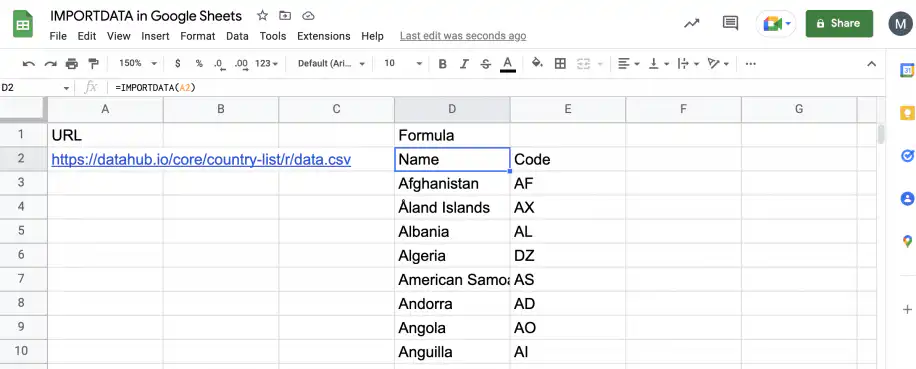
To test IMPORTDATA on a file that works, type this address into cell A2 of a blank sheet: https://raw.githubusercontent.com/datasets/country-list/main/data.csv. Then type =IMPORTDATA(A2) in cell D2. Sheets returns two columns, Name and Code, with one row per country. The screenshot uses an older address for the same list.
Learn in this blog post how to easily import RSS feed to Google Sheets.
Google Sheets IMPORTDATA not working
As you have seen, it is very easy to use the IMPORTDATA function. However, there are some known errors and limitations.
The data doesn’t update
While you can always force a refresh by deleting and retyping the formula, there is no native functionality to customize the frequency of automatic updates. Functions that import external data – IMPORTDATA, IMPORTHTML, IMPORTFEED, and IMPORTXML – automatically update every hour. There is simply no way to change this without using a script.
One URL per formula
Unfortunately, it is not possible to import from multiple URLs at the same time, so you’ll need a separate instance of the formula for each URL. While it is technically possible to use this function up to 50 times per spreadsheet, in practice the spreadsheet can become slow and unresponsive.
#N/A error: the file is too large
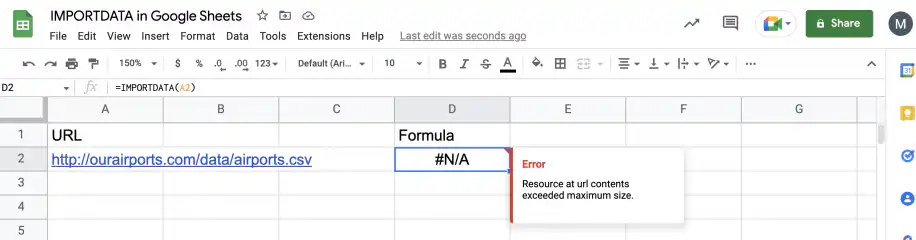
As you can see in the screenshot below, there is a limitation regarding the size of the file that can be imported. You will see an error message saying the “resource at URL contents exceeded maximum size.” The exact limit is unclear, but it’s lower than if you were importing the CSV file directly.
If you come across this issue, try downloading the file from the URL and importing it directly to Sheets.
#REF! error: not enough columns
The function will not automatically increase the number of columns if necessary. You will see an error message saying the “result was not automatically expanded. Please insert more columns.” This means you need to check the number of columns in the source file to ensure that you have enough in your spreadsheet.
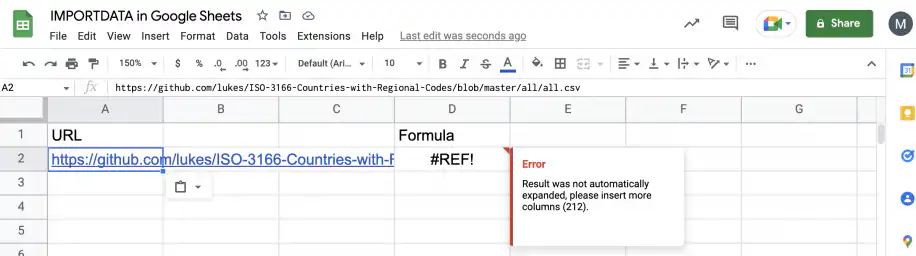
In the screenshot above, the URL points to GitHub’s web page for the file, not to the file itself, so Sheets tries to split a whole web page into cells. On GitHub, open the file, click Raw, and use that address instead. You also get #REF! when cells inside the result range already hold values. Clear them, as shown in Case 1.
#N/A error: could not fetch the URL
Google’s servers fetch the file, not your browser. If the file sits behind a login, on a company network, or in a private Dropbox or Google Drive folder, the fetch fails. It also fails when the address opens a web page that loads the data with JavaScript. To check, open the URL in a private browser window. If you have to sign in, or you see a page instead of the file, IMPORTDATA can’t read it either.
All the data lands in one column
IMPORTDATA splits each line by the delimiter it expects: a comma for .csv files and a tab for .tsv files. A file that uses semicolons or pipes needs the delimiter set by hand, as in =IMPORTDATA(A2, ";"). If dates or decimals come in wrong, add the file’s locale too, as in =IMPORTDATA(A2, ";", "de_DE") for a German file that uses commas for decimals.
Other ways to import data into Google Sheets
IMPORTDATA only reads CSV and TSV files at a public URL. For other sources, Google Sheets has more import functions:
- IMPORTRANGE pulls a range of cells from another Google Sheets file.
- IMPORTHTML imports a table or a list from a web page.
- IMPORTXML pulls data from web pages and XML files with an XPath query.
- IMPORTFEED imports an RSS or Atom feed.
For CSV files in Google Drive or OneDrive, Excel files, or data you need to refresh on a schedule, Sheetgo, an AI-powered data automation platform, connects them to your spreadsheet and updates the data automatically. See how to import CSV to Google Sheets automatically, or how to import CSV data into Excel.

 English
 Español
 Português do Brasil
 Français