


Are you working from multiple sets of spreadsheets? Sometimes you’ll want to reference data from one sheet into another or even merge your spreadsheets together for a master view of your data. In this guide, we offer multiple methods to effectively reference data from another Google Sheet, including the IMPORTRANGE formula (explained in more detail in how to use IMPORTRANGE in Google Sheets), and how to link your Google Sheets using Sheetgo. If you are working with Excel rather than Google Sheets, see our guide to linking and referencing multiple sheets in Excel in how to reference another sheet in Excel.
Why reference another Google Sheet?
There are many reasons why you may want to reference data from another Google Sheet. It’s a simple way to easily compare data from different sources, without having to manually copy and paste between multiple sheets. An example of this is referencing other Google Sheets to illustrate year-on-year changes. Let’s say you want to import last year’s sales data into a new sheet containing this year’s sales, in order to compare the two and analyze the results.
You can reference a single cell from another Google Sheet, or multiple cells, and pull data from another sheet into your current sheet according to your requirements. Here we’ll detail four methods for referencing data from other Google Sheets. The first will show how to easily import data from other sources into your Google Sheets workbook. The second will show how to import a range of data using the IMPORTRANGE formula. The third will explain how to use hyperlinks to have easy access to another data source where the data does not need to be present within the current workbook. Finally, we will show you how you can link Google Sheets using Sheetgo.
How to reference another Google Sheet?
This first method uses a cell-by-cell reference to identify the source of your data and import it into your Google Sheet.
1. Open the Google Sheet where you wish to import data.
2. Click on the cell where you want your data to appear.
3. Type in the sheet name and cell of the data you wish to import, substituting it into the following format ='sheet_name'!cell. For example, =Sheet1!A1 or ='Sheet number two'!B4.
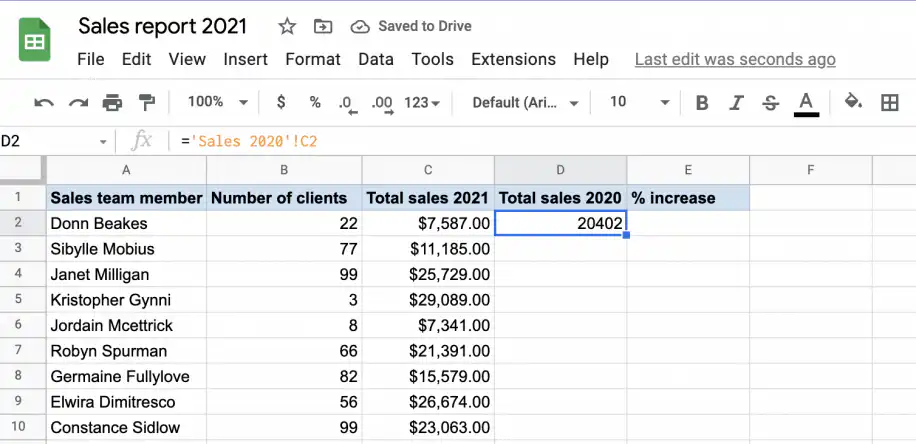
Please note: When a sheet includes spaces or other non-alphanumeric characters, you should include single quotes around the sheet name, as shown above.
4. This will copy the data from the cell into the original cell you selected.
5. Google Sheets may suggest Autofill to import the rest of the data from that column.
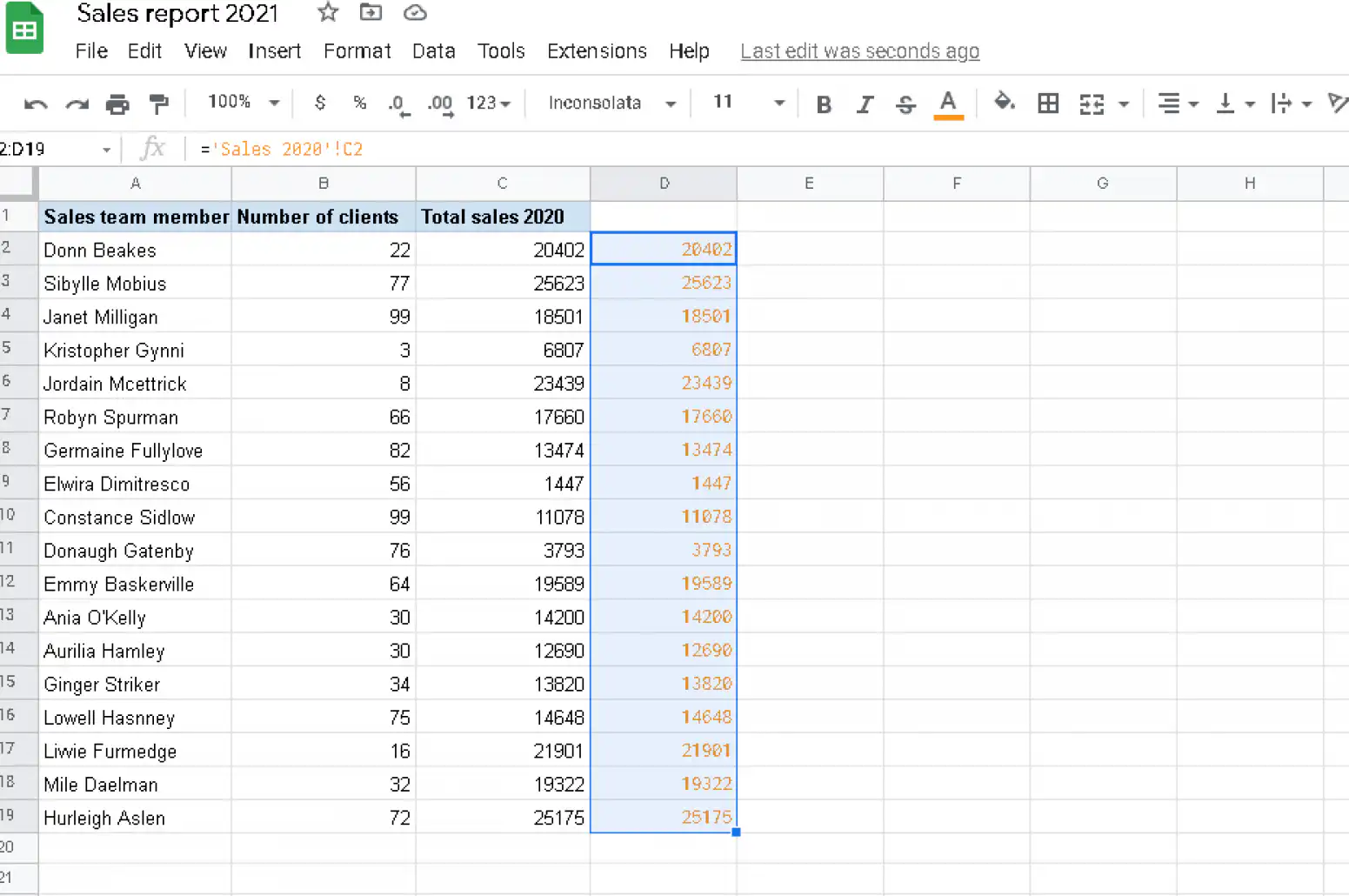
This example would copy the data from C2 ($20,402) from one sheet, into the selected cell in the other sheet. It’s important to note that with this method, your data won’t be formatted in the same way it is in its original source. IMPORTRANGE doesn’t bring the formatting across either, so if you need it, see how to transfer data and formats between Google Sheets.
How to pull data from another Google Sheet using IMPORTRANGE?
If you want to reference a range of cells in another Google workbook, you should use the IMPORTRANGE function. For more detailed information on how to use this function, check out our post on how to use IMPORTRANGE in Google Sheets.
1. Open your two Google Sheet files; the one where you want to import the data, and the one which contains the data you wish to import.
2. Select the cell where you want to import your data to.
3. Use the formula =IMPORTRANGE("sheet URL or key", "sheet name! cell range") to select the cells you wish to link to. In this example, the URL would be followed by “Sales 2020!C2:C19”.
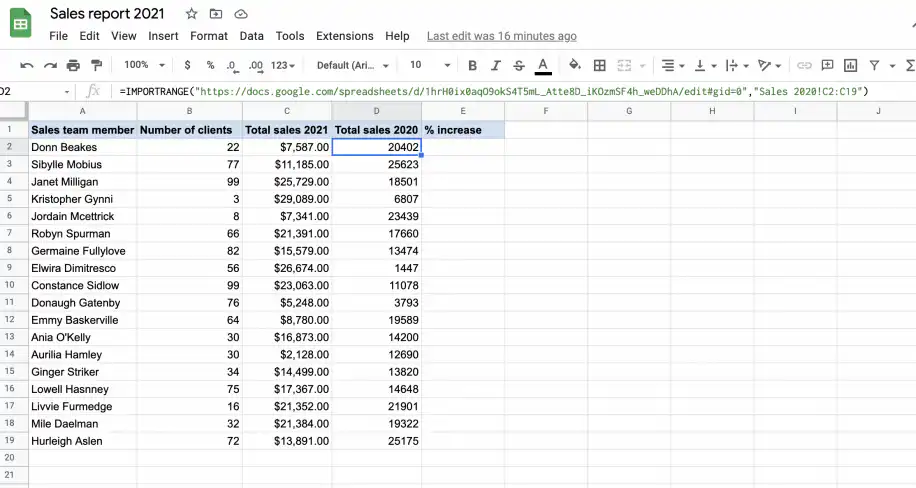
Please note:
- IMPORTRANGE requires both the sheet URL and a data range to be specified. You can’t specify another complete workbook by including only the URL.
- IMPORTRANGE expects text, not ranges or URLs so ensure the title is within quotation marks, as shown.
4. Ensure that IMPORTRANGE is not within another formula.
5. Ensure that IMPORTRANGE has any necessary permissions to work with both sheets.
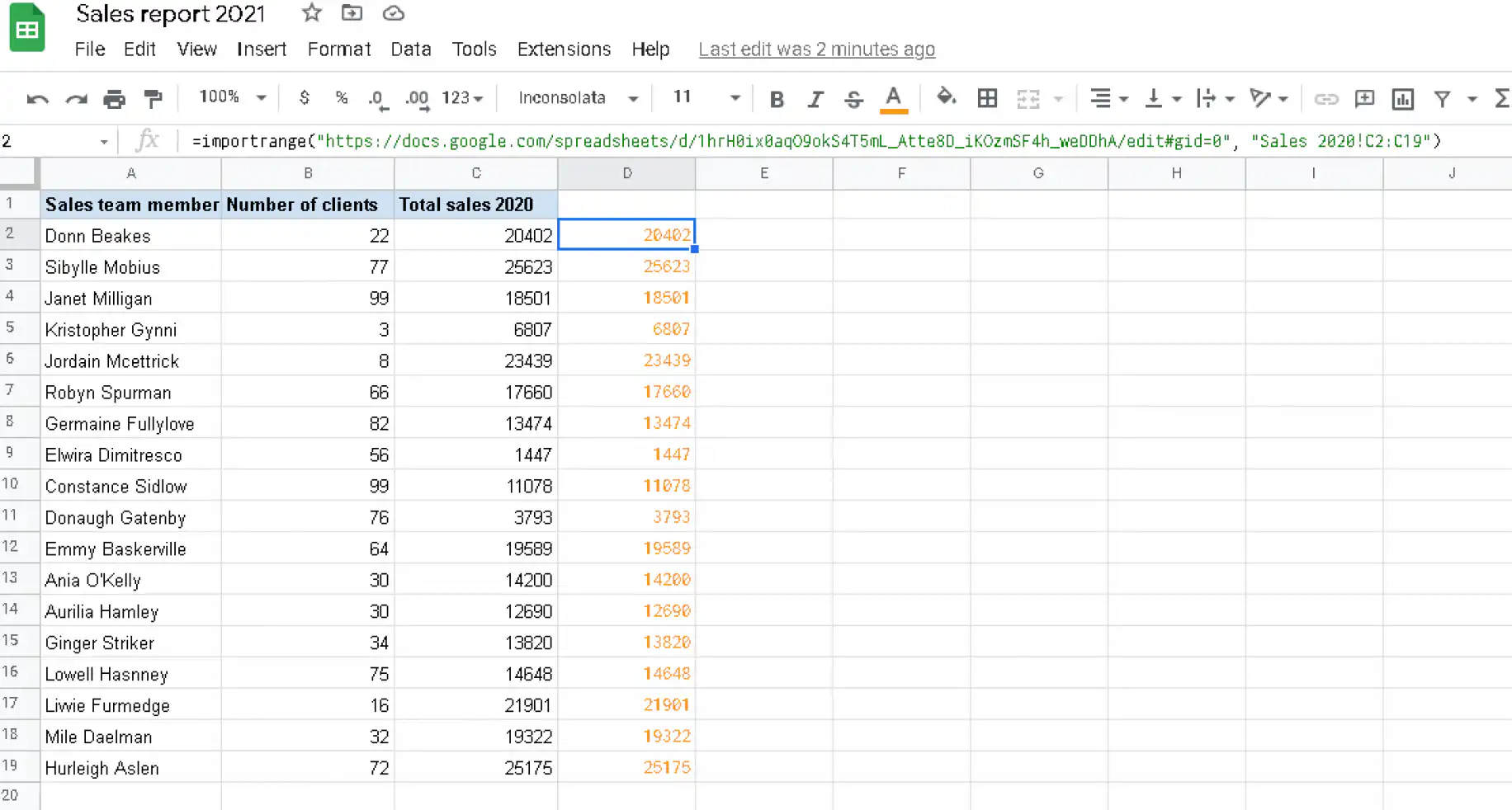
Google Sheets will ask for your permission to connect the sheets before linking the data. Simply click the button to allow access and the process will complete automatically.
How to link data between multiple Google Sheets with hyperlinks?
Sometimes you’ll want to have easy access to other Google Sheets data sources, but won’t want to have that data present in your current workbook. In this instance, it makes sense to use a hyperlink, so the other data source (or sources) are a click away, without taking up space in your current google sheet. Creating a hyperlinked cell in Google Sheets is simple. Follow the steps below to create a link to another data source.
1. Select the cell in which you want to insert the hyperlink.
2. Open the “Insert” menu and click “Link”.
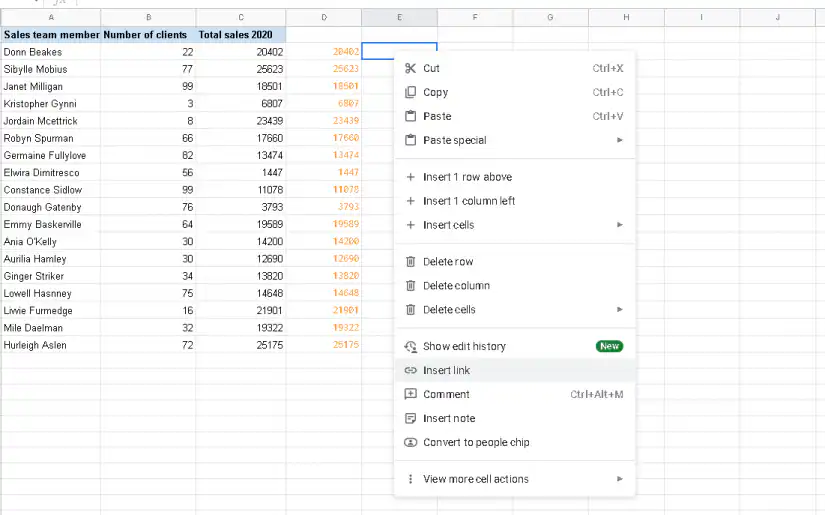
3. A dialog box will open; paste the URL of the link you wish to insert.
To link to another tab in the same file, click “Sheets and named ranges” at the bottom of the dialog box and pick the sheet.
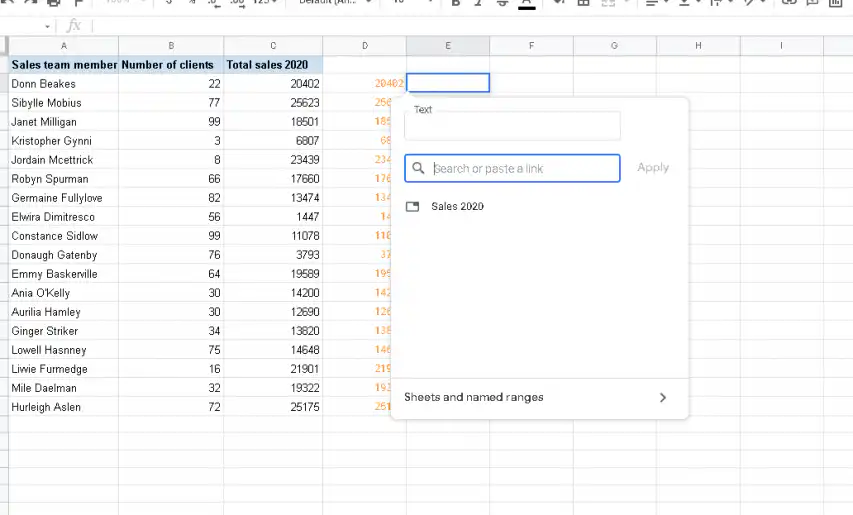
4. Click “Apply”.
5. Alternatively, select the cell in which you want to insert the hyperlink and press Ctrl and K together. This will bring up the dialog box and you can paste your URL from there.
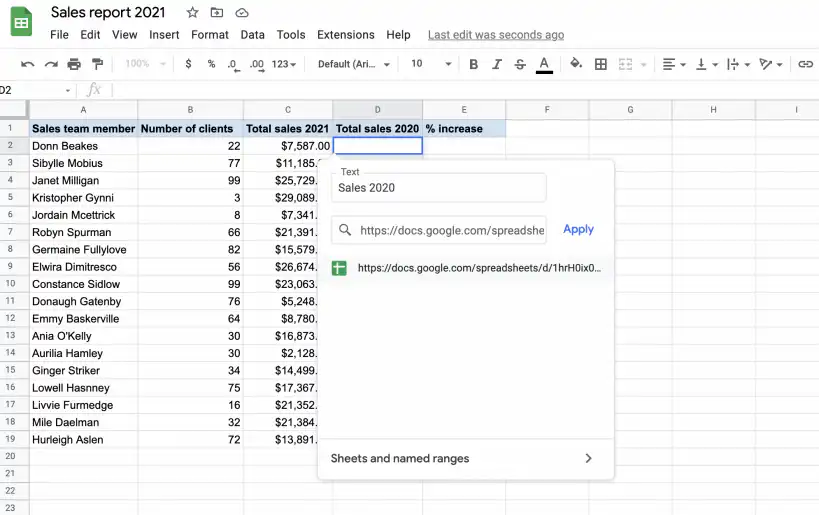
Hyperlinks are not limited to other Google Sheets either. You can create a hyperlink to any URL on the web, allowing you to add quick access to videos, articles, reports, or images, or even advanced data created in external programs such as IBM SPSS.
How to link Google Sheets with Sheetgo
As you have seen, there are different methods available to link your Google Sheets data. However, they tend to involve the use of complex formulas and references, which have a tendency to break and result in errors. Fortunately, you can quickly and easily link your files without having to write any formulas or reference any ranges. Using Sheetgo, an AI-powered data automation platform, you can link your Google Sheets in three simple steps.
1. Choose the file with the source data.
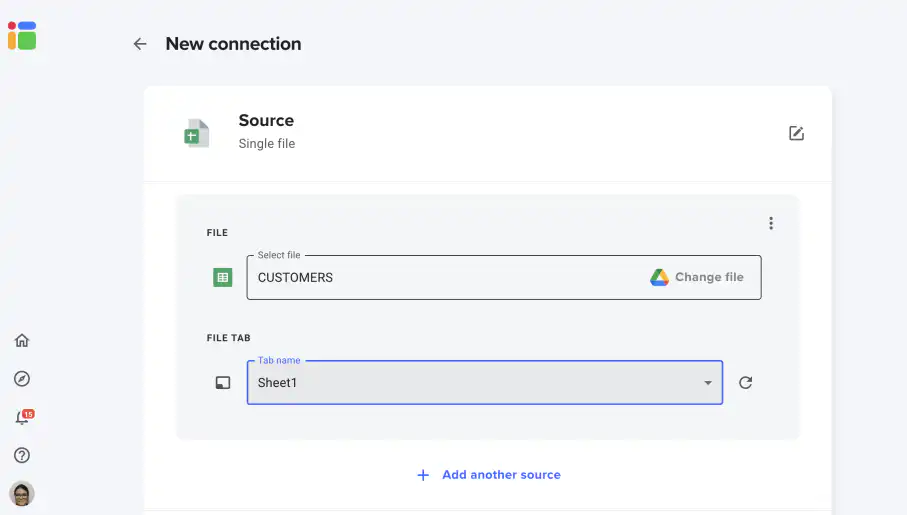
2. Select whether you would like to process the selected data by splitting or filtering.

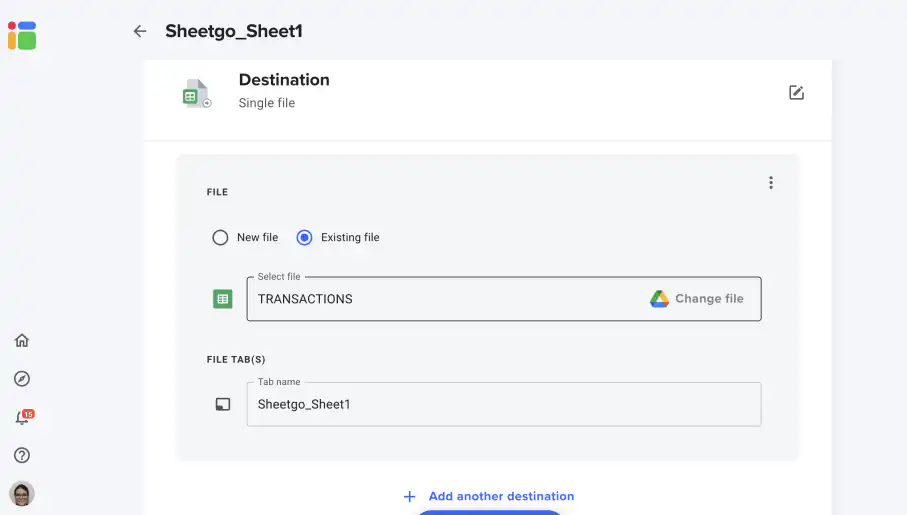
3. Choose exactly where you want to send the data and click to save.
To learn more about this, read our blog post on how to link Google Sheets data automatically.
Conclusion
Many people who work with spreadsheet data need to link and reference several Google Sheets files. Where data needs to be accessible but not present within the current file, or you want to reference data that is incompatible with Google Sheets (e.g., video), using a hyperlink is an easy and effective option.
You also know different methods you can use to link your Google Sheets when you do need to have the data present in the current file, by using formulas like IMPORTRANGE to import the data directly. However, if you regularly need to link multiple files, writing and maintaining these formulas can be time-consuming and result in errors. Fortunately, you can use Sheetgo to link these files in a few clicks, and its AI Processor can clean and standardize the data on the way.
Did we help you find what you were looking for? Here are some other articles you may find useful:

 English
 Español
 Português do Brasil
 Français