Get help

Help center

Guides and answers

Contact support

Write to our team

Sign in to

Workflows

Build processes with your team

Automations

Connect files and automate tasks

One system, four parts

AI agents

Virtual Employees that work 24/7

Automations

Connect files and automate tasks

Workflows

Build processes with your team

Data Space

Trusted data sharing and control

Solutions by department

Finance

Reports, budgets, and reconciliations

Inventory and manufacturing

Stock, orders, and production in one view

HR

Timesheets, attendance, and reviews

Project management

Status and workload across projects

Sales and CRM

Leads and deals kept up to date

Education

Student records and school data

Finance

Turn manual finance work into reports that update themselves.

What Finance teams automate

  • Track payables and receivables
  • Build cash flow statements
  • Compare budget against actuals

Inventory and manufacturing

See stock levels and automate ordering.

What inventory and manufacturing teams automate

  • Track inventory across multiple sites
  • Connect sales, purchasing, and warehouse data
  • Link a barcode scanner to your sheet

HR

Run recruitment, attendance, and OKR tracking from your sheets.

What HR teams automate

  • Track recruitment and onboarding
  • Record team OKRs and results
  • Track check-ins, check-outs, and leave

Project management

Assign tasks and track hours without manual updates.

What project teams automate

  • Assign tasks and track status changes
  • Estimate effort and log hours worked
  • Track milestones across projects

Sales and CRM

Track leads and sales performance with automated reports.

What sales teams automate

  • Track and convert leads
  • Set sales goals and track team metrics
  • Monitor sales KPIs on dashboards

Education

Automate attendance, grades, and school purchasing.

What schools automate

  • Track attendance and notify parents
  • Record and compare class grades
  • Track inventory lent to students and staff

Find a use case

By department

How each team uses Sheetgo

By industry

How each industry uses Sheetgo

By company size

Small, medium-sized, or large

Learn

Blog

Guides and product news

Customer stories

How teams like yours use Sheetgo

Help center

Guides and answers

Why Sheetgo

Compare

How Sheetgo compares with other tools

Security

How we protect your data

Trust center

Our compliance details

Sign in to

Workflows

Build processes with your team

Automations

Connect files and automate tasks

One system, four parts

AI agents

Virtual Employees that work 24/7

Automations

Connect files and automate tasks

Workflows

Build processes with your team

Data Space

Trusted data sharing and control

Solutions by department

Finance

Reports, budgets, and reconciliations

Inventory and manufacturing

Stock, orders, and production in one view

HR

Timesheets, attendance, and reviews

Project management

Status and workload across projects

Sales and CRM

Leads and deals kept up to date

Education

Student records and school data

Find a use case

By department

How each team uses Sheetgo

By industry

How each industry uses Sheetgo

By company size

Small, medium-sized, or large

Get started

Templates

Ready-made workflows to start from

Learn

Blog

Guides and product news

Customer stories

How teams like yours use Sheetgo

Help center

Guides and answers

Why Sheetgo

Compare

How Sheetgo compares with other tools

Security

How we protect your data

Trust center

Our compliance details

Help center

Guides and answers

Contact support

Write to our team

Workflows

Build processes with your team

Automations

Connect files and automate tasks

How to add a checkbox in Google Sheets

Google Sheets features a variety of tools related to data input and validation, such as adding drop-down lists or checkboxes. Checkboxes allow users to select or enable options quickly, simply by clicking on the relevant checkbox. However, the best part is that you can use those choices to trigger other actions. There are many ways to integrate them into your spreadsheet processes, as checkboxes can be used with functions, filters, pivot tables, and charts.

In this guide, you will learn how to insert checkboxes in Google Sheets and how to change the default values to custom ones. Additionally, you will learn to combine checkboxes with other tools and functions. You will learn to apply conditional formatting rules based on checkbox values, as well as how to use these values with other Google Sheets functions, like COUNTIF. To learn more about the COUNTIF function, check out COUNTIF & COUNTIFS in Google Sheets: formula & examples.

How to insert a checkbox in Google Sheets?

There are two ways to insert a checkbox in Google Sheets: Insert > Checkbox or Data > Data validation. In the next section, you have instructions on using the second option, which allows you to use custom values.

1. Select the cell where you want the checkbox to appear.
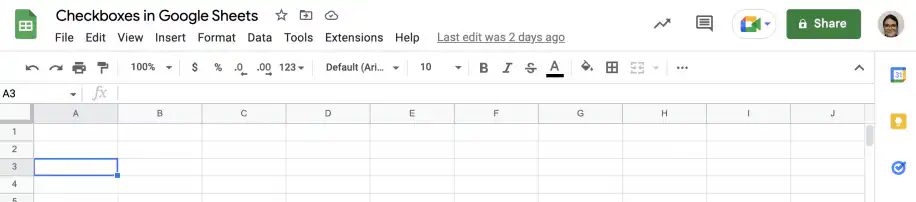
Google Sheets checkbox — empty cell A3 selected in a blank sheet

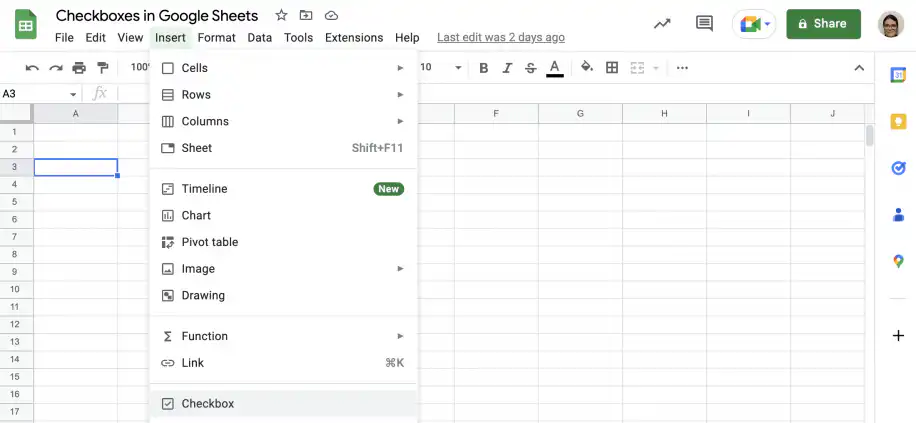
2. Go to Insert > Checkbox.

Google Sheets checkbox — Insert menu open with Checkbox at the bottom

3. The cell now contains an unchecked checkbox, so its value is ‘FALSE’.
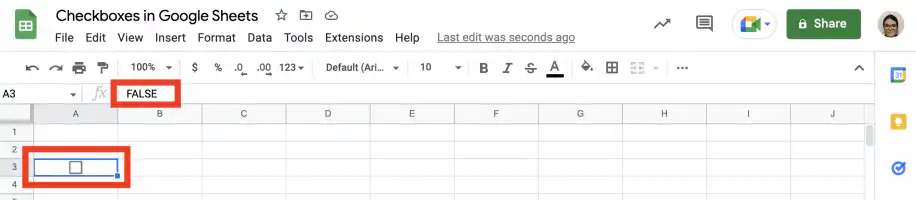
Google Sheets checkbox — unchecked box in A3 with FALSE in the formula bar

4. The cell’s value is ‘TRUE’ when the checkbox is checked.
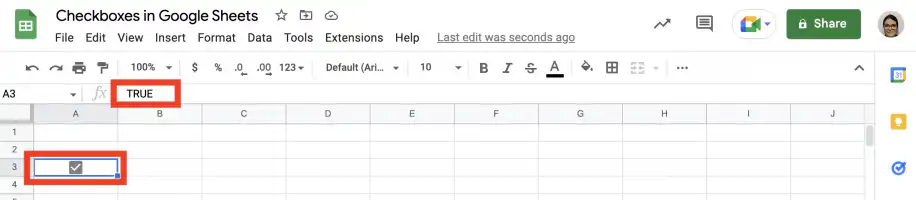
Google Sheets checkbox — checked box in A3 with TRUE in the formula bar

In a later section, you will learn how to use the values of your checkboxes in your Google Sheets functions.

How to add custom values to a checkbox in Google Sheets?

To add a checkbox with custom values, you can use the data validation options. By default, the checkbox values are ‘TRUE’ and ‘FALSE’, but you can change them to whatever you want, like ‘YES’ and ‘NO’.

1. Select the cell where you want the checkbox and go to Data > Data Validation.
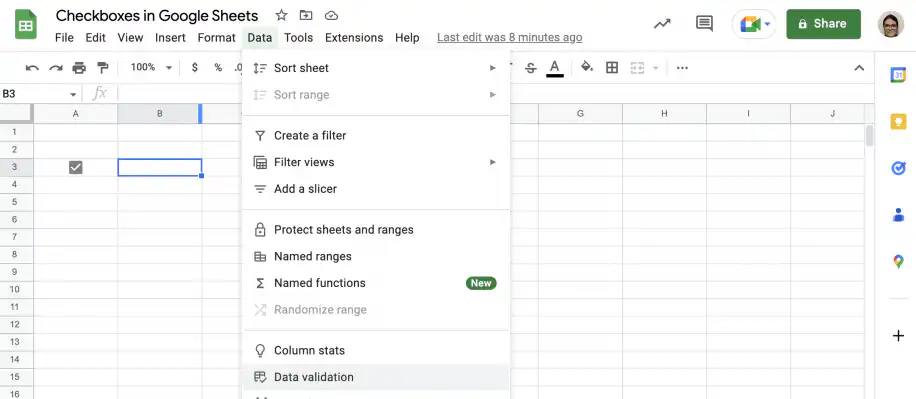
Google Sheets checkbox — Data menu open with Data validation highlighted

2. You will see the default data validation options.
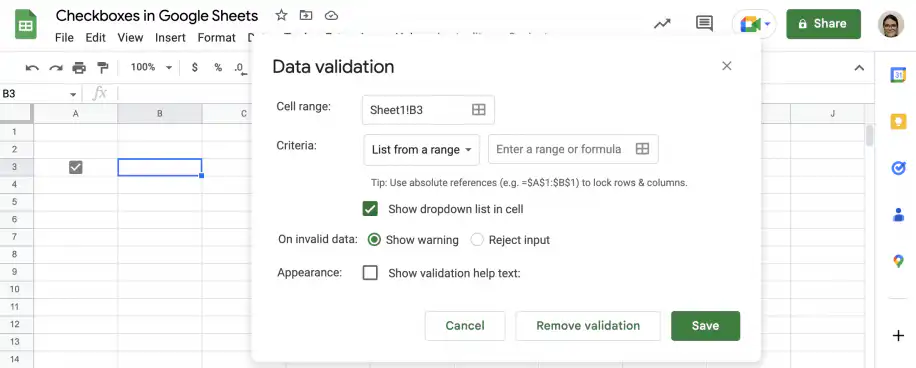
Google Sheets checkbox — Data validation dialog with List from a range criteria

3. For ‘Criteria’, select the ‘Checkbox’ option.
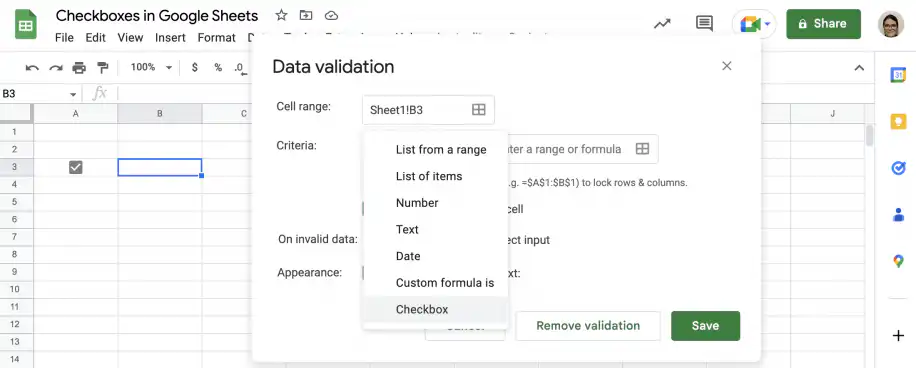
Google Sheets checkbox — Criteria drop-down with the Checkbox option

4. Check the option to “Use custom cell values”, then type in the new values.
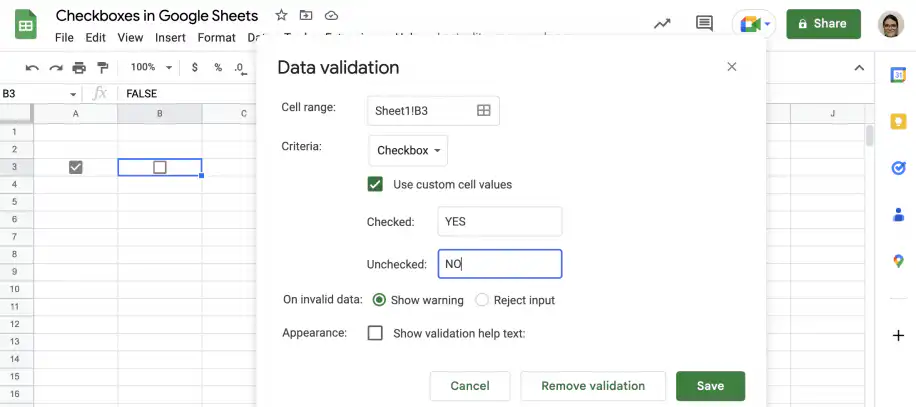
Google Sheets checkbox — Use custom cell values with YES checked and NO unchecked

5. As you can see, the new value for the unchecked checkbox is ‘NO’.
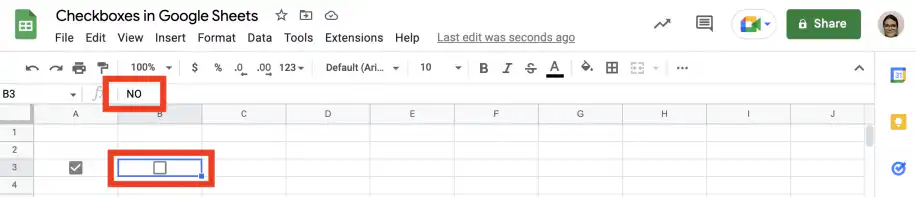
Google Sheets checkbox — unchecked box in B3 with NO in the formula bar

6. When checked, the cell’s new value is ‘YES’.
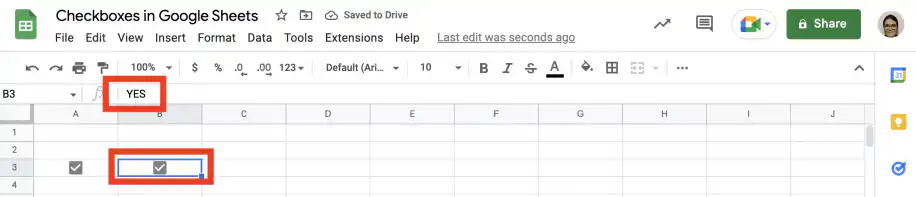
Google Sheets checkbox — checked box in B3 with YES in the formula bar

How to conditionally format a checkbox in Google Sheets?

To use conditional formatting on checkboxes, select the cells with the checkboxes and go to Format > Conditional formatting. Set up the conditions in the sidebar, under Criteria > Format cells if, then choose the format you want to apply under those conditions.

Imagine you have created a to-do list in Google Sheets, using checkboxes to mark tasks as complete. This helps you keep track of tasks, but you want to strike through complete items or change their color so you can focus on what remains to be done. Let’s see how you can do that using conditional formatting.

1. Select the cells containing the tasks.
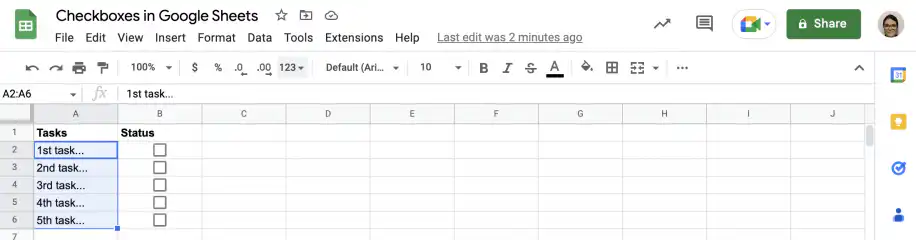
Google Sheets checkbox — task cells A2:A6 selected next to the Status checkboxes

2. Go to Format > Conditional formatting.
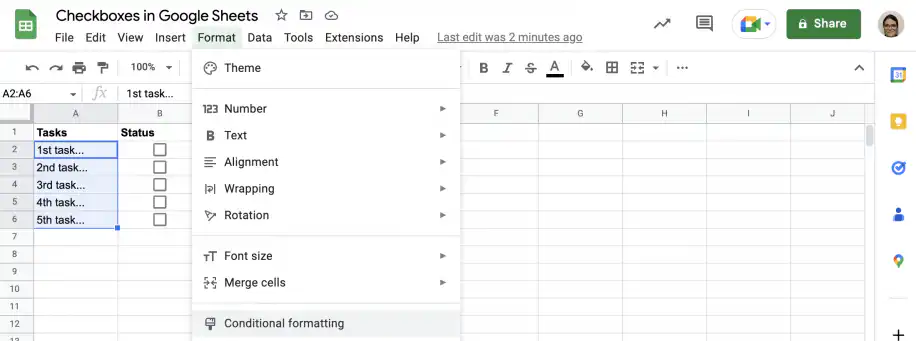
Google Sheets checkbox — Format menu open with Conditional formatting

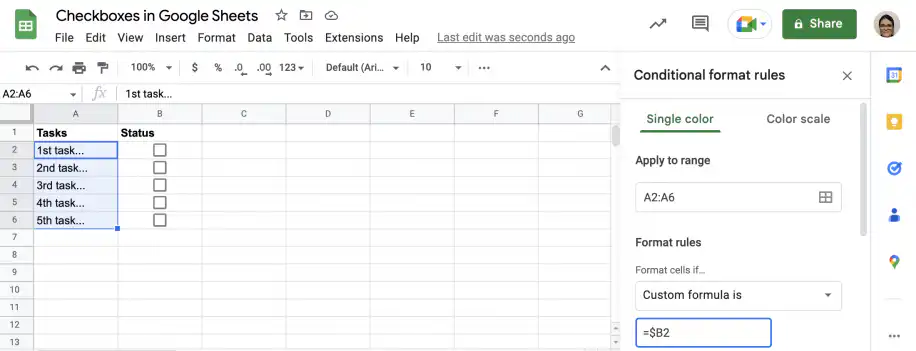
3. Under ‘Format rules’, click on the ‘Format cells if…’ drop-down menu and select “Custom formula is”. For this example, I will use the checkbox status as the condition, so I need to use the following formula: "=$B2".
Google Sheets checkbox — Conditional format rules with Custom formula is =$B2

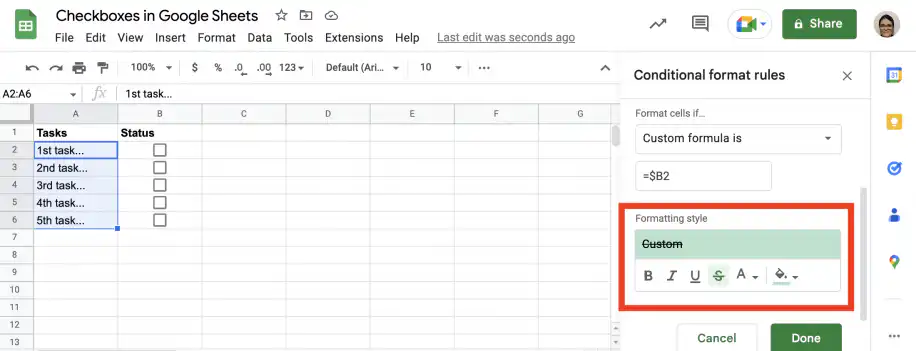
4. Choose the ‘Formatting style’ you want to apply. For this example, I have selected a green background color and the text strikethrough option.
Google Sheets checkbox — formatting style with green fill and strikethrough

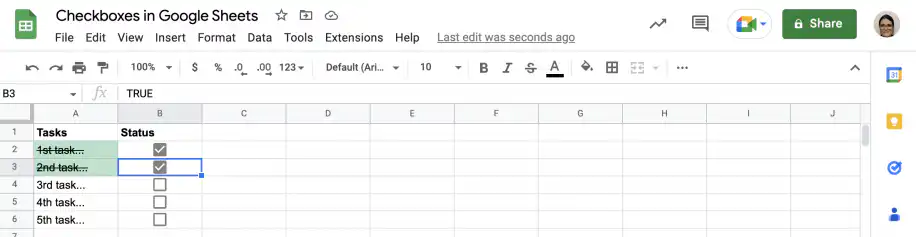
5. That’s it. As soon as items are checked, the chosen format is applied.
Google Sheets checkbox — checked tasks struck through on a green background

How to use checkbox values in formulas in Google Sheets?

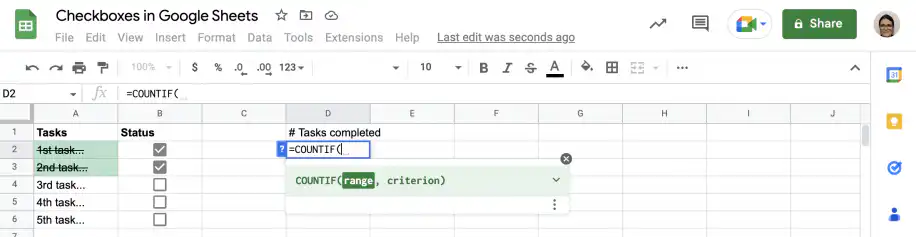
Let’s say that in addition to the conditional formatting applied in the previous section, you also want to see a count of completed tasks. Let’s see how you can do this using the COUNTIF function.

1. In an empty cell, type in the COUNTIF formula.
Google Sheets checkbox — =COUNTIF( typed under Tasks completed

2. For the ‘range’, select the cells containing the checkboxes.
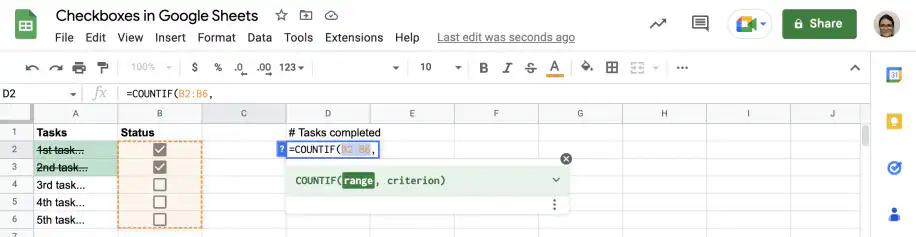
Google Sheets checkbox — COUNTIF range B2:B6 covering the Status checkboxes

3. For the criterion, type the boolean value ‘TRUE’ without quotation marks.
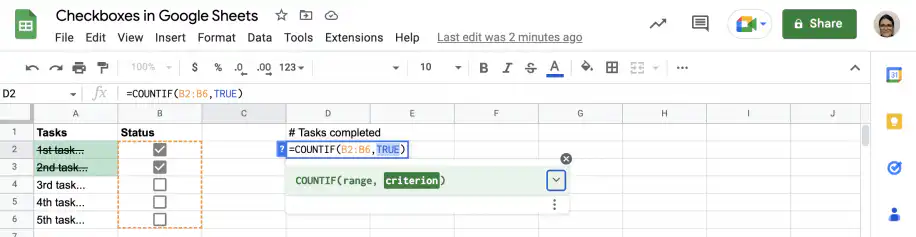
Google Sheets checkbox — COUNTIF formula with TRUE as the criterion

4. Press ‘Enter’ to see the count of completed tasks.
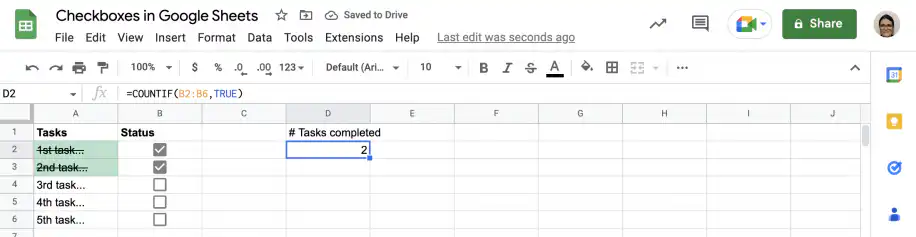
Google Sheets checkbox — Tasks completed shows 2 for the two checked tasks

How to copy a checkbox in Google Sheets?

Cells containing checkboxes can be copied just like any other cell: through the ‘Edit’ menu or using shortcuts: Cmd + C (Mac) or Ctrl + C (Windows). You can also copy them by grabbing the fill handle and dragging it in the direction you want.
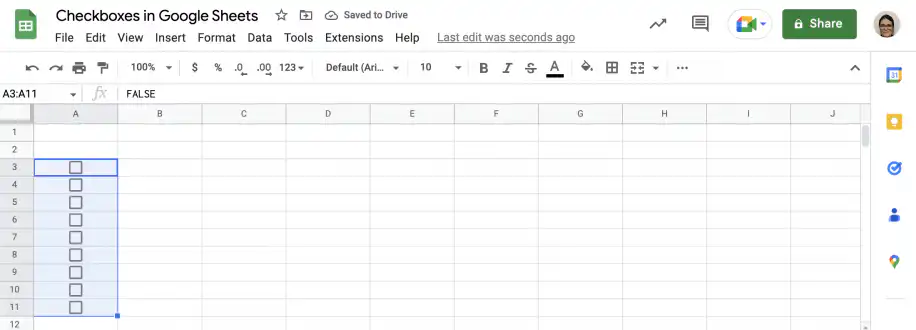
Google Sheets checkbox — checkboxes copied down cells A3 to A11

Conclusion

Adding checkboxes to your Google Sheets is easy, and you know how to do it using two different methods. You also know how to change the checked and unchecked values from the default TRUE/FALSE by adding them via ‘Data validation’.

More importantly, you know you can combine checkboxes with other tools and functions and use their values as triggers for other actions. For example, you know how to use conditional formatting to change the color of the cells or strikethrough text based on checkbox values.

Additionally, you also know how to combine checkboxes with formulas, such as using the COUNTIF function to count checked items in a list.

You may also like…

google sheets features and formulas

Top 5 dynamic array formulas in Google Sheets 

Google Sheets has evolved beyond basic spreadsheets. With the introduction of dynamic array formulas, users can now manipulate and analyze...
google sheets features and formulas

Mastering the FILTER Formula: 4 Use Cases with Examples

The FILTER formula in Google Sheets is a versatile tool for extracting data that meets specific conditions. Unlike the QUERY formula,...
google sheets features and formulas

Unlocking the Power of SUMIF and SUMIFS in Google Sheets: 4 real-life use cases

The SUMIF and SUMIFS formulas in Google Sheets are indispensable tools for performing conditional summations. They simplify complex...