


Google Sheets makes it easy to share spreadsheets across teams and control who can view and edit the data. It can also tell you when someone edits your file. You can configure Google Sheets Notifications so that you receive an email when an editor modifies something or a user submits a form.
In this article, you will learn how to turn on Google Sheets notifications to inform you about any changes made to the spreadsheet. Additionally, you’ll learn how to configure this feature based on the type of change and how you’d like to be notified. You’ll also see how to switch to a daily digest, how to set up alerts for specific changes, and whether people are notified when you remove their access.
Why get Google Sheets notifications?
We tend to use Google Sheets to make use of the collaborative framework it offers. More often than not we let other people access our files and make changes. If not for the notifications, we will have to access the file ourselves and check for the changes manually in the version history. But that doesn’t keep us abreast of things going in the Google Sheets file. Some of us may want to immediately get notified of any changes that any of the other users make.
Notification rules track edits to the spreadsheet. Comments have separate notification settings, so if your team leaves feedback in comments, read about the differences between notes and comments in Google Sheets.
How to get notified when a Google Sheet is updated
In Google Sheets, you can get notified whenever other users make changes to the spreadsheet. You can set up notification rules based on the type of change and the frequency of notification. This is how you can easily set up your own notification rules in Google Sheets.
Set notification rules in Google Sheets
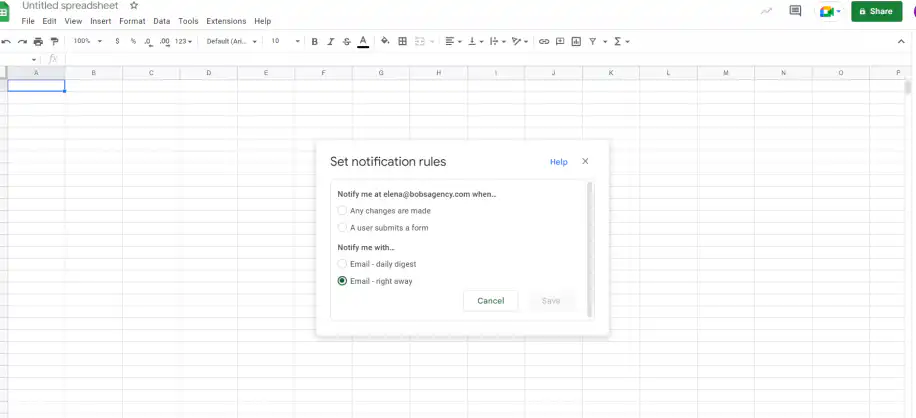
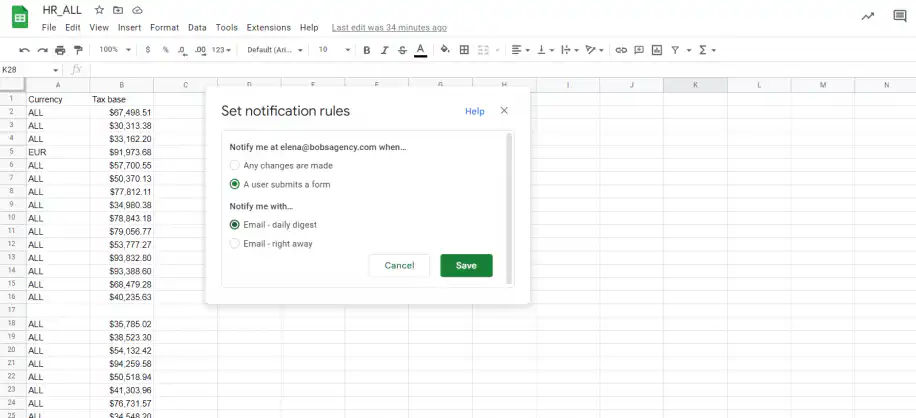
Notification rules in Google Sheets are based on four options that can be combined based on your needs (see image below). Before enabling your first notification rule, you’ll understand what each notification option can do for you.
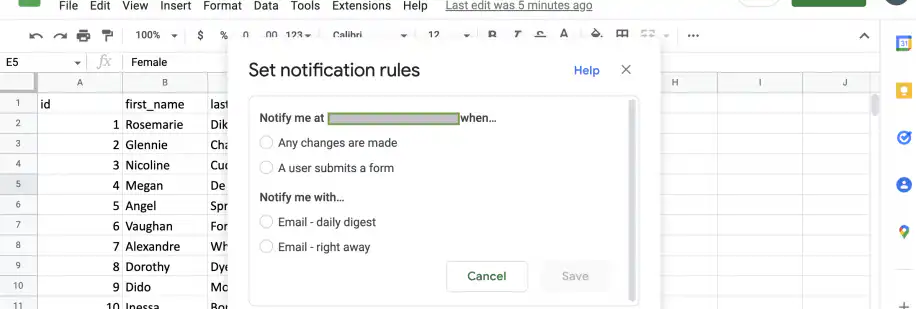
Notify me at X when…
The options under “Notify me at X when…” refer to what type of change in the spreadsheet will trigger the notification. There are two options:
1. “Any changes are made”: This is the preferred option in case you’d like to be notified as soon as any change is made to the spreadsheet. It’s also the best way to avoid redoing or undoing someone else’s work.
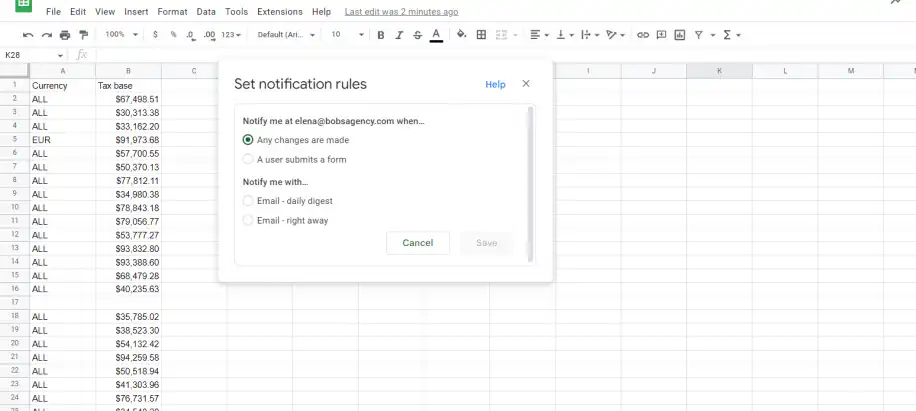
2. “A user submits a form”: This option is useful in case you’ve created a Google Form for people to sign up for an event. Each submission will create a new row of data, and you’ll receive email notifications only when a user submits the form to sign up.
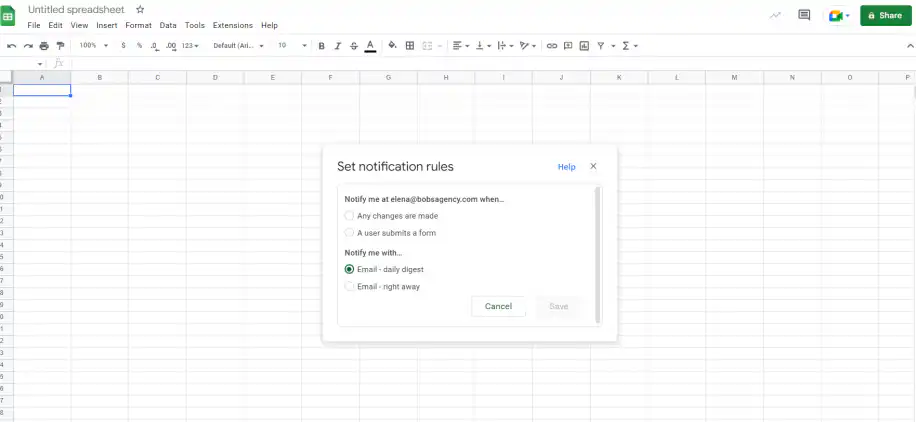
Notify me with…
In this group of options, you can determine when you’d like to receive the email once the user has changed the Google Sheets file. There are also two options:
1. Email – daily digest: Select this option if you’d prefer to receive a daily summary of all changes. It’s especially recommended to avoid filling your inbox with emails!
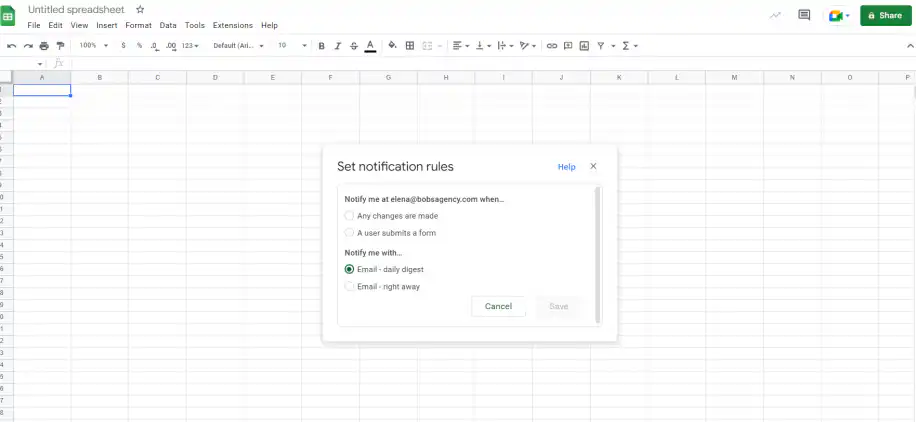
2. Email – right away: Select this option if you’d like to receive notifications on a separate email for every change as soon as it’s made.
Now that you’ve seen what each option means, let’s see how you can turn on these notification rules.
How to turn on notifications for Google Sheets
Although it’s an easy process, remember that you can only do this for yourself; other users will need to set up their own notifications.
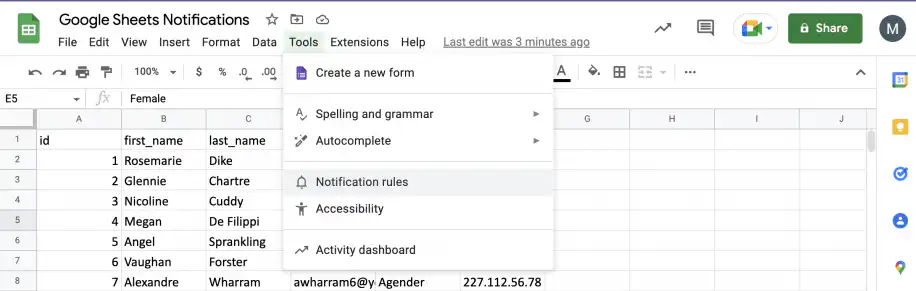
1. Open your spreadsheet and go to Tools > Notification settings > Edit notifications. Older versions of Google Sheets call this menu item Notification rules, as in the screenshot below.
2. In the “Set notification rules” settings box, you can choose among the four options, as explained in the previous section. Make sure you select one of each. Once you do, click “Save”.
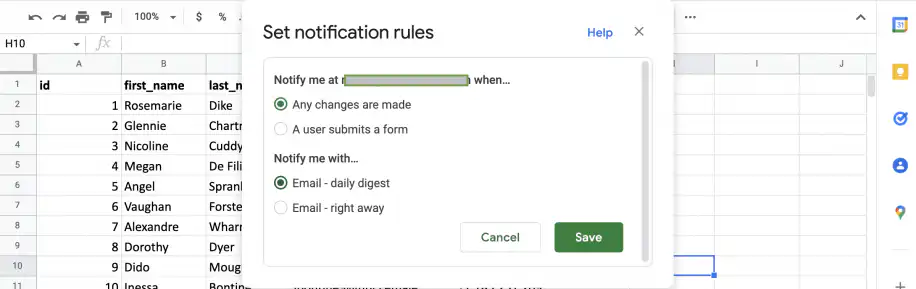
From then on, Google Sheets emails you when the spreadsheet changes, or once a day if you chose the daily digest. The email tells you who edited the file and links to the spreadsheet.
If you’re working on a Google Sheet with multiple editors that frequently update the document, you may want to review the changes by using Google Sheets Edit History, located in File > Version history > See version history.
Modify notification rules in Google Sheets
Making changes to the notification rules is also very easy, as there’s very little to set up. Here, you’ll learn how to add, edit, and delete your current notification rules.
Add a new notification rule in Google Sheets
Since notification rules allow for several combined options, you can create different rules and then turn on whichever you think is relevant for a specific time or spreadsheet.
1. Go to Tools > Notification settings > Edit notifications, as in the previous step.
2. In the “Set notification rules” you should be able to see all notification rules you created.
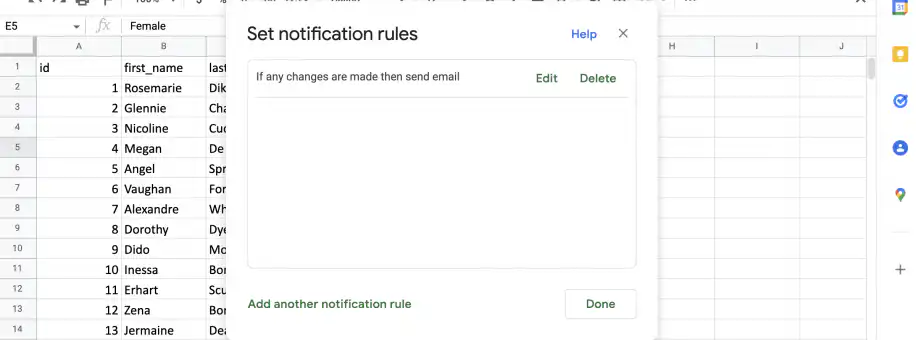
3. To add another notification rule, click on the “Add another notification rule” and select the option you wish to add.
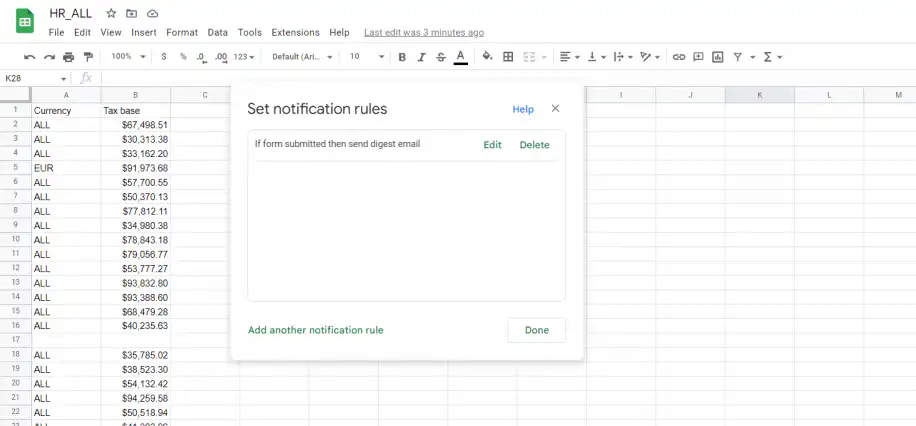
You’ll be taken to a “Set notification rules” window where you can customize the new notification rule.
Edit a notification rule in Google Sheets
Let’s say you’ve created a notification rule for “Email – right away” and find that your inbox fills up too quickly. This is how you can easily edit a notification in Google Sheets.
1. Go to Tools > Notification settings > Edit notifications.
2. Click on “Edit” to change when or how you want to be notified of changes.
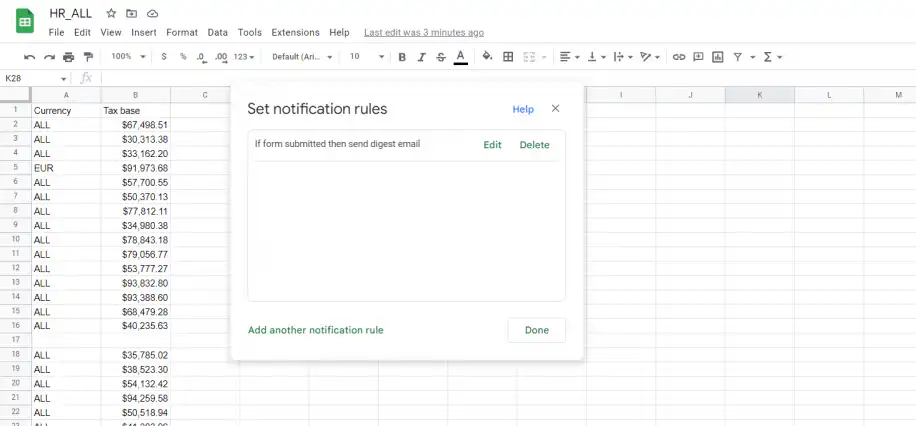
3. Select any other option to change the current notification rule. Don’t forget, that this rule will overwrite the previous one. Click “Save” once you finish updating the changes.
Delete a notification rule in Google Sheets
In case you don’t want to edit and simply remove a notification altogether, this is how.
1. Go to Tools > Notification settings > Edit notifications.
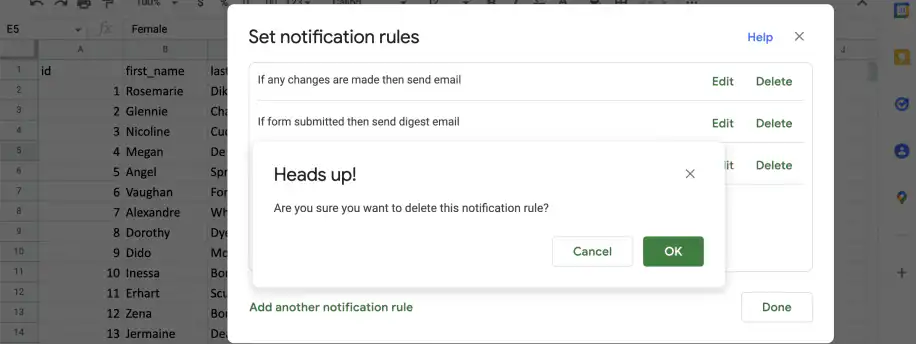
2. Click on “Delete” to remove a notification rule. Google Sheets will prompt a warning message to confirm that you actually want to proceed with the deletion. Click “OK” to continue.
Google Sheets email digest notifications
With Email – daily digest, Google Sheets sends you one email a day that sums up the changes to the spreadsheet, instead of one email per change. It suits files that many people edit throughout the day, where an email for every change would flood your inbox.
To switch an existing rule to a digest, go to Tools > Notification settings > Edit notifications, click Edit next to the rule, select Email – daily digest, and click Save. If you need to act on changes as they happen, keep Email – right away for that file.
Google Sheets alerts
Notification rules tell you that something changed, not what changed or whether it matters. For alerts based on the data itself, you have two options.
Highlight changes with conditional formatting
Conditional formatting colors a cell when its value meets a rule, for example when a stock level drops below 10 or a status column says Overdue. It doesn’t send an email, but anyone who opens the sheet sees the problem right away. Go to Format > Conditional formatting to set it up, or see how to apply conditional formatting based on another cell in Google Sheets.
Send an email with an Apps Script trigger
For an email about one specific change, write a short Apps Script function and attach an installable On edit trigger to it: in the Apps Script editor, open Triggers and click Add trigger. The function receives the edited range, so it can check which sheet, column, or value changed before it sends an email with MailApp. Use an installable trigger rather than a simple onEdit() function, because simple triggers can’t send email. Edit triggers also run only for changes people make in the spreadsheet, not for changes made by other scripts or by formulas that recalculate.
If you’re new to Apps Script, start with how to use Google Apps Script in Google Sheets. The steps below show how to open the editor.
Google Sheets notification scripts
If you’re a developer – or at least familiar with JavaScript – you can use Apps Script, which is built into Google Sheets. This is how you can access the Apps Script feature in Google Sheets.
1. Go to Extensions > Apps Script.
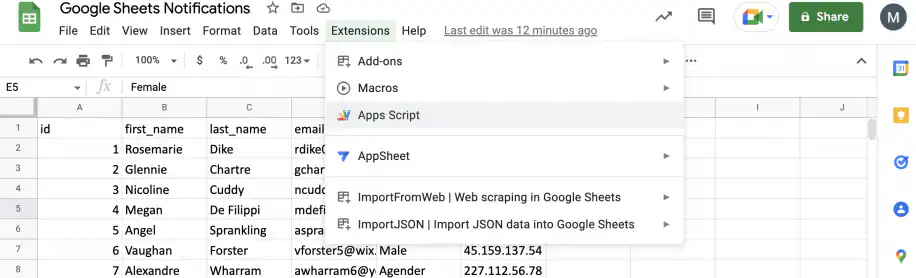
2. Once Apps Script opens, it will take you to a new untitled project. You can start typing your first function right away or use the menus on the left to access libraries and services to add to your project.
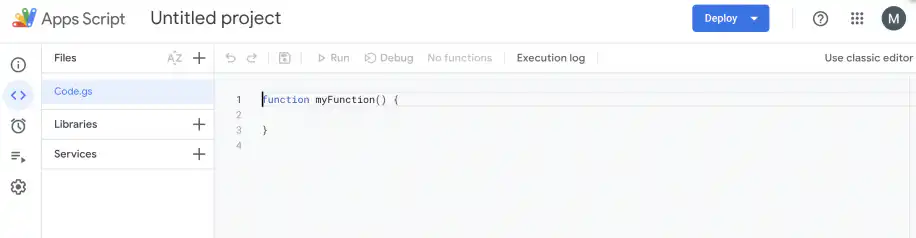
To learn more about this tool, and the ready-made functions, visit the Apps Script main site.
Google Sheets notifications FAQ
If I remove someone’s access to a Google Sheet, will they be notified?
No. Google Sheets doesn’t send an email or any other notification when you remove someone’s access to a file. They usually find out when they try to open it and see a page asking them to request access. Sharing works the other way: by default, Google emails the people you add to a file. For more on who can see and edit a file, read how to share Google Sheets.
Do my notification rules apply to other collaborators?
No. Each notification rule emails only the person who created it. If your teammates want updates, each of them has to set up their own rules.
Can I get notified when someone changes a specific cell?
Notification rules cover the whole spreadsheet. To watch a single cell, column, or sheet, use an Apps Script trigger, as described in the alerts section above.

 English
 Español
 Português do Brasil
 Français