


When working in a spreadsheet, there are many reasons why you may need to copy a formula to single or multiple cells. These may be adjacent – column or row – or located in different parts of the spreadsheet. In any case, Microsoft Excel offers multiple options for copying and pasting formulas and other parts or features of the cell’s contents.
In this guide, you will learn how to copy and paste a formula to a single cell, an entire column or row, or non-adjacent cells. First, you will review absolute vs. relative referencing before learning nine different methods for copying formulas in Excel: using simple paste, using special paste (formulas), pasting to multiple non-adjacent cells, converting a range to an Excel table to copy the formula automatically, using the array formula shortcut, using the fill tool, double-clicking or dragging the fill handle, and using a keyboard shortcut.
Absolute vs. relative referencing in formulas
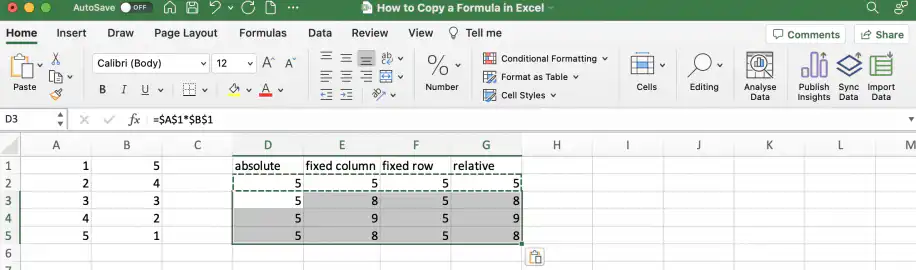
The type of referencing you use determines whether the references change when you copy a formula. In some cases, you want the references to be relative so that they will adapt to refer to whichever row or column to which you are copying. However, sometimes you need to keep the column or row fixed with absolute referencing, and sometimes you need the formula to remain anchored to the original cells.
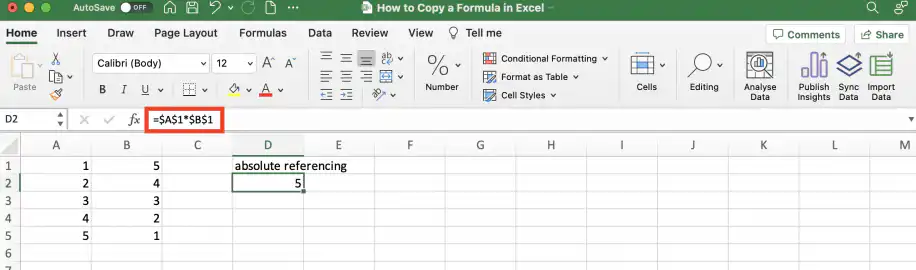
Absolute referencing
To ensure that you refer to a specific cell, use absolute referencing for the column and row. Regardless of where you copy the formula, it will always refer to those specific cells. The dollar signs work the same way when you set an absolute cell reference in Google Sheets.
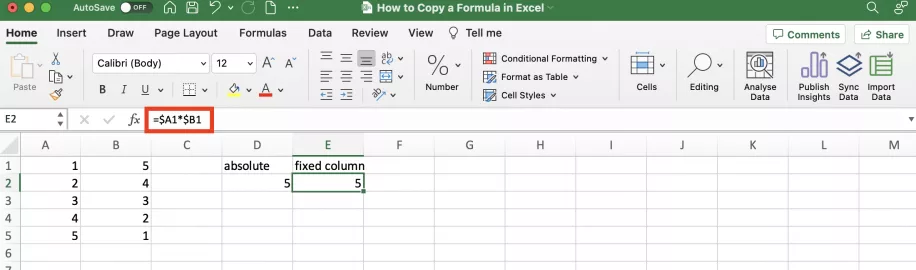
Mixed referencing
To ensure that the column is fixed but the formula adjusts to the row it’s copied to, use absolute referencing for the column and relative for the row.
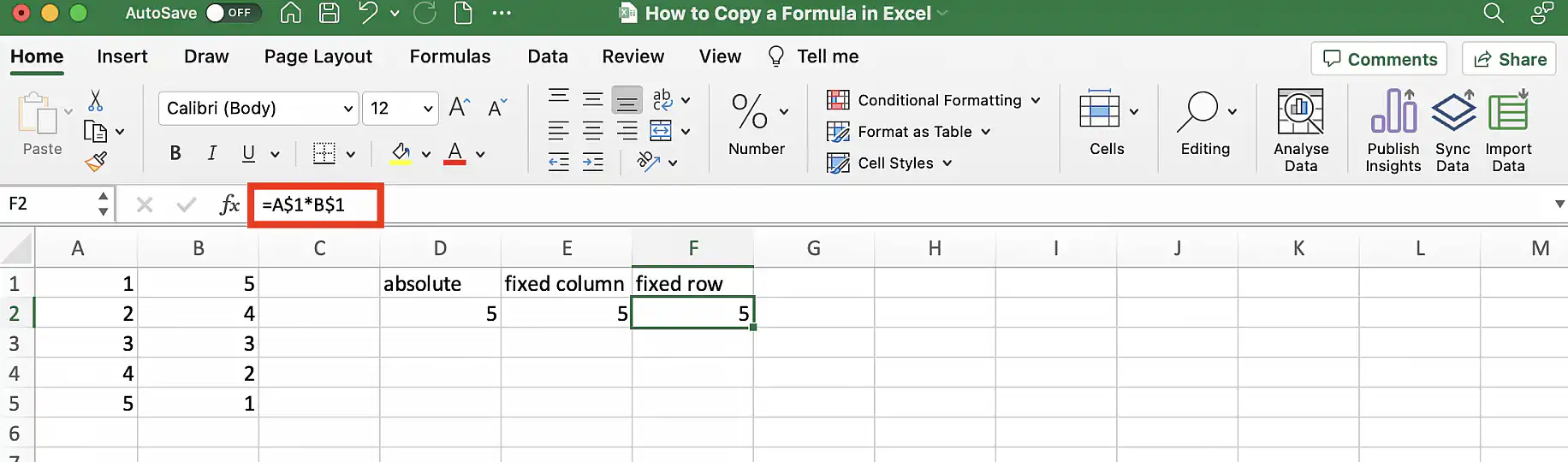
To fix the row and not the column, use absolute referencing for the row only.
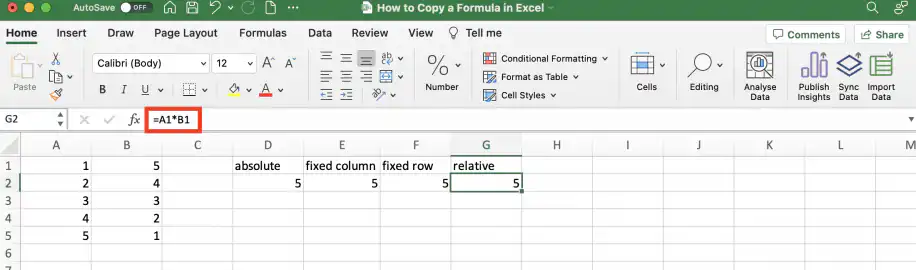
Relative referencing
Finally, use relative referencing for both to allow the column and row to change relative to the cell’s location.
How to copy and paste a formula in Excel?
There are various ways to copy and paste a formula in Microsoft Excel. You can copy it using any of the available methods, including right-clicking to see the menu or using the shortcuts: Ctrl + c (Windows) or Cmd + c (Mac).
Select the cells where you want to paste.
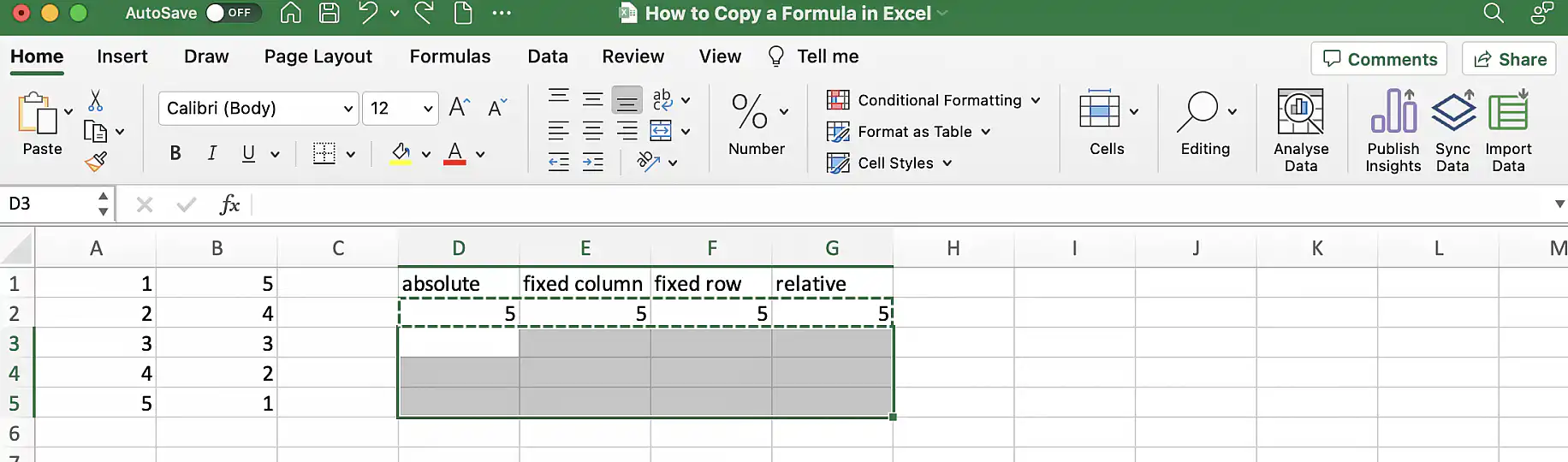
Use the shortcut – Ctrl + v or Cmd + v – or right-click and select paste. This will reproduce the cell exactly, including the formula and the format. However, the type of referencing will depend on the original cell. Using relative referencing in the original formula will adapt the references to the new location.
Special paste options
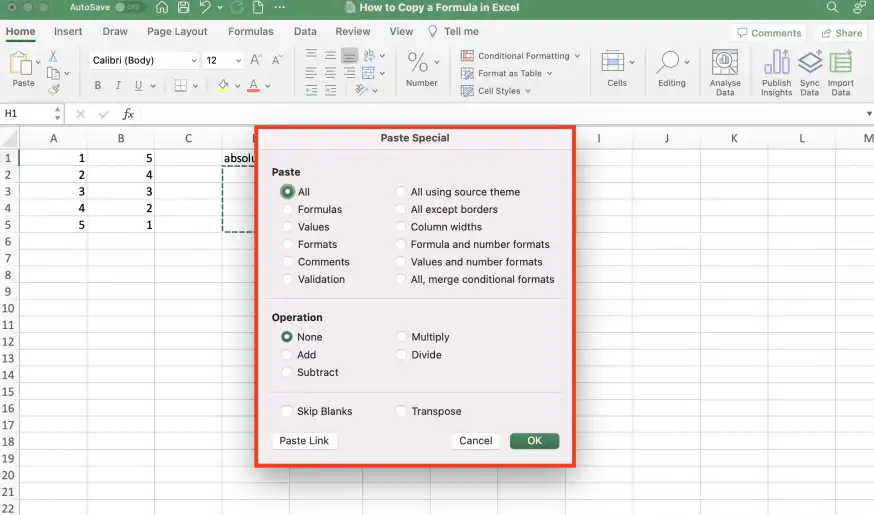
If you want to keep the formula only, use ‘Paste Special’ and choose ‘Formulas’.
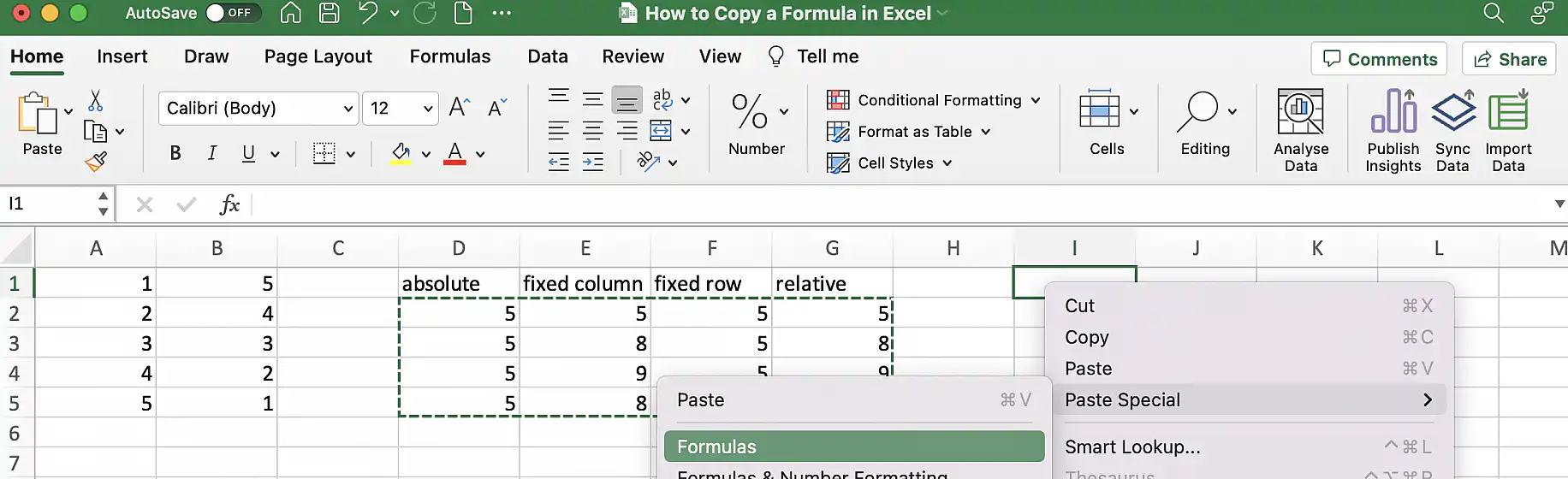
However, as you can see in the screenshot below, Microsoft Excel features a variety of special options for pasting.
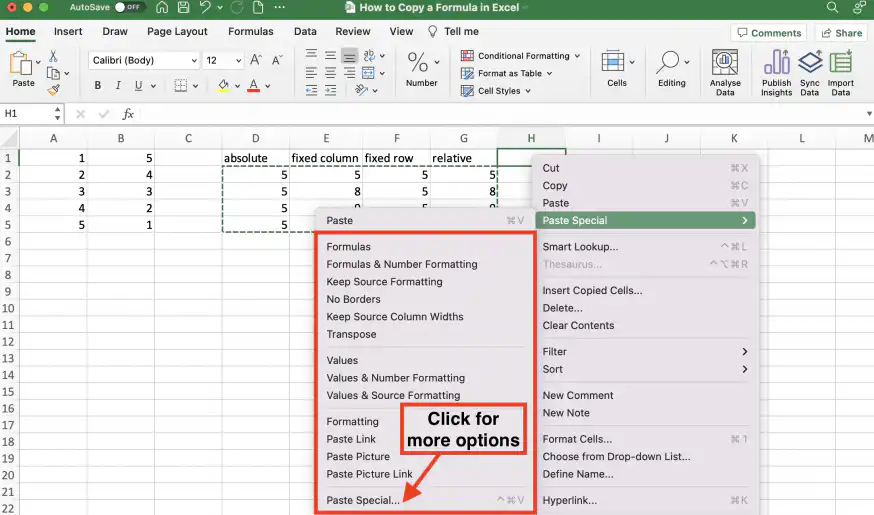
Click ‘Paste Special…’ to see even more options.
How to copy a formula to non-adjacent cells in Excel?
Follow the steps below to copy formulas to non-adjacent cells.
1. Copy the cell with the formula. Remember to use absolute referencing if you want the formula to remain the same.
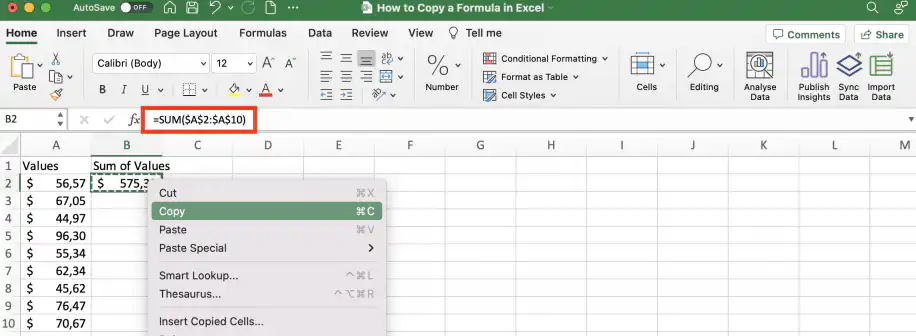
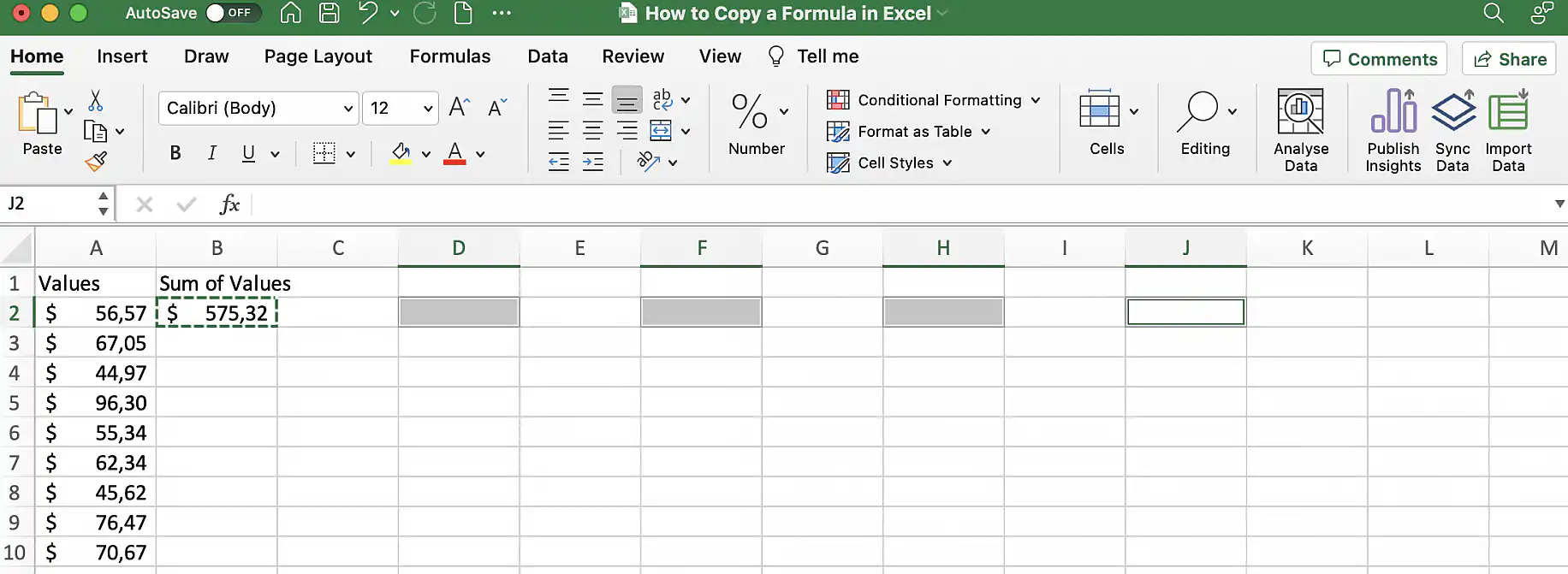
2. Select the first cell and hold down Ctrl or Cmd while selecting the rest.
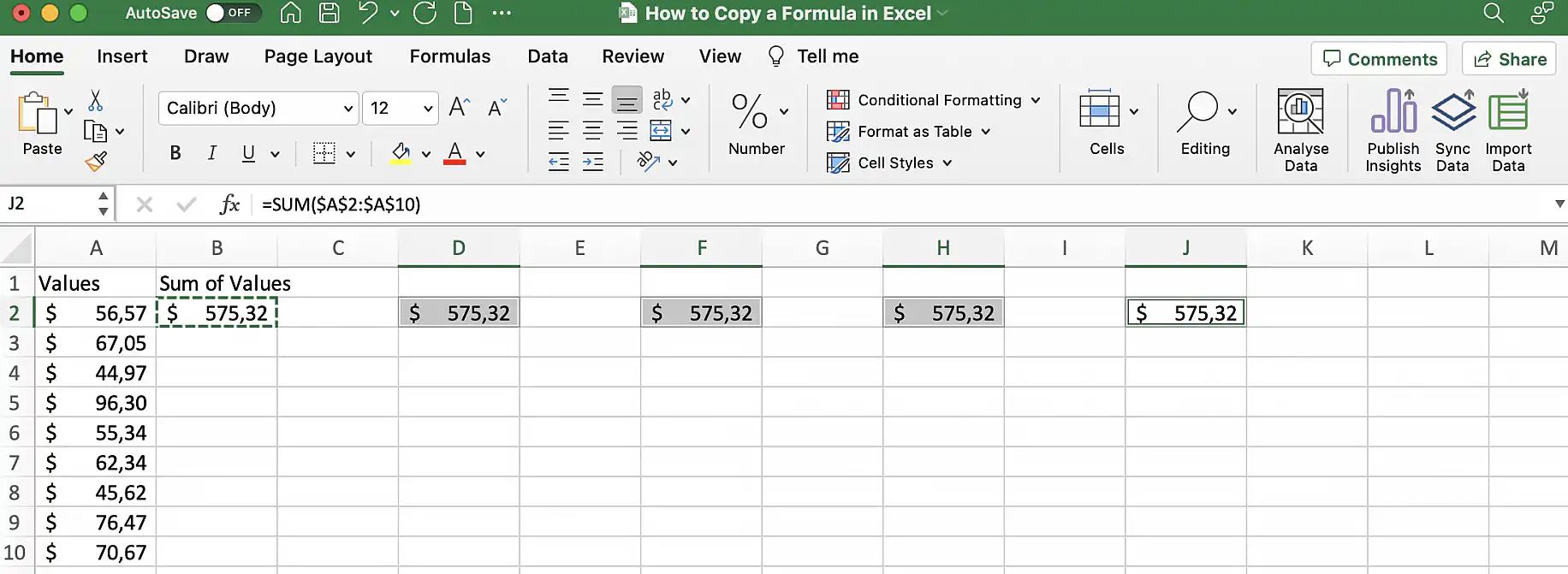
3. Press Ctrl + v or Cmd + v to copy the contents to the selected cells.
How to copy a formula down a column in Excel?
There are multiple ways to copy a formula to a column or row in Microsoft Excel. Below, you will learn how to use six different methods.
Create Excel table to add formula to entire column automatically
The simplest way to ensure that your formula is automatically adjusted and copied down to the last row is to turn your range of data into an Excel table.
1. Select any cell in the range and press Ctrl + t (Windows) or Cmd + t (Mac).
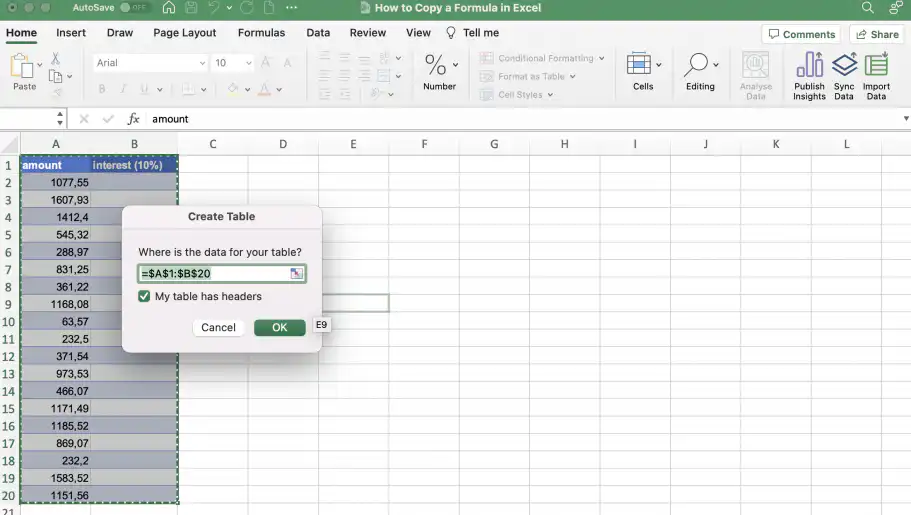
2. Type your formula into the first cell of the column where you want the results. In this case, I want to multiply the value in the amount column by 0.1 (10%).
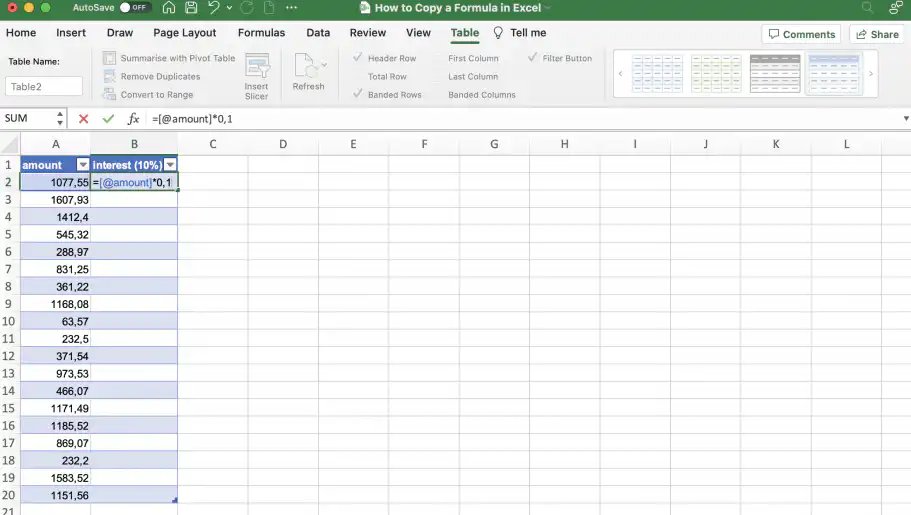
3. As soon as you press ‘Enter’, the formula is copied down to the last row.
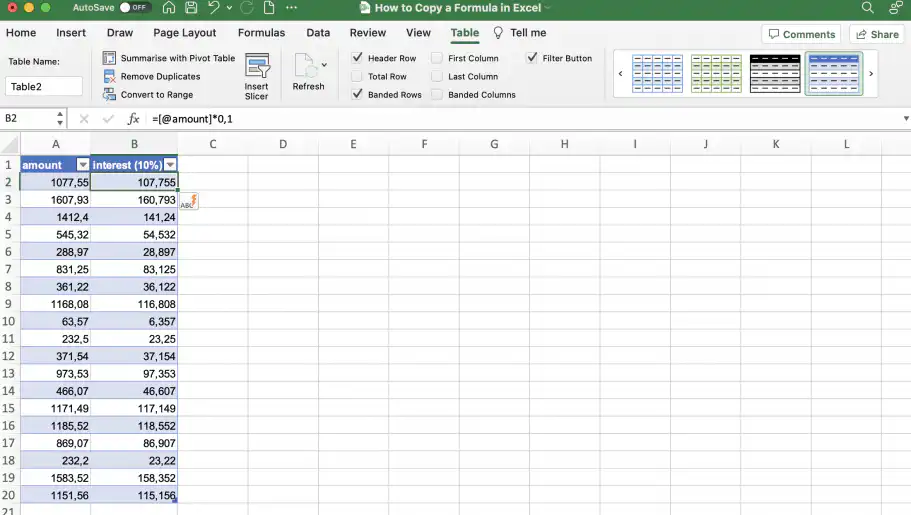
Use array formula shortcut
If you don’t want to convert your data to an Excel table, you can use the array shortcut to apply the formula to the entire column. Like in the previous example, I want to multiply each value in the first column by 0.1 (10%).
1. Select the cells to which you want to copy the formula and click on the formula bar.
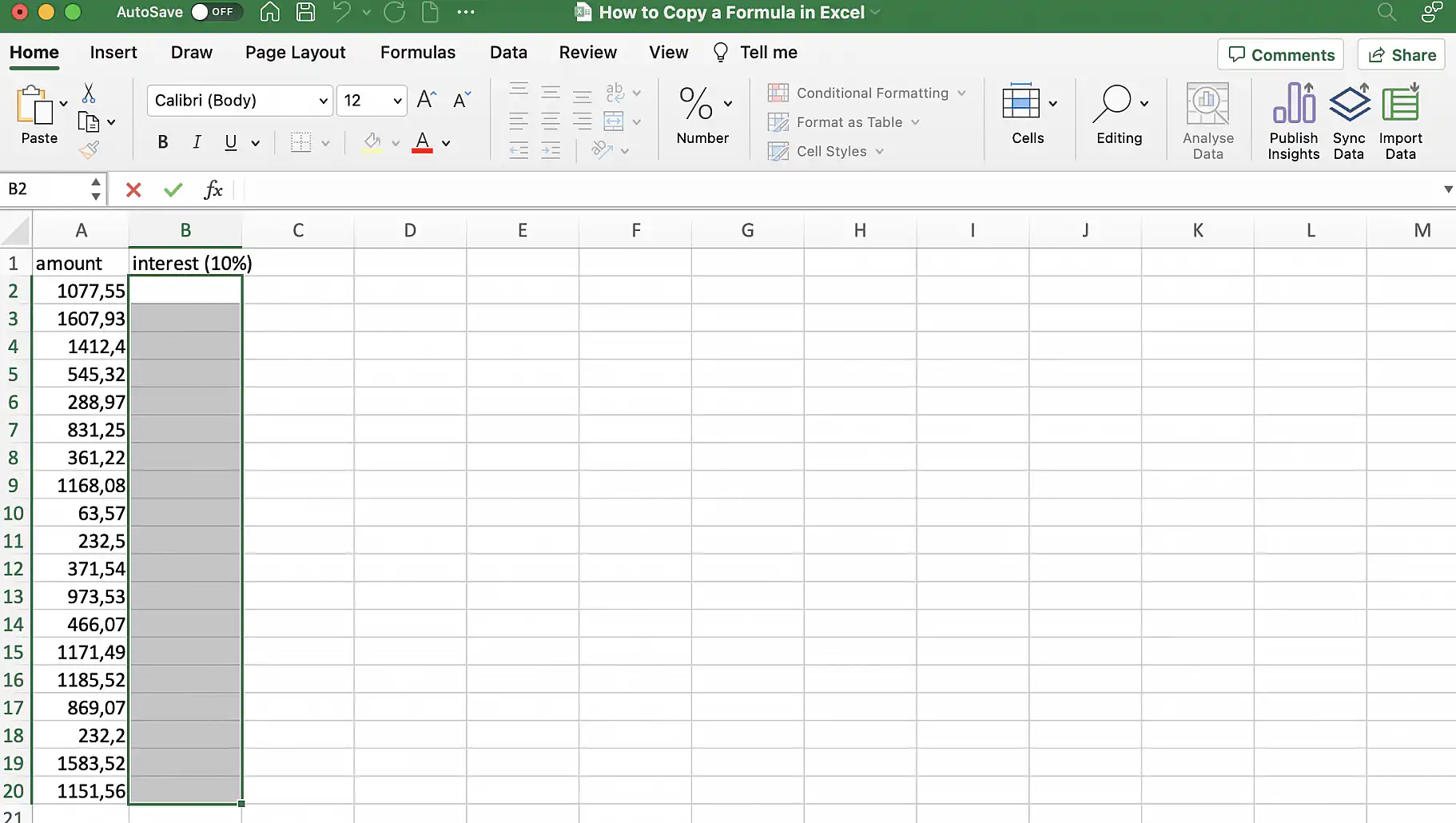
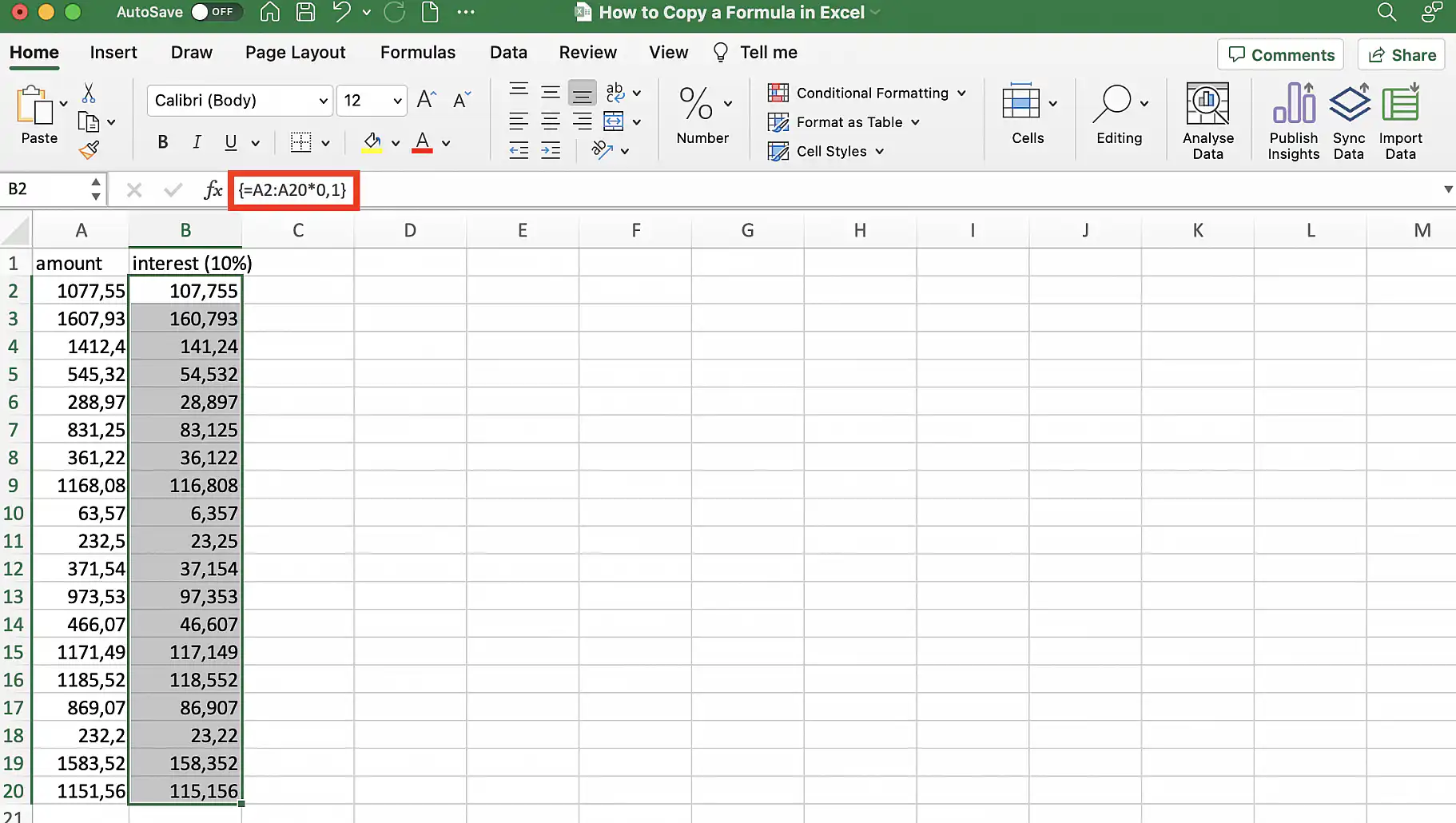
2. Type the formula and press Ctrl + Shift + Enter. In Excel for Microsoft 365, you can also type the formula in the first cell and press Enter, and the results spill down the column on their own.
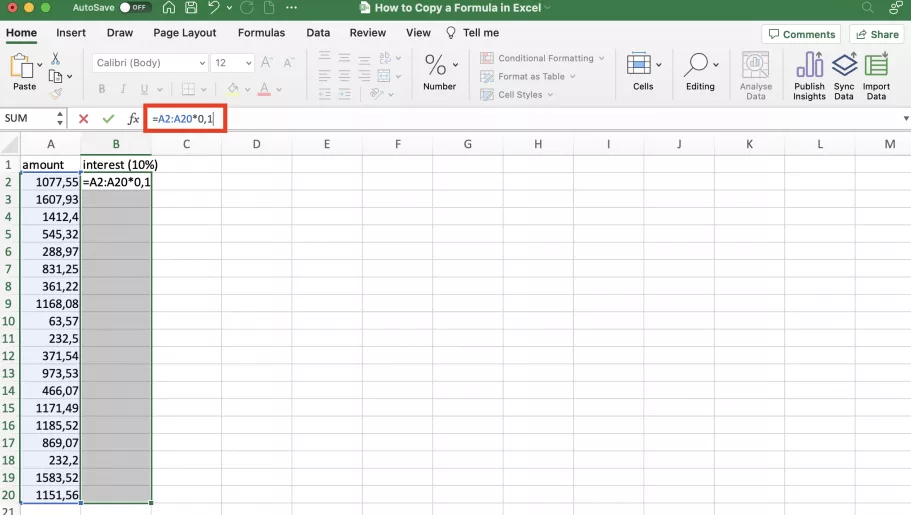
3. The formula is applied, and the results appear in the selected cells.
Use fill tool
The fill tool allows you to copy the cell and fill up, down, left, or right. Select the cells – including the one with the formula – and go to ‘Editing’ in the ‘Home’ tab.
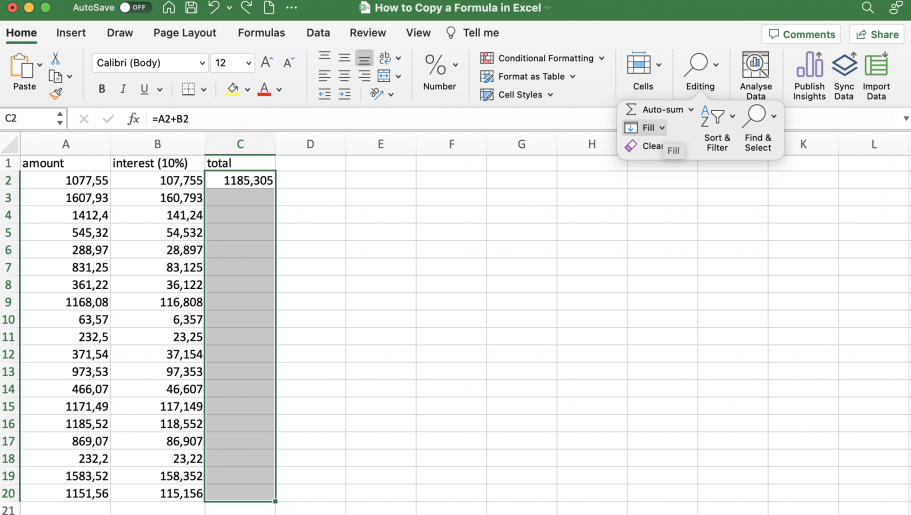
Click to see the ‘Fill’ drop-down menu. In this case, I will select ‘Down’.
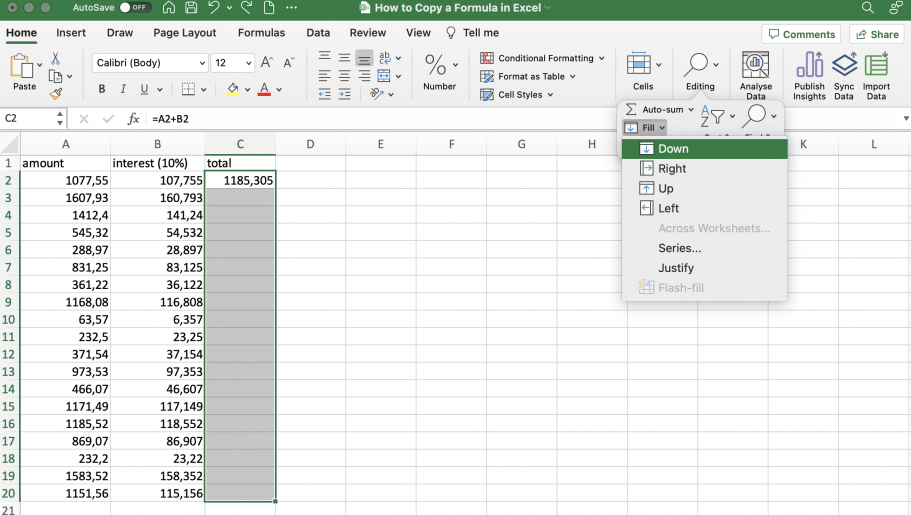
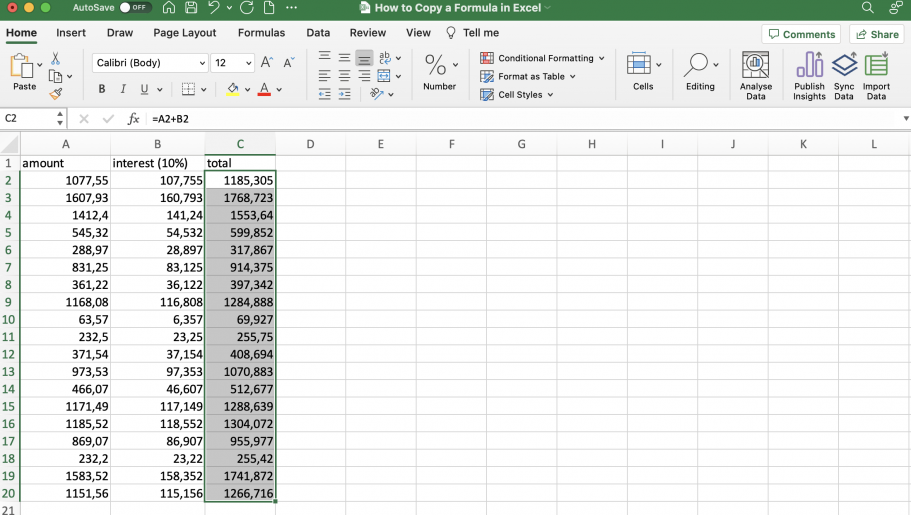
As you can see, the formula has been copied down, and the references adjusted.
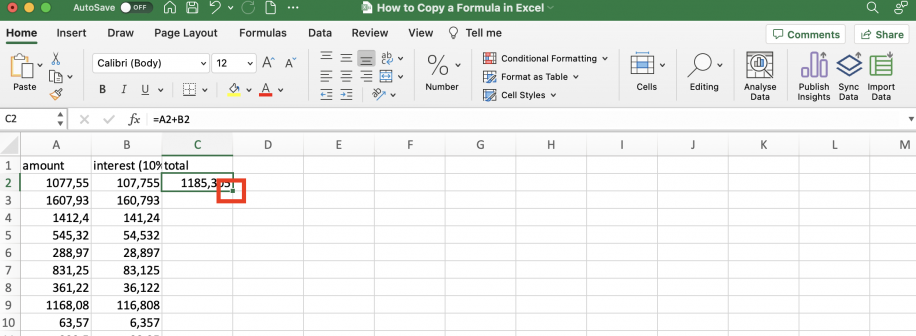
Double-click fill handle
Select the cell with the formula and double-click the fill handle in the bottom-right corner of the cell to copy it down.
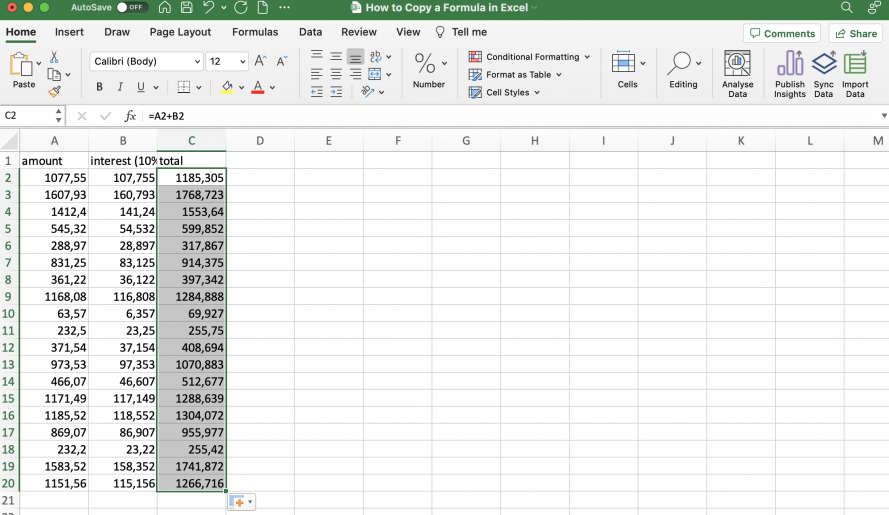
The formula is automatically copied down to the last row.
Drag fill handle
Alternatively, you can drag the fill handle to copy the formula.
1. Select the cell with the formula and grab the fill handle.
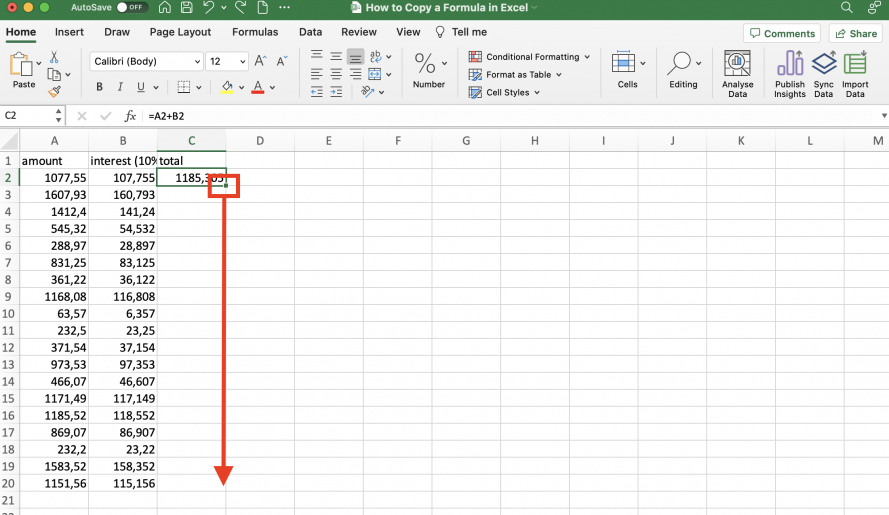
2. Drag it over the cells to which you want to copy in any direction you want.
Use shortcut
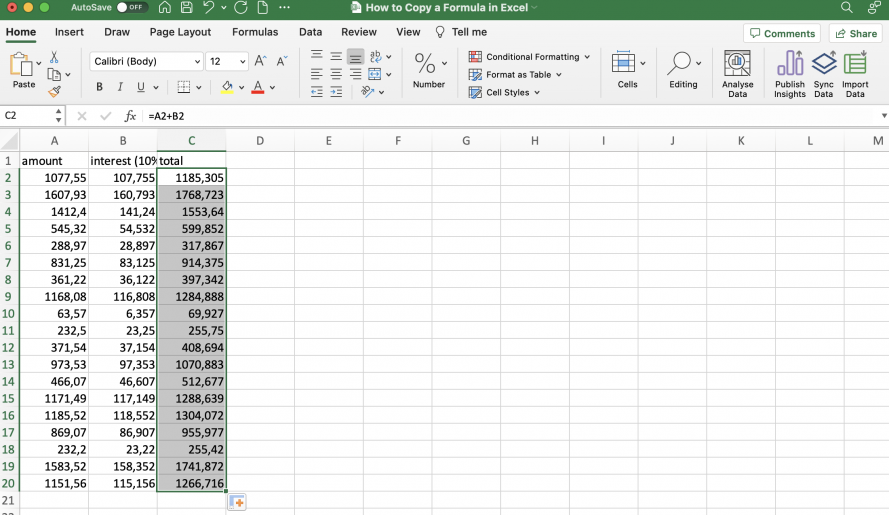
Finally, you can use a keyboard shortcut to copy the formula down to the selected cells instantly.
1. Select the cell with the formula and the relevant cells in the column.
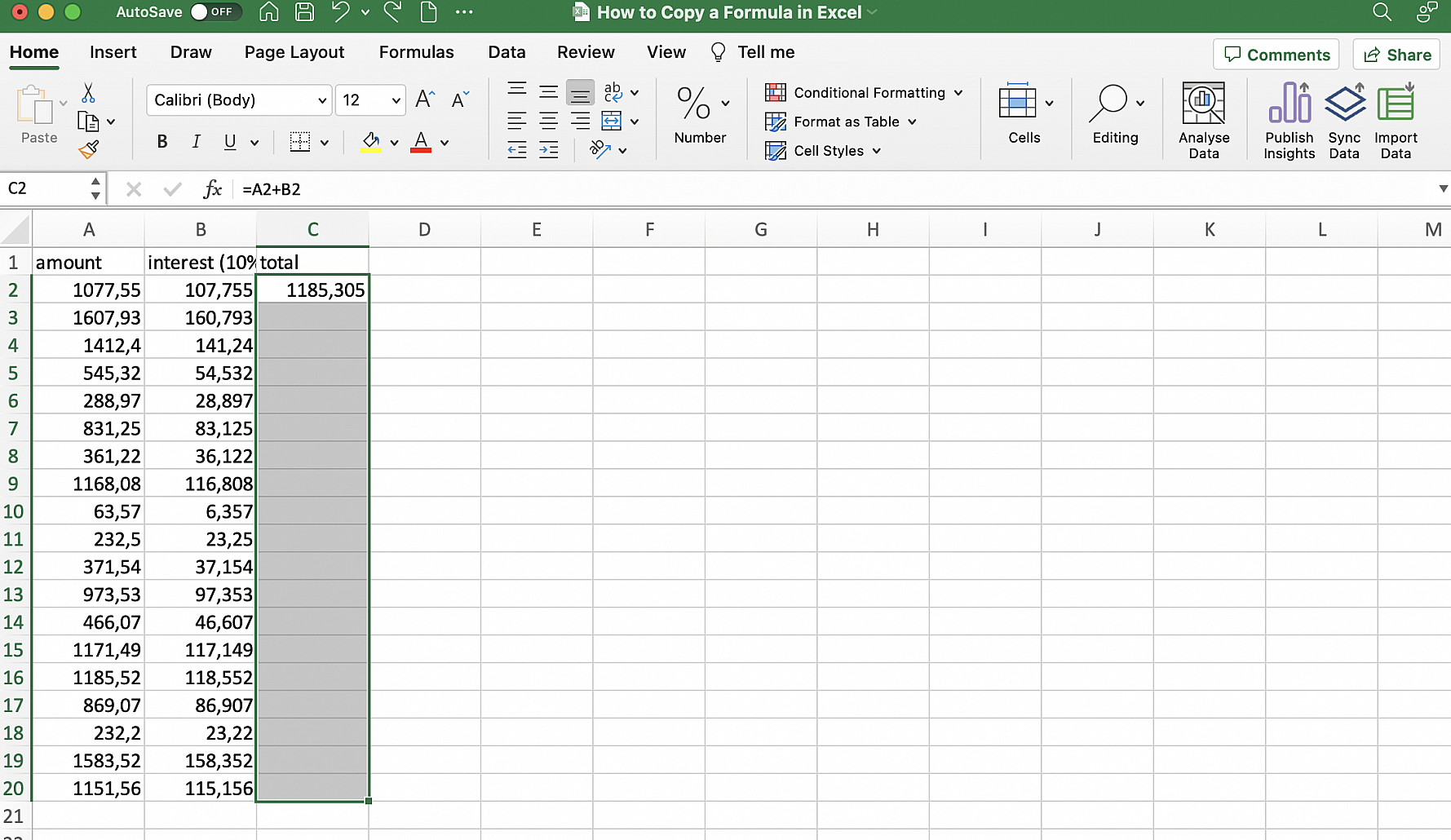
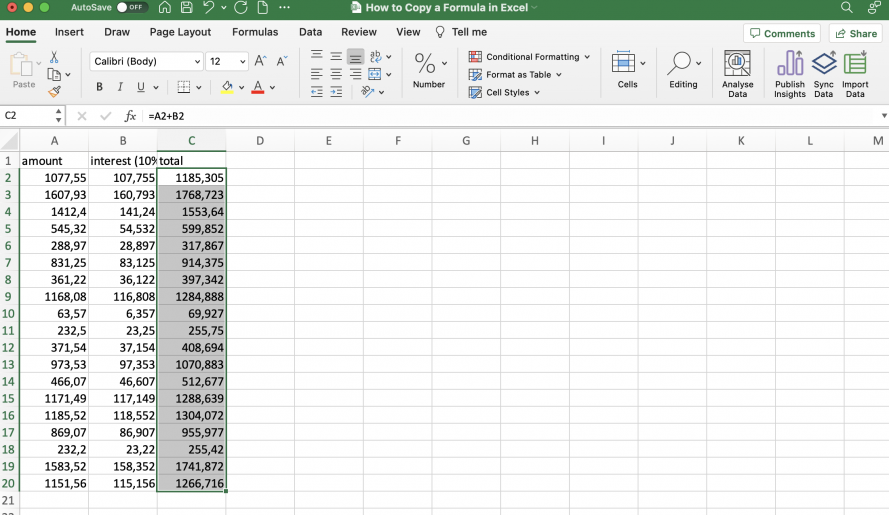
2. Press Ctrl + d (Windows) or Cmd + d (Mac). To copy across a row instead of down a column, select the row and use Ctrl + r or Cmd + r.
Conclusion
There are multiple ways to copy formulas in Microsoft Excel, depending on your preference and how the data is structured. Suppose the cells referenced in your formula are spread out over your spreadsheet or contained within multiple ranges with different structures. In that case, it’s especially important to use the appropriate referencing for each cell: absolute, relative, or mixed.
The simplest way to ensure that your formulas are accurately copied to a whole column in a table is to turn the range into an Excel table. If you don’t want to use an Excel table, you know there are multiple methods you can use to copy a formula in any direction you want. These methods include using the array formula shortcut, using the fill tool, dragging or double-clicking the cell’s fill handle, and using a keyboard shortcut to copy the formula down or across the selected cells.
To learn how to lock cells, transfer data, and other Excel topics, check out the guides on:
- How to lock cells in Excel? (cells, sheets & formulas)
- How to reference another sheet or workbook in Excel?
- Transfer data from one Excel worksheet to another automatically
- How to compare two Excel files for differences?
Working in Google Sheets instead? See how to fill down in Google Sheets. To move formula results into another workbook without copying them by hand, you can transfer data from one sheet to another in Excel with Sheetgo, an AI-powered data automation platform. For more formulas worth copying, start with these top 10 Excel functions.



 English
 Español
 Português do Brasil
 Français