


One of the most common scenarios when working with Excel spreadsheets is having files with similar or duplicate data. The reasons for this could be many, but it usually involves spending a considerable amount of time checking complete files or separate worksheets manually.
This article will explain how to compare two or multiple Excel files, as well as two Excel sheets, for differences. To achieve this, we will describe how to use three useful methods to spot differences in a quick and easy way; these include side-by-side viewing, conditional formatting rules, and the =IF formula.
How to compare two Excel files using side-by-side view?
We will start by illustrating how to compare two Excel workbooks using the side-by-side view. However, we recommend using this method only if your dataset is not too large; otherwise, use one of the two methods outlined further on in this article. This is how you can compare two Excel files using the side-by-side viewing feature.
1. Open the two Excel workbooks you would like to compare and go to View > View Side by Side on any of the opened files.
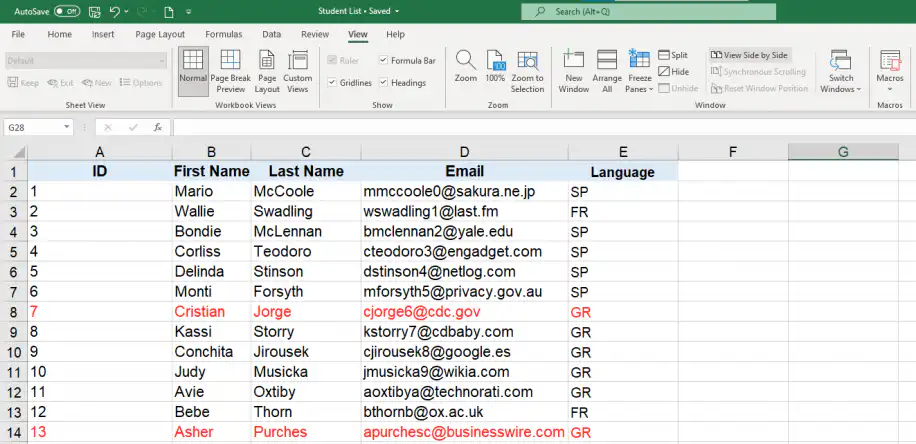
2. By default, Excel will place both files horizontally, as shown below.
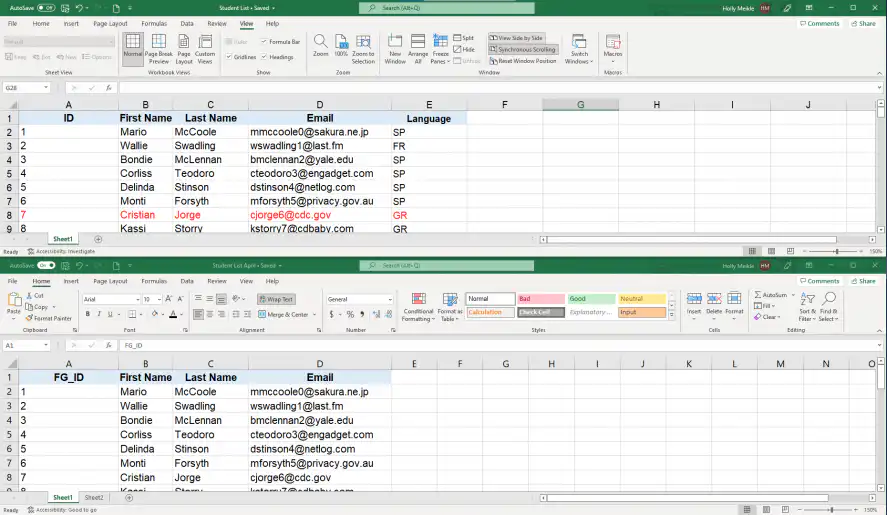
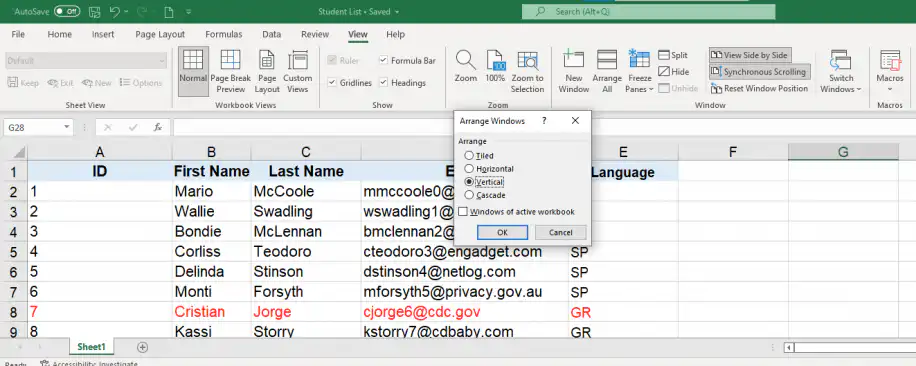
3. To arrange them vertically, click “Arrange All”, and then select “Vertical”.
4. The two Excel files will now be arranged vertically, as shown below.
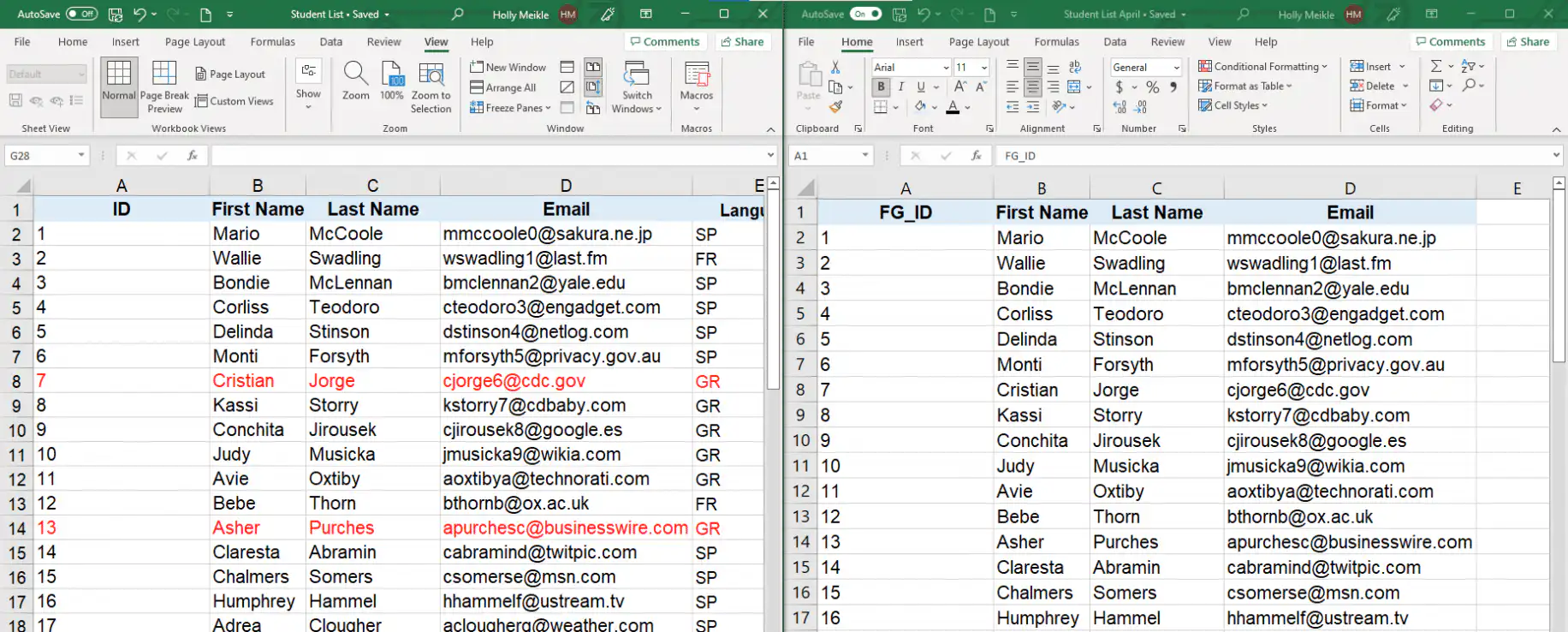
5. Make sure that the “Synchronous Scrolling” option is activated since this will allow you to scroll through the data on both files simultaneously and allow you to compare more easily. Although it activates automatically as soon as you enable the side-by-side view, you can also check that it’s activated in your toolbar within the “Window” group.
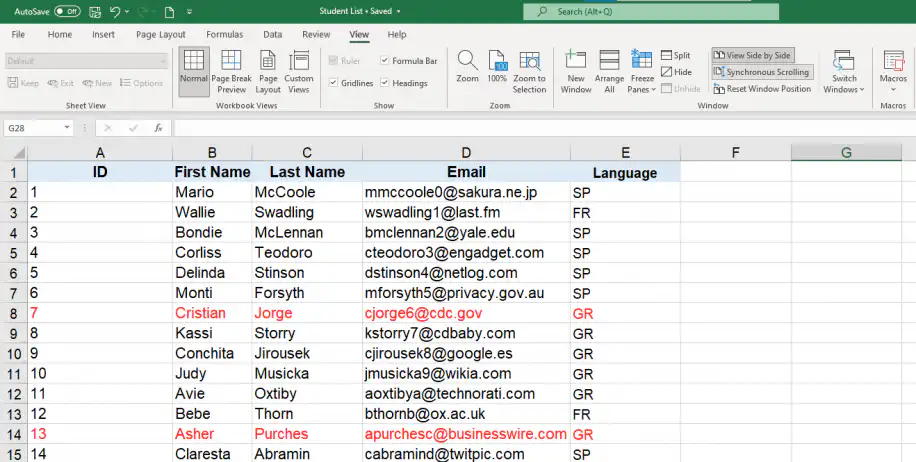
Now that we know how easy it is to compare two Excel files, let’s see how we can apply this viewing method to Excel sheets.
How to compare two Excel sheets using side-by-side view?
Sometimes, similar or duplicate data may appear within the same spreadsheet. If you want to avoid having to switch from one sheet to another to compare the data, this is how you can quickly compare two Excel sheets side by side.
1. Open the Excel file where you would like to compare sheets. Then, go to View > New Window.
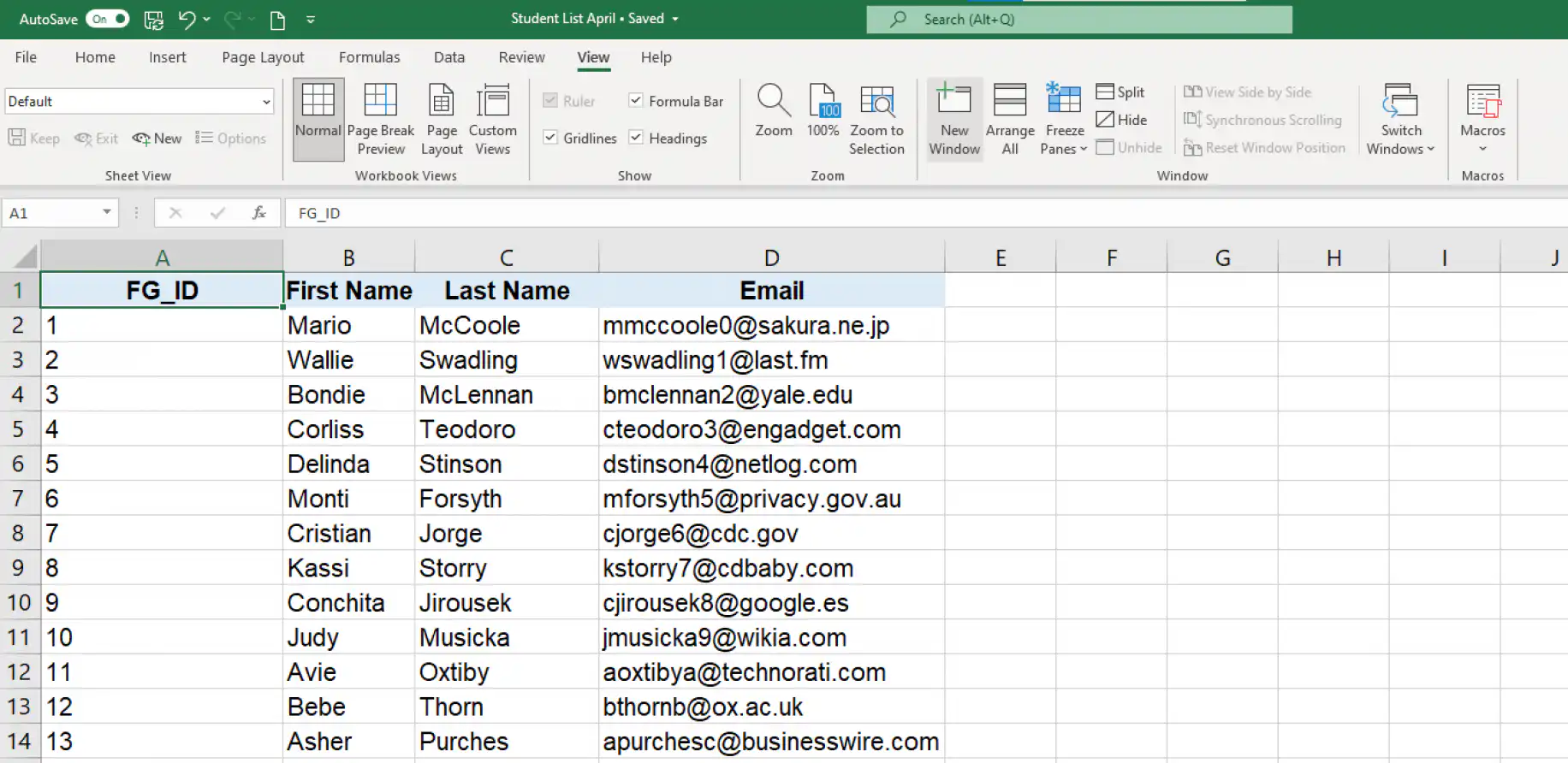
2. You will now have the same Excel file open up in a different window, as shown below.
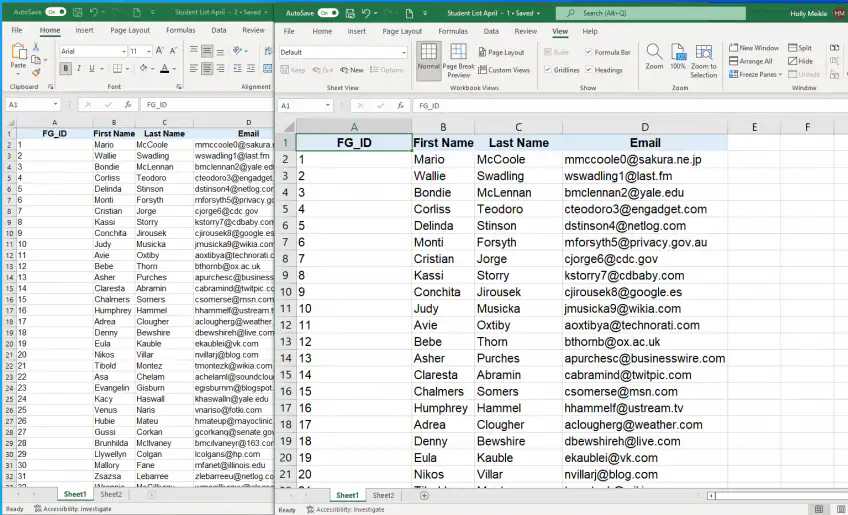
3. Select “View Side by Side” and make sure to select a different sheet on each file. As before, you can select vertical or horizontal viewing according to your preference.
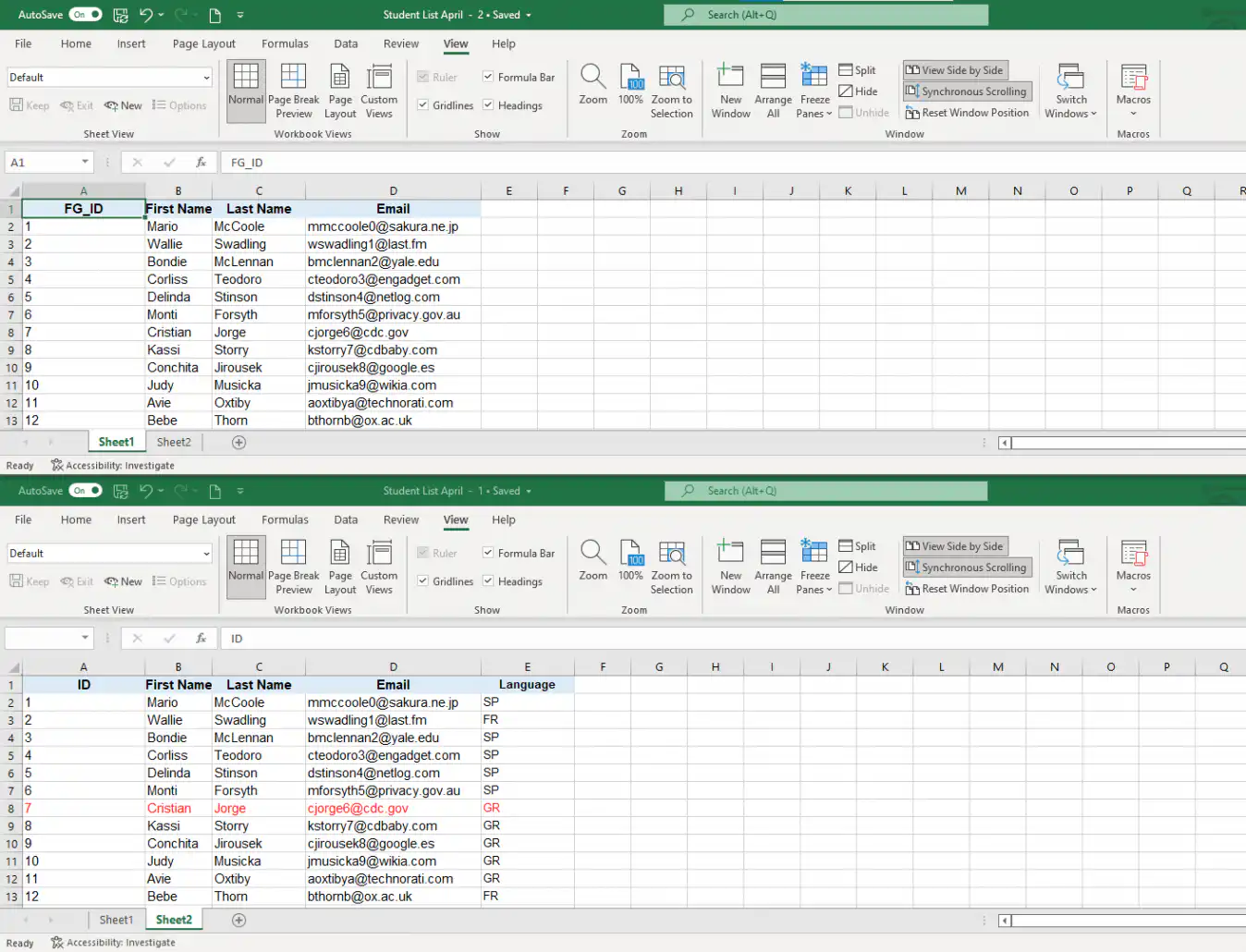
So far, you have seen how easy it is to compare two files and sheets on Excel. However, what if you would like to compare more than two files at the same time? This is how you can compare multiple Excel files using the side-by-side view.
How to compare multiple Excel files using side-by-side view?
Comparing multiple files for differences follows a similar process and will only take you a few simple steps.
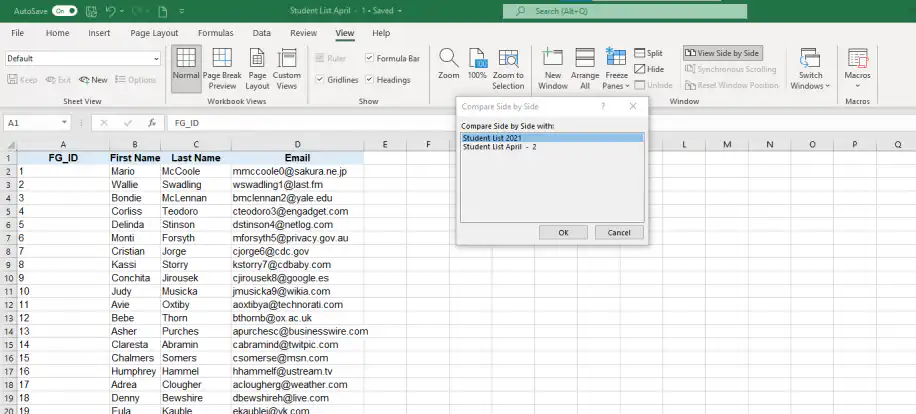
1. Open all the Excel workbooks you would like to compare and go to View > View Side by Side. Select the file you want to start comparing with in the “Compare Side by Side” dialog box.
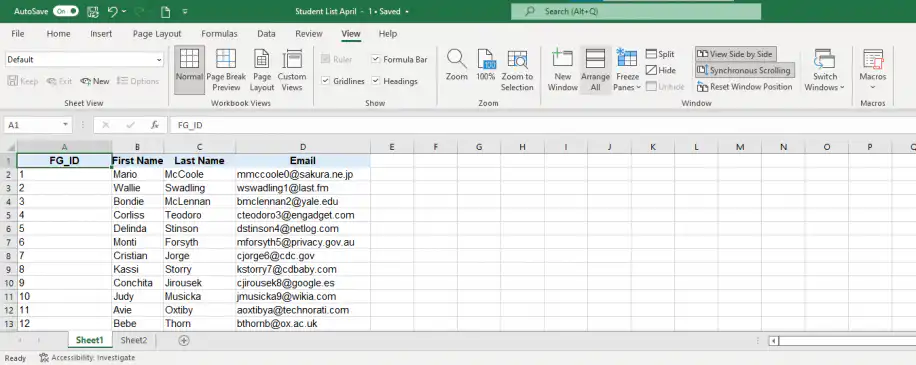
2. Click “Arrange All” to view all the opened files at the same time.
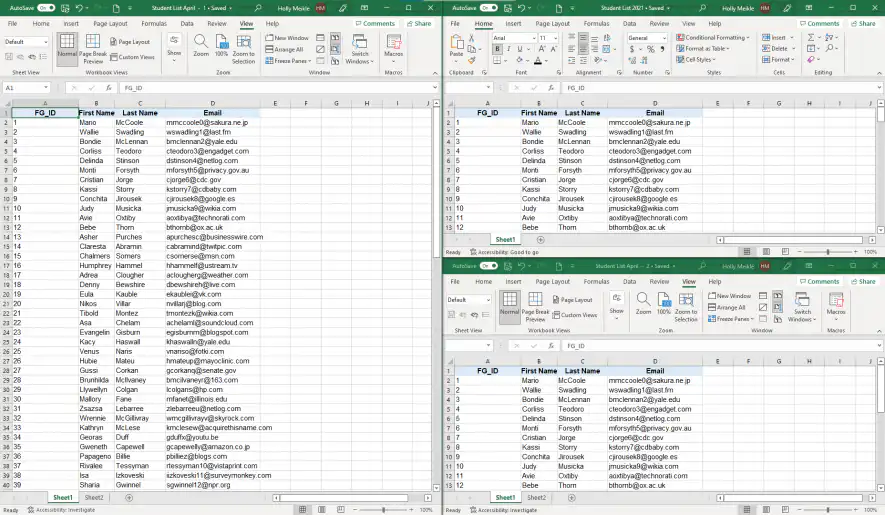
- 3. Then, select the type of arrangement according to your preference. Here, I have chosen the “Tiled” arrangement.
So far, these methods are useful in case your datasets are not too large and easily manageable. If you want to compare larger datasets for differences in values, the best way is to use the =IF formula or a conditional formatting rule. Let’s explore the =IF formula first.
How to compare two Excel sheets using a formula?
This is the most straightforward way to compare data between two Excel sheets. This formula will allow you to identify cells containing different values, and a comparative report will be generated in a new worksheet.
1. Open a new empty sheet in your Excel workbook and enter the following formula in cell A1: =IF(Sheet1!A1 <> Sheet2!A1, "Sheet1:"&Sheet1!A1&" vs Sheet2:"&Sheet2!A1, "")
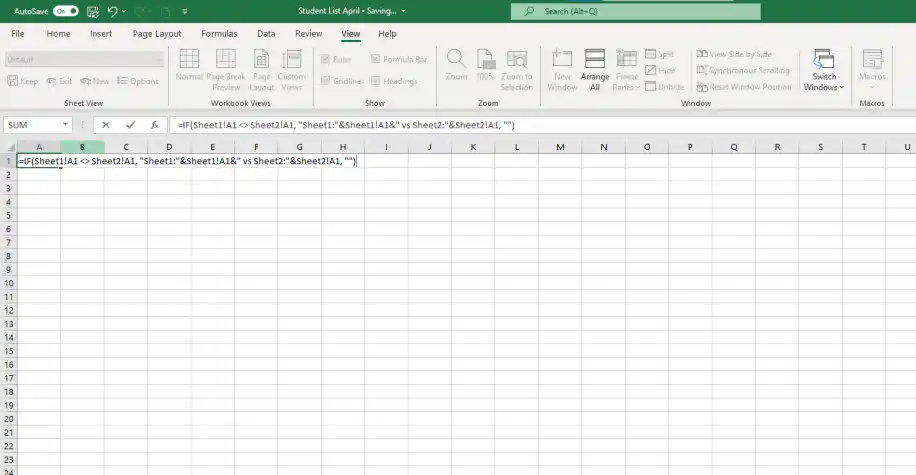
2. Grab the bottom-right corner of the formula cell, and drag down.
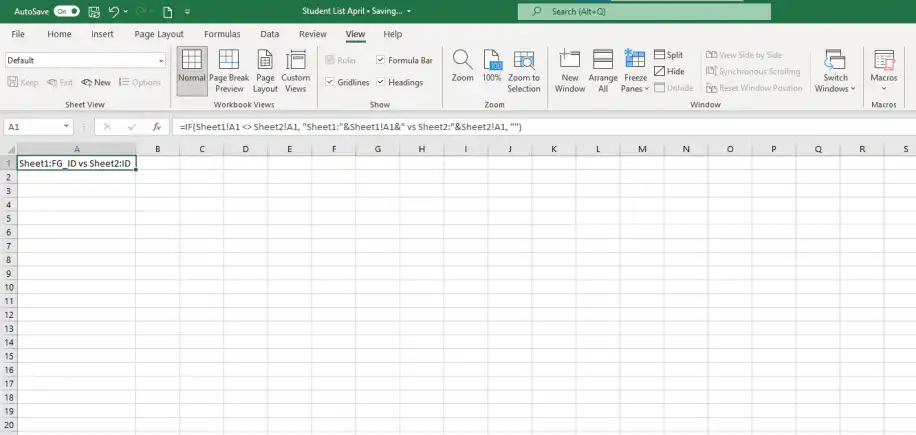
The formula will adapt to the column and row position it fills. This way, the formula in cell A1 compares to cell A1 in “Sheet1” and “Sheet2”; the formula in cell B1 will compare cell B1 in both sheets as well.
This formula compares the sheets cell by cell, so it assumes both sheets list the same records in the same order. If the rows are sorted differently, look up each record by its ID with VLOOKUP or XLOOKUP instead.
We will now turn to how to compare two Excel sheets by highlighting the differences. The best way to do so is by using the Excel conditional formatting feature.
How to compare two Excel sheets using conditional formatting?
When comparing two very similar and large datasets, the best and quickest way to spot differences in values is to highlight them using the conditional formatting feature.
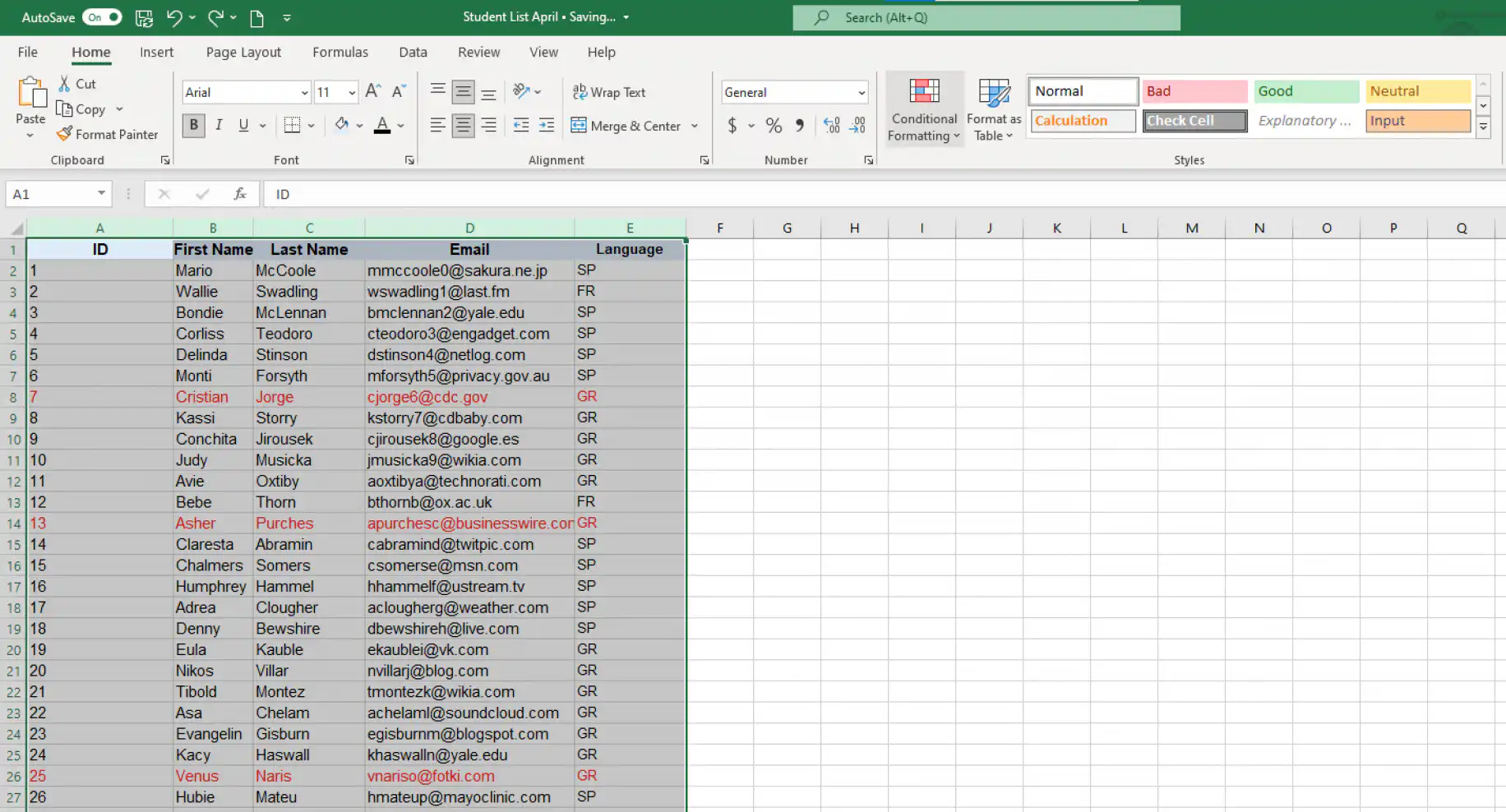
1. Open the Excel sheets and select the range of data you would like to compare for differences. A quick way to do this is to click the upper-left cell and then Ctrl + Shift + End to extend the selection to the last cell containing values.
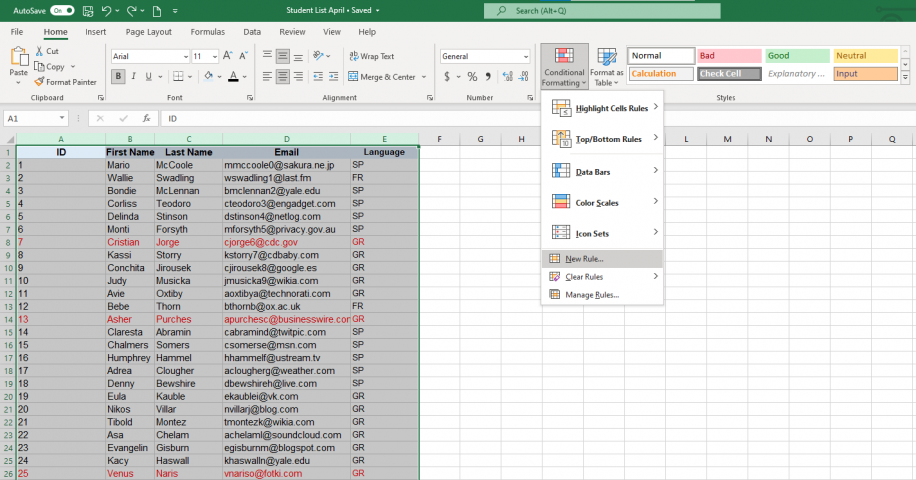
2. Go to Home > Conditional Formatting > New rule.
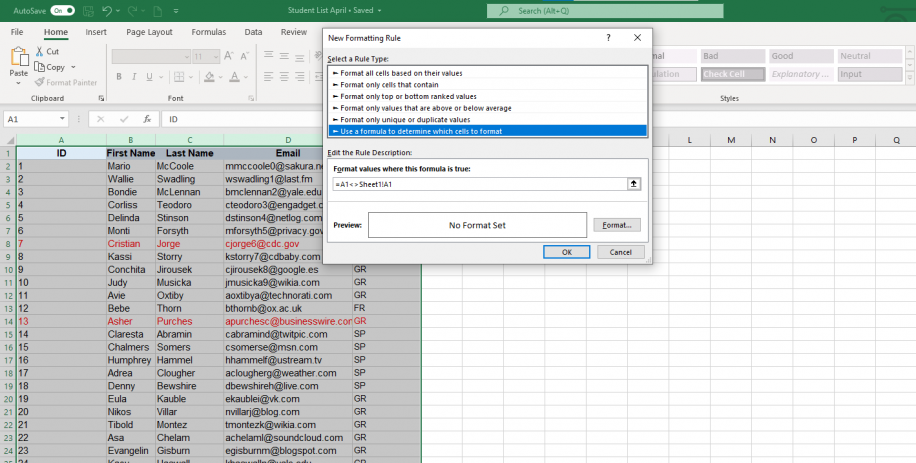
3. Select the rule type “Use a formula to determine which cells to format” and enter the following, =A1<>Sheet1!A1. The Sheet name included in the formula corresponds to the sheet you are comparing with and not the one you are creating the rule in.
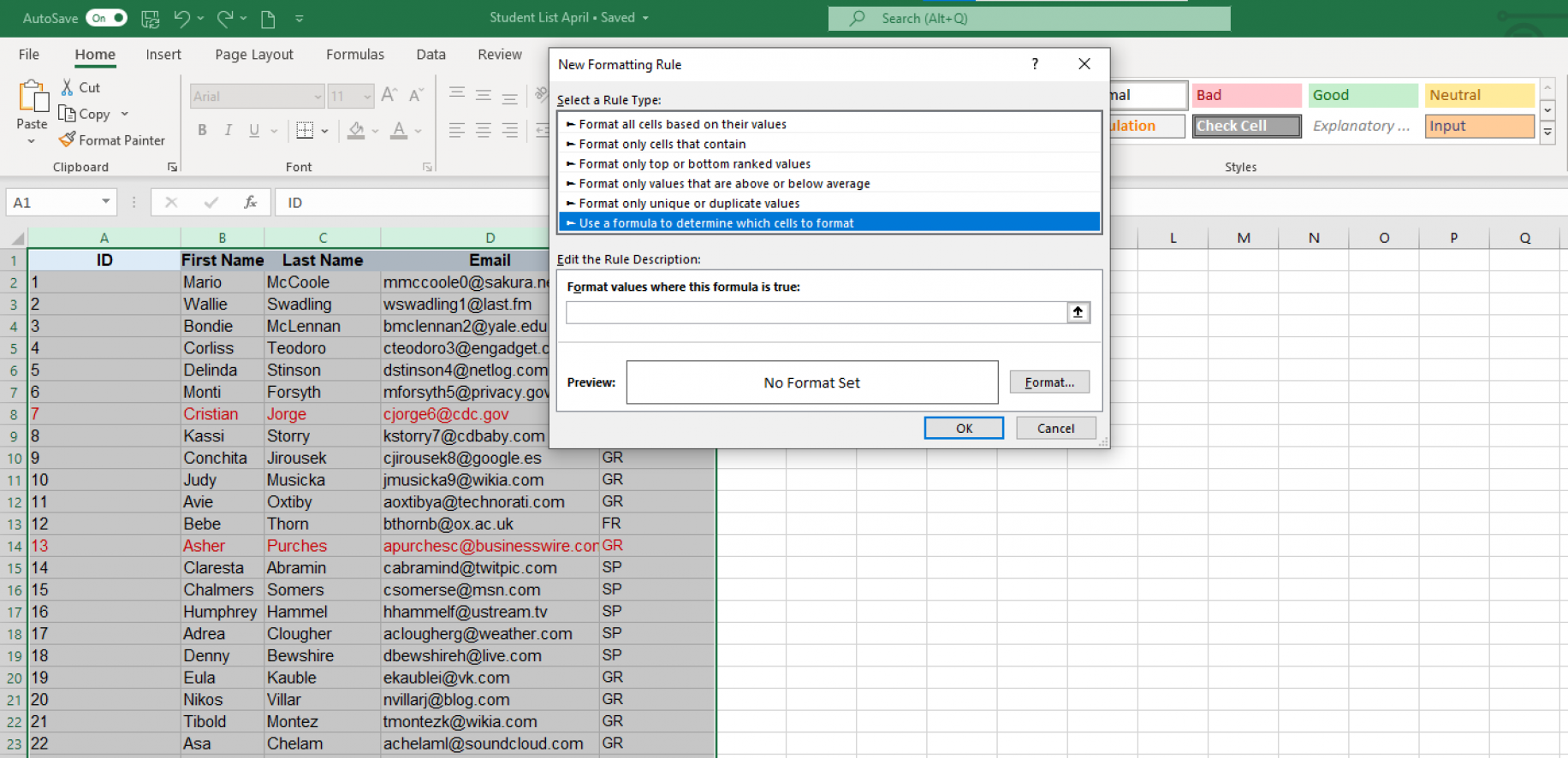
4. Once you’ve entered the formula, click “Format”, next to the “Preview” pane.
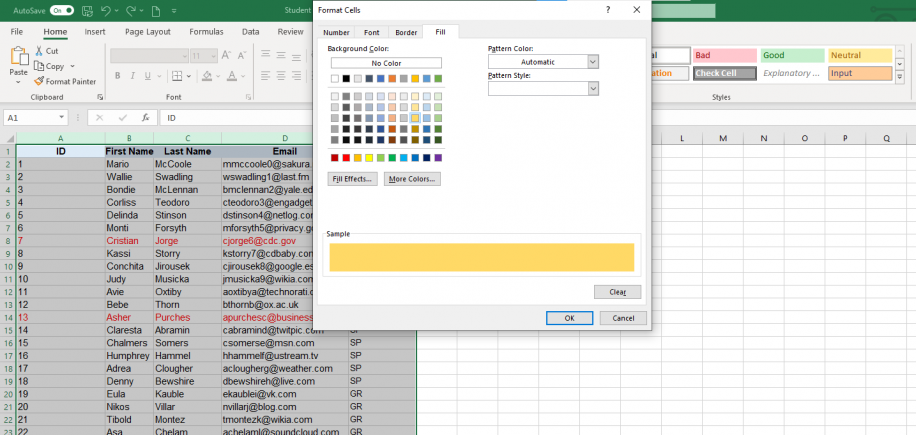
5. Select how you would like to format the cells, i.e. according to “Number”, “Font”, “Border”, or “Fill”. We recommend highlighting with color fill, so we have chosen a color that will clearly stand out.
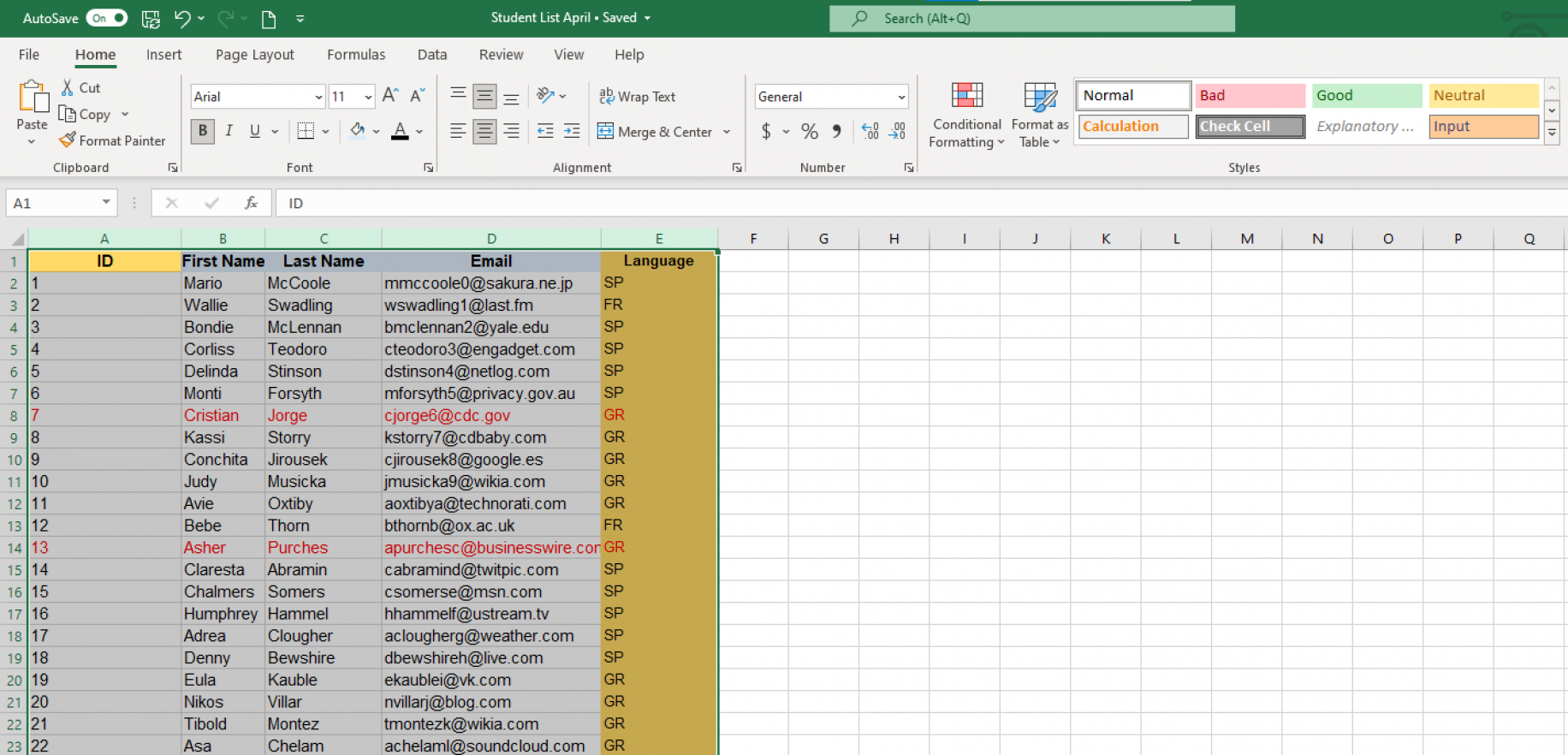
6. As you can see, Excel has highlighted the different cells in “Sheet 2” compared to “Sheet 1”.
Now you know how to compare two or multiple Excel files and two sheets on your desktop. What if you want to compare and highlight differences in your Excel sheets online?
How to compare two Excel sheets and highlight differences online?
In case you don’t have Excel installed on your desktop or simply prefer to work online altogether, there are online tools that allow you to compare Excel files and sheets for differences.
Below, we provide a list of third-party tools that will allow you to compare Excel files and sheets online:
- Sheetgo: An AI-powered data automation platform that lets you connect your files and combine multiple spreadsheets into one on a schedule, so the data you compare stays current and ready for AI.
- Synkronizer Excel Compare: In addition to the features outlined in this article, it allows you to combine multiple Excel files into one, while maintaining unique values and avoiding duplicates.
- Ablebits Compare Sheets for Excel: This tool provides step-by-step guidance for efficient comparison and displays the differences found between sheets in the “Review Differences” mode for better management.
- Florencesoft DiffEngineX: Another excellent alternative that allows you to compare Excel files directly from Microsoft Outlook.
Conclusion
This article has shown you how to compare the data in two Excel files for differences. You can compare data between two files, two sheets, or multiple files using the side-by-side view for a quick and easy comparison. If your dataset is larger, you can apply the IF formula to compare two Excel sheets or use conditional formatting rules to highlight the differences.
Alternatively, for users who prefer to work online, there are platforms that can help you achieve this level of comparison in an online setting, for example, Sheetgo, an AI-powered data automation platform. We also recommend reading our blog article on how to combine multiple Excel files into one as a great way to complete this data comparison process.



 English
  Español
  Português do Brasil
  Français