


Excel is a great tool to use when dealing with large amounts of data. Often, a dataset in one of your workbooks may need to pull data from another sheet in Excel. Luckily, Excel offers multiple ways for you to reference Excel data from a cell, reference a range of cells, or pull data from another sheet in Excel.
Externally referencing Excel files is common in many day-to-day operations. For example, you may want to pull data from last year’s sales data to compare it to this year’s results. You can control how much data you reference, from a single cell, all the way up to an entire worksheet. What’s more, you can reference data dynamically, meaning that whenever your cell values change from the source file, they will automatically be updated in your destination file where the reference has been created.
In this article, you’ll learn how to reference data from the same worksheet, different worksheets, and different workbooks in Excel. This article will cover referencing a single cell, a range of cells, multiple columns, and even entire worksheets.
You will also learn about an alternative, Sheetgo, an AI-powered data automation platform that lets you automatically connect your files and transfer data without having to use cell references or formulas.
Don’t tend to work in Excel? Check out our article on Google Sheets reference another sheet.
How to reference cells in the same sheet in Excel?
A cell reference refers to the data within a cell(s) to another within your Excel worksheet or workbook.
Let’s say I have an Excel sheet containing the monthly data from my 2021 sales. In this sheet, I want to reference some of these cells again – I don’t need to exit my sheet or reference any external data – I’m simply referencing cells within my current worksheet.
To reference a cell in the same Excel worksheet you’re working in, you can enter a simple formula: an equals sign followed by the cell reference, such as =A1.
There are multiple ways you can reference data from the same worksheet. Let’s explore each type of Excel reference you may need and the best method for each one.
Reference a cell in the same sheet in Excel
To reference a single cell in the same Excel worksheet, simply add the cell number after an "=" sign, e.g. =A1
For example, let’s say I want to reference the month with the highest monthly sales in 2021:
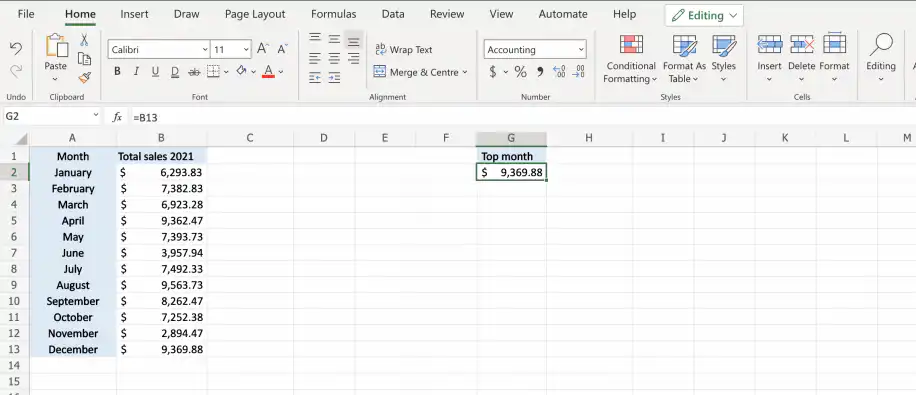
1. Click on the cell you wish to add your reference to and enter =B13.
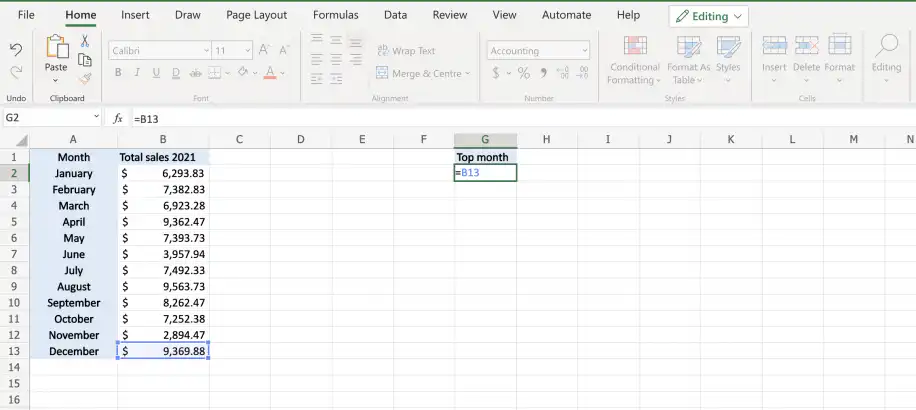
2. Excel will replicate the value in B13 to the empty cell in the same worksheet.
There are different ways to share an Excel file. Here’s how to share an Excel file with multiple users for easy collaboration.
Reference range of cells in the same sheet in Excel
If you want to reference a range of cells in the worksheet, use the same formula, but this time, enter the beginning cell and end cell of your range, separated by a colon.
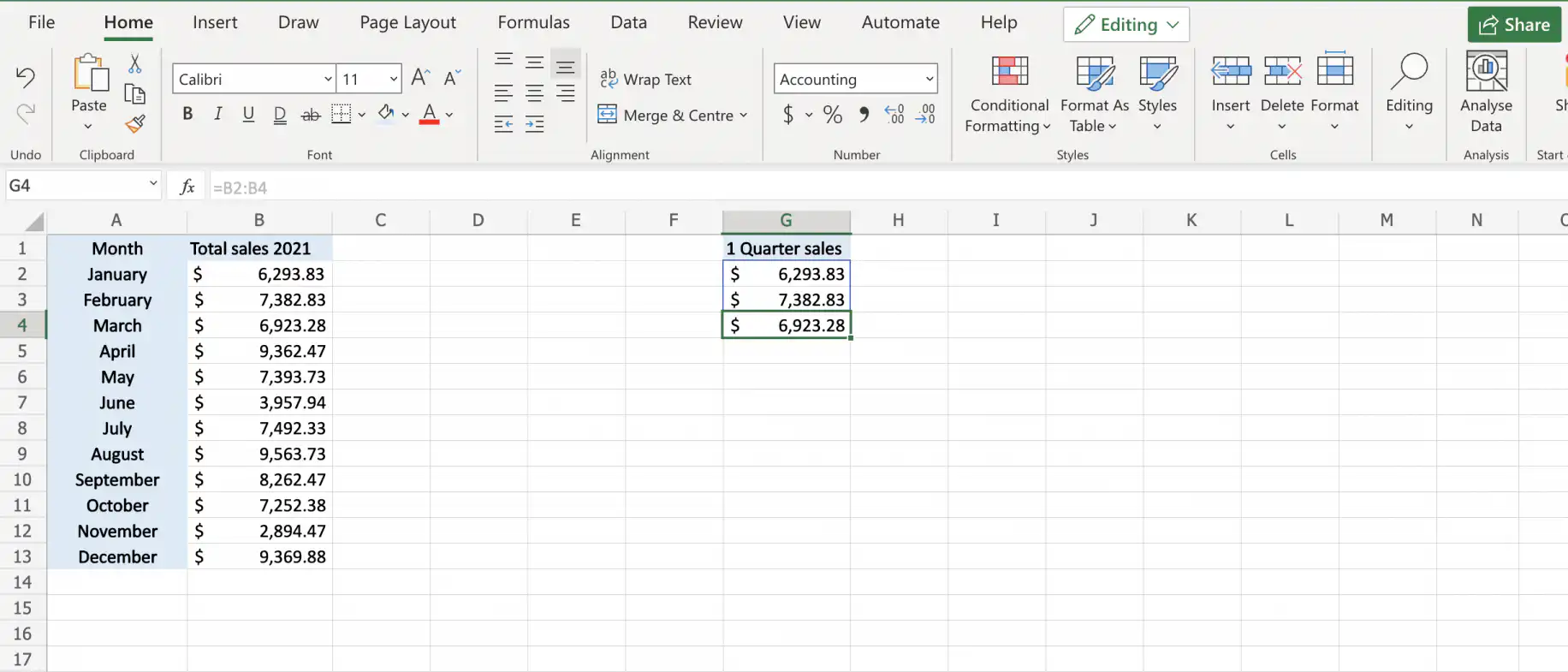
Let’s say I want to add the first-quarter total sales to another part of my sheet.
1. Click on the cell you wish to add your reference to and enter =B2:B4
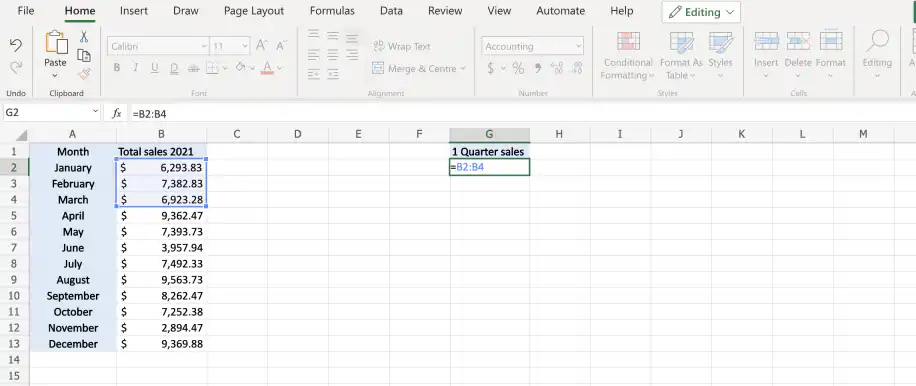
2. This will replicate the values in cells B2 through to B4 of the worksheet.
Reference a column or multiple columns in Excel
You can also reference cells by column or multiple columns with the same format as the previous step.
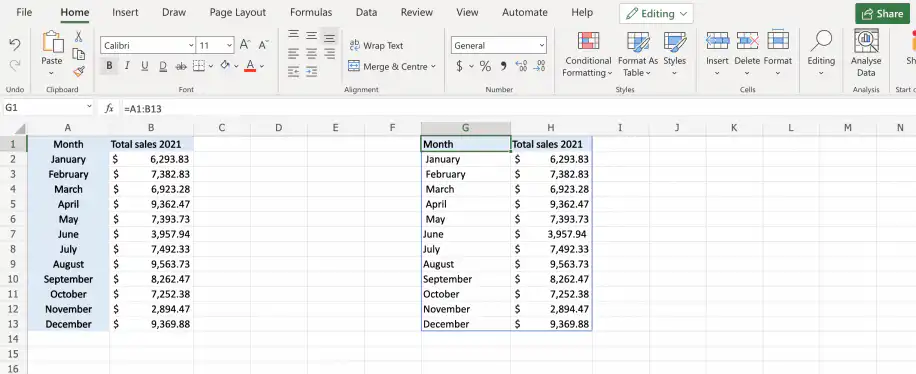
Let’s say I want to duplicate my two current columns in the same sheet.
1. Click on the cell you wish to add your reference to and enter =A1:B13
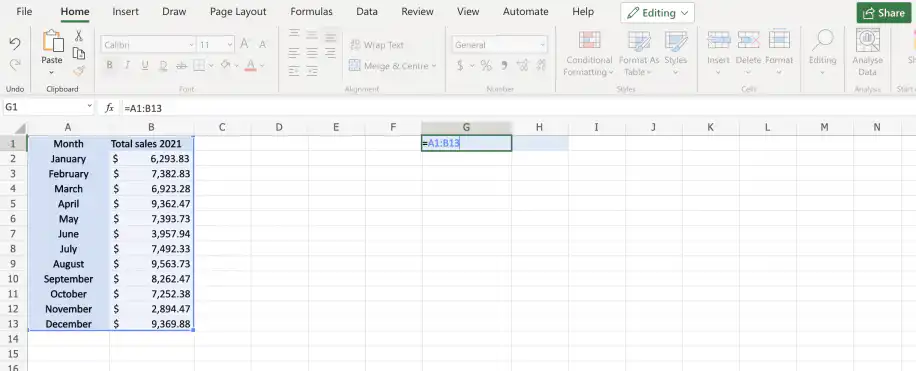
2. This will replicate the multiple rows of data within the two columns.
How to reference another sheet in Excel?
When referencing another worksheet within the same workbook, the principle remains the same. In this case, you just need to add the name of the alpha sheet or source sheet (the sheet containing the original data) as part of the formula.
To reference a cell or a cell range in another worksheet in the same workbook, simply put the “worksheet name” followed by an exclamation mark “!”, then the cell reference.
In this example, I have my 2020 sales data in another sheet in the same workbook.
Reference a cell from another sheet in Excel
Please note: If your worksheet name contains spaces or special characters, always remember to wrap it in single quotes, and make sure it is referenced exactly, e.g. ‘Sales 2020’.
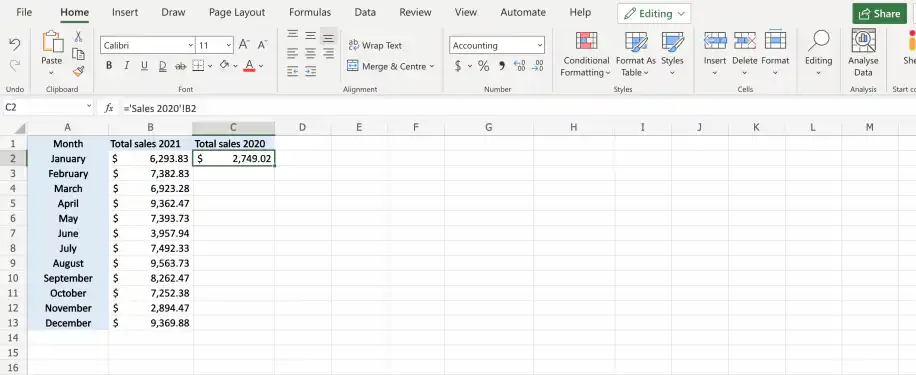
Let’s say I want to add the January 2020 sales total to my 2021 sheet.
1. Click on the cell you wish to add your reference to and enter ='Sales 2020'!B2 to reference cell B2 in the sheet named “Sales 2020” in this workbook.
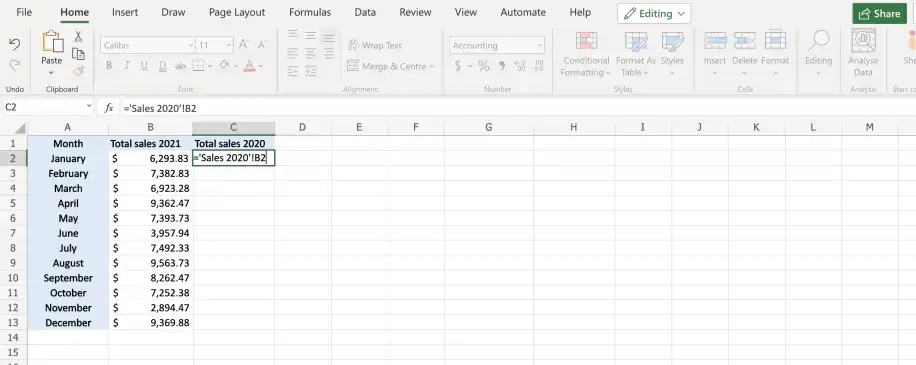
2. This will pull the cell value from the “Sales 2020” sheet into your current sheet.
Reference a range of cells from another sheet in Excel
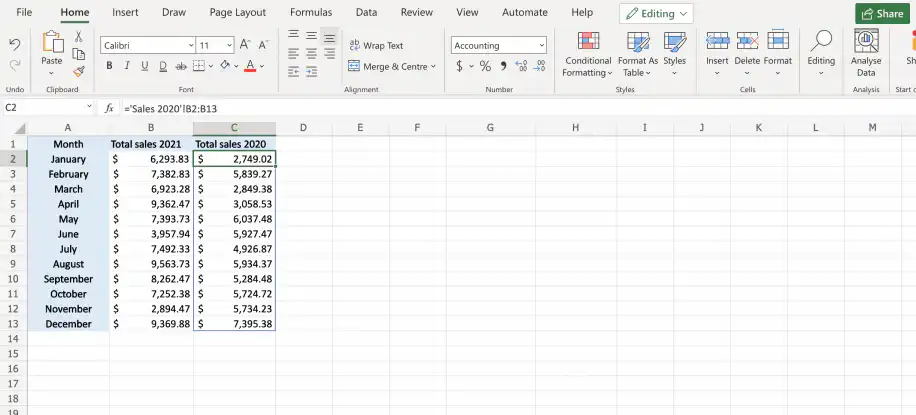
Follow the same steps as above, adding your cell range to the formula. In this example, I’ll reference the entire cell range containing the monthly sales for 2020.
1. Click on the cell you wish to add your reference to and enter ='Sales 2020'!B2:B13 to reference cell range B2:B13 in the sheet named “Sales 2020” in this workbook.
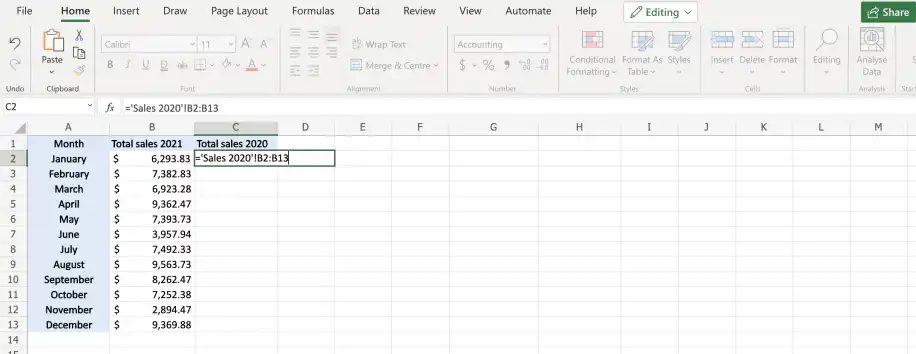
2. This will add the cell range from the “Sales 2020” sheet into your current sheet.
How to reference another workbook in Excel?
It’s common that the data you wish to reference is located in an external workbook. To reference another open workbook in Excel, you need to use the following formula: =[Book1.xlsx]Sheet1!A1. For example, ='[Sales 2020.xlsx]Sales 2020'!B2 returns cell B2 from the Sales 2020 sheet in the Sales 2020.xlsx workbook. When the workbook or sheet name contains spaces, wrap both in single quotes, as in this example.
Reference from another workbook in Excel
To reference from an open workbook, you don’t have to necessarily manually enter the entire formula. Here’s a shortcut:
1. In your destination file, click on the cell you wish to add your reference to and type =
2. In the source file, highlight the cell you wish to reference and press Enter.
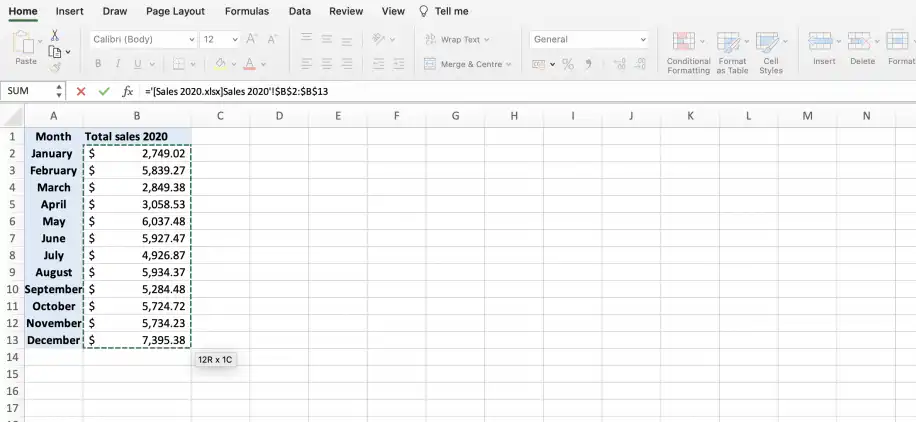
3. Excel will return you to the destination file and display the reference from the source in the cell.
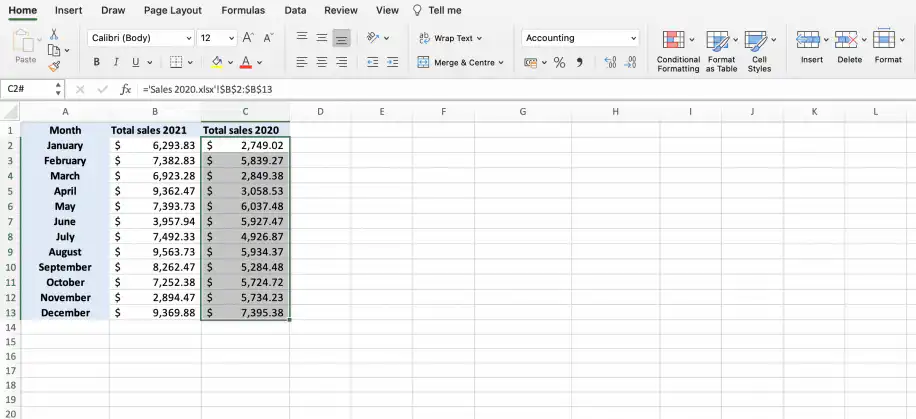
Please note: To reference a cell from a closed workbook, you must enter the entire path of the workbook – this may be either a file path from your personal computer folder or a link if you’re using Excel online.
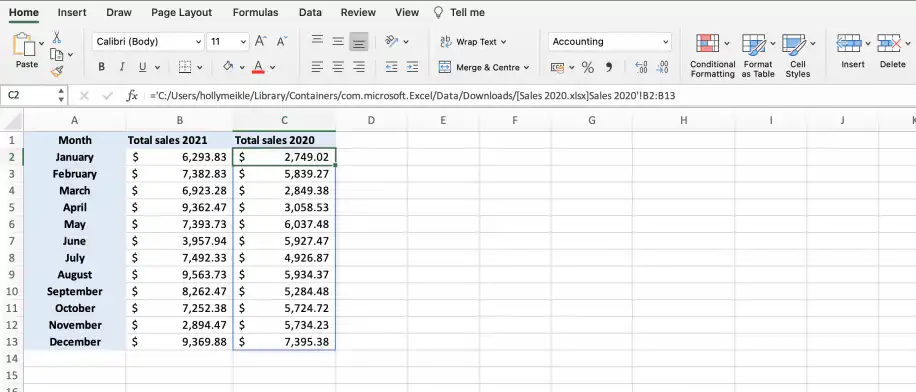
Reference another workbook in Excel with copy and paste link
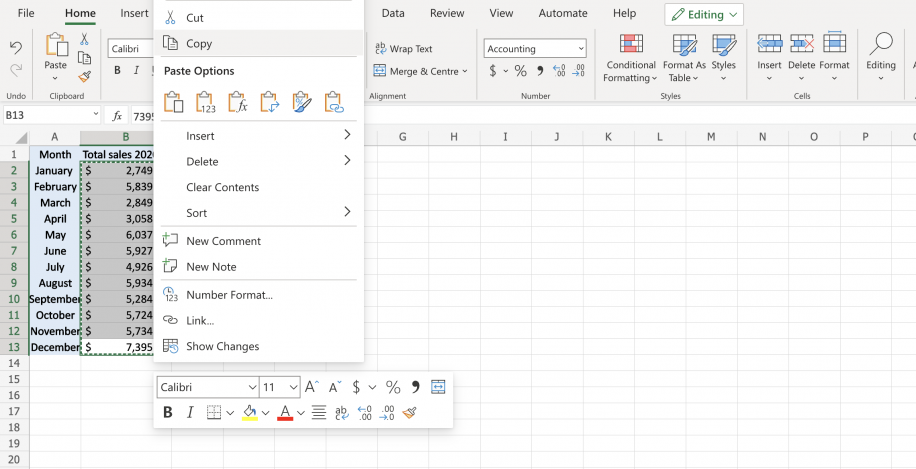
If you’re using Excel online, here is another way to reference an entire workbook. You can create an external reference using the simple copy and paste link.
1. In your source file, highlight the cell/range of cells you wish to reference, right-click and select “Copy”.
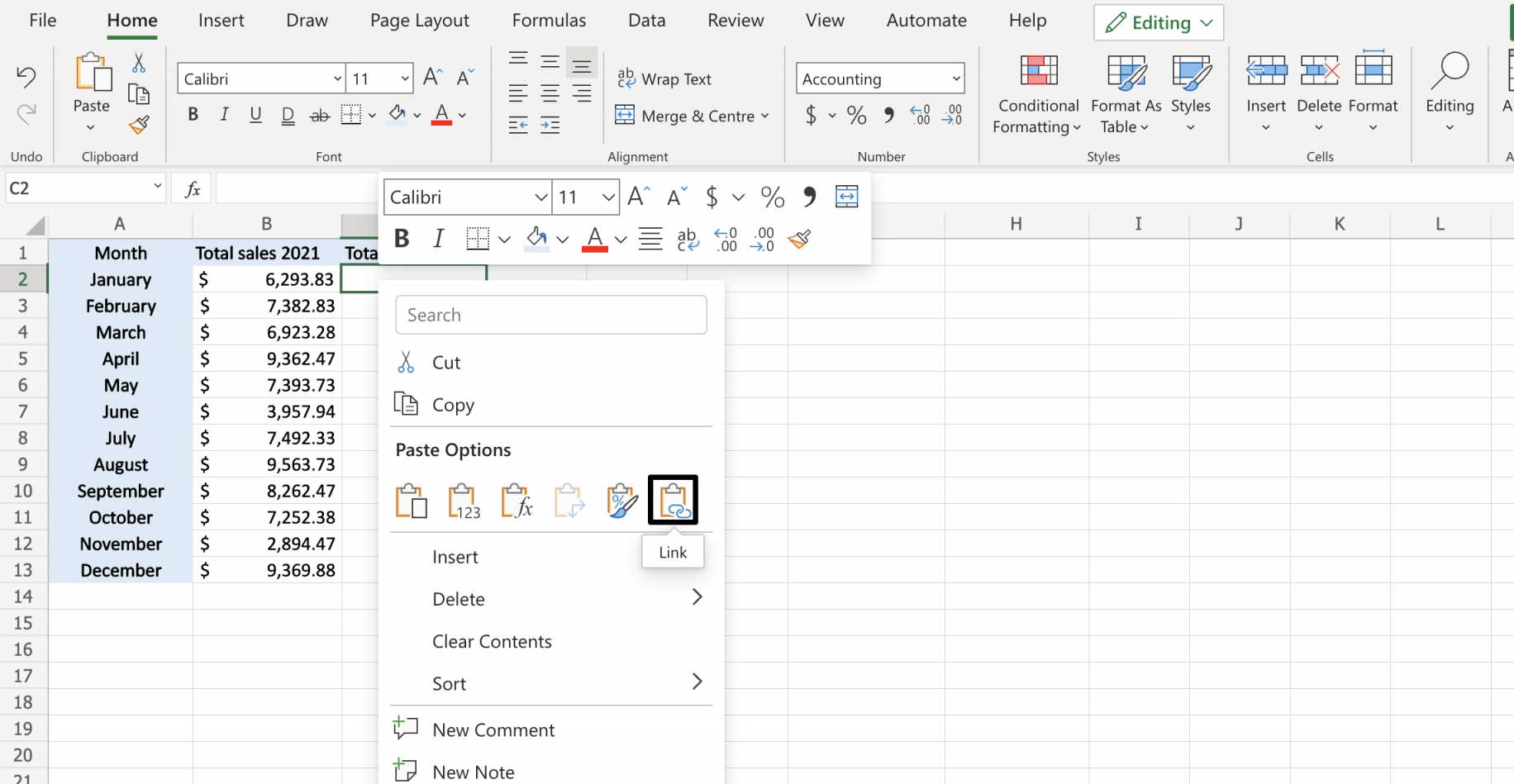
2. In your destination file, click on the cell you wish to add your reference to, right-click and click on the “Paste link” icon shown below.
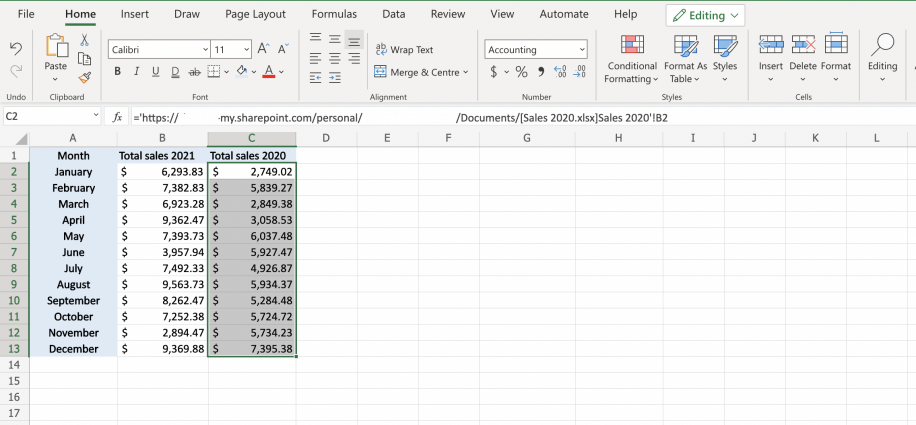
3. The data will be added to your destination file immediately.
Automatically import data from another Excel workbook with Sheetgo
Using Sheetgo, an AI-powered data automation platform, you can automatically connect your Excel workbooks and transfer data between them without having to use references or formulas. In fact, you can connect your data across multiple formats, including Excel, Google Sheets, and CSV.
Sign up to Sheetgo for free and connect your files in two steps: choose your source file, then choose your destination file.
Conclusion
Excel is a great tool to use when managing large amounts of data. With just a simple formula, you can reference anything from a single cell up to an entire dataset, from any worksheets or workbooks you have. Referencing cells in Excel is an effective way to evaluate and analyze different data in one place. However, if you’re looking for a more comprehensive and automated solution that requires no formulas or references, sign up for Sheetgo, an AI-powered data automation platform, and start saving time today.
Need to do the same task but in Google Sheets? Take a look at our article on how to reference another sheet in Google Sheets.
Here are some other articles you may find useful:



 English
 Español
 Português do Brasil
 Français