




Excel formulae allow users to perform basic calculations such as addition, subtraction, or multiplication, as well as find out the average or percentage of a cell range. Not only is it possible to apply these formulae to numeric values, but they also function with other data types, such as text, date, or time.
The Excel INDIRECT function allows you to lock a reference to a single cell, a cell range, or a cell from another sheet. This means that the references won’t change even if you edit the rows or columns in your spreadsheet – either by adding new ones or deleting existing ones. This is because the INDIRECT function converts a text string into a valid reference. You avoid returning values from a broken formula or simply #REF! errors.
In this article, you’ll learn what the INDIRECT function in Excel is, the INDIRECT formula syntax, and how to lock a cell reference to effectively manage formulae and level up your spreadsheet skills.
What is the Excel INDIRECT function?
The Excel INDIRECT function works like any other formula in your spreadsheet. Unlike the majority of formulae, this function is aimed at converting a text string into a valid reference. Moreover, the "&" operator can be included in the formula to create text strings. Let’s take a look at the INDIRECT syntax to understand how it works.
INDIRECT formula syntax
Below is the syntax for the INDIRECT formula and the meaning behind each parameter.
- ref_text is the cell reference provided in text format, so it should be enclosed in speech marks. For example, to reference cell A1, write “A1”.
- [a1] is a logical value that describes the reference style used in Excel. The A1 reference style follows the usual sequence of column (A) and row (1); the R1C1 reference style follows the opposite sequence, row (R1) and column (C1). When [a1] is set to TRUE or left empty, the ref_text is read as an A1 reference style; if set to FALSE, then it will be read as R1C1.
Now that you know what the Excel INDIRECT function is and its formula syntax, let’s see how it can be applied to various examples.
How to use the INDIRECT function in Excel?
We can use the Excel INDIRECT function to lock a specified cell in a formula; this allows you to change the cell reference within a formula without affecting it. Whether you add or delete rows or columns, it does not affect indirect references.
How to lock a cell reference using the INDIRECT function in Excel?
Let’s start by using the INDIRECT formula for simple conversion from text to a valid cell reference.
1. Open your spreadsheet and enter a numeric value in any cell. Here, I will type in “56” in cell A1.
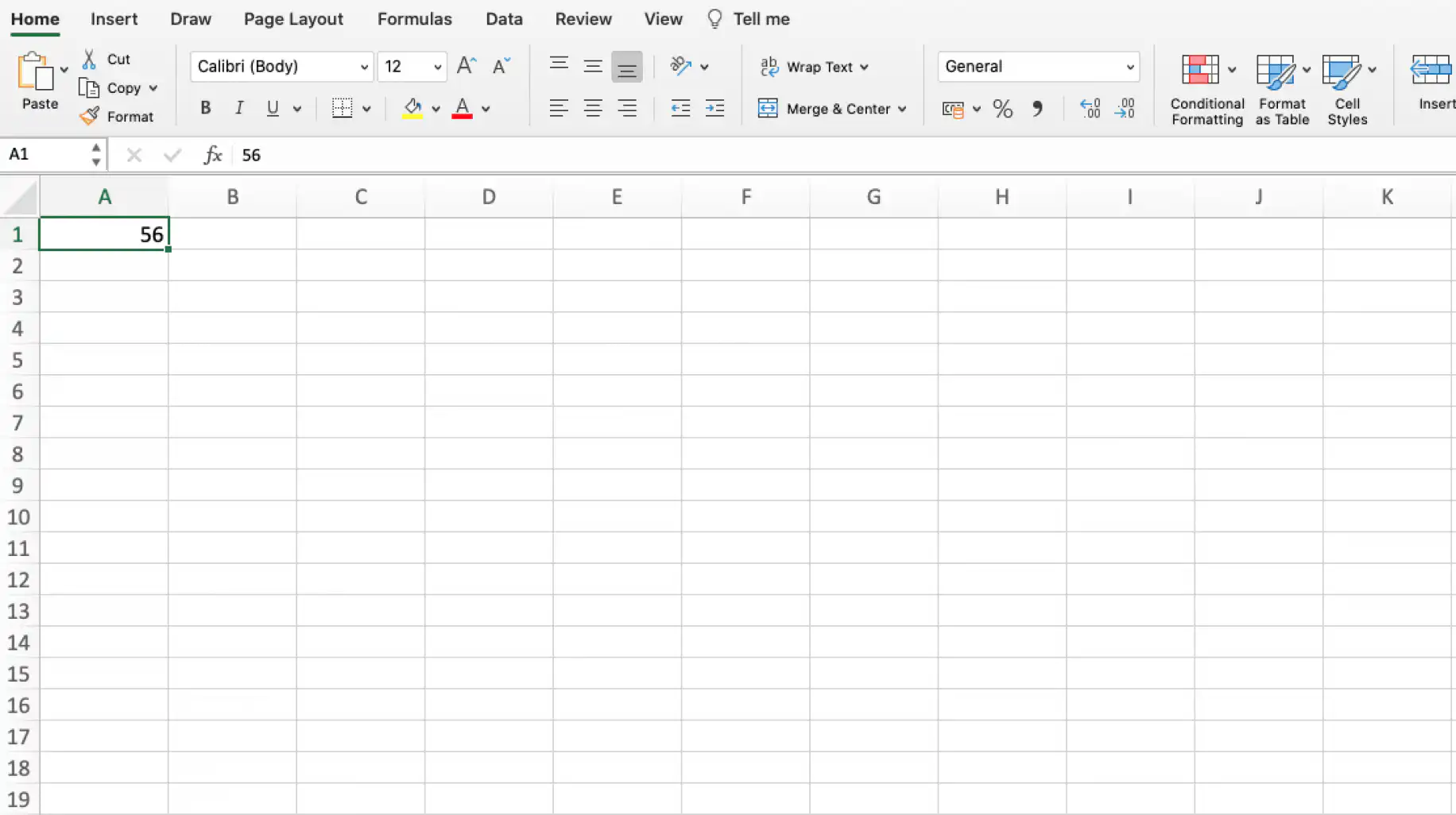
Excel INDIRECT Function – Enter numeric value
2. Enter the INDIRECT formula in any cell you wish. Remember that, as soon as you start typing, Excel will prompt you with the full formula. Here, I will enter the formula in cell B1 and refer to cell A1 to pull the numeric value: =INDIRECT("A1").
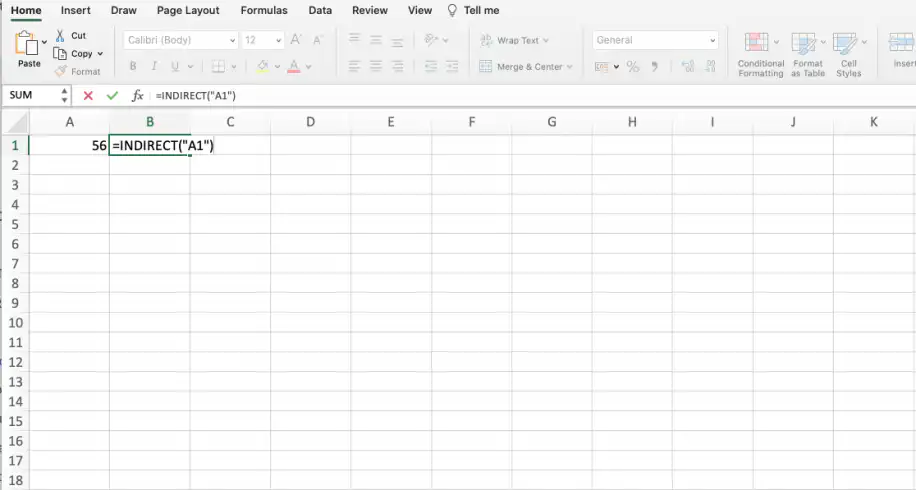
Excel INDIRECT Function – Enter INDIRECT Formula
3. Your spreadsheet should now show the same values in both cells.
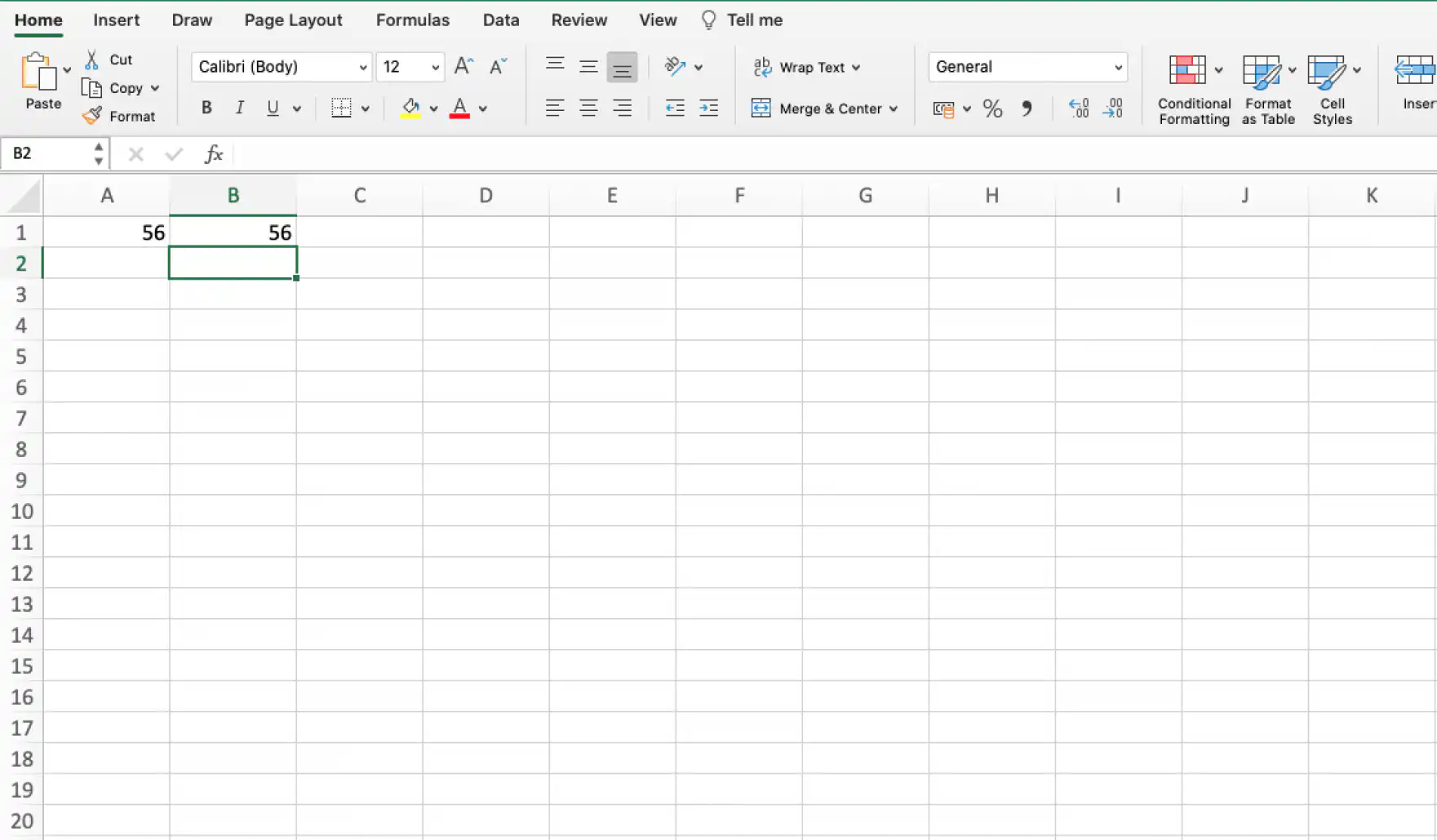
Excel INDIRECT Function – Returns cell values
As you can see, the INDIRECT function converts a text string (here, “A1”) into a valid cell reference to return the value of the referenced cell. Let’s explore further basic examples using the INDIRECT function in Excel for an array of numbers using the "&" operator.
How to use the "&" operator with the INDIRECT function in Excel?
The "&" is the CONCATENATE operator in Excel. It’s helpful when you want to join the results of two text strings. It’s normally used in conjunction with other functions such as SUM, but you can also use it for a single cell reference, as shown below.
1. Go to your spreadsheet and type in the INDIRECT formula as before, and include the "&" operator between the column and the row reference. Here, we have used "=INDIRECT("E"&3)" to return the value from cell E3, which is "5".
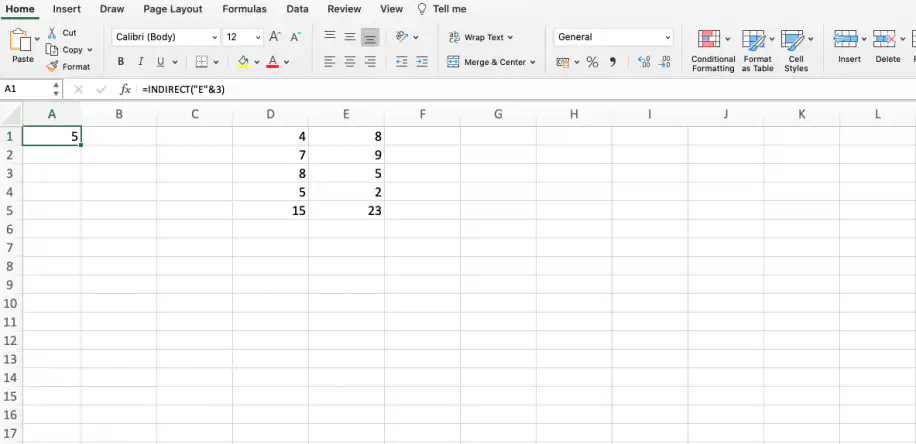
Excel INDIRECT Function – Use & operator
2. Try to add or delete a column to check how the formula behaves. Here, we will insert a column between D and E.
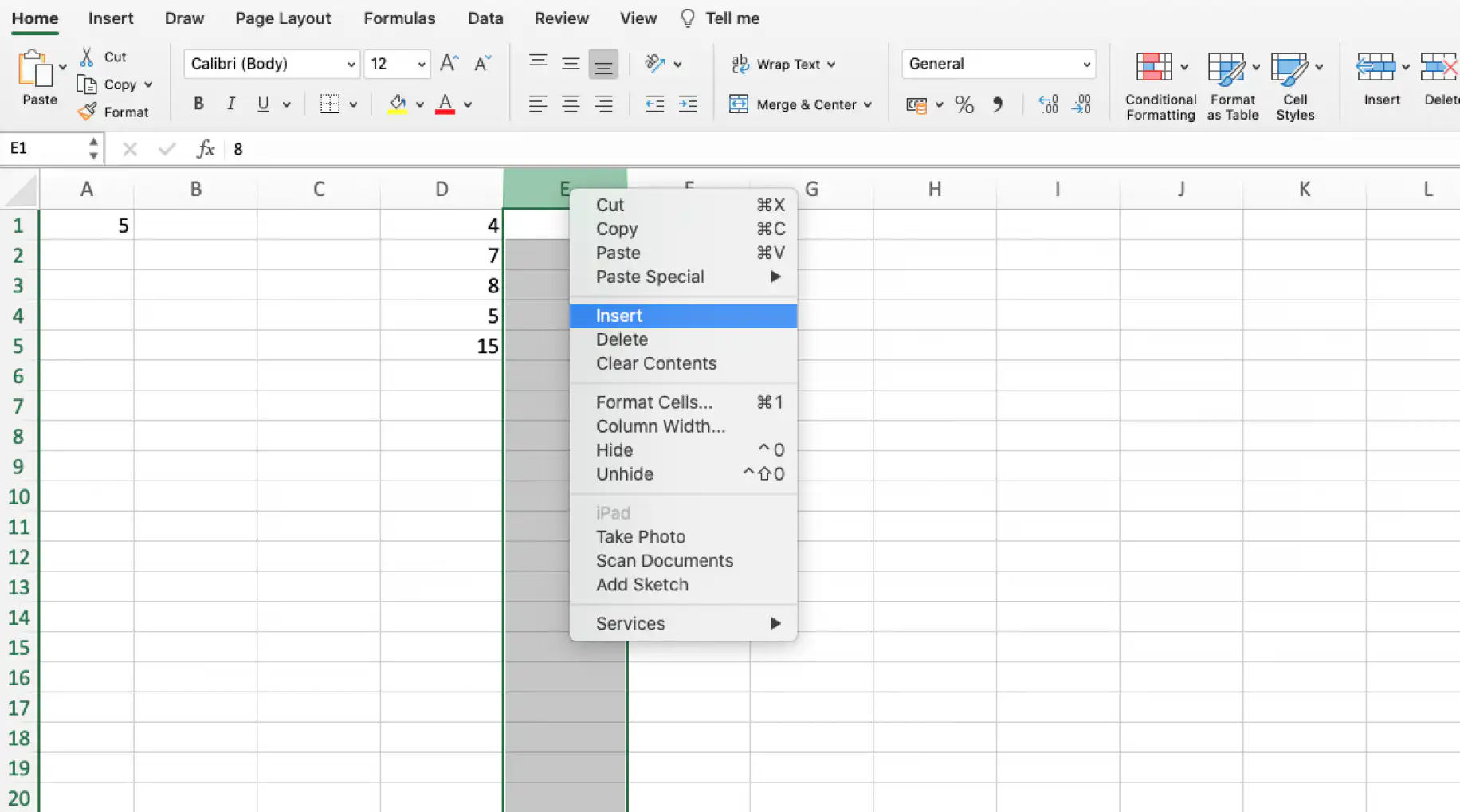
Excel INDIRECT Function – Add or delete column
3. As you can see, instead of returning an error message, Excel still returns a valid reference. Here, the valid reference is “0”, as the cells are empty.
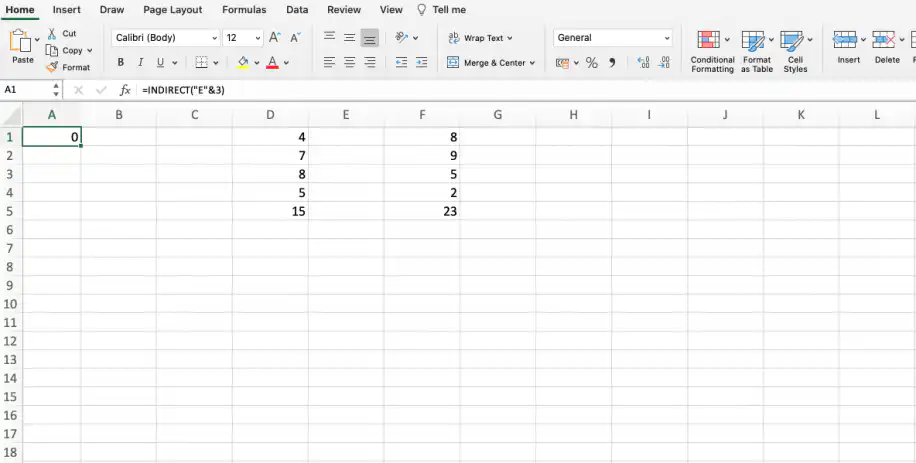
Excel INDIRECT Function – Valid reference to empty cell
Let’s see what happens if I combine the ROW function with the INDIRECT function in Excel.
How to use the ROW function with the INDIRECT function in Excel?
Using the "&" operator, you can combine the ROW and INDIRECT functions to return a reference based on the row where you enter the formula. In this example, I want to return the cell reference from the row where I add my formula – Row 1.
1. Type =INDIRECT("ref_text"&ROW()) in any of the available cells, only specifying the ref_text parameter.
2. Here, we will reference column D and enter the formula in row 1.
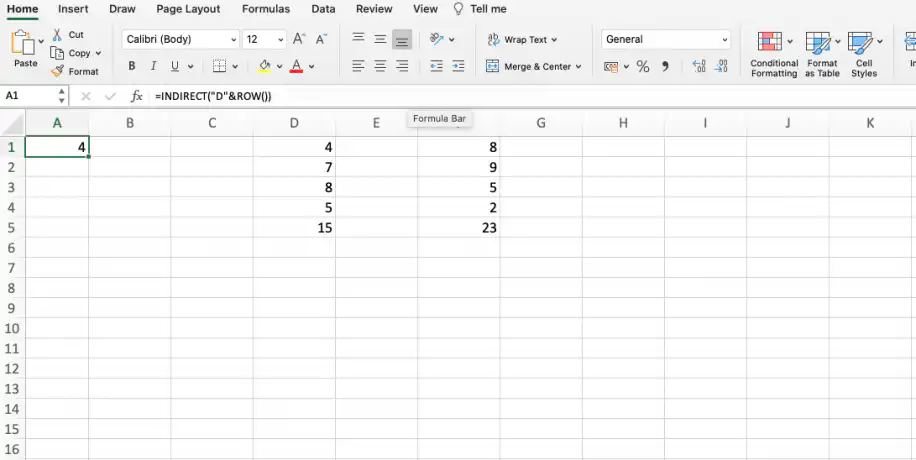
Excel INDIRECT Function – ROW function
As you have seen, the formula now returns the value based on the formula’s row number; here, the numeric value is “4”, corresponding to cell D1.
How to use the SUM function with the INDIRECT function in Excel?
The SUM function is used to add numeric values together. When combined with the INDIRECT function, it will return the sum of referenced cells.
1. Type in the formula =SUM(INDIRECT("ref_text")) in the cell you wish to return your SUM. While the INDIRECT function returns the referenced cells, the SUM function will be in charge of returning the sum.
2. Here, we will use =SUM(INDIRECT("D1:D5")) to return the sum of the cell range, including all numeric values in column D.
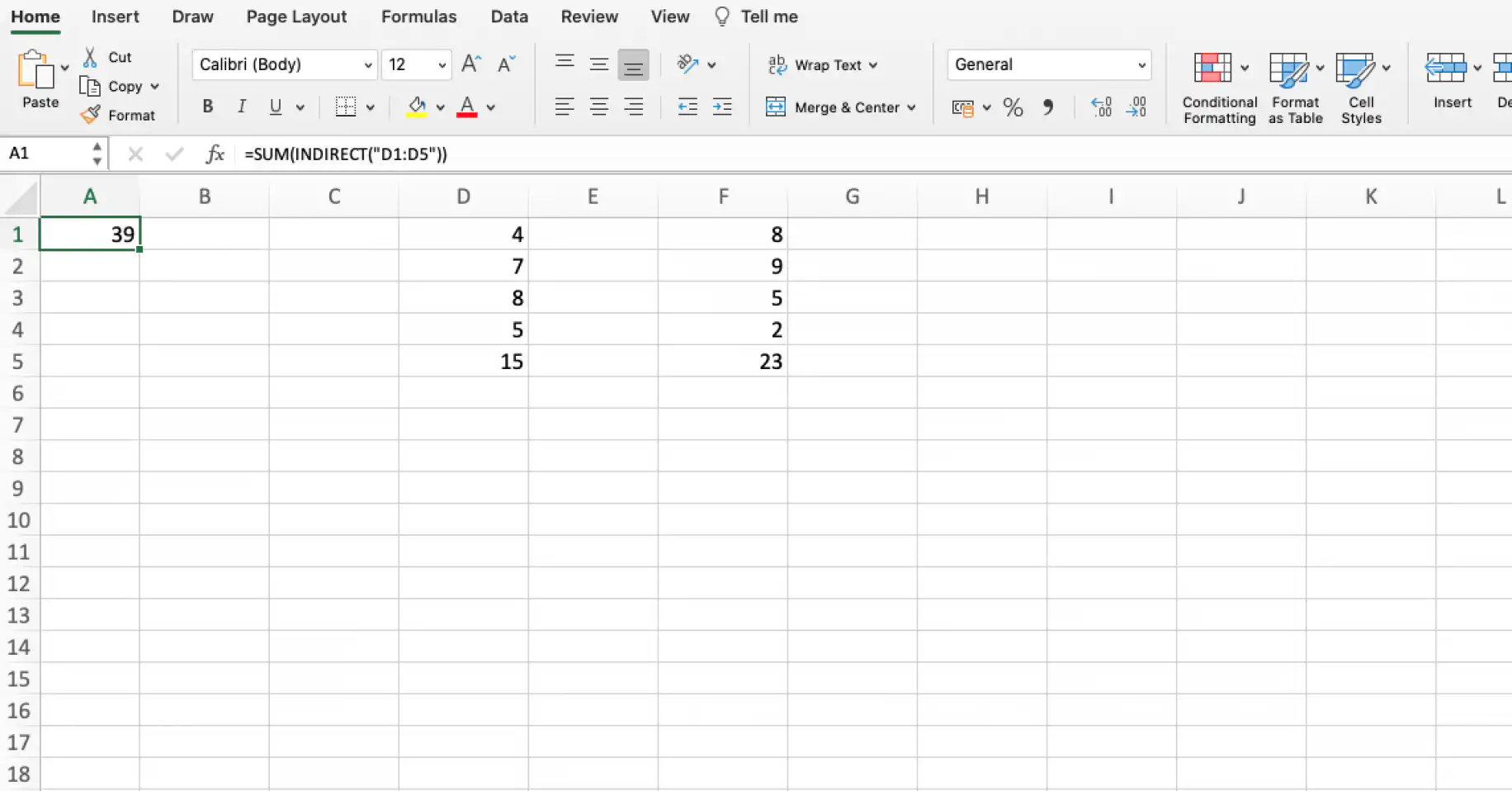
Excel INDIRECT Function – SUM function
As you can see, the formula returns the sum of all numbers by referring to the cell range. Here, the valid reference is “39”, and the text value used to refer is “D1:D5”.
If I delete row 4 completely, the INDIRECT function acknowledges this change in the cell range reference and will return a new total.
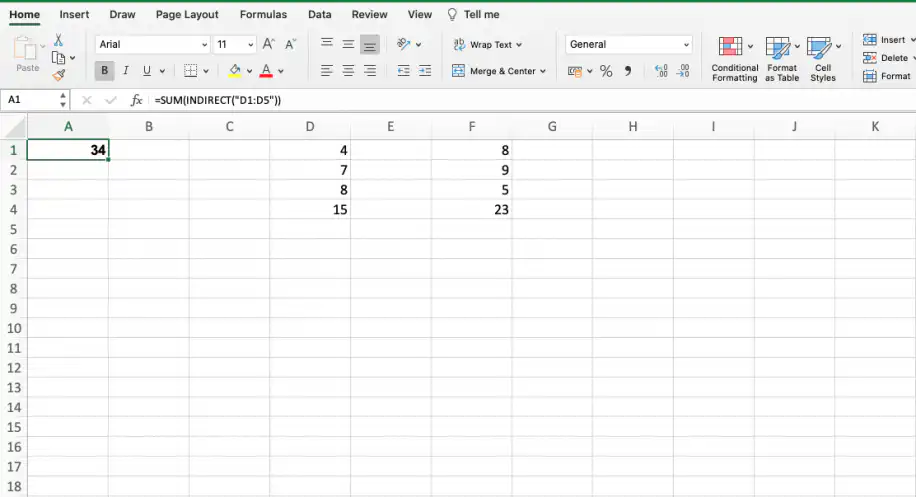
Excel INDIRECT Function – New value for SUM function
How to use the AVERAGE function with the INDIRECT function in Excel?
Similarly, when we combine the AVERAGE and INDIRECT functions, it first refers to the cell range and then performs the calculation, in this case, the average.
1. Type in the formula =AVERAGE(INDIRECT("ref_text")) in any cell.
2. Here, we will use =AVERAGE(INDIRECT("D1:D5")) to return the average of the cell range used in the previous example.
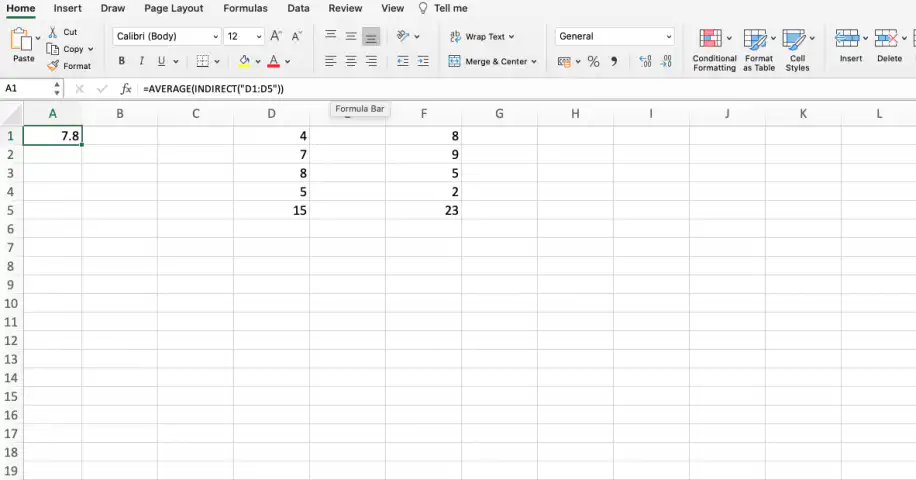
Excel INDIRECT Function – AVERAGE function
If I add a new row, the values within the data range change. The INDIRECT function will recognize this, and so the data range will no longer include the value “15”. Instead, it returns the average of the first 5 rows (as specified in the formula). Here, it returns a new value of “5.4”.
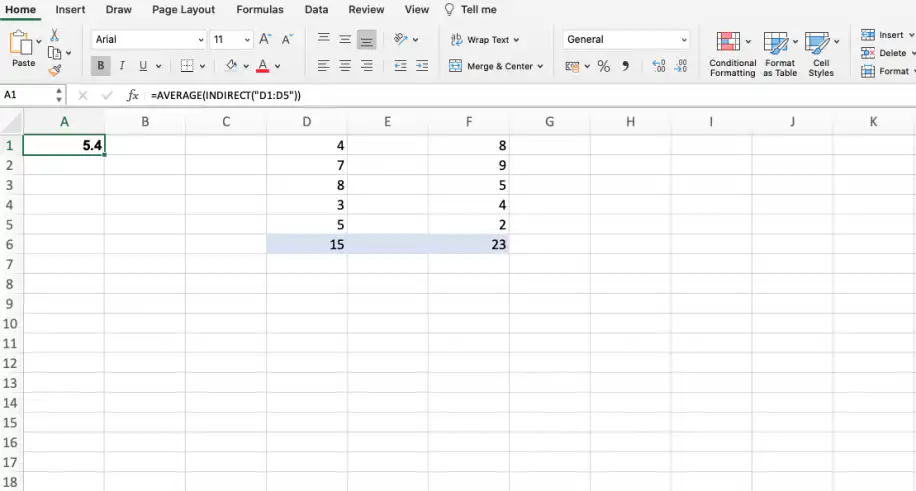
Excel INDIRECT Function – New value for AVERAGE function
The usefulness of Excel’s INDIRECT function is not just limited to locking a cell reference for the correct functioning of formulae. We will now see how it can be used to refer to a cell in another sheet.
How to reference another sheet using the INDIRECT function in Excel?
Let’s see how the INDIRECT function can return cell values from another sheet.
1. Open a new sheet where you will use the formula. To refer to a cell in another sheet, we will include the sheet name and the cell in the “ref_text” parameter.
2. It’s important to include it between speech marks and add an exclamation mark after the sheet name. For example, =INDIRECT("JANUARY!A1").
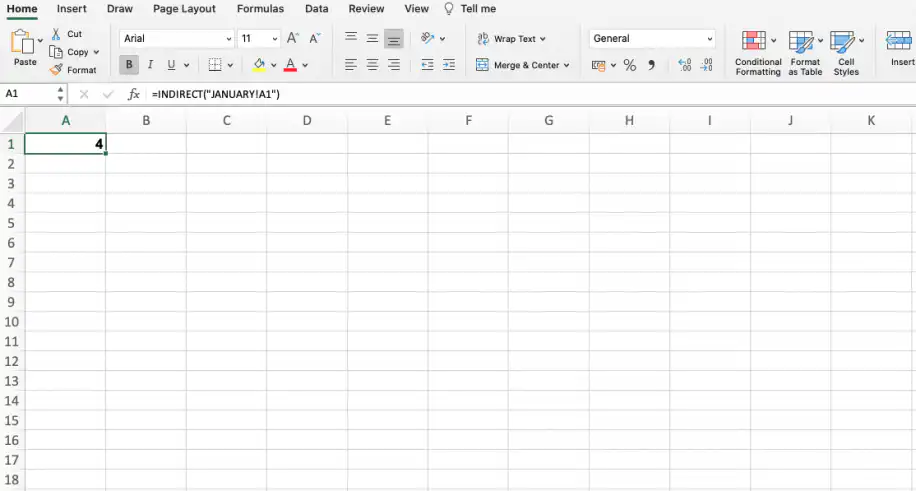
Excel INDIRECT Function – Reference another sheet cell
As you can see, it has returned the same value in the referenced cell from another sheet. The formula will behave in the same way regardless of the number of sheets or information held in your spreadsheets.
Conclusion
As you can see, the Excel INDIRECT function is essential for users who want to perform more complex tasks on their spreadsheets. By locking references to cells, you can return valid results from different formulae, regardless of whether you change the rows or columns within your spreadsheet. Overall, you have more control over your dynamic data whilst avoiding the time-consuming alternative of copying and pasting values across your spreadsheet.
This guide has shown you what the INDIRECT function is and its syntax. By the end of this article, you should know how to use the INDIRECT function to lock a reference to a cell, how to lock a reference to a cell range combined with another formula, and how to reference a cell from another sheet.
If you would like to know more about referencing, read our article on how to reference another sheet or workbook in Excel. If you prefer using Google Sheets, then you’ll find linking Google Sheets: How to reference another sheet of great help.
Google Sheets has the same function. See how to use the INDIRECT function in Google Sheets for the syntax there. To build a reference that moves a set number of rows and columns from a starting cell, use the Excel OFFSET function. If the data you reference lives in separate Excel workbooks, Sheetgo, an AI-powered data automation platform, can bring it into one file on a schedule, so it stays current and ready for AI.



 English
 Español
 Português do Brasil
 Français