Get help

Help center

Guides and answers

Contact support

Write to our team

Sign in to

Workflows

Build processes with your team

Automations

Connect files and automate tasks

One system, four parts

AI agents

Virtual Employees that work 24/7

Automations

Connect files and automate tasks

Workflows

Build processes with your team

Data Space

Trusted data sharing and control

Solutions by department

Finance

Reports, budgets, and reconciliations

Inventory and manufacturing

Stock, orders, and production in one view

HR

Timesheets, attendance, and reviews

Project management

Status and workload across projects

Sales and CRM

Leads and deals kept up to date

Education

Student records and school data

Finance

Turn manual finance work into reports that update themselves.

What Finance teams automate

  • Track payables and receivables
  • Build cash flow statements
  • Compare budget against actuals

Inventory and manufacturing

See stock levels and automate ordering.

What inventory and manufacturing teams automate

  • Track inventory across multiple sites
  • Connect sales, purchasing, and warehouse data
  • Link a barcode scanner to your sheet

HR

Run recruitment, attendance, and OKR tracking from your sheets.

What HR teams automate

  • Track recruitment and onboarding
  • Record team OKRs and results
  • Track check-ins, check-outs, and leave

Project management

Assign tasks and track hours without manual updates.

What project teams automate

  • Assign tasks and track status changes
  • Estimate effort and log hours worked
  • Track milestones across projects

Sales and CRM

Track leads and sales performance with automated reports.

What sales teams automate

  • Track and convert leads
  • Set sales goals and track team metrics
  • Monitor sales KPIs on dashboards

Education

Automate attendance, grades, and school purchasing.

What schools automate

  • Track attendance and notify parents
  • Record and compare class grades
  • Track inventory lent to students and staff

Find a use case

By department

How each team uses Sheetgo

By industry

How each industry uses Sheetgo

By company size

Small, medium-sized, or large

Learn

Blog

Guides and product news

Customer stories

How teams like yours use Sheetgo

Help center

Guides and answers

Why Sheetgo

Compare

How Sheetgo compares with other tools

Security

How we protect your data

Trust center

Our compliance details

Sign in to

Workflows

Build processes with your team

Automations

Connect files and automate tasks

One system, four parts

AI agents

Virtual Employees that work 24/7

Automations

Connect files and automate tasks

Workflows

Build processes with your team

Data Space

Trusted data sharing and control

Solutions by department

Finance

Reports, budgets, and reconciliations

Inventory and manufacturing

Stock, orders, and production in one view

HR

Timesheets, attendance, and reviews

Project management

Status and workload across projects

Sales and CRM

Leads and deals kept up to date

Education

Student records and school data

Find a use case

By department

How each team uses Sheetgo

By industry

How each industry uses Sheetgo

By company size

Small, medium-sized, or large

Get started

Templates

Ready-made workflows to start from

Learn

Blog

Guides and product news

Customer stories

How teams like yours use Sheetgo

Help center

Guides and answers

Why Sheetgo

Compare

How Sheetgo compares with other tools

Security

How we protect your data

Trust center

Our compliance details

Help center

Guides and answers

Contact support

Write to our team

Workflows

Build processes with your team

Automations

Connect files and automate tasks

Setting an absolute cell reference in Google Sheets

An absolute cell reference points to a specific cell and doesn’t change if you replicate that original cell. In this article we will cover how to turn a relative reference into an absolute one. We will also analyze some cases where this is necessary or useful.

What is an absolute cell reference?

It is a cell reference that points to a specific cell which does not change when a formula is replicated.

By default all cell references are relative and if they are copied to another cell they change accordingly. The image below illustrates just that, the green cell is the original that was replicated to all other cells.

absolute cell reference 1

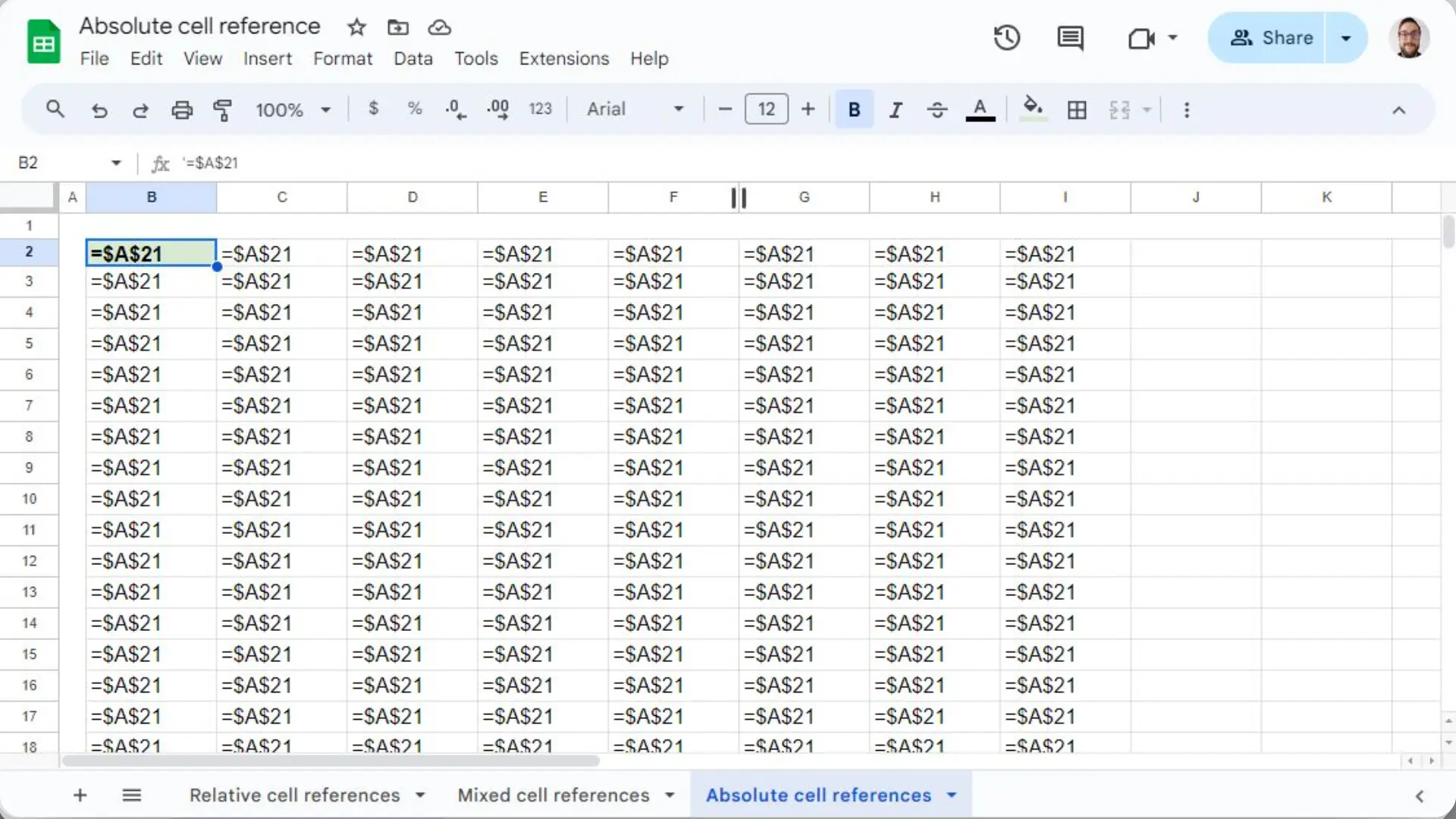
To point to a specific cell that never changes just add dollar signs to the cell range (“$A$21”). These act as anchors and have to be added before the column and row in the coordinates.
absolute cell reference 3

You can also add a dollar sign to either the column or the row to create a mixed cell reference (“$A21”). In the next example the column is frozen and the row changes.

absolute cell reference 2

When would an absolute cell reference be most helpful?

An absolute cell reference is a great way to point to one specific value to add in your formulas. As a rule of thumb, you should use them if:

  • Replicating a cell breaks the formula it contains.
  • You have to introduce a specific value in a lot of formulas. Especially if this is a value you will have to update regularly.

Here are some common scenarios where it can be particularly useful:

  • Currency Conversion: Include the conversion rate in a cell and use an absolute cell reference to point to it. This way, when the rate changes, you only need to update one value to keep all calculations up to date.
  • Consistent References in Replicated Formulas: When replicating a formula across multiple cells, using an absolute cell reference ensures that specific values or ranges remain constant. Without it, you might get incorrect results as the reference shifts with each replication.
  • Sales Tax Calculation: When calculating sales tax for multiple items, using an absolute cell reference for the tax rate ensures that the same rate is applied consistently to all items. If the tax rate changes, you only need to update it in one place.

Absolute cell reference shortcut

Adding dollar signs to existing references in your formulas can be annoying. Fortunately, there is a way to do this easily, just place your cursor on the cell reference and press F4. This will turn it into an absolute reference.

Press it again and it will turn into a mixed cell reference with an anchored row, one more time will fix the column instead of the row. One final and fourth tap of F4 will complete the cycle, returning to its original state as a relative reference.

This saves you the time of having to place your cursor in the right place and type the dollar sign. It isn’t a life changer, but it speeds things up considerably.

An absolute cell reference is not the same thing as an absolute value, which is a number without its sign. For that, see how to find absolute value with the ABS function in Google Sheets.

Update reference values automatically with Sheetgo

Once you set up an absolute cell reference to a specific value, chances are you have to update it regularly. The next step in your spreadsheet journey is updating information automatically and Sheetgo is the best companion.

Here are just a handful of Sheetgo features that could automate tasks:

  • Connect your files: Link up your spreadsheets and transfer information between them. Always keep necessary data up to date and accessible. Share information and stop copy-pasting.
  • Consult BigQuery databases: If you have a BigQuery database you could bring that information straight into your spreadsheets. 
  • API connect: Draw information automatically from an API, no need to learn how to do a request or parse incomprehensible files.

Try out Sheetgo for free and automate your problems away!

Conclusion

Absolute cell references are crucial in Google Sheets for ensuring stable and accurate formulas. By anchoring columns and rows in your cell coordinates, you keep critical values constant.

Converting relative references to absolute ones is easy and can be sped up with the F4 shortcut. As your spreadsheets become more complex, Sheetgo is a great ally to automate updates and enhance data consistency.

You may also like…

google sheets features and formulas

Top 5 dynamic array formulas in Google Sheets 

Google Sheets has evolved beyond basic spreadsheets. With the introduction of dynamic array formulas, users can now manipulate and analyze...
google sheets features and formulas

Mastering the FILTER Formula: 4 Use Cases with Examples

The FILTER formula in Google Sheets is a versatile tool for extracting data that meets specific conditions. Unlike the QUERY formula,...
google sheets features and formulas

Unlocking the Power of SUMIF and SUMIFS in Google Sheets: 4 real-life use cases

The SUMIF and SUMIFS formulas in Google Sheets are indispensable tools for performing conditional summations. They simplify complex...