


The mean, median, and mode are three measures of a dataset’s central tendency. The arithmetic mean or average is a very popular measure and simple to calculate: sum the values and divide by the number of values. However, the calculation is based on the assumption that all items in the set contribute equally, and this isn’t always the case. If the items in your dataset have different weights – some are worth more than others – you should calculate the weighted average instead.
In this guide, you will learn about weighted averages and how they differ from simple averages, as well as the formula used to calculate a weighted average. You have step-by-step instructions on how to calculate weighted averages manually and how to do it in Google Sheets. Finally, you have two examples of financial uses for this measure: Weighted Average Shares Outstanding and Weighted Average Cost of Capital (WACC).
What is a weighted average?
A weighted average considers the relative contribution of each item in the set. This makes it ideal in situations where you can quantify these contributions or weights. For example, course grades are usually composed of different assessments, like exams and projects. These assessments have different weighting, so a simple average is not helpful.
How to calculate weighted averages?
Calculating the weighted average of a set of values is simple and very similar to calculating a simple average. First, multiply each item by its relative weight. Second, add up the results of the previous step. Third, divide the total by the sum of the weights.
weighted average = (value1*weight1 + value2*weight2 +…valuen*weightn) / (weight1+weight2+…weightn)
For example, imagine that you’ve just finished an online course with three graded assessments with different weights: quiz (10% or 0.1), project (40% or 0.4), and exam (50% or 0.5). You already know your grade on each assessment, so you can easily calculate your final grade.
- Quiz Grade: 69
- Project Grade: 95
- Exam Grade: 75
Weighted average = Final grade = ((69*10)+(95*40)+(75*50))/(10+40+50) = (690 + 3800 + 3750)/(100) = 8240/100 = 82.4
However, you can simplify the calculation by expressing the weights as decimals so that they add up to 1.
Final grade = (69*0.1)+(95*0.4)+(75*0.5) = 6.9 + 38 + 37.5 = 82.4
How to calculate weighted averages in Google Sheets?
Now that you know how to calculate weighted averages manually, let’s see how much easier it is to do using Google Sheets. I will use the same example as in the previous section for comparability, but in this case, I’ll calculate the final grades for a class of 10. First, by using the formula shown above, then by using a built-in function in Google Sheets: AVERAGE.WEIGHTED.
Custom table and weighted average formula
Follow the steps below to find the final grades using the weighted average formula.
1. Open Google Sheets.
2. Set up the data as shown below.
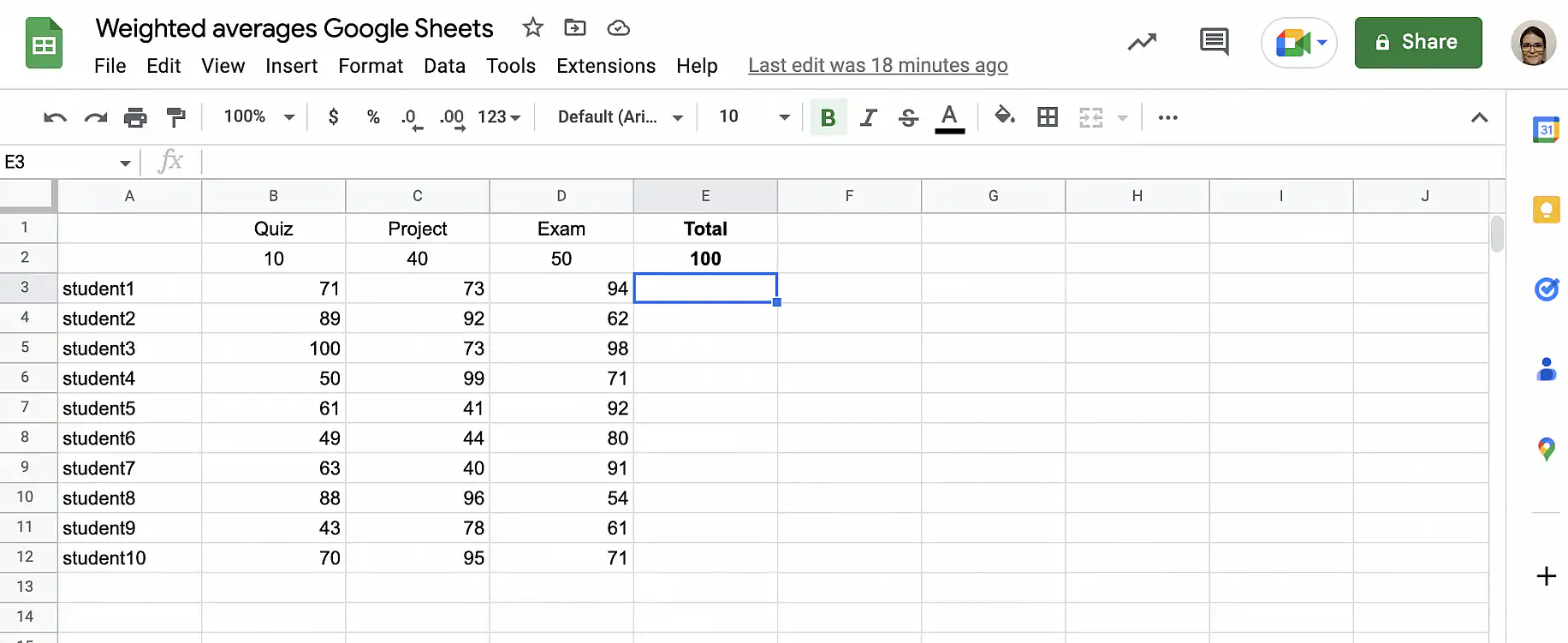
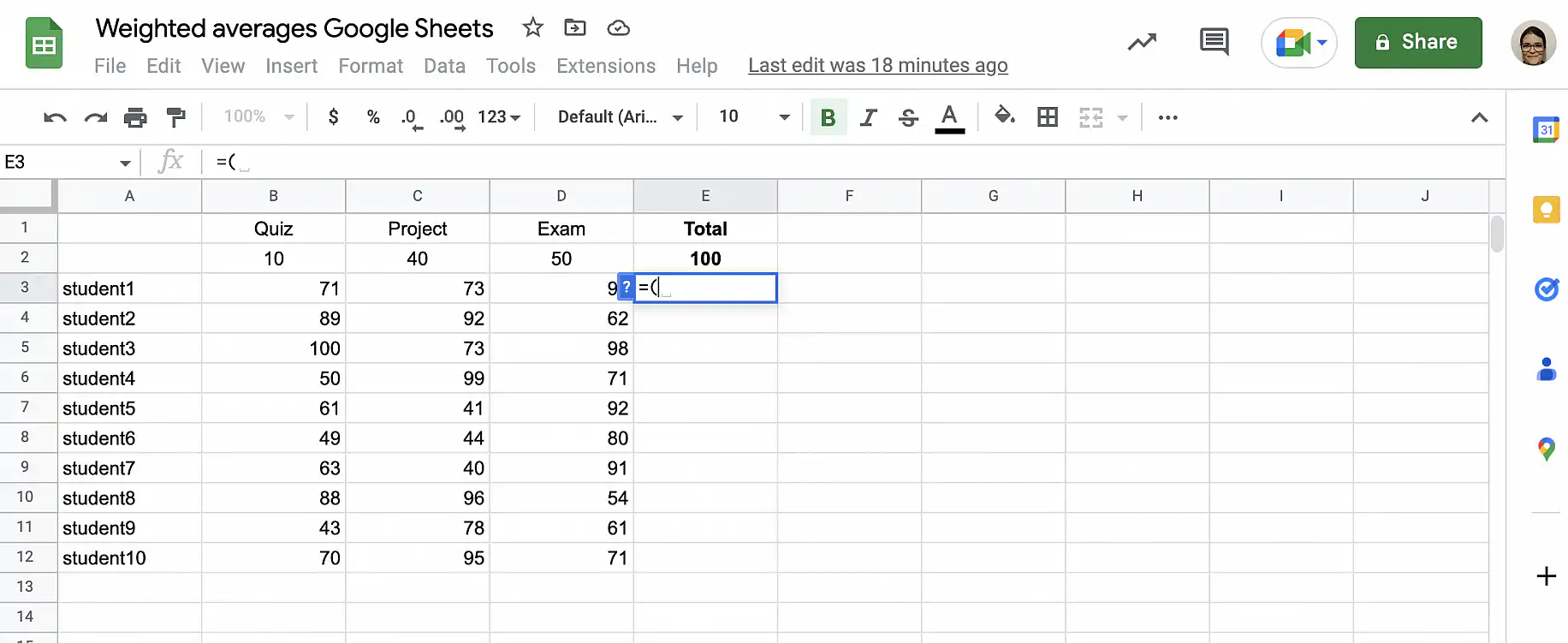
3. In the cell where you want the first student’s final grade, type in the equal sign and opening parenthesis.
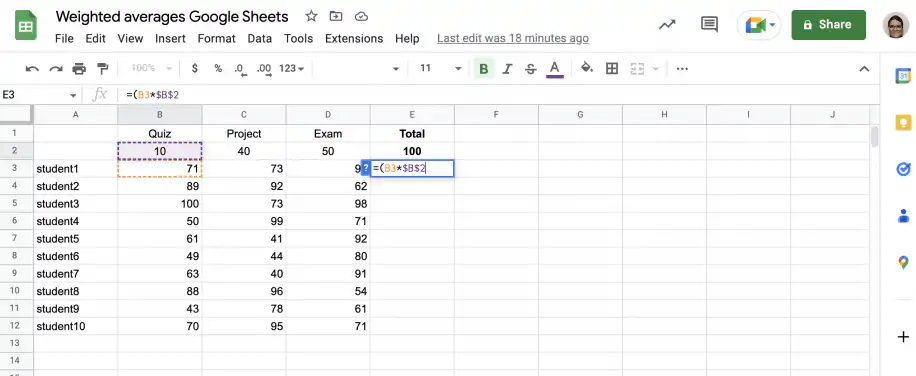
4. Select the quiz grade and multiply by the quiz weight. Use absolute referencing for the weight.
5. Type the plus sign, then select the project grade and multiply by the project weight. Use absolute referencing for the weight.
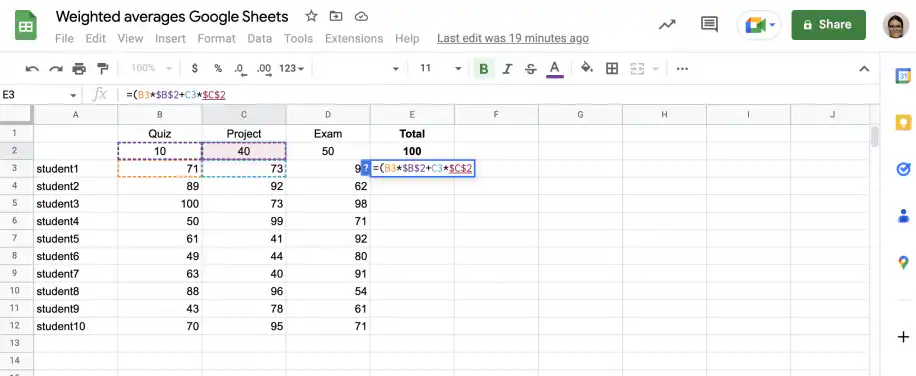
6. Type another plus sign, then select the exam grade and multiply by the exam weight. Use absolute referencing for the weight.
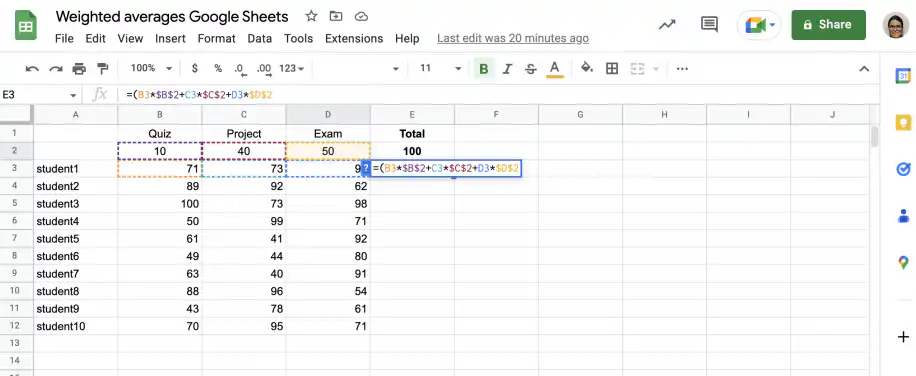
7. Close the parenthesis and divide by the sum of the weights. Press ‘Enter’ to see the result.
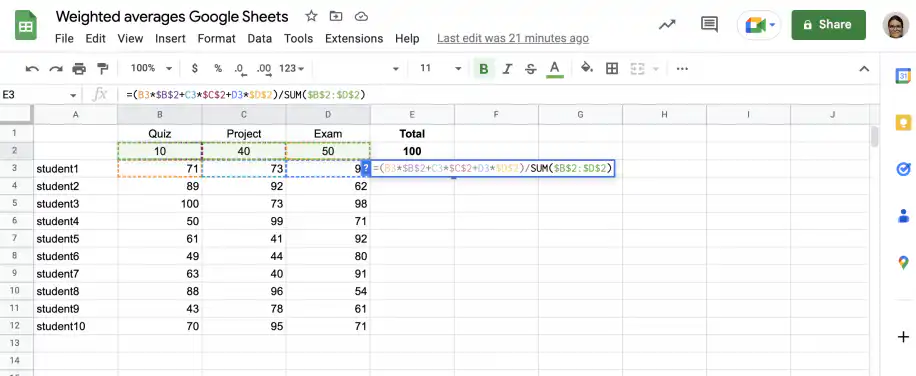
8. To get the rest of the grades, grab the fill handle and drag it down to the last row.
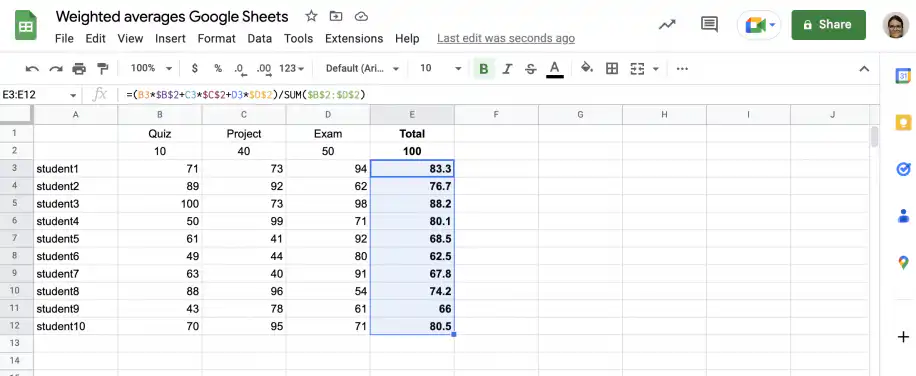
A shorter formula gives the same result: =SUMPRODUCT(B3:D3,$B$2:$D$2)/SUM($B$2:$D$2). Our guide to the SUMPRODUCT formula in Google Sheets explains how it works.
AVERAGE.WEIGHTED function
Follow the steps below to find the final grades, but this time, use Google Sheets’ built-in function: AVERAGE.WEIGHTED.
1. Open Google Sheets to the spreadsheet with your data.
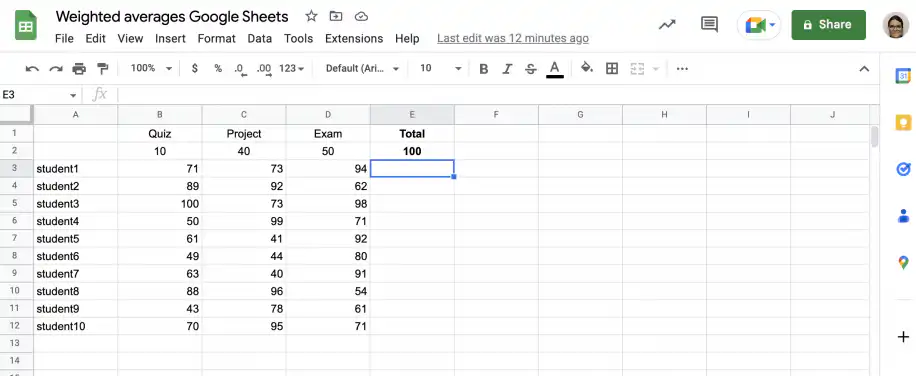
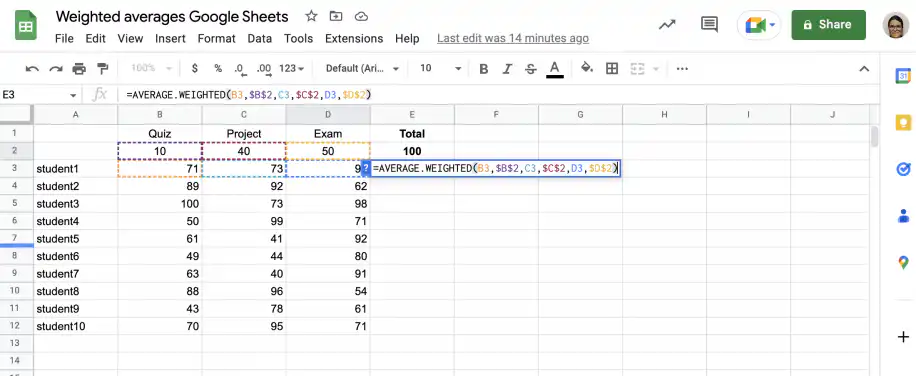
2. In the cell where you want the weighted average, type the formula AVERAGE.WEIGHTED.
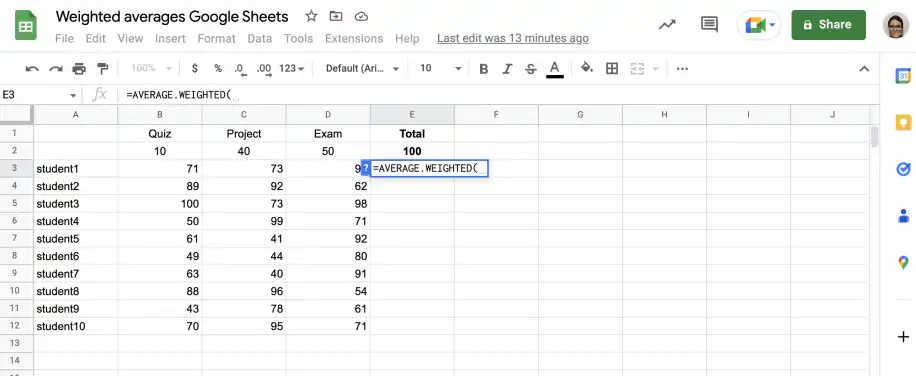
3. For the first parameter, select the quiz grade. After the comma, select the quiz weight using absolute referencing.
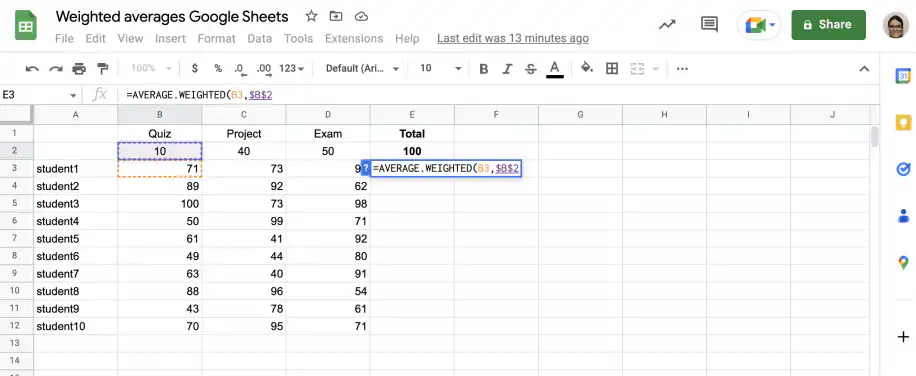
4. Next, add the project grade and the project weight, using absolute referencing for the last.
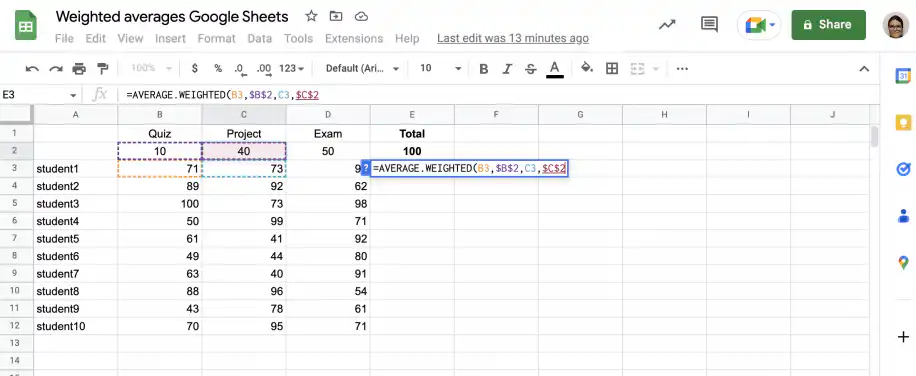
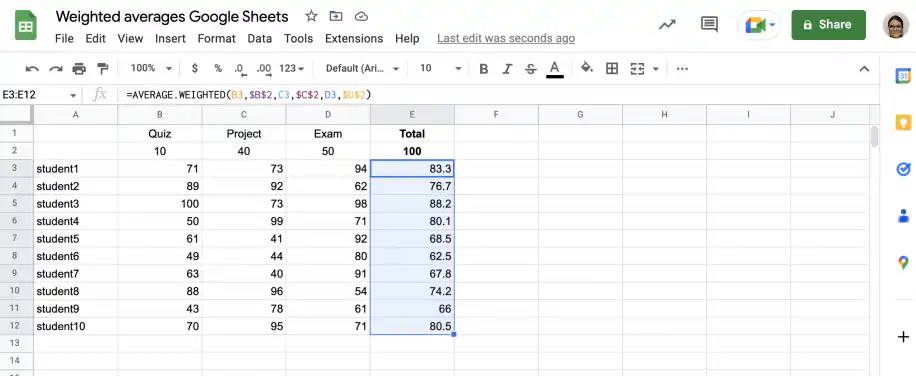
5. Finally, add the exam grade and use absolute referencing for the weight. Close the parenthesis and press ‘Enter’ to see the result.
6. Grab the fill handle and drag it down to the last row to get the rest of the grades.
Weighted average examples
Below, you have two examples of how weighted averages are used in financial calculations.
Weighted average shares outstanding
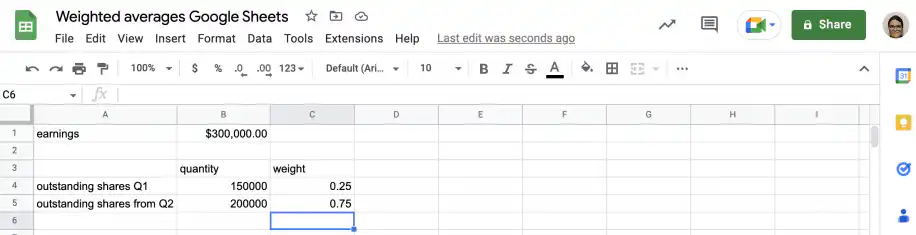
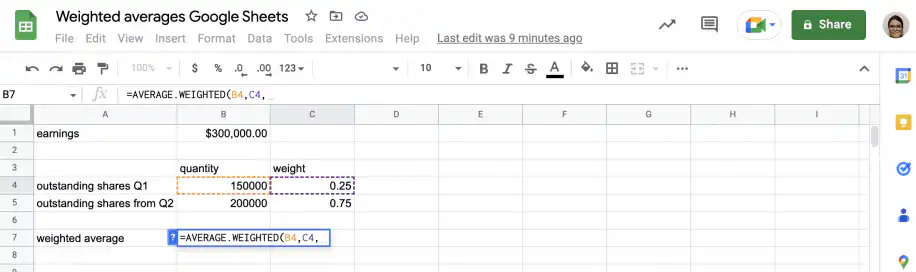
Imagine CompanyX has reported earnings of $300,000 at the end of the year. To calculate earnings per share, you need to divide by the number of shares outstanding. However, what if new shares were issued during the year? CompanyX had 150,000 shares outstanding until it issued 50,000 shares in the second quarter. Which figure should you use for outstanding shares? 150,000 or 200,000? Instead, you calculate the weighted average based on the proportional amount of time covered. In other words, 150,000 accounts for the first quarter or 0.25 of the whole year, while 200,000 accounts for the other three quarters (0.75).
1. Open Google Sheets and set up the data as shown below.
2. In an empty cell, type the AVERAGE.WEIGHTED function.
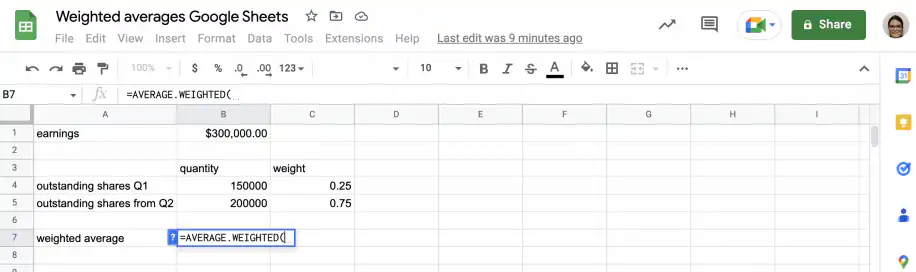
3. Select the first quantity, followed by a comma, then the first weight, followed by another comma.
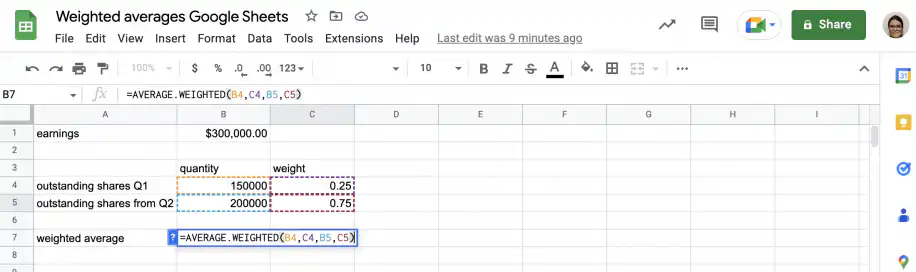
4. Select the second quantity, add another comma, and select the second weight. Close the parenthesis and press ‘Enter’ to see the result.
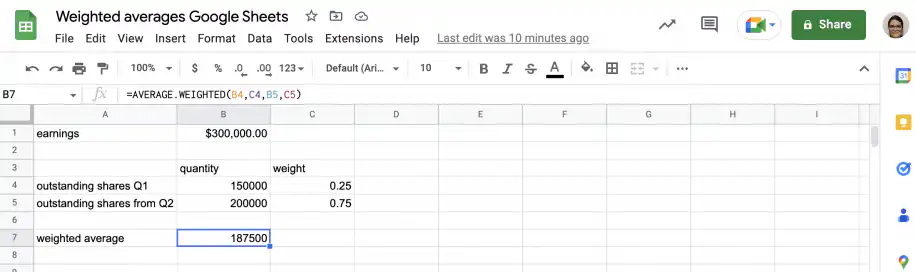
5. That’s it. The weighted average number of shares outstanding is equal to 187,500.
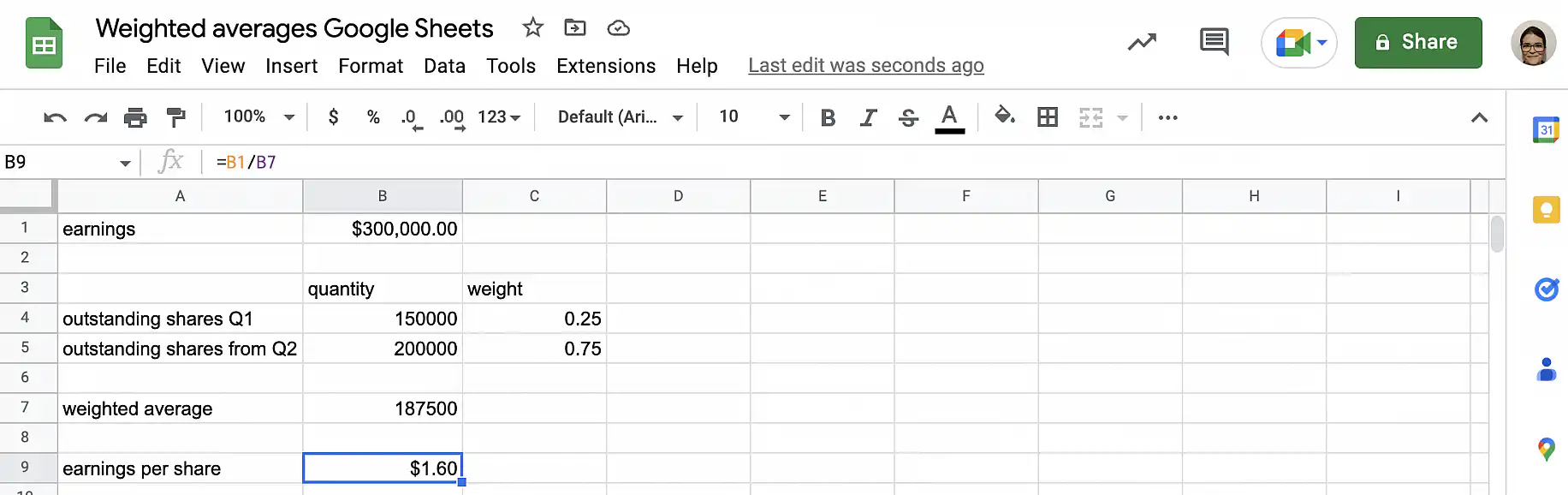
6. To find the Earnings Per Share (EPS), divide the earnings by 187,500.
Weighted average cost of capital (WACC)
The cost of capital refers to the minimum return a company must earn before it starts generating value. The business needs to generate enough income to cover the cost of the capital it uses to fund its operations, considering both debt and equity.
The following formula is used to calculate the weighted average cost of capital.
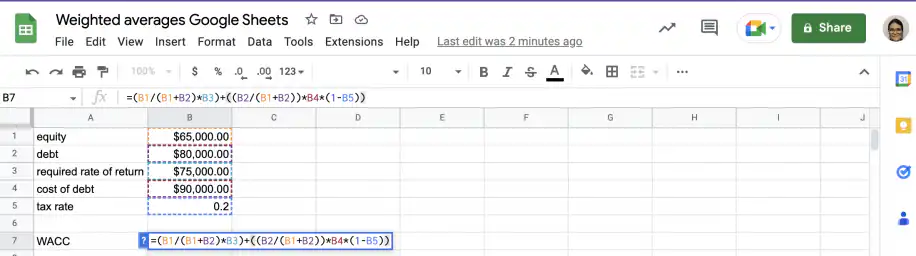
WACC = ((equity / (equity + debt)) * required rate of return) + ((debt / (equity + debt)) * cost of debt) * (1 – tax rate)
The formula considers the relative weight of debt and equity and applies the respective cost of each to get an average and weighted value of the cost of capital.
1. Open Google Sheets and set up the data as shown below.
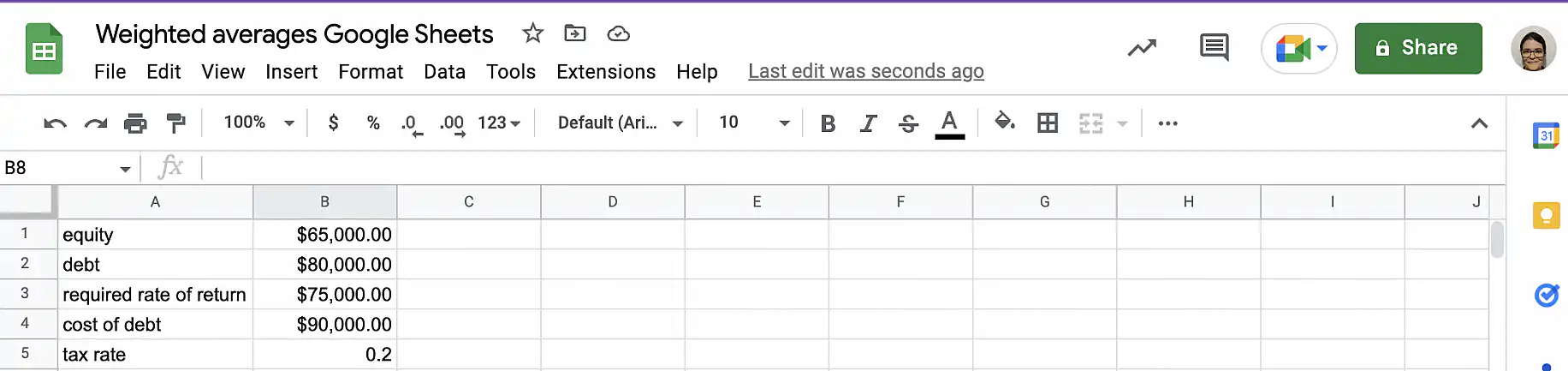
2. In an empty cell, type in the WACC formula shown above by referencing the corresponding cells.
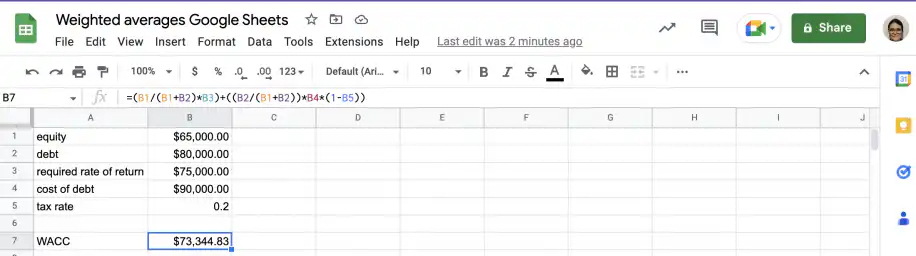
3. Press ‘Enter’ to see the result.
Conclusion
Weighted averages are useful in many contexts. Unlike simple averages, they consider the relative importance or weight of each item to get a weighted average. This measure is frequently used in many fields, including education, sports, retail, and of course, finance.
You now know what a weighted average is, the formula used to calculate it, and how it differs from a simple average. You know how to calculate a weighted average manually and how to calculate it using Google Sheets. Finally, you’ve seen examples of two financial metrics based on weighted averages: Weighted Average Shares Outstanding and Weighted Average Cost of Capital (WACC).
To average only the rows that meet a condition, such as one class or one assessment, use the AVERAGEIF formula in Google Sheets. If you keep grades for a whole class, our gradebook template for Google Sheets is a good place to start.
To learn more about the cost of debt, equity, and capital, check out these guides:

 English
  Español
  Português do Brasil
  Français