


If you’re a teacher, tracking and evaluating student grades can be a time-consuming task, especially when you’ve got multiple classes and you’re grading students on different assignments. In the past, teachers tended to rely on manual systems (and their memory) to keep a rough track of how each student was performing. But these days, an online gradebook template can help tutors generate an accurate report for each student that’s ready to share with school administrators or parents.
Like many other processes in the education sector, grade tracking is gradually being digitized. As well as providing teachers with a secure and simple way to record students’ marks, online tools can also reduce the burden of work for administrators.
Although the right software can eliminate the need for emails and back-and-forth communication, it’s not always easy for schools to find affordable and flexible software that they can start using straight away.
Why use Google Sheets to manage grades?
- Flexible: Google Sheets lets you manage student grades data in a way that suits your school. When you want to modify the system you can simply change your spreadsheets, without any new software or help from IT.
- Accessible: Teachers and administrators can access grade book data for every class at any time via their computer or smartphone.
- Compatible with everything: All other software packages integrate with Google Sheets, so if you have data in other programs (like Google Classroom), you can easily import that information straight into Google Sheets files.
- Easy to use: almost everyone works with spreadsheets at some point during their career and Google Sheets is a simple system that’s ideal for beginners. Spreadsheets are easy to maintain and it’s easy to train your team to use them.
Sign up for Sheetgo and start tracking student grades in all your classes

What you get with this template:
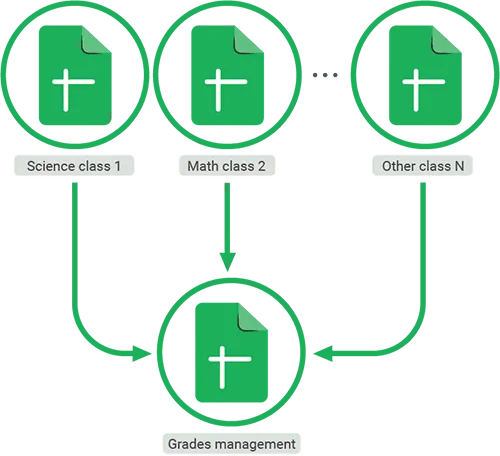
When you install the Sheetgo gradebook template, four Google Sheets files with pre-built Sheetgo connections are saved to your Google Drive:
- Three Class spreadsheets, stored in one folder. Share each file with a teacher, and make as many copies as you need for additional classes. Teachers use their copy of this spreadsheet to record student grades. The spreadsheet automatically calculates a total, percentage, and average grade for each student, as well as class averages for each assignment.
- One Gradebooks Management master sheet, for the school administrator or head of department. Sheetgo connections import data from the teachers’ Class spreadsheets directly into this file. A dashboard displays key information such as the top 10 best students, top classes by grade, and the top 10 best grades by assignment. A top-priority students chart alerts you to pupils who are falling behind and may need extra support.
How to install the workflow template
Click the blue button below to install the Gradebook template.
- Login to Sheetgo with your Google, Microsoft, or Dropbox account.
- Click Install template, and Install on Google Drive.
- Wait a few moments while Sheetgo creates copies of the files and connects them.
How the template works
The gradebook management master file opens inside Sheetgo.
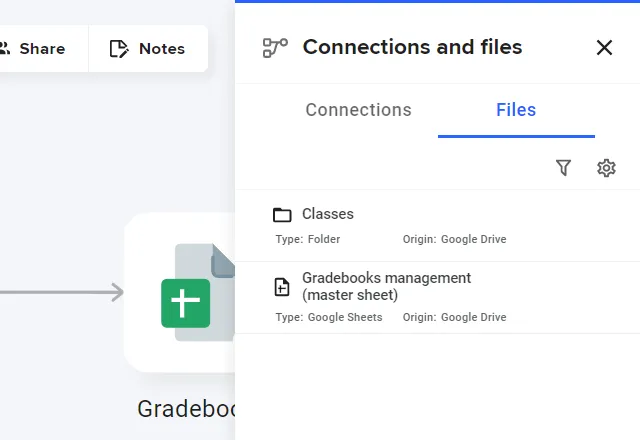
To open the Class spreadsheets, click on Workflow in the side-bar on the right-hand side of the screen. afterward, click on the Sidebar in the right upper corner of the screen.
Go to Files and double click on the Classes folder to open the teachers’ spreadsheets.
How to use the gradebook template
Step 1: Set up your grading scale
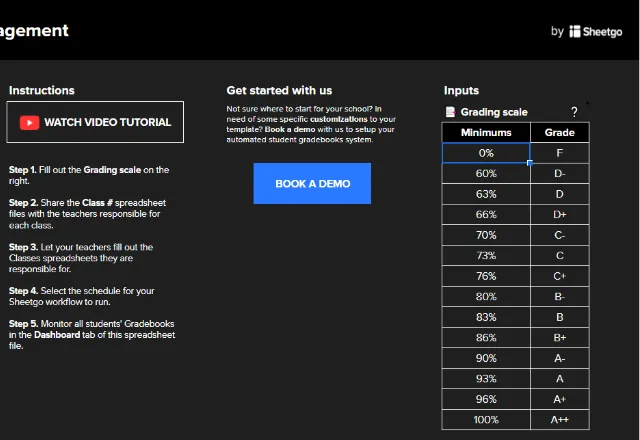
Open the Gradebook management master sheet > Instructions tab, and enter your grading scale in the box on the right.
This template is configured to assign letter-based grades (A++ to F) based on a percentage score.
Now enter the grading scale in all the Class (teacher) spreadsheets. Note that the scale should be the same in every file in the workflow so that you can calculate and compare grades correctly.
Step 2: Share the Class spreadsheets with teachers
Once you’ve entered the grading scale in each spreadsheet, share the files with the teachers responsible for filling them out.
Open a file, for example, Class 1, by double-clicking on it. Rename the spreadsheet as needed and then click the green Share button to share it with the appropriate teacher.

Step 3: Enter student data
The Class spreadsheets contain sample data to demonstrate how the template works.
In the Gradebook tab, teachers can simply overwrite the data in Column A with their own list of students, or if you’re the administrator you can do it for them.
In Row 1, enter the names of assignments, exams, and tests.
Start tracking student grades in all your classes
Step 3: Enter student data
The Class spreadsheets contain sample data to demonstrate how the template works.
In the Gradebook tab, teachers can simply overwrite the data in Column A with their own list of students, or if you’re the administrator you can do it for them.
In Row 1, enter the names of assignments, exams, and tests.

Step 4: Automate the workflow
Once courses begin and teachers start grading assignments, they enter their students’ marks directly in their spreadsheet.
When you update, or run, the workflow, the latest student grades data from the teachers’ Class spreadsheets is imported into the management master sheet.
To do this, open Sheetgo and your Gradebooks management workflow.
Click Run on the floating button.
To ensure you’ve always got the latest data from all classes, automate the workflow.
Click Automate on the floating button.
Choose how often you want updates.
For student grades data, once a week is usually often enough.

Your automated gradebooks management system is up and running!
Check out the dashboard in the management master sheet to see the latest metrics from across the school or department.
Add your school logo to the dashboard to customize the template.
Optional: expand the workflow by adding more classes
You can duplicate the Class files to add more spreadsheets to the workflow.
- Open Sheetgo and go to your Gradebooks Management workflow.
- Double click on the gray icon to open the Google Drive folder Classes.
- Right-click on one of the spreadsheets > Make a copy.
- Rename this new spreadsheet, enter the grading scale in the Instructions tab and the student list in the Gradebooks tab then share the spreadsheet with the teacher.
As the additional file is stored in the same folder as the other Class spreadsheets, data from this file will be automatically included the next time the connection is updated. To do this immediately, return to Sheetgo, go to Workflow and click Run.



 English
 Español
 Português do Brasil
 Français