




Google Sheets is a free, web-based spreadsheet program part of the Google Docs suite of productivity tools. It offers many of the same features as Microsoft Excel, including data entry, formatting, and calculations. The program also has the added benefit of being accessible from any device with an internet connection and the ability to collaborate in real time with others.
This guide is designed to provide a comprehensive overview of the top tools and features available in Google Sheets. Whether you’re new to the program or a seasoned user, you’ll find valuable information and tips to help you optimize your workflow and improve your data analysis.
What are Google Sheets tools?
Google Sheets tools refer to the various features and functionalities within Google Sheets that can be used to enhance its capabilities and streamline your workflow. These tools can perform multiple tasks, from automating data entry and analysis to creating interactive charts and reports.
One of the main advantages of Google Sheets tools is that they allow you to customize and optimize your workflow according to your specific needs. For example, if you need to analyze large data sets, you can use pivot tables and conditional formatting to quickly group and summarize the data. If you need to automate tasks, you can use scripts to pull data from external sources and insert it into your sheet.
Google Sheets tools also allow you to share and collaborate on your sheet with others. This can be useful for working on projects or analyzing data with a team. The ability to share and collaborate in real-time helps to increase productivity and allows for accessible communication and collaboration among team members.
Top 10 Google Sheets tools
1. Google Sheets add-ons
- Sheetgo: An AI-powered platform that connects your spreadsheets into automated data pipelines. Share specific sheets or ranges in Excel or Google Sheets, filter and split data, and merge everything into a master file.
- Lucidchart Diagrams: allows you to create diagrams and flowcharts directly within a sheet.
- Power Tools: provides a suite of advanced tools for data analysis, such as a duplicate remover, data validator, and more.
If you need a Google Sheets reporting tool, see our list of the top 10 Google Sheets add-ons for reporting.
2. Google Sheets version control
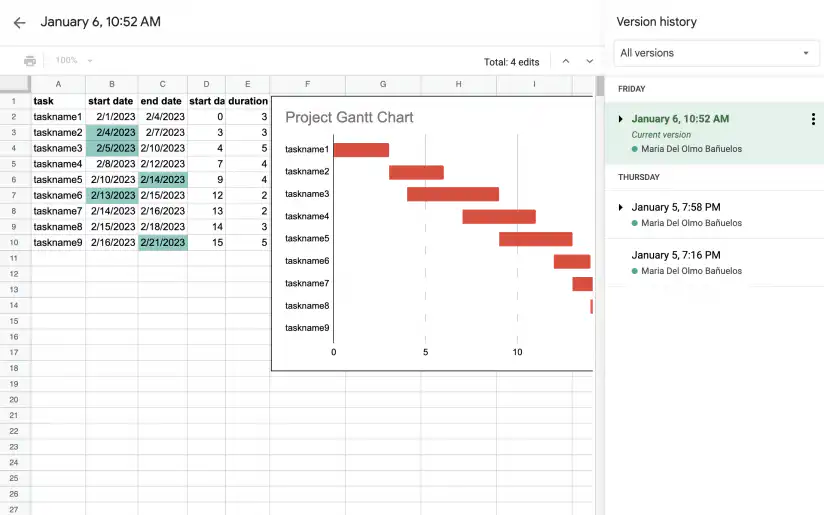
Google Sheets offers version control features that allow users to track and manage changes made to a Google Sheet over time. The Google Sheets Revision History feature enables users to view and revert to previous versions of a sheet, ensuring that essential data is not lost or accidentally overwritten.
However, it’s important to note that Google Sheets doesn’t offer native features to share parts of your spreadsheets and approve edits like popular version control tools and systems. To share specific sheets or cell ranges of your spreadsheet with different people and bring their updates back into your master file, you can use an add-on such as Sheetgo, which uses AI to connect spreadsheets into automated data pipelines.
3. Google Sheets API
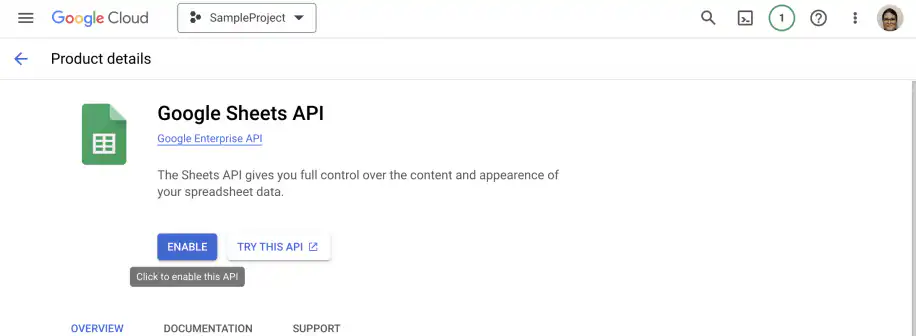
The Google Sheets API allows developers to programmatically access and modify a sheet’s contents. This can be useful for automating tasks, such as pulling data from a website and inserting it into a sheet. It also allows you to integrate sheets with other applications, such as a custom CRM or inventory system.
4. Google Sheets scripts
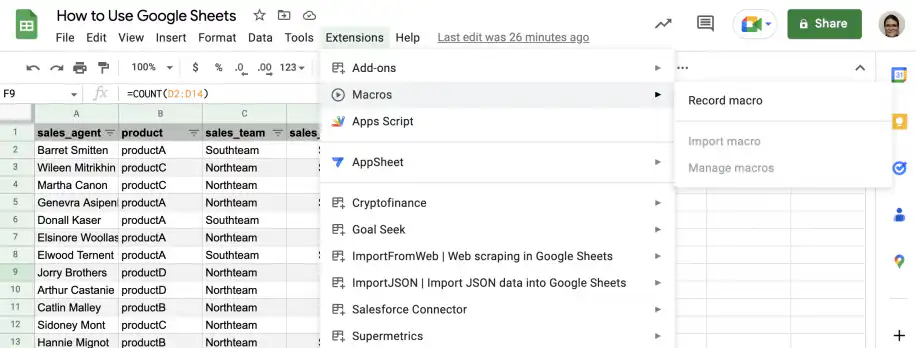
Google Sheets Macros and Scripts are small programs that can be written in JavaScript and added to a Google Sheet to automate tasks and add functionality. For example, you could use a script to automatically email a specific range of cells or to pull data from a website and insert it into a sheet.
5. Google Sheets formulas
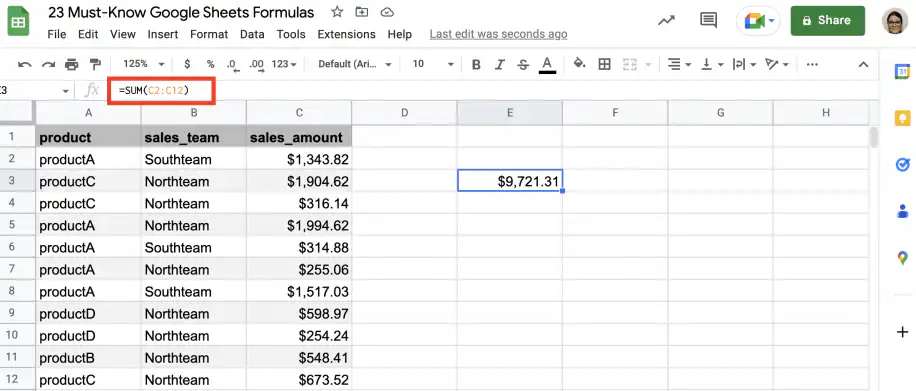
Top Google Sheets Tools to Streamline Your Data – Google Sheets Formulas
Google Sheets has a wide variety of built-in functions and formulas for data analysis, including SUM, AVERAGE, COUNT, and VLOOKUP. Formulas allow you to perform calculations on data in your sheet, such as summing up a column of numbers or finding the average of a range of cells.
For the most popular Google Sheets functions, check out our list of the 23 must-know Google Sheets formulas.
6. Google Sheets pivot tables
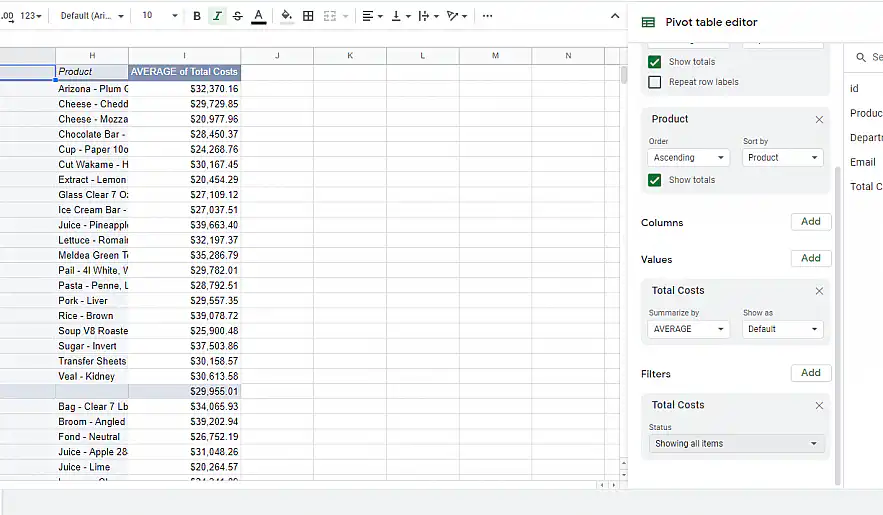
Pivot tables are a powerful tool for summarizing and analyzing large sets of data in Google Sheets. They allow you to quickly group and summarize data by different criteria and create interactive reports.
7. Google Sheets conditional formatting
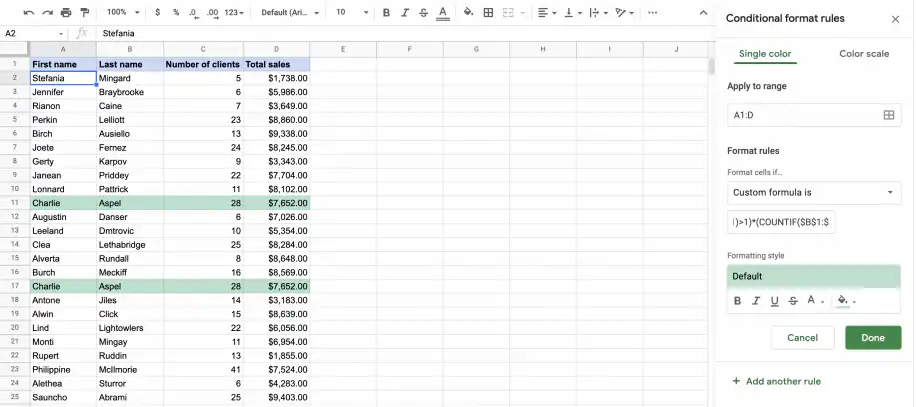
Conditional formatting allows users to automatically format cells based on their contents or other criteria. For example, you can use it to highlight cells that contain a specific value or are above or below a certain threshold.
8. Google Sheets charts
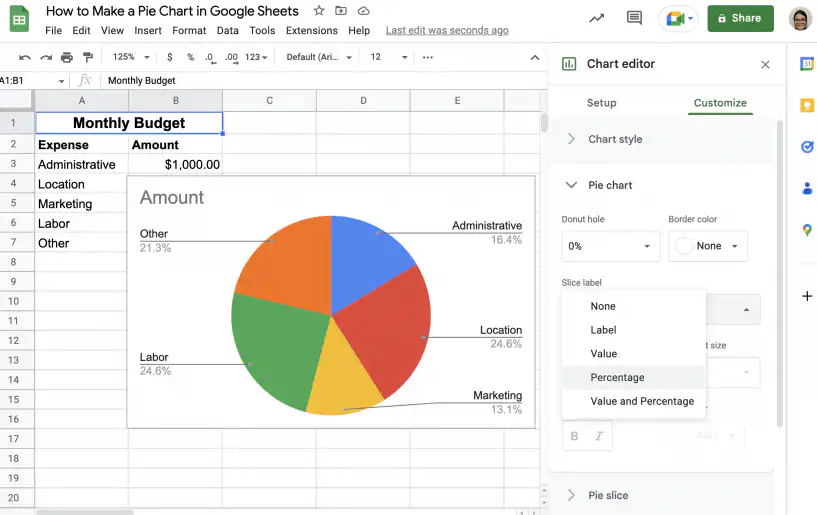
Google Sheets provides a variety of chart types, including bar charts, line charts, and pie charts, that can be used to visually represent data. Charts can be customized with different colors, labels, and other formatting options.
9. Google Sheets data validation
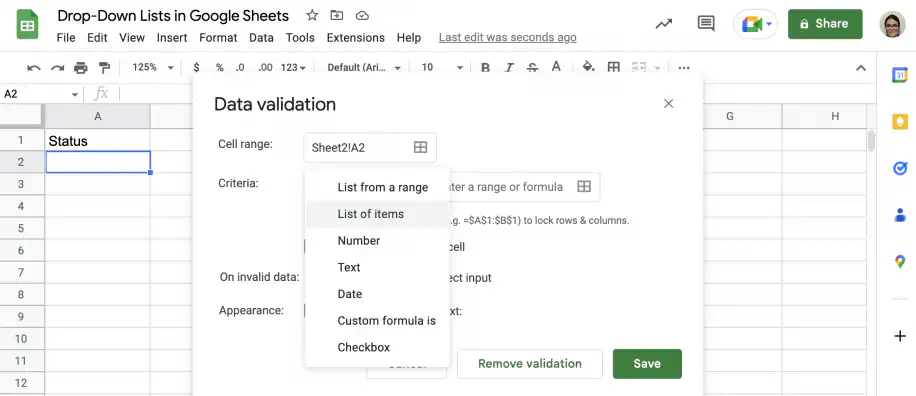
Data validation can be used to ensure that data entered into a Google Sheet meets specific criteria, such as being a number or a date. This can be useful for preventing errors and ensuring that data is entered in a consistent format.
10. Google Sheets web scraping
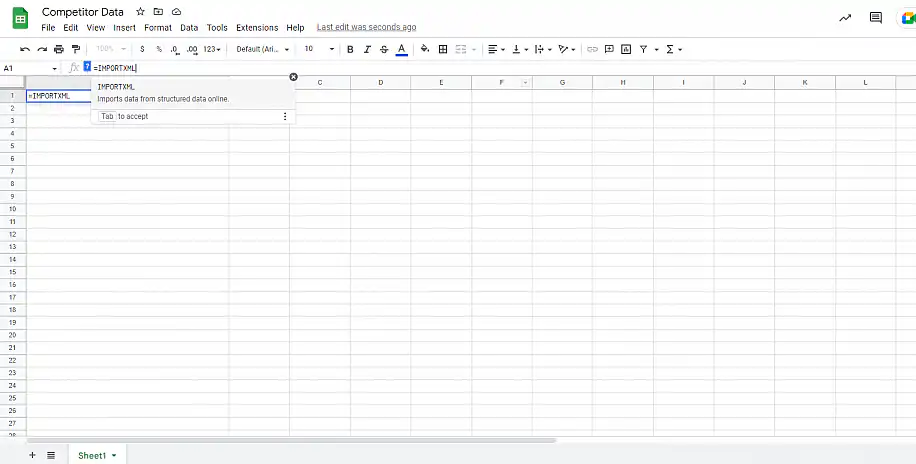
The Google Sheets ImportXML function can be used to scrape data from websites into a Google Sheet. This can be useful for pulling information from online sources, such as stock prices or weather data, and analyzing it in a sheet.
Tips and tricks for using Google Sheets
Keyboard shortcuts
Google Sheets offers a variety of keyboard shortcuts that can help you navigate and edit your sheets more efficiently. Some examples include Ctrl + C to copy, Ctrl + V to paste, and Ctrl + Z to undo.
Collaboration and sharing
Google Sheets allows you to share and collaborate with others on sheets in real-time. You can give edit or view access to specific people and see their changes in real time. This can be useful for working on projects or analyzing data with a team.
Using Google Sheets on mobile devices
Google Sheets can be accessed and edited on mobile devices through the Google Sheets app. This allows you to work on your sheets while on the go and make changes even when you don’t have access to a computer.
Data visualization in Google Sheets
Google Sheets offers a variety of data visualization options, such as charts and graphs, to help you present data in a clear and visually appealing way. It also allows you to customize and format your data visualizations according to your needs.
Protecting and securing your data in Google Sheets
Google Sheets provides several options for protecting and securing your data, such as password protection, data encryption, and access controls. It is important to keep in mind security best practices when working with sensitive data in Google Sheets.
Troubleshooting common Google Sheets issues
One of the most frustrating experiences while working with any software is encountering technical issues. Here are some tips on troubleshooting common problems in Google Sheets so you can quickly get back to working on your data.
- Make sure you have a stable internet connection
- Try clearing your browser’s cache and cookies
- If the issue persists, try using Google Sheets in an incognito or private browsing window
Advanced Google Sheets techniques
Using Google Sheets with other Google services
Google Sheets can be integrated with other Google services, such as Google Forms, to collect and analyze data in a sheet. Google Maps can also be used to display data on a map, providing a visual representation of the data.
Using Google Sheets with external data sources
Google Sheets can be used to connect to external data sources, such as databases and APIs, and import data for analysis. This can be useful for pulling in data from other systems and applications, such as a custom CRM or inventory system.
Automating tasks with Google Sheets scripts
Google Sheets Scripts can be used to automate tasks and improve workflow efficiency. For example, you can use a script to automatically email a specific range of cells or to pull data from a website and insert it into a sheet.
Using Google Sheets for budgeting and financial analysis
Google Sheets can be used to create a budget and financial analysis by using formulas and pivot tables to analyze financial data and create interactive reports.
Conclusion
This guide has provided an overview of the top tools and features available in Google Sheets, including add-ons, API, scripts, formulas, pivot tables, conditional formatting, charts, data validation, and web scraping. By mastering these tools, you can optimize your workflow, improve your data analysis, and unlock the full potential of Google Sheets.

 English
 Español
 Português do Brasil
 Français