


Microsoft Excel is an extremely versatile tool that can be used for a wide variety of applications. When you think of Excel, you might immediately picture a spreadsheet full of confusing numbers. However, Excel is useful for text as well as numbers. The CONCATENATE Excel function is one of the many functions that you can use to manipulate text within your spreadsheet.
The purpose of the CONCATENATE function is really quite simple: it’s used to combine multiple text strings together, resulting in one piece of text. In this article, I demonstrate how you can use CONCATENATE to join text in your spreadsheet in whatever format you’re looking for.
You’ll also find step-by-step instructions, how to join cells with a delimiter, how CONCATENATE compares with CONCAT and TEXTJOIN, and fixes for the most common errors.
Syntax
- Where text 1, text 2, etc. are individual pieces of text that you want to join together. These can be references to a cell containing text, a number, or text that you type directly into the equation between a set of quotation marks.
How to use the CONCATENATE function
To demonstrate how to use the CONCATENATE function, take a look at the example below. I want to combine first and last names into one text string.
I do this in the screenshot below with the formula =CONCATENATE(B2," ",A2).

Notice that I’ve added a space between the names by using a space in quotation marks (“ “). If I didn’t do this, the first and last names would be combined together without a space inbetween.
Including the space, the function combines three different text items here. List each text string and separate them with a comma to join them all into one.
I’ll elaborate on this in the next example. Here, in addition to their full name, I want to write out how old each person is. I do this by taking the data from the spreadsheet (first name, last name, and age) and typing out the rest of the sentence within the formula.

Notice how I include the spaces within the text that I type in the formula. For example, before and after the “ is “ I have included a space, so that when it combines with the text before and after, the space is included.
Alternatively, you can add the spaces separately (use “ “ separated by a comma within the formula). However, it’s easier to include them with the other text in order to reduce the total number of items you’re combining. And if you forget a space somewhere (which happens all the time!) you’ll notice the mistake as soon as you finish the formula, and can easily go back and add it in.
CONCATENATE with numbers
Now that you’ve seen how to combine text in a few different ways, I’ll show an example that uses numbers.
When you include a number in the CONCATENATE function, you don’t need to put it in quotation marks – just separate it with a comma like you would any other item within the function. You can even perform a calculation within the function. That is exactly what I do in this example, by multiplying each person’s age by 12 to get their approximate age in months.

Notice how I didn’t need to add a new column in the data to perform the calculation to turn years into months – I do it right in the formula by typing =CONCATENATE(B9," ",A9,"'s age in months is ", C9*12).
To join whole columns rather than single cells, see how to combine multiple Excel columns into one. It covers TEXTJOIN and an INDEX formula that stacks columns.
Join text with the & operator
Use the ampersand (&) instead of the CONCATENATE function for quick combinations of text. By putting an ampersand between the text you want to join, you instruct Excel to combine text without having to type out the CONCATENATE function.
I do this in the example below with this formula: =B2 & ” ” & A2.

The choice between using the Ampersand method and the CONCATENATE function really comes down to personal preference: they both work well for combining text, so pick whichever one you prefer!
CONCATENATE with the TEXT function
Combine the TEXT function with the CONCATENATE function to format numbers in your text.
Take a look at the example below. I include the TEXT function in the TODAY function to indicate the day of each person’s birthday (just assume they all share the same birthday for this example!).
The formula I use here is =CONCATENATE(B2," ",A2,"'s birthday is ",TEXT(TODAY(),"DDDD")).

How to concatenate in Excel step by step
These steps use CONCAT, the newer version of CONCATENATE. Both take the same arguments here, so you can type either name. Any text you type into the formula, including a delimiter such as a space, goes between quotation marks.
The screenshots come from Excel set to European regional settings, so they show semicolons between arguments. In the US and UK versions of Excel, you type commas, as in the steps.
Join two cells with a space
Follow the steps below to concatenate strings using a space as the delimiter.
1. Type the CONCAT function and select the cell with the first string.
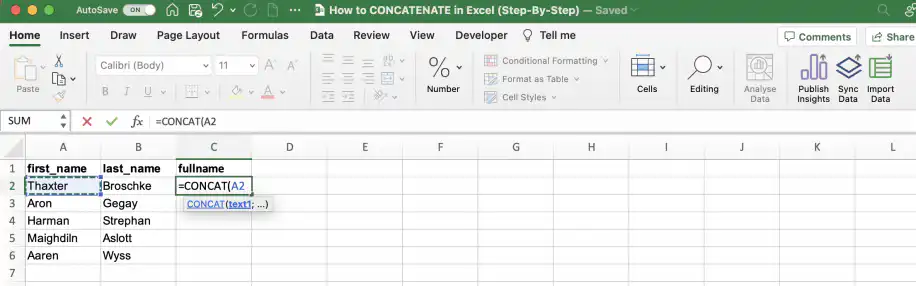
2. Add a comma, followed by a space between quotation marks. Add another comma and select the cell with the second string.
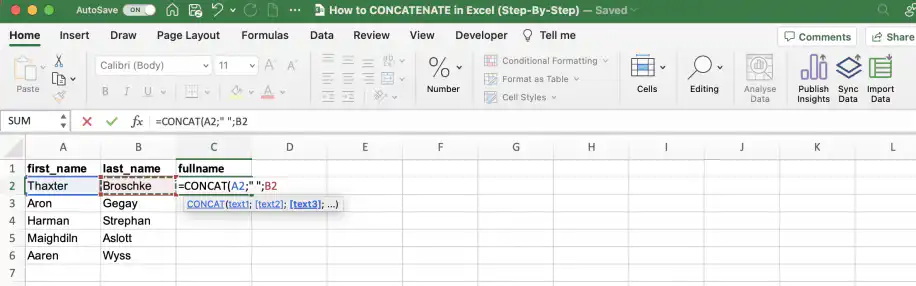
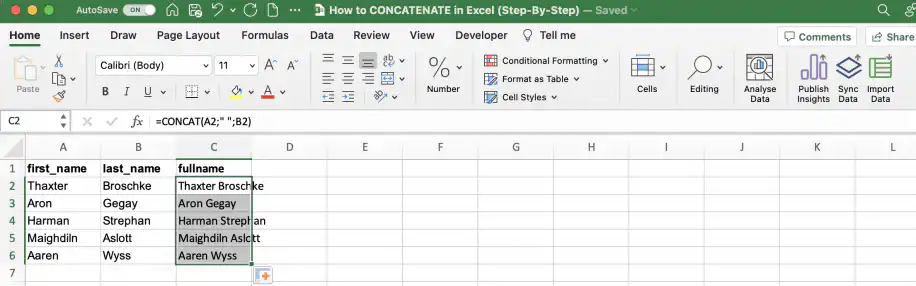
- 3. Add the closing parenthesis and press ‘Enter’ to see the result. Double-click the fill handle to copy the formula down to the last row. The finished formula is =CONCAT(A2," ",B2).
How to concatenate cells with a space, comma, or custom delimiter
You can delimit items using any character or string you want. For example, you can join the different lines in an address with a comma and a space to get the full address. To use another delimiter, such as a hyphen, put it between the quotation marks instead. For a line break, use CHAR(10) without quotation marks and turn on Wrap Text.
1. Type the CONCAT function and select the cell with the 1st address line.
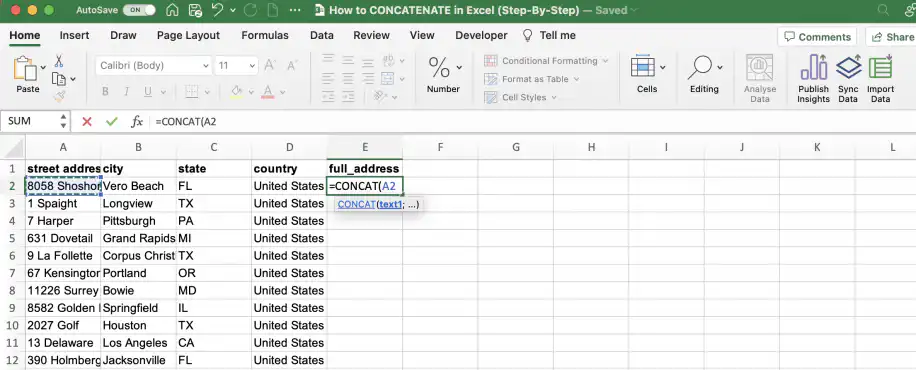
2. Add a comma to separate the arguments, then type the delimiter between quotation marks: a comma followed by a space.
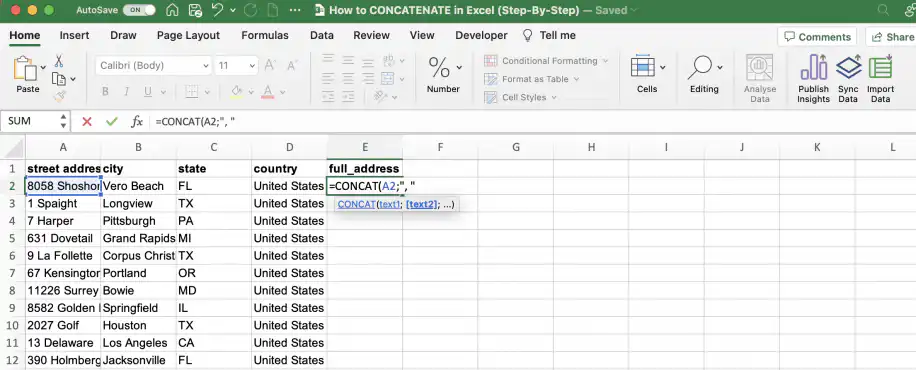
3. Repeat the previous step for each address line, as shown below.
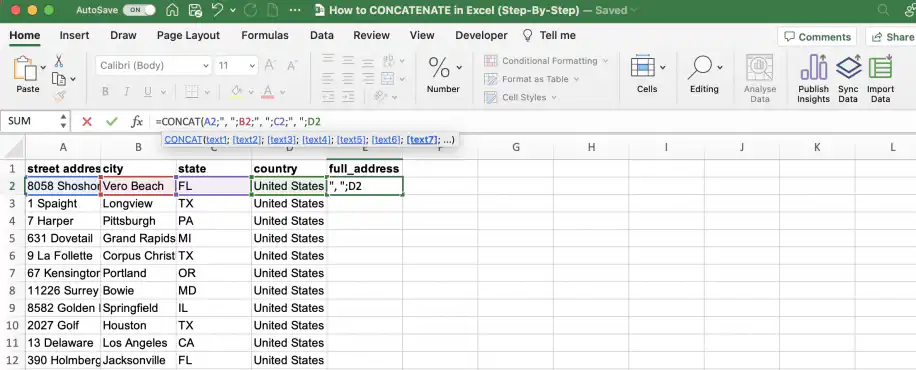
4. Add the closing parenthesis and press ‘Enter’ to see the result. Double-click the fill handle to copy the formula down. The finished formula is =CONCAT(A2,", ",B2,", ",C2,", ",D2), which returns 8058 Shoshone, Vero Beach, FL, United States.
Join cells with a delimiter using TEXTJOIN
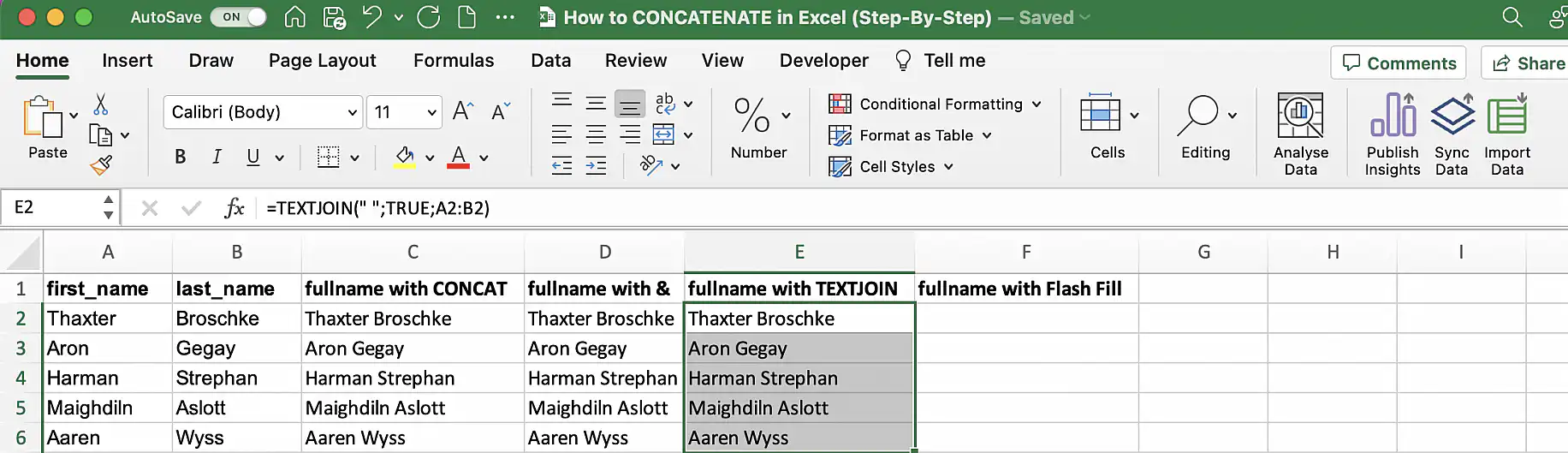
The TEXTJOIN function is ideal when joining multiple items with delimiters, as it will save you a lot of typing. Additionally, you can ignore empty cells in your selection using the second parameter: ‘ignore_empty’. For example, =TEXTJOIN(" ",TRUE,A2:B2) joins the first and last name in A2:B2 with a space.
CONCATENATE vs CONCAT vs TEXTJOIN
While the CONCATENATE function is still available for compatibility with earlier versions of Excel, Microsoft’s support site recommends using the replacement: CONCAT. You can use Excel’s CONCAT function to join any values you type or the contents of cells, whether they are text, numbers, or dates. You can concatenate up to 254 items or a total of 32,767 characters.
Unlike its predecessor, CONCAT can handle arrays. Unlike TEXTJOIN, however, it has no ‘delimiter’ parameter, so each instance has to be added separately. In other words, if you need to concatenate multiple items using delimiters, you should consider using TEXTJOIN.
| Function | Excel versions | Joins a range such as A2:C2 | Delimiter | Skips empty cells |
|---|---|---|---|---|
| CONCATENATE | All versions | No, list each cell | Type it between every item | No |
| CONCAT | Excel 2019 and later, Microsoft 365 | Yes | Type it between every item | No |
| TEXTJOIN | Excel 2019 and later, Microsoft 365 | Yes | Once, as the first argument | Yes, with TRUE as the second argument |
CONCATENATE still works in every version, so older workbooks keep calculating. For new formulas, CONCAT does the same job and also accepts ranges, and TEXTJOIN saves typing when every item needs the same delimiter.
Common CONCATENATE errors and how to fix them
- Words run together. CONCATENATE adds nothing between the items it joins. Add the space or delimiter yourself, in quotation marks, as in =CONCATENATE(B2," ",A2).
- Excel says there’s a problem with the formula. Check the separator between arguments. Excel uses commas in the US and UK, and semicolons in regions where the comma is the decimal mark.
- #NAME? error. Text typed into the formula without quotation marks, a misspelled function name, or CONCAT or TEXTJOIN in a version older than Excel 2019 all return #NAME?. Add the quotation marks, check the spelling, or use CONCATENATE or the & operator.
- Numbers and dates lose their format. CONCATENATE joins the stored value, so $3.99 becomes 3.99 and the date 3/28/2023 becomes 45013. Wrap the value in TEXT, for example TEXT(B2,”$0.00″) or TEXT(B2,”mm/dd/yyyy”), as in the TEXT example above.
- A range doesn’t join. CONCATENATE can’t turn A2:C2 into one text string: you get separate values or an error instead. List each cell, or use CONCAT or TEXTJOIN, which accept ranges.
- The cell shows the formula, not the result. The cell was formatted as Text before you typed the formula. Set the format to General, then press F2 and Enter.
Opposite of CONCATENATE in Excel: TEXTSPLIT
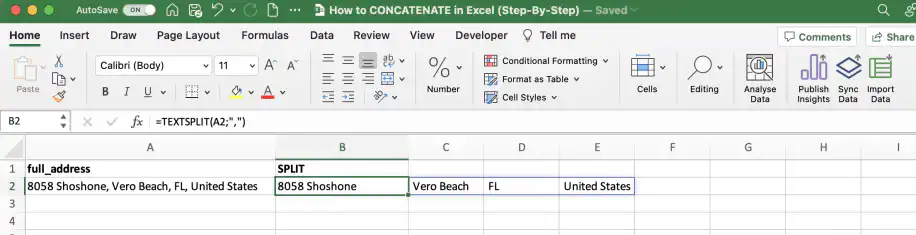
If you need to split strings, instead of concatenating them, you can use the TEXTSPLIT function, available in Microsoft 365 and Excel 2024. For example, =TEXTSPLIT(A2,", ") splits the full address back into street, city, state, and country. To learn more ways to split cells in Excel, check out our guide on how to split cells in Excel.
That’s how to use CONCATENATE in Excel
With the CONCATENATE Excel function, you can join all kinds of text. This includes cell references, text typed into formulas, and numbers.
On top of that, you can even perform calculations and format numbers within the formula. Who said Excel was just for numbers?!
To do the same in Google Sheets, see how to use CONCATENATE in Google Sheets and TEXTJOIN in Google Sheets. For more formulas worth knowing, read our list of the top 10 Excel functions.





 English
 Español
 Português do Brasil
 Français