




While spreadsheets are more of a home for numbers than for text, there are many occasions when you need to work with the string data type. The names and characteristics of products, the names and addresses of customers, and qualitative data from surveys are just a few of the many text items you regularly find in your Google Sheets. These texts are often split into multiple cells – first name and last name, different address lines – and you need to join them. Fortunately, Google Sheets provides a few solutions, including TEXTJOIN.
In this guide, you will learn about the TEXTJOIN function and its syntax in Google Sheets. You have step-by-step instructions on how to use the function in different scenarios using different options. You will also learn about three other methods you can use to join text items: the ampersand symbol (&), CONCATENATE, and JOIN. Finally, you will learn the differences between CONCATENATE and TEXTJOIN.
What is TEXTJOIN in Google Sheets?
Google Sheets’ TEXTJOIN function combines text from multiple strings or arrays of strings using the delimiter you specify. The delimiter can be a string or a reference to a cell containing one. The function also allows you to determine whether or not empty cells should be ignored.
Google Sheets TEXTJOIN syntax
The syntax of the TEXTJOIN function in Google Sheets is as follows:
=TEXTJOIN(delimiter, ignore_empty, text1, [textN])
- delimiter: the delimiter you want between the text items. It can be a string or a reference to a cell containing a string.
- ignore_empty: a Boolean parameter. If TRUE, empty cells will be ignored.
- text1: any text item, which could be a string or an array of strings in a range of cells.
- textN*: optional. Additional text items are also in the form of strings or arrays of strings.
How do I use TEXTJOIN in Google Sheets?
To use the TEXTJOIN function in Google Sheets, you must specify the delimiter first between quotation marks. Second, choose whether to ignore empty cells. Third, select the cells or the arrays of cells containing your text items.
Below, you have step-by-step instructions on how to use the TEXTJOIN function in different situations. First, you will use the function to join first and last names using a space as the delimiter. Second, you will learn how to do the same when you also have middle names, but only for some people. Third, you will learn how to join the different parts of an address using the line break as a delimiter.
Example 1. How to join text with spaces?
Follow the steps below to join text items using a space as the delimiter.
1. Open Google Sheets to the spreadsheet with your data.
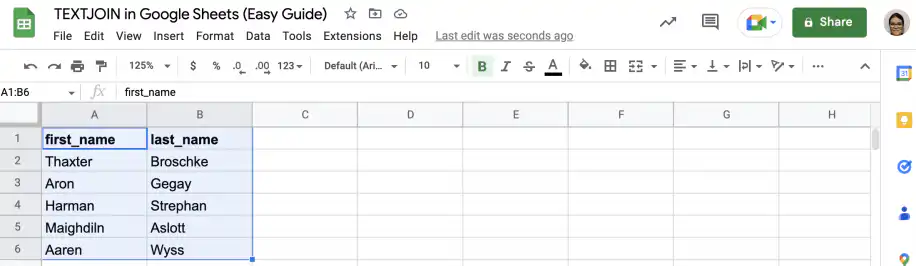
2. In the column where you want the full names, type the TEXTJOIN function.
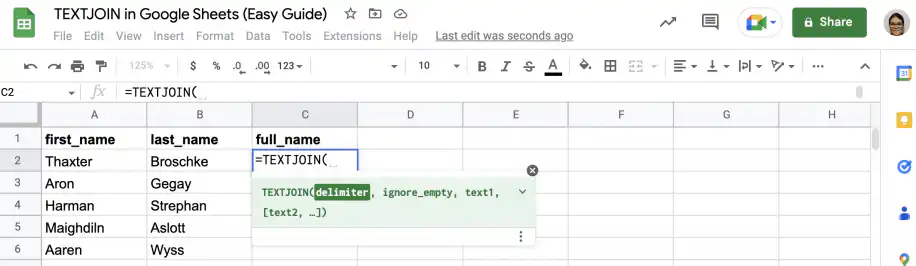
3. For the first parameter, type a quotation mark, then add a space before the second quotation mark. The second parameter can be FALSE since there are no empty cells.
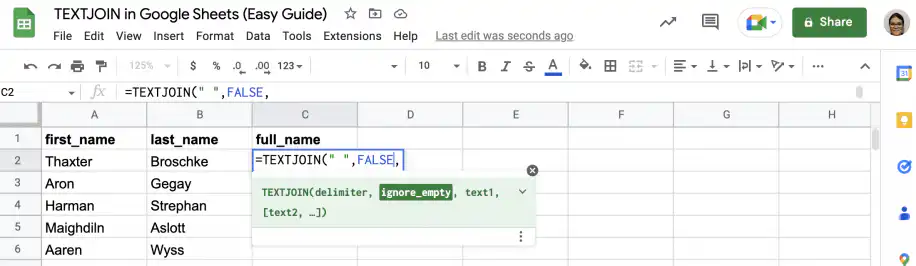
4. Select the first row of cells with text items and close the parenthesis.
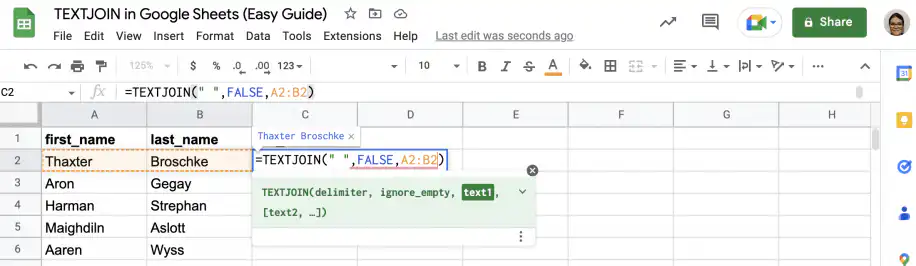
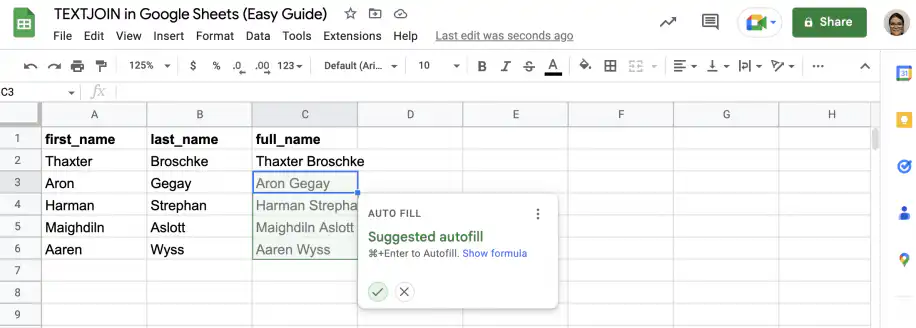
5. Press ‘Enter’ to see the results. Accept the suggested autofill or grab the fill handle and drag it down to the last row.
Example 2. How to ignore empty cells?
In this example, I have first and last names for every person on my list, but I also have middle names for a few of them. Follow the steps below to join them using spaces while ignoring empty cells.
1. In the cell where you want the full names, type the TEXTJOIN function and use a space between quotation marks as the delimiter.
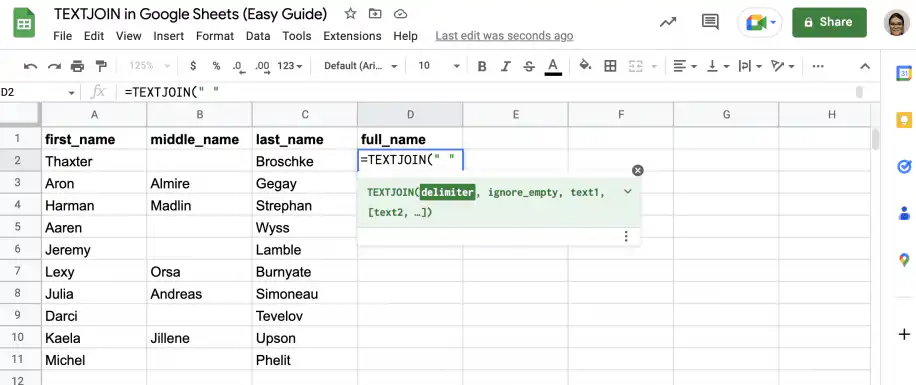
2. For the second parameter, type TRUE to ignore empty cells.
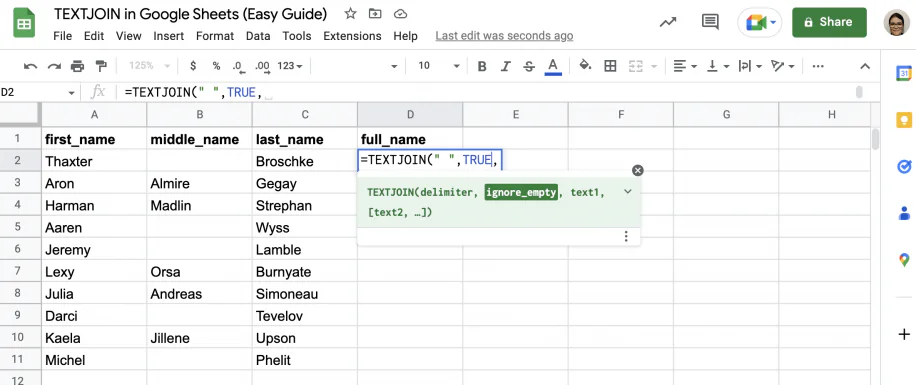
3. Select the first row of your data, including all three columns.
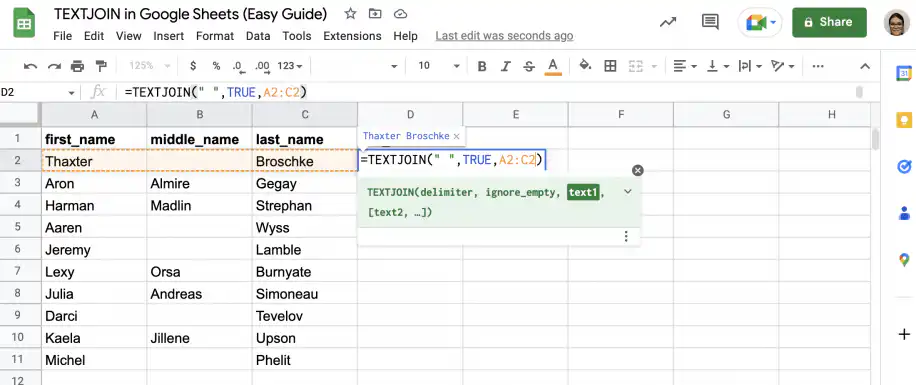
4. Close the parenthesis and press ‘Enter’ to see the results. Accept the suggested autofill or grab the fill handle to copy the formula down to the last row.
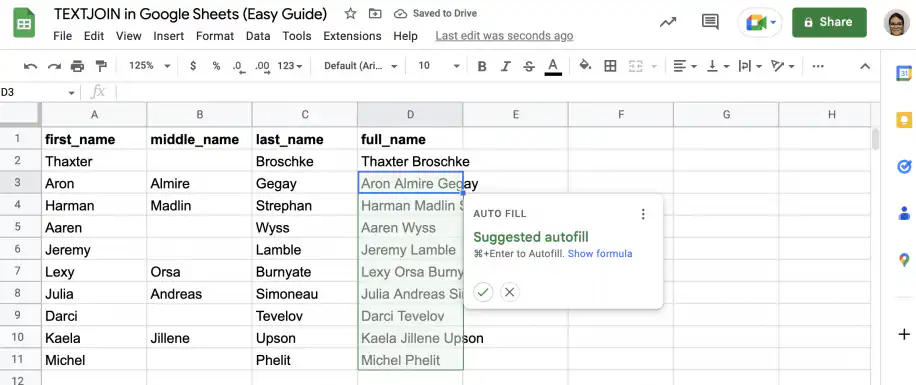
Example 3. How to join text with line breaks?
Imagine you have a table with customer addresses split over four cells: street address, city, state, and country. However, instead of joining them with spaces, I want to use line breaks so that each item has a new line in the cell.
1. In the cell where you want the full address, type the TEXTJOIN function.
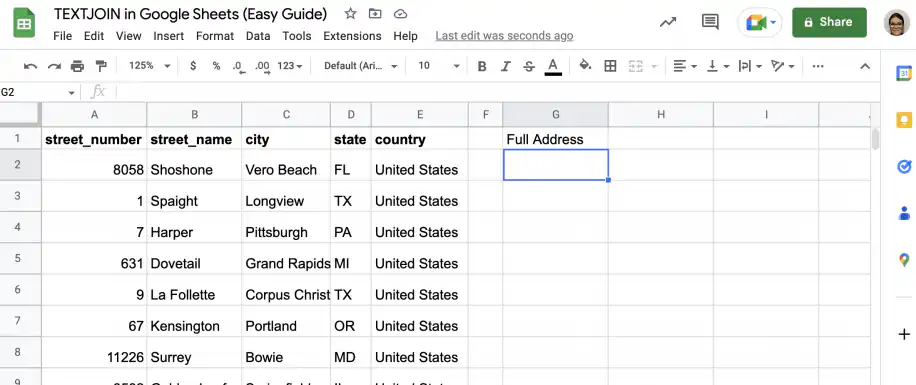
2. Type CHAR(10) as the first parameter to add a new line for every text item.
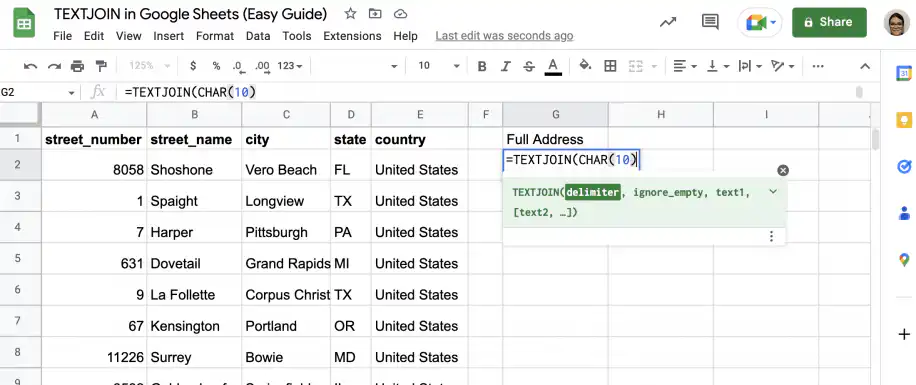
3. You can use TRUE for the second parameter in case there are any empty cells in your data.
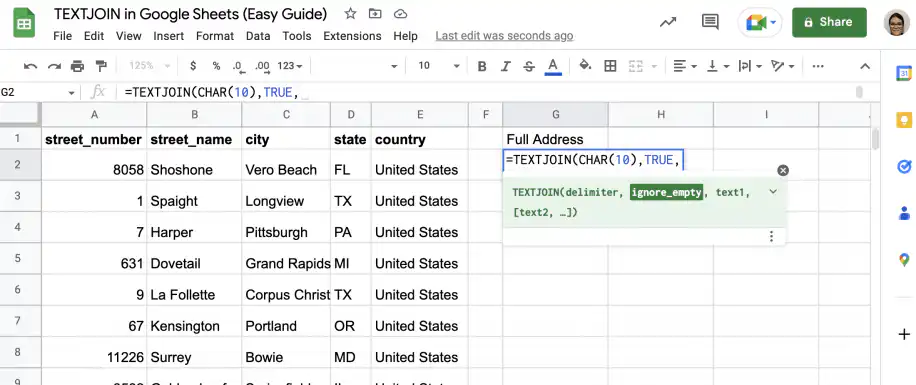
4. Select the first row of text items in all four columns.
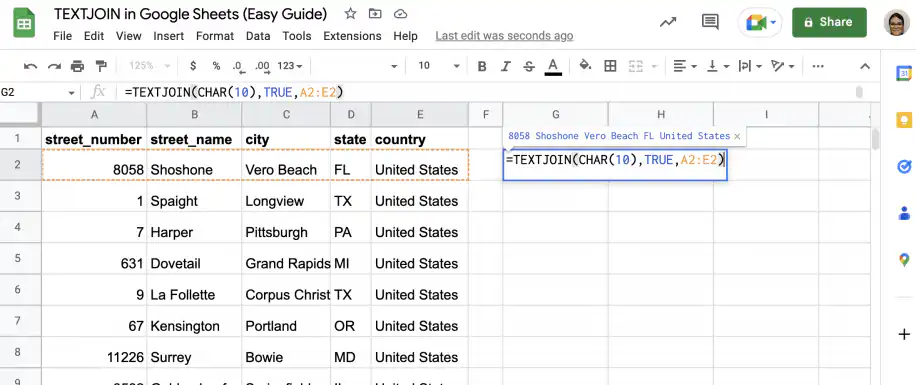
5. Close the parenthesis and press ‘Enter’ to see the results. Use the fill handle to copy the formula down to the last row.
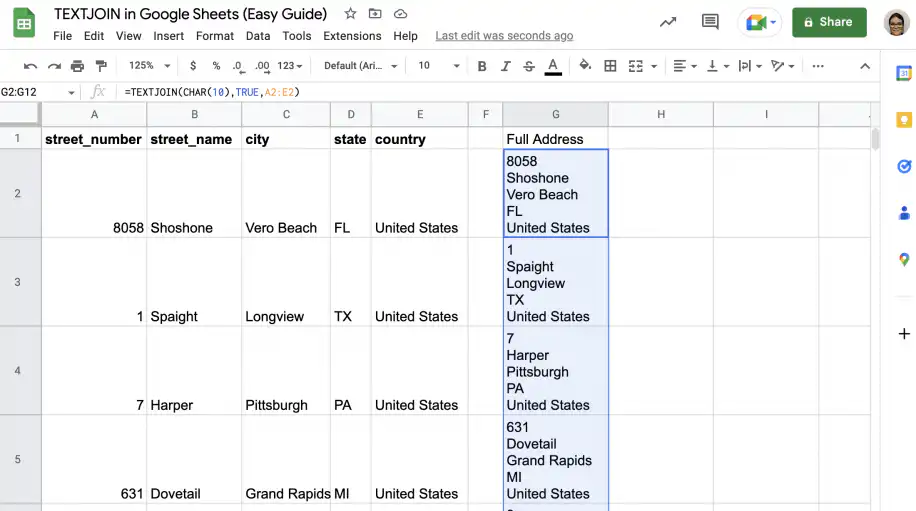
What can I use instead of TEXTJOIN?
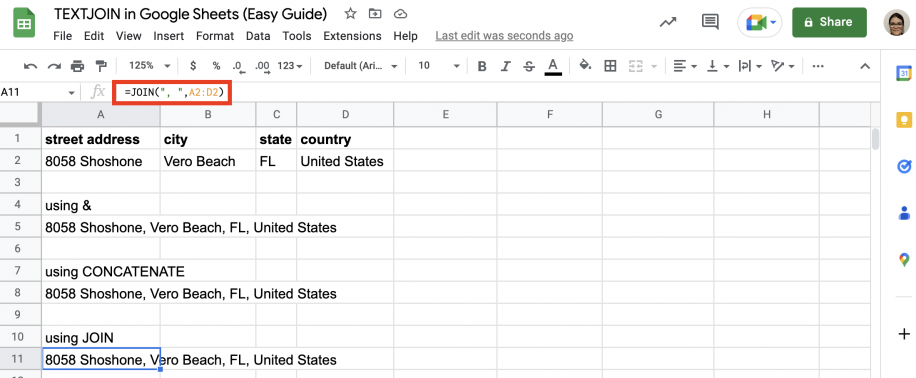
When you need to join texts in Google Sheets, TEXTJOIN is not your only option. First, you can use the ampersand symbol (&) within your formulas to append items. Second, you can use the CONCATENATE function to do the same. Third, you can use JOIN to also specify a delimiter.
Let’s see how to concatenate text items using all three methods to get the same result.
To join strings using the ampersand (&), type the equal sign followed by the first item, then the ampersand, then the delimiter between quotation marks, followed by another ampersand, then the second item, and so on. In other words, this method involves a fair amount of typing.
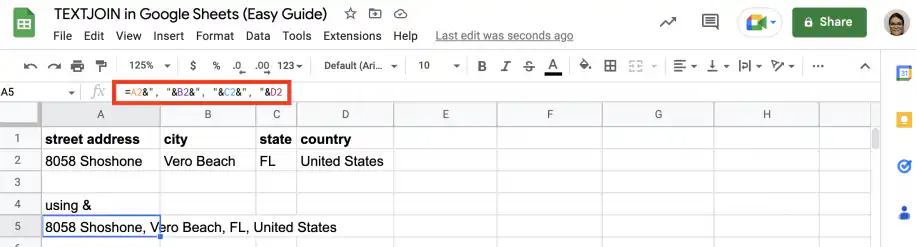
With CONCATENATE, you list every item and every delimiter as its own argument, with commas between them.
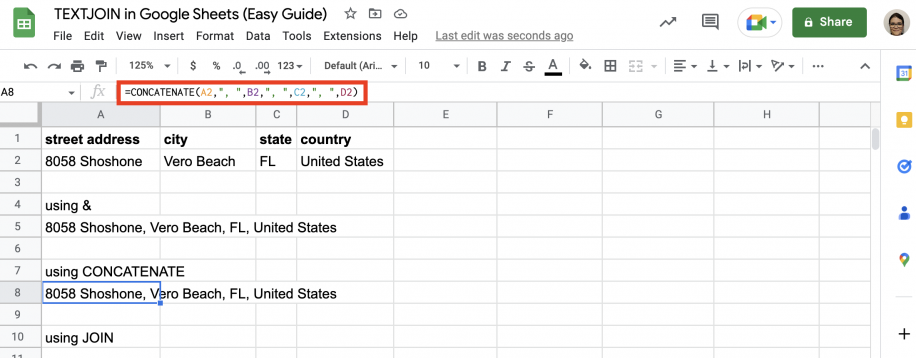
With JOIN, you type the delimiter once as the first argument and then select the range of cells you want to join.
What is the difference between the CONCATENATE function and the TEXTJOIN function?
The CONCATENATE function has no built-in parameter to specify the delimiter. If you want to use one, you have to add it manually between each item you want to concatenate. TEXTJOIN, however, allows you to specify the delimiter as the first parameter. Additionally, you can choose whether to ignore empty cells.
To learn more about CONCATENATE, check out our guide on how to use CONCATENATE in Google Sheets.
Conclusion
TEXTJOIN is a very useful function to know. The function allows you to join multiple text items or arrays of items, specify the delimiter you want to use, and decide whether to ignore empty cells. While there are other options when it comes to appending strings in Google Sheets, TEXTJOIN provides more flexibility and control over the process.
You now know about the TEXTJOIN function and its syntax in Google Sheets. You have step-by-step instructions on how to use the function to achieve different results: join text by using spaces as delimiters, ignoring empty cells, and using line breaks as delimiters. You also know how to use alternatives to TEXTJOIN, like the ampersand symbol (&), CONCATENATE, and JOIN. Finally, you know the main differences between CONCATENATE and TEXTJOIN.
Google Sheets also has a CONCAT function, which joins only two values. See how it works in our guide to the CONCAT formula in Google Sheets.

 English
 Español
 Português do Brasil
 Français