


Excel spreadsheets can be used to organize data and structure it in a specific way for professional reporting. When you work with large datasets that span across many tabs, linking the data can be a great way to save time in your analysis. Moreover, you may want to link a specific cell or a full range to an external source, such as a website or another spreadsheet stored online.
In Excel, users can include hyperlinks to create direct links between sheets or cells. If you want to know more about a specific cell or piece of information, you can click on it, and it will take you to the reference cell, sheet, or online source. Creating a hyperlink in Excel can be achieved by using the built-in command or the HYPERLINK function.
In this article, you’ll learn how to insert a hyperlink in Excel to create clickable links that will take you to another cell, sheet, or website. You’ll also learn how to remove them in a few simple steps.
How to insert a hyperlink in Excel between sheets?
In how to reference another sheet or workbook in Excel, we offer multiple ways to pull data from another cell, a range of cells, or another sheet by establishing a reference. Similarly to this, creating a hyperlink allows you to link data contained in a cell or a range of cells in another sheet located in the same workbook.
1. Select the cell where you want the hyperlink to be inserted. Here, I’ve selected the cell containing “PERSONNEL % OF TOTAL SALES”. Here, I will link to another sheet in my workbook containing further information.
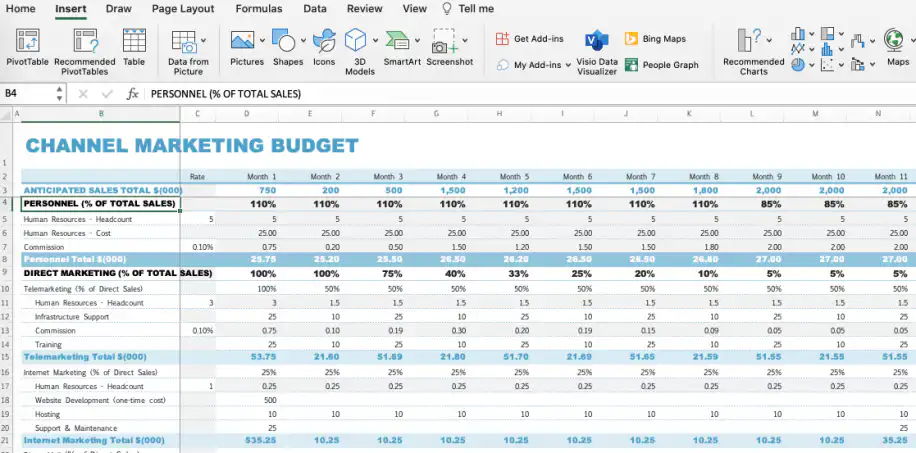
2. Go to Insert > Hyperlink. An alternative way is to right-click and select “Hyperlink” from the drop-down menu, or simply use the Ctrl/Cmd + K keyboard shortcut.
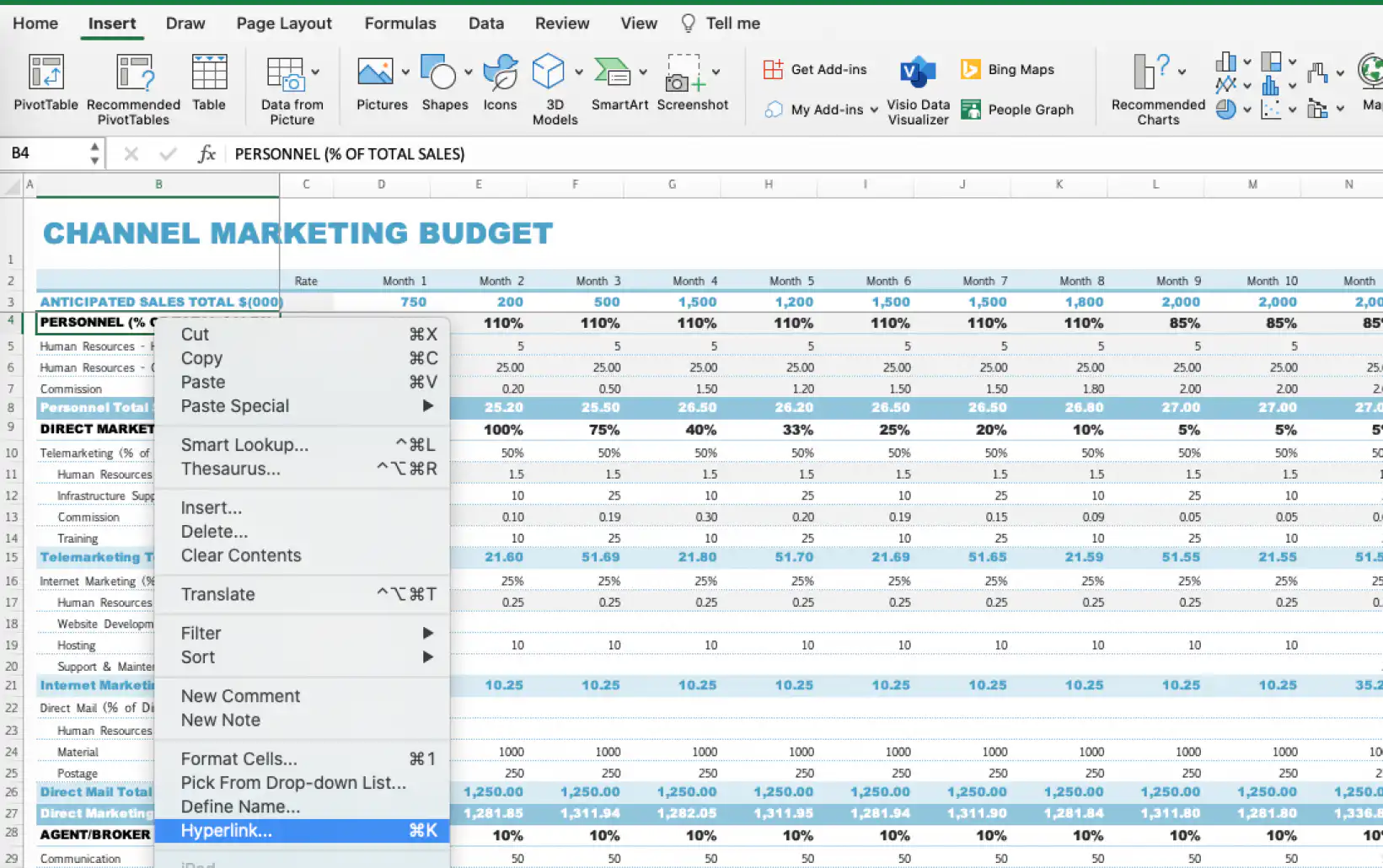
3. As you can see in the prompted window, you can link to a “Web Page or File”, “This Document”, or “Email Address”. In this case, we’ll select “This Document” to link to another sheet in this same workbook.
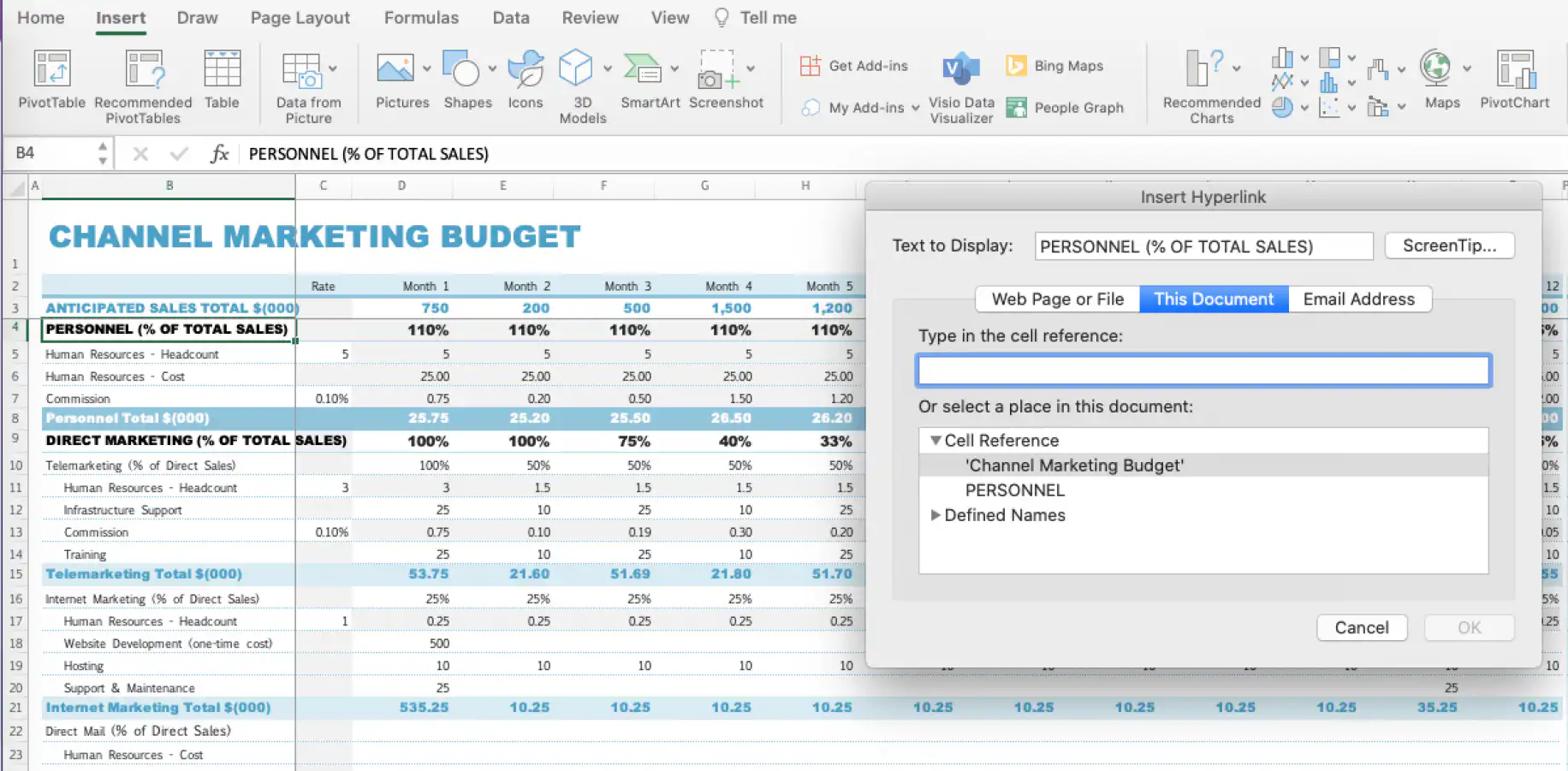
4. To link to another sheet, go to “Or select a place in this document” option and click on the desired sheet. Click “OK”.
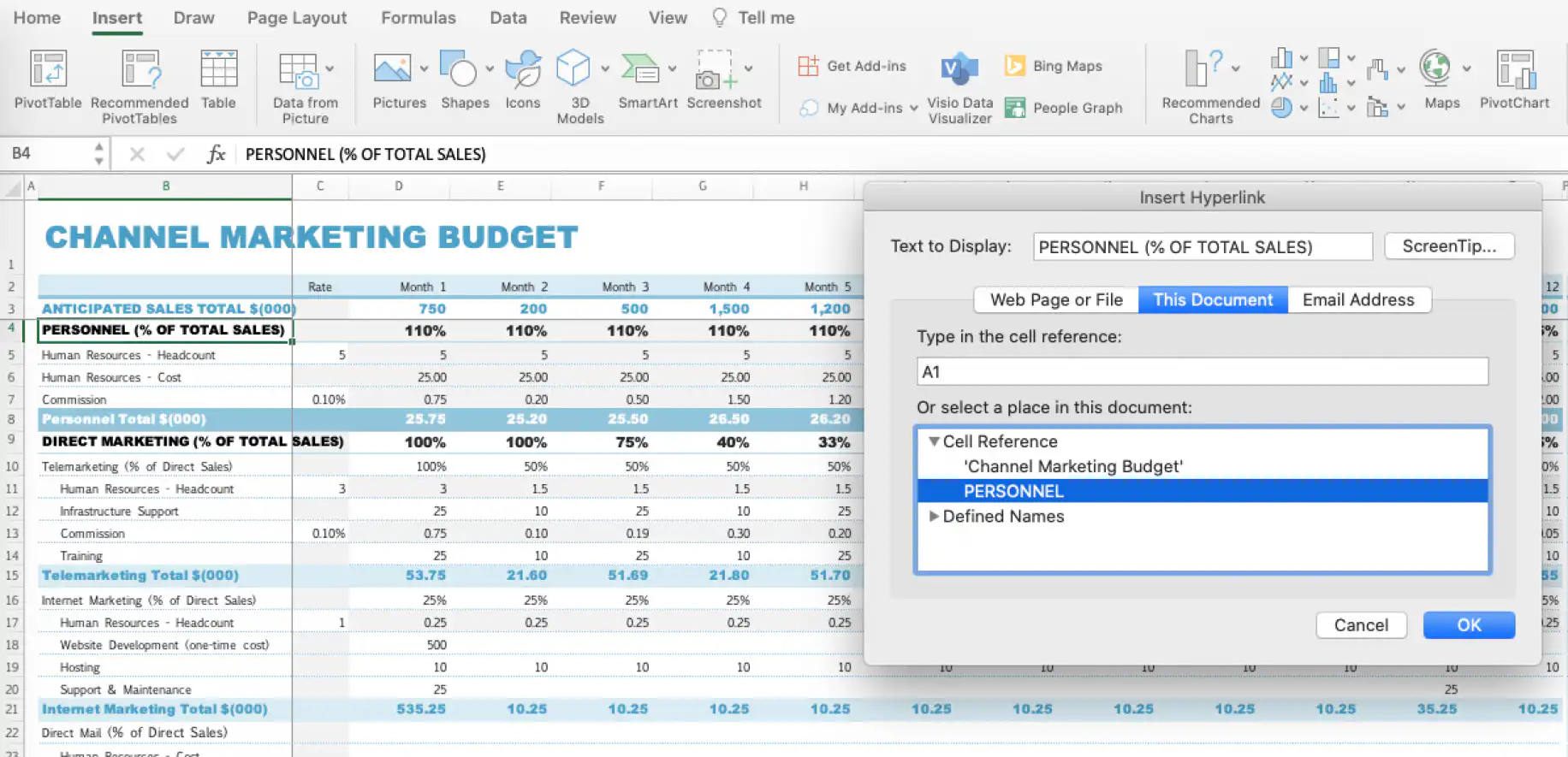
5. As you can see below, the selected cell is now clickable and formatted as a hyperlink.
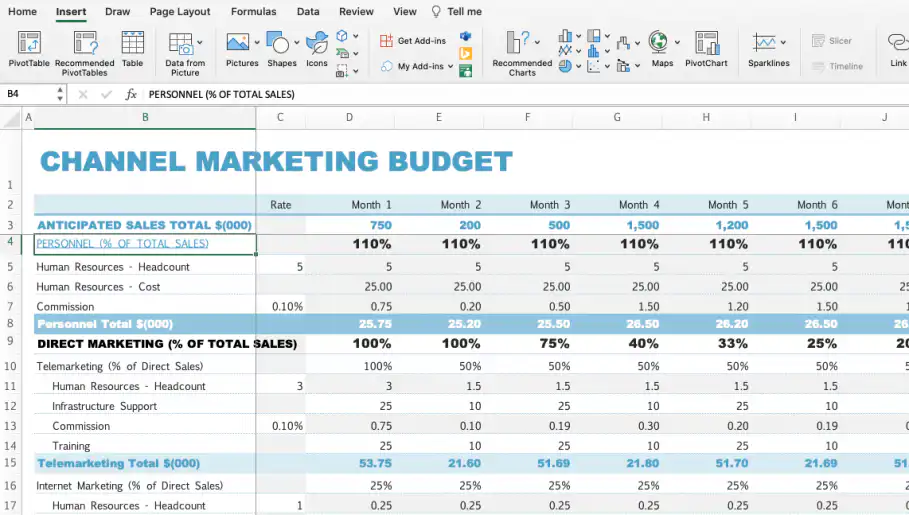
This is a great way to make your spreadsheet more interactive – by clicking on the hyperlinked cell, you will arrive at the related sheet automatically. Let’s now see how you can link to another cell within the same sheet.
How to insert a hyperlink in Excel to another cell?
Inserting a hyperlink in Excel to link to another cell can be very useful in case your data spreads across many rows and columns. To avoid scrolling through all this data, you can insert a hyperlink in the following way.
1. Select the cell where you want the hyperlink to be inserted. This time, I’ve selected the cell “Personnel Total $(000)” to link to the total amount, which is shown to the far right in column Q.
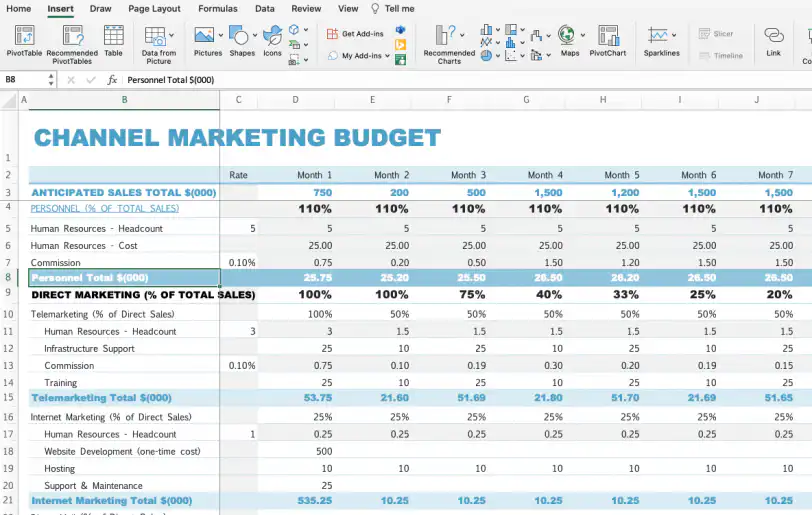
2. Go to Insert > Hyperlink or use any of the shortcut alternatives provided earlier. The same window as before is prompted. In this case, select the same sheet under the “Or select a place in this document” option and type in the cell reference you want to link to. Here, I have typed in “Q8” as it’s the cell containing the related information, “316.95”.
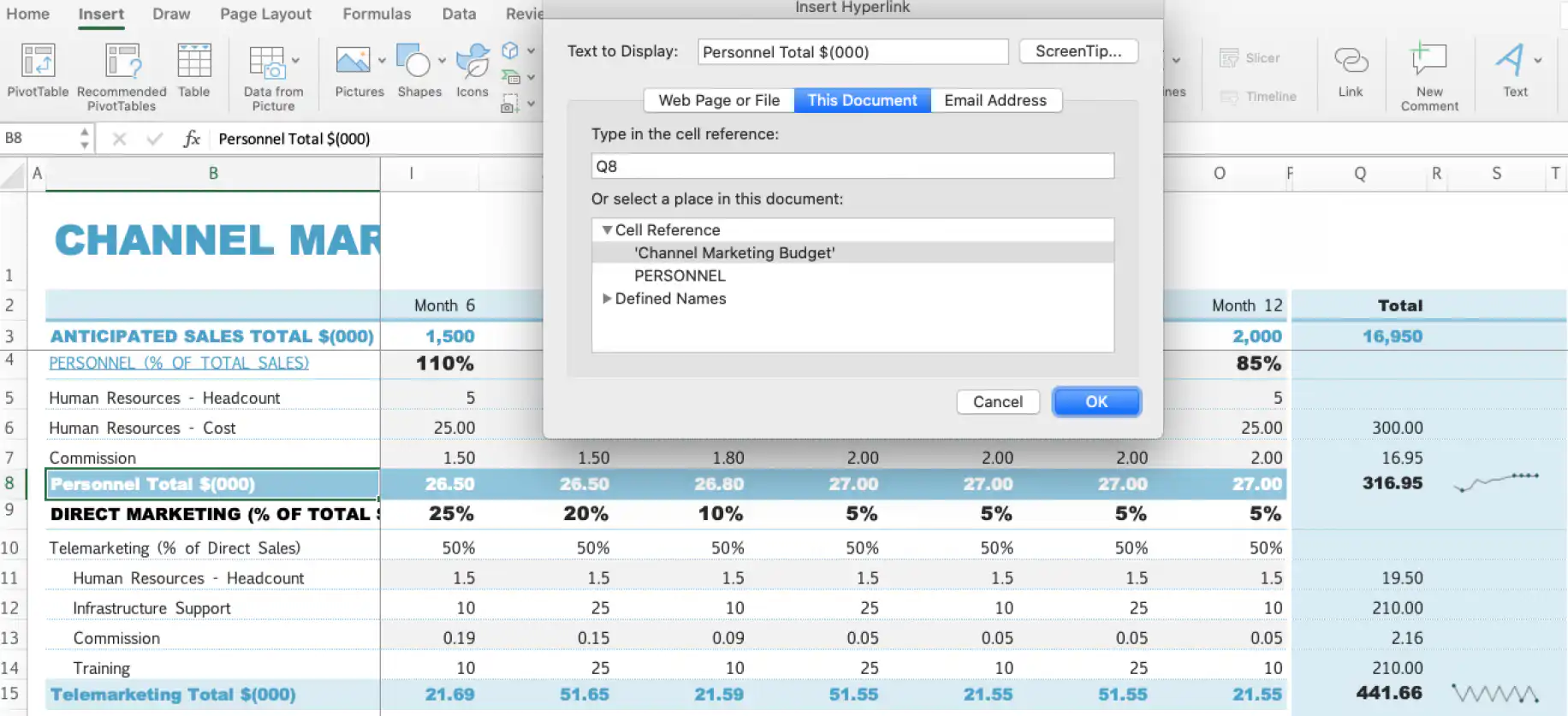
3. Click “OK” to create the hyperlink.
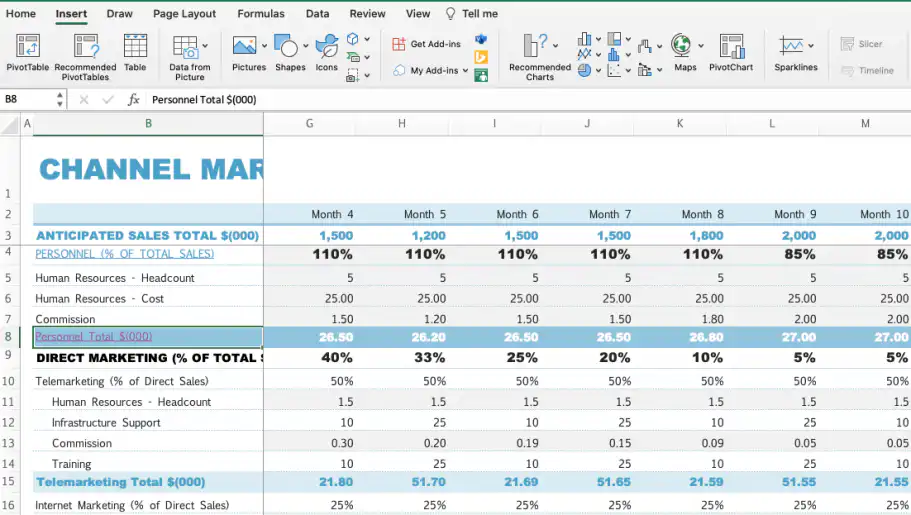
This is a great way to save time when analyzing or reviewing large datasets. To keep your headers in view while you scroll, you can also freeze rows and columns in Excel. So far, you’ve seen how to insert a hyperlink using the built-in command feature, let’s see how you can insert links using the HYPERLINK function in Excel.
How to insert a hyperlink in Excel using the HYPERLINK function?
An alternative way to create hyperlinks in Excel is through the HYPERLINK function, which converts the selected data into a hyperlink format. This Excel formula allows you to build links to other workbooks, websites, or other files stored in servers. Let’s start by using the HYPERLINK formula to link to another worksheet.
How to hyperlink between sheets in Excel using the HYPERLINK formula?
1. Select the cell where you want to insert the HYPERLINK formula. Note that you will need to enter the formula in the cell, so remember the text that will be replaced with the formula. Here, I want the cell “PERSONNEL % OF TOTAL SALES” to link to another sheet name, “PERSONNEL”, containing further information.
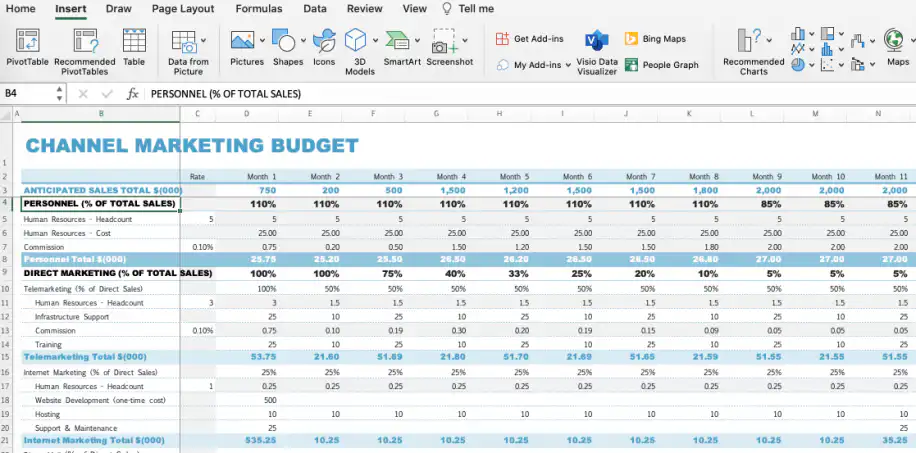
2. Type in the equal sign and type HYPERLINK. Excel will prompt you with the correct formula.
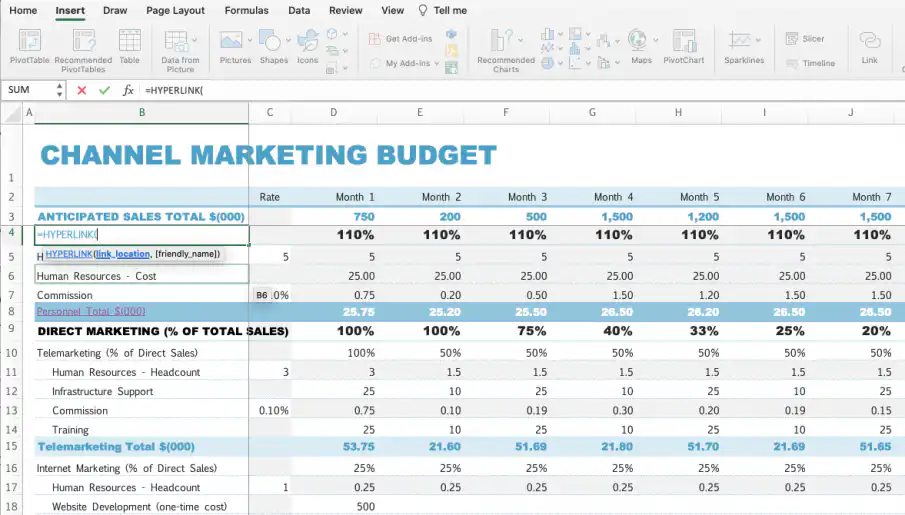
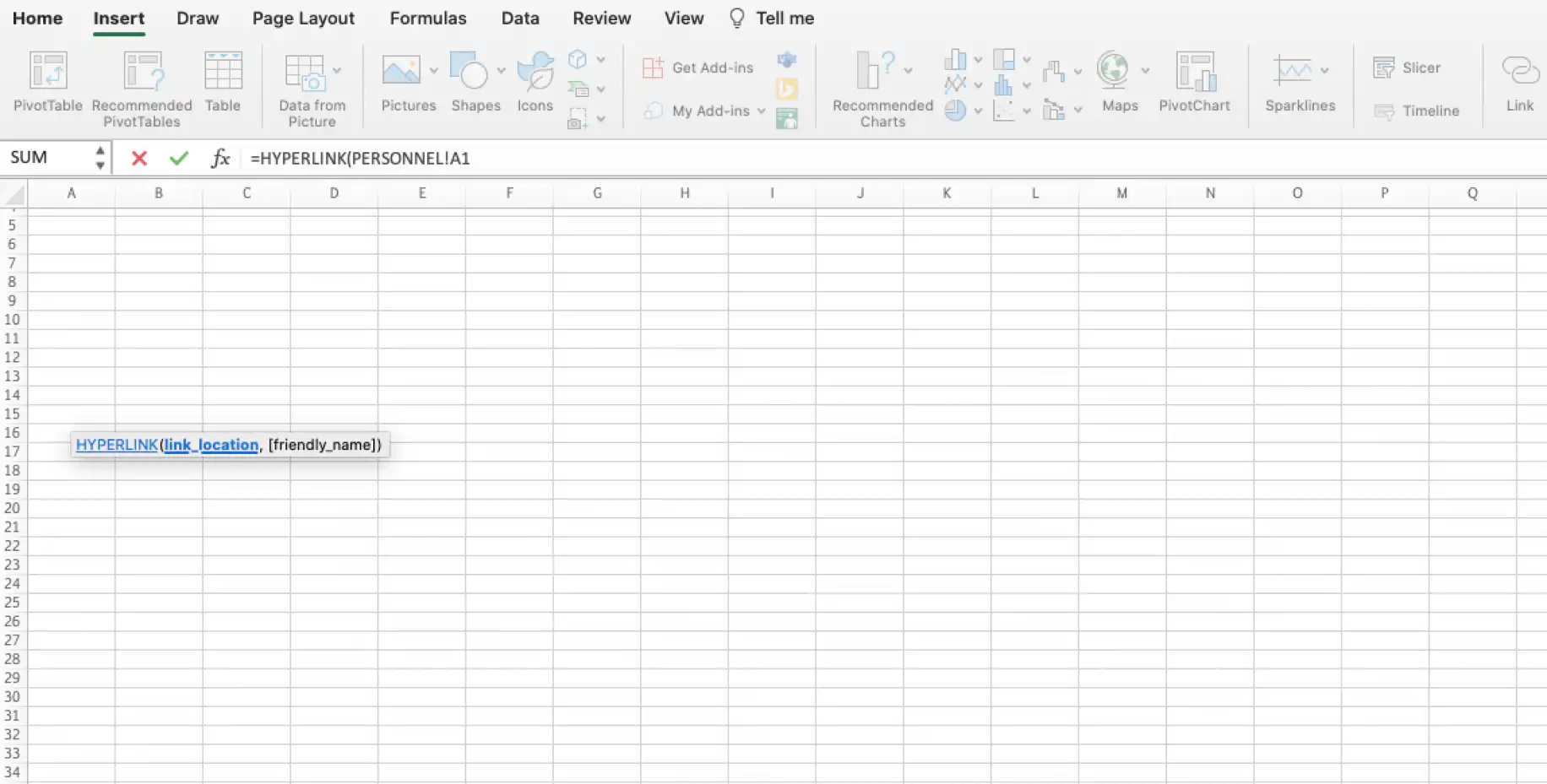
3. Click on the “link_location” parameter and then on any cell in the sheet you want to link to. It automatically includes the sheet reference in the formula. Here, “PERSONNEL!A1” has been included to refer to the sheet “PERSONNEL” I will link to.
4. For “[friendly_name]” include the text you want the cell to show. Here, I will include the original text “PERSONNEL % OF TOTAL SALES”. Then, press “Enter”.
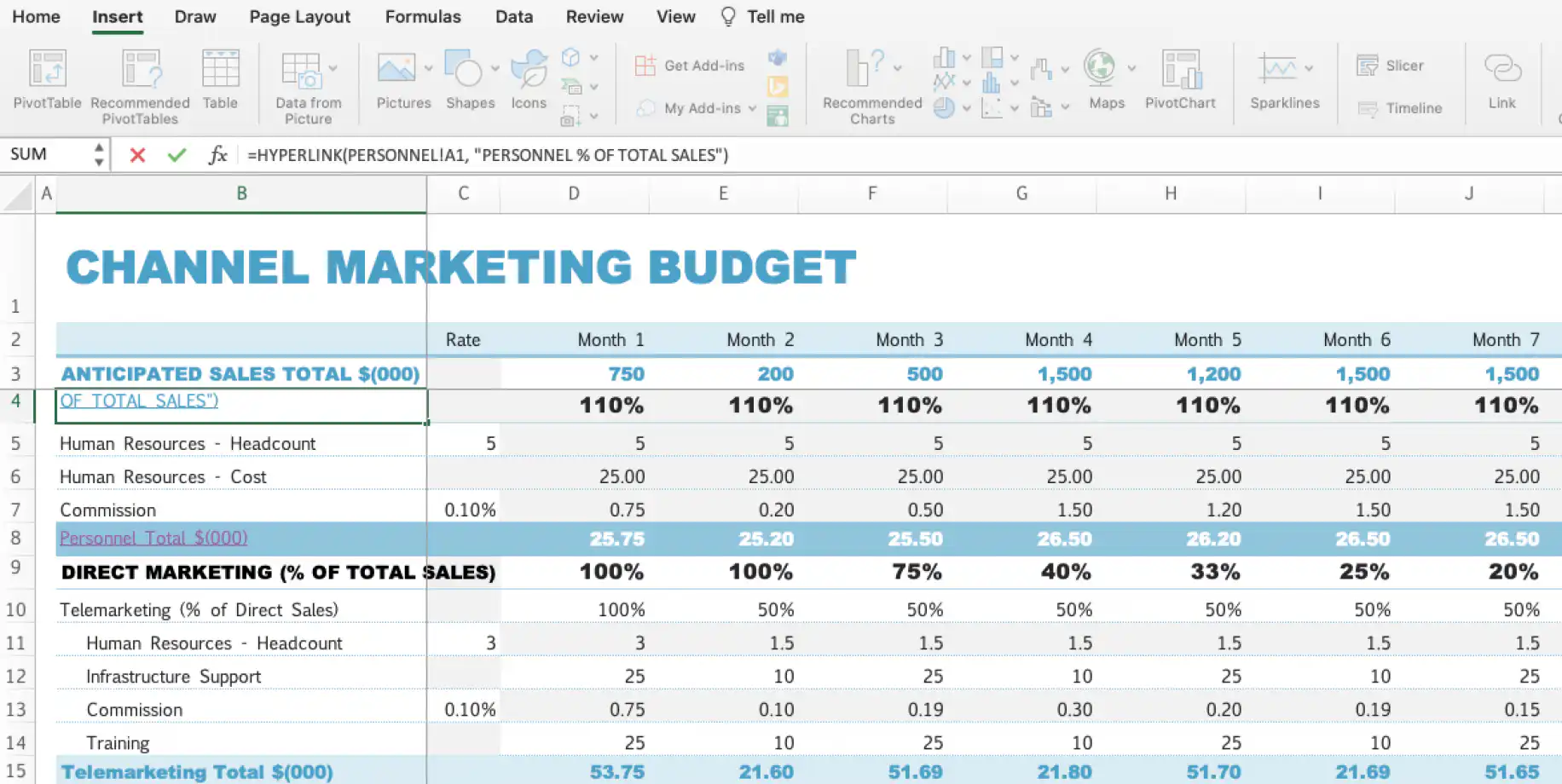
How to hyperlink to another cell in Excel using the HYPERLINK formula?
The steps to hyperlink to another cell using the HYPERLINK formula are almost identical to linking between sheets. The only difference is that the “link_location” will include the cell reference. Here, I have used “Q8” following the same example shown before and included “Personnel Total $(000)” for the “friendly_name” parameter.
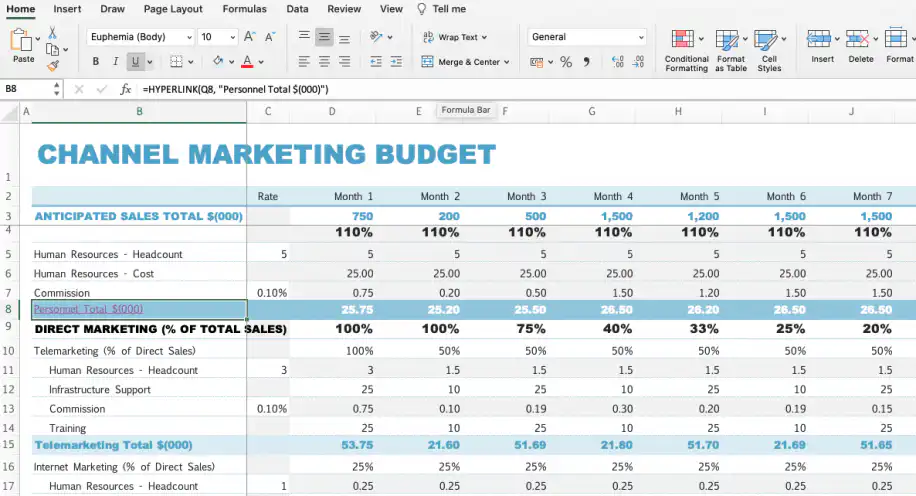
Now that you know various methods to make a hyperlink in Excel between sheets and to another cell, let’s see how you can remove it.
How to remove a hyperlink in Excel?
In case data is removed or you no longer wish to link specific data, here are the steps to remove hyperlinks in Excel.
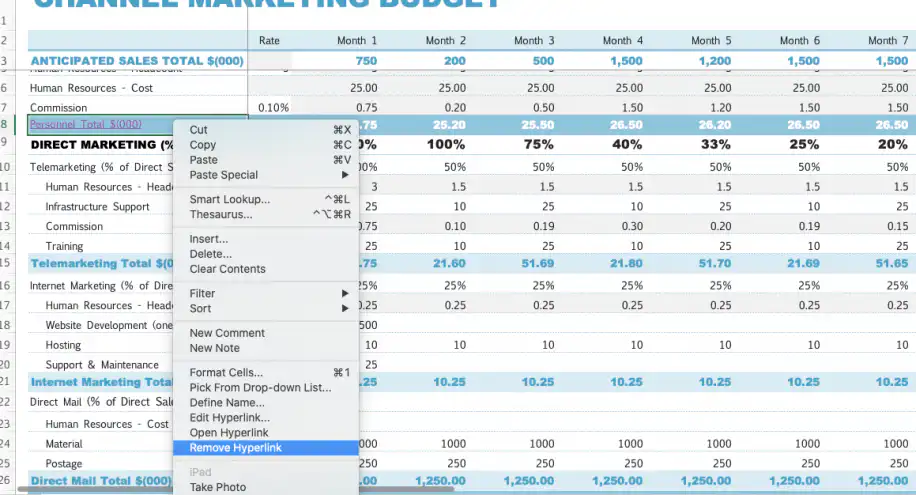
1. Select the hyperlinked cell(s) you want to remove and right-click on them. Click on “Remove hyperlink”.
2. Another quick option is to go to Home > Clear > Clear Formats or Home > Clear > Remove Hyperlinks.
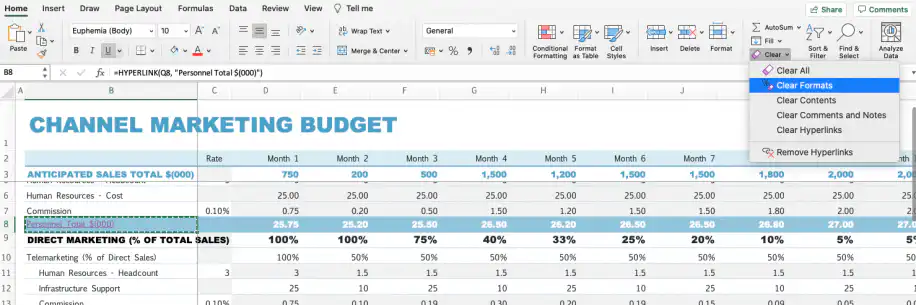
Both methods are applicable to removing single hyperlinks; however, if you create multiple hyperlinks in an Excel spreadsheet all at once, then the best way to remove them is to use a macro code. This will delete all hyperlinks and leave them as unformatted text.
Conclusion
Hyperlinks are a super easy method to reference specific cells, sheets or files in large datasets. As they are links, your data can remain dynamic, and the rest of your spreadsheet will not be affected by any changes. This is particularly great in circumstances where you need to constantly change or update your data, or if you work on the same Excel file with multiple users.
In this article, you have learned how to create a hyperlink in Excel using the built-in command and the HYPERLINK function. Both allow you to create clickable data that will take you directly to another cell, sheet, or website. This is a great way to make your datasets more interactive and visual for users. If you only want to add context to a cell without sending readers somewhere else, add comments and notes in Excel instead.
If you want to learn more about creating references to other data in Excel, read our blog article on how to reference another sheet or workbook in Excel. If you prefer working with Google Sheets, you will find linking Google Sheets: How to reference another sheet more useful. To add clickable links in Google Sheets itself, see how to insert a link in Google Sheets.



 English
  Español
  Português do Brasil
  Français