


If you use Excel for collaboration, you have likely come across the error message “The document is locked for editing by another user.” This means that your Excel file has been locked for editing by another user, and it could take you a considerable amount of time to figure out how to unlock it. However, what if the Excel file has been locked for editing by me?
In this post, you’ll first understand the different reasons why Excel is prompting this error message. You’ll then learn different methods on how to unlock an Excel file locked for editing by another user or yourself.
Why is “Excel file locked for editing by me”?
If you have received the message “The document is locked for editing by another user” when attempting to edit an Excel file, it could be due to one of the following reasons:
- The Excel file is password-protected.
- Microsoft Excel didn’t close properly, and the owner file wasn’t erased.
- The Excel file is shared on a network and is being used by another user.
- The Excel file is open on a different device.
- The Excel file has been opened on a device or system that doesn’t support the Microsoft 365 version of Excel or Excel for the web.
In all the above scenarios, the file may have been locked for editing by another user or yourself. Let’s see how you can unlock the Excel file depending on the error source.
How to unlock an “Excel file locked for editing by me”?
Regardless of the user responsible for locking the file, the methods illustrated below will help you unlock the file quickly and efficiently.
How to unlock an Excel file that is password-protected?
In case your Excel has locked you from moving, deleting, or adding sheets to the file, this is what you need to do to unlock it.
1. Open the Excel file that you’d like to remove the password from and go to Review > Protect Workbook.
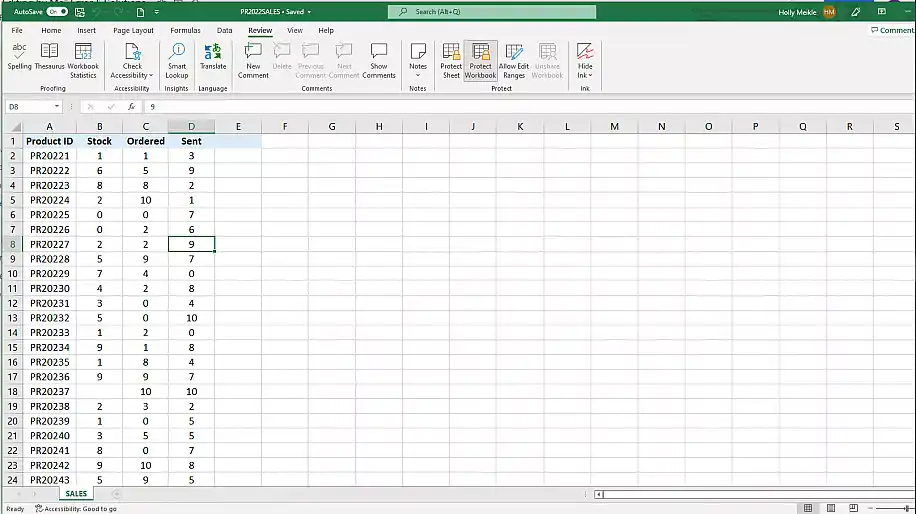
2. Type in the Password to “Unprotect Workbook”. Click “OK”.
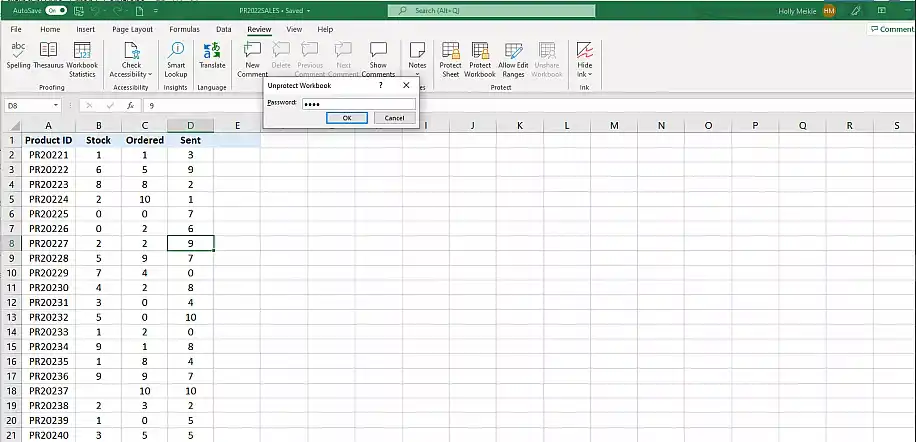
Please note that this method applies to Excel files that are protected from structural changes and in case you know the password. If you don’t know the password, read our blog article on how to remove a password from Excel, which covers various situations.
Let’s now see how to unlock an Excel file locked for editing by another user when the file doesn’t seem to be open. Since you won’t be able to close it using the traditional method, this is how to close an Excel file that is locked for editing “by me” using the Task Manager.
How to unlock an Excel file that didn’t close properly?
This is what you need to do in case the file didn’t close properly.
1. Make sure to save your work and then close all open programs and applications. Then, press Ctrl + Alt + Delete to open Windows Security.
2. Select “Task Manager” and then the “Processes” tab.
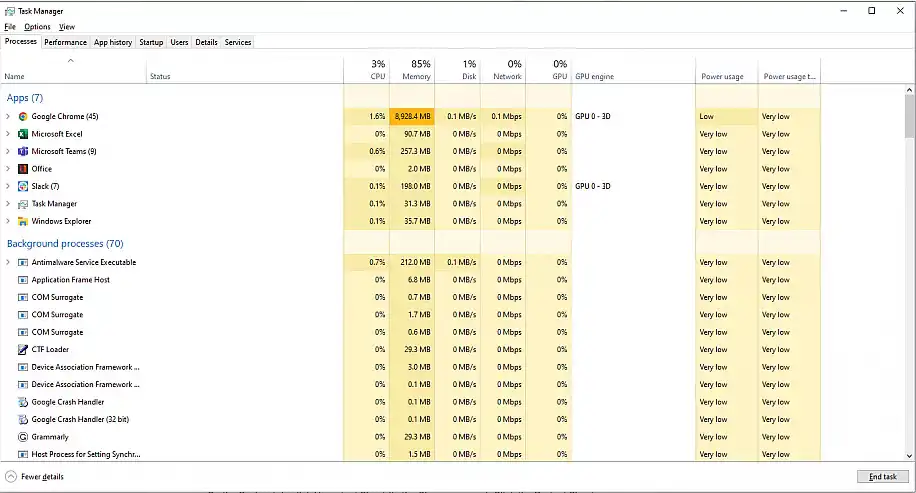
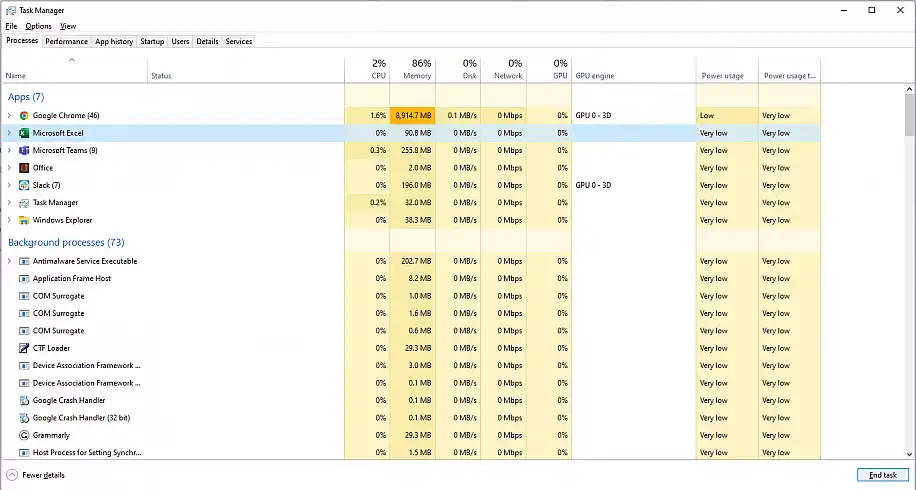
3. Click on the Excel application and then “End Task”.
Ending the task closes Excel without saving. To get back the changes you hadn’t saved, check the Excel AutoRecover file location.
So far, you’ve learned to unlock an Excel file in case you’ve saved the file to your desktop or uploaded it to a cloud environment. Let’s see how to unlock an Excel file that is locked for editing online.
How to unlock an Excel file that is shared on a network?
This method applies to the three remaining scenarios mentioned at the very beginning of this article. If your Excel file is locked for editing by another user or yourself in SharePoint or OneDrive, you’ll first need to make sure that you’re working on the Microsoft Excel version which supports co-authoring.
1. Launch Excel and click on the “File” tab.
2. Then, select “Account” to check the information on the version.
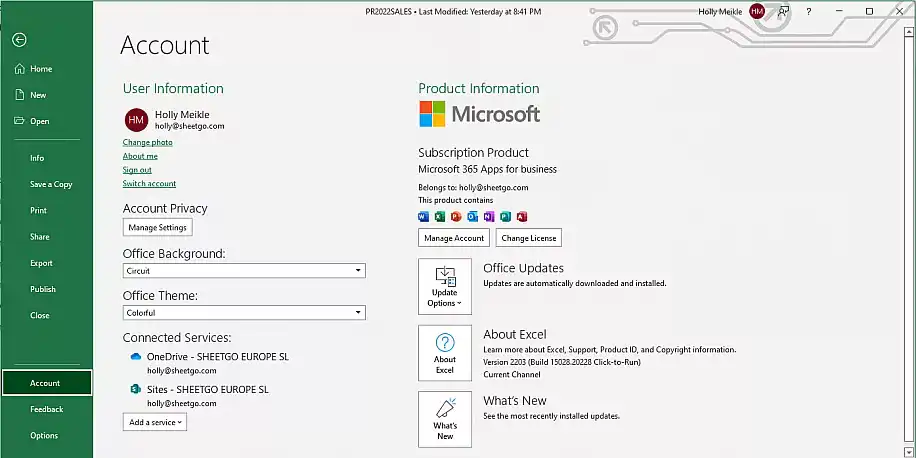
If your version corresponds to Excel for Microsoft 365 on Windows or Mac, Excel for the web, Excel for Android, Excel for iOS, or Excel Mobile, then you should be able to use the co-authoring feature. Note that it takes only one user on a different version to trigger the error message for everyone else. In this case, Microsoft encourages everyone to use Excel for the web.
You’ve seen the different ways to unlock your Excel file that’s locked for editing by another user or yourself. But what if you want to lock the file back?
How to lock an Excel file for editing?
There are many reasons why you might want to lock your Excel file for editing. This is commonly known as protecting your sheet instead of the workbook. By protecting the sheet, you are locking the cells contained within, and you’ll need to add a password to then unlock it.
1. Open your Excel file and go to Review > Protect Sheet.
2. Select the editing feature to restrict other users by ticking the boxes.
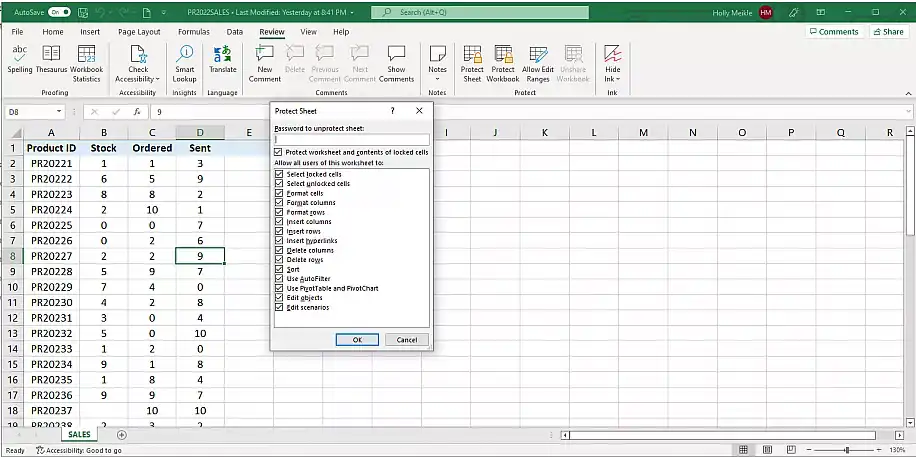
3. Type in the password to protect the sheet. In case you want specific users to edit, you simply need to share this password with them. Once you finish, click “OK”.
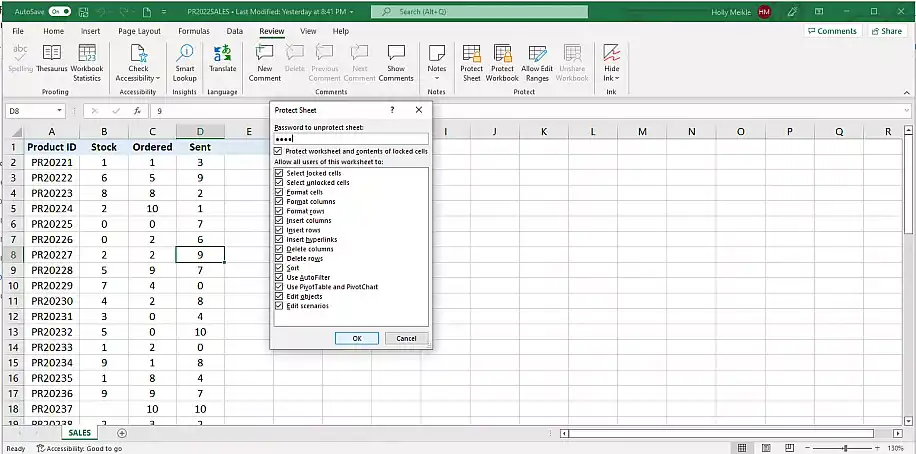
If you only want to lock specific Excel cells, then make the selection of the cells before selecting “Protect Sheet“. Read our guide on how to unlock cells in Excel to reverse this process.
Conclusion
Figuring out how to unlock an Excel file that has been locked for editing by another user or yourself can considerably slow down the efficiency of your team. Understanding the source of this issue can save you a lot of time and effort.
You know how to unlock an Excel file that was locked for editing based on different scenarios. However, the best solution to avoid any of these scenarios altogether is to use an Excel version that allows for co-authoring among multiple users.
If you want to learn more about collaborating on Excel, why not read our guide on how to share an Excel file for multiple users.
If Excel opens the file as read-only instead, see our guide on how to remove read-only from Excel. If changes got lost or overwritten while you sorted out the lock, you can restore a previous version of the Excel file.
When several people only need part of the data, you can also give each of them their own file. Sheetgo, an AI-powered data automation platform, can transfer filtered Excel data from one workbook to another on a schedule, so nobody has to wait for the main file to unlock.
If teammates keep sorting and filtering the same shared file, Excel sheet view lets each person set up their own view without changing what everyone else sees.



 English
  Español
  Português do Brasil
  Français