
Get help

Help center

Guides and answers

Contact support

Write to our team

Sign in to

Workflows

Build processes with your team

Automations

Connect files and automate tasks

One system, four parts

AI agents

Virtual Employees that work 24/7

Automations

Connect files and automate tasks

Workflows

Build processes with your team

Data Space

Trusted data sharing and control

Solutions by department

Finance

Reports, budgets, and reconciliations

Inventory and manufacturing

Stock, orders, and production in one view

HR

Timesheets, attendance, and reviews

Project management

Status and workload across projects

Sales and CRM

Leads and deals kept up to date

Education

Student records and school data

Finance

Turn manual finance work into reports that update themselves.

What Finance teams automate

  • Track payables and receivables
  • Build cash flow statements
  • Compare budget against actuals

Inventory and manufacturing

See stock levels and automate ordering.

What inventory and manufacturing teams automate

  • Track inventory across multiple sites
  • Connect sales, purchasing, and warehouse data
  • Link a barcode scanner to your sheet

HR

Run recruitment, attendance, and OKR tracking from your sheets.

What HR teams automate

  • Track recruitment and onboarding
  • Record team OKRs and results
  • Track check-ins, check-outs, and leave

Project management

Assign tasks and track hours without manual updates.

What project teams automate

  • Assign tasks and track status changes
  • Estimate effort and log hours worked
  • Track milestones across projects

Sales and CRM

Track leads and sales performance with automated reports.

What sales teams automate

  • Track and convert leads
  • Set sales goals and track team metrics
  • Monitor sales KPIs on dashboards

Education

Automate attendance, grades, and school purchasing.

What schools automate

  • Track attendance and notify parents
  • Record and compare class grades
  • Track inventory lent to students and staff

Find a use case

By department

How each team uses Sheetgo

By industry

How each industry uses Sheetgo

By company size

Small, medium-sized, or large

Learn

Blog

Guides and product news

Customer stories

How teams like yours use Sheetgo

Help center

Guides and answers

Why Sheetgo

Compare

How Sheetgo compares with other tools

Security

How we protect your data

Trust center

Our compliance details

Sign in to

Workflows

Build processes with your team

Automations

Connect files and automate tasks

One system, four parts

AI agents

Virtual Employees that work 24/7

Automations

Connect files and automate tasks

Workflows

Build processes with your team

Data Space

Trusted data sharing and control

Solutions by department

Finance

Reports, budgets, and reconciliations

Inventory and manufacturing

Stock, orders, and production in one view

HR

Timesheets, attendance, and reviews

Project management

Status and workload across projects

Sales and CRM

Leads and deals kept up to date

Education

Student records and school data

Find a use case

By department

How each team uses Sheetgo

By industry

How each industry uses Sheetgo

By company size

Small, medium-sized, or large

Get started

Templates

Ready-made workflows to start from

Learn

Blog

Guides and product news

Customer stories

How teams like yours use Sheetgo

Help center

Guides and answers

Why Sheetgo

Compare

How Sheetgo compares with other tools

Security

How we protect your data

Trust center

Our compliance details

Help center

Guides and answers

Contact support

Write to our team

Workflows

Build processes with your team

Automations

Connect files and automate tasks

How to use Excel sheet view for easy collaboration?

Microsoft 365 has unlocked powerful features for collaboration, making it even easier to share an Excel file or work on a spreadsheet simultaneously using the Excel Co-Authoring functionality. The downside to having multiple users editing a file at the same time is that it may interfere with your viewing of the data. For example, you might try to analyze a column that suddenly disappears because someone else has filtered or sorted it.

Now you can create customized views, aka Sheet Views, in Excel so that others can’t interfere with your work. In this article, you’ll learn what Sheet View is and how to create a temporary Sheet View in Excel, remove it, and switch between your custom Sheet Views.

What is sheet view in Excel?

Sheet Views are an Excel feature that allows you to create different views of the same data in a spreadsheet. It’s extremely useful for collaboration since it allows multiple users to view the same data in different ways at the same time.

If you find that the Excel Sheet View is missing or not working, you might not have the required version of Microsoft 365. If you do, you need to make sure it is saved to OneDrive or SharePoint. Let’s explore how you can enable Sheet View in Excel.

How do I enable sheet view in Excel?

If you find the Sheet View options disabled, then this is how you can check that your Excel is online.

Open your Excel workbook and click on the file name at the top. A “File Name” drop-down box will appear where you can select the online folder.
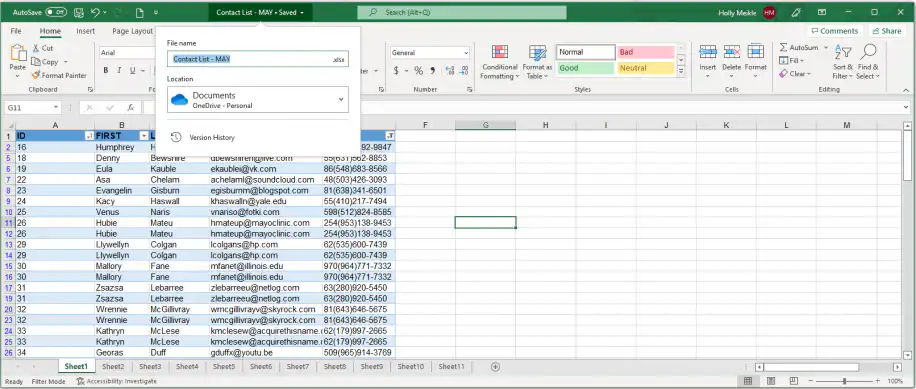
Excel sheet view — File name drop-down under the workbook title showing the OneDrive Documents location

Now, you’ll see how easy it is to create a Temporary Sheet View in Excel.

How to create a temporary sheet view in Excel?

Sheet Views are temporary because you can easily remove them at any time. This is how you can create a Temporary Sheet View in your Excel.

1. Open an Excel workbook and click on any sheet to make sure it’s active.
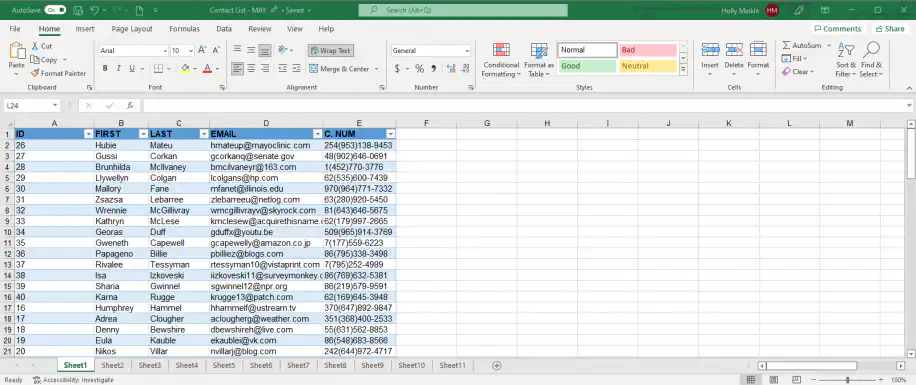
Excel sheet view — contact list workbook open on the Home tab with Sheet1 active

2. Head to the “View” tab and click on “New” within the “Sheet View” group.
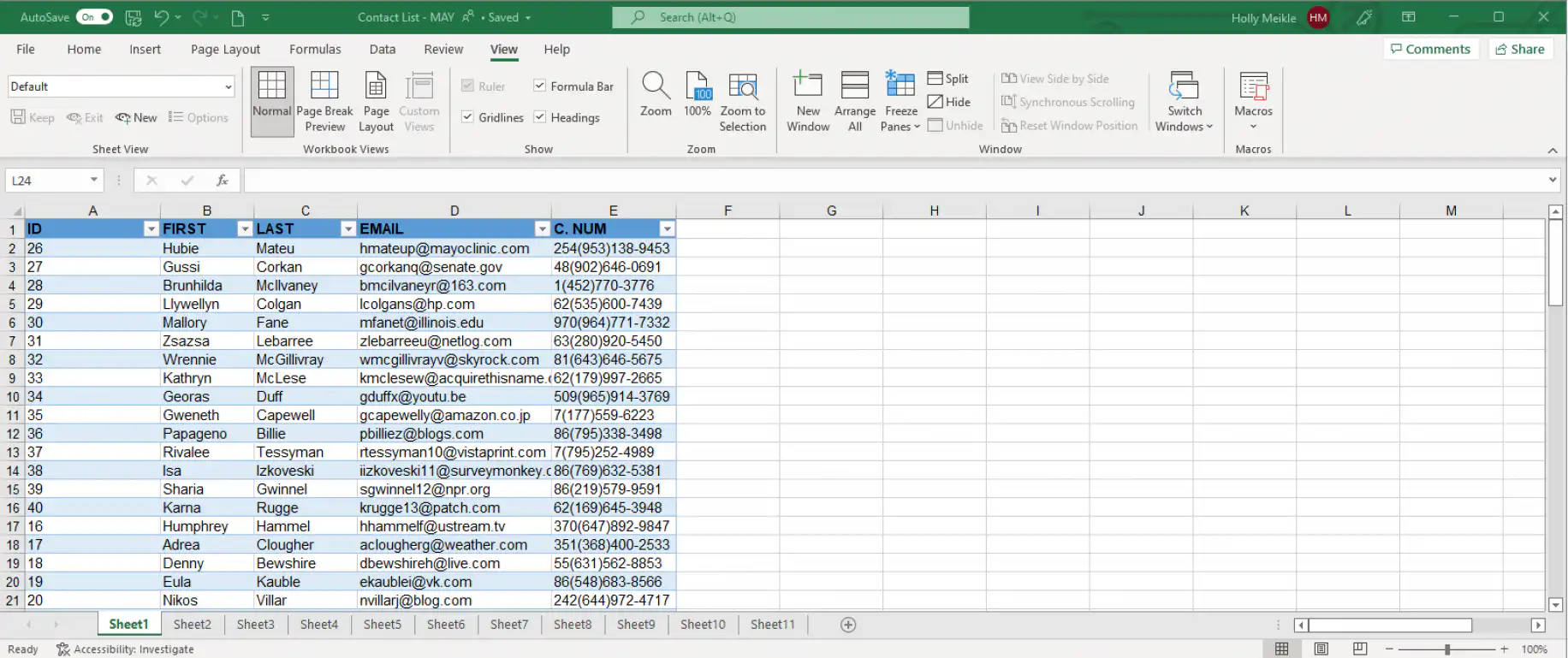
Excel sheet view — View tab with the Sheet View group showing Default and the New button

Notice how your column and row headers are now black, and Excel displays “Temporary View” as a drop-down option in the Sheet View group. Next to your sheet tab name at the bottom, an eye icon should also appear.

3. To remove the “Temporary View”, click “Exit” within the “Sheet View” group.
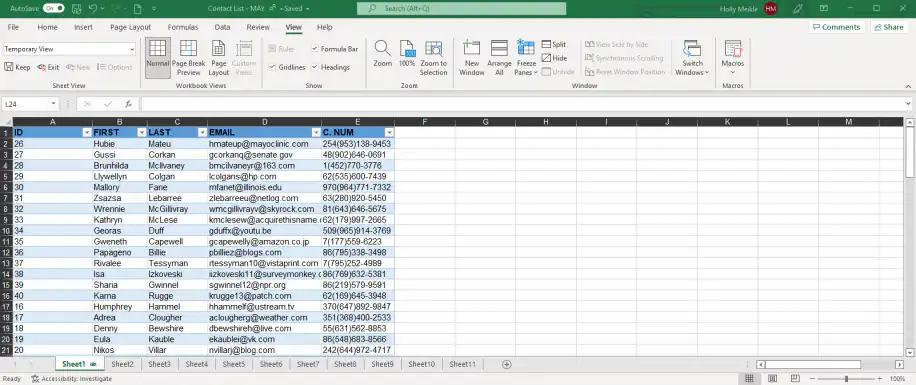
Excel temporary view — Temporary View in the Sheet View drop-down with Exit, and an eye icon on the Sheet1 tab

You can now easily work on your data without being interrupted. In case another user applies a filter or tries to sort data, Excel will ask you whether you want to work on their view or continue to work on your own. Let’s explore how you can use Sheet View in Excel to have full control over how you can view your data.

How to use sheet view in Excel?

Excel first allows you to create a Temporary View, which you can easily exit, as shown before. However, if you would like to save the Temporary View, this is what you need to do.

How to save a sheet view in Excel?

The great thing about Sheet View is that you can save more than one view per sheet.

1. In the “Sheet View” group, click on “Keep”.
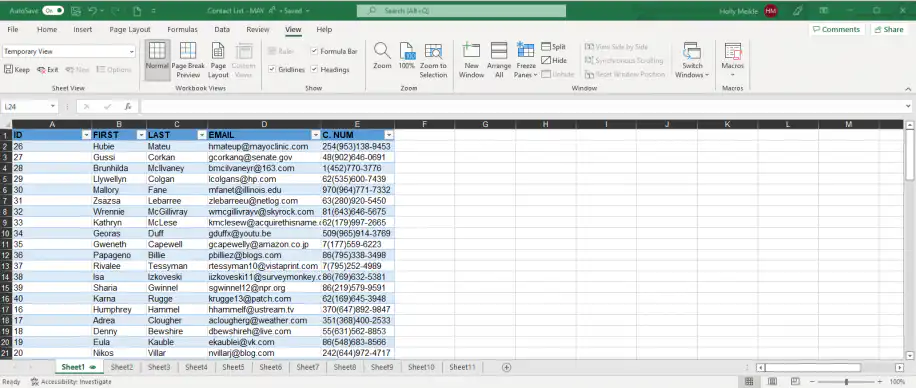
Excel sheet view — Keep button next to Temporary View in the Sheet View group

2. You should now see the default name of your view has replaced “Temporary View” in the drop-down menu.
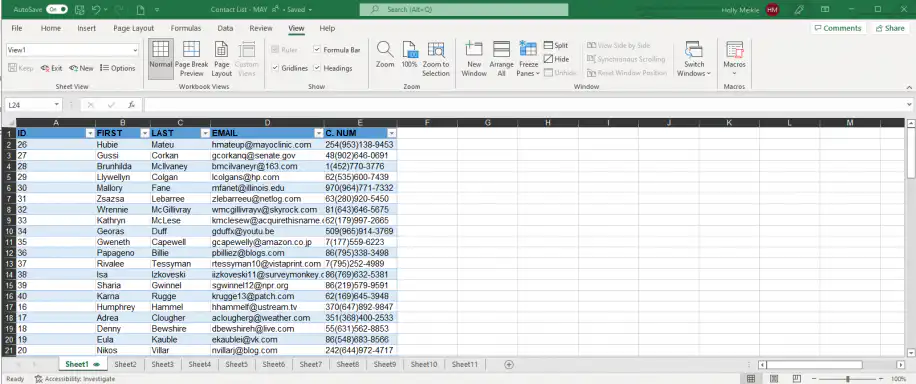
Excel sheet view — saved view named View1 in the Sheet View drop-down

However, you can customize the Sheet View name so that it’s easier for you to switch between views. Let’s see how you can rename your custom view.

How to rename a sheet view in Excel?

Renaming your custom views can be done in two simple steps.

1. Click on “Options” next to the “New” button. Then, select the Sheet View to rename, and select “Rename”.
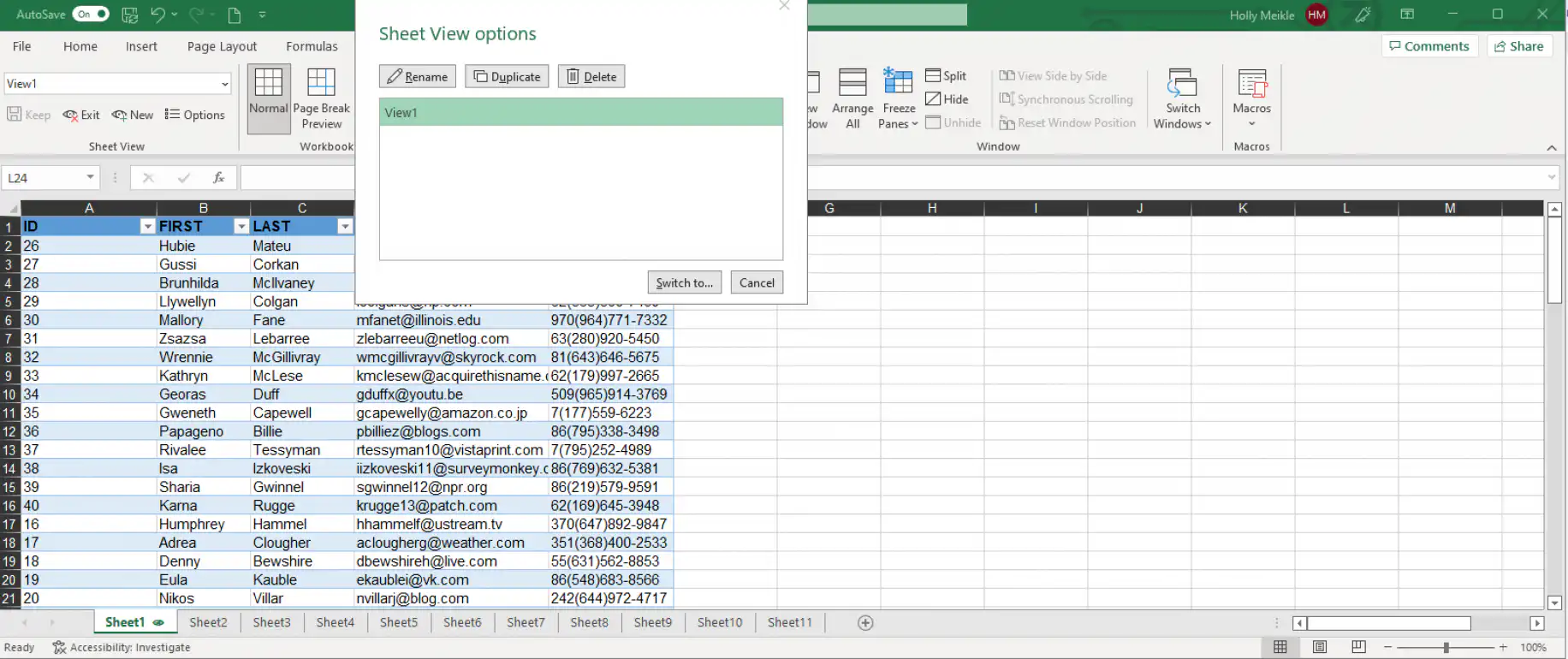
Excel sheet view options — dialog with View1 selected and Rename, Duplicate and Delete buttons

2. Type in the new name and click “Save”.
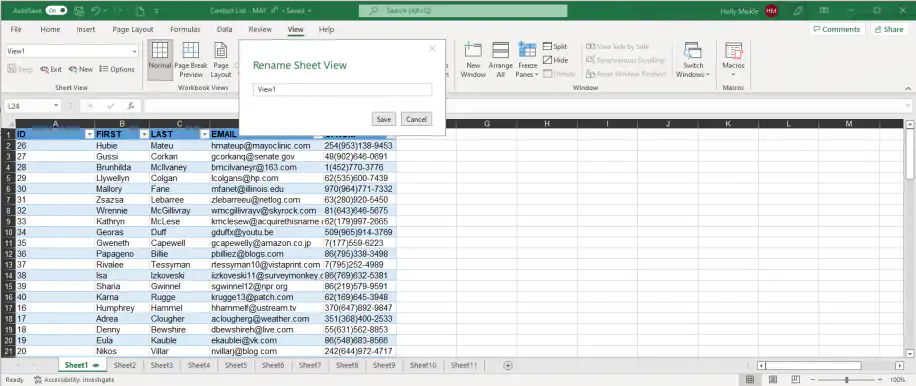
Excel sheet view — Rename Sheet View dialog with View1 in the name box and a Save button

But what if you’ve saved different custom views and want to switch between them? Here’s how to do it.

How to switch or leave a sheet view?

You can switch between your saved custom views from the “Sheet View” drop-down box.

1. To switch to a different Sheet View, click on the drop-down list and select the desired Sheet View. Here, I would like to switch to “Sorted A-Z”, a view I saved earlier, which filters the last column and sorts the first column as A-Z.
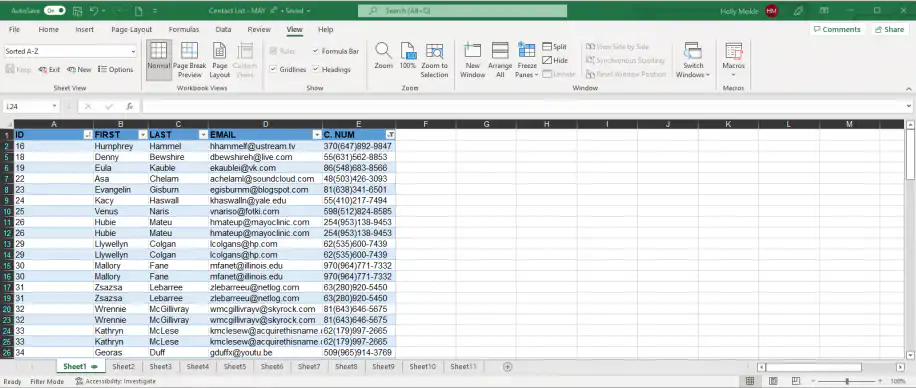
Excel sheet view — Sorted A-Z view selected in the drop-down with the list sorted and filtered

2. To leave a Sheet View, click “Exit”. You can see how the drop-down box now shows “Default” as the current view.
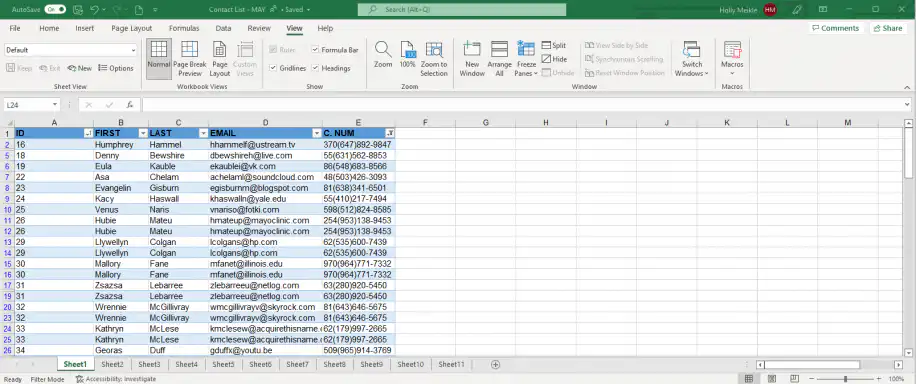
Excel sheet view — Sheet View drop-down back on Default after exiting the view

If you’re wondering whether you can access other views in the shared Excel, you’ll be happy to learn that it’s possible. However, this also means that there is no private view option. As a result, any other user can also see and accidentally change your custom view.

Conclusion

Although Excel Sheet Views might seem like a basic feature, this feature makes collaborative work easier than ever before. You can perform any task on your spreadsheet – basic or complex – and it won’t affect or interfere with your colleagues’ work.

In this article, you have seen how Sheet View makes collaboration in Excel even easier. You should now know how to use the Sheet View functionality in Excel in full. You should also know how to create a Temporary View, how to remove it, and how to manage Sheet Views to go back to a specific Sheet View at any time.

A sheet view only changes what you see. Other people can still edit the data, so to stop changes to the file itself, you can lock and protect the Excel workbook from editing. If a change slips through, you can restore a previous version of the Excel file. If Excel says a shared file is locked for editing, here’s how to unlock an Excel file locked for editing by me. If teammates need their own copy of the data to sort and filter, Sheetgo, an AI-powered data automation platform, can transfer filtered Excel data to another workbook and keep that copy up to date.


You may also like…

How to lock cells in Excel — Excel logo next to a green padlock on a mint background

How to lock cells in Excel? (cells, sheets & formulas)

Learn how to lock cells in Excel to stop accidental edits, plus how to protect a sheet and lock formulas, with steps for Windows and Mac.

Excel version control — stacked XLS file icon in teal on a dark navy background

The beginner’s guide to Excel version control

Discover what Excel version control is, the version control features Excel has to offer, and how to use them to share, merge, and review Excel changes.

How to remove password protection from Excel — Excel icon next to a padlock with a masked password on a light blue background

How to remove a password from Excel (multiple methods)

Learn how to remove password protection from Excel: unlock a file or a sheet when you know the password, and what to try if you’ve forgotten it.