


If you work with databases on Excel, then you have probably experienced sharing data between different sheets or workbooks. The VLOOKUP function in Excel saves you from having to use the traditional copy/paste method to transfer data between multiple worksheets or workbooks.
In this article, you will learn how to use VLOOKUP between two different worksheets and two different workbooks. However, keep in mind that while this function is useful, there are certain disadvantages to using it between different workbooks, particularly if you use it regularly or need multiple instances. Fortunately, there is an easy-to-use solution that overcomes these limitations: Sheetgo.
How to use VLOOKUP in Excel from another sheet
Let’s first break down the syntax of the VLOOKUP function in Excel. For a general introduction to the function, see our guide on how to use VLOOKUP in Excel.
VLOOKUP syntax
VLOOKUP(lookup_value, Sheet!range, col_index_num, [range_lookup])
- lookup_value: the first data cell you will look up.
- table_array: the range of cells you want to retrieve. You need to indicate the name of the sheet or tab, followed by an exclamation point, and then the range of cells (e.g. Sheet 1!A1:D4).
- col_index_num: the column you want to retrieve the data from. You need to indicate the position of the column with a numeric value – 1, 2, 3, etc.
- [range_lookup]: the parameter that will ensure you look up an exact match, by entering the value “FALSE”.
Imagine that you are a car salesperson and you have distributed your car-related data in an Excel spreadsheet across various tabs; for example, each tab includes monthly data. You can select the data you wish from different tabs and import it into one Excel sheet.
1. Start in the sheet where you want your VLOOKUP results to be located. In this example, I want to add them to my ‘2021 ALL’ worksheet next to the ‘VIN’ column.
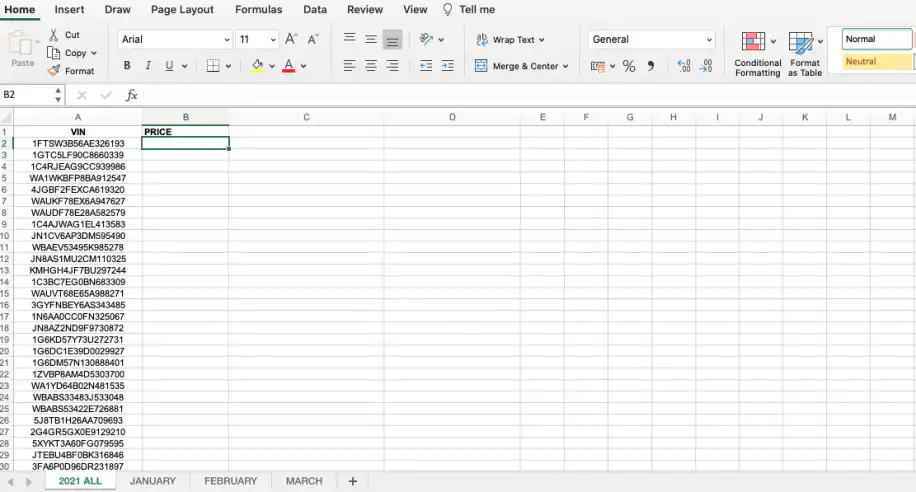
2. Click on the cell where you will enter the VLOOKUP formula. Start typing VLOOKUP. See how Excel prompts you with the formula as soon as you start typing.
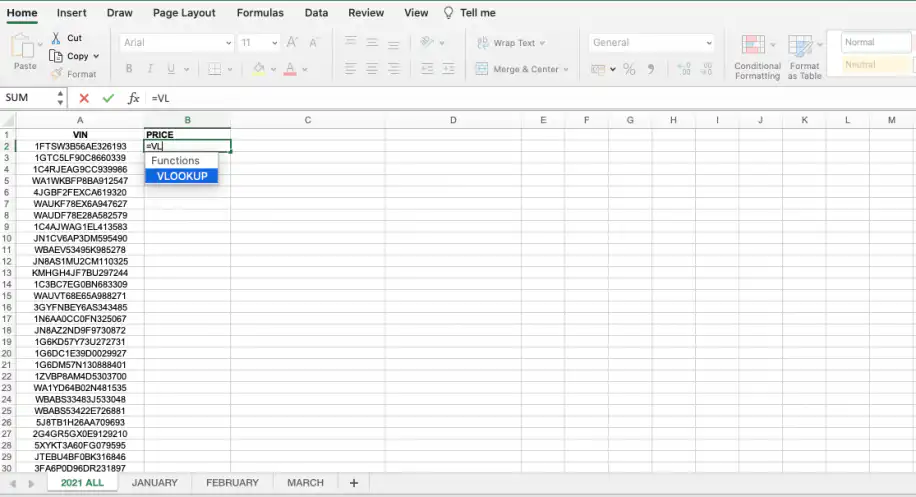
3. Now you can either type in the formula yourself, or avoid syntax errors by simply selecting the sheets and cells. Click on the cell you want as your lookup_value. In my example, this is the first cell in my ‘VIN’ column.
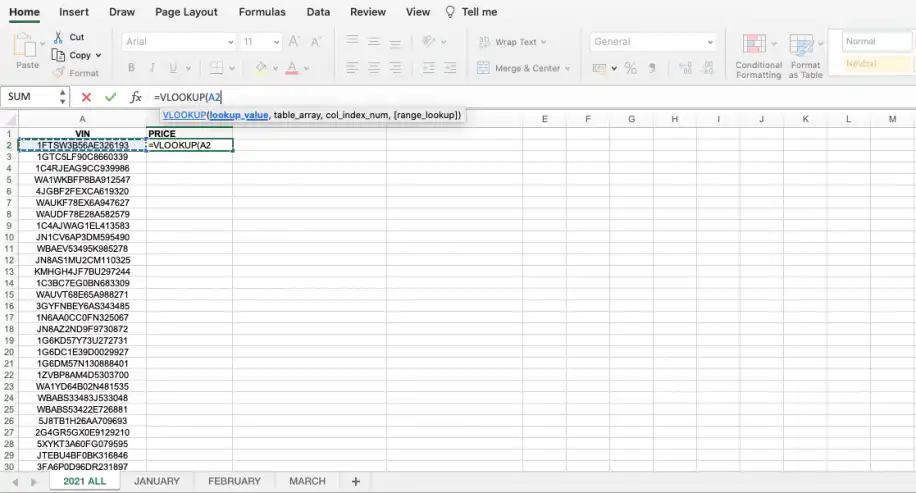
4. Place a comma or semicolon (check your computer’s regional settings to check), followed by the table_array value which can be obtained simply by selecting the dataset you want to look up. Note that we have moved to the ‘JANUARY’ sheet.
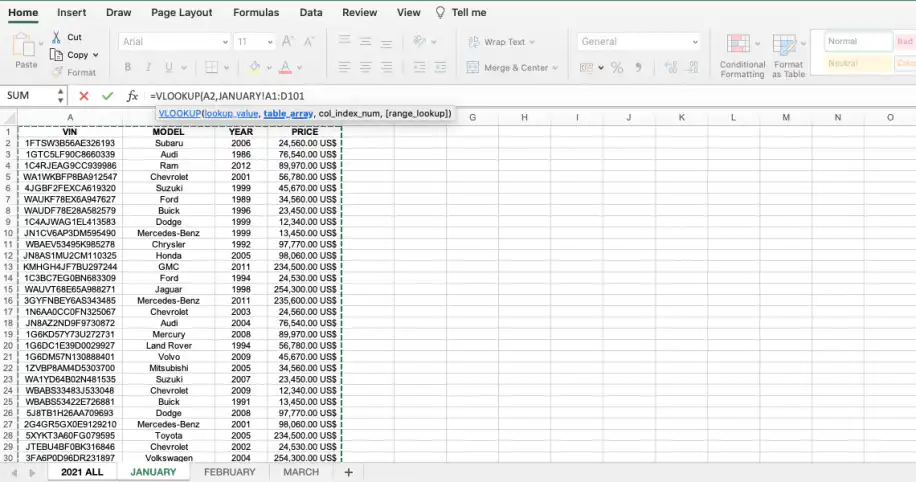
5. For the col_index_num, you need to manually enter the position of the column you want to import data from. In this case, we want the prices, so ‘4’.
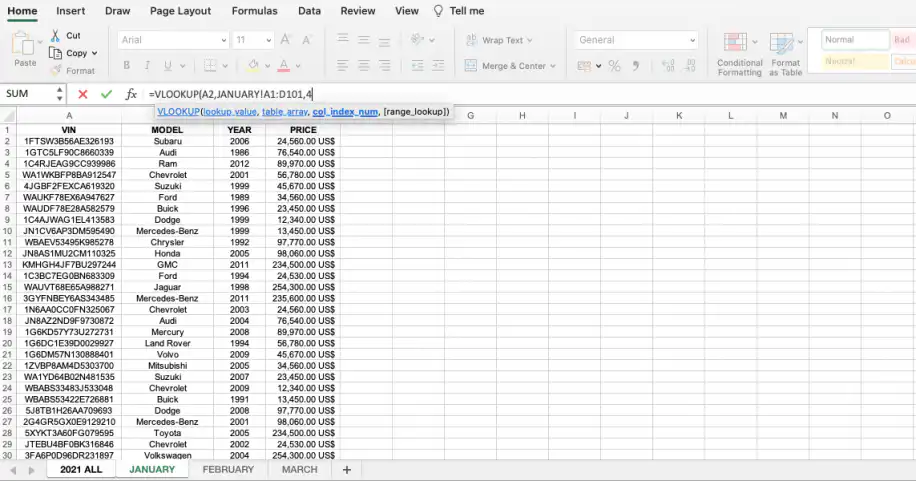
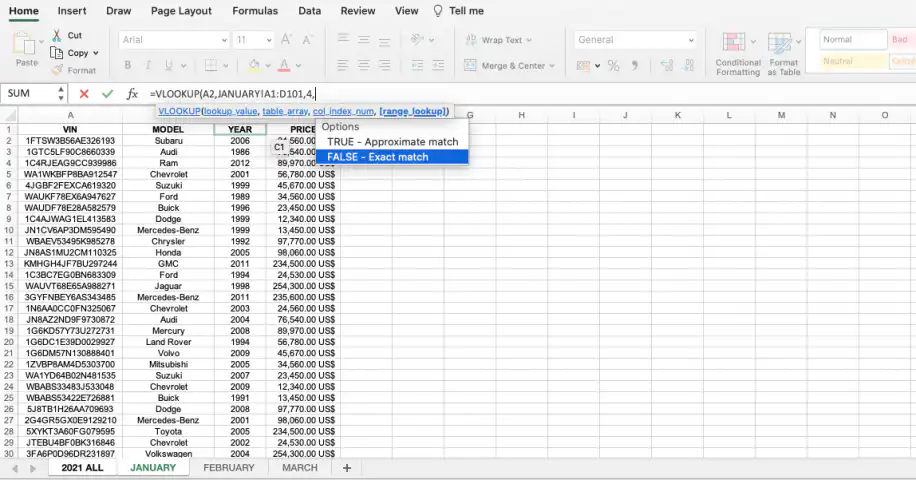
6. The range lookup refers to a true-false value. If you want to look up an exact match, then you need to select ‘FALSE – Exact match’.
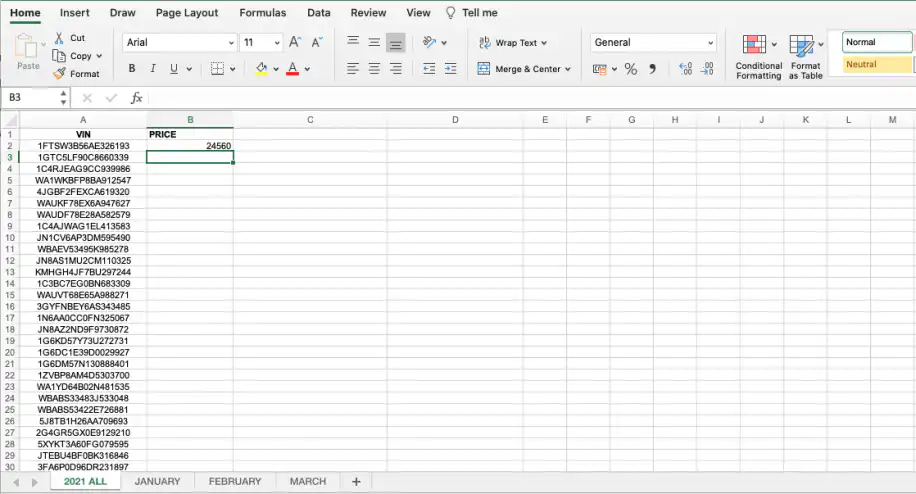
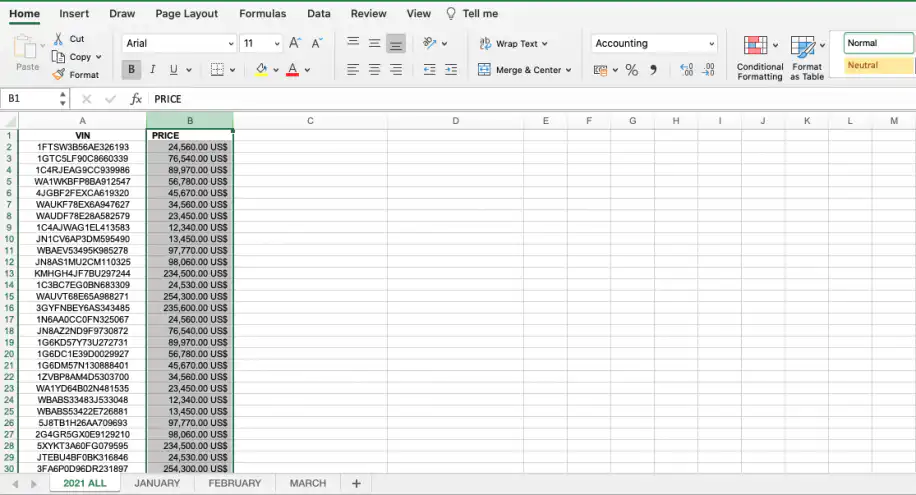
7. As soon as you press Enter, you can go back to your original sheet and check that the first cell shows the price value corresponding to the first ‘VIN’ cell we used to VLOOKUP.
8. Retrieve the rest of the column value by dragging down from the bottom-right corner of the cell.
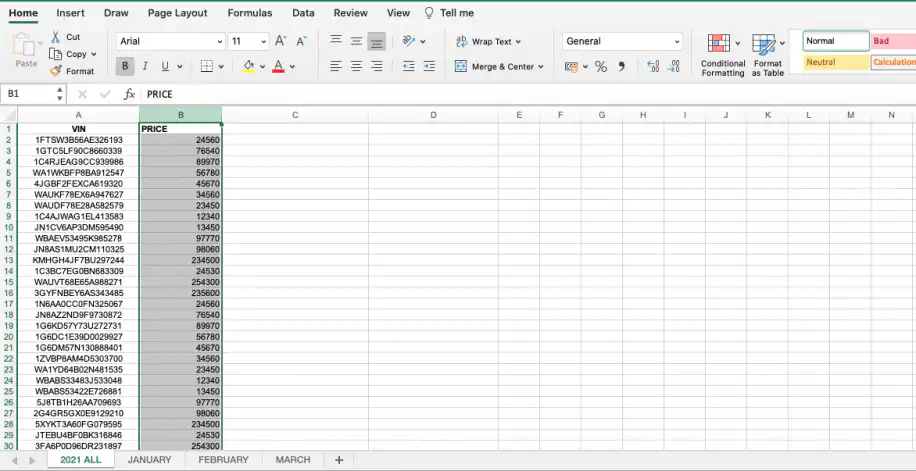
9. Since we want to keep the data as currency values, go to the drop-down arrow in the currency icon and select the US dollar sign ($).
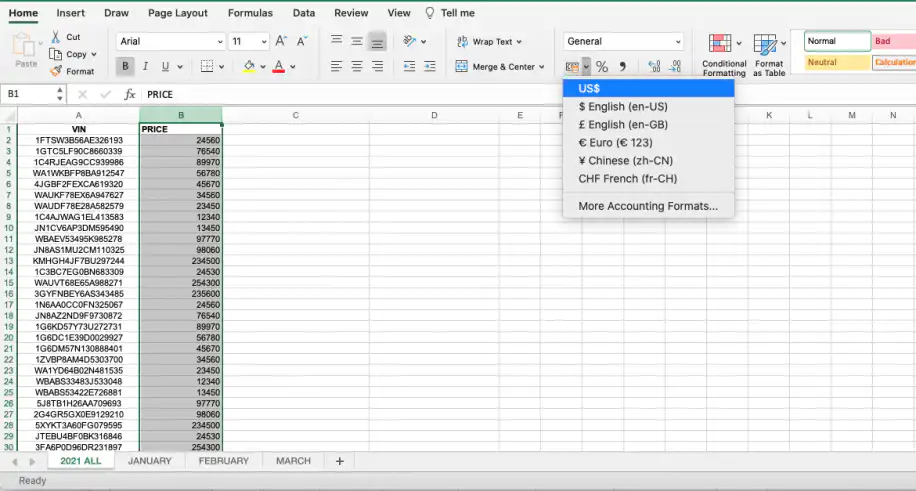
10. And there you have it. Your first VLOOKUP between two sheets in Excel.
So far, you have seen how to do a VLOOKUP in Excel between two sheets within the same workbook. Excel also allows you to use VLOOKUP across multiple sheets in case you want to apply the formula to several sheets simultaneously. We perform this action in combination with the IFERROR function: if the value isn’t found on the first sheet, IFERROR runs the same lookup on the next one.
=IFERROR(VLOOKUP(lookup_value, Sheet1!range, col_index_num, FALSE), VLOOKUP(lookup_value, Sheet2!range, col_index_num, FALSE))
If you use Excel for Microsoft 365, XLOOKUP also works across sheets and doesn’t need a column index number. Working in Google Sheets instead? See how to use VLOOKUP from another sheet in Google Sheets.
How to VLOOKUP between two workbooks in Excel
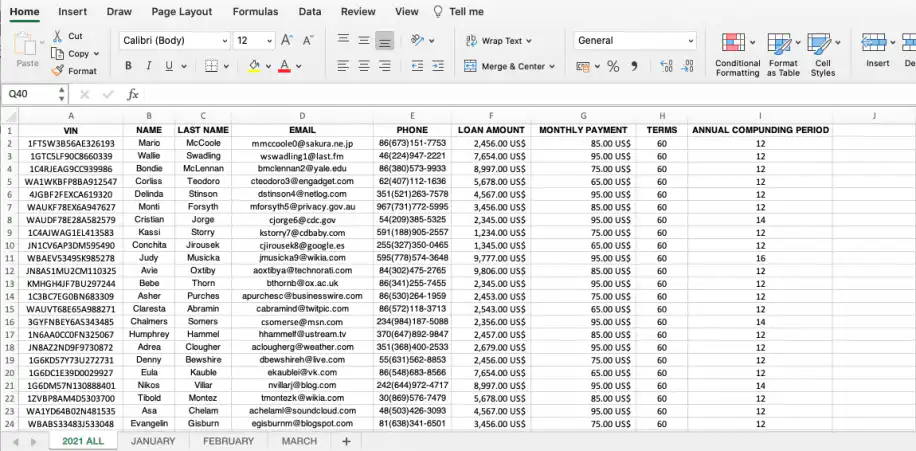
Continuing with the use case of this article, let’s say that I now want to add the car owners’ email address to the ‘CAR REGISTRATION’ file, which is kept in another Excel workbook, i.e. ‘CLIENT INFO’. This is how to VLOOKUP data between two workbooks in Excel.
1. Open the two Excel workbooks and click on the cell where you want your VLOOKUP results located. Here is my example dataset below containing the car owners’ email addresses.
2. Enter the VLOOKUP formula in a cell in your original file. I will locate this in my ‘CAR REGISTRATION’ file, where I will obtain the email address data.
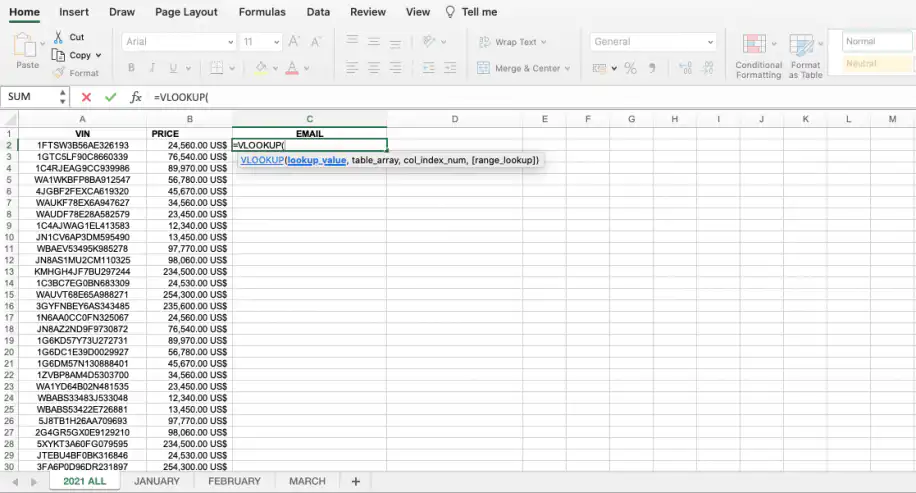
3. Click on the first cell you want as your lookup_value. Here, I will click on the first ‘VIN’ cell (A2).
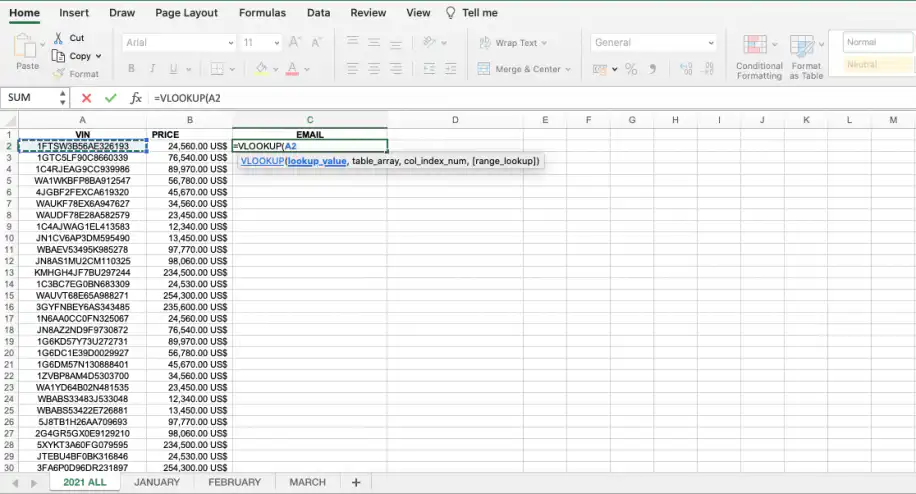
4. For the table_array values, go to the other workbook and select the dataset you want to use to VLOOKUP. See how this parameter is now expressed between squared brackets.
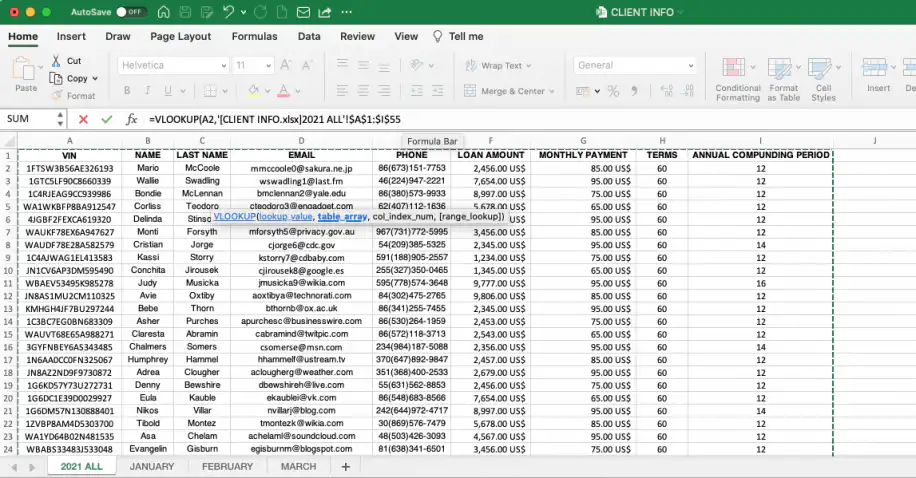
Make sure to also include the workbook name between quotation marks if it contains spaces or special characters (‘[CLIENT INFO.xlsx]2021 ALL’!$A$1). Use the dollar sign ($) to lock the range to prevent any changes when transferring the formula between cells, worksheets, or workbooks.
5. Enter the position of the column you want to import data from as the col_index_num. Here, I will add the number of the ‘EMAIL’ column (‘4’).
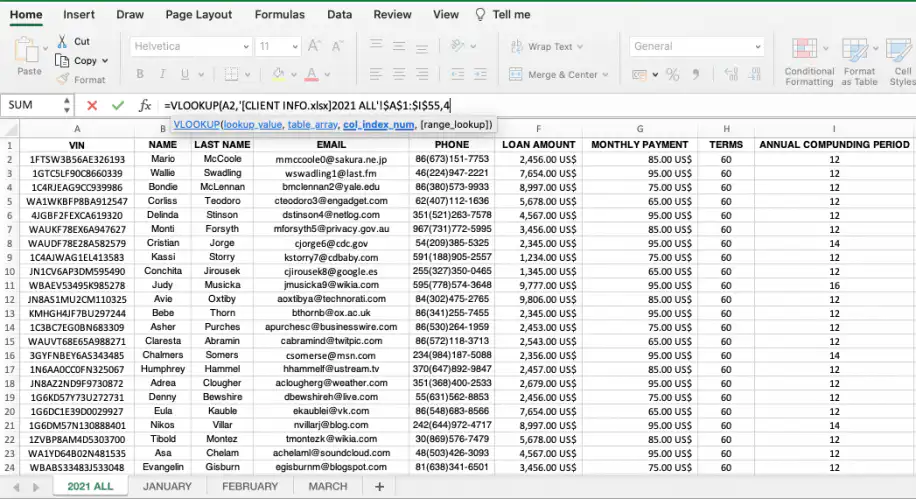
6. Select ‘FALSE – Exact match’ for the last parameter to return the exact match.
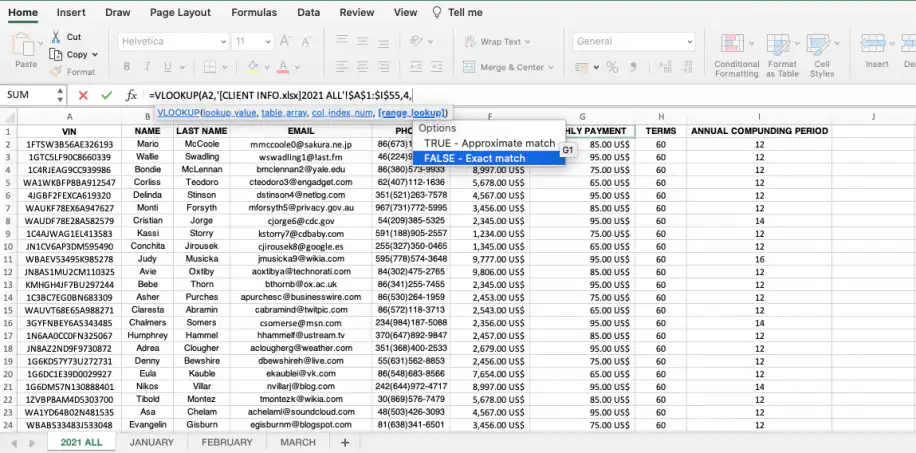
7. Close parenthesis and press Enter.
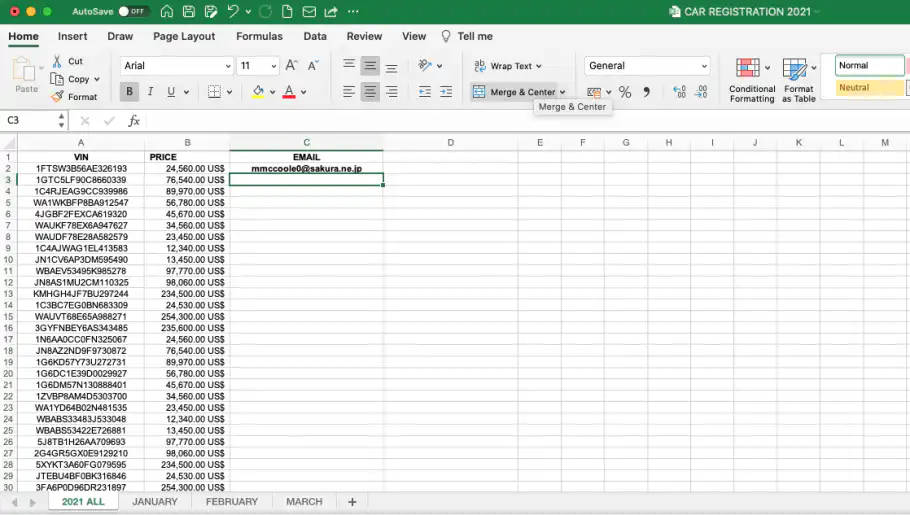
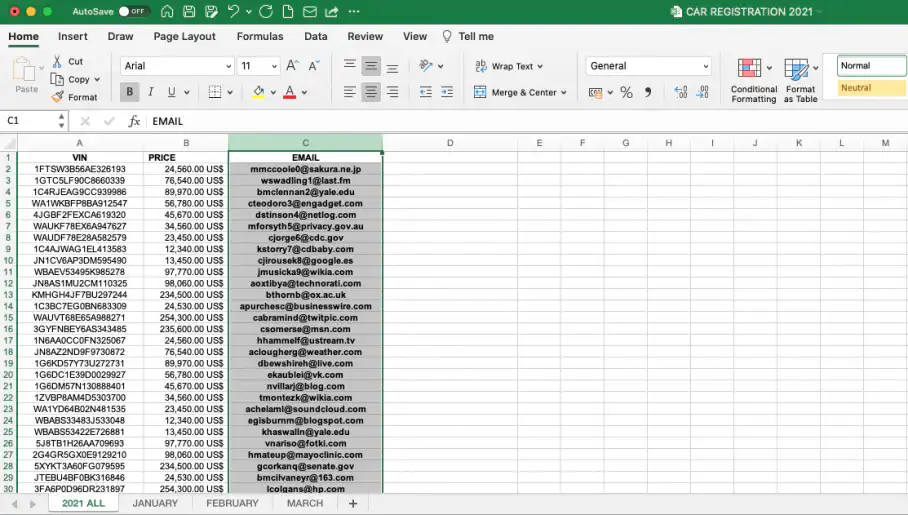
8. Drag down to apply the formula to the remaining cells and obtain all your clients’ email addresses.
How to VLOOKUP between two Excel workbooks with Sheetgo
Using Sheetgo, an AI-powered data automation platform, you can avoid the disadvantages of using VLOOKUP between two Excel workbooks. Instantly connect your workbooks to transfer the data where you need it. No need to worry about changes to the filenames or paths, exposing sensitive data, or decreased performance. You can use the same kind of connection to transfer filtered Excel data from one workbook to another or to consolidate Excel files automatically.
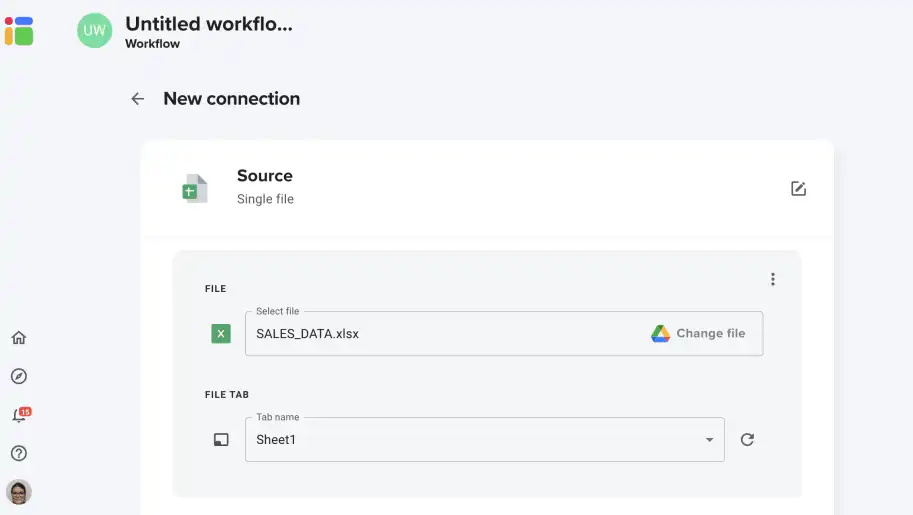
1. Select the source file.
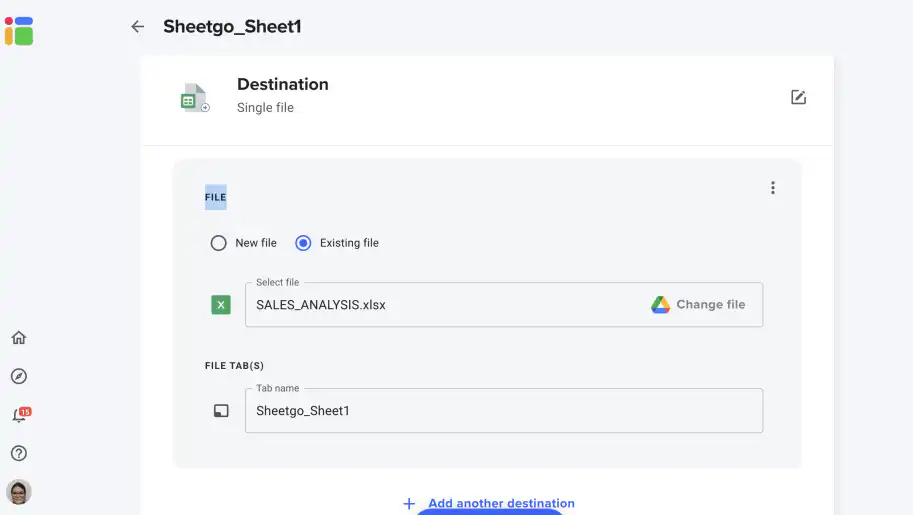
2. Select the destination file and save.
3. You now have a sheet with the data from the source file in the destination file.
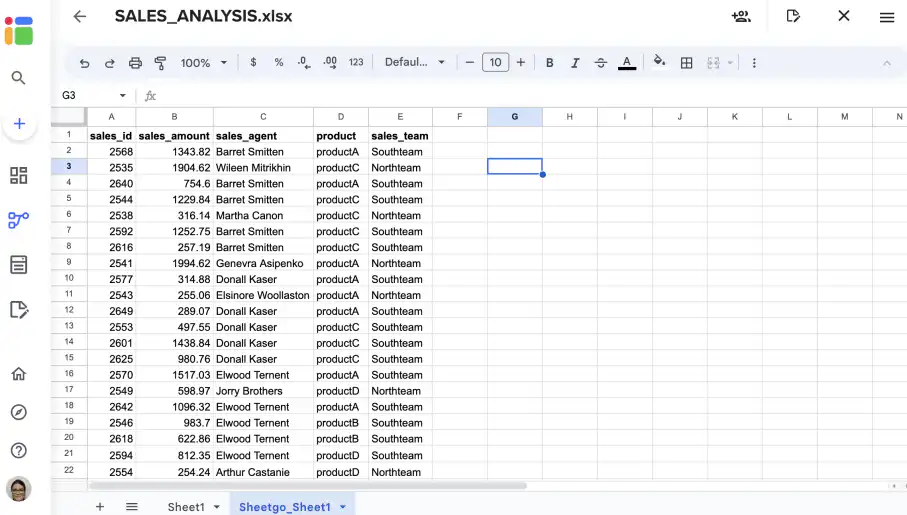
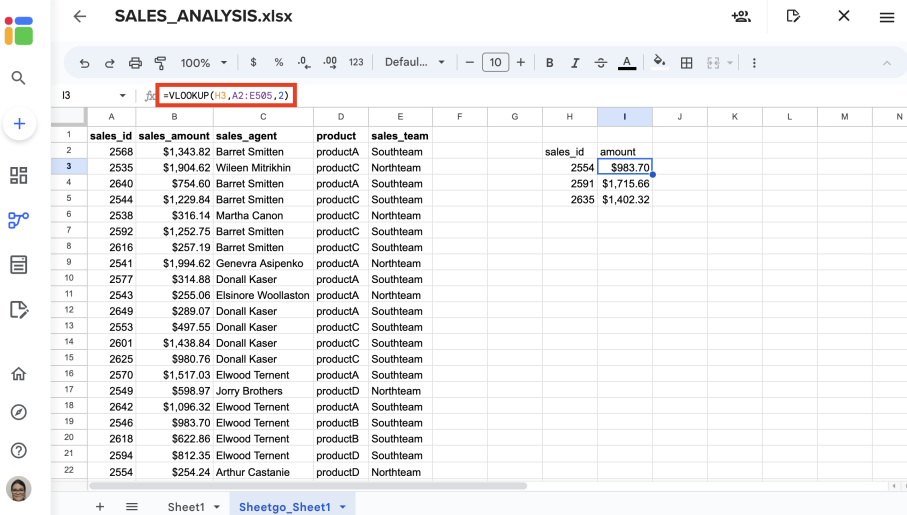
4. Below, I used VLOOKUP to get the amounts for specific transactions without having to worry about long and complex file paths or references.
Conclusion
Now that you know how to use VLOOKUP in Excel from another sheet or workbook, you understand why it’s one of the most sought-after formulas by those working with data on a daily basis. You can transfer data from one Excel worksheet to another automatically while preventing any changes in the data. To learn more about automatic data transfer between Excel files, why not take a look at our article on how to transfer data from one Excel worksheet to another automatically.
If you’d rather not build the formula at all, our free VLOOKUP tool joins Excel, Google Sheets, and CSV data by a key column, right in your browser. For lookups you run every week, Sheetgo, an AI-powered data automation platform, connects your files and keeps the data flowing between them. Try Sheetgo for free and see how it works with your own files.

 English
  Español
  Português do Brasil
  Français