




Microsoft Excel is becoming the go-to productivity tool for an increasing number of reasons. Although we usually associate it with a data collection and transformation tool, it also offers features that help secure it or add another level of professionalism to your dataset.
One way to secure the contents in an Excel document is to add an electronic signature; it is an excellent way to establish data ownership and confidentiality by guaranteeing that a third party has not been involved in altering it.
In this article, we will describe different tools that allow you to sign your Excel document electronically. We will then focus on the “Signature Line” built-in feature and illustrate how to insert and remove the digital signature in Excel.
How to insert a signature in Excel?
In case you are working on Excel for Mac or Excel for the web, which don’t have the Signature Line feature, below we list two certificate authorities recommended by Microsoft and two signature platforms that are less official but more user-friendly.
Official certificate authorities
- GlobalSign is a Microsoft-recommended company that provides identity services, among others.
- IdenTrust is also a certificate authority recommended by Microsoft, which provides downloadable root certificates.
Electronic signing platforms
- Adobe Acrobat Sign integrates with most business apps, including Microsoft Excel. It allows you to insert a signature line as well as collect digital signatures in multiple documents.
- Dropbox Sign (formerly HelloSign) can also be used for legally binding electronic signatures but is more intuitive for most users than the previous two options.
In all cases, you will need to pay an amount to be able to use the electronic signature in your Excel document. Luckily, Excel for Windows, including Microsoft 365, offers a native feature, “Signature Line”, whereby you can quickly and easily sign your document. If you work on a Mac, you cannot access this feature, so it’s recommended that you use one of the tools above to insert signatures into your Excel.
We will first explain how to insert the signature box using the Signature Line feature in Excel and then how to digitally sign with a visible or non-visible signature.
How to insert a signature in Excel using the Signature Line feature?
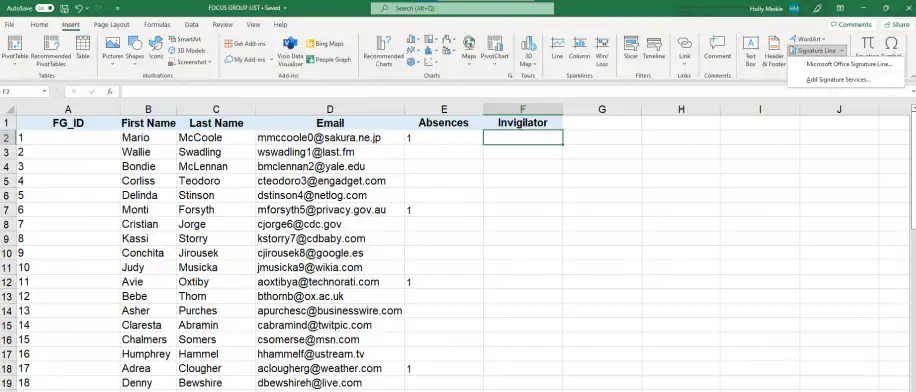
1. Click on the cell you will insert your signature in and click Insert > Signature Line.
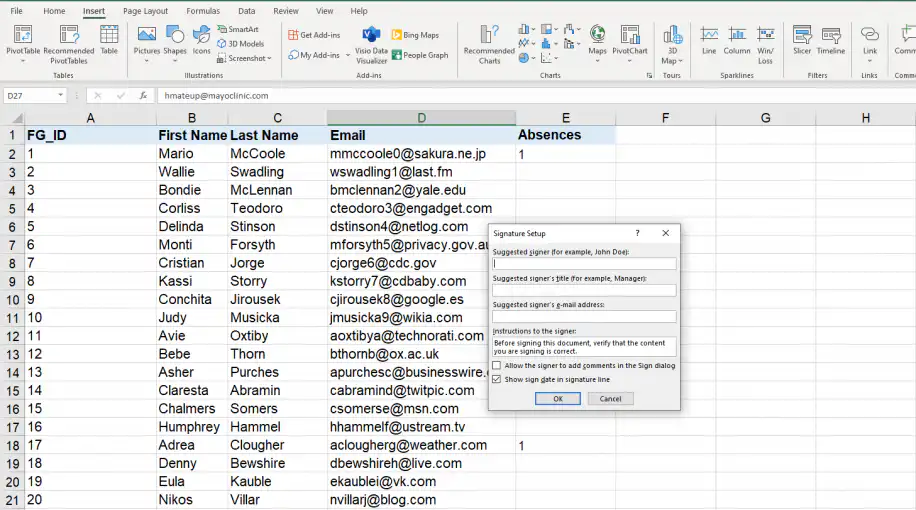
2. Enter the information corresponding to the signer, such as the name, job title, and email address. If you tick the last box, the signature line will include the signature date.
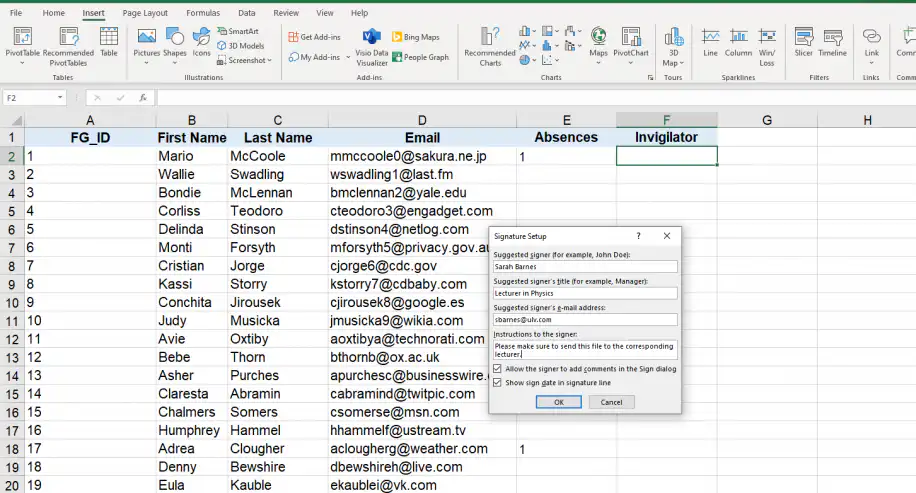
3. In case you are not the signer, you can also opt to add instructions. Once you’ve added the instructions, click “OK”.
4. You should now be able to see your signature line in the corresponding cell.
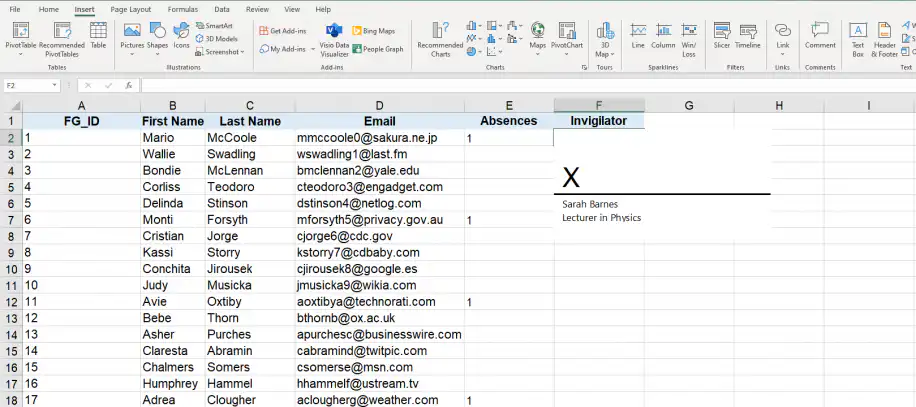
We have inserted or created a signature box with the signer’s corresponding data. If you are not the signer, then share the Excel document with the corresponding recipient, so they can sign. In case you want to know more about sharing options, read how to share an Excel file for multiple users.
How to sign in Excel using the Signature Line feature?
1. Right-click or double-click on the newly created signature line.
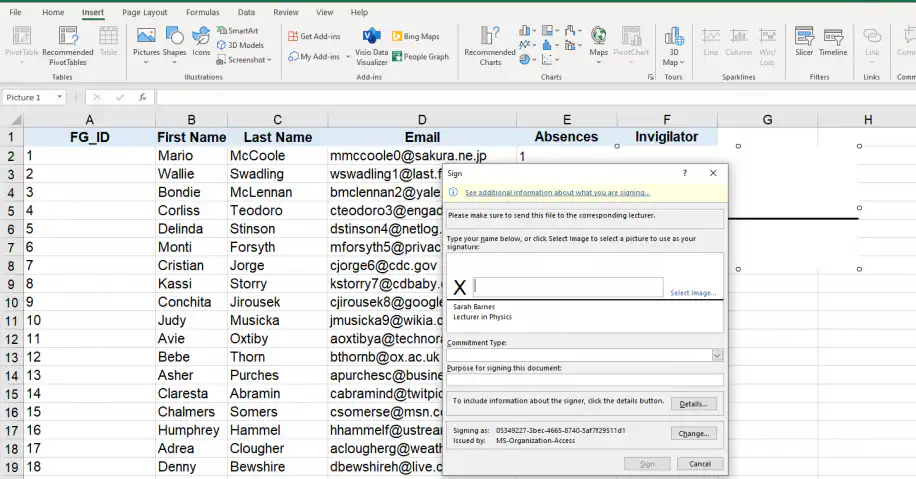
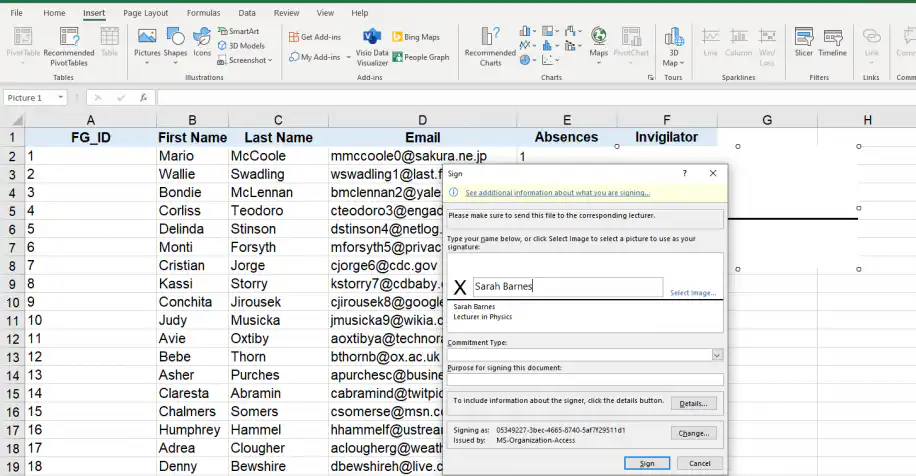
2. Select “Sign” and type your name next to the “X” to add a printed version of your signature.
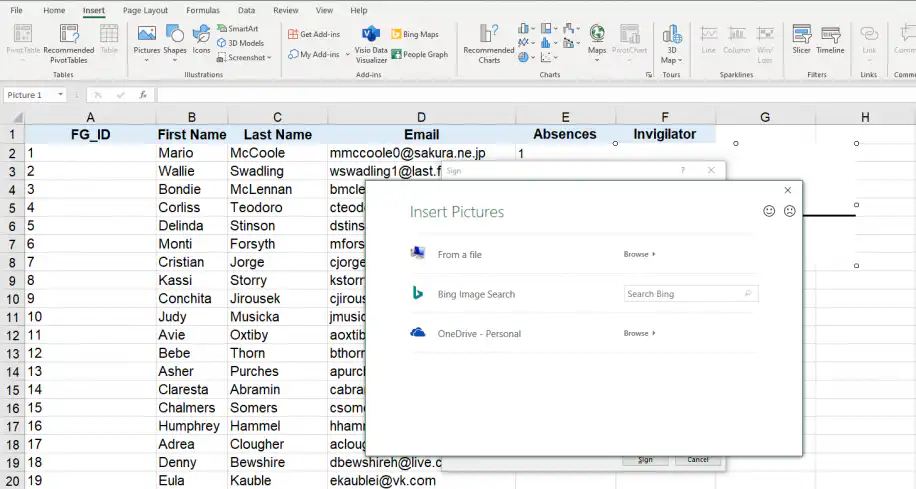
3. If you have a scan of your signature, click on “Select Image”, select the location of your signature image and click “Select” on the image file.
Note: In case you are using a tablet or tactile device, you can add a handwritten signature. You can sign your name directly in the box next to the X using an inking feature.
4. Once you insert your handwritten signature successfully, click “Sign”.
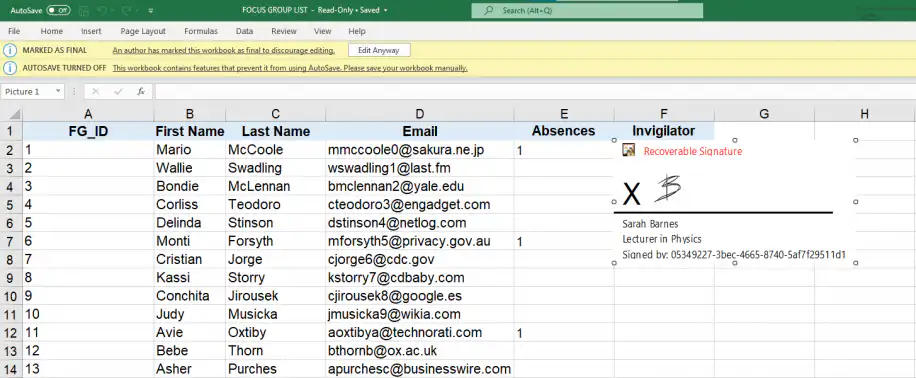
Excel will automatically inform you about the current status of your Excel document. “MARKED AS FINAL” means that this file should no longer be editable by anyone else other than the signer.
Now that you know how to successfully insert a signature line in Excel, let’s explore how to digitally sign an Excel document to choose between a visible or non-visible signature.
How to digitally sign an Excel document?
In case you don’t want the signature to show in the Excel document, you can always secure your data without showing the signature. This is how you can digitally sign using an invisible signature while maintaining the integrity and authenticity of the file.
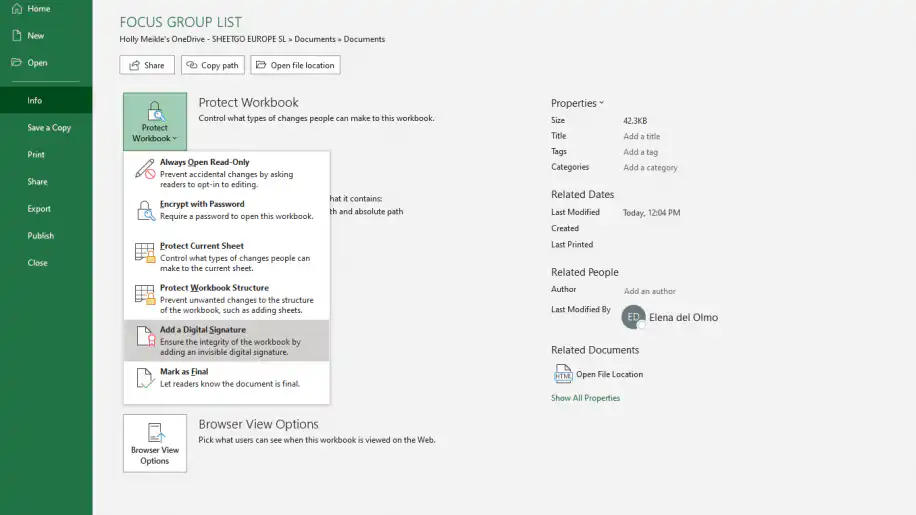
1. Go to File > Info > Protect Workbook > Add a Digital Signature.
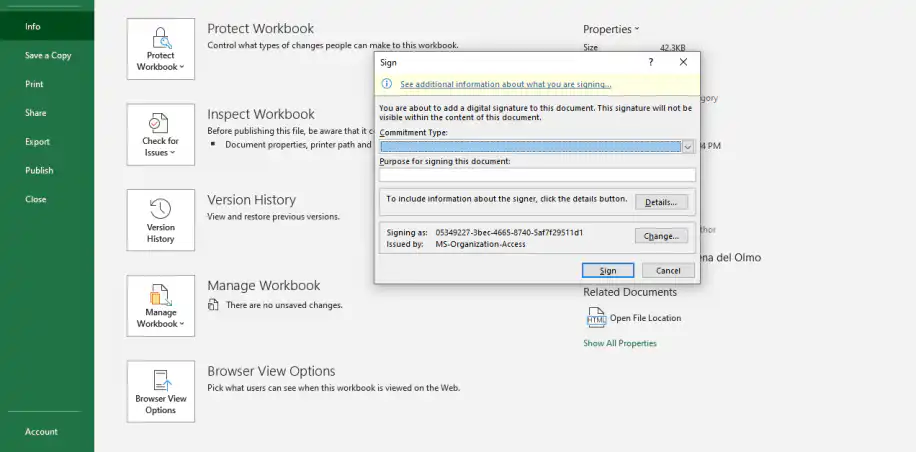
2. In “Purpose for signing this document”, include the reason this document needs digital signing. Here, I will simply include “Invigilation”. Then, click “Sign”.
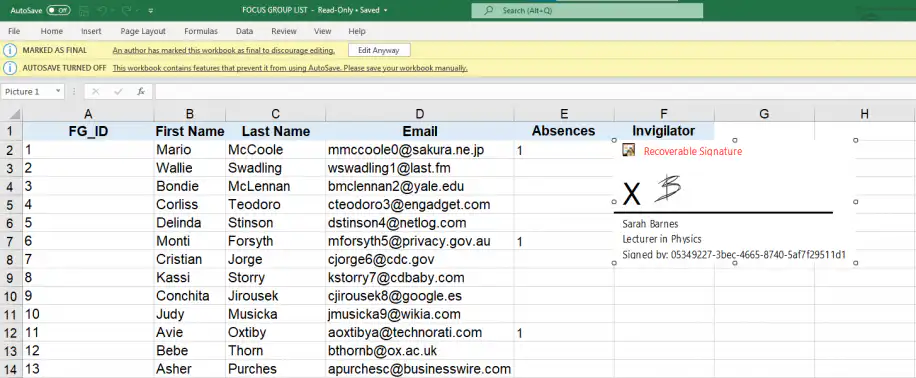
The “Signatures” button should now appear as well as the “Read-only” status.
Now that you know the multiple ways to add a signature to your spreadsheet, let’s see how to remove digital signatures from Excel.
How to remove a digital signature from Excel?
If you want to remove the “Read-only” status or take ownership of the Excel away from the signer, learning how to remove a digital signature is essential.
1. Open your Excel document and go to File > Info > View Signatures. This will showcase both the visible and invisible digital signatures.
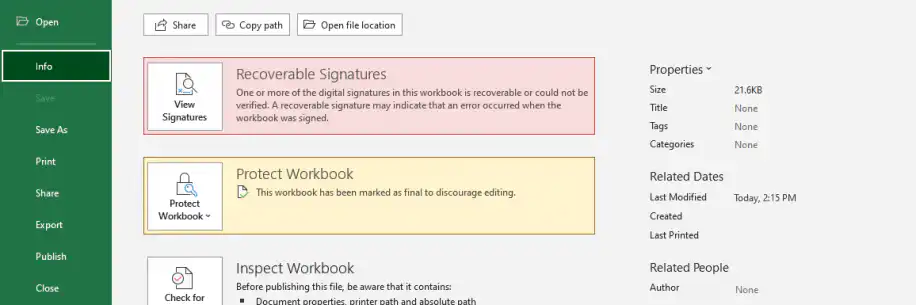
2. Once you find the signature you want to remove, double-click on the arrow next to it, then “Remove Signature”. Click “Yes” in the warning message dialog box.
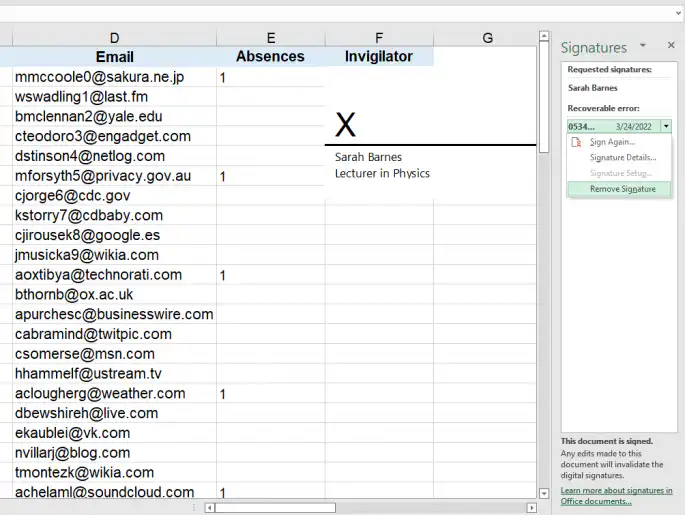
And that’s it! You have now removed the signature from your Excel document.
Conclusion
Adding signatures to an Excel file can be extremely vital in many data management processes, whether it’s signing for an official document, protecting the authenticity of a document, or preventing future edits. Luckily, Excel offers a fantastic set of signature tools that help to fulfill all of these needs directly within your file.
This article has shown you how to add and remove signatures in an Excel document by offering a range of third-party tools and a step-by-step illustration of the “Signature Line” Excel native feature. You should also know how to sign a document without showing the signature itself, through the digital signing option, as well as removing signatures altogether.
If you would like to learn advanced levels of protecting your data in Excel, read our blog article on how to password-protect an Excel file.
If several people need to fill in the workbook before it is signed, Excel co-authoring lets them edit the same file at once. And when signed files come back from different people, Sheetgo, an AI-powered data automation platform, can consolidate the Excel files automatically into one workbook.



 English
 Español
 Português do Brasil
 Français