




Excel offers a wide and versatile set of formulas that ranges from basic to more advanced calculations. However, the higher the level of complexity, the more chances you will encounter a problem in your dataset.
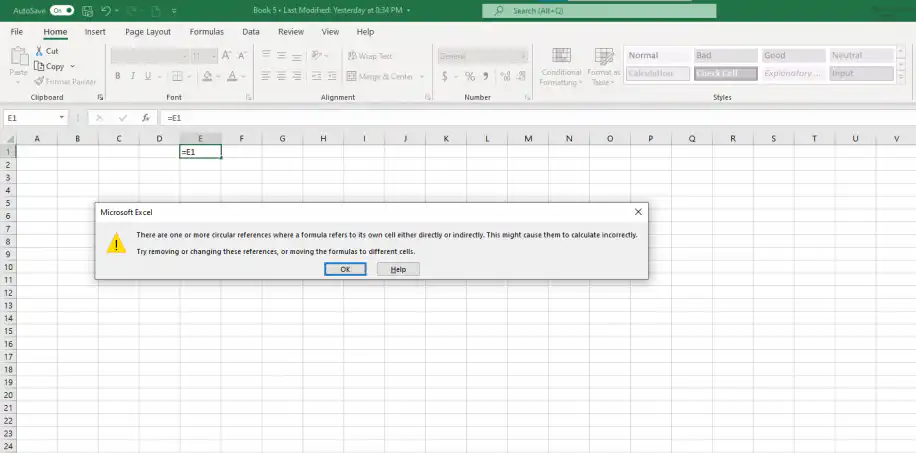
If you have come across this error message, “There are one or more circular references where a formula refers to its own cell, either directly or indirectly. This might cause them to calculate incorrectly. Try removing or changing these references, or moving the formulas to different cells.”, then it is likely that you tried to apply a formula to its own cell.
By the end of this article, you will know how to locate and remove a circular reference in Excel effectively to quickly resolve any further issues you may encounter in your dataset.
What is a circular reference?
According to Microsoft, a circular reference occurs when “your formula is trying to calculate itself”. In simpler words, the formula refers to the same cell where it’s located, creating a reference loop that keeps the formula working without completion. The examples below will show what a circular reference looks like in Excel.
Circular reference example(s)
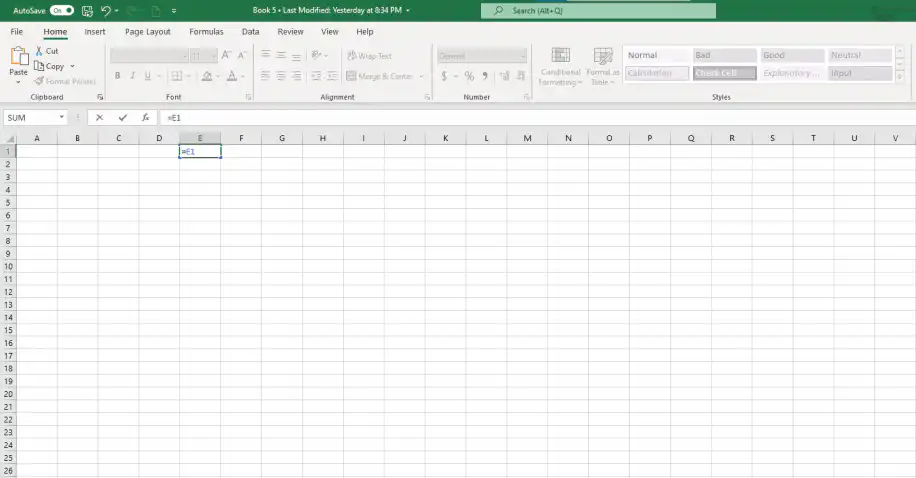
If you select a cell and type in "=" sign followed by that same cell, it creates a circular reference. For example, "=E1".
As you can see below, Microsoft Excel prompts the circular reference error message. Click “OK” to proceed.
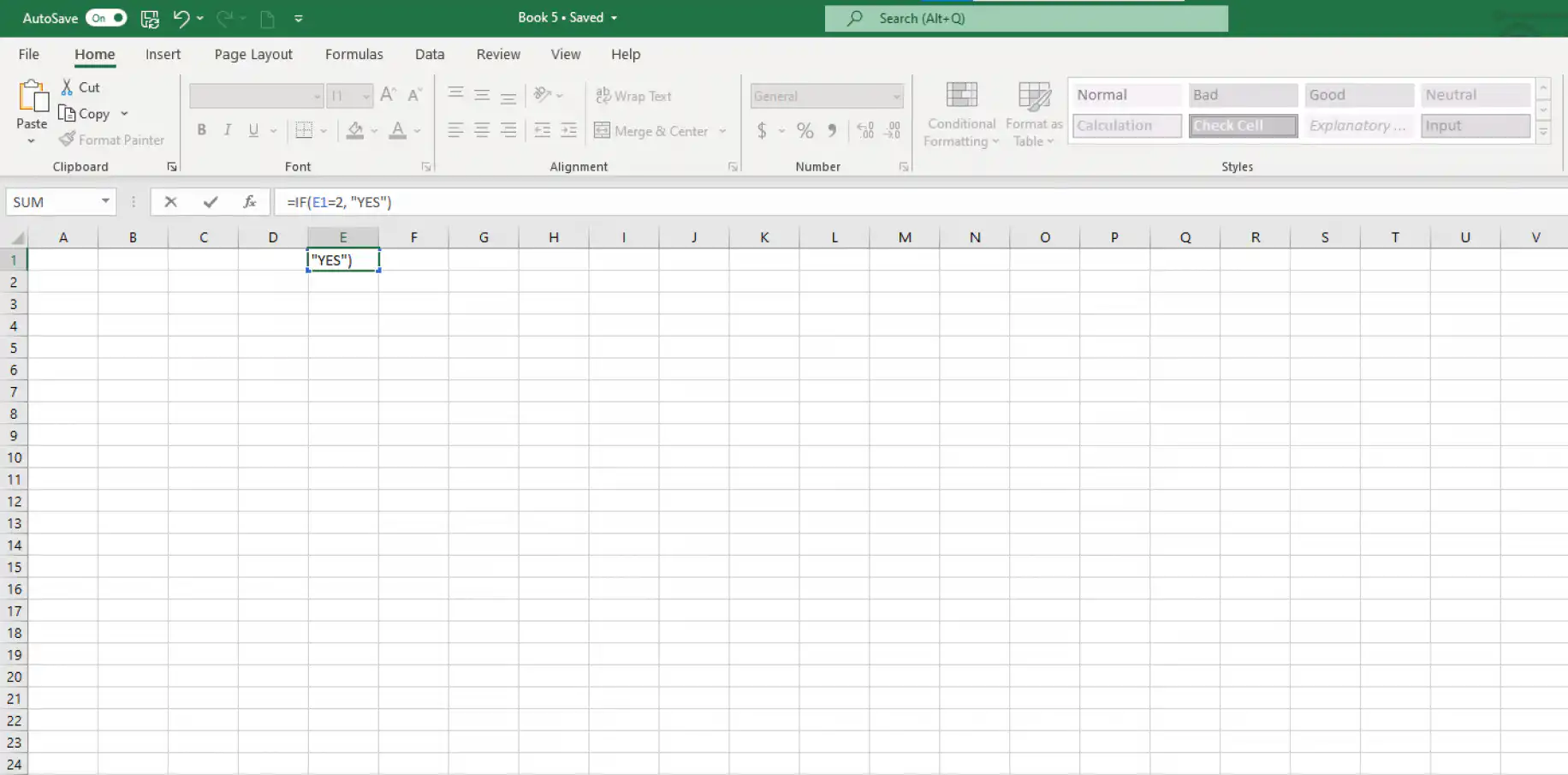
Now, we’ll try with a less basic formula, an IF function that also includes the cell of the formula. For example, "=IF(E1=2, "YES")".
As soon as you hit “Enter” you will get a “0” result instead of the error message. However, this is a way to let you know that there is something wrong with the formula. Now, let’s explore how to find circular references in Excel to fix them.
How to find circular references in Excel?
Finding a circular reference is easier than you think. You simply need to use the “Circular References” feature under the Formulas tab. This will help you locate any circular reference in your spreadsheet, so you can then proceed to remove or fix it, if possible.
1. Go to Formulas > Error Checking > Circular References. The cells containing a circular reference will appear as a list next to the menu.
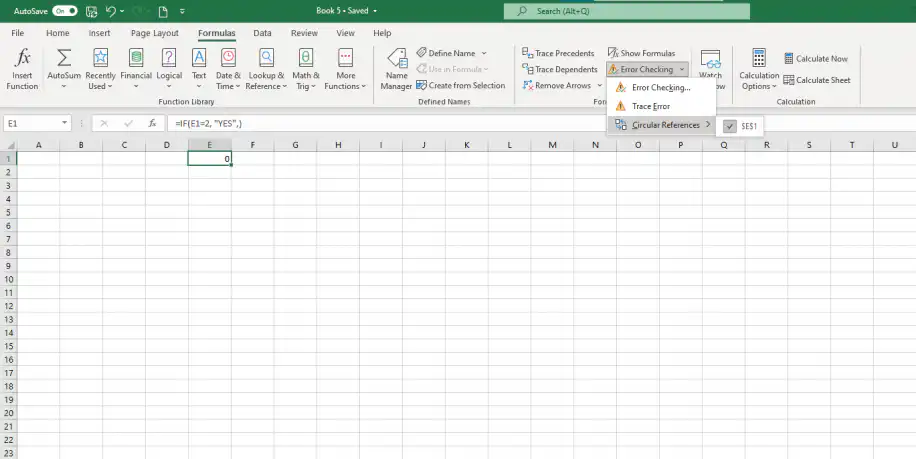
2. The circular reference is also displayed at the bottom of the active sheet, showing the cell where it’s located. Here, “E1”.
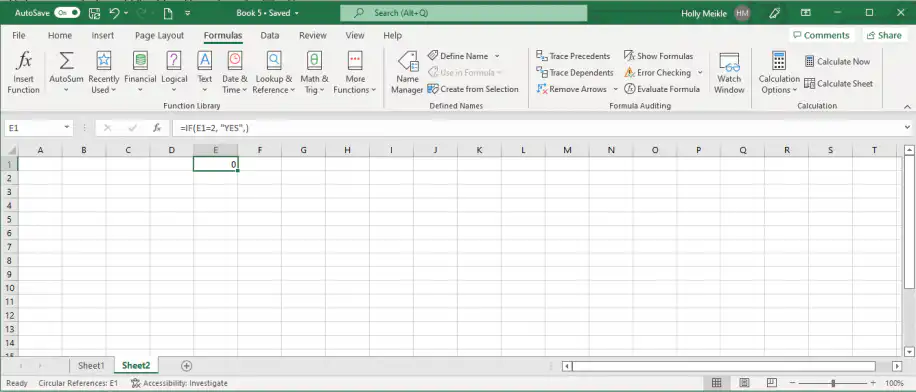
Note that you may have circular references in sheets besides the active one, for example when a formula references another sheet. In this case, Excel won’t display the cell, only “Circular Reference”.
If you find that the “Circular References” function doesn’t work, you may need to disable the “Iterative Calculation” option. Although this function is usually disabled by default, you can check by going to File > Options > Formulas.
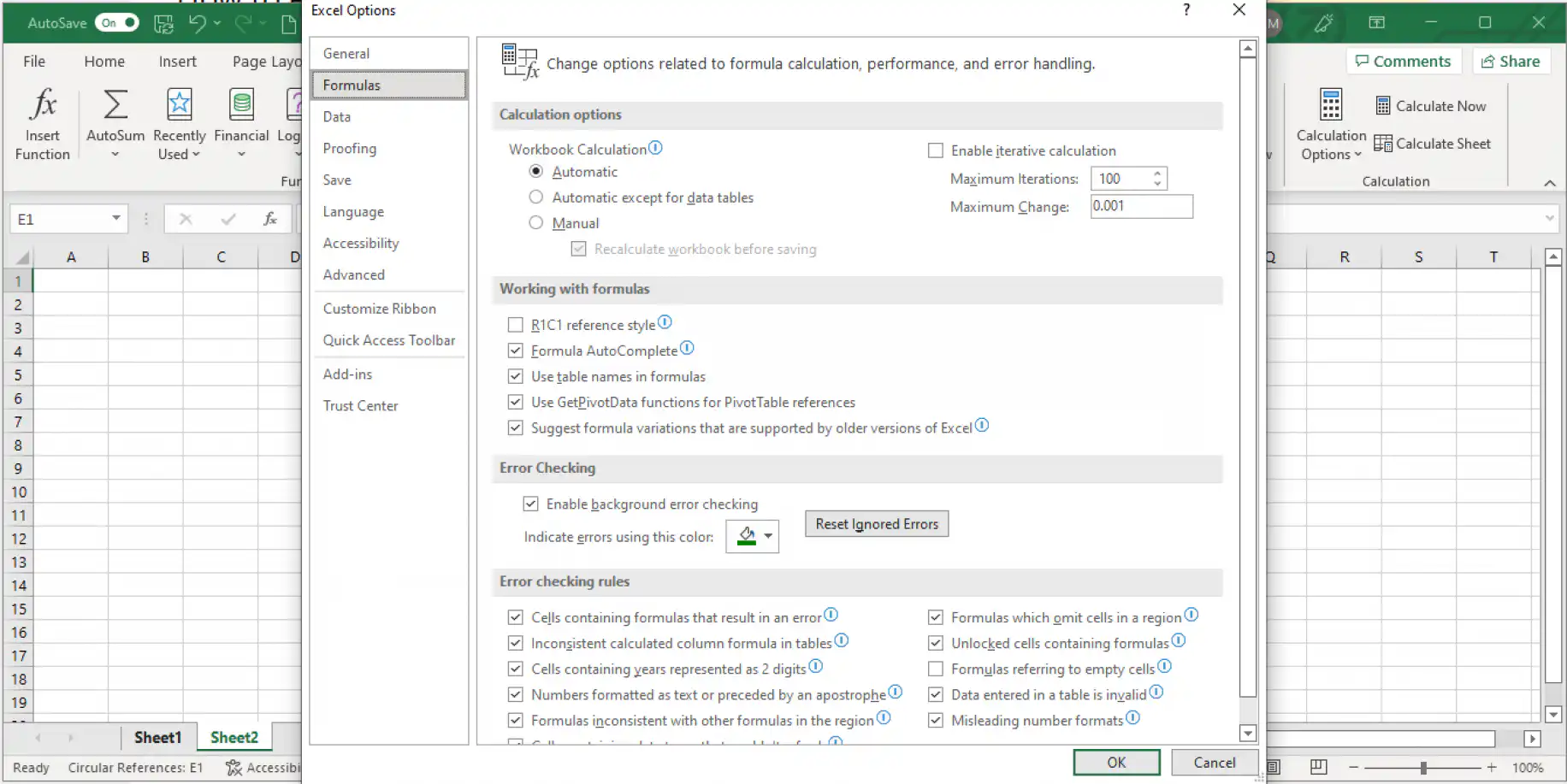
In “Calculation options” you should see the “Enable iterative calculation” box disabled. If you enable this feature, Excel will recalculate the formula as many times as necessary. This will definitely affect the correct functioning of your workbook. However, you can always specify how many times Excel should recalculate in “Maximum Iterations”.
Now that you know how to identify a circular reference in Excel, let’s see how you can remove circular references in your Excel file.
How to remove circular references in Excel?
Unfortunately, there is no button or feature to get rid of all circular references in Excel at once. If your dataset is large and complex, sometimes you can’t find a circular reference in Excel as easily as shown previously. To do so, you’ll need to trace relationships between formulas and cells. This is how you can trace relationships to fix circular references.
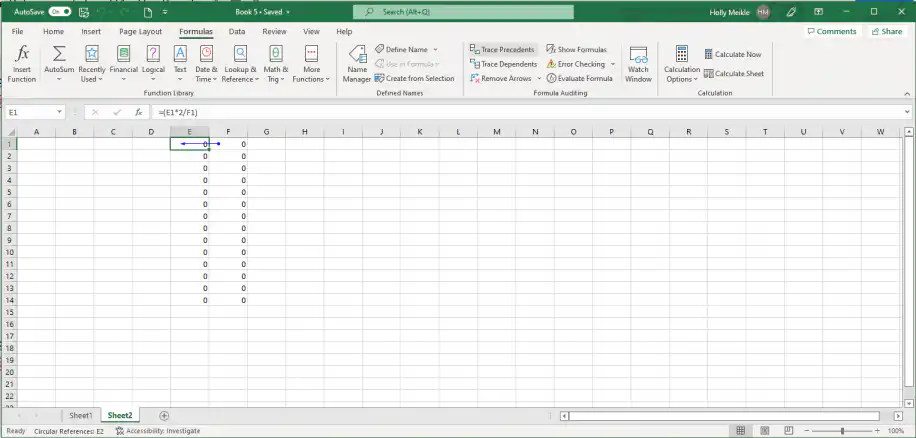
1. Go to Formulas > Trace Precedents. This will display which cell is providing the data to the formula. Below, the blue arrow shows that cell F1, the precedent cell, is part of the formula in cell E1.
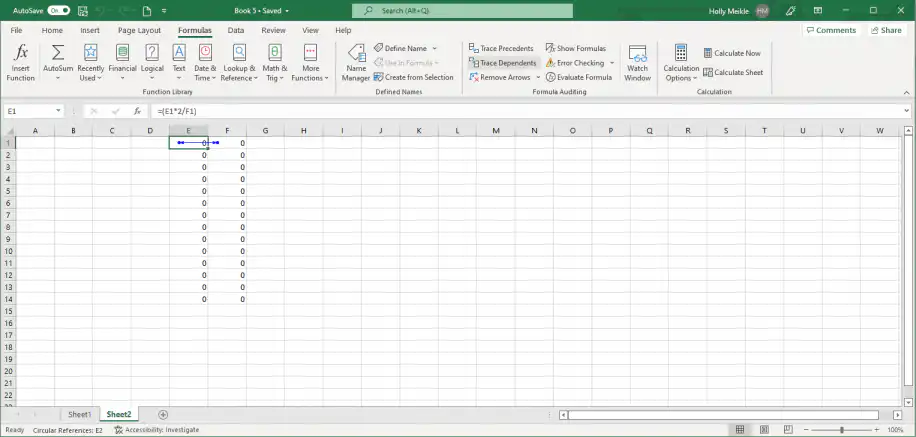
2. Select “Trace Dependents” to display the cells that contain the formula referencing the selected cell. Here, E1 is dependent on F1.
3. To find out exactly how each cell is referencing another in the formula, select “Show Formulas” from the “Formulas” tab. Now you can identify the formula issues.
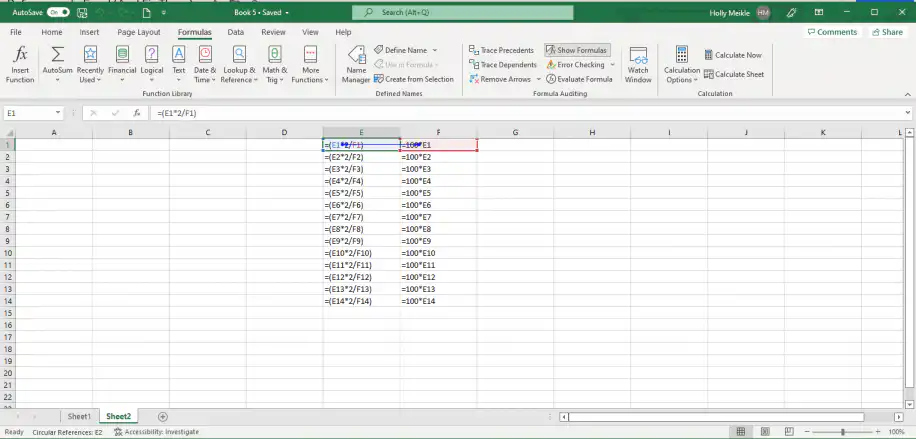
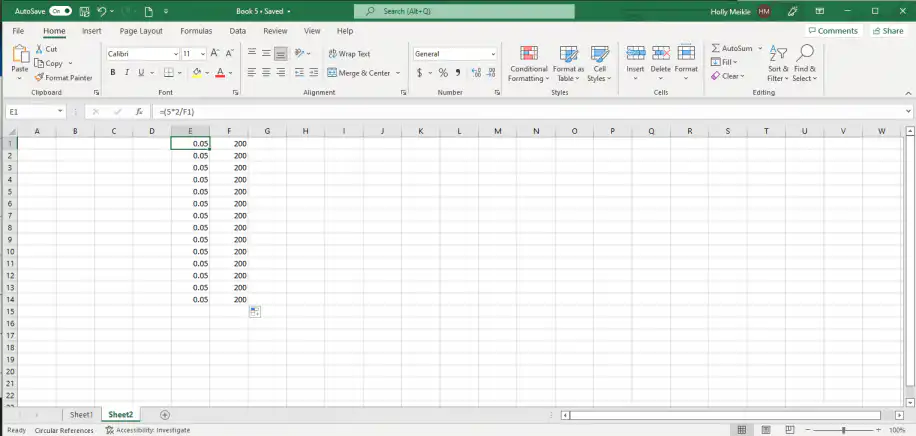
4. As you can see within the formulas, these two cells are completely dependent on each other, causing this circular reference. Now you can pinpoint which cell references you need to alter within the formula in order to break this cycle. The most common way to do this is by turning at least one of the dependent cells into a static value (if possible). In this example, I can substitute my E1 reference with the static value of “5” to avoid a circular reference.
5. To continue working on your spreadsheet as normal, you can click “Remove Arrows” on the same “Formulas” tab. You have the option of removing them altogether, or according to the type of trace, as shown below.
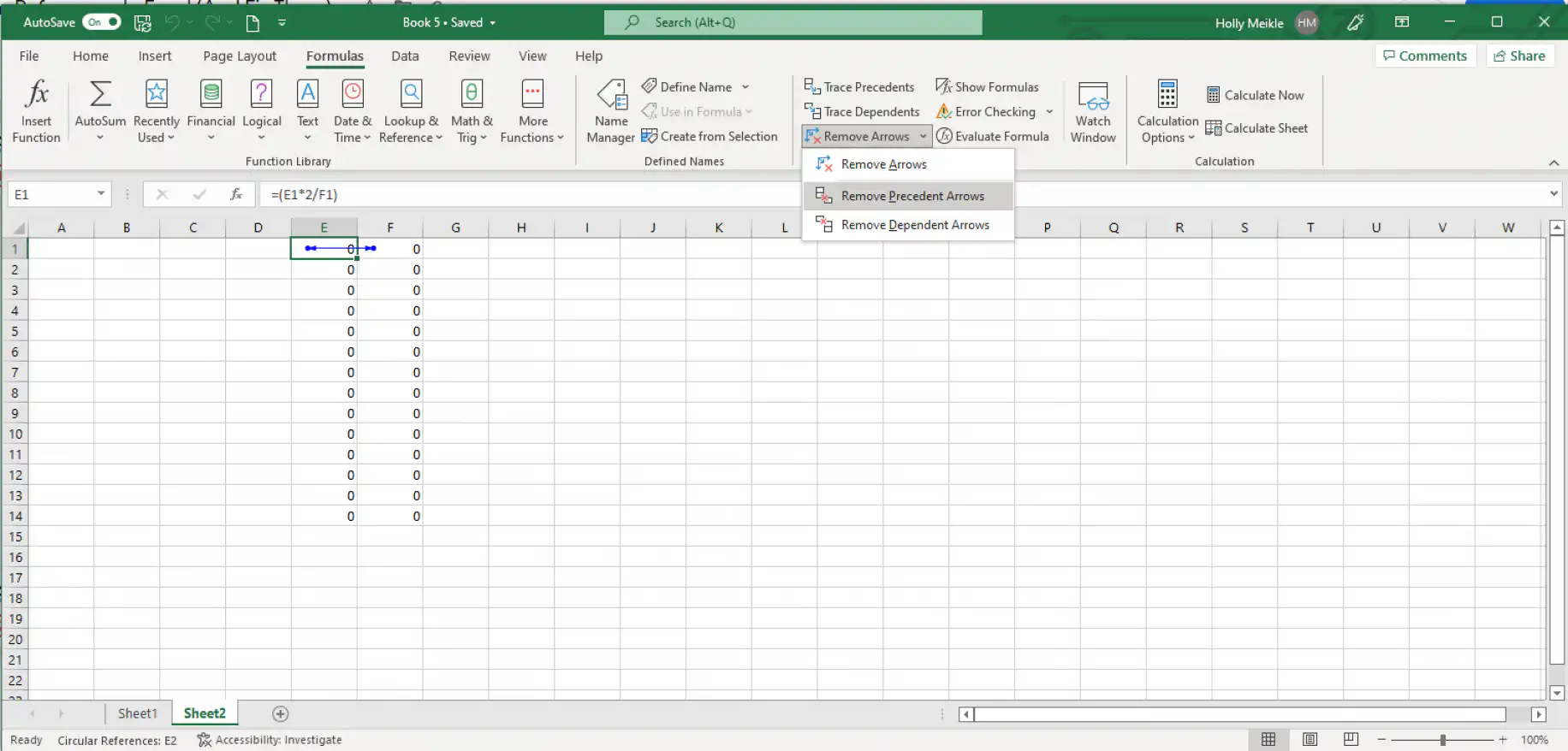
In a few clicks, you’ve seen how to trace the cell relationships within a circular reference and how to fix it by substituting a cell reference with a static value.
Please note: There are many circumstances where you are purposefully creating a circular reference within your Excel workbook. In this case, it’s best to reduce the number of circular references within a single worksheet in order to reduce loading times.
Conclusion
If you want to stop Excel from entering an endless loop and slowing down all calculations overall, having a full understanding of what a circular reference is and how to fix it is as crucial as it is useful.
This article has explained the concept of “circular reference”. You have also seen how to find circular references and remove them in Excel in just a few steps. Interested in learning more about formulas in Excel? Take a look at some of our latest blog posts:
- Excel INDIRECT function: formula and examples
- How to VLOOKUP in Excel with two spreadsheets?
- How to calculate IRR in Excel? (IRR function & formula)
Loops like these get harder to spot when your formulas pull values from other sheets and workbooks. If you copy data between Excel files by hand, Sheetgo’s AI automations can connect those files and update them on a schedule instead.



 English
 Español
 Português do Brasil
 Français