




Knowing your way around Excel formulae is a helpful skill, especially if you work with large datasets and multiple worksheets at once. In another article, we showed you the two basic procedures to transfer data from one Excel worksheet to another automatically as a simple alternative to manual copy/paste. Although the Copy and Paste Link and Worksheet Reference functions can make your life easier, Excel has integrated features that require even less effort.
In this guide, we’ll show you how to use Power Query in Excel to import data from various sources and combine and merge tables according to your preferences, all without having to learn any specific code.
What is Excel Power Query?
Power Query is a Microsoft Excel tool that simplifies the two main tasks of any spreadsheet user: importing and sorting data. Before showing all the applications, let’s briefly explore how they work.
How do power queries work in Excel?
Power Queries are commands set up in Excel that can be broken down into the following steps:
- Import or connection: You can connect data stored in the cloud, specific service, or local environment. Moreover, you can connect from multiple sources to combine all of your data in one place.
- Editing or transformation: You can change the data according to your preferences, as these will not affect the original source.
- Automate or load: After completing your query, you can then load it into a worksheet or Data Model and update it regularly, without the need to repeat that same process.
So, is Power Query easy to use? Yes. Power Query doesn’t require knowledge of coding or programming and since 2016, it has become an integrated tool in Excel, so there is no longer a need for third-party installation. Like any automation tool, its most attractive feature is the ability to achieve the same results in half the time.
How to use Excel Power Query?
Before showing how you can use Power Query in Excel, note that it only works in the following Excel versions:
- Power Query for Excel 2010 and 2013: To use it, you need Microsoft’s Power Query add-in. Microsoft no longer supports either version. Unfortunately, there are no add-ins available for macOS and you can only refresh the existing query, but not create a new one or edit.
- Power Query for Excel 2016, 2019, 2021, 2024, or Microsoft 365: Depending on the version, Power Query will appear under the “Get & Transform Data” group or the “Get Data” button. This integrated feature allows you to create and edit queries in Windows and Mac.
This article will show you how to use Power Query in Excel for Microsoft 365 on Mac.
How to import data using Excel Power Query?
Importing your data using Power Query is simple, as Excel provides a great variety of data connections that are accessible from your toolbar. Now that you know what Power Query is and the type of data format it can import, let’s look at how you can import data from an Excel spreadsheet.
How to import data from a single sheet in Excel Power Query?
Imagine that you want to analyze the car sales made by an employee in 2021. Using Power Query, you can import the data without affecting the source file at all.
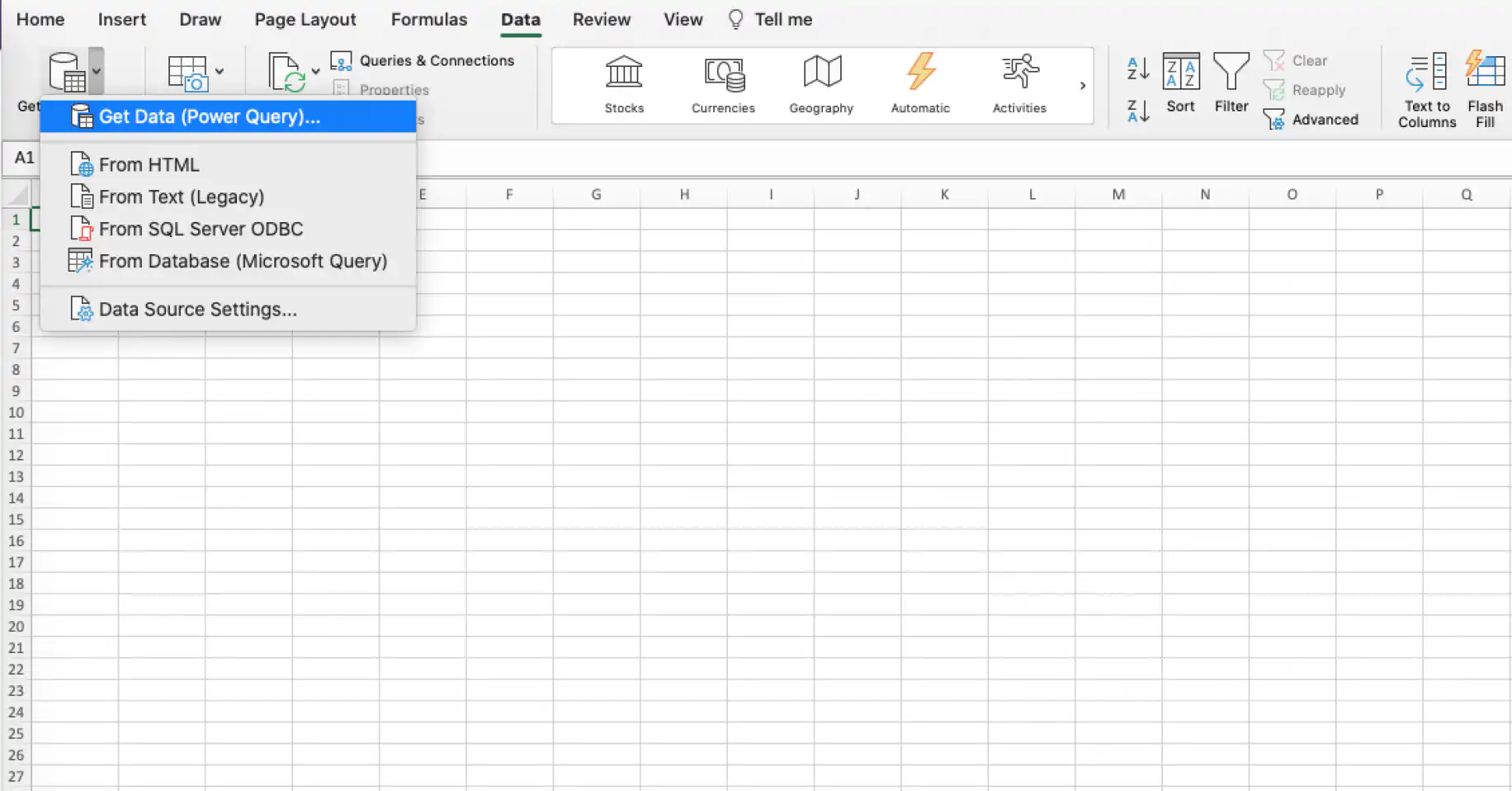
1. Open a new Excel spreadsheet and go to Data > Get Data (Power Query). As explained, there are several options depending on the source type. Here, I will select “Get Data (Power Query)” to import a spreadsheet stored locally.
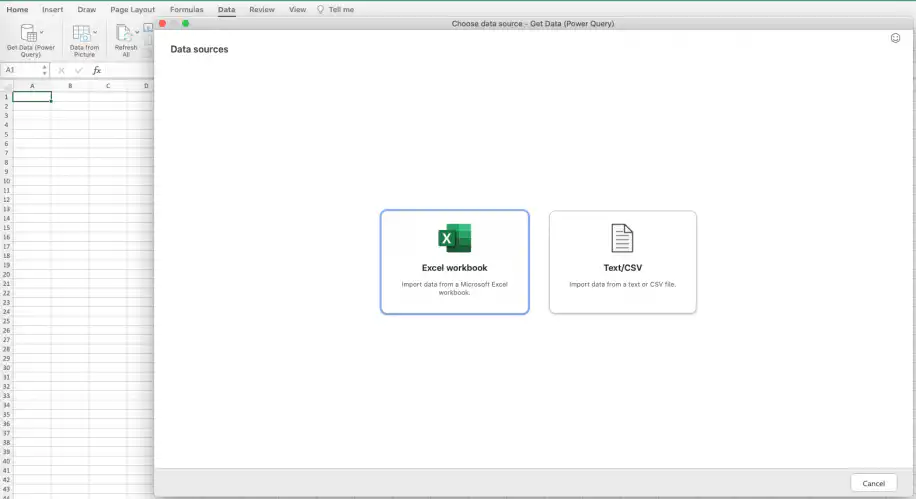
2. Select “Excel workbook”.
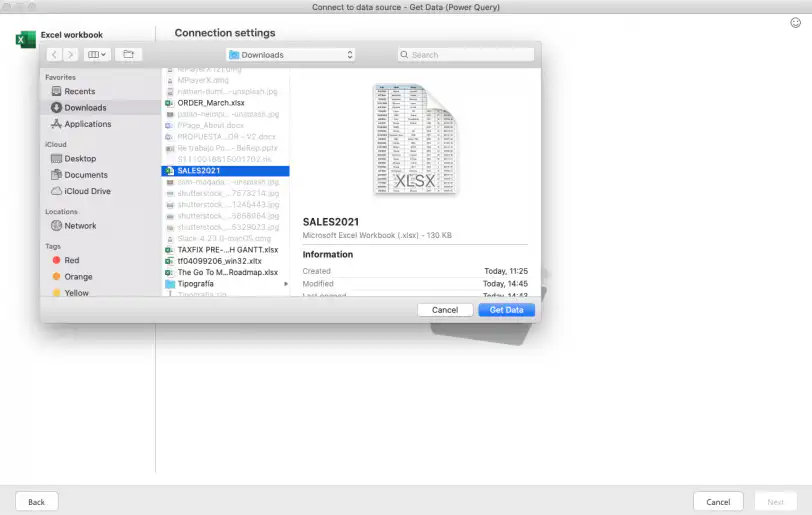
3. Once you have selected your preferred data source, choose your “Connection settings”. Here, I can select the local file by clicking on “Browse”.

4. For a quicker search, type the source filename in the search bar. Here, I’ve typed ‘SALES’. Select the file, click “Get Data”, and then the “Next” button located on the bottom right-hand corner of the original window.

5. You should now be able to see the data preview window. If you are using Windows, then you can transform or edit your data at this point. On a Mac, you can also click Transform Data in Excel for Microsoft 365. Older Mac versions only let you load the data and apply changes afterward.
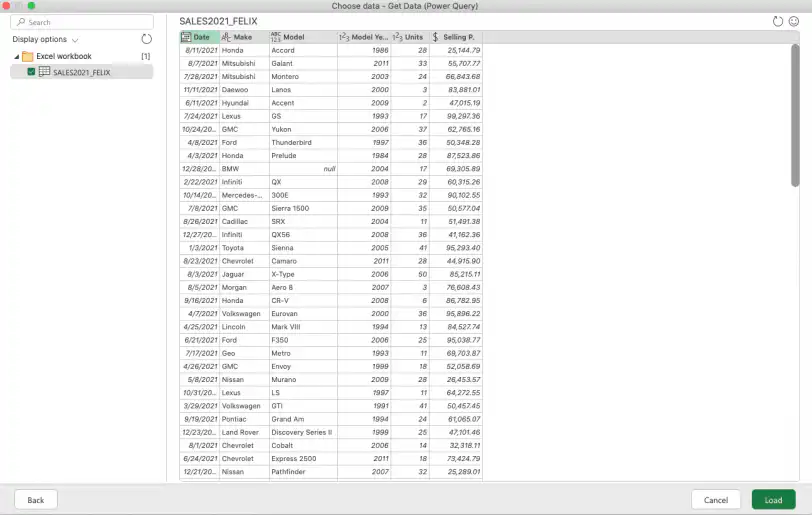
Once you load the data, Excel automatically saves the query in your system. Every time you want to import or format (for Windows), click the “Refresh” icon in the top-right corner to repeat the steps. This will eliminate repetitive manual work and unnecessary human errors.
How to import data from multiple sheets in Excel Power Query?
As mentioned before, Power Query can import data from multiple files at the same time. This is very useful when you don’t want to import all the data from a larger file, and would like to import specific sheets. Here is how you can get data from multiple sheets.
1. Repeat steps 1-3 from the previous section.
2. Search for your general folder rather than a specific sheet. Here, I’ll search for my ‘SALES2021’ file. Click on “Get Data” and then “Next” located in the bottom right-hand corner.
3. As you can see, you can now select the specific sheets of data you’d like to import. I have selected two sheets corresponding to the sales employees I want to compare. Once selected, click “Load”.
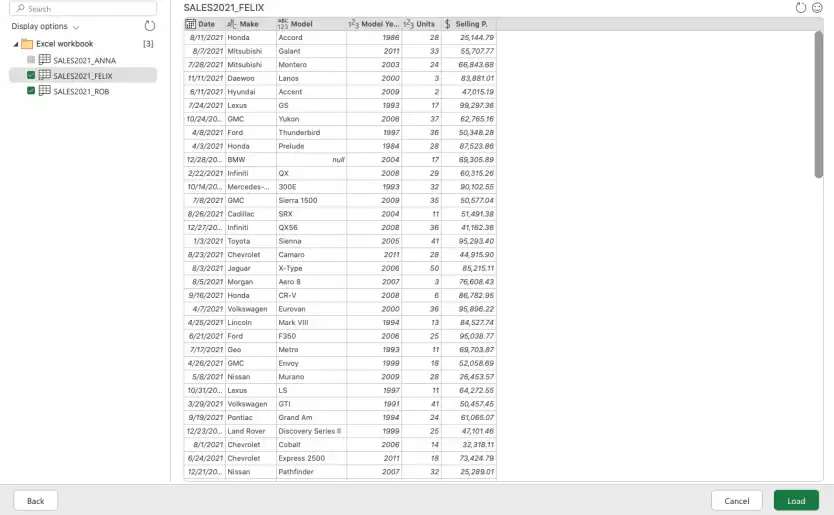
4. You should now have a new Excel workbook with the two loaded sheets. Below is an example of how Excel has converted my data into a table, each in a separate tab.
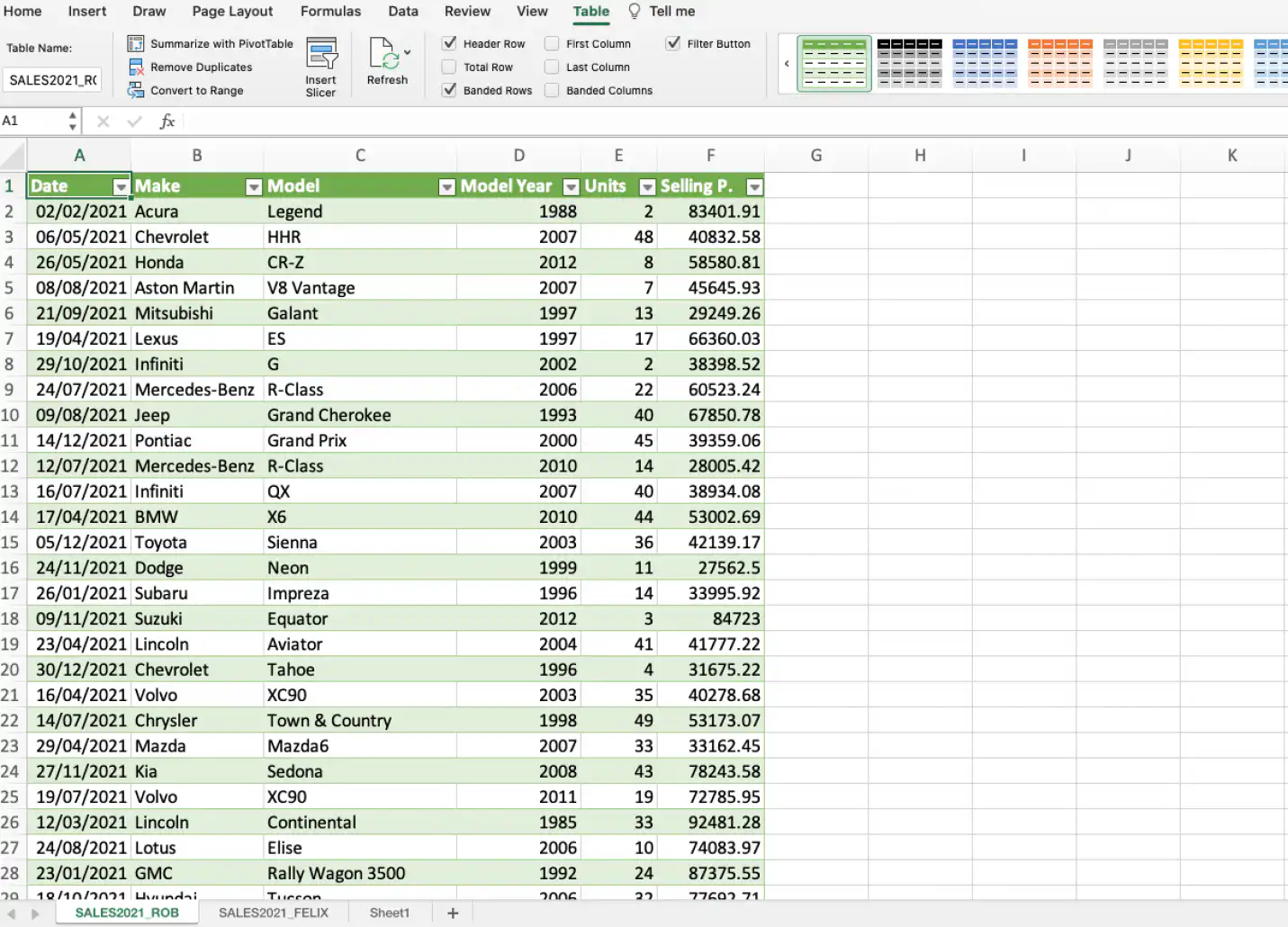
In Windows, Power Query also gives you the option to load to a pivot table, pivot chart or simply create a connection for the query. This last option does not import data, but it’s still a useful way of speeding up any data transformation process.
Now that you know how to load data from a single sheet and multiple sheets, let’s see how to edit the query in Excel.
How to edit external data range properties in Excel?
A great way to edit future imports using Power Query is to change the settings for the external data range.
1. Go to Data > Properties to edit any of the following elements.
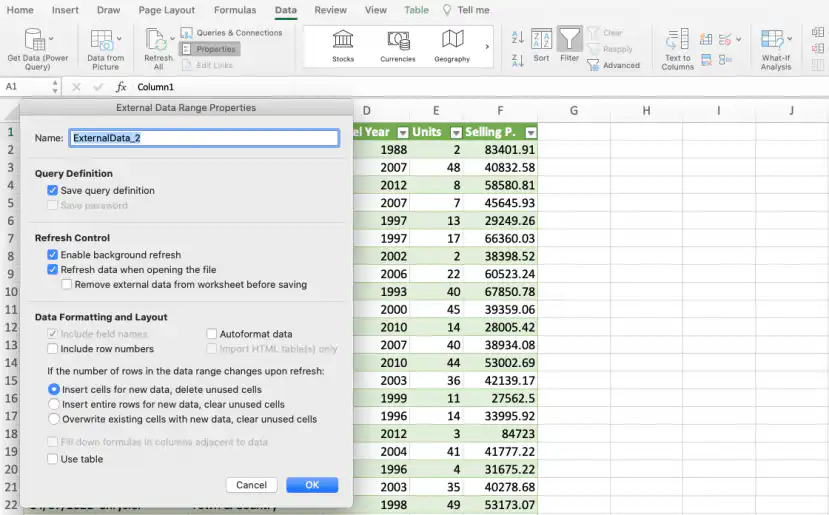
Below are summaries of the three most useful properties to consider for future queries:
- Query Definition: Leave the “Save query definition” box ticked and change the name to something that will be easier to remember. Don’t forget that the point of Power Query is to reduce the number of steps in data transformation processes.
- Refresh Control: What’s most important here is the “Refresh data when opening the file” option. If you choose this option, then any change you make to the original file will automatically affect the destination file.
- Data Formatting and Layout: If you select “Insert cells for new data, delete unused cells”, any new rows of data added to your source file will be transferred and formatted to coincide with the rest of your Power Query table, and any unused cells will be deleted.
It’s crucial to understand how Excel can transform your data automatically to boost productivity. Although the most basic features of Power Query in Excel work in a similar way in Windows and Mac, further automation features may vary to a greater extent.
To avoid version incompatibility and build the same automated spreadsheet workflow on any operating system, you can also consolidate Excel files automatically with Sheetgo, an AI-powered data automation platform.
How to remove a query from queries and connections in Excel
If you would like to remove a Power Query connection in Excel, follow the steps below:
Excel lists every query in the workbook in the Queries & Connections window. From there you can refresh a query, open its properties, or remove it.
1. Go to Data > Queries & Connections.
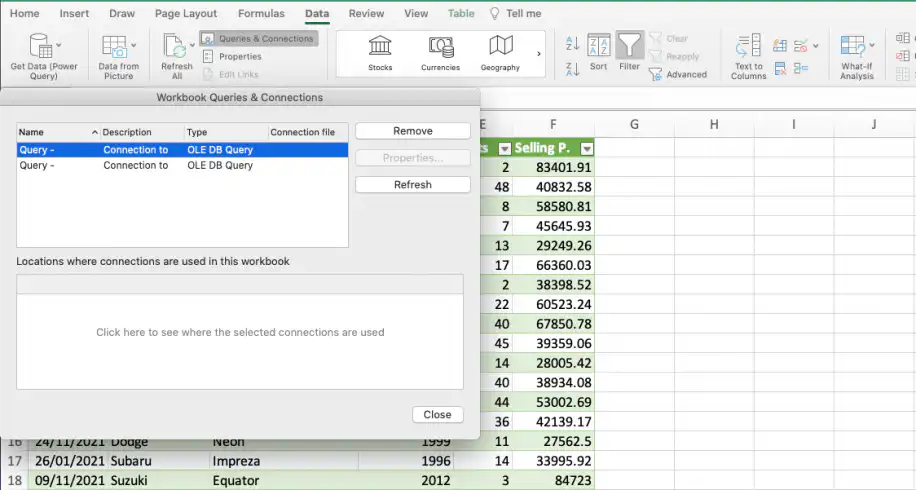
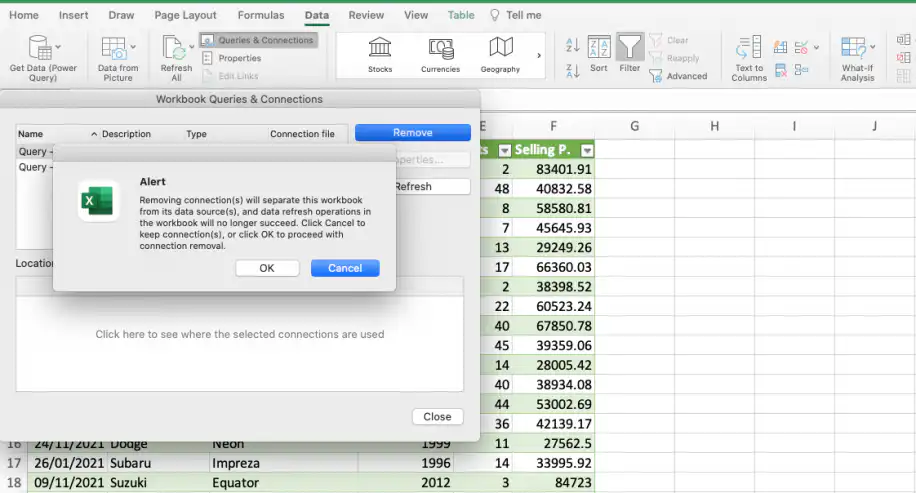
2. Click on the query you’d like to delete and select “Remove”.
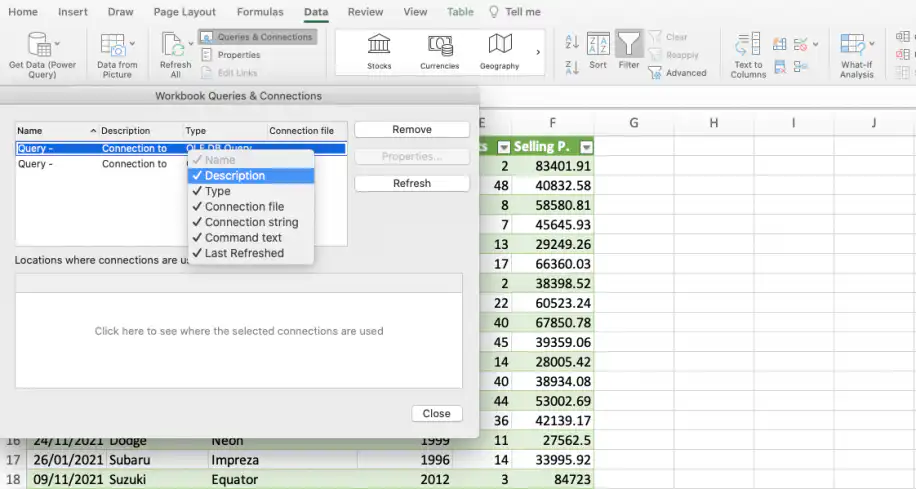
3. Excel will prompt you with an alert message to make sure you wish to proceed.
If you do not use a workflow automation tool, Power Query is a great way to not only automate updates, edits, or repetitive tasks but also to track any modifications made to the file.
Conclusion
In this article, we have shown you how to use Excel Power Query at a basic level in Excel 2016 and later, including Microsoft 365, for Mac and Windows. It’s a powerful query tool that can import a variety of data sources in terms of file type and storage systems. In a few simple steps, you can automate your most common repetitive tasks, avoid future manual errors, and increase the efficiency of your business.
If you want to learn more advanced methods to automate your workflow in Excel, read our guide on how to use macros in Excel to automate tasks.
Power Query also imports Text/CSV files. If a new CSV export lands every week, see how to import CSV to Excel automatically. To move only some rows, see how to transfer filtered Excel data from one workbook to another.



 English
 Español
 Português do Brasil
 Français