


SharePoint is a Microsoft online platform that most companies use as an internal website or intranet, i.e., a cloud storage and management system for all business-related data, including your Excel documents. Although you can use OneDrive to share an Excel file, SharePoint unlocks features for more advanced collaboration. Workbooks saved there also support Excel co-authoring, so several people can edit the same file at the same time.
In this post, you’ll understand what a SharePoint list is, how to import data from Excel into a SharePoint list, and how to export from SharePoint to Excel.
If you want to import data into Excel, Sheetgo, an AI-powered data automation platform, can help. With Sheetgo, you can easily share specific sheets or ranges from your main Excel file with others, filter data, and even split it into multiple files. You also have control over edits and changes before merging everything back into your master file stored in SharePoint, giving you full oversight of your data.
Install Sheetgo today to start managing, automating, and scaling your processes across your spreadsheets and workflows with AI.
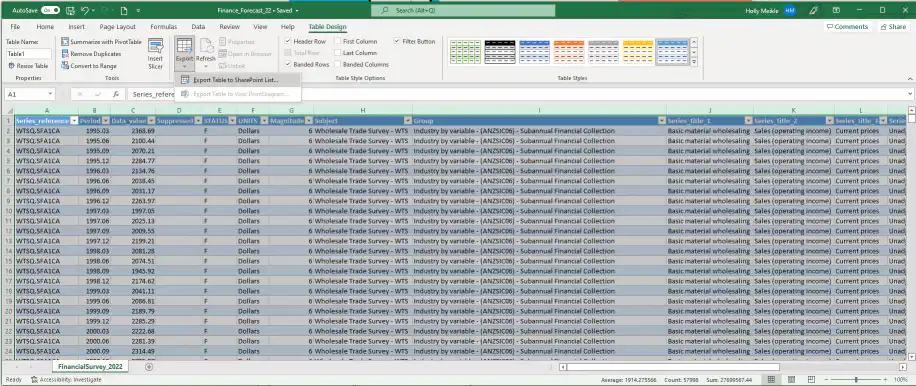
2. Enter the URL of your SharePoint site in the “Address” bar.
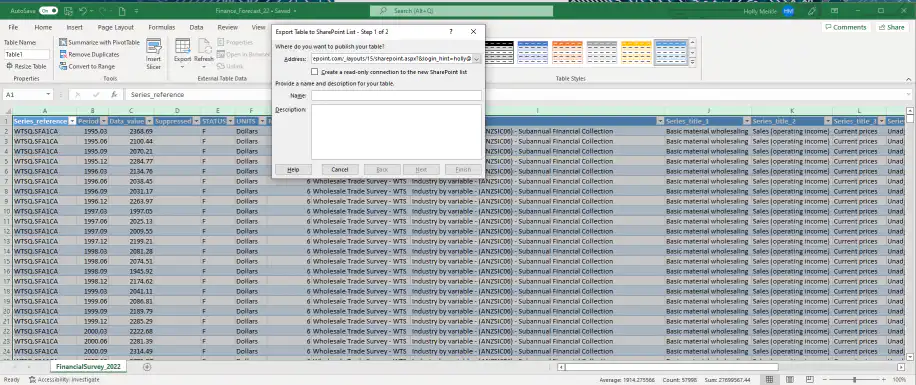
3. Tick the box “Create a read-only connection to the new SharePoint list”. This allows the new data to show up in your Excel table when you add or refresh your SharePoint list. Excel keeps this link as a data connection, which you can refresh from the Data tab. Our guide to Excel connections explains how they work.
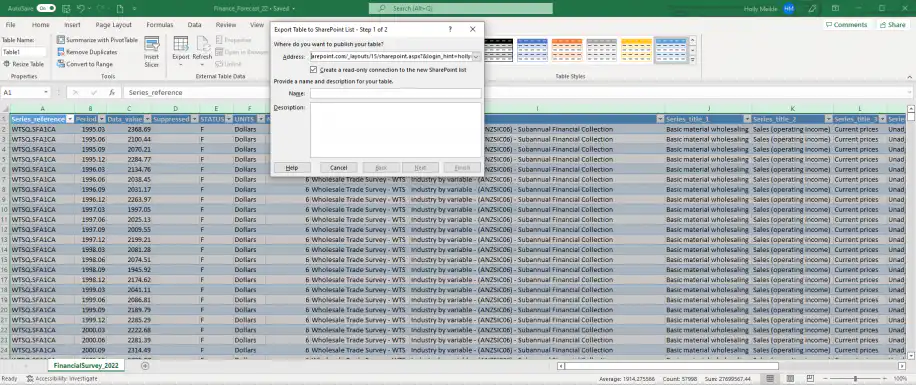
4. Type in the “Name” for the SharePoint List. Optionally, you can add further information in the “Description” box. Then, click “Next”.
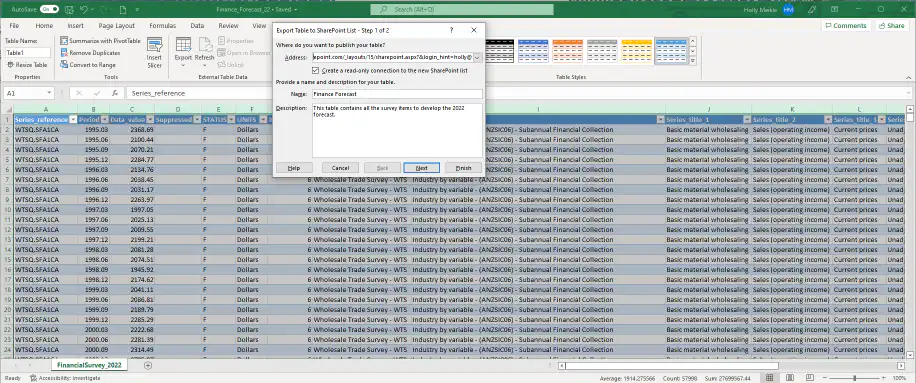
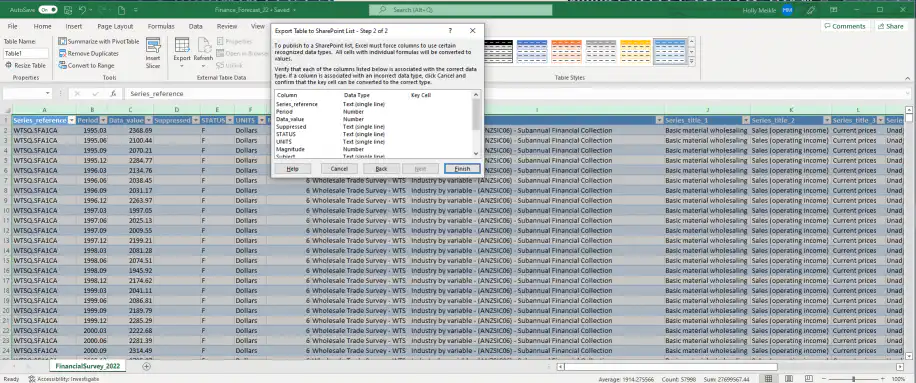
5. Review the data types per column in case you need to make any changes. Once you’re ready to export, click “Finish”
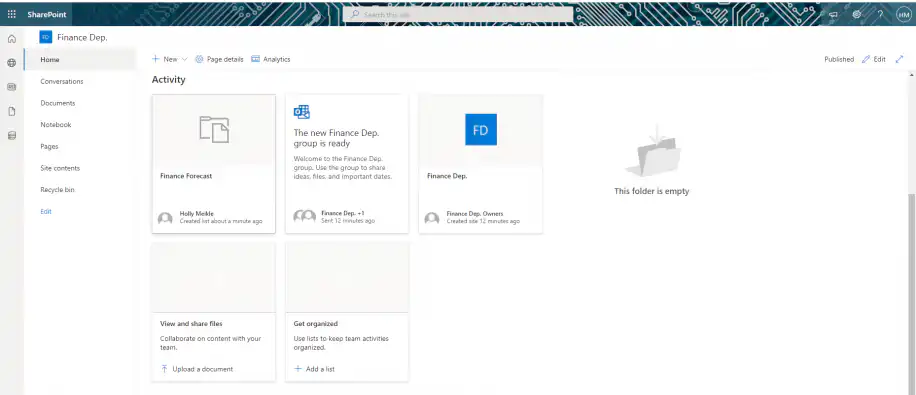
6. Go to your SharePoint site to check that it has exported the table correctly. It will appear under the “Activity” group, as shown below.
Now that you know how to export an Excel table to a SharePoint list, let’s see how you can do the reverse process.
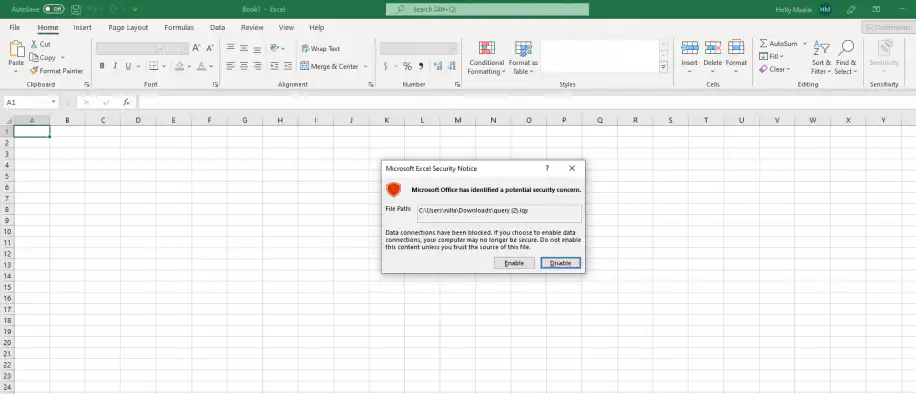
2. Open the “query.iqy” file and click on “Enable” if you get the “Microsoft Excel Security Notice” alert.
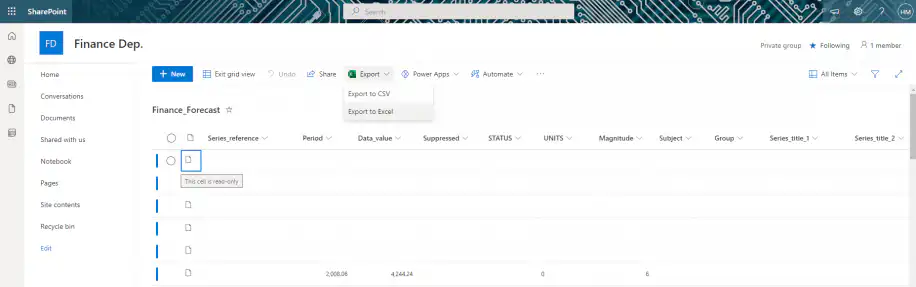
If you only need a static copy, choose Export to CSV from the same Export menu and import the CSV into Excel, or turn it into an Excel file with our free file converter.
Let’s see how you can perform these same actions automatically using Power Query.

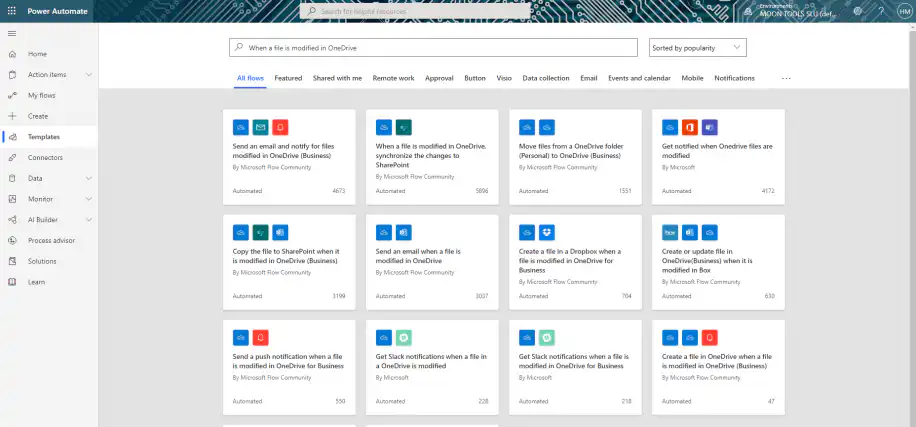
2. Type in “When a file is modified in OneDrive, synchronize the changes to SharePoint” to quickly access the template.
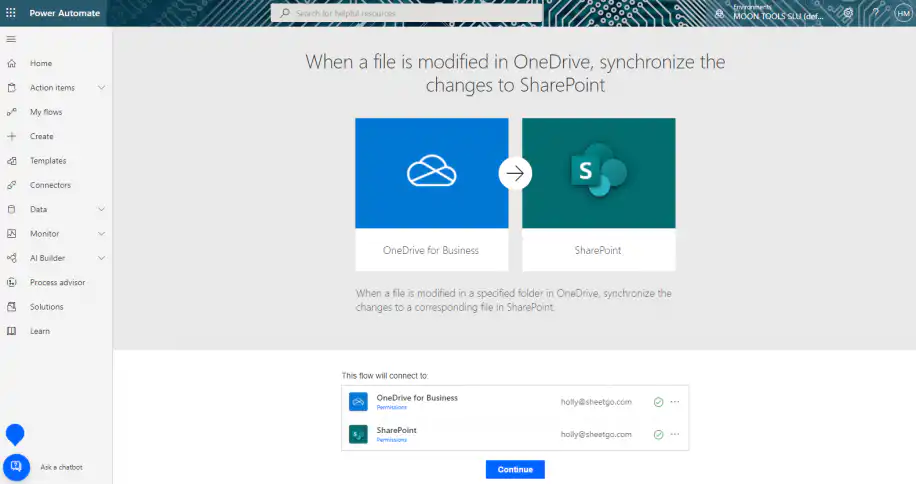
3. Make sure you are logged in to all applications to proceed. Click “Continue”.
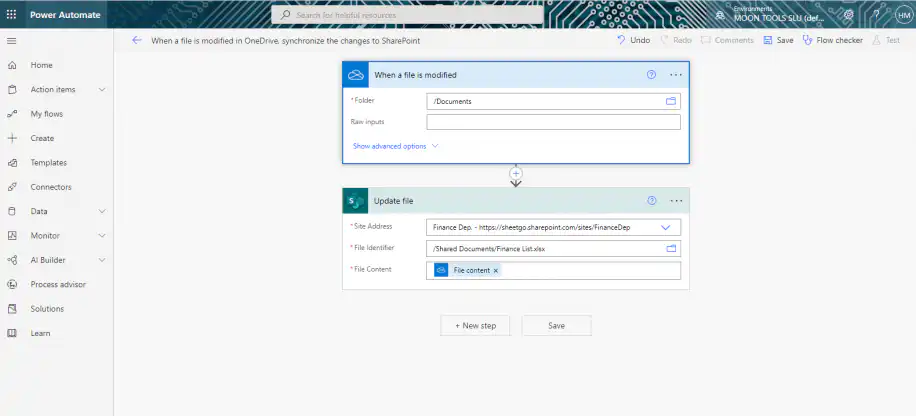
4. Select the folder where you have stored the Excel file to trigger the “When a file is modified” action. Then, select the SharePoint folder where you saved the list. Once you finish, click “Save”.
5. Test the flow to check that it runs correctly by clicking on the “Test” button to the far right.

Additionally, Power Automate may ask you to make a change in your Excel file to trigger the flow. You can also create an automatic trigger. However, this requires a more complex setup which you can learn in more detail here.
Conclusion
SharePoint has proven to be a great platform to store and manage data for any organization. Moreover, it provides powerful features to reach advanced levels of collaboration across various departments within a company.
In this article, you have learned how SharePoint and Excel integrate, so you can export and import data manually and automatically using the Power Query tool. You simply have to consider that the features offered for Office 365 are more limited in the Business Plan than in the Enterprise Plan.
If you’re interested in unlocking the full potential of Office 365 tools and creating your own workflows between apps, read Power Automate & Excel: examples and use cases.



 English
  Español
  Português do Brasil
  Français