Get help

Help center

Guides and answers

Contact support

Write to our team

Sign in to

Workflows

Build processes with your team

Automations

Connect files and automate tasks

One system, four parts

AI agents

Virtual Employees that work 24/7

Automations

Connect files and automate tasks

Workflows

Build processes with your team

Data Space

Trusted data sharing and control

Solutions by department

Finance

Reports, budgets, and reconciliations

Inventory and manufacturing

Stock, orders, and production in one view

HR

Timesheets, attendance, and reviews

Project management

Status and workload across projects

Sales and CRM

Leads and deals kept up to date

Education

Student records and school data

Finance

Turn manual finance work into reports that update themselves.

What Finance teams automate

  • Track payables and receivables
  • Build cash flow statements
  • Compare budget against actuals

Inventory and manufacturing

See stock levels and automate ordering.

What inventory and manufacturing teams automate

  • Track inventory across multiple sites
  • Connect sales, purchasing, and warehouse data
  • Link a barcode scanner to your sheet

HR

Run recruitment, attendance, and OKR tracking from your sheets.

What HR teams automate

  • Track recruitment and onboarding
  • Record team OKRs and results
  • Track check-ins, check-outs, and leave

Project management

Assign tasks and track hours without manual updates.

What project teams automate

  • Assign tasks and track status changes
  • Estimate effort and log hours worked
  • Track milestones across projects

Sales and CRM

Track leads and sales performance with automated reports.

What sales teams automate

  • Track and convert leads
  • Set sales goals and track team metrics
  • Monitor sales KPIs on dashboards

Education

Automate attendance, grades, and school purchasing.

What schools automate

  • Track attendance and notify parents
  • Record and compare class grades
  • Track inventory lent to students and staff

Find a use case

By department

How each team uses Sheetgo

By industry

How each industry uses Sheetgo

By company size

Small, medium-sized, or large

Learn

Blog

Guides and product news

Customer stories

How teams like yours use Sheetgo

Help center

Guides and answers

Why Sheetgo

Compare

How Sheetgo compares with other tools

Security

How we protect your data

Trust center

Our compliance details

Sign in to

Workflows

Build processes with your team

Automations

Connect files and automate tasks

One system, four parts

AI agents

Virtual Employees that work 24/7

Automations

Connect files and automate tasks

Workflows

Build processes with your team

Data Space

Trusted data sharing and control

Solutions by department

Finance

Reports, budgets, and reconciliations

Inventory and manufacturing

Stock, orders, and production in one view

HR

Timesheets, attendance, and reviews

Project management

Status and workload across projects

Sales and CRM

Leads and deals kept up to date

Education

Student records and school data

Find a use case

By department

How each team uses Sheetgo

By industry

How each industry uses Sheetgo

By company size

Small, medium-sized, or large

Get started

Templates

Ready-made workflows to start from

Learn

Blog

Guides and product news

Customer stories

How teams like yours use Sheetgo

Help center

Guides and answers

Why Sheetgo

Compare

How Sheetgo compares with other tools

Security

How we protect your data

Trust center

Our compliance details

Help center

Guides and answers

Contact support

Write to our team

Workflows

Build processes with your team

Automations

Connect files and automate tasks

Company Budgeting Template in Google Sheets

Overview of Sheetgo’s Budgeting Template

This system is designed for a CFO or controller to collect budget inputs from a company’s department head so that they can create a company-wide budget. It includes a central budget for the CFO / controller and individual budget sheets that the department heads will fill out with their spend request. It consolidates inputs from all departments to create a centralized dashboard complete with the budget breakdown negotiated with each department. It only takes a few minutes to configure and requires a few simple inputs.

Getting started

Install the template by clicking in the button below:

Dataflow

The picture below shows the basic data flow of this budgeting solution. The CFO or budget controller will generate a Master Budget in which he/she will determine the total budget, the allocation between departments, the responsible managers, and the cost categories.

Budgetting Template: Data Flow of Budgeting Solution

Signup for Sheetgo and start tracking your budget vs actual

The system will automatically send individual emails to the responsible manager of each department with a link to an individualized department budget spreadsheet.

Once the department budgets are filled in, the CFO or controller will consolidate in the inputs from all departments using Sheetgo in the Master Budget which includes a dashboard for an overview of the company budget and a quick analysis.

Implementing your budgeting template

Once you have a G Suite account and have installed Sheetgo follow the steps below.

Step 1) Create your master budget

Install the template creating a Sheetgo account. 

Step 2) Fill out your company inputs

Go to the Inputs tab of your newly created Master Budget and overwrite the dummy data provided, by filling out the following data to personalize your system:

  • Budget categories
  • Department names
  • Contact emails for the head of each department
  • Budget allocation for each department
  • The year you are budgeting
  • The total budget for the company
Budgetting Template: Step 2

Start tracking your budget vs actual

Step 3) Send the budget requests to each department

Once the final categories and budget allocations for each department are input you can proceed to request the budgets from the department head. To do this, select Budget > Send Budget Requests from the menu item we’ve created specifically for this template.

budgeting template 3

The first time you run this script you will likely receive a warning that “This app isn’t verified” as we have not yet certified it with Google, in order to bypass this warning and send the Budget Requests to your colleagues then click on Advanced and Go to Budget (unsafe).

budgeting template 4

Step 4) Managers fill out budget request

Send Budget Requests will automatically create a new folder in the same Drive location where your Master Budget is, called Department Budgets. Inside you’ll find the individual spreadsheets for the department.

Budgetting Template Step 4

Each responsible department head will receive an email with a link to his/her department spreadsheet, with the assigned budget and ready to fill in.

Budgetting Template: Spreadsheets

Start tracking your budget vs actual

Step 5) Create a connection to consolidate department budgets

Now you will use Sheetgo to consolidate all of the department budgets in a single tab of your Master Budget. To do this, you need to create a Consolidate From Folder connection.

  1. Open Sheetgo by clicking Add-ons > Sheetgo > Start and hover over the +to create a new Import connection.
  2. Search for your source folder, Department Budgets, that was automatically created before.
  3. Instead of choosing one single file, click on Select this Folder.
  4. Once it loads the tabs, choose the Budget Request tab as the source.
  5. In Settings it is IMPORTANT that you change the connection name, it must be SG_Budget Request.
  6. Select the Filter option, enable it, select Query Language and paste the following text: SELECT A,B,C,D,E,F,G,H,I,J,K,L,M.
  7. Save the connection by clicking on the green checkmark button.

When complete your connection should look like the image below.


budgeting template 6

This way Sheetgo will create only one new tab in the Master Budget with the consolidated data from each department’s spreadsheet.

Step 6) Update budgeted data from each department

CONGRATULATIONS!!! You now have your Budget system completed. Once the heads of each department complete their budgets, you just need to run Sheetgo in your Master Budget and update the consolidate connection we created in the prior step.

Once updated, you will be able to see company statistics of your budget in the Dashboard tab of the Master Budget.

Budgetting Template Step 6

Start tracking your budget vs actual

● Available 24/7

Put Owen on your finance ops

Sheetgo's finance virtual employee keeps your numbers current and your reporting on time. Your data stays in Google Sheets; you work with Owen in Slack, Teams, or Google Chat.

You may also like…

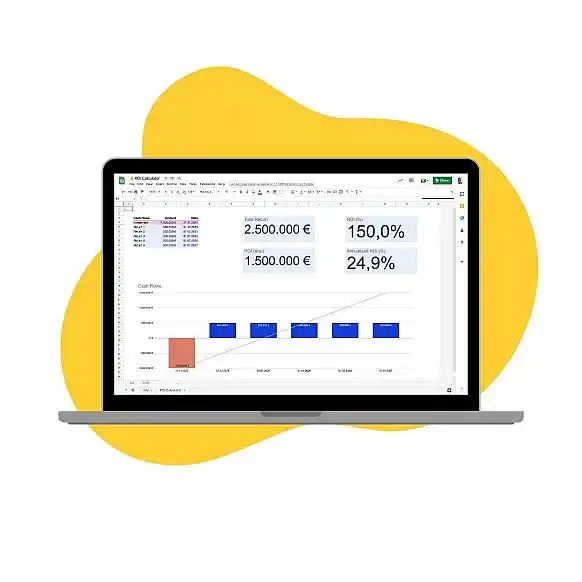
ROI calculator template in Google Sheets — laptop showing an ROI calculator spreadsheet with a 150% ROI and a cash flow chart on a yellow background

ROI calculator template in Google Sheets

Set up an ROI template in Google Sheets with formulas for total return, ROI, and annualized ROI, then learn how to calculate ROI in marketing and real estate.

Business case — purple briefcase with documents and a red pencil on a gray background

How to write a business case (+ template & examples)

Learn how to write a business case, from the problem statement to the financial analysis, with examples, types of analysis, and tips for presenting it.

Google Sheets budget template featured image

Google Sheets budget template: Top 5 for 2026

Whether you are 19 or 59 or dealing with money personally or professionally, a solid budgeting system is essential. With Google Sheets...