Get help

Help center

Guides and answers

Contact support

Write to our team

Sign in to

Workflows

Build processes with your team

Automations

Connect files and automate tasks

One system, four parts

AI agents

Virtual Employees that work 24/7

Automations

Connect files and automate tasks

Workflows

Build processes with your team

Data Space

Trusted data sharing and control

Solutions by department

Finance

Reports, budgets, and reconciliations

Inventory and manufacturing

Stock, orders, and production in one view

HR

Timesheets, attendance, and reviews

Project management

Status and workload across projects

Sales and CRM

Leads and deals kept up to date

Education

Student records and school data

Finance

Turn manual finance work into reports that update themselves.

What Finance teams automate

  • Track payables and receivables
  • Build cash flow statements
  • Compare budget against actuals

Inventory and manufacturing

See stock levels and automate ordering.

What inventory and manufacturing teams automate

  • Track inventory across multiple sites
  • Connect sales, purchasing, and warehouse data
  • Link a barcode scanner to your sheet

HR

Run recruitment, attendance, and OKR tracking from your sheets.

What HR teams automate

  • Track recruitment and onboarding
  • Record team OKRs and results
  • Track check-ins, check-outs, and leave

Project management

Assign tasks and track hours without manual updates.

What project teams automate

  • Assign tasks and track status changes
  • Estimate effort and log hours worked
  • Track milestones across projects

Sales and CRM

Track leads and sales performance with automated reports.

What sales teams automate

  • Track and convert leads
  • Set sales goals and track team metrics
  • Monitor sales KPIs on dashboards

Education

Automate attendance, grades, and school purchasing.

What schools automate

  • Track attendance and notify parents
  • Record and compare class grades
  • Track inventory lent to students and staff

Find a use case

By department

How each team uses Sheetgo

By industry

How each industry uses Sheetgo

By company size

Small, medium-sized, or large

Learn

Blog

Guides and product news

Customer stories

How teams like yours use Sheetgo

Help center

Guides and answers

Why Sheetgo

Compare

How Sheetgo compares with other tools

Security

How we protect your data

Trust center

Our compliance details

Sign in to

Workflows

Build processes with your team

Automations

Connect files and automate tasks

One system, four parts

AI agents

Virtual Employees that work 24/7

Automations

Connect files and automate tasks

Workflows

Build processes with your team

Data Space

Trusted data sharing and control

Solutions by department

Finance

Reports, budgets, and reconciliations

Inventory and manufacturing

Stock, orders, and production in one view

HR

Timesheets, attendance, and reviews

Project management

Status and workload across projects

Sales and CRM

Leads and deals kept up to date

Education

Student records and school data

Find a use case

By department

How each team uses Sheetgo

By industry

How each industry uses Sheetgo

By company size

Small, medium-sized, or large

Get started

Templates

Ready-made workflows to start from

Learn

Blog

Guides and product news

Customer stories

How teams like yours use Sheetgo

Help center

Guides and answers

Why Sheetgo

Compare

How Sheetgo compares with other tools

Security

How we protect your data

Trust center

Our compliance details

Help center

Guides and answers

Contact support

Write to our team

Workflows

Build processes with your team

Automations

Connect files and automate tasks

How to automatically export Google Sheets to other formats

Google Sheets is a cloud-based device independent application, that works on all current web browsers. And its flexibility and compatibility don’t end there. It can also read and write in multiple spreadsheet formats, making it the one of the most versatile spreadsheets application of today. This article explains the process to automatically export Google Sheets to other formats.

The usual suspects

The existing functions that usually comes to mind are Share and Download as. While they are fantastic features in themselves, they come with inherent problems.

With Share, the other users who have access to the spreadsheet will only be able to access the file using Google Sheets application. They do not have it readily available for their own spreadsheet applications like Open Office or Microsoft Excel.

Download as overcomes the limitations of Share to some extent. With this we can share the file in multiple formats such as .xlsx, .ods, .pdf, .html, .csv or .tsv. But again, there’s a caveat. The files we download and send over to others, will not remain current. What if we changed the Google Sheets spreadsheet after we download it in one of the formats? There’s no way these changes are going to reflect in the downloaded files.

Some people still use the older .xls format instead of .xlsx. Here is what an XLS file is and how to work with one.

Solution: Use ‘Publish to web’ functionality to automatically export Google Sheets to other formats

Google Sheets has an excellent inbuilt utility called Publish to the web. By using this, not only can we derive the benefits of Share and Download as, but also the limitations discussed above can be handled. To access this, navigate to File > Publish to the web… option.
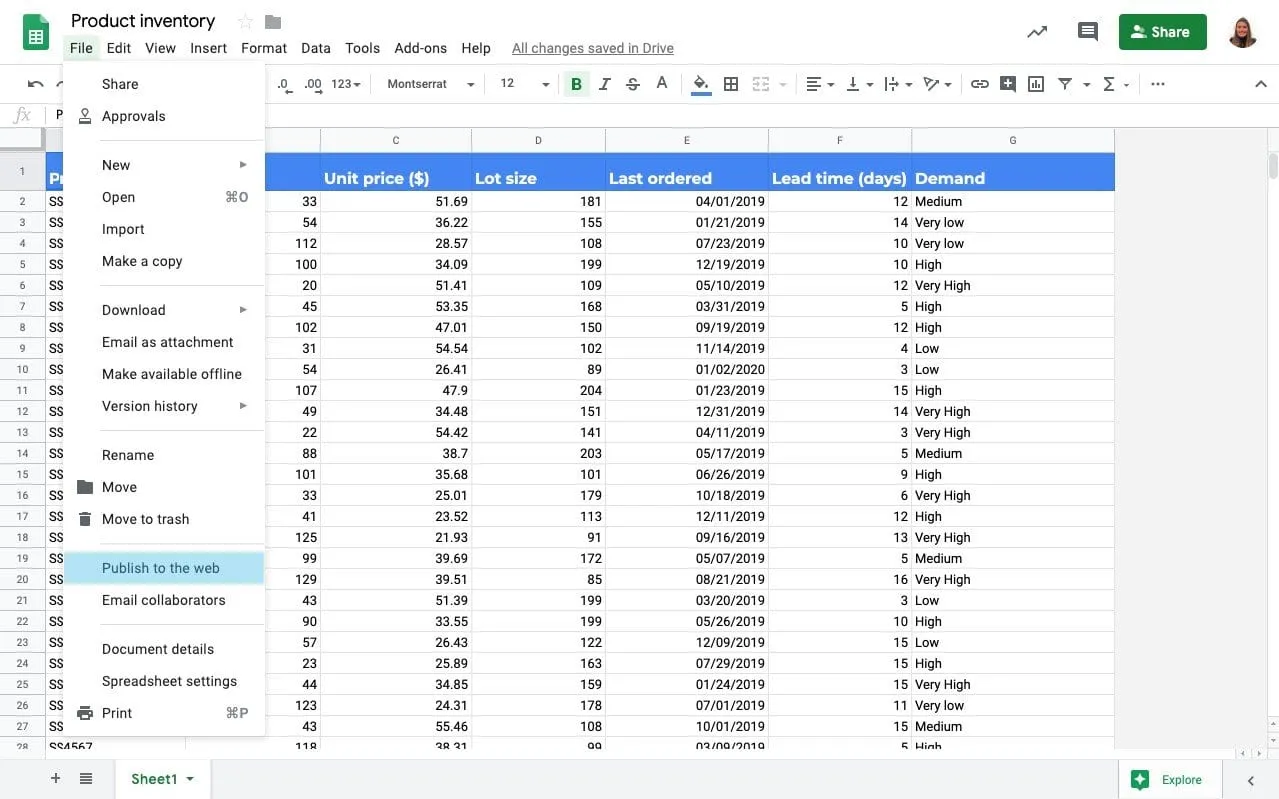
Once we invoke this functionality, we see the pop-up window that gives us options to link or embed. Publishing through the link enables us to share a URL which the end users can download the file from. The format they get to download is the one we choose from any of the following options.

For a quick demonstration, let us choose the Web page format, and click the Publish button. Google Sheets will provide us with a link that we can share with other users.

When they navigate to that URL, they will see a web page, separately built out of the spreadsheet data we were working on.

When we choose one of the other formats (i.e. .csv, .tsv, .pdf, .xlsx, .ods) for publishing, and the user accesses the URL, they will download the corresponding file to their computer automatically.

If instead of just sharing the link, we want to embed this document or part of it, in another web page, Google Sheets lets us do this! Please see the snapshot below. All we need to do is copy the code and embed it in our web page(s)!

If at any point in time, we wish to stop publishing, we can do so using the Stop publishing button at the bottom of the Publish to the web window pane.

One of the best things about this functionality is that the content remains current (not older than 5 minutes). Irrespective of the day and time the link (or embedded code) is accessed on!

Congratulations! We just explored the process to automatically export Google Sheets to other formats, using the ‘Publish to web’ functionality.

For the other way around, to automatically import CSV or Excel files to Google Sheets, check the following blog posts: How to Automatically Import CSV data to Google Sheets and Import Filtered Data from Excel to Google Sheets.

You may also like…

google sheets features and formulas

Top 5 dynamic array formulas in Google Sheets 

Google Sheets has evolved beyond basic spreadsheets. With the introduction of dynamic array formulas, users can now manipulate and analyze...
google sheets features and formulas

Mastering the FILTER Formula: 4 Use Cases with Examples

The FILTER formula in Google Sheets is a versatile tool for extracting data that meets specific conditions. Unlike the QUERY formula,...
google sheets features and formulas

Unlocking the Power of SUMIF and SUMIFS in Google Sheets: 4 real-life use cases

The SUMIF and SUMIFS formulas in Google Sheets are indispensable tools for performing conditional summations. They simplify complex...