Get help

Help center

Guides and answers

Contact support

Write to our team

Sign in to

Workflows

Build processes with your team

Automations

Connect files and automate tasks

One system, four parts

AI agents

Virtual Employees that work 24/7

Automations

Connect files and automate tasks

Workflows

Build processes with your team

Data Space

Trusted data sharing and control

Solutions by department

Finance

Reports, budgets, and reconciliations

Inventory and manufacturing

Stock, orders, and production in one view

HR

Timesheets, attendance, and reviews

Project management

Status and workload across projects

Sales and CRM

Leads and deals kept up to date

Education

Student records and school data

Finance

Turn manual finance work into reports that update themselves.

What Finance teams automate

  • Track payables and receivables
  • Build cash flow statements
  • Compare budget against actuals

Inventory and manufacturing

See stock levels and automate ordering.

What inventory and manufacturing teams automate

  • Track inventory across multiple sites
  • Connect sales, purchasing, and warehouse data
  • Link a barcode scanner to your sheet

HR

Run recruitment, attendance, and OKR tracking from your sheets.

What HR teams automate

  • Track recruitment and onboarding
  • Record team OKRs and results
  • Track check-ins, check-outs, and leave

Project management

Assign tasks and track hours without manual updates.

What project teams automate

  • Assign tasks and track status changes
  • Estimate effort and log hours worked
  • Track milestones across projects

Sales and CRM

Track leads and sales performance with automated reports.

What sales teams automate

  • Track and convert leads
  • Set sales goals and track team metrics
  • Monitor sales KPIs on dashboards

Education

Automate attendance, grades, and school purchasing.

What schools automate

  • Track attendance and notify parents
  • Record and compare class grades
  • Track inventory lent to students and staff

Find a use case

By department

How each team uses Sheetgo

By industry

How each industry uses Sheetgo

By company size

Small, medium-sized, or large

Learn

Blog

Guides and product news

Customer stories

How teams like yours use Sheetgo

Help center

Guides and answers

Why Sheetgo

Compare

How Sheetgo compares with other tools

Security

How we protect your data

Trust center

Our compliance details

Sign in to

Workflows

Build processes with your team

Automations

Connect files and automate tasks

One system, four parts

AI agents

Virtual Employees that work 24/7

Automations

Connect files and automate tasks

Workflows

Build processes with your team

Data Space

Trusted data sharing and control

Solutions by department

Finance

Reports, budgets, and reconciliations

Inventory and manufacturing

Stock, orders, and production in one view

HR

Timesheets, attendance, and reviews

Project management

Status and workload across projects

Sales and CRM

Leads and deals kept up to date

Education

Student records and school data

Find a use case

By department

How each team uses Sheetgo

By industry

How each industry uses Sheetgo

By company size

Small, medium-sized, or large

Get started

Templates

Ready-made workflows to start from

Learn

Blog

Guides and product news

Customer stories

How teams like yours use Sheetgo

Help center

Guides and answers

Why Sheetgo

Compare

How Sheetgo compares with other tools

Security

How we protect your data

Trust center

Our compliance details

Help center

Guides and answers

Contact support

Write to our team

Workflows

Build processes with your team

Automations

Connect files and automate tasks

How to use AutoCrat add-on for Google Sheets

AutoCrat is another add-on for Google Sheets that is changing the face of education. At first glance, it might not seem like that interesting of a tool, but its many applications make this a super valuable add-on! AutoCrat is another neat invention of CloudLab, one of the leading innovators in the add-ons for Education developer space. AutoCrat is an add-on that allows you to merge information from your spreadsheets into other formats, like documents or PDFs. It has a simple user interface that makes formatting, storing, and sharing information a breeze.

Who is using Autocrat?

Anyone who uses Google Sheets has access to AutoCrat. It is a free merge tool that is available in the add-ons store. Although AutoCrat was designed for teachers and administrators, just about anyone can use it to automate processes. It is also loved by students, researchers, and businesses.

What can you do with AutoCrat?

With AutoCrat, you can take information stored in spreadsheets and easily convert it into a Google Docs, PDF, or even a slideshow!

It sounds simple, but many people are taking this tool and using it to enhance their workflows so they can free up time for more important tasks.

How can you access AutoCrat?

It is really simple to get add-ons for Sheets. The fastest way is to click this link to install the Autocrat add-on from the Google Workspace Marketplace.

Simply click the Install button and the add-on will be added to your Google Sheets account.

Autocrat add-on

Alternatively, you can get the add-on by following these steps:

  1. Open a spreadsheet.
  2. Click the Add-ons button in the navigation menu.
  3. Click the Get add-ons button.
  4. A window will pop up for you to browse.
  5. Type ‘Autocrat’ in the search box.
  6. Click the Install button to get the add-on.

You are ready to start using AutoCrat!

Get started

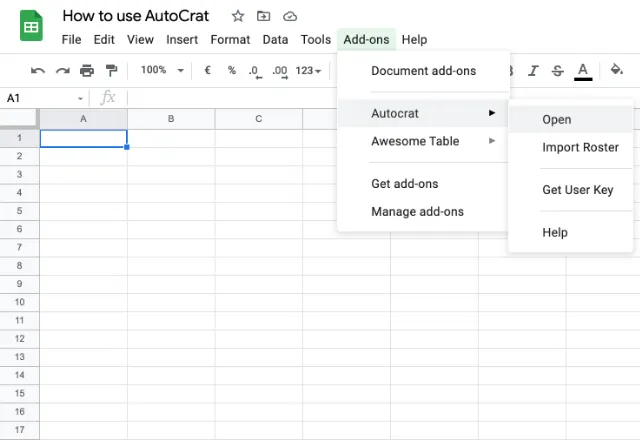
First, click Add-ons → AutoCrat → Open
autocrat 2
AutoCrat will load, and prompt you to create your first merge job! There is no sidebar in AutoCrat anymore, they got rid of it and swapped it for a dialogue box that takes you step-by-step through the process of each merge.

Step 1:

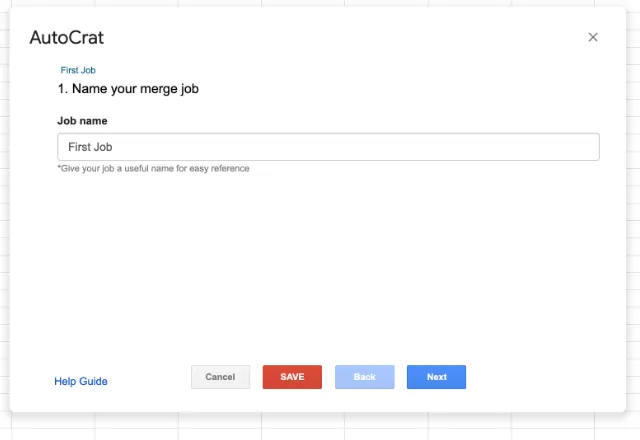
Click New Job, then you will be prompted to give your first merge job a name!

After naming the job, click Next.
autocrat 3

Step 2:

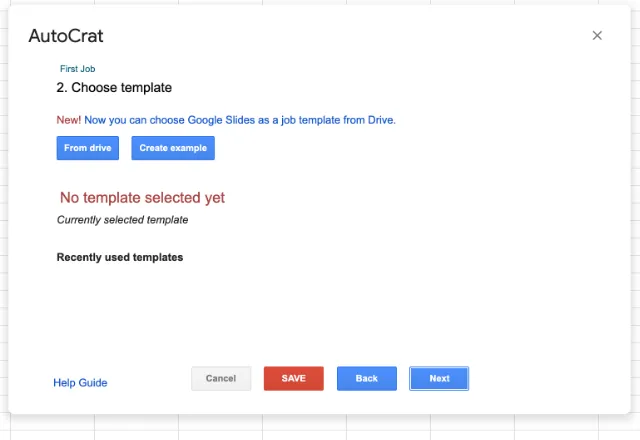
In this step, you will need to choose a template for your merge. Today we will choose to have AutoCrat create an example template for us. When you create your own templates, you can save them to and select them from your drive.

In the past, AutoCrat only worked with Google Docs, but now it also integrates with Google Slides. This is really exciting for users who want to create custom presentations from within spreadsheets.
autocrat 4

Step 3:

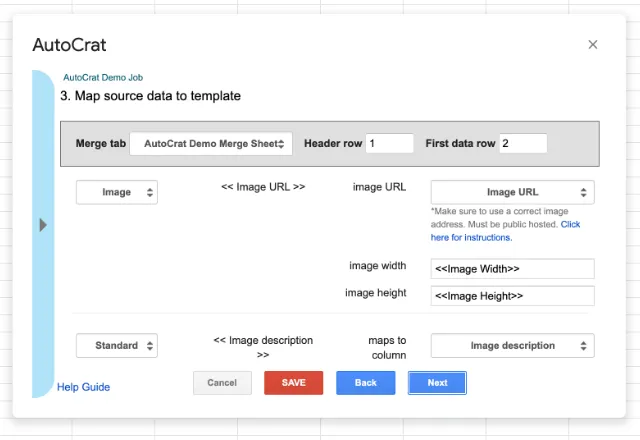
In this step, you need to map the source data from the spreadsheet to its correct place in the template. You can choose from standard text, hyperlinks, or images.

You will need to create a corresponding tag for each area of the Doc or Slide you want the information to be populated into.
autocrat 5

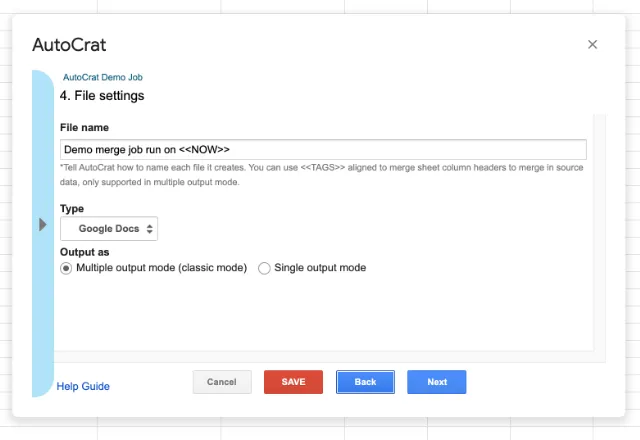
Step 4:

Next, give a file name for the output document that the add-on will create.
autocrat 6

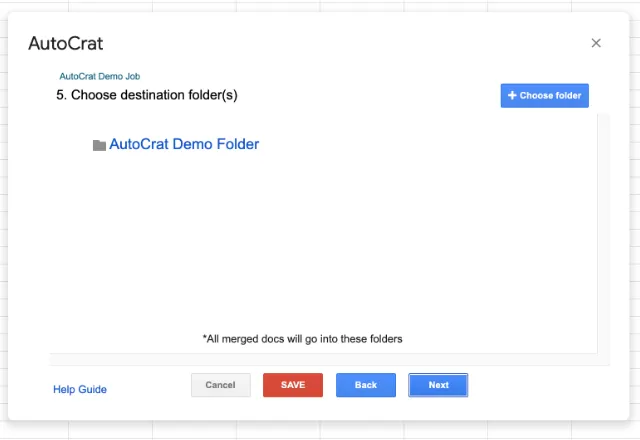
Step 5:

Select a folder in your Google Drive that the document will be inserted into.
autocrat 7

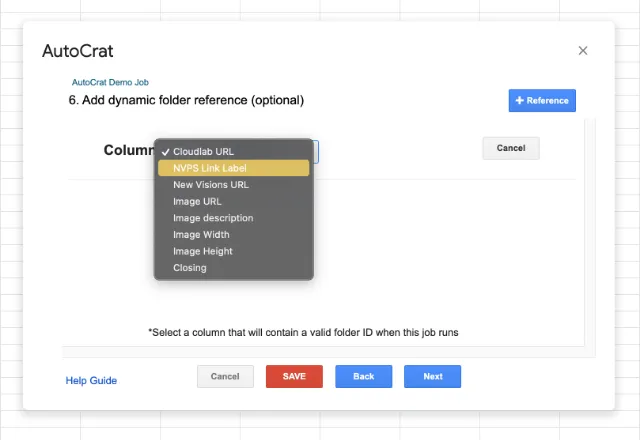
Step 6:

(Optional) Choose a folder reference.
autocrat 8

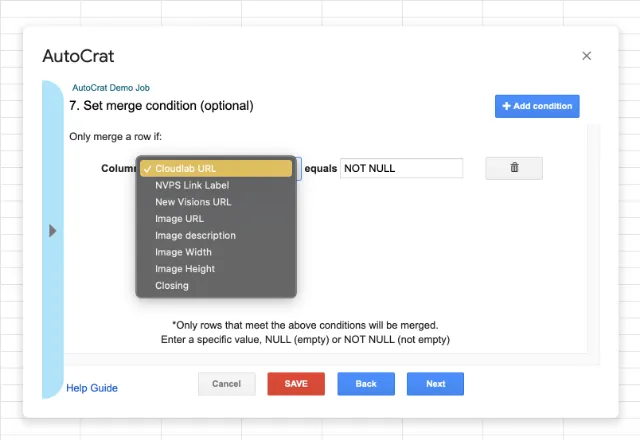
Step 7:

(Optional) Set conditional rules for your merge.

For example, if you are sending out a letter about grades from a student roster, you may choose to only send out letters to students who are receiving failing grades within the course.
autocrat 9

Step 8:

Next, we will select editing/commenting and sharing settings for our merge.

After that, send out any emails to anyone we may want to share the Doc or Slideshow with.

autocrat 10

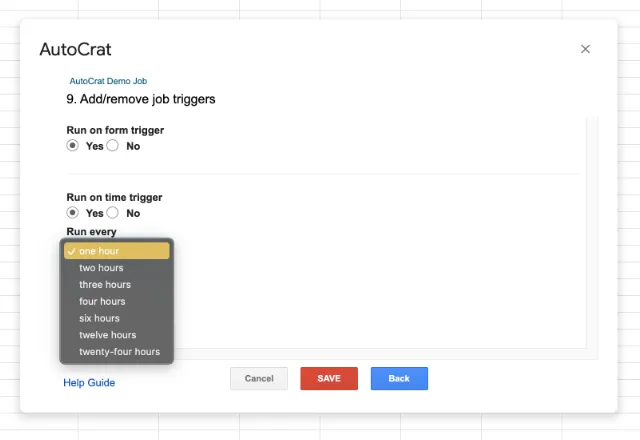
Step 9:

For the last step of the merge set-up, we have the option to choose if we want this merge to run based on any specific triggers like a form submission or at a designated time interval.

Some users can fully automate certain processes using these triggers. For example, you can have students submit essay questions via Google Forms, and their answers will populate into a Google Sheet. Reading these answers within a sheet cell could obviously be quite cumbersome!

You can set a trigger so that the students submissions are merged right into a PDF or Doc, that go into a specific class folder. Use automatically generated Docs too for grading, commenting, or even peer review! After specifying triggers, press Save.
autocrat 11

Step 10:

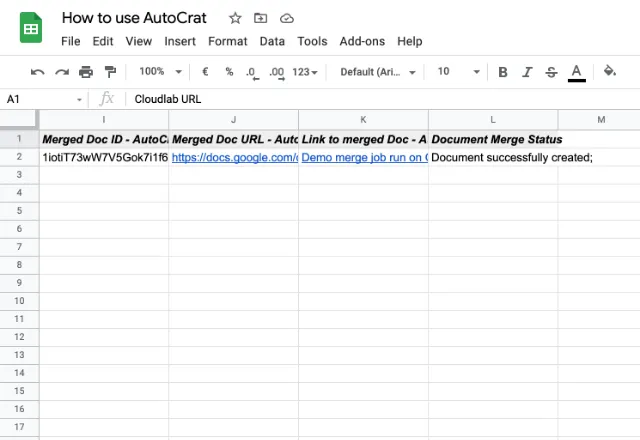
Finally, click the play button symbol to start the merging sequence.

You will see your Google Sheet change a bit—now there will be a cell with a link to the Doc that was created for this demo.
autocrat 12
autocrat 13

Conclusion

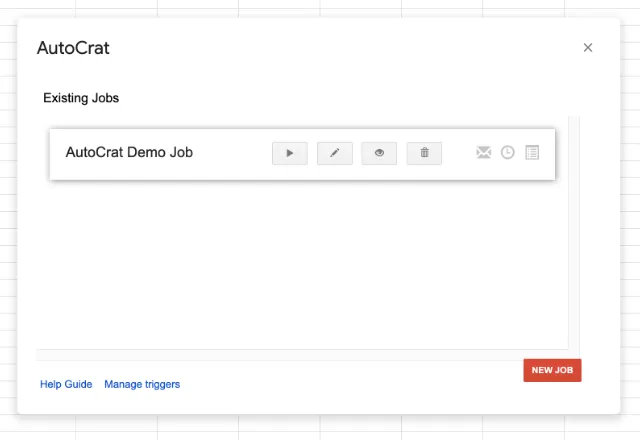
Ok—that does it! Your first AutoCrat merge has been set up, and will now be displayed as an existing job when you run the add-on.

For inspiration and ideas, check out our list of the top 5 Google Sheets add ons for education. Alternatively, take a look at the related articles below.

Editor’s note: This is a revised version of a previous post that has been updated for accuracy and comprehensiveness.

Create your custom system on Google Sheets with AI

Don’t settle for generic templates. Describe your exact needs and generate a tailored solution instantly.

You may also like…

education prcocesses and templates

Implement strong student data management and stay FERPA compliant

Schools and universities are adopting digital tools for efficient student data management. Automation can help reduce manual work and...
education-gradebook-template-google-sheets

Teaching remotely with Google for Education

Google for Education is a set of cloud-based tools that enables educators and students to work together online. This version of Google...

Top 5 Google Sheets add-ons for education

Google Sheets is an awesome interactive tool for classroom projects and managing student information. But sometimes additional extensions...