




Many Excel tasks are repetitive and time consuming. Luckily, there are several ways to automate them. This guide to spreadsheet automation in Excel covers VBA macros, Power Automate, and Sheetgo, an AI-powered data automation platform where you can build custom workflows to automate your spreadsheet and business processes, without having to write a single line of code.
What can you use Excel automation for?
Excel automation examples
- High-volume data input
- Data entry forms creation
- New files creation
- Data format and style modifications
- Refresh data
- External data source connections
How to automate Excel spreadsheets?
How to automate Excel spreadsheets using VBA macros?
Add developer tab, including VBA and macros features
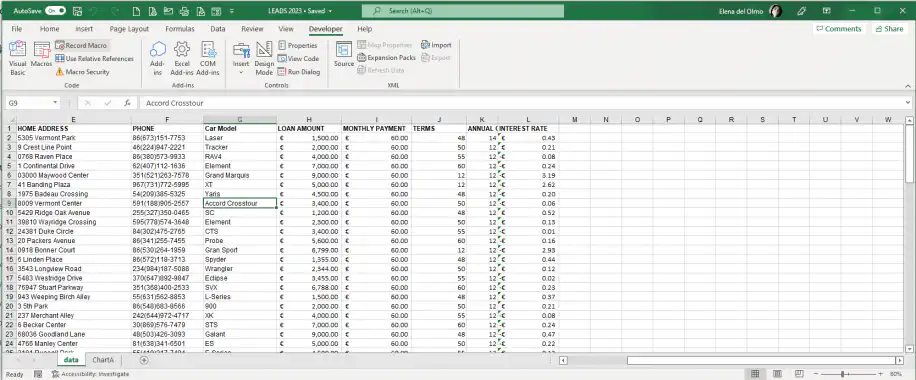
VBA macros record a series of steps so Excel can repeat them for you. To create them, first add the Developer tab to the ribbon.
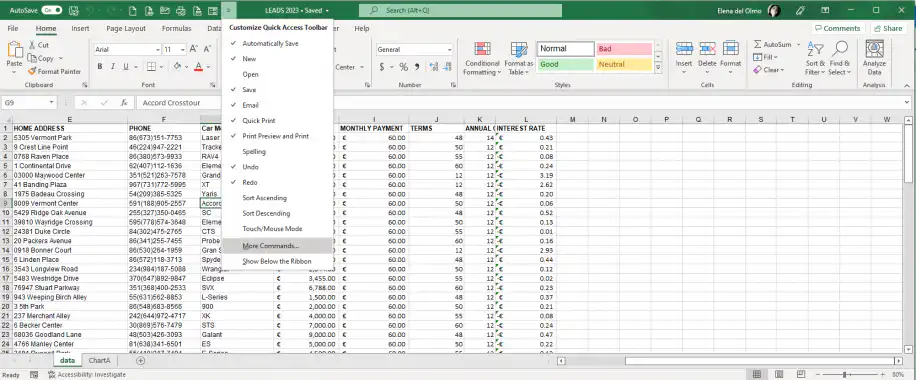
1. Click on the Customize Quick Access Toolbar drop-down arrow and select “More Commands…” as shown below.
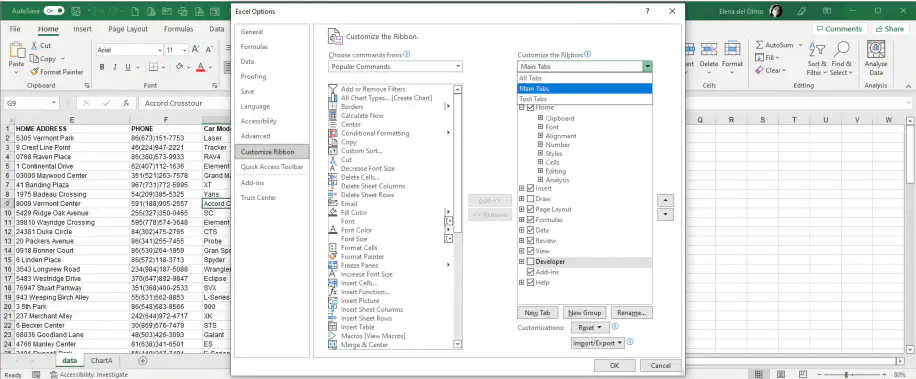
2. Select “Customize Ribbon” from the left-side menu and then “Main Tabs” from the “Customize the Ribbon” drop-down menu to the right.
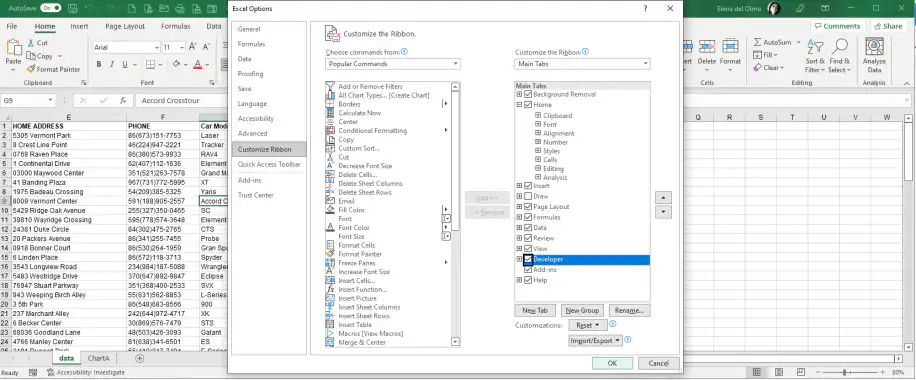
3. Select the “Developer” option and then “OK” to enable it in your toolbar.
How to refresh data in Excel using VBA macros?
1. Go to your new “Developer” tab and select “Record Macro”.
2. Enter the name of the Macro. Here, I’ll use “RefreshChartA”. Click “OK” to continue.
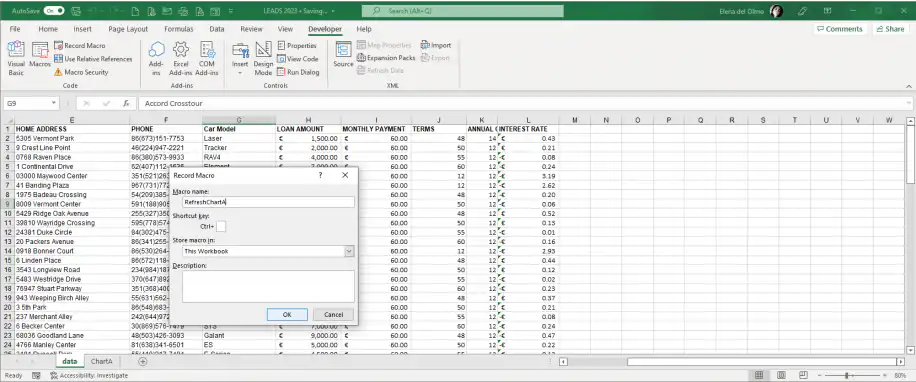
3. Click on the “VBA” button from your “Developer” tab and adapt the following code according to your sheet and macro names:
Private Sub Sheet1(data)
Call RefreshChartA
End Sub

Sub RefreshChartA()
ActiveSheet.ChartObjects("ChartA").Activate
ActiveChart.PivotLayout.PivotTable.PivotCache.Refresh
End Sub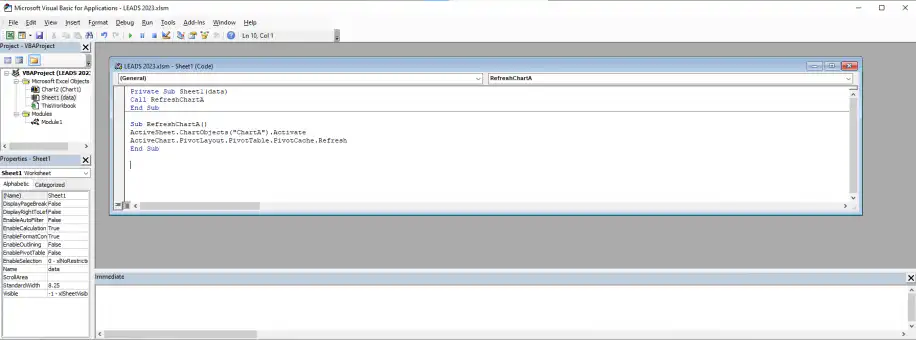
4. Click on the “Play” green icon in VBA and then select the macro you just created. Then, click “Run” to execute the macro.
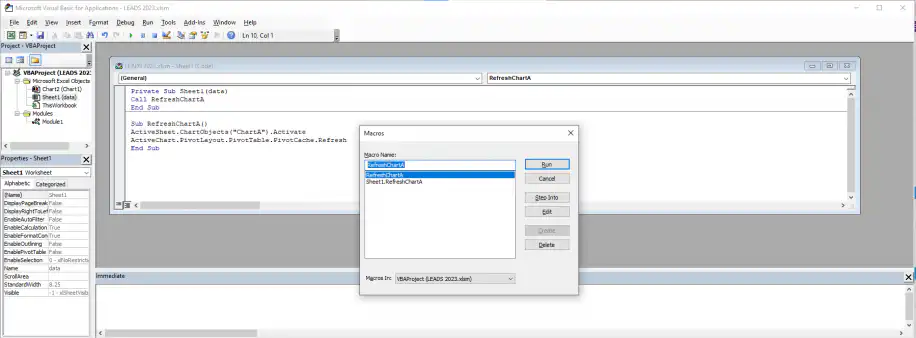
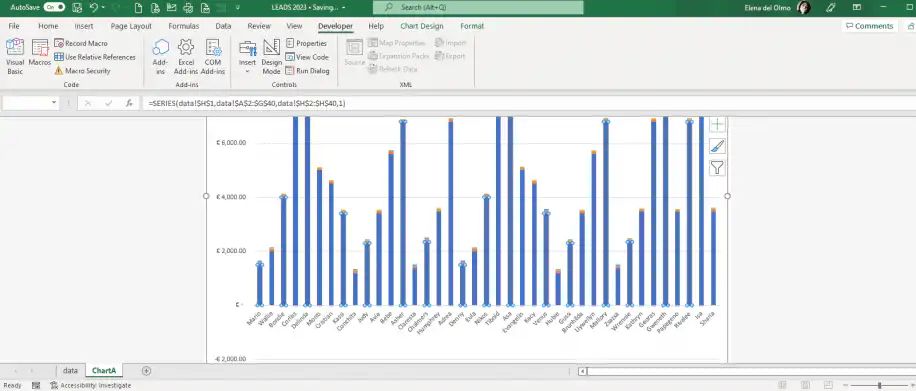
5. To check that it works, apply any change to the PivotTable to see how it reflects in the sheet containing the Chart. For example, here, I’ll remove the last row.
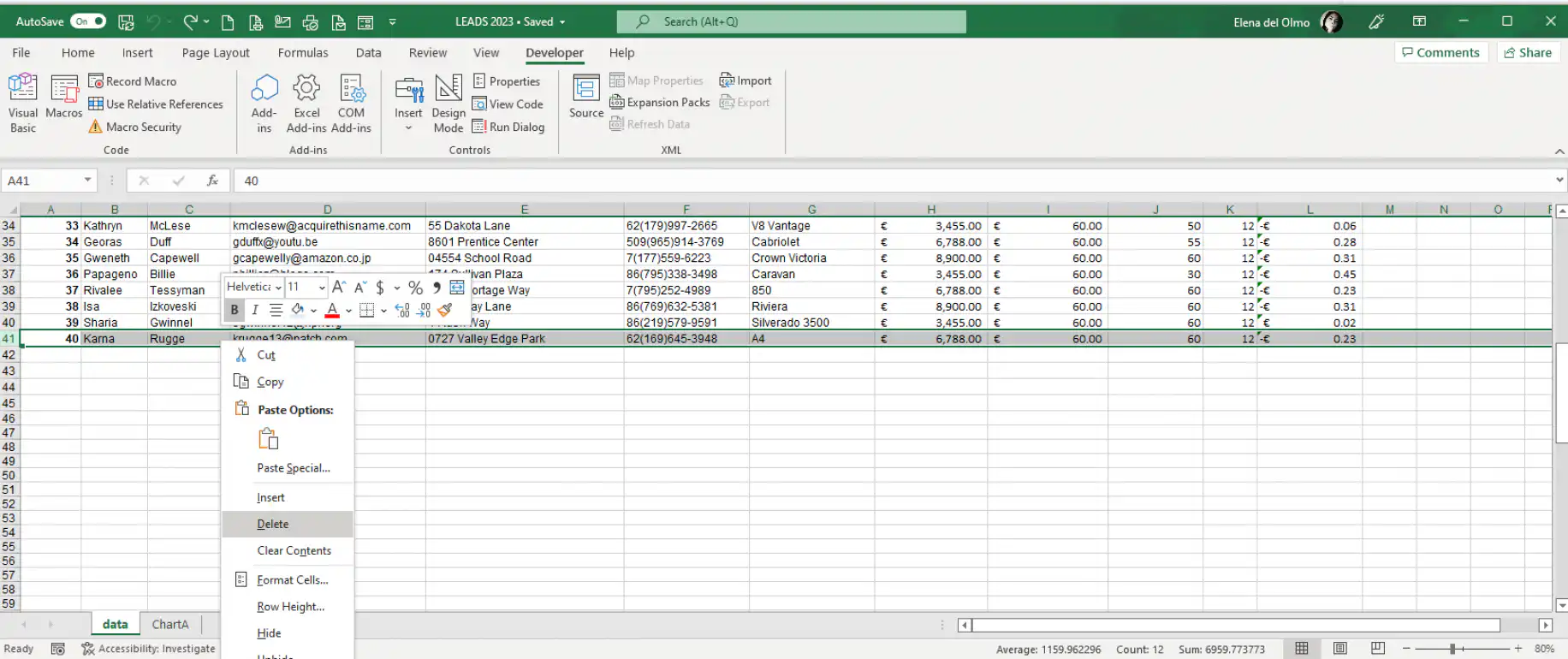
6. Head over to the sheet containing the chart, and it should automatically reflect the change made.
How to automate Excel spreadsheets using Power Automate?
1. Launch Power Automate and click on “Templates”.
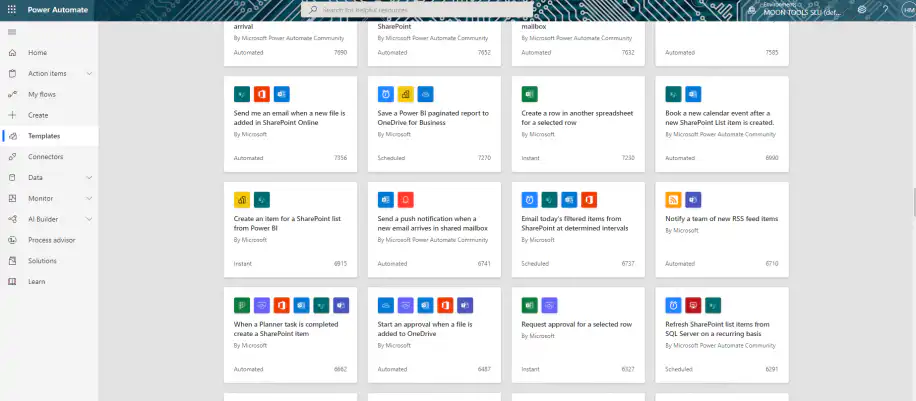
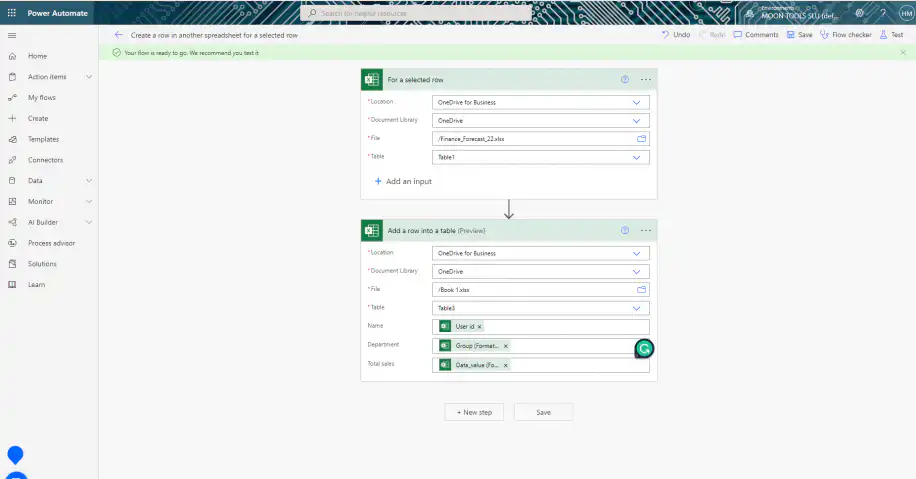
2. Enter “Create a row in another spreadsheet for a selected row” to automate synchronization tasks between two spreadsheets. Click “Continue” to edit your template.
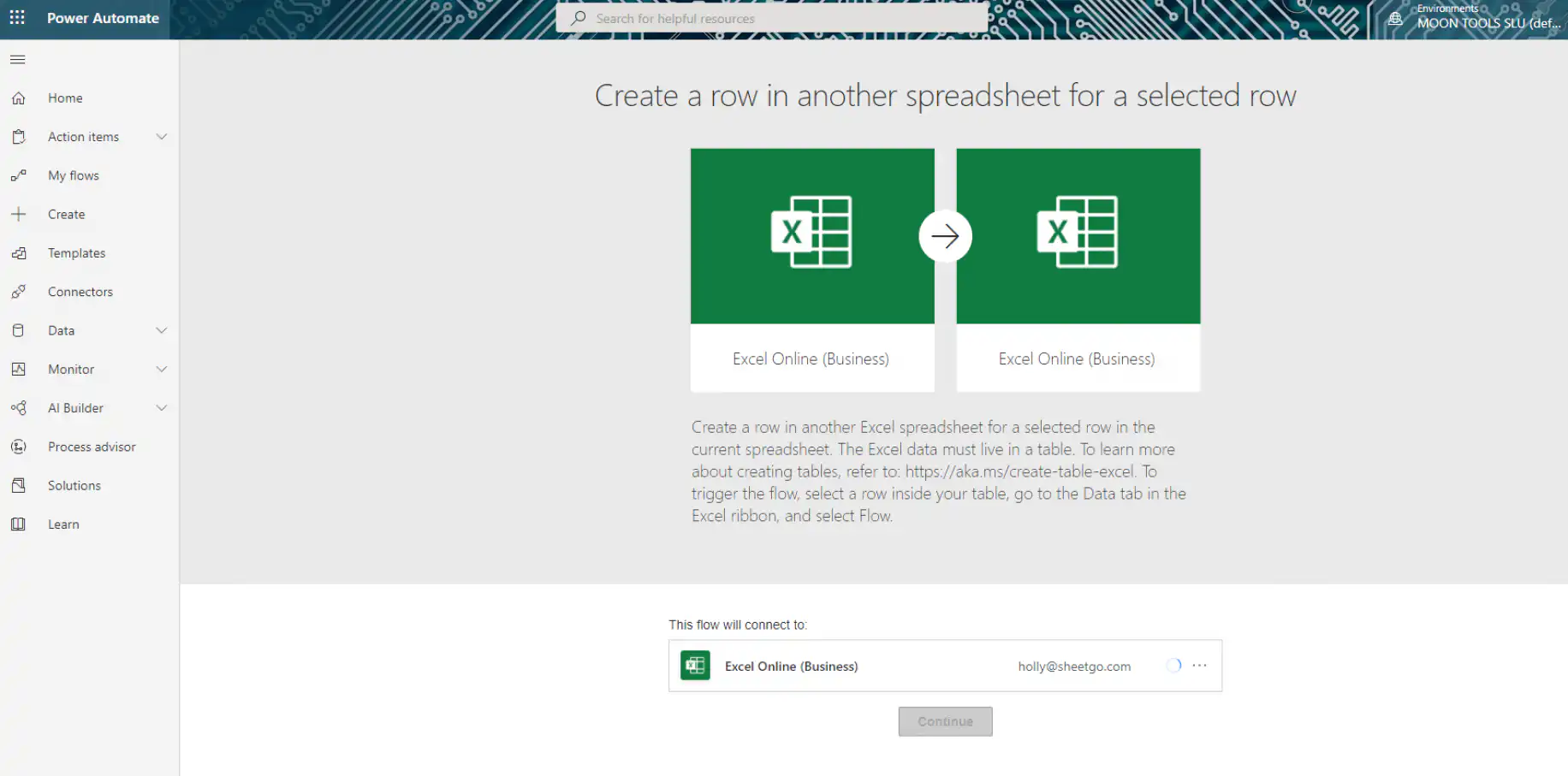
3. You’ll see two boxes corresponding to each dataset that you’ll synchronize. You simply need to click on the field and choose the file location from the drop-down menu.
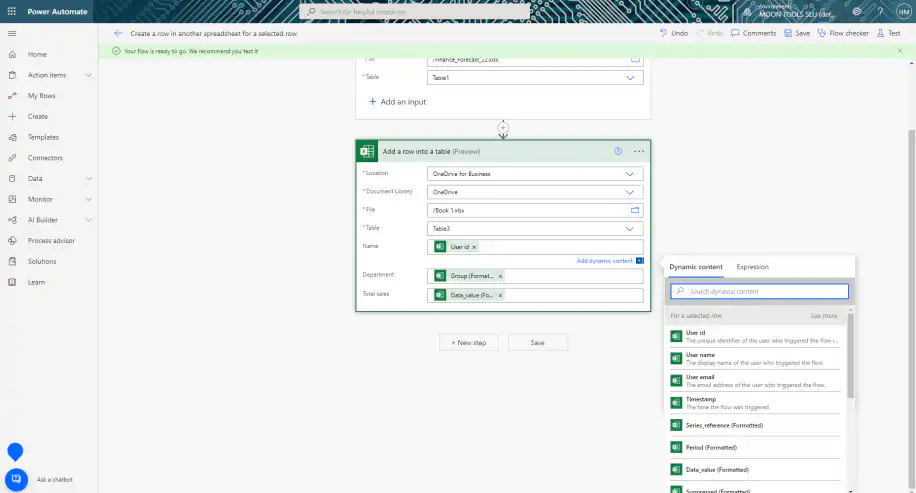
4. The second box contains the information related to the table that will be updated, so you’ll need to provide further information on the type of data to add. As soon as you click on the fields, you’ll be prompted to enter the values from the available options to the right. Click “Save” to finish.
Automate your spreadsheet tasks with Sheetgo
Sheetgo, an AI-powered data automation platform, takes spreadsheet automation further. Instantly connect your spreadsheets and create automated workflows to eliminate manual tasks, standardize processes, remove bottlenecks, and increase efficiency.
With Sheetgo, you can automate all of the following:
-
Data collection
-
Data storage
-
Data manipulation
-
Data visualization and reporting
-
Data analysis
-
Document generation
-
Task management
-
Expense tracking
To learn more, read about the advantages of automated data processing, the best workflow automation software, how to structure your workflow, and how to consolidate Excel files automatically.
Conclusion
VBA macros and Power Automate handle many repetitive tasks inside Excel. When your data is spread across several files, try Sheetgo, an AI-powered data automation platform, for free and connect those files into one automated workflow.



 English
 Español
 Português do Brasil
 Français