


When working with Excel spreadsheets, one of the most common tasks is to merge or combine data from different worksheets. Although this may seem like a simple procedure, it’s likely that you’ll end up with duplicate entries. If your dataset is small, these duplicates might be easier to spot and quickly removed. However, this entails manual work, and it can become overwhelming if you work with high-volume data. Excel offers two different features that can help you achieve this in a quick and efficient way.
In this article, you’ll learn how to combine duplicate rows and sum the values in Excel using three methods. First, you’ll see how to combine duplicates using the consolidate function in Excel. Second, a more advanced method involves using VBA code to merge duplicates in Excel. As a third alternative option to using Excel, you’ll learn how Sheetgo, an AI-powered data automation platform, can consolidate Excel files automatically.
How to combine duplicate rows and sum the values in Excel?
Excel offers many features to help you carry out complex tasks in a quick and easy way. Here, you’ll learn how to combine duplicates in Excel following two useful methods.
Combine duplicate rows with the Consolidate function in Excel
The consolidate feature in Excel can be used to consolidate multiple worksheets or rows in Excel. This is how you can combine and add rows in Excel using the consolidate function.
1. Open Excel and click on the cell where you want to place the combined data result.
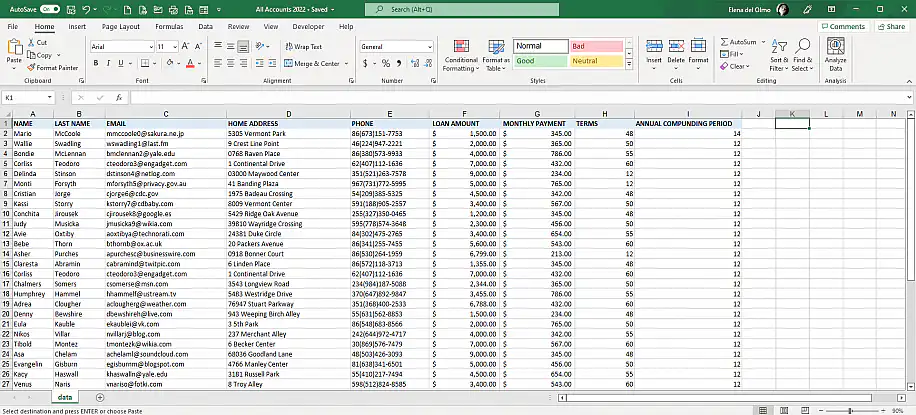
2. Go to Data > Consolidate.
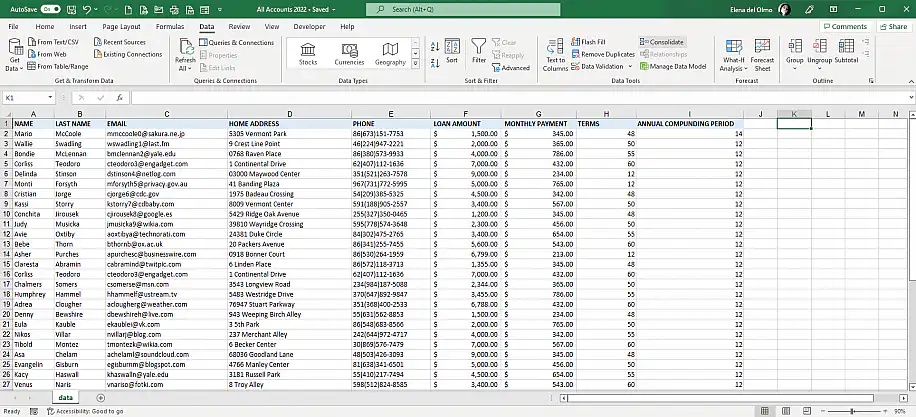
3. From the “Functions” drop-down list, select “Sum”. Click on the upwards arrow button to select the cell range that you wish to consolidate.
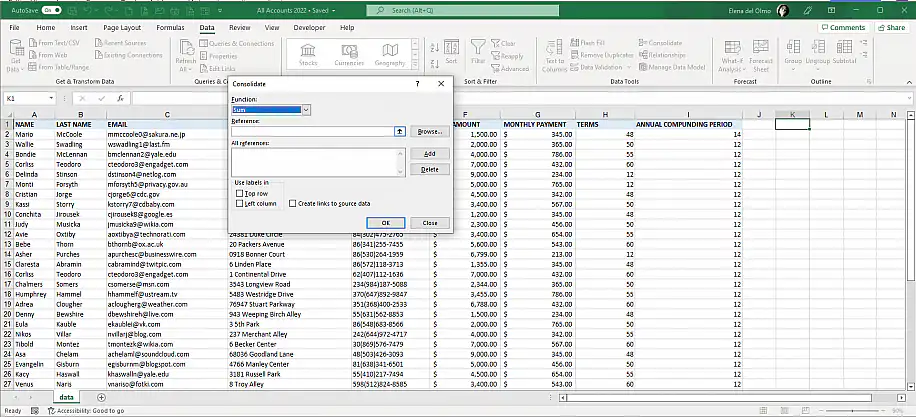
4. Select the cell range you want to combine in the worksheet, then click the arrow button again to return to the Consolidate dialog.
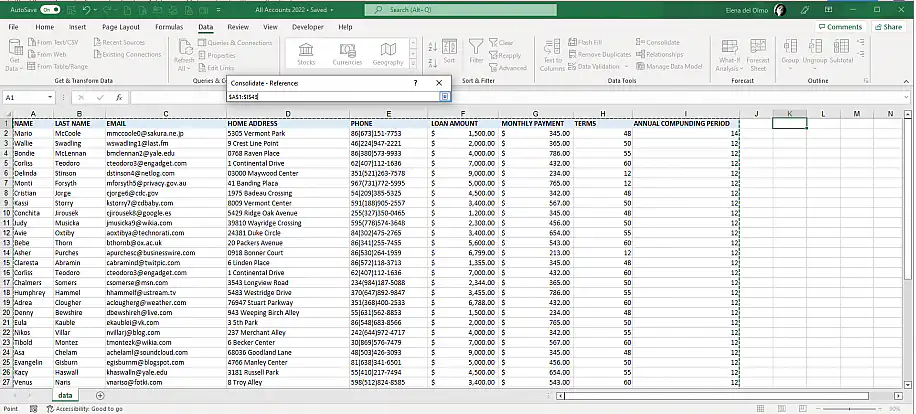
5. Click on the “Add” button to include the cell reference in the “All references” space.
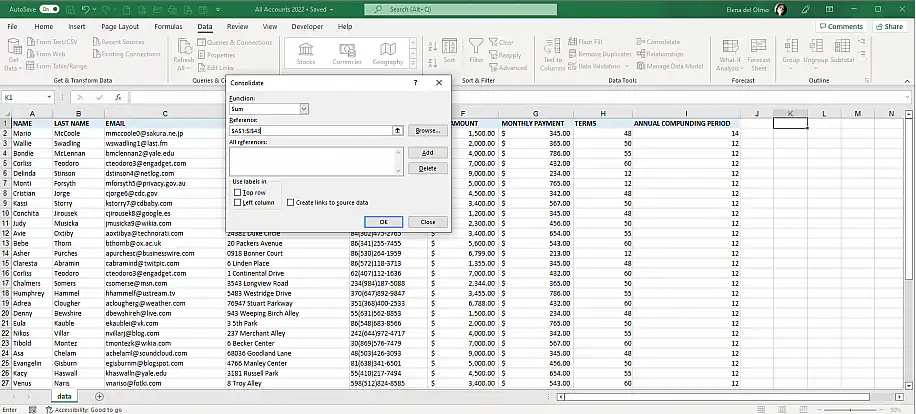
6. Select the “Top row” and “Left column” options from the “Use labels in” group. Once you finish, click “OK” to apply changes.
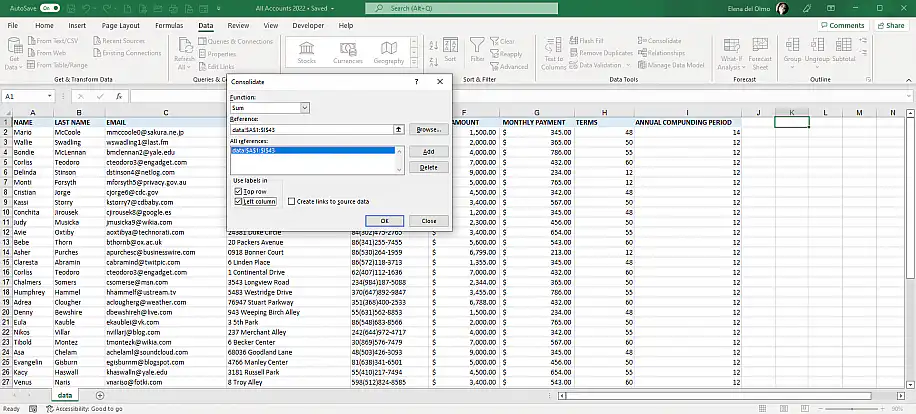
Note: If your data range doesn’t have header rows, then leave the “Top row” option cleared.
7. You should now see a new list of rows containing only unique values. Any value corresponding to the same record will be summed up.
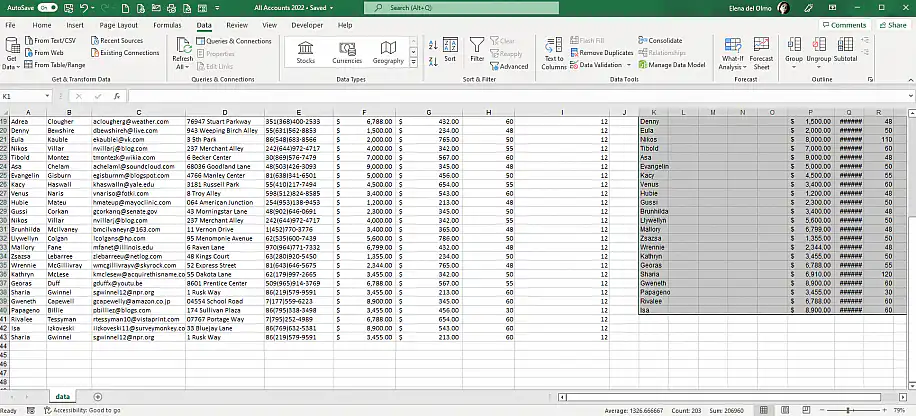
This method is a good option if you don’t mind losing the original data; however, if you’d like to keep the original values of duplicates, then make a copy of the worksheet and apply this method in the copy version.
Merge duplicate rows with VBA code
One of the main advantages of processing data in VBA is that you can record a macro of your action and then run it every time you need to perform a similar task in the future. In other words, you have the option of automating the task of combining data. This is how you can merge duplicates using VBA in Excel.
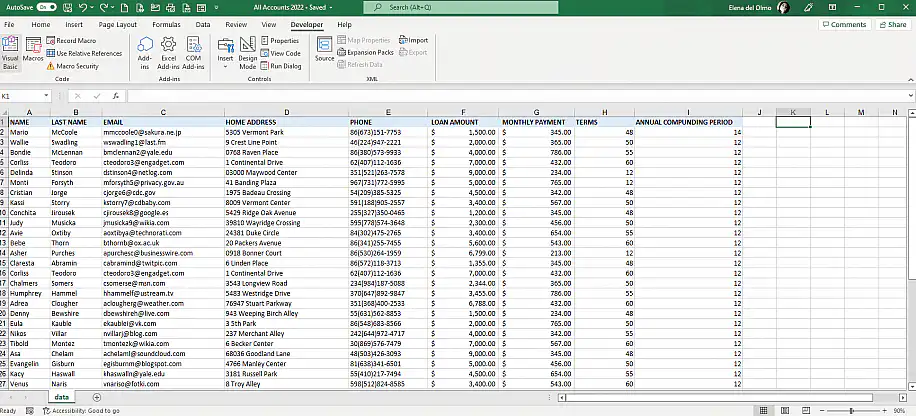
1. Select the range of cells that you’d like to consolidate and go to Developer > Visual Basic for Applications.
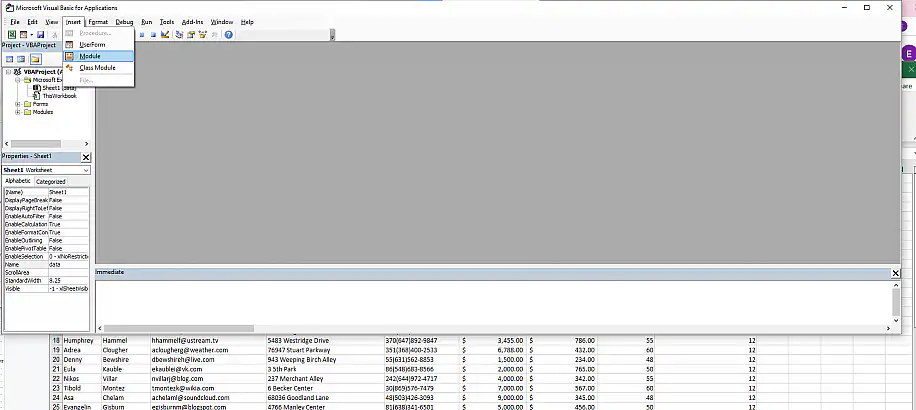
2. Select Insert > Module.
3. Type the macro shown in the screenshot below into the Module window.
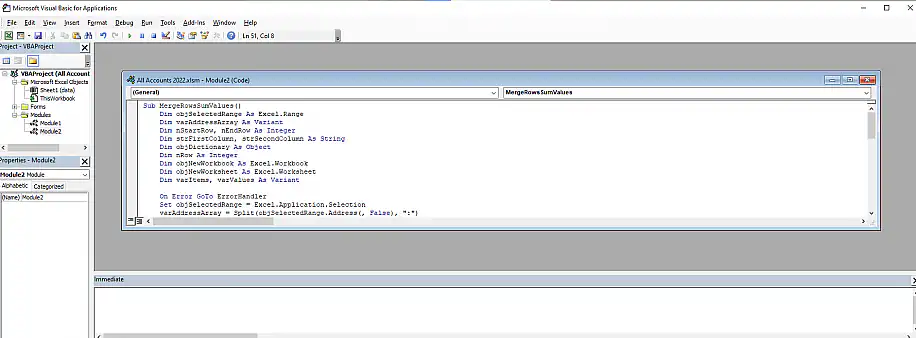
4. Press “F5” to run this macro or click on the “Play” icon, as shown below.

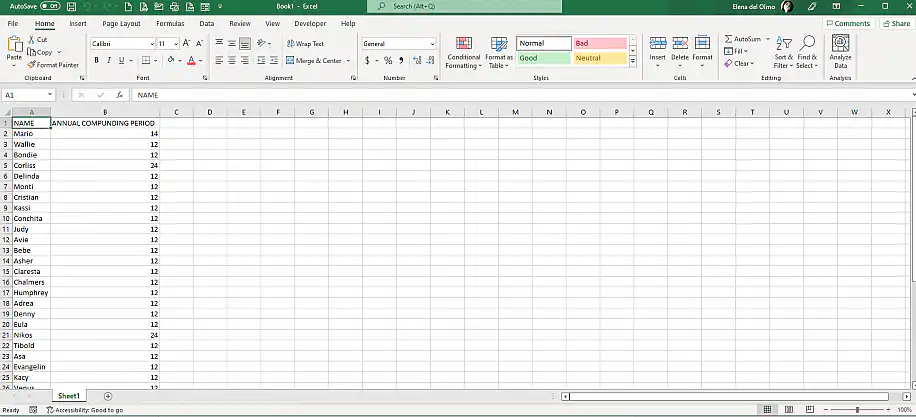
5. Excel creates a new workbook with your merged rows and added data, as shown below.
Although Excel consolidates rows in efficient ways, you still need to put in some effort on your part. Sheetgo, an AI-powered data automation platform, can also do the consolidation step for you. It merges rows from several Excel, Google Sheets, or CSV files into one sheet and refreshes it on a schedule.
Conclusion
Although the first method is easier to execute, it can’t process the two columns not next to each other. VBA is more convenient in case you want to reuse the function in the future, but it requires more coding knowledge. Another advantage of VBA is that it won’t alter the original worksheet, as the data is merged into a new file.
You should now be able to consolidate duplicates in Excel depending on whether you’d prefer to keep the original values or not. In case you want Excel to fully consolidate rows with multiple columns, the consolidate feature is a quick and easy-to-use method. If you prefer to consolidate rows in Excel based on more complex criteria and keep the original values intact, then using the VBA code to consolidate is the best option for you. Alternatively, Sheetgo can make this process easier and faster, since its AI-powered automations run the merge for you on a schedule.
If you want to learn more about consolidating data in Excel, check out these articles below:
- How to aggregate data in Excel (multiple ways)
- Combine multiple CSV files into one Excel file (multiple methods)
- How to consolidate data in Excel (step-by-step)
- How to combine multiple Excel columns into one?
- How to merge multiple Excel files into one
- How to use the SUMIF function in Excel
- How to use the CONCATENATE function in Excel



 English
 Español
 Português do Brasil
 Français