Get help

Help center

Guides and answers

Contact support

Write to our team

Sign in to

Workflows

Build processes with your team

Automations

Connect files and automate tasks

One system, four parts

AI agents

Virtual Employees that work 24/7

Automations

Connect files and automate tasks

Workflows

Build processes with your team

Data Space

Trusted data sharing and control

Solutions by department

Finance

Reports, budgets, and reconciliations

Inventory and manufacturing

Stock, orders, and production in one view

HR

Timesheets, attendance, and reviews

Project management

Status and workload across projects

Sales and CRM

Leads and deals kept up to date

Education

Student records and school data

Finance

Turn manual finance work into reports that update themselves.

What Finance teams automate

  • Track payables and receivables
  • Build cash flow statements
  • Compare budget against actuals

Inventory and manufacturing

See stock levels and automate ordering.

What inventory and manufacturing teams automate

  • Track inventory across multiple sites
  • Connect sales, purchasing, and warehouse data
  • Link a barcode scanner to your sheet

HR

Run recruitment, attendance, and OKR tracking from your sheets.

What HR teams automate

  • Track recruitment and onboarding
  • Record team OKRs and results
  • Track check-ins, check-outs, and leave

Project management

Assign tasks and track hours without manual updates.

What project teams automate

  • Assign tasks and track status changes
  • Estimate effort and log hours worked
  • Track milestones across projects

Sales and CRM

Track leads and sales performance with automated reports.

What sales teams automate

  • Track and convert leads
  • Set sales goals and track team metrics
  • Monitor sales KPIs on dashboards

Education

Automate attendance, grades, and school purchasing.

What schools automate

  • Track attendance and notify parents
  • Record and compare class grades
  • Track inventory lent to students and staff

Find a use case

By department

How each team uses Sheetgo

By industry

How each industry uses Sheetgo

By company size

Small, medium-sized, or large

Learn

Blog

Guides and product news

Customer stories

How teams like yours use Sheetgo

Help center

Guides and answers

Why Sheetgo

Compare

How Sheetgo compares with other tools

Security

How we protect your data

Trust center

Our compliance details

Sign in to

Workflows

Build processes with your team

Automations

Connect files and automate tasks

One system, four parts

AI agents

Virtual Employees that work 24/7

Automations

Connect files and automate tasks

Workflows

Build processes with your team

Data Space

Trusted data sharing and control

Solutions by department

Finance

Reports, budgets, and reconciliations

Inventory and manufacturing

Stock, orders, and production in one view

HR

Timesheets, attendance, and reviews

Project management

Status and workload across projects

Sales and CRM

Leads and deals kept up to date

Education

Student records and school data

Find a use case

By department

How each team uses Sheetgo

By industry

How each industry uses Sheetgo

By company size

Small, medium-sized, or large

Get started

Templates

Ready-made workflows to start from

Learn

Blog

Guides and product news

Customer stories

How teams like yours use Sheetgo

Help center

Guides and answers

Why Sheetgo

Compare

How Sheetgo compares with other tools

Security

How we protect your data

Trust center

Our compliance details

Help center

Guides and answers

Contact support

Write to our team

Workflows

Build processes with your team

Automations

Connect files and automate tasks

How to format cells in Google Sheets?

A cell is the tiniest entity and the most vital building block of a spreadsheet application. All the data that the spreadsheet holds is stored in these cells. While data storage is the fundamental utility of a cell, we have built-in tools to present this data well. In this blog post, we will discuss the ways we can format cells in Google Sheets.

Format cells in Google Sheets

Formatting is the process of making the looks and feels of the spreadsheet better. More often with just a few adjustments, we can make the data easier to read and aesthetically appealing. Highlighted in the image below are the set of commands there are to format cells in Google Sheets.

format cells in google sheets 1

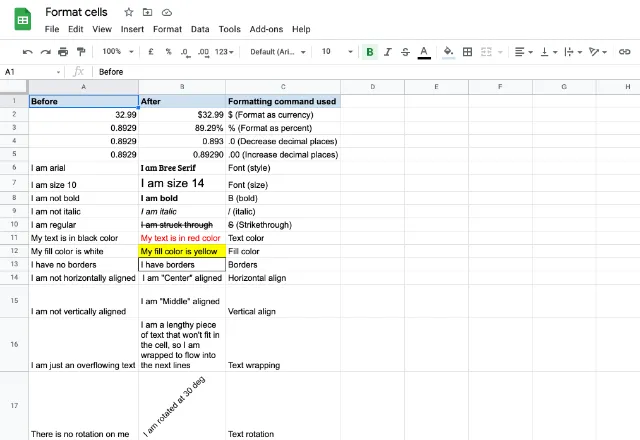
We can broadly categorize them under number, text and cell formatting commands. To format cells, we just select them and choose an available formatting option(s) depending on our need. Please have a look at the following screenshot. Except for More formats and Merge cells formatting options, we tried to demonstrate all the others.
format cells in google sheets 2

Please note that we can apply multiple formats on cells, that go together. For instance, the contents can be both bold and italic at the same time. However, there are certain combinations that won’t work. For example, we cannot apply number formatting on a text-based cell. Similarly, a number can’t be both a currency and a date, if that makes sense.

More formats [numbers]

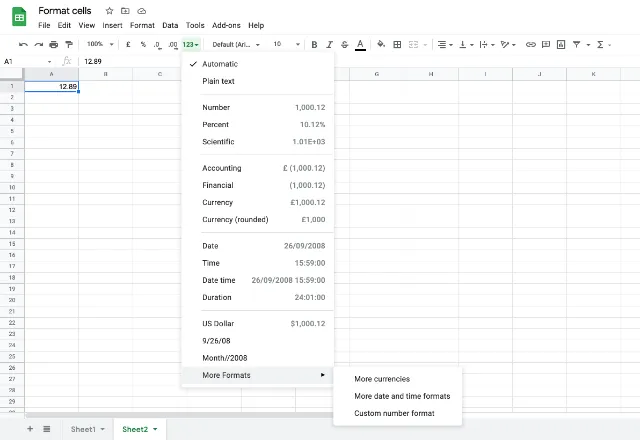
We have myriad representations of a numeric value in Google Sheets. We can present it as a currency, time, date, long date, date-time, text, accounting figures etc. The More formats formatting menu option consists of all these number formatting options as shown in the snapshot below.
format cells in google sheets 3

Apart from the pre-defined number formats, we can also go for custom options, using which we can define our own formats to suit our purposes.

A simple example

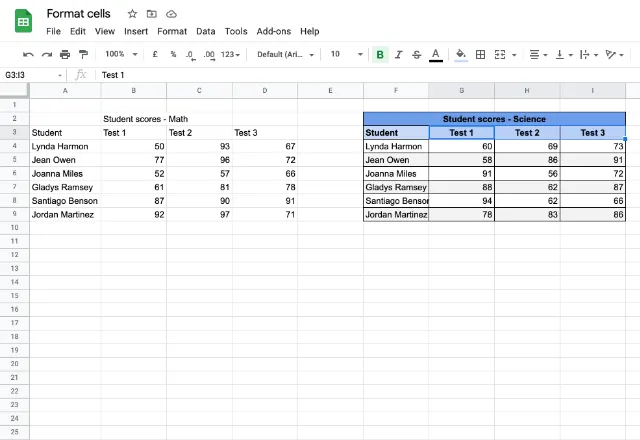
Now we know what tools Google Sheets offer to make our presentation of cell contents. Let us apply this knowledge to format cells. As an example, please consider the cells A2:D9 and F2:I9 in the image below. Both these data sets represent scores of a few students, albeit for different subjects. We left the math scores table as-is, while we did format cells from the science scores table. That way we clearly see the difference a few formatting steps create.
format cells in google sheets 4

You will notice that the text “Student scores – Science” spans across four cells – F2:I2. But its Math counterpart is residing in just one cell – B2. You may have guessed it already. We used the Merge cells formatting option on the cell range F2:I2.

Alter cell sizes

Apart from what we discussed so far, we may have to increase or decrease the sizes of the rows and/or columns, to make the content fit the cells. To do this, place the cursor at the intersection of the column and/or row labels. The cursor changes to a 2-way arrow, and we see that the intersection appears to be thicker and blue in color. Now click and drag the row/column to adjust the sizes. Instead of dragging, we can also just double-click to let Google Sheets auto re-size the height/width to fit the cell contents.

format cells in google sheets 5

Alternatively, select the entire row/column by clicking on the row/column header. Then right-click and choose resize row/resize column option to input the number of pixels for height/width.

Moving cells around

We often need to shift the contents of the cells around. Google Sheets lets us handle that in more than one way. Just select the cell(s) that needs moving. We see the cursor turning into a hand, indicating that the cursor is now capable of holding them. Now drag the cell(s) to whichever place is suitable within the worksheet.

Alternatively, right-click after selecting the cell(s), then choose either of the Insert [row(s)/column(s)/cells] option. However, it is worth noting that the quickest and the age-old method is the cut-paste option using the keyboard shortcut Ctrl + Xand Ctrl + V.

Protect cells

Another useful feature that Google Sheets has, is that of protecting cells or even entire pages. If you haven’t heard about this possibility yet, read more about it in this blog post.

Excel has its own protection options, from a single cell up to the whole workbook. Here is how to lock cells in Excel.


You may also like…

Free Google Sheets templates — spreadsheet window icon on a green background

Top 10 free Google Sheets templates for 2026

Explore 10 free Google Sheets templates for 2026, including a financial model, a DCF model, OKR, Gantt chart, expense tracking, and invoice templates.

SWOT analysis — four colored circles with the letters S, W, O, and T split by a cross on a beige background

SWOT analysis: definition, template, examples

Learn what a SWOT analysis is, why it matters, and how to do one. See how to use a template, plus examples from Amazon, Tesla, Apple, and more.

How to use Google Forms featured image

How to create a dashboard in Google Sheets

Get actionable insights with a data dashboard Think of the last time you needed to check a KPI or another important metric for a report....