


Few are aware that Google Drive applications have built-in chat features. This is just one of the ways G Suite differentiates itself from competitors such as Microsoft Office. Google’s software is cloud-based and had collaboration built in from the very beginning. In contrast, competitors in the space only recently adopted real-time collaboration and web-based editing.
The G Suite platform apps are build around collaboration. There are, of course, external chat platforms like Hangouts that have a larger feature set. However, if you just need a quick way to ask a question and get an answer, the internal Google Sheets chat feature is your best option.
Google Sheets and collaboration
Historically, Google’s office style software always had collaboration as its main differentiator. Simultaneous editing was always a feature of the Google Drive apps. It was implemented much sooner than in the Apple and Microsoft equivalents for example.
Take a look at the screenshot below. Here, you see that Google already promoted real-time collaboration in 2009. During that time, spreadsheets were still called Google Docs, and Drive wasn’t even a thing.

With simultaneous editing as a core feature of the Google Docs software suite, it was only a matter of time before a chat feature was added.
Today, all three of the core Google Drive software (Docs, Sheets, and Slides) have similar chat features. It isn’t much compared to independent chat platforms like WhatsApp or Messenger. For its use case, however, it gets the job done.
How to enable chat in Google Sheets
Most importantly, chat is not available whilst working on a Google Sheet document by yourself. In fact, there are a couple conditions that you need to meet for chat to work between you and collaborators.
First of all, everyone needs to have access to your document, so you’ll have to share it with them. Click the green share button in the upper right corner, next to your profile picture to do that.

Secondly, you and your collaborators must have the document open at the same time.
To tell if there are other people in the document at the same time as you, look to the left of the share button. Here you see all active collaborators’ profile pictures.

Finally, you’re able to start chatting. The chat button appears on top of the profile picture stack in the upper right-hand corner.

Chat isn’t showing in Google Sheets
It is possible that you can’t see the chat feature in your Google Sheets file. In order to chat in Google Sheets (and all Google Drive apps), you and at least one other person in the document have to follow these rules:
- You cannot use the Android, iOS, or iPadOS versions of Sheets.
- You must be logged into a Google Account.
- You cannot be in Anonymous Mode.
- You need to use the desktop version of the app.
If you meet all of the conditions above, simply click the chat bubble and start typing! Your collaborators will get the following notification:

How to use chat in Sheets
When you take a look at the chat panel, you’ll notice that it’s pretty basic. It’s missing some chat features like an emoji keyboards, text formatting options, and a tagging systems to target individuals for example.
Basically, the only thing you can do in Google Sheets chat is type unformatted text. If you need more functionality in your chat, I suggest moving to a stand-alone platform like Hangouts.
On top of that, consider other chat options if you need to see previous conversations. Because chat is erased when you leave the document in Google Sheets.
The only other thing that the chat window does is show room activity. It logs when someone joins the document and when someone leaves. In short, you know who sees your messages and who doesn’t.
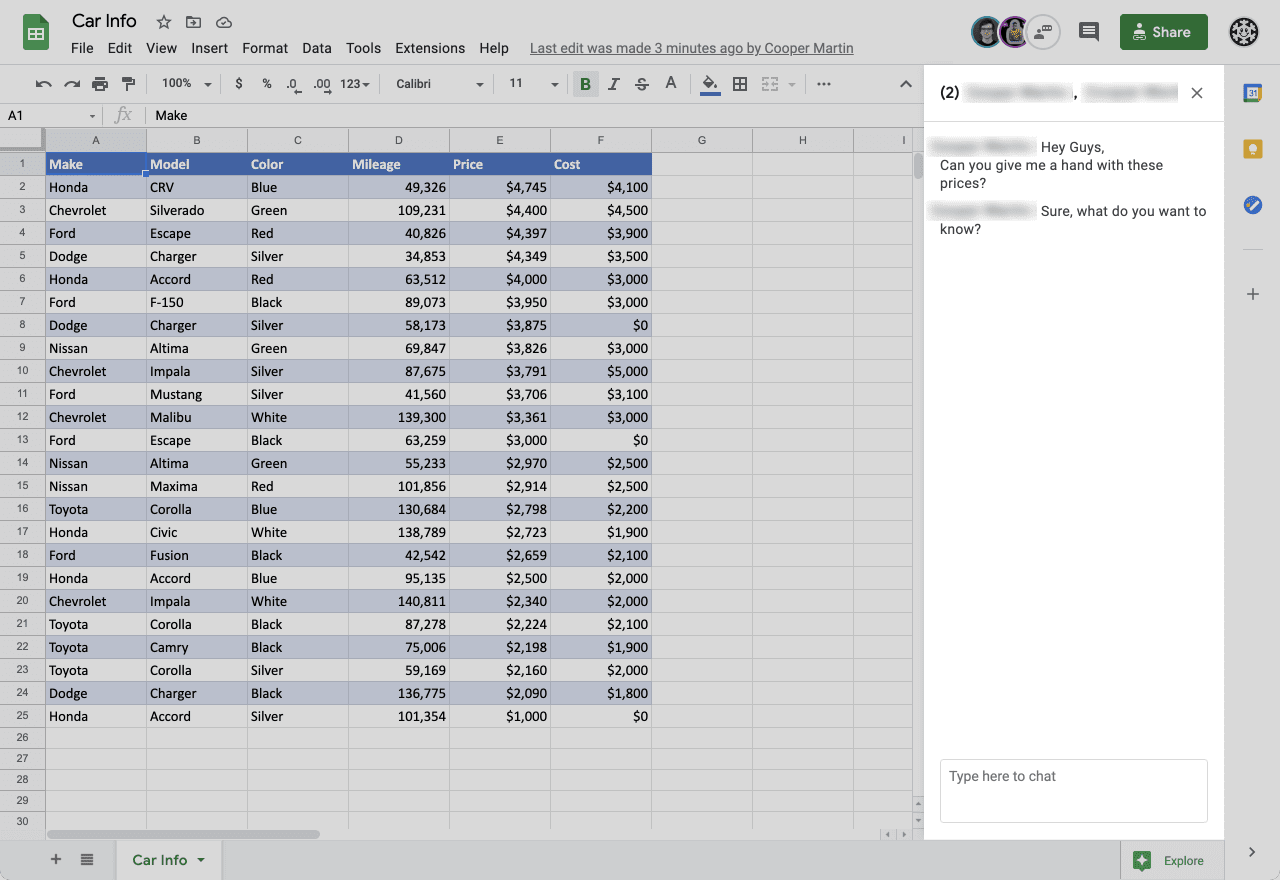
Note that you can continue to type even though everyone else left the chat room.
This is only possible when you already have the chat room open though.
Other collaboration features in Google Sheets
In combination with other collaboration tools native to Sheets, the chat feature is a very useful tool. Check out this list of other live collaboration tools that make working together in Sheets a breeze. You won’t need an external communication tool like Skype or Discord.
1. Live cursor
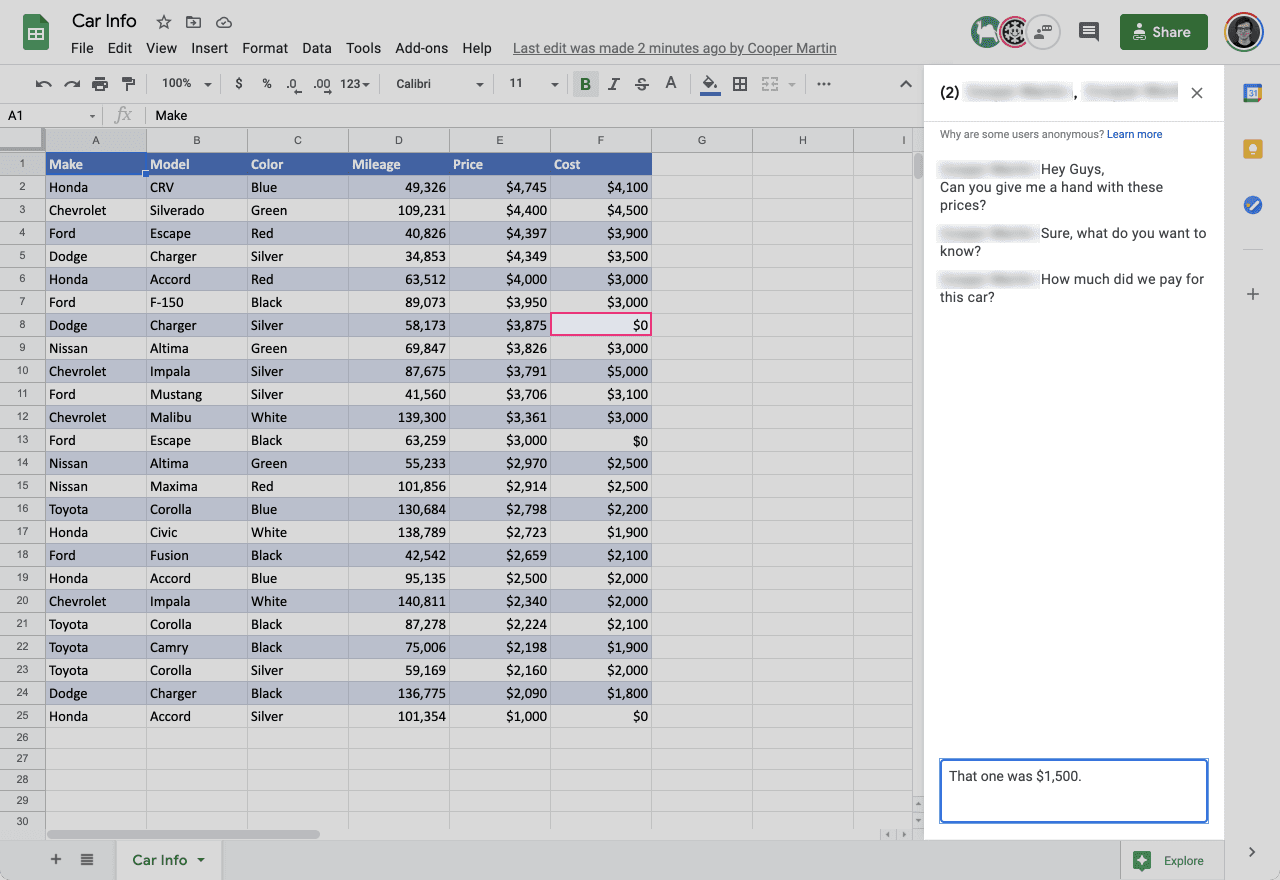
When multiple people work in a document simultaneously, you see everyone’s cursor. As they type, the text appears on your screen as well.
You could, for example, highlight a section of text, then ask a question in the chat, and everyone immediately knows what you’re talking about.
2. Comments
Comments probably are the best way to communicate in the Google Drive apps. Basically, comments are chats you directly attach to a specific selection in your document.
They’re available even when no one else is in the document. Moreover, You can assign comments to other collaborators.
This is an important feature when working together, but perhaps not at the same time as the rest of your team.

3. Suggested edits
Even though this feature isn’t available in Sheets, it is a main tenant of Google Docs collaboration.
Moreover, Google Docs has chat as well, and everything in this blog post applies to chat in that program too.
Do you want to suggest a change to the document, but get the opinion of your teammates first? The suggested edits feature makes this possible. Use it to do revisions on work where you don’t have the final say.
Use suggested edits combined with chat and live cursor to discuss changes with your team before you make them.

Final thoughts
The Google Sheets chat feature is just one of the many collaborative tools in the app. It doesn’t have the bells and whistles that many other chat platforms have however.
Instead, it’s built with simplicity in mind, just enough to keep your team on the same page while working together on a spreadsheet. On top of that, it works well with the other collaborative tools in Google Sheets.
If you’d like to learn more about the various features in Google Sheets, why not take a look at our blog post on How to get Google Sheets notifications.
Editor’s note: This is a revised version of a previous post that has been updated for accuracy and comprehensiveness.



 English
 Español
 Português do Brasil
 Français