


Need a project management template?
Project managers have the challenging task of juggling multiple projects, monitoring budgets, and overseeing large teams of staff — while simultaneously providing reports to top-tier management. Keeping track of numerous activities and deadlines can be a huge headache. If your team is remote, this can be even worse. As a result, there’s a host of online software out there promising to make the project manager’s life easier.
Unfortunately, project management tools often come with a hefty price-tag. Moreover, they can actually add to the workload they claim to reduce. Staff require training, and managers can end up moving information in and out of different apps. At the same time, teams may still rely on classic communication and data management tools to carry out the bulk of their daily work. These usually include email and spreadsheets.
If you’re already using Google Sheets, you’ll be familiar with its powerful sharing functions. Combined with real-time data syncing, this makes it the ideal spreadsheet software for project coordination and team-based tasks. In fact, the cloud is so powerful, you can take collaboration to another level in Google Sheets. With a project management template, you can create an entirely automated system.
Why use Google Sheets for project management?
- Flexible: Every project is unique and Google Sheets enables you to build a tailor-made system. You can adapt it as needs change, without any new software.
- Accessible: You and your coworkers can access all of your project data from any corner of the world. All you need is an internet connection.
- Compatible with everything: Every other piece of software in the world integrates with Google Sheets. As a result, you can easily pull together information from multiple departments.
- Easy to use: There’s no need to onboard your team as they’ll already be familiar with spreadsheets. Consequently, maintenance is easy and there’s no need for IT support.
How to get started
Sheetgo’s spreadsheet-based workflow template is a pre-built system for automated project management. It can be used by teams of all sizes, in any company.

The template allows project managers to allocate tasks to colleagues and receive status updates automatically. Likewise, it gives team members a simple and efficient way to log the progress of their work.
What is a spreadsheet-based workflow template?
A regular spreadsheet template is a single file containing ready-made tables, charts, layouts, and formulas. In contrast, a Sheetgo workflow template offers a complete system. It’s a group of interconnected Google Sheets that exchange data between them. This allows you to share data with colleagues and other departments while working autonomously, in your own individual file.
A spreadsheet-based workflow template gives you:
- Organization and data privacy: Each file is dedicated to one specific task, keeping data flows secure and separated. Every team member has their own personal spreadsheet. Here they can see what tasks need to be done and log their progress. Data flows from these files into the manager’s central spreadsheet and dashboard. The manager can check the status of projects in the automated Gantt chart, without having to communicate with team members.
- Scalability: Google Sheets has a powerful sharing function but multiple people working in the same file can cause it to become overloaded with data and slow to process. Keeping data in separate but connected spreadsheets ensures that the system will operate smoothly. When you need to add a new team member, simply duplicate one of the collaborator spreadsheets and share it with them.
- Integration: As well as enabling you to easily import and incorporate data from other software, a spreadsheet-based workflow allows managers to link and combine data from across the entire company. In a few clicks, you can connect your project management workflow with your finance workflow (or those from other departments) to generate a top-level report for directors.

What you get with this template:
When you install the Sheetgo project management template, four Google Sheets files with pre-built connections are saved to your My Drive:
- Three collaborator spreadsheets. Share these with your team members and make as many copies as you need for further colleagues. Each team member uses this personal spreadsheet to view which tasks they have been assigned and to update their progress.
- One project management master sheet for the person leading the project. When the manager enters a task for a colleague, Sheetgo connections send that information directly to that person’s spreadsheet. When that colleague updates their status, data flows back into this master sheet. The manager gets an automated overview of all tasks and collaborators in the automated Gantt chart dashboard.

How to get the workflow template:
To install it, open the project management workflow template and then:
1. Log in to Sheetgo with your Google account. As this template is based in Google Sheets, the files will be saved to your Google Drive.
2. Click Use template.
3. Wait a few moments while Sheetgo installs the template and creates the connections.
To open any of the spreadsheets, click on Workflow or Files in the sidebar and double click on the file.
Take a look at each of the files to familiarize yourself with the format of the template. You will see that each file contains sample data, which you can simply delete or overwrite.

How to use the project management workflow template
Step 1: Fill out the settings
Open the Project Management master sheet and go to the Instructions tab.
Fill out the Settings in the boxes on the right-hand side. Here you need to enter the start date for your project, the Gantt view format, and the day that your week starts.

Step 2: Enter project tasks
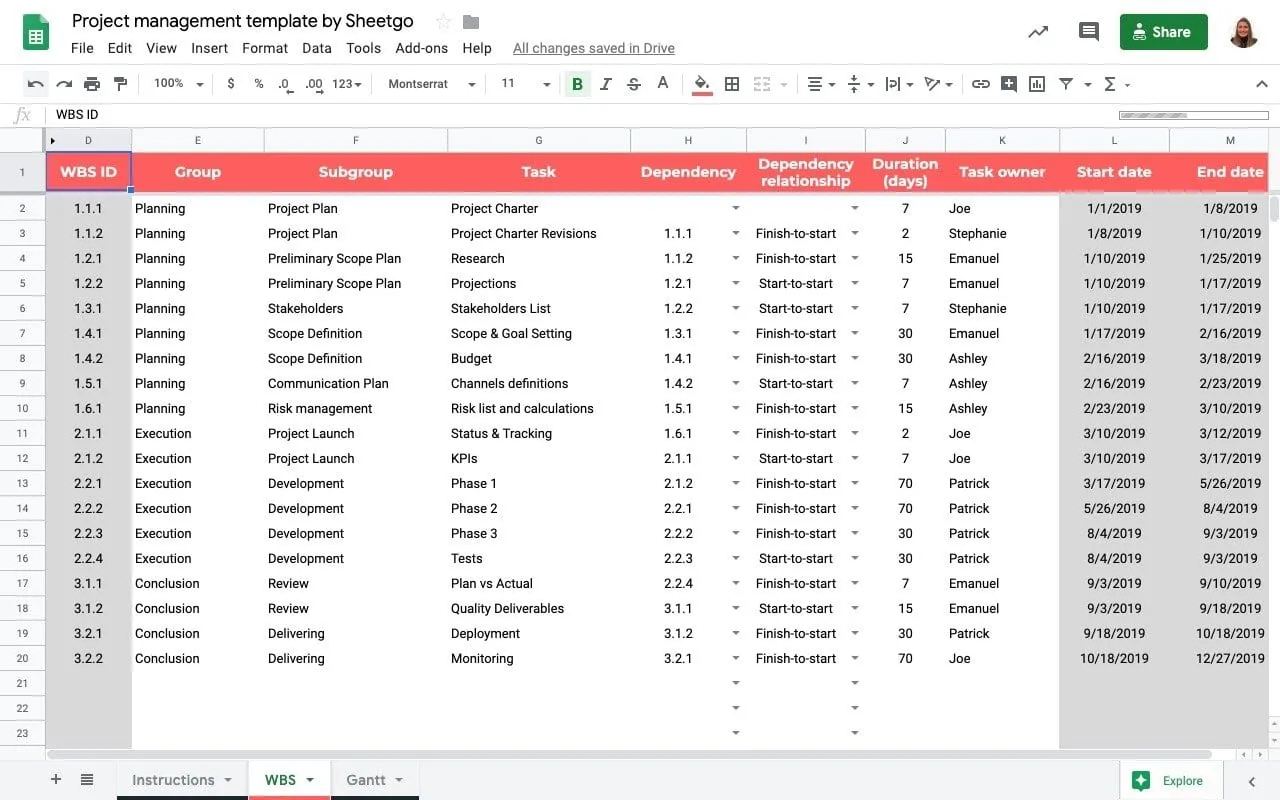
In the WBS tab of the Project Management master sheet, overwrite the sample data in columns E to G. Enter your projects, sub-projects, and tasks.
Note that the template automatically generates a WBS ID code for each task in Column D. Gray columns in the template contain pre-written formulas and should not be edited.

What’s WBS?
WBS stands for Work Breakdown Structure. It’s a method for organizing a project in manageable, deliverable sections. The hierarchical, tree-like structure helps you break one big, overarching project down into smaller, achievable tasks.
In the WBS tab of the template, you can organize your project by Group > Subgroup > Task Title.
For example, the Group might be “Planning”. The Subgroup might be “Stakeholders”. And the Task Title might be “Making a list of stakeholders”.
Step 3: Enter task dependencies
In Columns H and I, enter a dependency for each task. This means whether a task must be carried out once another task has been started (Start-to-start) or when another task has been completed (Finish-to-start).
For example, let’s say task 1.4.2 Planning > Scope Definition > Budget can only be carried out once task 1.2.2 Planning > Preliminary Scope Plan > Projections has been completed.
Use the dropdown menu in Column H (Dependency) to select 1.2.2 and in Column I (Dependency relationship) select Finish-to-start.

Step 4: Select task duration and owner
In Column J, allocate a timeframe for the task and select the team member responsible in Column K.
Note that the start date and end date in Columns L and M are calculated automatically by formulas in the template. Don’t try to edit these gray cells.
Step 5: Rename the team member spreadsheets
The template contains 3 spreadsheets for team members: Emanuel, Stephanie, and Joe. Rename these files for your colleagues.
Locate the folder in your Google Drive: Sheetgo Templates > Project management.
Right-click on the file and then rename.
Step 6: Transfer the data
This workflow template contains pre-built Sheetgo connections that will transfer data from the Project Management master sheet to the collaborator spreadsheets and back in the opposite direction.
Now that you’ve entered your project data, you need to “run” or update the workflow to transfer the tasks to your colleagues’ spreadsheets. The name in the “Owner” column will determine which spreadsheet the task is sent to, so make sure that’s correct!
Open the Workflow menu and click Run located in the left bottom corner of the screen.
This transfers all data through connections in the workflow.

Step 7: Share with colleagues
Click the green Share button to share the spreadsheet with your colleague.

Step 8: Team members enter their progress
Now that you have transferred the data, the project tasks allocated to each colleague will appear in their personal spreadsheet.
This data appears in the gray Columns A to F. These should not be edited.
In Column G “Status”, they can simply enter the progress of each task.

Check out your dashboard
Sheetgo has now transferred the data between the connected spreadsheets.
Take a look at your Project Management master sheet. In the Gantt tab, you can see the status of every project task.

Step 9: Automate the workflow
Once you have set up the system and your team members have started entering inputs into their spreadsheets, you can automate the workflow.
This will ensure that data flows back and forth between the spreadsheets automatically. As a result, you will always have the latest data in the Gantt chart. You don’t need to do anything manually or even open a spreadsheet.
Click Workflow and afterwards click on Automate located in the left bottom corner of the screen.
Select how frequently you want automatic transfers: from once an hour to once a month.

Optional: add additional collaborators
Your automated project management system is now up and running.
Once you are familiar with the template, you can expand the system by adding more collaborator spreadsheets. Do this by copying one of the collaborator spreadsheets and connecting it with Sheetgo connections.
As well as expanding the project management workflow, you can also connect to other data workflows. For example, you may want to incorporate staff expenses tracking or connect to budgeting and other finance workflows.
Share with your manager
If you’re part of a team but not responsible for overseeing the entire project, share this spreadsheet-based workflow template with your administrator so they can set up the system. Click here to share this template with your manager.
What should be included in a project management template?
The specific contents of a project management template will vary depending on the type of project and the particular needs of those involved. However, some common elements should be included in most templates.
Some of the most important elements that should be included in a project management template include:
- A clear and concise description of the project
- The goals and objectives of the project
- A timeline for the completion of the project
- A list of all tasks and subtasks to be completed
- A list of all resources needed for the project
- Assignments for each task or subtask
- Due dates for each task or subtask
- A method for tracking progress on the project
- A method for communicating changes or updates to the project plan
- A method for resolving conflicts or problems that arise during the project
A project management template can be a valuable tool for anyone involved in a project. By including all of the necessary elements, a template can help to ensure that a project is well-planned and organized from the start.
If you’d rather build the timeline yourself, here is how to create a Gantt chart in Google Sheets. Working in Excel instead? Try our project management template in Excel. For advice on running the project itself, see these practical strategies for effective project management.



 English
 Español
 Português do Brasil
 Français