


Google Sheets keeps a history of the changes people make to a spreadsheet, and you can read it in two ways. Edit history tells you who changed a cell, when, and what the change was. Version history keeps earlier versions of the whole file.
This guide shows you how to see edit history in Google Sheets, for the whole file or for a single cell, and what to check when Show edit history doesn’t appear. To restore, name, copy, or delete an earlier version of the file, see our guide to Google Sheets version history.
What Google Sheets history shows you
Google Sheets saves each edit with the name of the person who made it and the time. That record is most useful when several people collaborate on the same spreadsheet. You can go back to a specific data input you want to check, and if your data updates automatically, you can pick a date and see what changed on it.
Let’s take a look at an example of how the edit history feature can be used. Here’s a snapshot of a file that a sales manager uses to store sales information all the way from Jan 2015 till the current month. This data is updated every month. In order to look at data updates from a specific month, we can use the edit history feature.
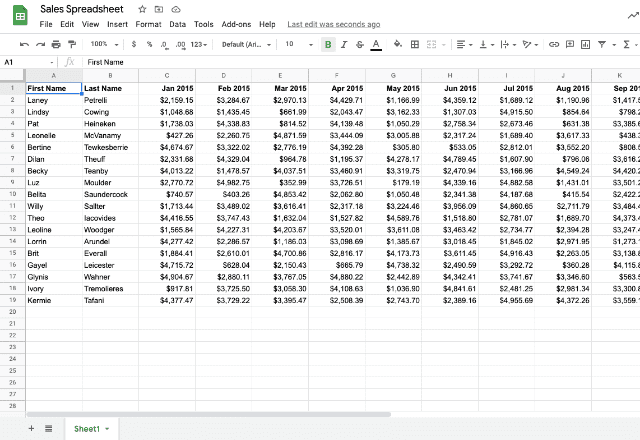
How to see who made changes in Google Sheets
There are three ways to open the edit history of a file: the menu option, the keyboard combination, and the Last edit icon.
1. Using the menu option
You can view a history of your changes to a Google Sheets file using the menu option. To do this, simply navigate to File > Version History > See version history
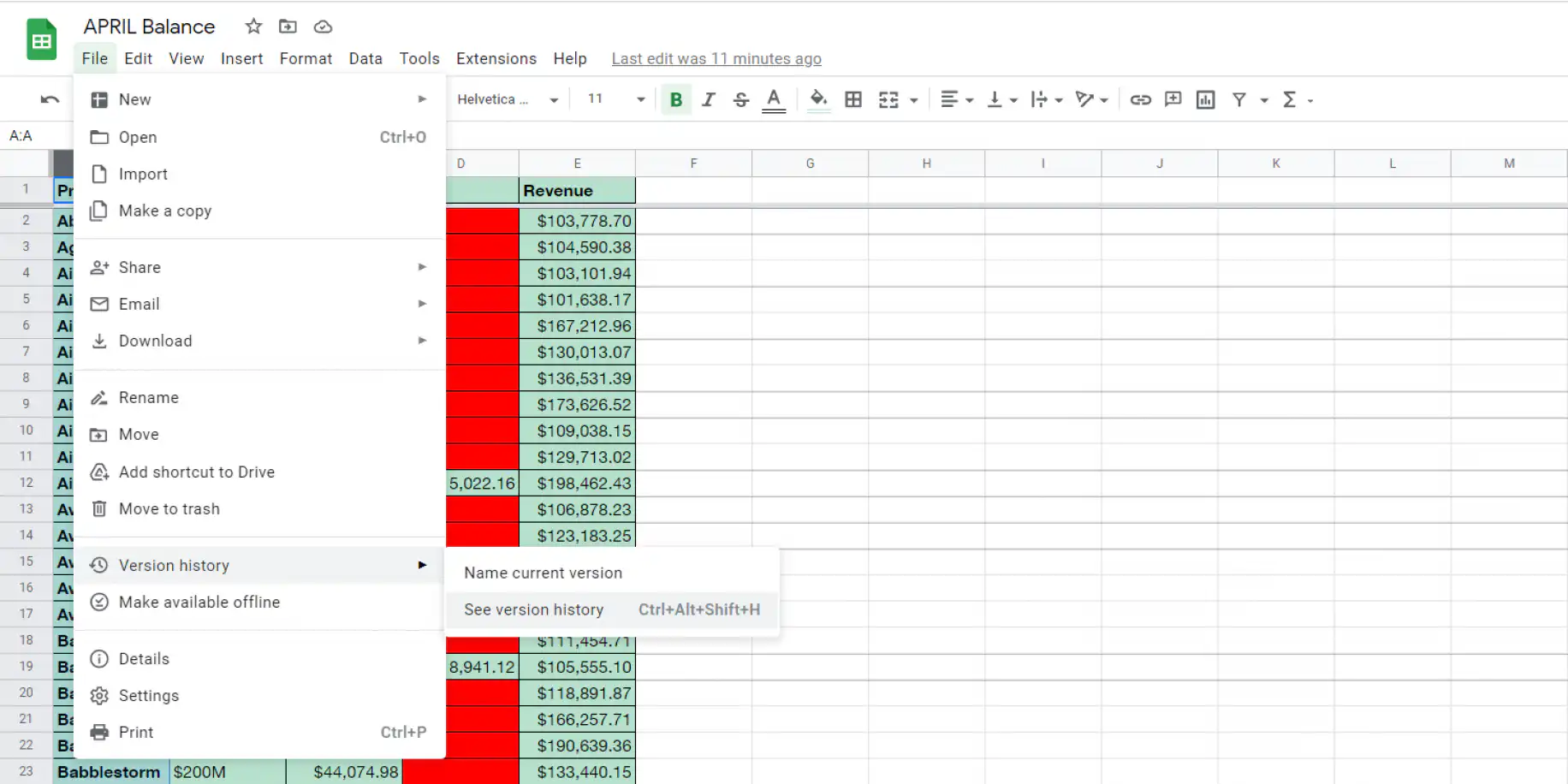
2. Using the keyboard combination
As an alternative (and perhaps the quicker option) to access the edit history of your Google Sheets file, you can use the following keyboard combination:
Ctrl + Alt + Shift + H or, for Mac, Cmd + Option + Shift + H
This will take you straight to the sidebar where you can access past versions the same as above.
3. Using the Last edit icon
At the top right of the spreadsheet, click Last edit to open the version history. If you only want to know who changed the file last and when, hover over the icon instead. A blue dot on it means someone has edited the file since you last opened it.
See who changed what in each version
From here, a sidebar should appear on the right side of your screen listing all of the available versions of your file. Each version is clearly labeled with the date, time, and editor of the changes from when it was last saved.
Google Sheets groups edits made close together into one version. To see them one at a time:
1. To view specific edits within a version, click on the dropdown arrow next to the version name.
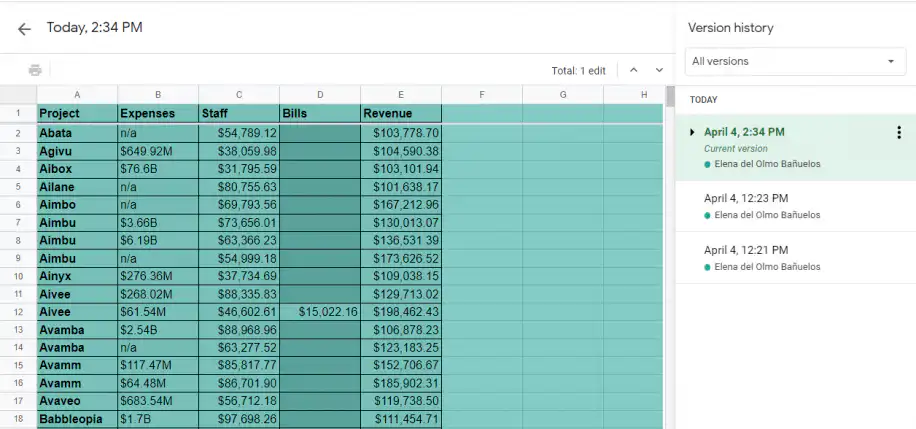
2. Browse through the edits and click on the one you would like to view. As soon as you click on the version, Google Sheets will show that specific edit.
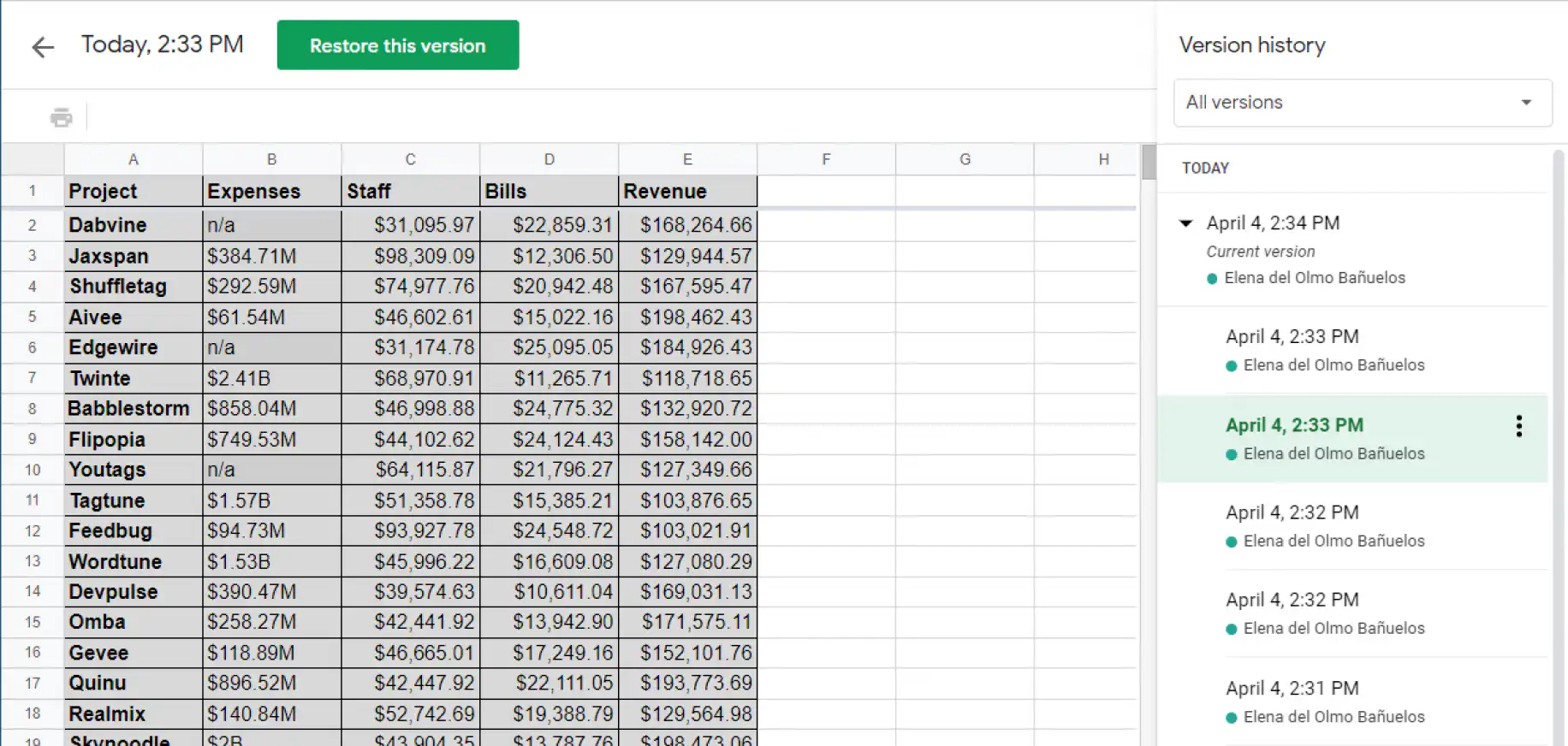
Google Sheets highlights the cells that changed. It also hides rows nobody changed, so the edits are easier to spot. To see every row, click Show unmodified rows at the bottom right.
To go back to one of these versions, select it and click Restore this version. Restoring clears the cell-by-cell edit history for every change made before the restore, so check any cell history you need first.
How to see who edited a cell in Google Sheets
The version history panel covers the whole file. To check one cell, use Show edit history. It lists the edits made to that cell, with who made each one and when.
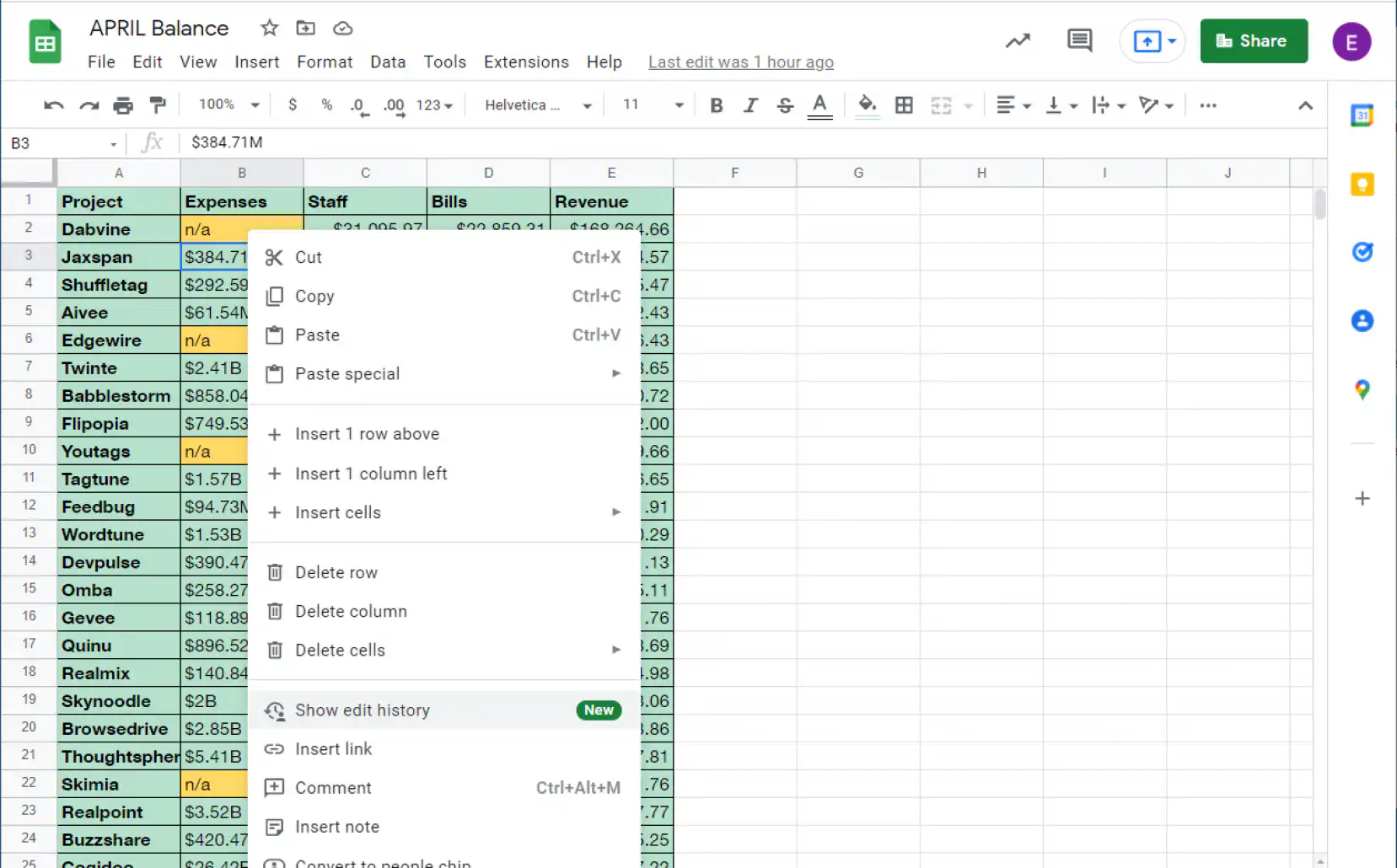
1. Right-click on a cell you would like to see the edit history on and select “Show edit history” from the dropdown menu.
2. Select the right and left arrows to move back and forth between edits made to the cell. Note how the “Edit history” box provides information on the user, the date, the time, and the type of edit that was made.
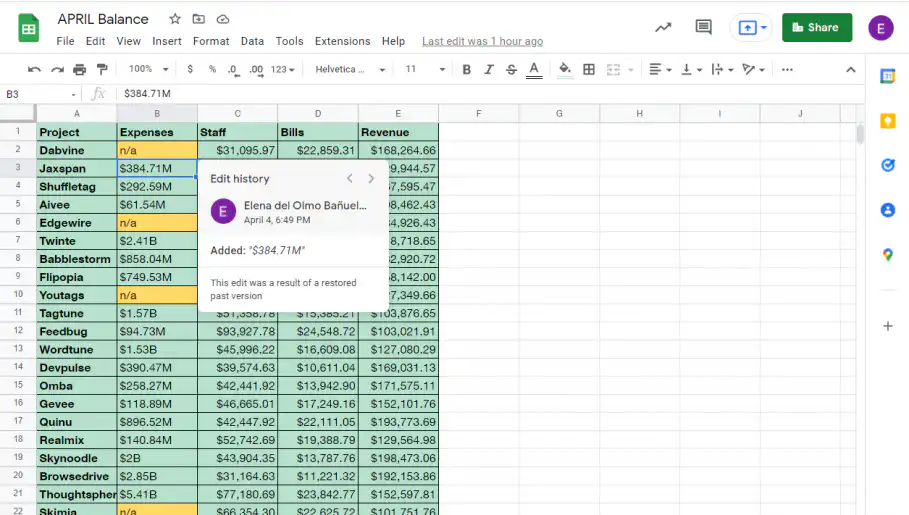
Viewing the edit history of a specific cell gives you more context on your data and helps you decide whether you need to make any changes.
Why Show edit history is not showing
If Show edit history is missing, or the history you see looks incomplete, one of these is usually the reason:
- You only have view or comment access. Google’s help says you need permission to edit a file to see its version history, so ask the owner to make you an editor. If you’re not sure which access you have, here’s how Google Sheets permission levels work.
- The change isn’t one that Google Sheets records for a cell. Added or deleted rows and columns, format changes, and values that change because of a formula don’t appear in a cell’s edit history.
- Someone restored an earlier version. A restore clears the cell-by-cell edit history for every change made before it.
- You’re in the Google Sheets app on your phone. Google’s help for Android and iPhone says to open the file on a computer to see its version history.
If you own the file, you decide who can see its history:
1. Open your Google Sheets file and click on the “Share” button in the top-right corner.
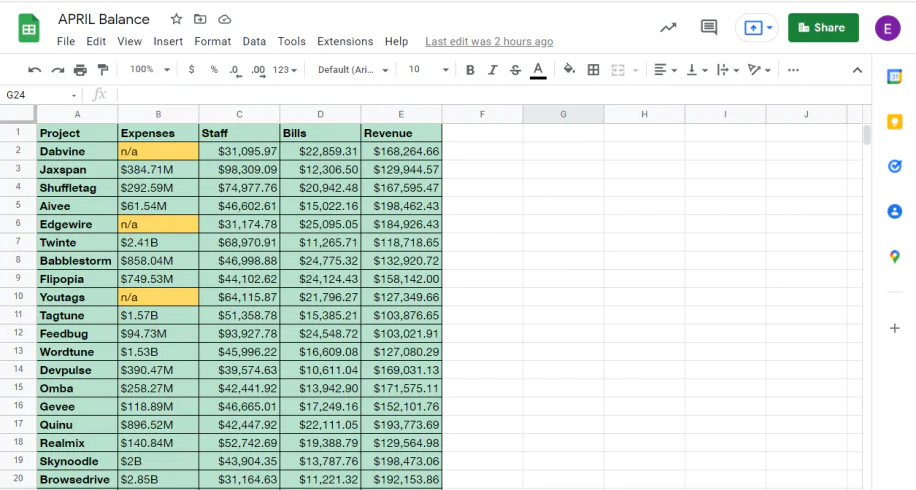
2. Next to the person’s name, choose “Editor” so they can see the file’s history. Choose “Viewer” or “Commenter” to keep them out of it, or select “Remove” to take away their access to the spreadsheet altogether.
Conclusion
And there you have it! The edit history feature on Google Sheets is a fantastic tool that allows you to track, identify and manage all of the past versions of your spreadsheet files. This is particularly beneficial to those dealing with spreadsheets that require automatic updates of data frequently.
Edit history is the place to find out who changed something. If you’d rather keep a dated record of your values to chart or compare later, learn how to track changes in Google Sheets, and record your values historically with Sheetgo, an AI-powered data automation platform. Its Append feature adds a new copy of your data to a history sheet on the schedule you set. To hear about edits as they happen, get notified when someone edits your Google Sheets file.

 English
  Español
  Português do Brasil
  Français