
Get help

Help center

Guides and answers

Contact support

Write to our team

Sign in to

Workflows

Build processes with your team

Automations

Connect files and automate tasks

One system, four parts

AI agents

Virtual Employees that work 24/7

Automations

Connect files and automate tasks

Workflows

Build processes with your team

Data Space

Trusted data sharing and control

Solutions by department

Finance

Reports, budgets, and reconciliations

Inventory and manufacturing

Stock, orders, and production in one view

HR

Timesheets, attendance, and reviews

Project management

Status and workload across projects

Sales and CRM

Leads and deals kept up to date

Education

Student records and school data

Finance

Turn manual finance work into reports that update themselves.

What Finance teams automate

  • Track payables and receivables
  • Build cash flow statements
  • Compare budget against actuals

Inventory and manufacturing

See stock levels and automate ordering.

What inventory and manufacturing teams automate

  • Track inventory across multiple sites
  • Connect sales, purchasing, and warehouse data
  • Link a barcode scanner to your sheet

HR

Run recruitment, attendance, and OKR tracking from your sheets.

What HR teams automate

  • Track recruitment and onboarding
  • Record team OKRs and results
  • Track check-ins, check-outs, and leave

Project management

Assign tasks and track hours without manual updates.

What project teams automate

  • Assign tasks and track status changes
  • Estimate effort and log hours worked
  • Track milestones across projects

Sales and CRM

Track leads and sales performance with automated reports.

What sales teams automate

  • Track and convert leads
  • Set sales goals and track team metrics
  • Monitor sales KPIs on dashboards

Education

Automate attendance, grades, and school purchasing.

What schools automate

  • Track attendance and notify parents
  • Record and compare class grades
  • Track inventory lent to students and staff

Find a use case

By department

How each team uses Sheetgo

By industry

How each industry uses Sheetgo

By company size

Small, medium-sized, or large

Learn

Blog

Guides and product news

Customer stories

How teams like yours use Sheetgo

Help center

Guides and answers

Why Sheetgo

Compare

How Sheetgo compares with other tools

Security

How we protect your data

Trust center

Our compliance details

Sign in to

Workflows

Build processes with your team

Automations

Connect files and automate tasks

One system, four parts

AI agents

Virtual Employees that work 24/7

Automations

Connect files and automate tasks

Workflows

Build processes with your team

Data Space

Trusted data sharing and control

Solutions by department

Finance

Reports, budgets, and reconciliations

Inventory and manufacturing

Stock, orders, and production in one view

HR

Timesheets, attendance, and reviews

Project management

Status and workload across projects

Sales and CRM

Leads and deals kept up to date

Education

Student records and school data

Find a use case

By department

How each team uses Sheetgo

By industry

How each industry uses Sheetgo

By company size

Small, medium-sized, or large

Get started

Templates

Ready-made workflows to start from

Learn

Blog

Guides and product news

Customer stories

How teams like yours use Sheetgo

Help center

Guides and answers

Why Sheetgo

Compare

How Sheetgo compares with other tools

Security

How we protect your data

Trust center

Our compliance details

Help center

Guides and answers

Contact support

Write to our team

Workflows

Build processes with your team

Automations

Connect files and automate tasks

6 Excel hacks and tricks anyone should know

Excel is a wonderfully diverse and complex program, with new features added constantly. What’s more, there are some fantastic shortcuts and tools we can use that help us save time when managing data and make the most of this intelligent tool.

In this guide, you will learn 6 Excel hacks and tricks that can save you valuable time and help you avoid mistakes. No matter how advanced you are as an Excel user, there’s a good chance that you’ve missed a few of these.

Excel hack #1 – Excel tables

Excel tables are extremely useful, as they allow you to easily use many built-in features. However, the data you receive does not always arrive in this format. What if there was a way to quickly format and navigate your data?

Below, you will find two shortcuts: the first formats your data as an official Excel table, and the second helps you navigate to the corners of that table.

1. Select any cell in your data range and click Ctrl + T (Mac and Windows). Remember to check/uncheck “My table has headers” as needed.
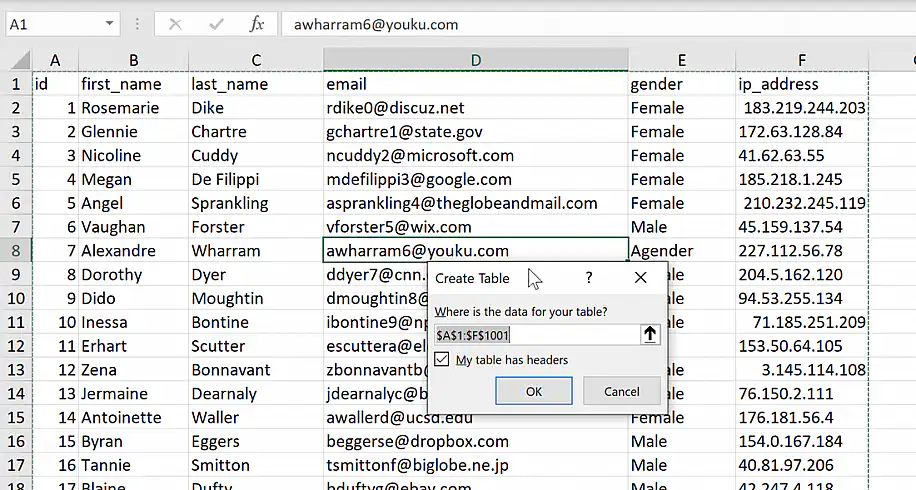
Excel hacks and tricks — Create Table dialog with My table has headers checked

2. Press Ctrl + ‘.’ to quickly navigate to the corners of your table, clockwise from the top left. This will also allow you to quickly estimate the size of a table you’re not familiar with.
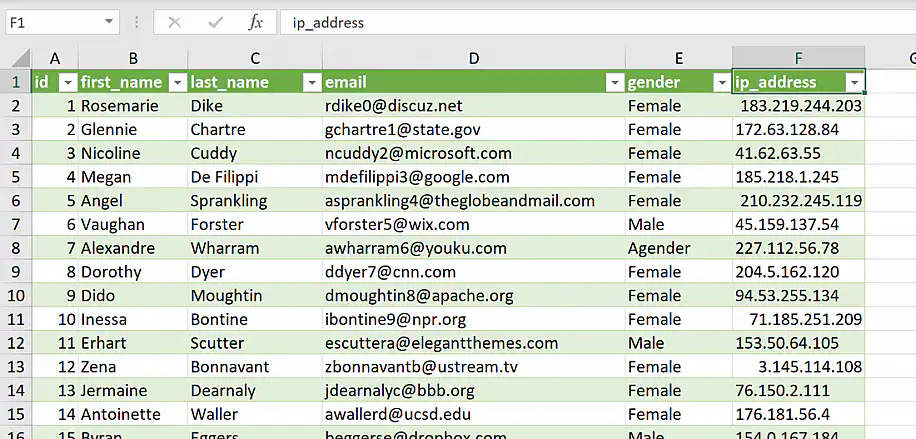
Excel hacks and tricks — formatted table with the top-right header cell selected

Excel hack #2 – adjust cell size

When working on a spreadsheet, you often need to adjust all the cells to the same size. With this trick, you can do it in seconds.

1. Click on the dark grey triangle in the top-left corner of your spreadsheet to select all cells.
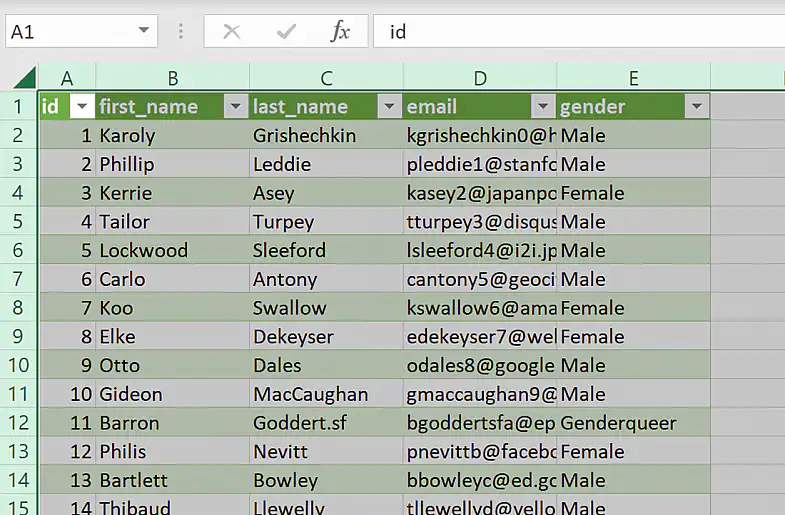
Excel hack — whole sheet selected from the top-left corner

2. With all cells selected, click on the separator between any two columns to adjust its size. As shown below, there is a guide to help you get the right size.
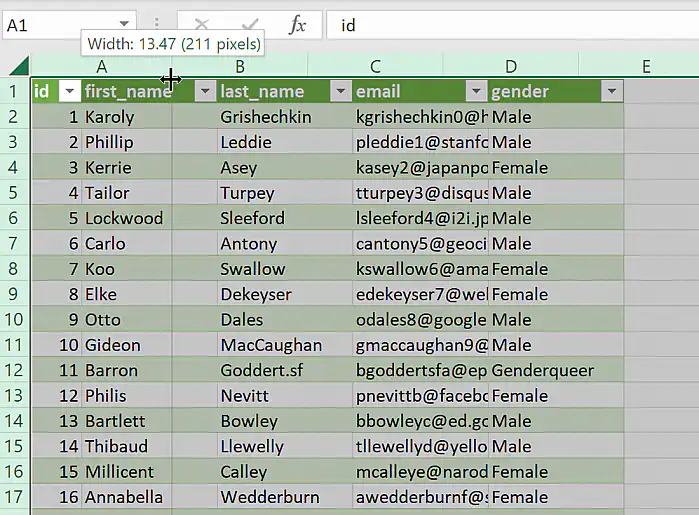
Excel hack — dragging a column separator with a Width 13.47 tooltip

3. Once you’re happy with the width of the column, let go of the separator and you’ll see the rest of the columns snap to the same size. Repeat this process for the rows if necessary.
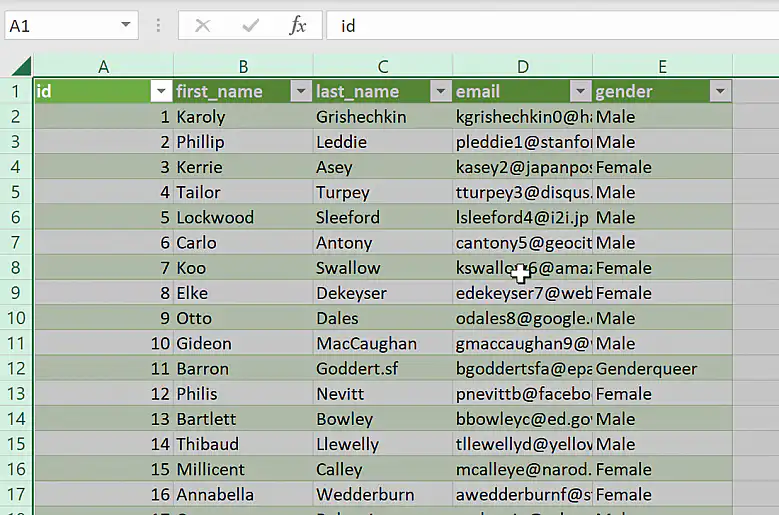
Excel hack — all columns resized to the same width

Excel hack #3 – fill consecutive numbers

At some point, you may find that you need to type in a long list of consecutive numbers into your spreadsheet. While dragging the list down may work in some cases, it’s not very practical for a long series. Using the “Fill” button, you can quickly and easily create both simple and complex series.

1. Type the first item of your series in A1, then click on the “Fill” button on the “Home” tab and select “Series”.
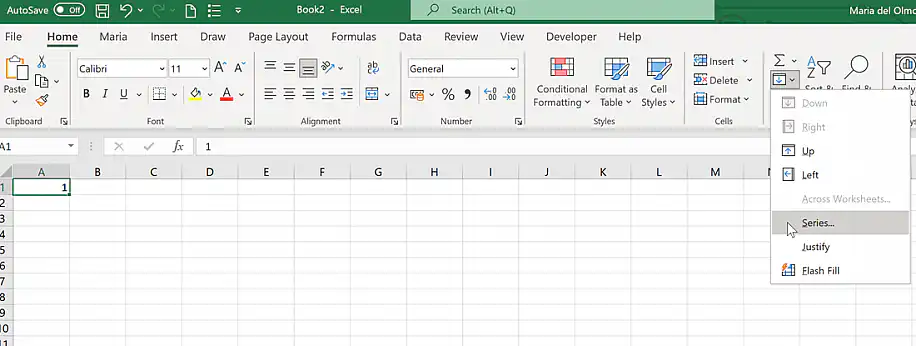
Excel tricks — Fill menu on the Home tab with Series highlighted

2. If you want to fill the series down the column, make sure you choose “Columns” as below. You will get the numbers from 1 to 10000 in intervals of 1. Click “OK” to continue.
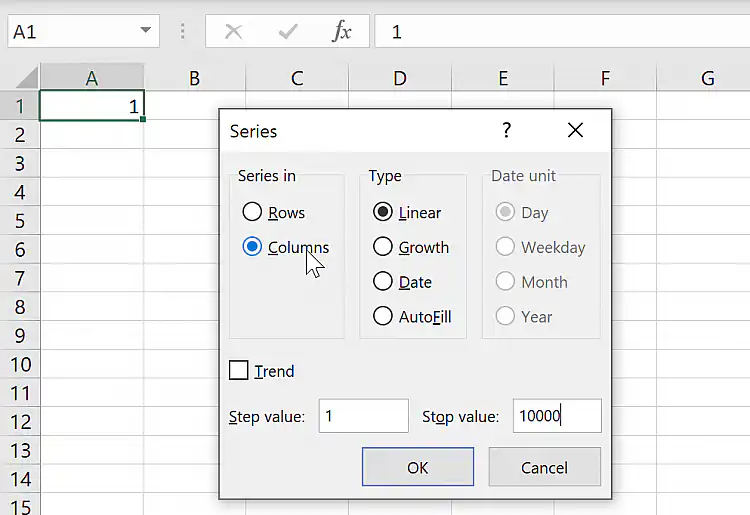
Excel tricks — Series dialog set to Columns, Linear, stop value 10000

3. As you can see above, there are multiple options to create more complex or non-linear series. You can find out more about these settings on the Microsoft support page.

Excel hack #4 – percentage and currency shortcut

If you frequently need to format numbers as percentages or currencies, this shortcut will save you valuable time.

1. Select the range of numbers you wish to format as percentages.
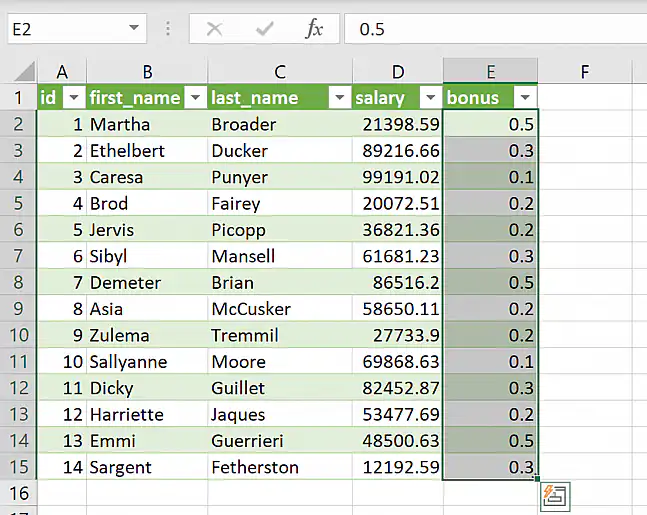
Excel shortcut — bonus column with decimal values selected

2. Press Ctrl + Shift + % (Ctrl + Shift + 5) to instantly format them as percentages. The same shortcut will work in both Mac and Windows.
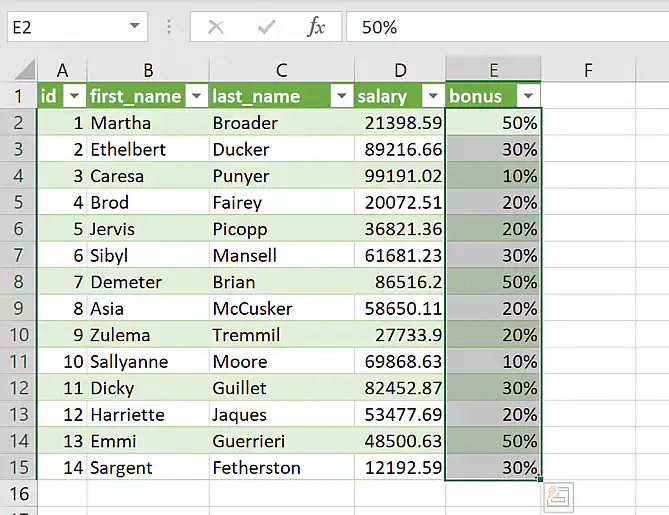
Excel shortcut — bonus column formatted as percentages

3. If you use Ctrl + Shift + 4 (Ctrl + Shift + $), you can instantly format your numbers as the default currency for your workbook.
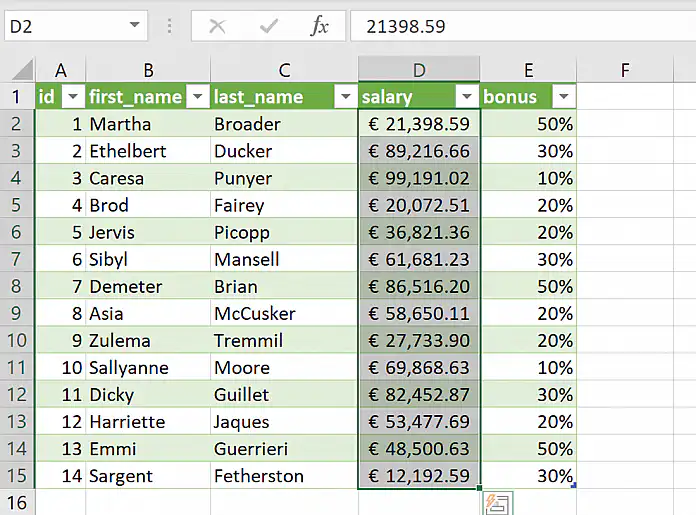
Excel shortcut — salary column formatted as euro currency

Excel hack #5 – switch between multiple sheets

When using a workbook with multiple sheets, you may find yourself constantly switching from one sheet to another. This can become very tedious and can lead to mistakes. Instead, open a new window in the same workbook to work on both sheets at the same time.

1. Go to “View” and click on “New Window”.
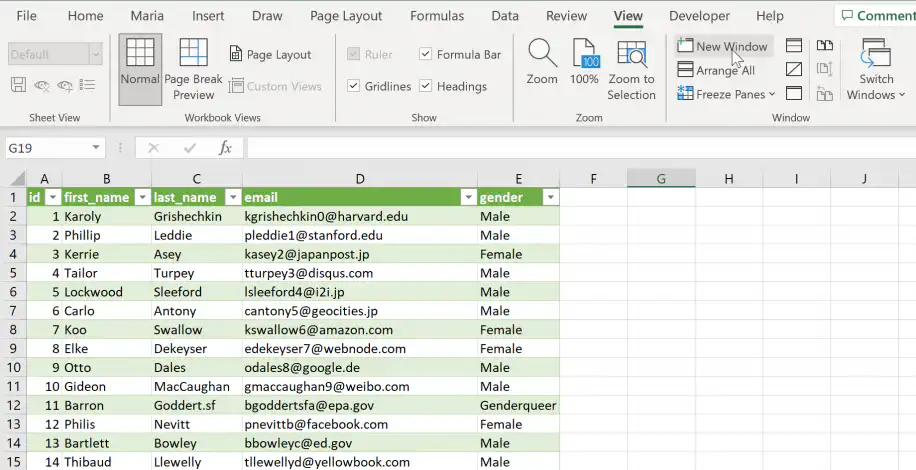
Excel tricks — New Window button on the View tab

2. This will open another copy of the workbook. As you can see, Excel adds a number after the workbook name, indicating which copy it is.
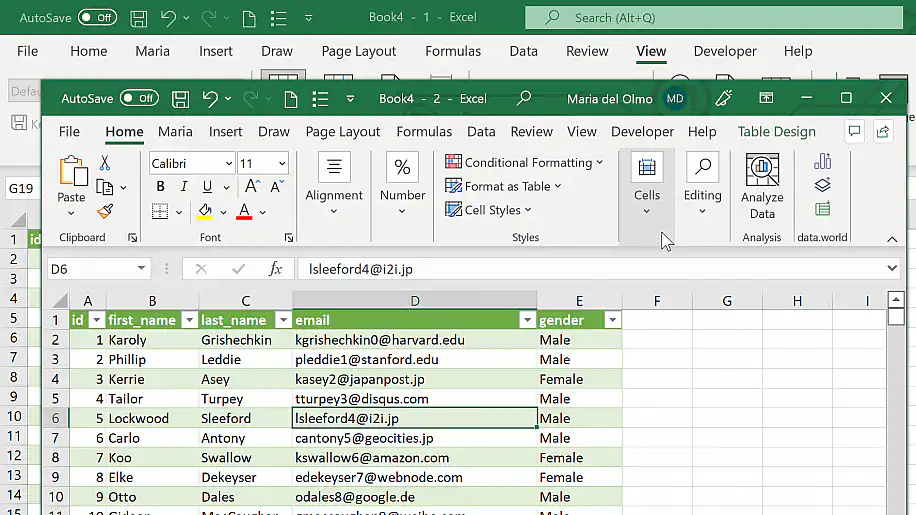
Excel tricks — second window of the workbook titled Book4 - 2

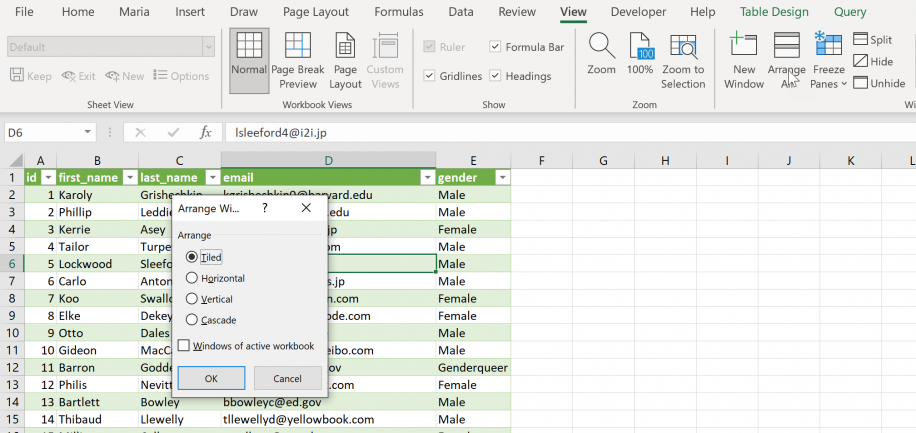
3. Click on “Arrange All” to choose how you wish to arrange the windows. Choose “Vertical” to view them side by side.
Excel tricks — Arrange Windows dialog with Tiled, Horizontal and Vertical

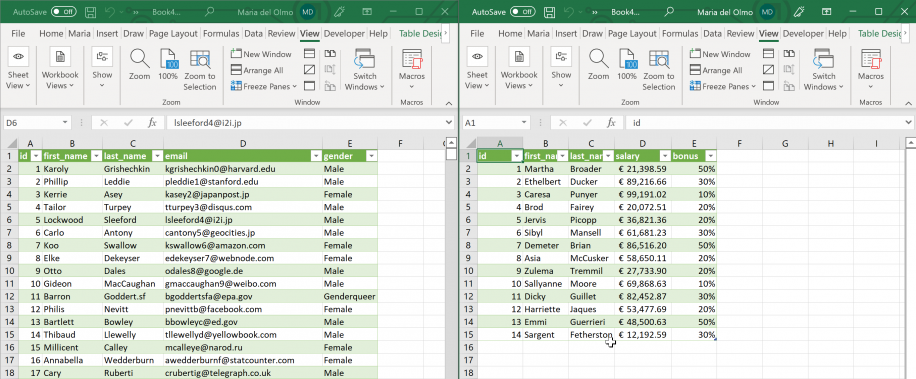
4. You can now work on different sheets simultaneously. To pull values from one sheet into another instead, see how to reference another sheet in Excel.
Excel tricks — two windows of one workbook side by side

Excel hack #6 – data validation

Manual data entry is still as necessary as it is error-prone. It’s disappointing enough when you notice the mistake and have to redo work, but the real problem is that you may not notice in time. Excel’s “Data Validation” allows you to define exactly what can be typed into a cell, as well as customize the error message to help users input the correct data.

For example, you may want to add a column with the type of employee, for which there are two options: full-time or part-time.

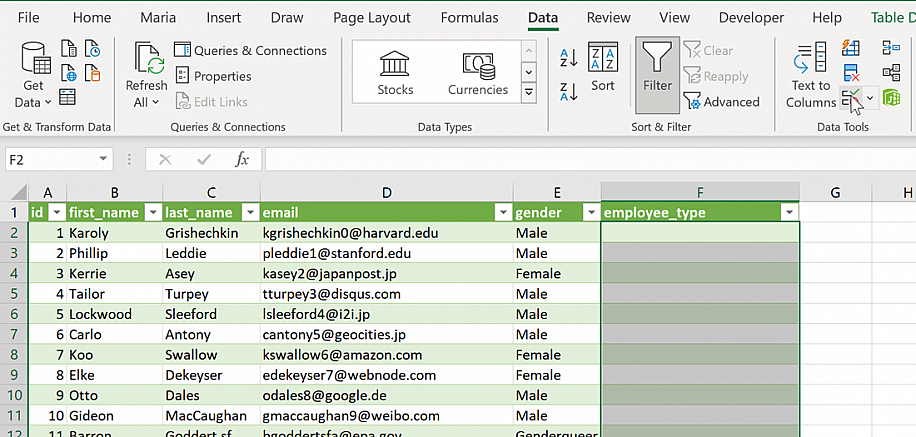
1. Select the cells you want to restrict and click on “Data Validation” from the “Data” tab.
Excel data validation — Data tab with the employee_type column selected

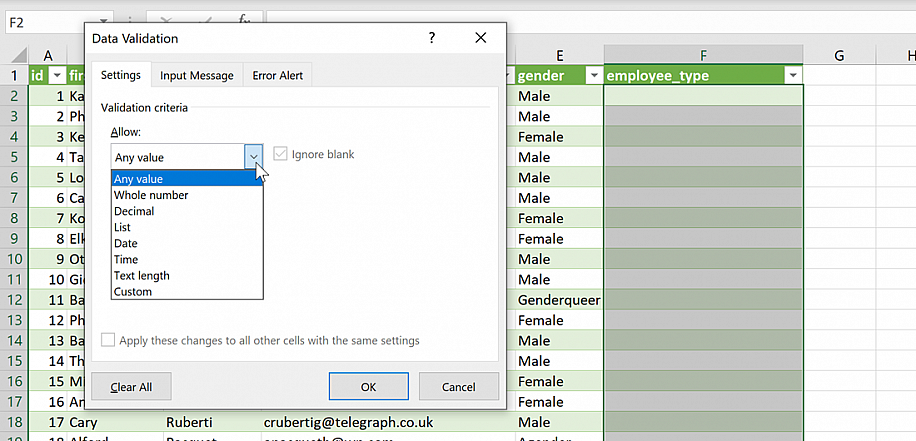
2. In the “Settings” tab, you can choose from a variety of validation criteria, to ensure that only the right type of data can be used.
Excel data validation — Allow list with Any value, Whole number and List

3. Using the “List” option, you can restrict data input to whichever list you choose.
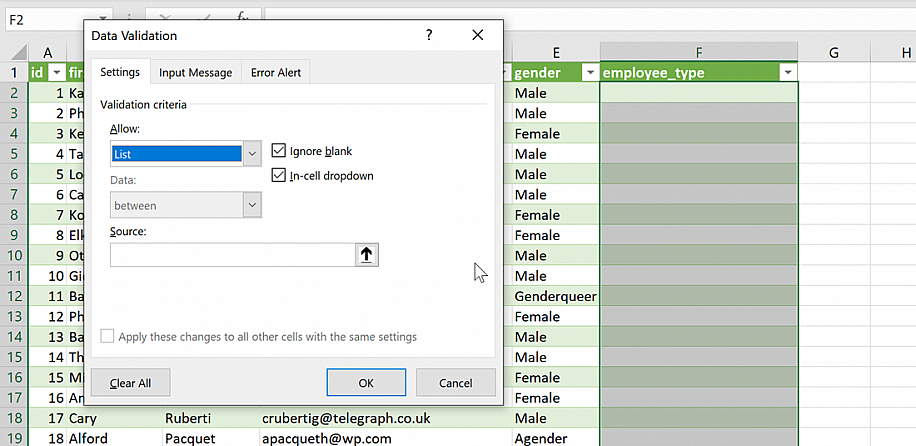
Excel data validation — List selected with In-cell dropdown checked
  1. 4. Select your list using “Source” from wherever it is located.
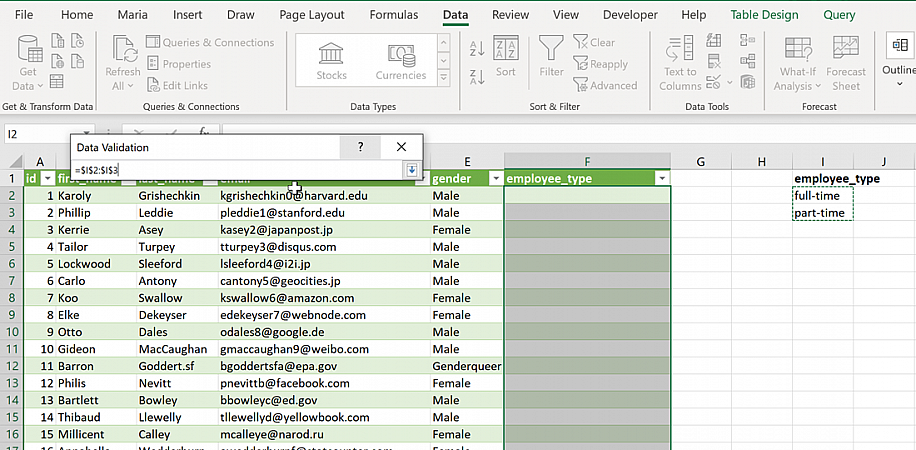
Excel data validation — selecting the full-time and part-time source

5. Once you have selected the list, click “OK”. You can skip the “Input Message” and “Error Alert” to use the defaults.
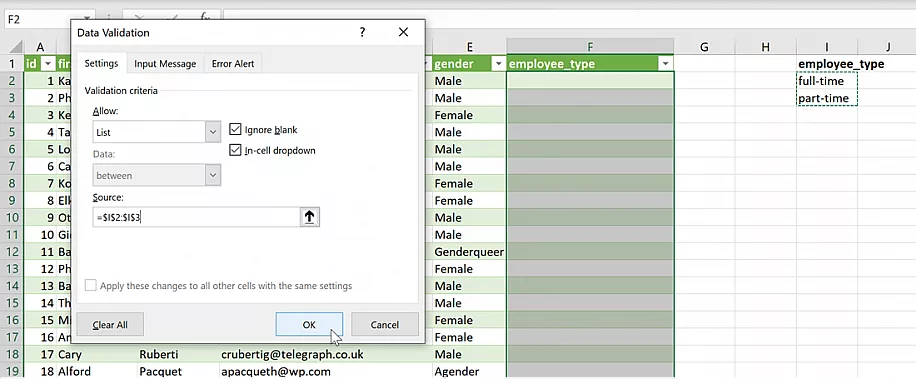
Excel data validation — source range I2:I3 set before clicking OK

6. Now it’s only possible to type in or select the values from your list. There’s no need to worry about misspelled words, inconsistent use of caps, or even imaginary options.
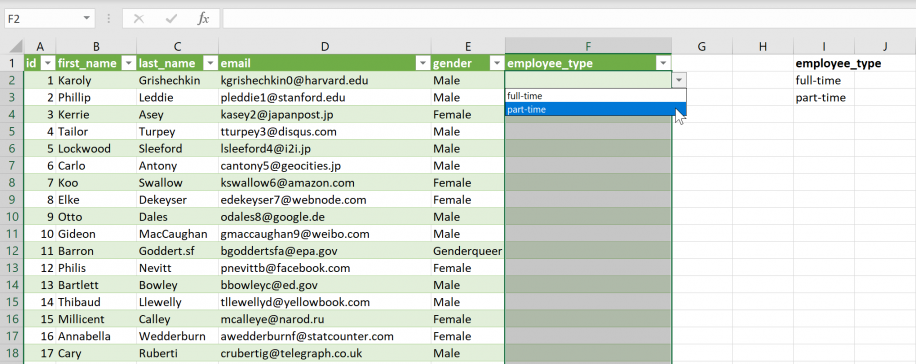
Excel data validation — in-cell dropdown with full-time and part-time

Conclusion

Although the most recent version of Excel integrates powerful tools that can help you complete any task, there are many hacks and tricks that can speed up your work, especially for manual tasks that can’t be avoided.

By now, you should know 6 new, easy hacks that you can use to speed up everyday tasks on Excel spreadsheets, such as data entry, formatting, and visualization.

For more time-savers, keep our cheat sheet of 100+ functions and formulas close, and read our guide to Excel automation for the tasks you repeat every week. When the same data has to move between several Excel files, Sheetgo’s AI-powered Automations can connect them and keep them up to date on a schedule.


You may also like…

How to lock cells in Excel — Excel logo next to a green padlock on a mint background

How to lock cells in Excel? (cells, sheets & formulas)

Learn how to lock cells in Excel to stop accidental edits, plus how to protect a sheet and lock formulas, with steps for Windows and Mac.

Excel version control — stacked XLS file icon in teal on a dark navy background

The beginner’s guide to Excel version control

Discover what Excel version control is, the version control features Excel has to offer, and how to use them to share, merge, and review Excel changes.

How to remove password protection from Excel — Excel icon next to a padlock with a masked password on a light blue background

How to remove a password from Excel (multiple methods)

Learn how to remove password protection from Excel: unlock a file or a sheet when you know the password, and what to try if you’ve forgotten it.