




If you work with sensitive or confidential information you probably found our article on How to password protect an Excel file useful. However, what if you wanted to remove this restriction and give users their access back? Here we will illustrate the several ways in which you can remove the password from the Excel file and a single sheet, based on the two most typical scenarios: knowing/remembering and not knowing/forgetting your password.
If you work with online spreadsheets, then you may want to read how to password-protect a Google Sheet as the procedure is different. On the other hand, Microsoft 365 plans also include Microsoft OneDrive, the online counterpart to Google Drive, which has its own Personal Vault feature.
Now, let’s explore the different ways you can remove your password protection from Excel in order to grant editing privileges.
How to remove a password from Excel?
In this section, we will cover the four different scenarios on how to remove a password from Excel: knowing the password of the Excel file, not knowing the password of the Excel file, knowing the password of the Excel sheet, and not knowing the password of the Excel sheet.
The screenshots below were taken in Excel for Mac, and the same steps work in Excel for Windows (Excel 2016 and later, including Microsoft 365). If you are working with older versions of Excel, we recommend visiting Microsoft support.
How to remove password protection from an Excel file?
The following steps are applicable to removing a password to open and modify an Excel file if you remember the password:
1. Open the Excel file and enter the password set to open.
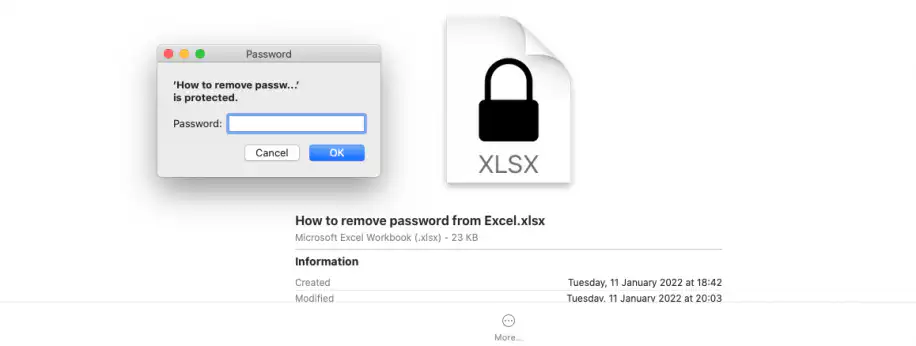
2. Next, enter the password set to modify:
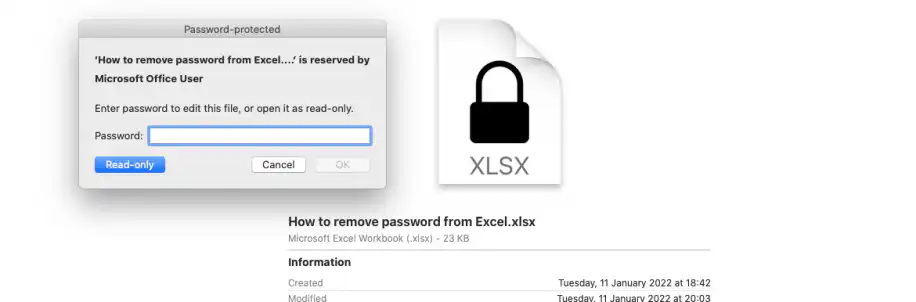
Once you have accessed the file, there are two ways in which you can remove it. The first will be explained through Step 3-6; the second through Step 7-9:
3. Go to the “File” tab and select “Passwords” from the drop-down menu. On Windows, go to File > Info > Protect Workbook > Encrypt with Password instead.
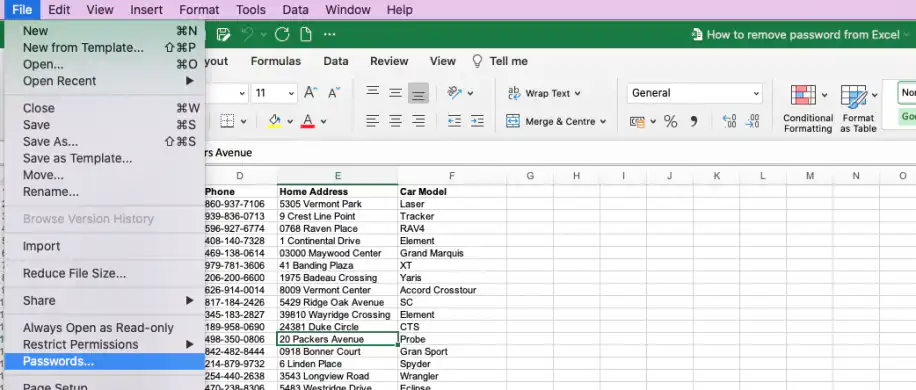
4. A window will appear with both password fields filled in; “Password to open”, and “Password to modify”. If you wish to decrypt the Excel file fully, then delete both.
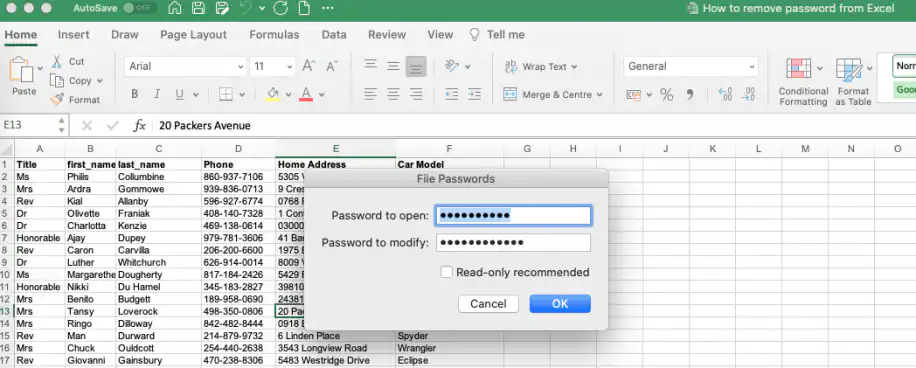
5. Once deleted, click “OK”:
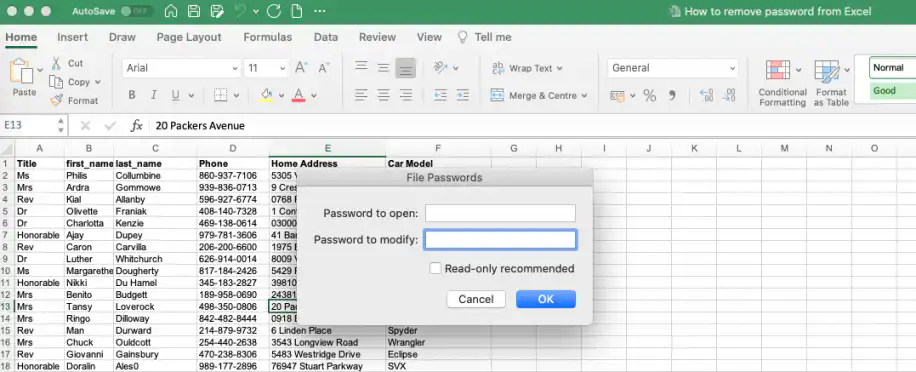
6. To see if it worked, save the changes, then close and re-open the file.

The following steps show how to remove it with the “Save As” option:
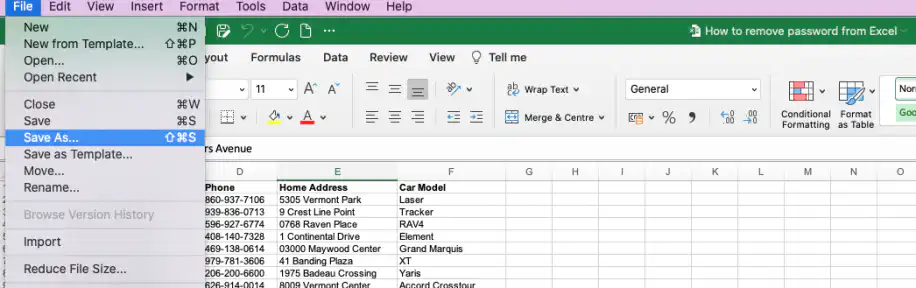
7. Repeat Steps 1-3, but this time select “Save As” from the “File” drop-down menu:
8. The following window will pop up. Click on “Options…”.
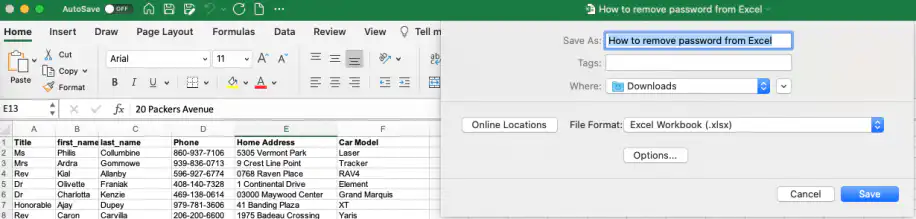
9. Simply delete both fields for “Password to open” and “Password to modify”. Then, click “Save”.
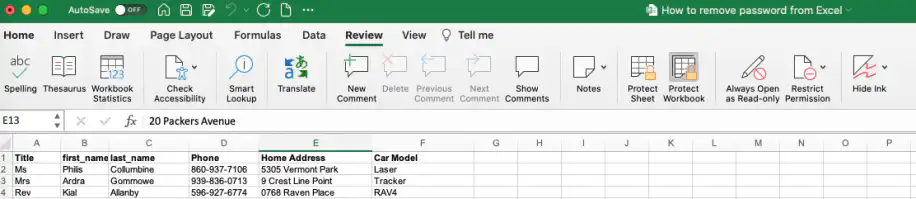
Although in some cases the “Protect Workbook” (see image below) option is shown as an alternative to protecting an Excel file, it only restricts users from editing the workbook – users can still view it. If you don’t want users to see the data contained in the spreadsheet, you either need to encrypt the data as explained in How to lock cells in Excel, or learn How to password protect an Excel file, which requires a password to open.

How to unprotect an Excel sheet?
Imagine that you want users to view the data contained in the Excel file, but want to avoid any modifications or alterations to a specific sheet. Sheet protection does that, and this is how you remove it when you no longer need it.
1. Open the Excel file you wish to unprotect at sheet level.
2. Go to the “Review” tab and click on “Unprotect Sheet”.
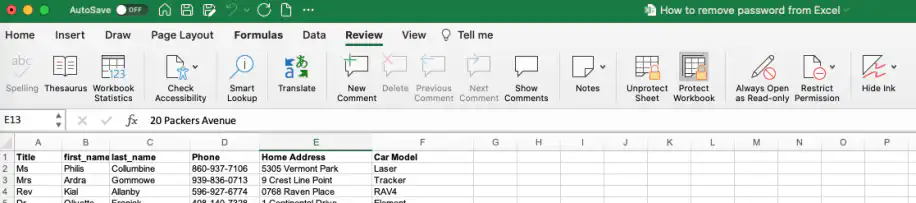
3. Enter the password set to protect the sheet and click “OK”.
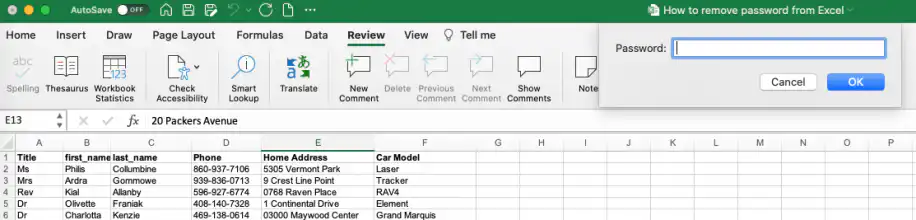
4. You should be able to see the “Protect Sheet” button again. If you only want others to edit part of the sheet, you can also unlock specific cells in Excel before protecting it again.
So far, we have seen how to unprotect an Excel file and sheet by using the originally set password. However, what if you forget the password? Before attempting to enter the wrong password too many times, this process can be simplified or more achievable through third-party tools.
How to remove password protection from an Excel file and sheet (without password)?
In order to remove password protection from your Excel files when you’ve forgotten the password, here is a list of tools you can use. Only use them on files you own or have permission to unlock.
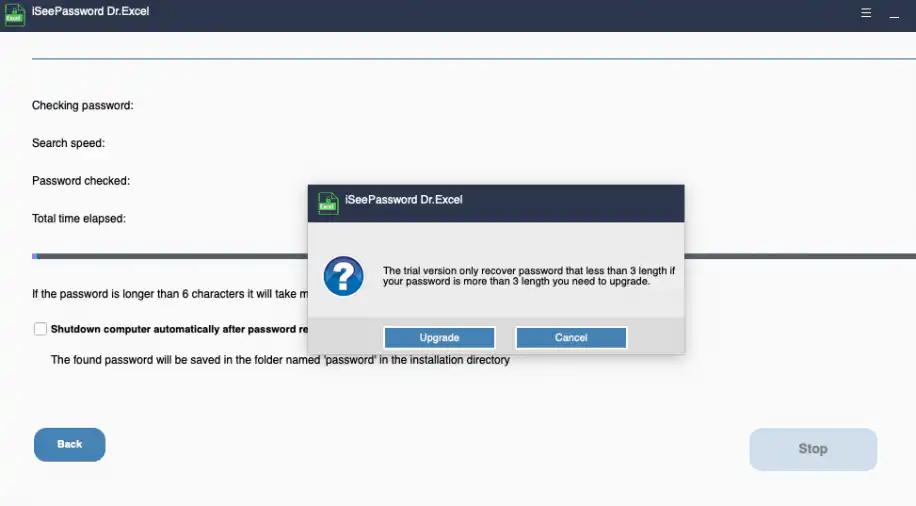
1. iSeePassword for Windows or Mac is a third-party tool that requires installation and registration. If the password to be removed exceeds a three-character length, it will prompt you to register for an upgraded version.
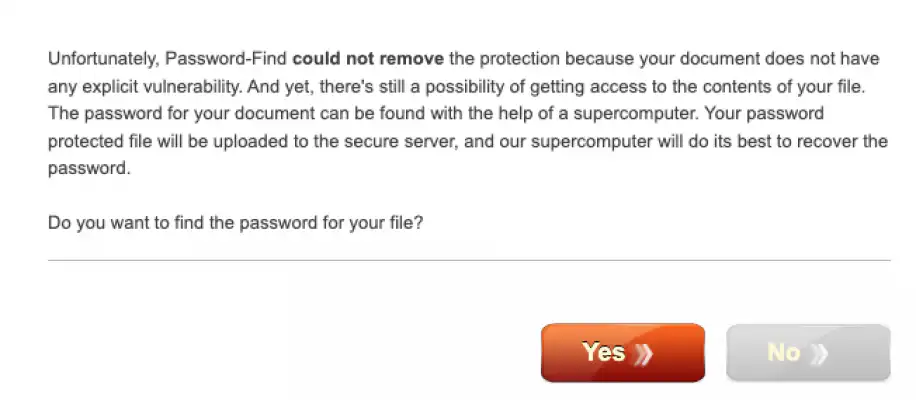
2. An alternative method is to use Password-Find, an online service that requires no installation on your end since the task will be done on their server. The steps are straightforward and simple to follow. However, it may not consider your document to contain any vulnerable information. If this is the case, it will prompt you to use their supercomputer for recovery. This would take longer.
3. Another alternative requires no installation: you simply need to follow the steps outlined by ExcelSuperSite. This last alternative may require you to install software to unzip the file, such as 7-Zip on Windows. On a Mac, the built-in Archive Utility does the same job.
Conclusion
Removing password protection from your Excel files is an extremely important process to learn if you want to have complete control over your spreadsheet data. By the end of this article, you should be able to remove a password from an entire Excel file or sheet. You should also be able to remove the password protection in circumstances where you have forgotten the passwords, using the list of third-party tools we have provided.
That being said, we highly recommend that you keep all of your passwords safe when choosing to protect your Excel files. This will avoid the risk of a lock-out situation, which will take a lot of time and money to rectify. Moreover, always try to update or change passwords every once in a while and keep track of users that will require access to the file for editing purposes. Having the whole file or sheet password-protected can also delay your workflow and decrease productivity.
If you share protected workbooks with a team, see how to share an Excel file and what to do when an Excel file is locked for editing. And if you protect sheets mostly to stop others from overwriting your data, Sheetgo, an AI-powered data automation platform, can send each person only the data they need in a file of their own.



 English
 Español
 Português do Brasil
 Français