


There are multiple ways of filtering data in Microsoft Excel, including the built-in column filters in Excel tables. However, this changes the original data by hiding rows. Using the FILTER function, you can reproduce a filtered version of the original data. This allows you and your team to work with different filtered versions of the data without affecting others or creating isolated copies of the data. You can also combine the FILTER function with others, such as SUM or AVERAGE, to operate directly on the filtered data. To add up values that meet a single condition, you can also use the SUMIF function in Excel.
In this guide, you will learn how to use Microsoft Excel’s FILTER function. First, you will review the syntax and learn how to match values by exact text, numerical values, and dates. Second, you will learn how to filter arrays by multiple conditions using FILTER with the OR (+) and AND (*) symbols. Finally, you have examples of how to use FILTER with functions like UNIQUE and SORT.
You will also learn about an alternative solution that allows you to transfer filtered data between Excel workbooks without having to write any formulas. With Sheetgo, an AI-powered data automation platform, you can connect your files and choose the filters you want to apply with just a few clicks.
FILTER function syntax
Excel’s FILTER function has two required parameters and one optional parameter. It is available in Excel for Microsoft 365, Excel for the web, and Excel 2021 or later.
=FILTER(array,include,if_empty*)
- array: the array or range of cells you want to filter.
- include: the conditions that values must meet to be included; a Boolean array with the same height or width as the array.
- if_empty*: optional. You can specify the value to return if the filter returns nothing.
The screenshots in this guide use a semicolon between arguments, which is the list separator in some regional settings. If your Excel uses commas, as in the syntax above, type a comma instead.
How to use FILTER function in Excel?
Using the FILTER function in Excel is easy: just select the array and the criteria you want to use to filter the values. Optionally, you can specify what the function should return if the filter finds nothing to return. Below, you have step-by-step instructions on how to filter by text, numerical value, and by date. In the next section, you will learn how to use it with multiple criteria or conditions and how to combine it with other functions.
FILTER by text
Follow the steps below to get records matching an exact text value in one of the columns.
1. In an empty cell, type the FILTER function and select the array you want to filter as the first parameter.
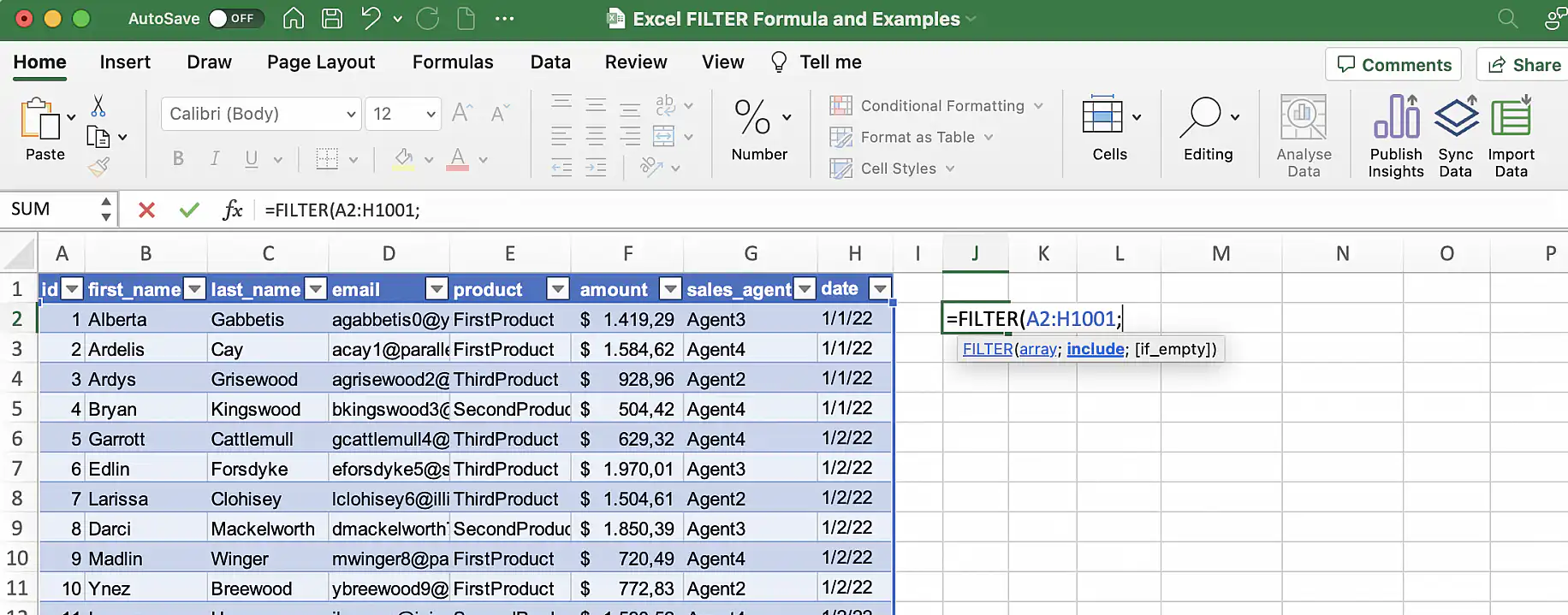
2. Add a semicolon followed by the condition. In this case, the text in column E must equal “ThirdProduct”.
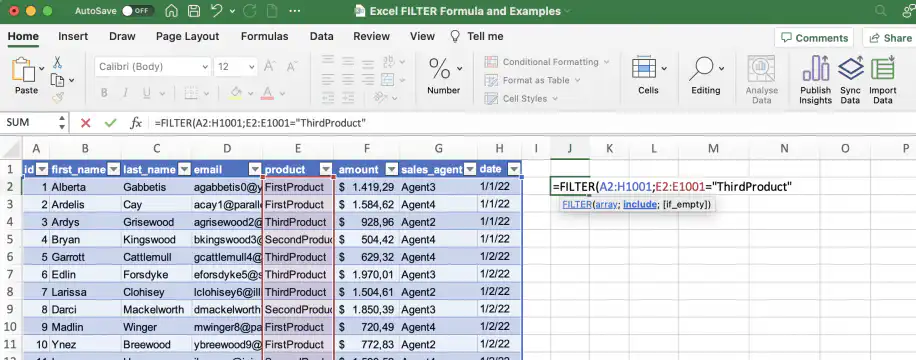
3. Close the parenthesis and press ‘Enter’ to see the results.
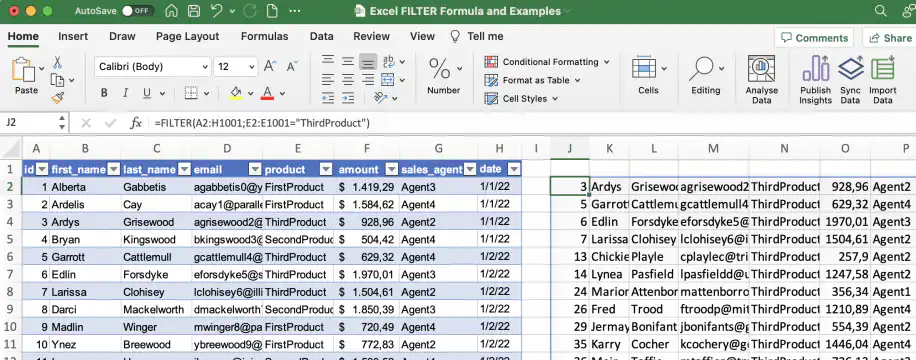
FILTER by numerical value
If you want to match values greater than or equal to a specific value, follow the steps below.
1. Type the FILTER function and select the array.
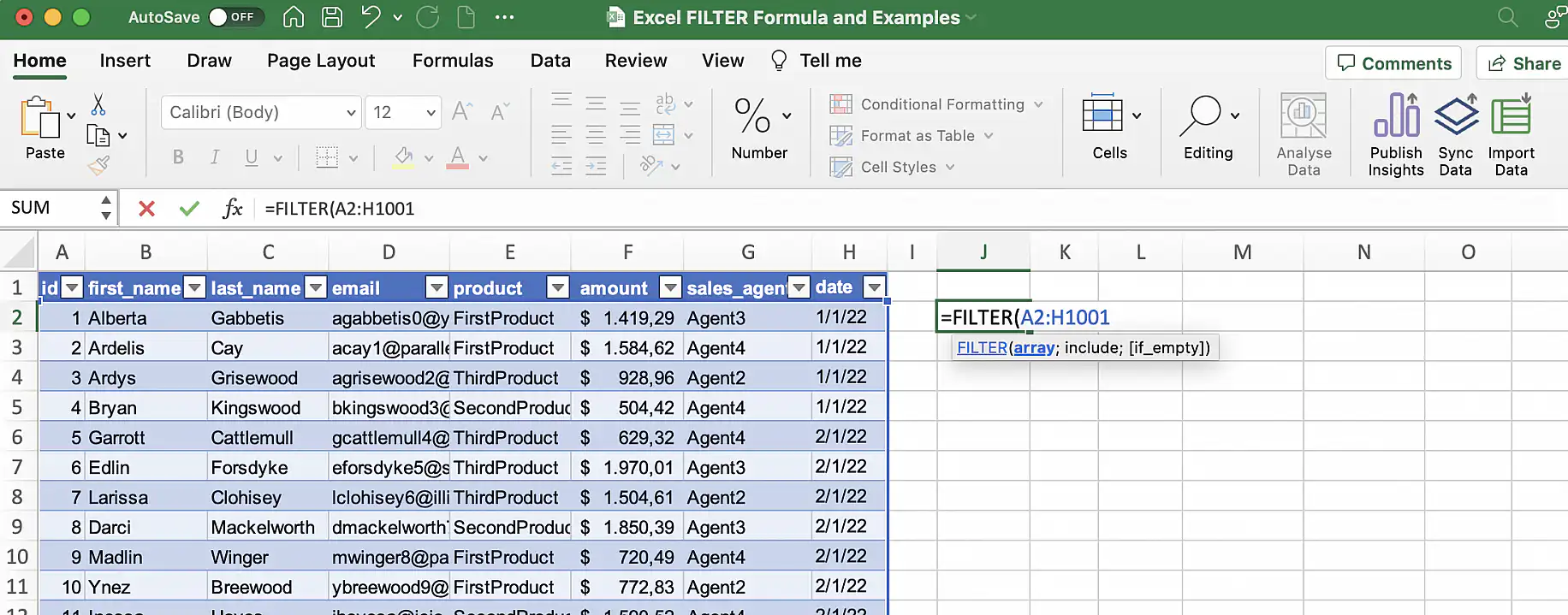
2. Add a semicolon and the condition you want to use. In this case, I want records with $750 or more in the ‘amount’ column.
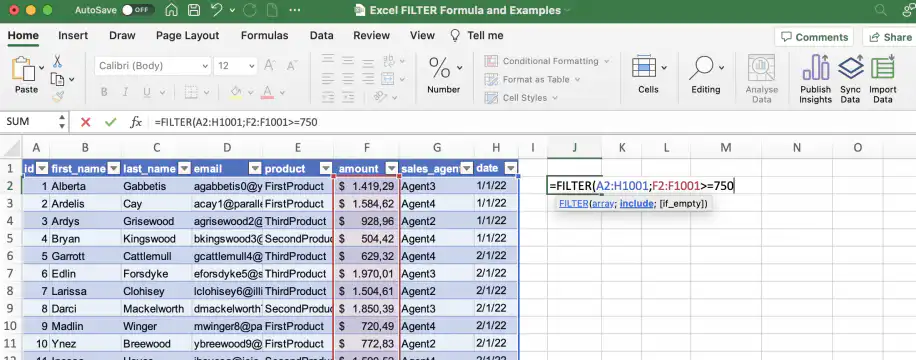
3. Close the parenthesis and press ‘Enter’.
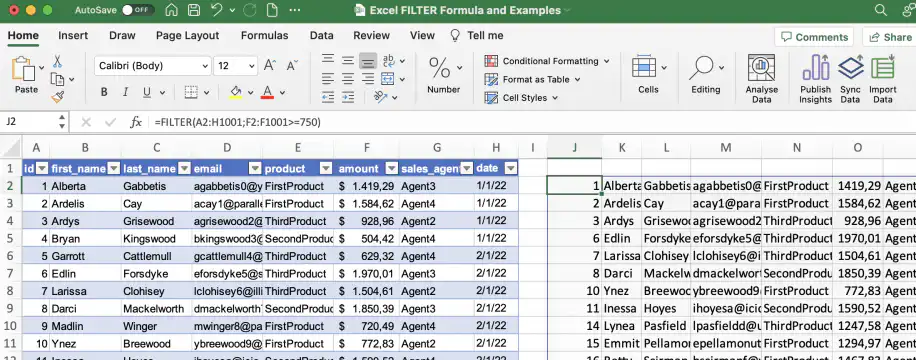
FILTER by date
You can also combine the FILTER and DATE functions to filter by date.
1. In an empty cell, type the FILTER function and select the array.
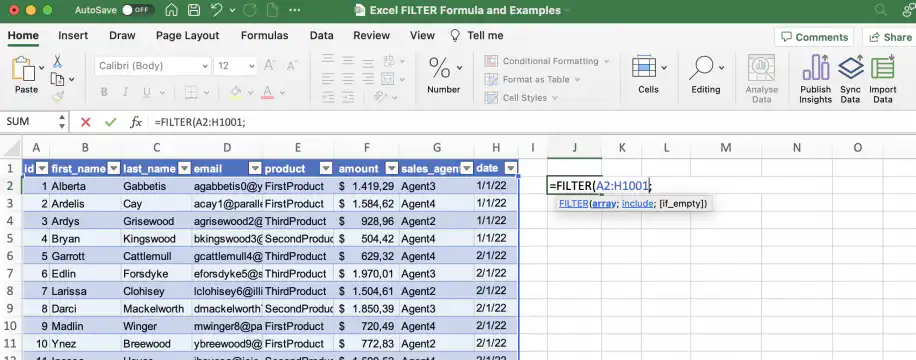
2. After the semicolon, add the condition. In this example, records must be from before April 1st.
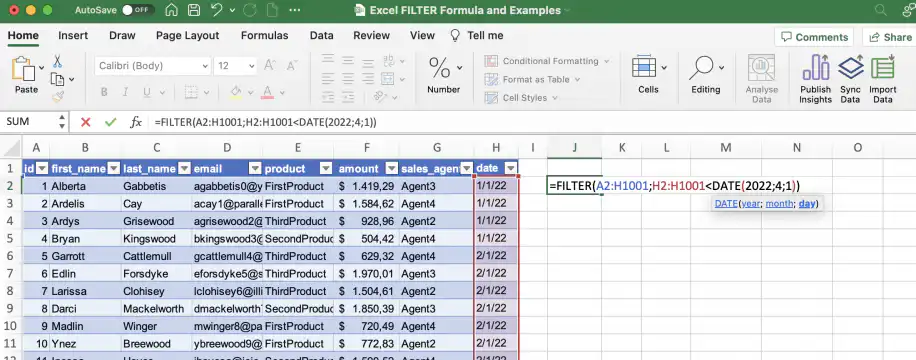
3. Close the parenthesis and press ‘Enter’.
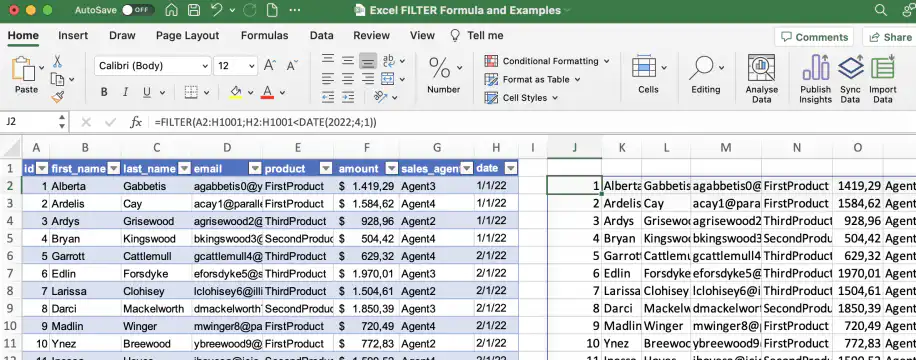
Use the Excel FILTER function with multiple conditions
The Excel FILTER function can also be used with multiple conditions. These can be OR conditions – where values can meet either of the conditions – or AND conditions – where values must meet both conditions.
Excel FILTER multiple conditions with OR
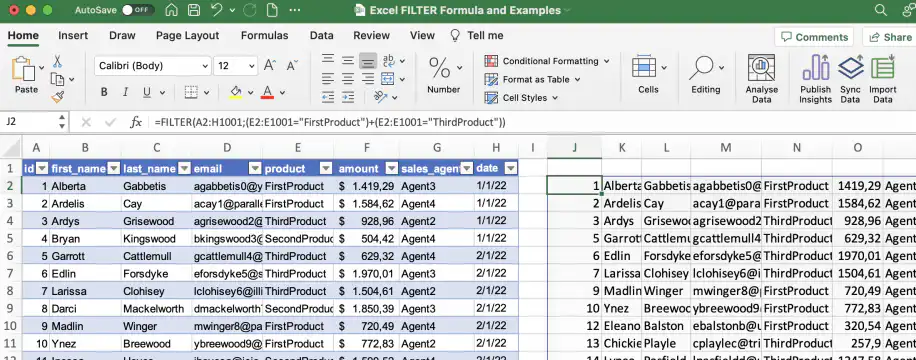
Follow the steps below to return records where the ‘product’ column matches “FirstProduct” or “ThirdProduct”.
1. In an empty cell, type the FILTER function and select the cells with the array.
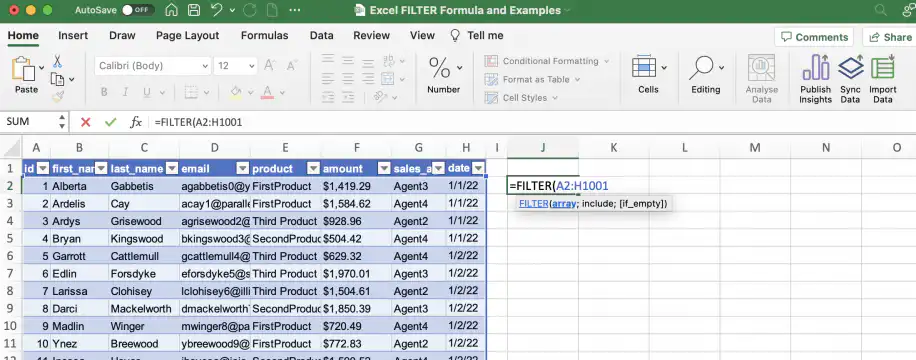
2. Add the first condition between parentheses.
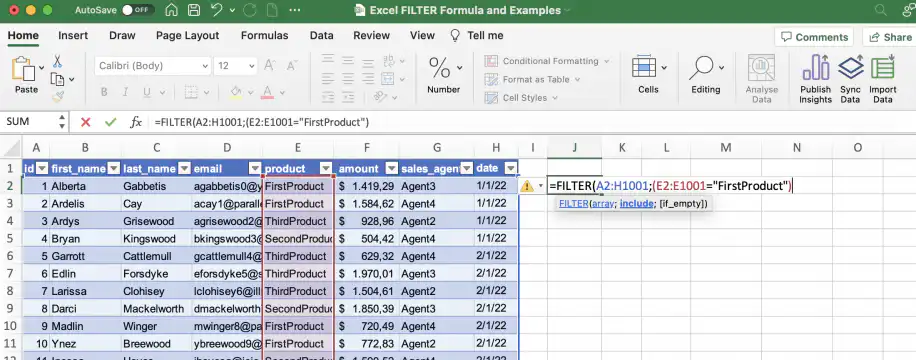
3. Add an OR symbol (+) followed by the second condition between parentheses.
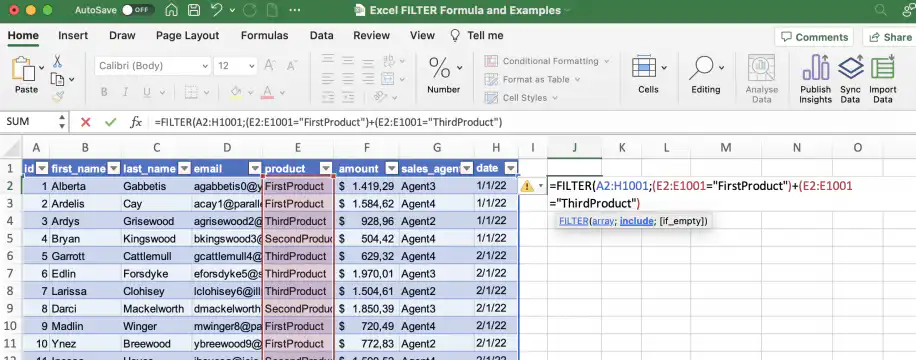
4. Close the parentheses for FILTER and press ‘Enter’ to see the results.
Excel FILTER multiple conditions with AND
Follow the instructions below to use multiple criteria and ensure that the records match all of them.
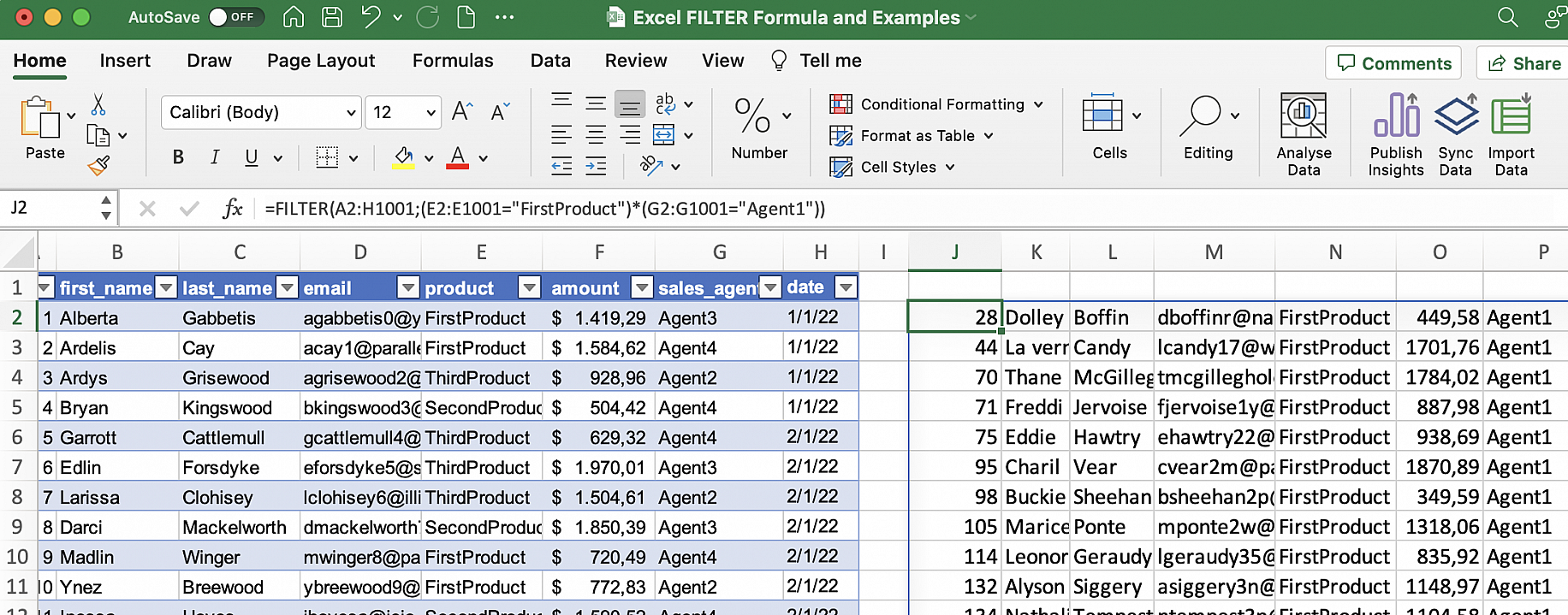
1. Type the FILTER function in an empty cell and select the array.
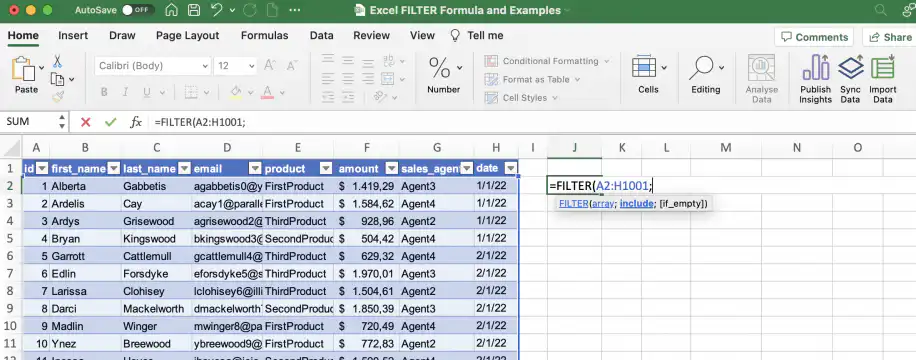
2. Add a semicolon and type the first condition between parentheses. In this case, I want records for FirstProduct.
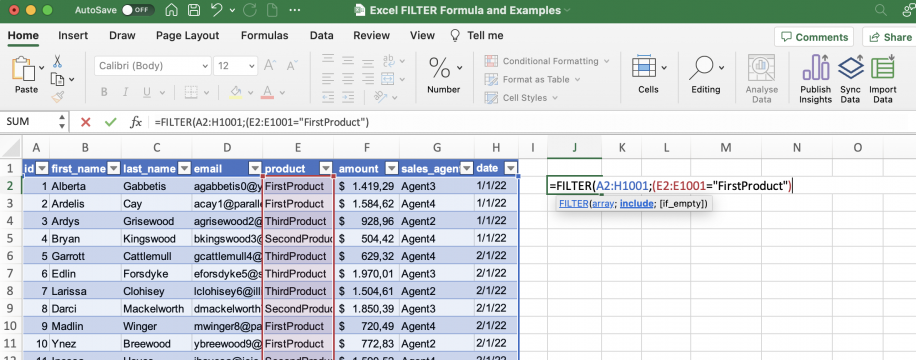
3. Add an AND (*) symbol and type the second condition between parentheses. In this example, I want only records for Agent1.
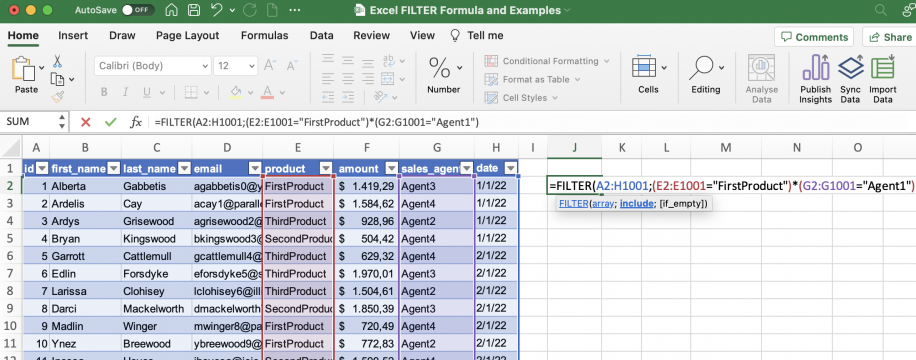
4. Close the parentheses and press ‘Enter’.
Use FILTER with other functions
As mentioned above, the FILTER function can be combined with other built-in functions to manipulate the data after filtering. Below, you have examples using UNIQUE and SORT.
Excel FILTER with UNIQUE
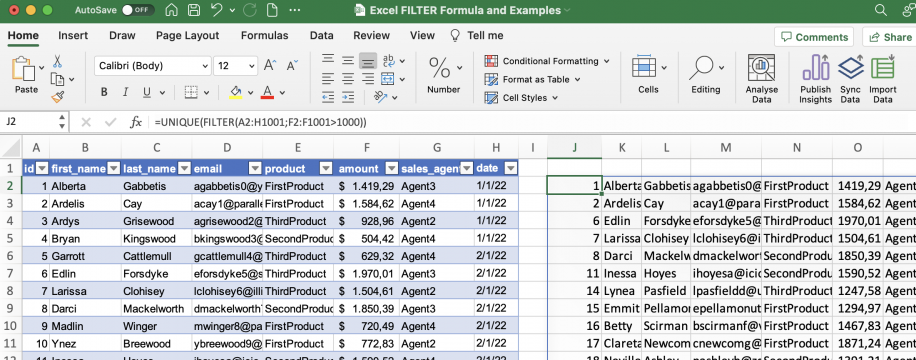
Follow the steps below to filter the results by the amount and get a list of unique customers. To clean up the source table itself, see how to remove duplicates in Excel.
1. Type the UNIQUE function followed by the FILTER function and select the array.
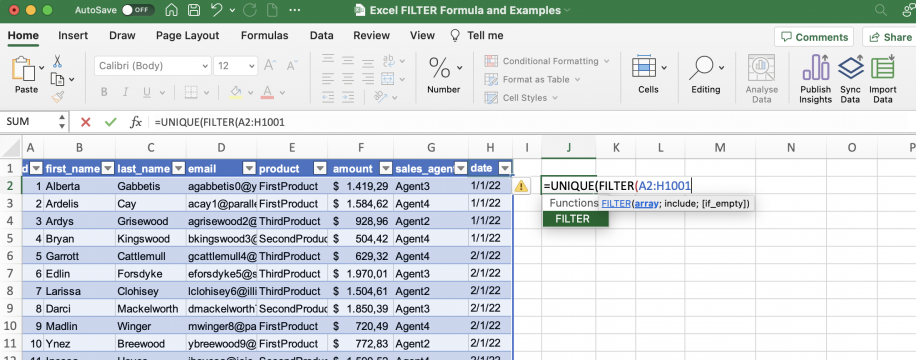
2. Add the condition. In this case, amounts must be larger than $1000.
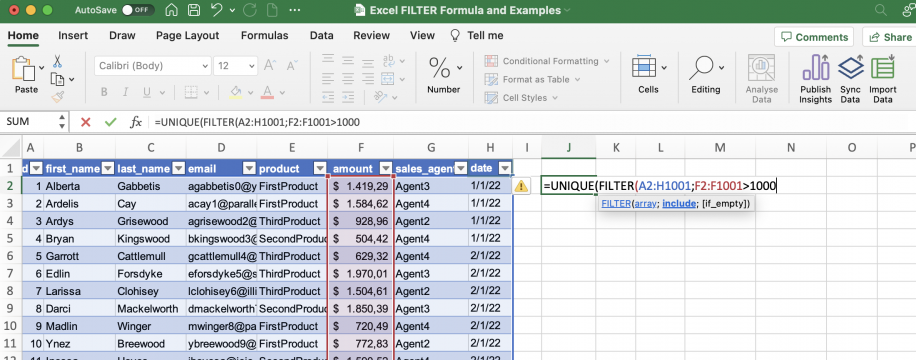
3. Close the parentheses and press ‘Enter’ to see the results.
Excel FILTER with SORT
Finally, let’s see how to use the SORT function to sort the results returned by FILTER.
1. Type the SORT function, followed by the FILTER function, and select the array.
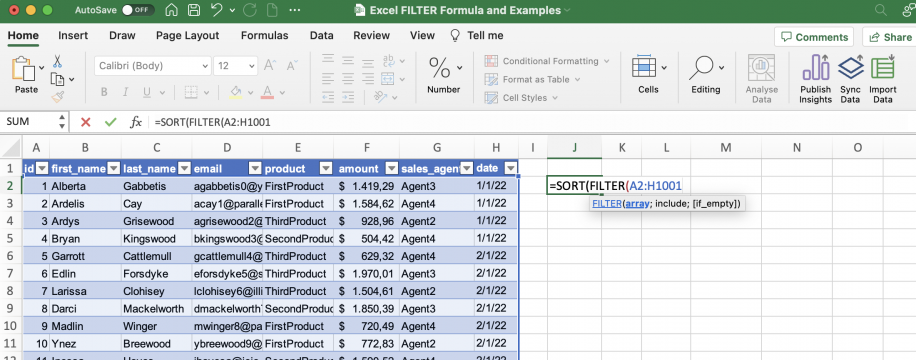
2. Add the condition and the closing parenthesis. In this case, I want records belonging to Agent1.
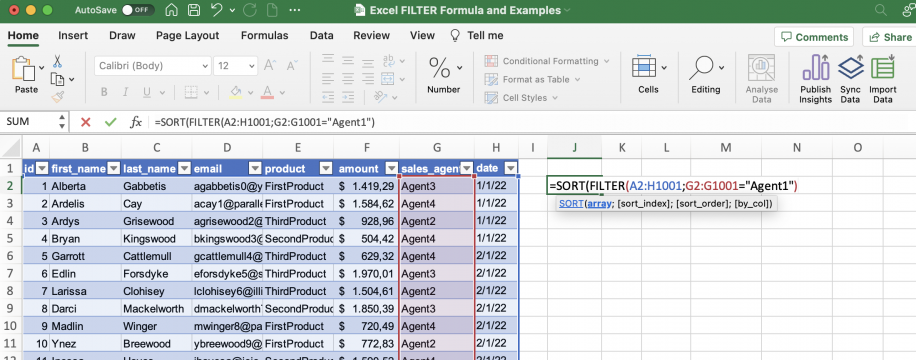
3. Add the number of the column you want to sort by. In this example, I want to sort by the amount in the sixth column. After the semicolon, select the order you want: ascending (1) or descending (-1).
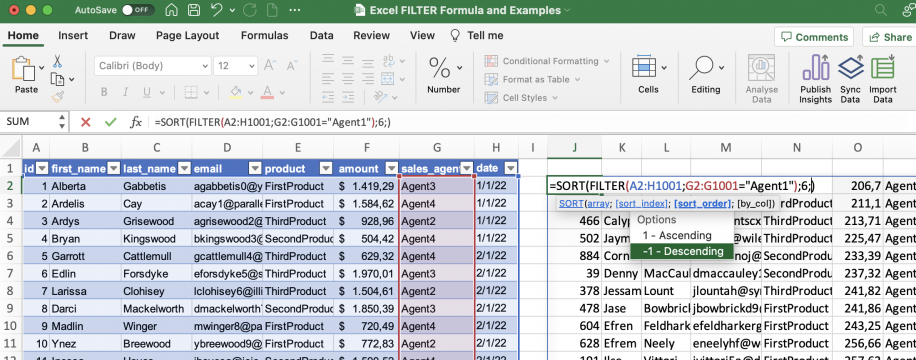
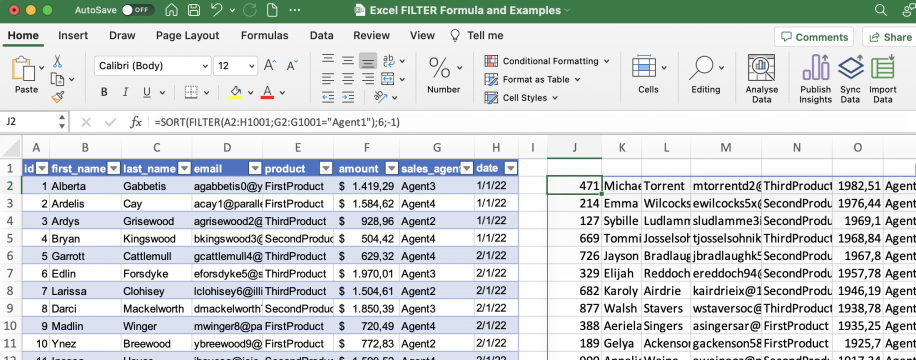
4. Close the parenthesis and press ‘Enter’ to see the result.
Transfer filtered data between workbooks with Sheetgo
With Sheetgo, an AI-powered data automation platform, you can easily transfer filtered data between Excel workbooks and set up automatic updates to refresh it without having to write a single formula.
Simply select your source file and choose the filter you want to use: condition, query, or cell color. Once you’ve set up the filters, select the destination file and run the connection to transfer the data. If this is a recurring task, you can easily save this connection and schedule automatic updates.
To learn more about this, check out this post on how to transfer filtered data between different workbooks. For a quick one-off filter, you can also try our free filter by condition tool.
Conclusion
The Microsoft Excel FILTER function is very flexible and easy to use. You can reproduce filtered versions of your array without affecting the original data. Since it remains linked, the filtered array will be updated with changes to the original as soon as the formula refreshes. You can use multiple conditions within the same formula and apply them to the same column or different ones. Additionally, you can combine FILTER with other functions to operate on or manipulate the results.
You now know how to use Excel’s FILTER function to filter records based on exact text matches, numerical comparisons, and dates. You also know how to combine multiple conditions by using the AND (*) and OR (+) symbols. Finally, you know how to combine FILTER with UNIQUE to get only unique records matching your criteria and how to combine it with SORT to get a filtered and sorted version of the array.
If you’re not a fan of long and complex formulas, you also know there’s a great alternative: Sheetgo, an AI-powered data automation platform. Instantly connect your source and destination files and choose which filters you want to apply. Let Sheetgo do the heavy lifting so you can focus on what matters. Sign up for free and start saving time today.
To learn more about Google Sheets or Microsoft Excel, check out our guides on:
- How to use the FILTER function in Google Sheets
- How to create and use Google Sheets filter view
- How to unhide Excel sheets and how to hide sheets in Excel?
- How to VLOOKUP in Excel with two spreadsheets?
- How to VLOOKUP from another Google Sheet or workbook (+ examples)
- How to lock cells in Excel? (cells, sheets & formulas)



 English
  Español
  Português do Brasil
  Français