


If you need to present research reports, financial information, or solve mathematical problems, the concept of a slope and trendline may be familiar to you. Spreadsheet tools such as Excel or Google Sheets offer different ways to find, assess, and compare slopes in your table data.
Although Google Sheets is more commonly used to store and structure information, it also allows for powerful tools and formulas to calculate and analyze financial data. If you’re interested in exploring this side of Google Sheets, you’ll soon be able to unlock the full potential of Google Sheets’ advanced analytics and reporting features.
In this article, you’ll learn all about slopes, from the meaning behind this concept, to how to find the slope of a graph and trendline in Google Sheets. You’ll learn how to find it using two methods: by creating a scatter chart and then obtaining the trendline equation, and without a chart, by using the SLOPE function.
What is a slope?
The slope is a geometric concept that refers to the direction and steepness of a line. This line usually appears on a standard x-y grid, i.e., a chart that has a vertical and horizontal axis. If the slope of the line rises from the left, it is said to be a positive slope; when it goes down, it’s a negative slope.
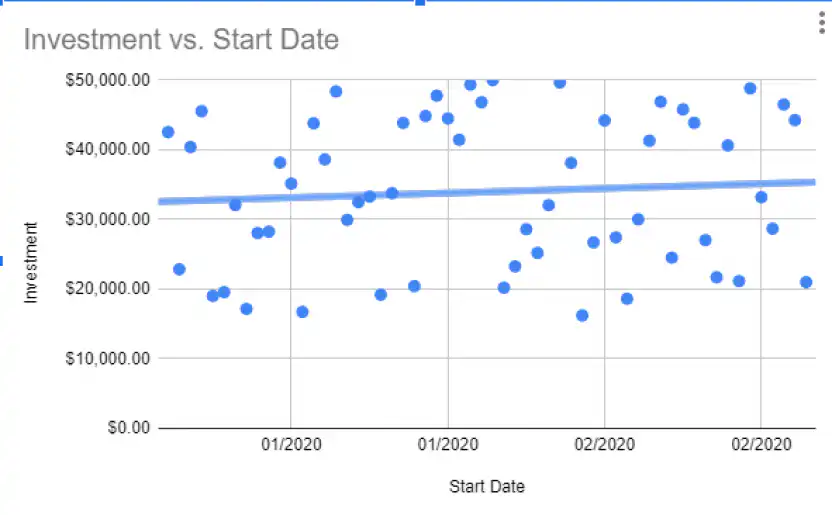
However, finding a slope in your data can be trickier than it seems. You’ll first need to draw a trendline, which is basically the line that you’ll need to find the slope. For example, what you see below is an example of a linear trendline, which shows an increase at a steady rate.
Now, let’s see how you can find a slope in your data in Google Sheets.
How to find slope in Google Sheets?
You’ll now learn how to find the slope in Google Sheets with and without a chart. First, let’s see how to find the slope of a graph.
If you only need to show a trend inside a single cell, the SPARKLINE function can create one-cell miniature charts – perfect for financial reports. Here’s how to use SPARKLINE in Google Sheets.
How to find the slope of a graph in Google Sheets?
You can easily find the slope by creating a scatter chart from your table data and then adding a trendline.
How to create a scatter chart in Google Sheets?
Google Sheets offers a set of tools to create different chart types based on your data. This is how you can create a scatter chart in Google Sheets.
1. Open your Google Sheets and select the table data you want to include in the chart.
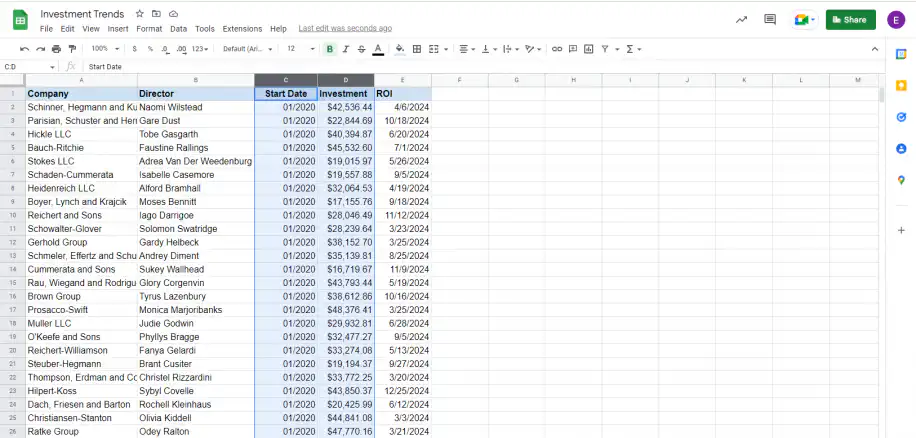
2. Click on the “Chart” icon, to the far right, as shown below.
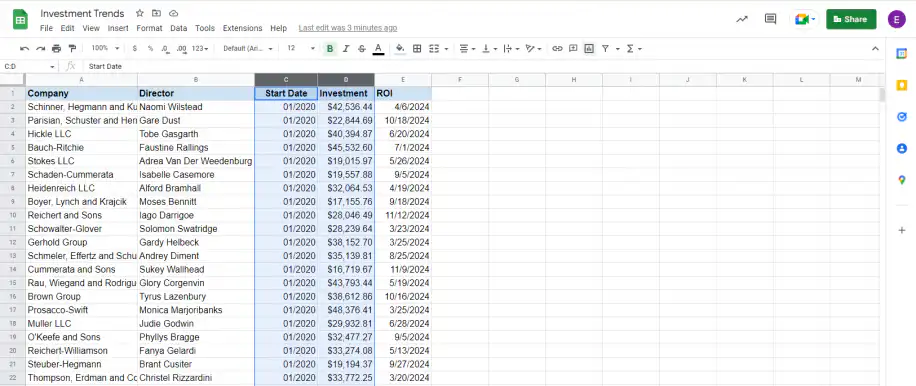
3. You should see the “Chart editor” pane to the far right. Under “Setup”, select “Scatter Chart” under the “Chart Type” drop-down menu.
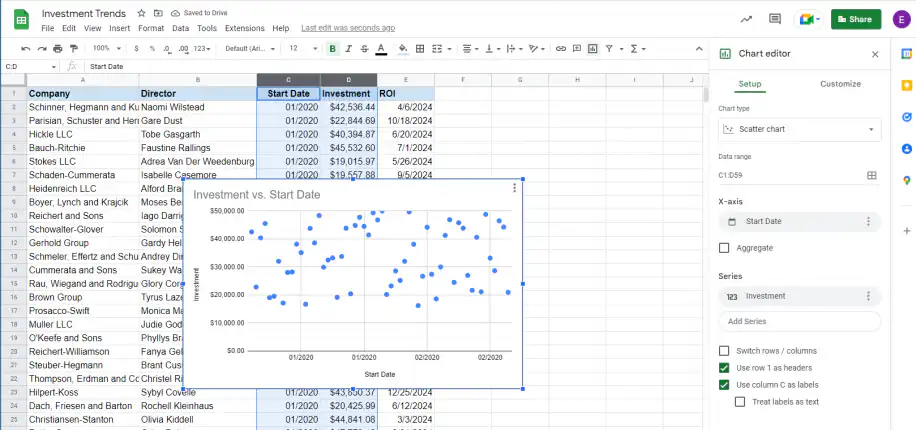
4. Now, click the tab “Customize”.
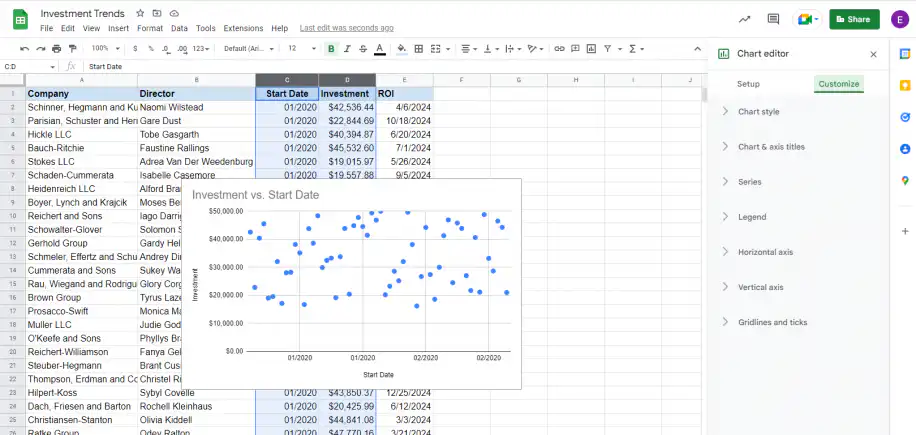
5. Click on the “Series” group and then scroll down until you find the “Trendline” box.
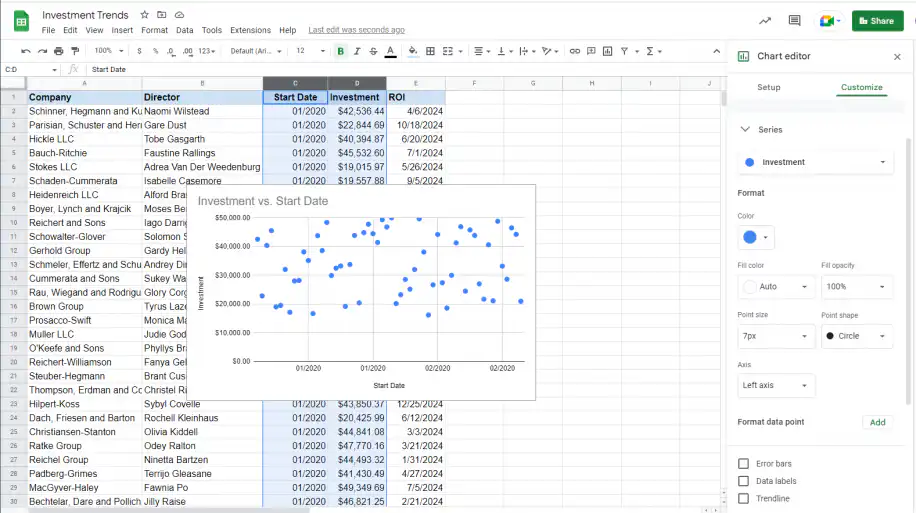
6. Check the “Trendline” box to add a trendline to your scatter chart.
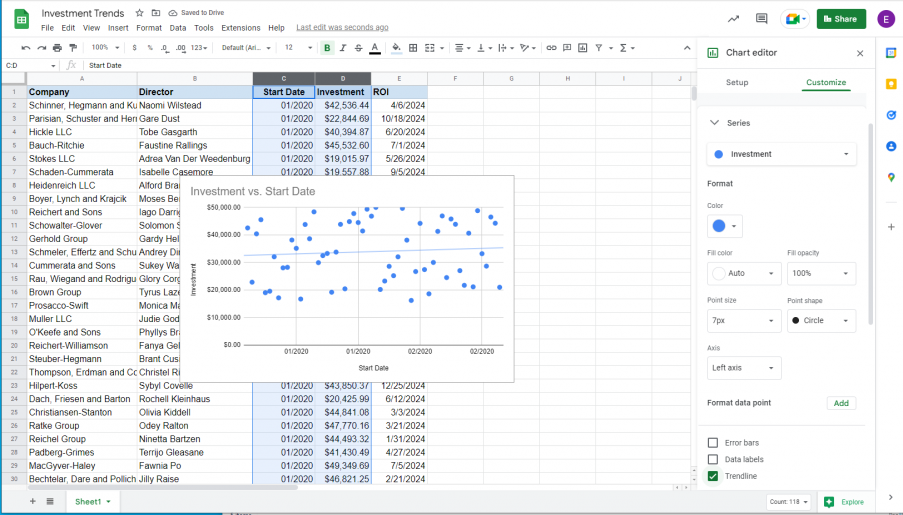
7. Scroll further down until you find the “Label” menu. Click on the “None” drop-down menu.
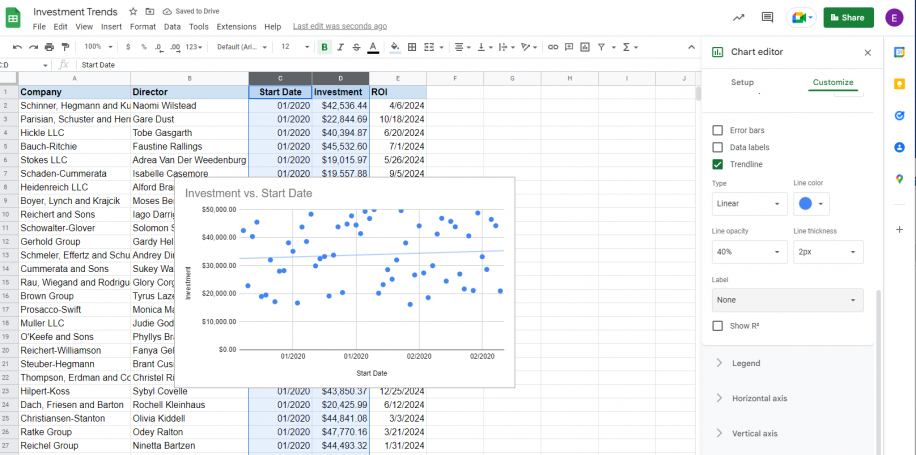
8. Select “Use Equation” from the options to add the corresponding equation to the trendline, which appears above the chart as an equation.
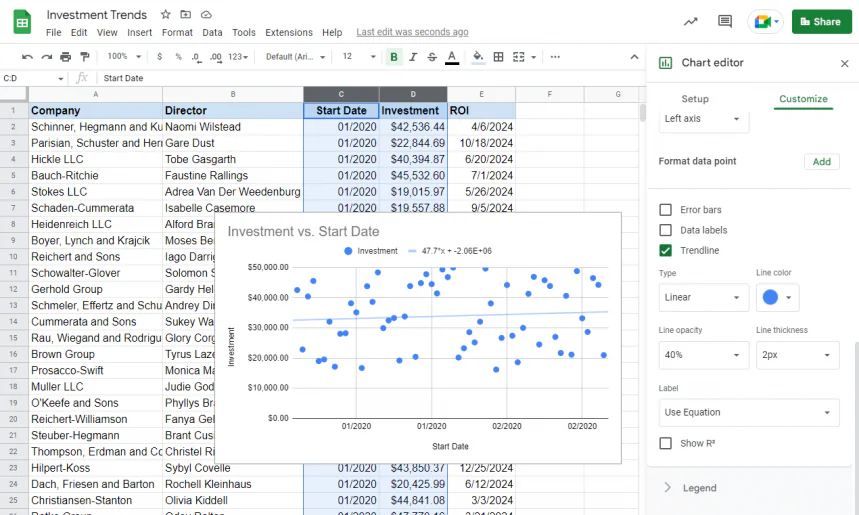
The format of the trendline equation in Google Sheets corresponds to the structure “y=mx+b”. The “m” and “b” are the numeric values, whereas “x” and “y” are variables. The slope of the trendline is the “m” number which appears to the left of the “x”.
How to find the slope without using charts in Google Sheets?
Now that you’ve seen how to find the slope in Google Sheets using a chart, let’s see how the SLOPE function can help you achieve the same thing without having to create a graph.
SLOPE function syntax
The syntax is =SLOPE(data_y, data_x), where:
- data_y refers to the cells that contain the dependent variable
- data_x refers to the cells that contain the independent variable
How to find the slope using the slope function?
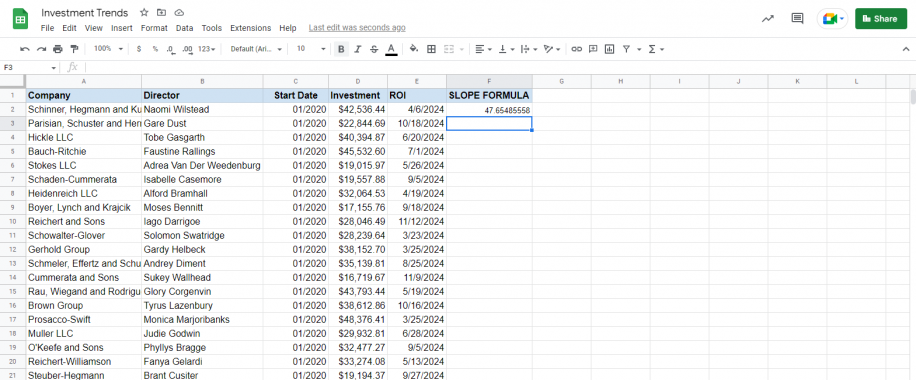
The SLOPE function returns the same result as the one obtained using the chart, but with higher precision.
1. Go to your Google Sheets and type in "=SLOPE" to trigger the SLOPE function in Google Sheets. Select the data which corresponds to "data_y", the dependent variable, and Google Sheets will automatically include the cell range.
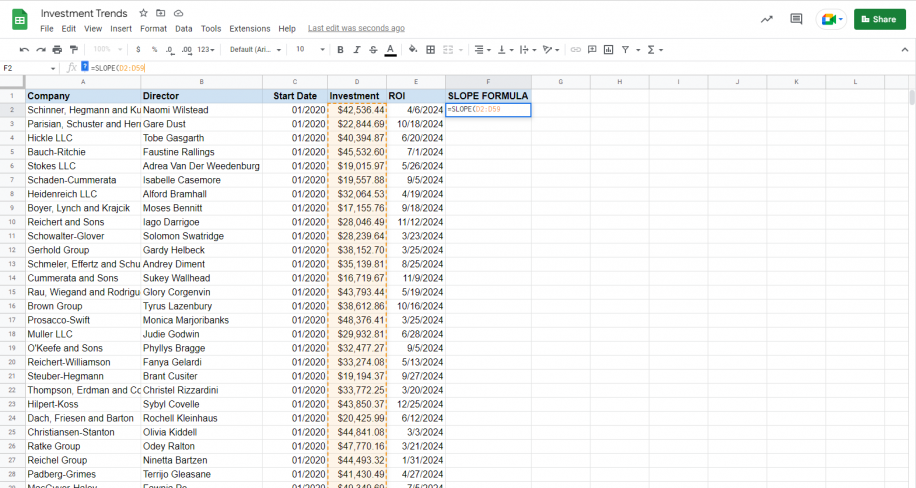
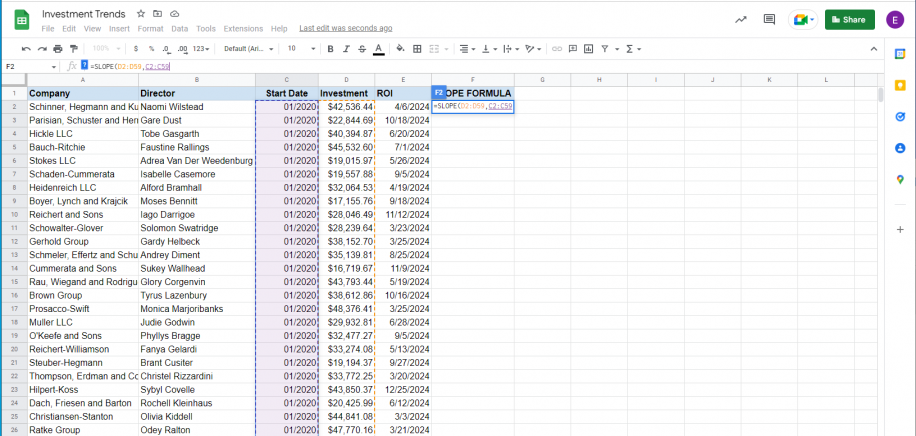
2. Type in a comma, and then select the data corresponding to data_x, the independent variable, the same way as before. Close the parenthesis, and press “Enter” to obtain the result.
3. Your result should be the same as the one you obtained before when using the chart after selecting the “Use Equation” option under “Label” (See step 8 from the previous section).
And that’s how you find the slope with and without charts in Google Sheets.
Conclusion
Google Sheets offers a powerful range of analysis tools to chart and analyze financial data; the best thing is that Google Sheets is free and easy to use, so you’ll be able to quickly determine whether there is an increasing or decreasing trend over a specific period. What’s more, you have the option to interpret data through a visual representation, i.e., charts, or numbers, i.e., formulas.
You should now be more familiar with the concept of slope and what it can be used for. More importantly, you should be able to find the slope in Google Sheets by either creating a trendline in a scatter chart or by applying the SLOPE function.
The slope is only one part of a regression line. To get the intercept and R-squared as well, see how to run a linear regression in Google Sheets. To measure how closely two columns move together, use the correlation formula in Google Sheets.

 English
  Español
  Português do Brasil
  Français