



Excel won’t save? If you work on Excel regularly, then you’ve probably encountered errors during saving at some point. As much as it may seem like an easy step, saving a file can become a time-consuming process if you fail to understand the cause of the error.
In this post, you’ll find solutions to the most common saving errors in Excel for Microsoft 365 on Windows. But what if you can’t save your Excel file on Mac? Although some step-by-step solutions are similar, visit this support page if you’re unable to save your file in Excel for Mac 2011.
Why won’t Excel let me save?
Before answering why “Excel won’t let me save”, you’ll need to figure out what the source of the problem is. Below, you’ll find the most common reasons why Excel is not allowing you to save your spreadsheet.
- “Cannot access read-only document filename”. This error message shows up when you don’t have enough permissions to access the network where the file is located.
- “Your startup disk is almost full”. If you are getting this error message, it’s because you don’t have enough free space in the main drive.
- “Document not saved”. Excel prompts this error message if an unforeseen event interrupts the saving process. This event could be that Excel or your system crashes.
- “The name that you entered is not valid”. Luckily, if you get this filename error, Microsoft explains how to solve it in the message itself. The usual cause is a character Excel doesn’t accept in file names, or a file path that’s too long.
Other possible reasons to prompt saving error messages are third-party add-ins, antivirus software, or corrupted files. However, these depend on the type of add-in, software, and file origin. If you want to know more about these issues, this workaround entry by Microsoft will be of great use. Let’s see the step-by-step solutions for the general errors shown above.
How to save a read-only Excel file?
This workaround is only applicable if you have administrator rights to modify permissions. To save a read-only Excel file, this is what you need to do.
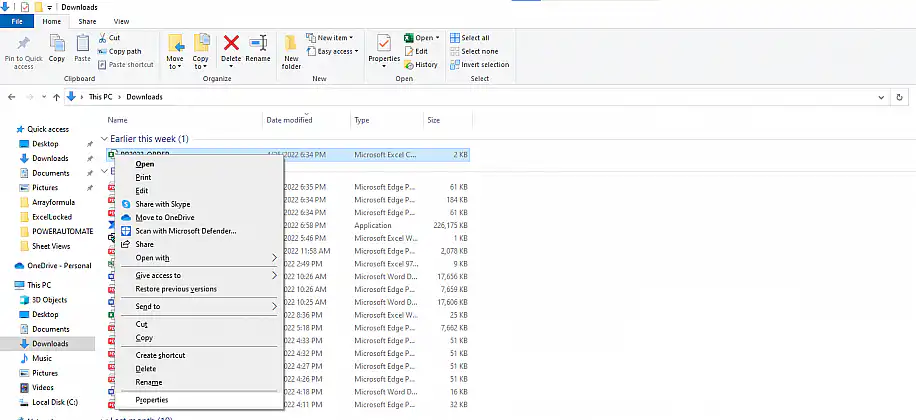
1. Right-click on the file you wish to save and select “Properties”.
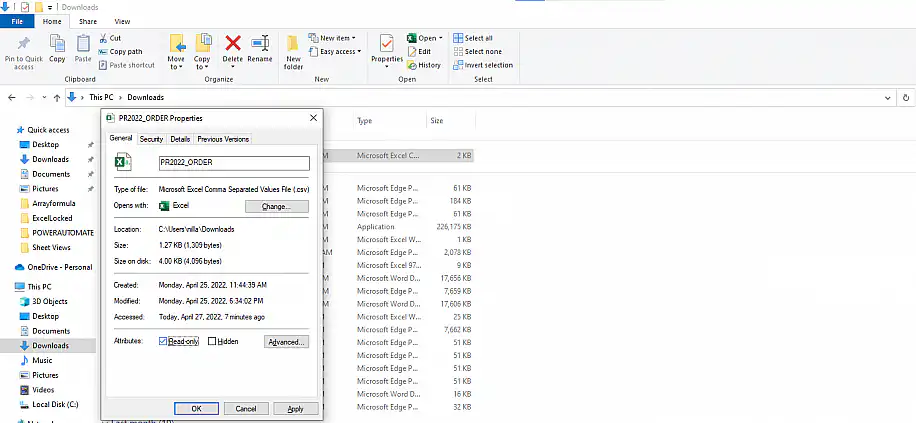
2. If you have Administrator rights, you’ll be able to untick the “Read-only” box. Click “Apply” and then “OK”.
If Excel is telling you that “you do not have permission to save files to this location” and you lack administrator rights, then you’ll still be unable to save the Excel file to shared network drives. To do so, you will need to ask the author to grant you the necessary permissions or save the file to a location you have full access to.
If Excel says instead that the file is locked for editing, another user or an earlier Excel session still has it open.
How to save an Excel file when the disk is full?
Another common situation is finding that the save failed due to full memory or disk space. An easy fix would be to copy the file to your hard drive or any other disk with available space. But what if you didn’t save the file at all? Follow these steps to make sure you can do this without losing any last edits made to the file.
1. With the Excel file open, click on the first sheet and keep the Shift key pressed as you select the last sheet. This way, you select the whole workbook.
2. Right-click on any selected sheets and click on “Move or Copy”.
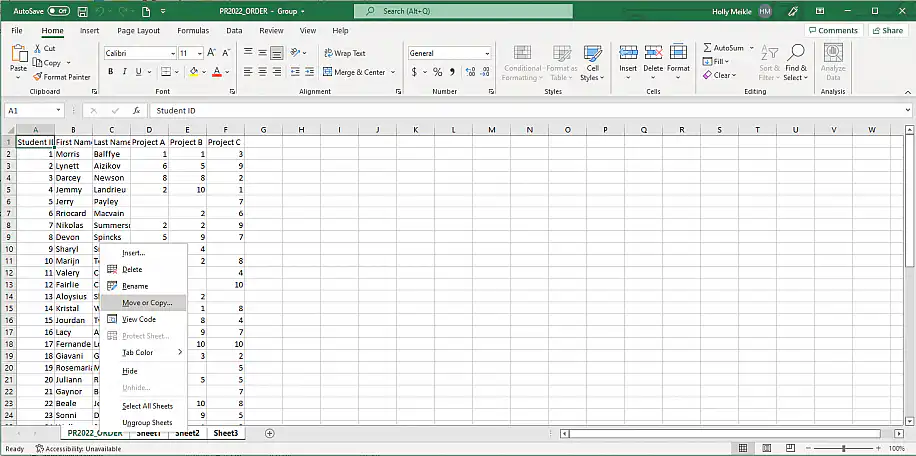
3. Tick the “Create a copy” box. Select “(new book)” from the “To book” drop-down list. Then, click “OK”.
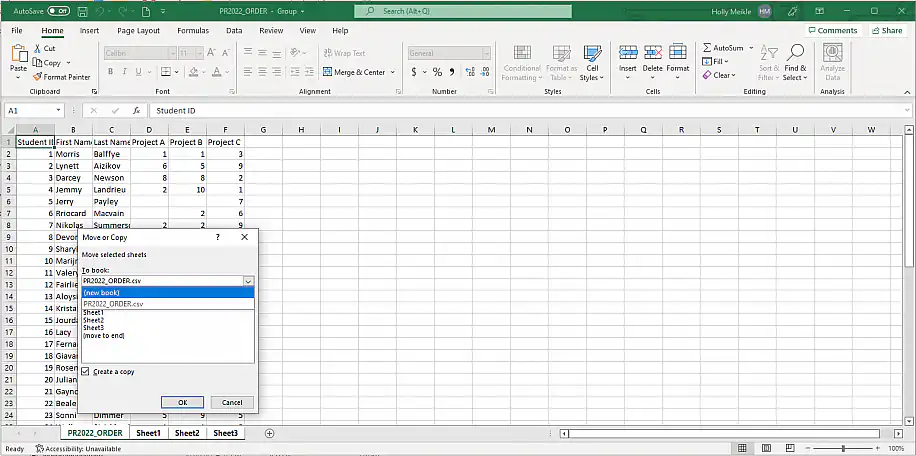
You can now save the Excel file and discard the previous one without losing any data. However, if you accidentally closed the file without having saved it at all, the following solution should be helpful.
How to save an Excel file that was not saved?
Although this might seem like an impossible task, it’s a very typical error. To avoid encountering these types of issues, always make sure that your Excel has AutoSave enabled so at least the last changes are saved. Here is how you can access an Excel file that wasn’t saved at all.
1. Open Excel and check the “Document Recovery” pane.
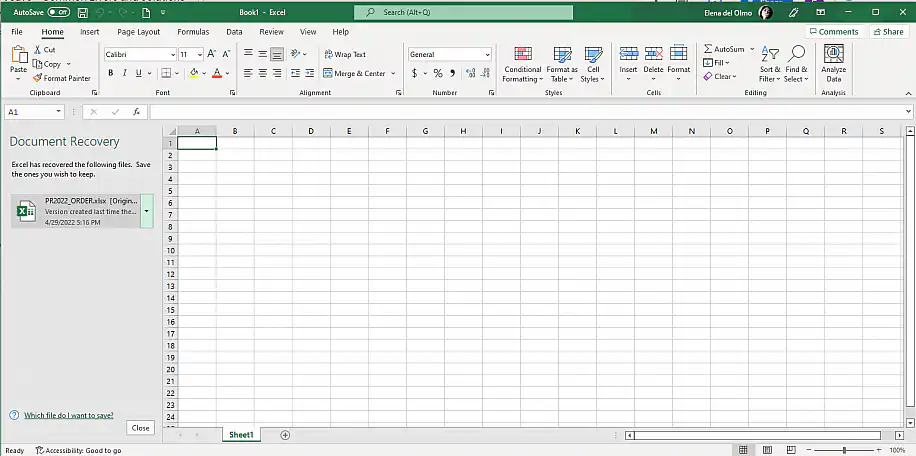
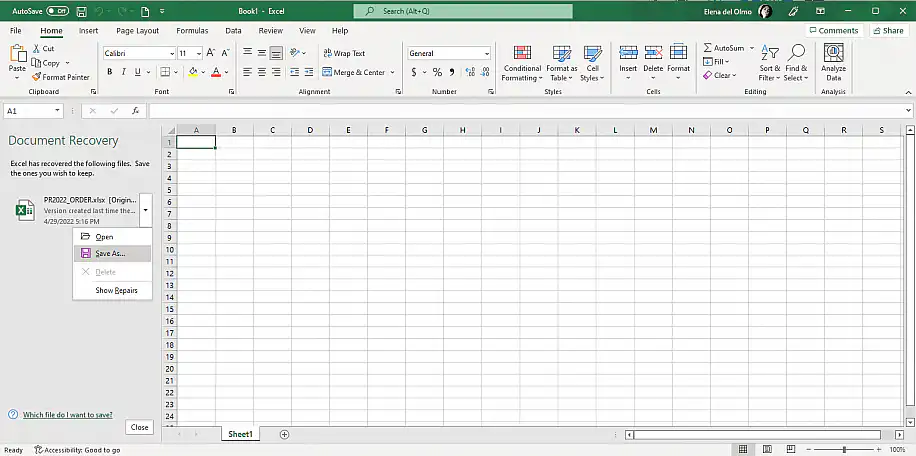
2. Select “Save As…” from the drop-down menu.
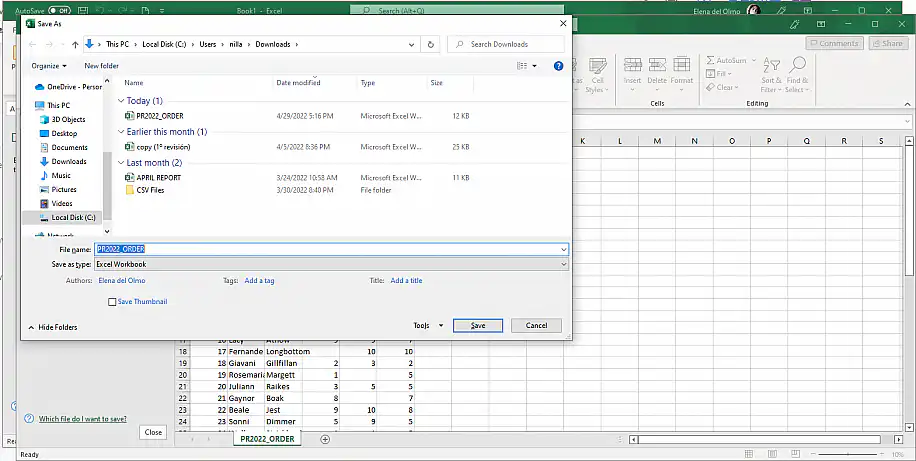
3. Save with a new name and in a different folder. Remember that Excel keeps recovered files in a temporary location.
To make sure the “Document Recovery” pane is available as soon as you launch Excel, check that AutoRecover Excel is working correctly. This will also help you avoid losing data if your system crashes or encounters similar unforeseen events.
How to save an Excel file by changing the filename?
Excel for Microsoft 365 won’t save a file that has the wrong format or filename. In this case, Excel will prompt you to “Rename Again” as shown below.
The below steps show how you can quickly fix the filename or extension error.
1. Click on the “Rename Again” button.
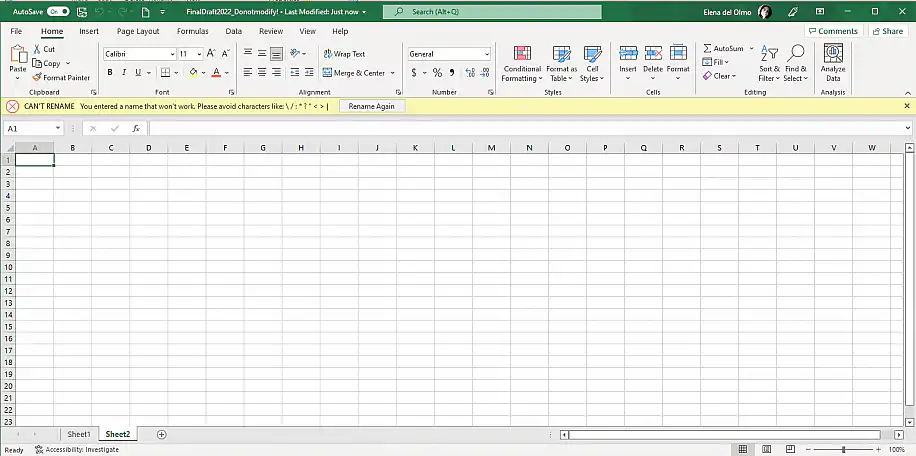
2. Rename the file. Important: avoid using the following characters: \ /:*?”<>|
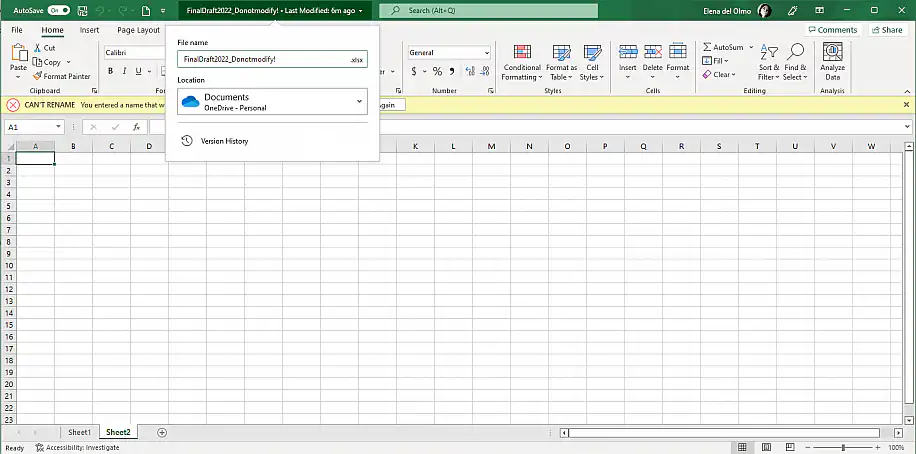
As for compatible extension types, note that the most common are ‘.xlsx’ or ‘.xls’ for Excel to save properly without any issues. Check Microsoft Support for other supported file formats in Excel.
Excel is not saving changes
Excel may not be saving changes automatically. An antivirus or third-party add-in might be interrupting the automatic saving process. To rule out add-ins, hold Ctrl while you open Excel to start it in safe mode, then try saving again.
Conclusion
Understanding the source of the issue in an Excel file that won’t save is key to maintaining your productivity level. Moreover, understanding the root of the problem can also prevent data loss.
You should now understand the most common errors that Excel users frequently encounter when saving a file. More importantly, you should feel comfortable solving any of these errors and setting up your Excel version to avoid experiencing these in the future. If you’re interested in recovering a previously saved version of a file, read how to restore a previous version of an Excel file.
If your Excel files feed reports that other people rely on, Sheetgo, an AI-powered data automation platform, can move their data between files on a schedule, so the reports stay current and the data is ready for AI. Here’s how to consolidate Excel files automatically.



 English
 Español
 Português do Brasil
 Français