Get help

Help center

Guides and answers

Contact support

Write to our team

Sign in to

Workflows

Build processes with your team

Automations

Connect files and automate tasks

One system, four parts

AI agents

Virtual Employees that work 24/7

Automations

Connect files and automate tasks

Workflows

Build processes with your team

Data Space

Trusted data sharing and control

Solutions by department

Finance

Reports, budgets, and reconciliations

Inventory and manufacturing

Stock, orders, and production in one view

HR

Timesheets, attendance, and reviews

Project management

Status and workload across projects

Sales and CRM

Leads and deals kept up to date

Education

Student records and school data

Finance

Turn manual finance work into reports that update themselves.

What Finance teams automate

  • Track payables and receivables
  • Build cash flow statements
  • Compare budget against actuals

Inventory and manufacturing

See stock levels and automate ordering.

What inventory and manufacturing teams automate

  • Track inventory across multiple sites
  • Connect sales, purchasing, and warehouse data
  • Link a barcode scanner to your sheet

HR

Run recruitment, attendance, and OKR tracking from your sheets.

What HR teams automate

  • Track recruitment and onboarding
  • Record team OKRs and results
  • Track check-ins, check-outs, and leave

Project management

Assign tasks and track hours without manual updates.

What project teams automate

  • Assign tasks and track status changes
  • Estimate effort and log hours worked
  • Track milestones across projects

Sales and CRM

Track leads and sales performance with automated reports.

What sales teams automate

  • Track and convert leads
  • Set sales goals and track team metrics
  • Monitor sales KPIs on dashboards

Education

Automate attendance, grades, and school purchasing.

What schools automate

  • Track attendance and notify parents
  • Record and compare class grades
  • Track inventory lent to students and staff

Find a use case

By department

How each team uses Sheetgo

By industry

How each industry uses Sheetgo

By company size

Small, medium-sized, or large

Learn

Blog

Guides and product news

Customer stories

How teams like yours use Sheetgo

Help center

Guides and answers

Why Sheetgo

Compare

How Sheetgo compares with other tools

Security

How we protect your data

Trust center

Our compliance details

Sign in to

Workflows

Build processes with your team

Automations

Connect files and automate tasks

One system, four parts

AI agents

Virtual Employees that work 24/7

Automations

Connect files and automate tasks

Workflows

Build processes with your team

Data Space

Trusted data sharing and control

Solutions by department

Finance

Reports, budgets, and reconciliations

Inventory and manufacturing

Stock, orders, and production in one view

HR

Timesheets, attendance, and reviews

Project management

Status and workload across projects

Sales and CRM

Leads and deals kept up to date

Education

Student records and school data

Find a use case

By department

How each team uses Sheetgo

By industry

How each industry uses Sheetgo

By company size

Small, medium-sized, or large

Get started

Templates

Ready-made workflows to start from

Learn

Blog

Guides and product news

Customer stories

How teams like yours use Sheetgo

Help center

Guides and answers

Why Sheetgo

Compare

How Sheetgo compares with other tools

Security

How we protect your data

Trust center

Our compliance details

Help center

Guides and answers

Contact support

Write to our team

Workflows

Build processes with your team

Automations

Connect files and automate tasks

Google Sheets version history: see, restore, and delete versions

Over the years, Google Sheets has greatly improved functionality and collaboration. Whether you’re working alone or collaborating with others, at some point, you’re going to wish you could revisit the past. Thanks to Google Sheets’ version history, you almost can.

The ‘undo’ shortcut (Ctrl + Z) is handy immediately after you make a mistake, but what if it’s been a while or the mistake was made by someone else? What if there was no mistake, and you just want to restore or copy an earlier version of the spreadsheet? Fortunately, Google Sheets’ version history allows you to view and interact with previous versions of your file.

In this post, you will learn about Google Sheets’ version history, including what it is and what you can use it for. You will also learn how to use it to view previous versions and keep track of changes, restore previous versions, make a separate copy of specific versions, name versions, and delete any versions you don’t need.

To learn more about the different methods available to keep track of changes in Google Sheets, check out our post on how to track changes in Google Sheets.

What is Google Sheets version history?

Google Sheets’ version history is a great way to revisit or recover past versions of your spreadsheet. Google Sheets automatically saves changes to your file and keeps a log of these changes. Provided you have at least editing permissions in this file, you can view these past versions in detail. You can also name 15 of these versions per spreadsheet to make them easier to find, restore a previous version to replace the current version, or make a separate copy of the past version.

Version history works on the whole file. To check who changed a single cell, and when, here’s how to see the edit history of a cell in Google Sheets.

How long does Google Sheets keep version history?

There is no set limit to how long Google Sheets keeps the current version of your spreadsheet. Google may occasionally merge revisions, though, so some versions stop appearing on their own. To keep a version from being merged, give it a name. You may have read that versions are deleted after 30 days or once there are 100 newer ones. That rule applies to other files stored in Google Drive, such as PDFs and images, not to Google Sheets.

How to see version history in Google Sheets

To view a spreadsheet’s history, follow the steps below.

1. Open your Google Sheets file.
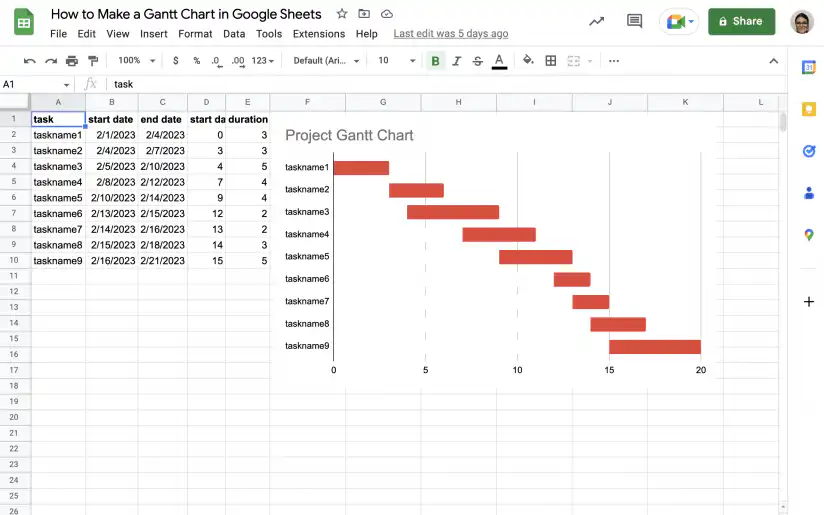
Google Sheets version history — Gantt chart spreadsheet open in Google Sheets

2. Go to File > Version history > See version history. You can also click Last edit at the top right, or press Ctrl + Alt + Shift + H (Cmd + Option + Shift + H on a Mac).
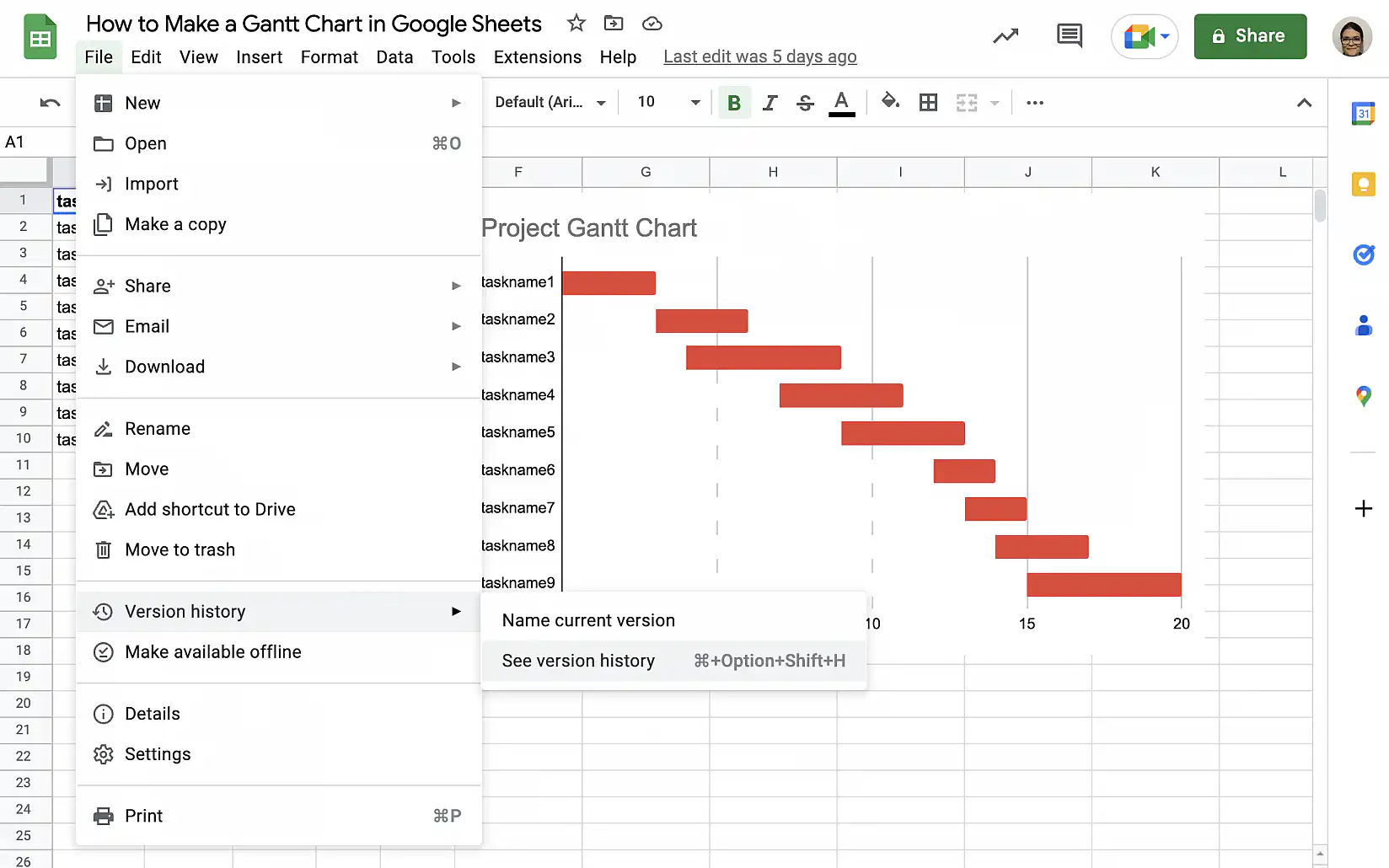
See version history in Google Sheets — File menu open on Version history, with See version history and its shortcut

3. You’ll see a sidebar to the right of your spreadsheet containing all versions of your file, with the current version at the top.
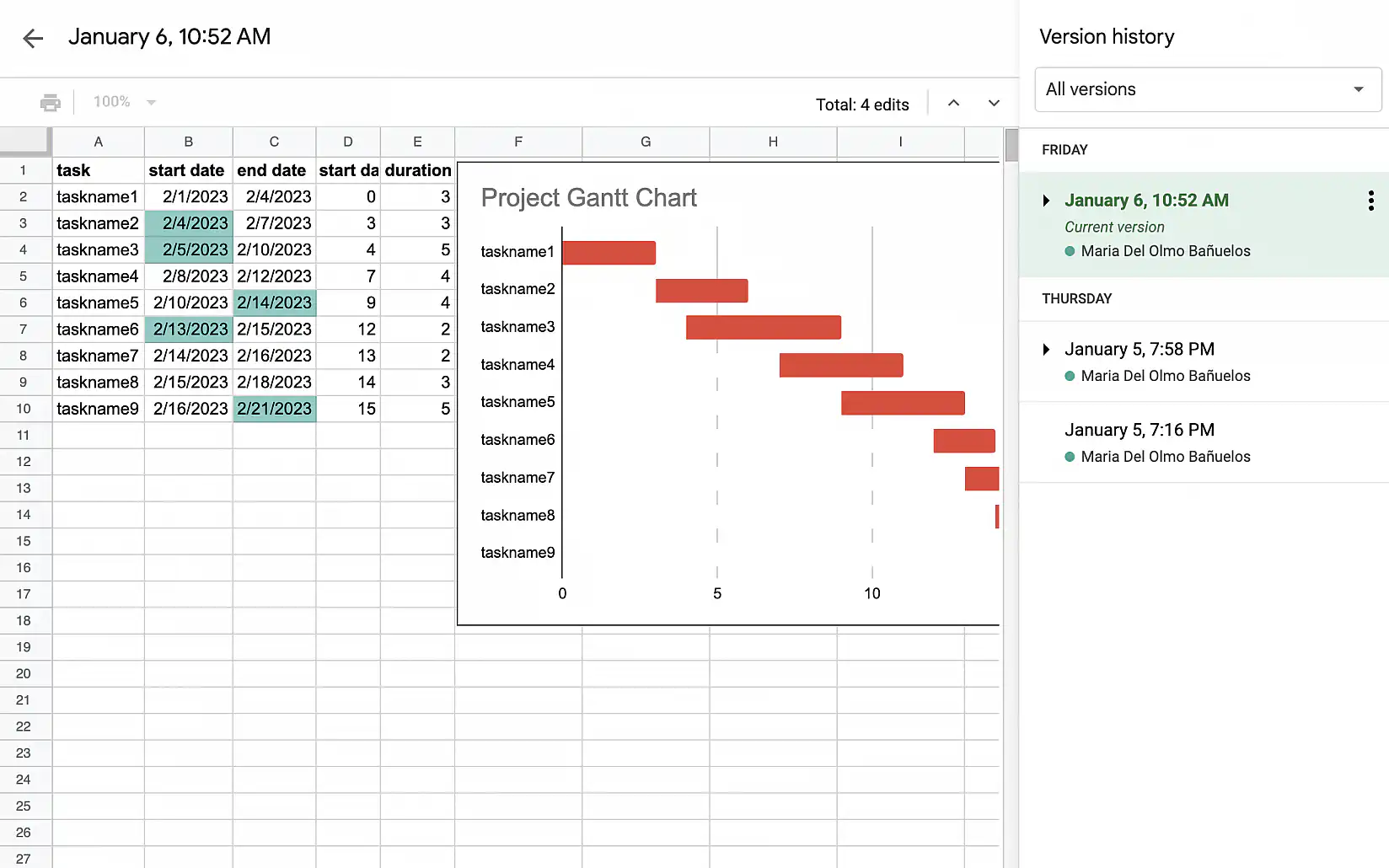
Google Sheets version history — sidebar listing the versions, with the January 6 current version at the top

4. Click the arrow to the left of a version to get a detailed list of changes. Each user is assigned a different color to make their changes easier to identify.
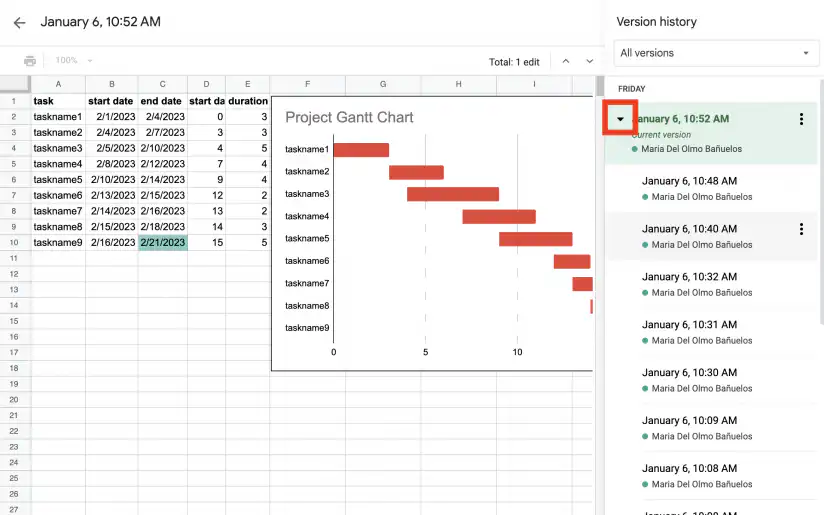
Google Sheets version history — arrow next to a version clicked to list its individual edits

5. Clicking on any of these change logs will highlight the changes within the spreadsheet.
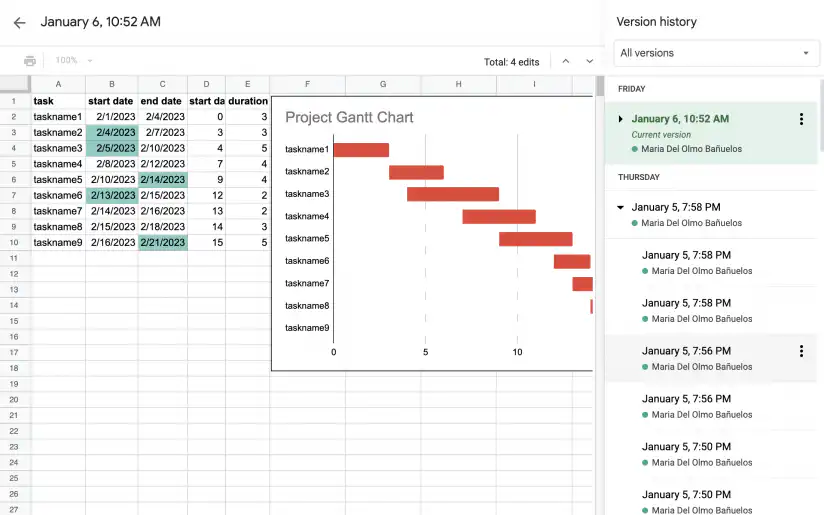
Google Sheets version history — edited date cells highlighted in the task table

How to restore a previous version in Google Sheets

There are two ways to restore a Google Sheets version so that it replaces the current one.

1. Go to File > Version history > See version history.
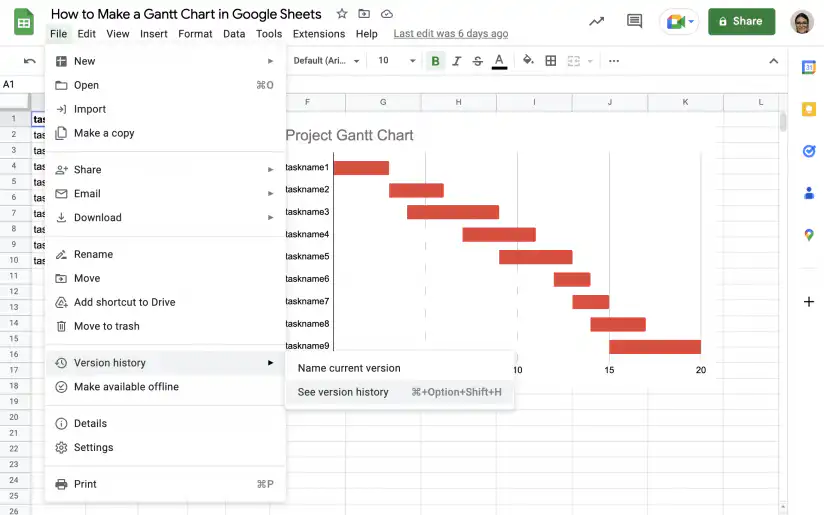
Restore a version in Google Sheets — File menu open on Version history and See version history

2. From the sidebar, select the version you want to restore.
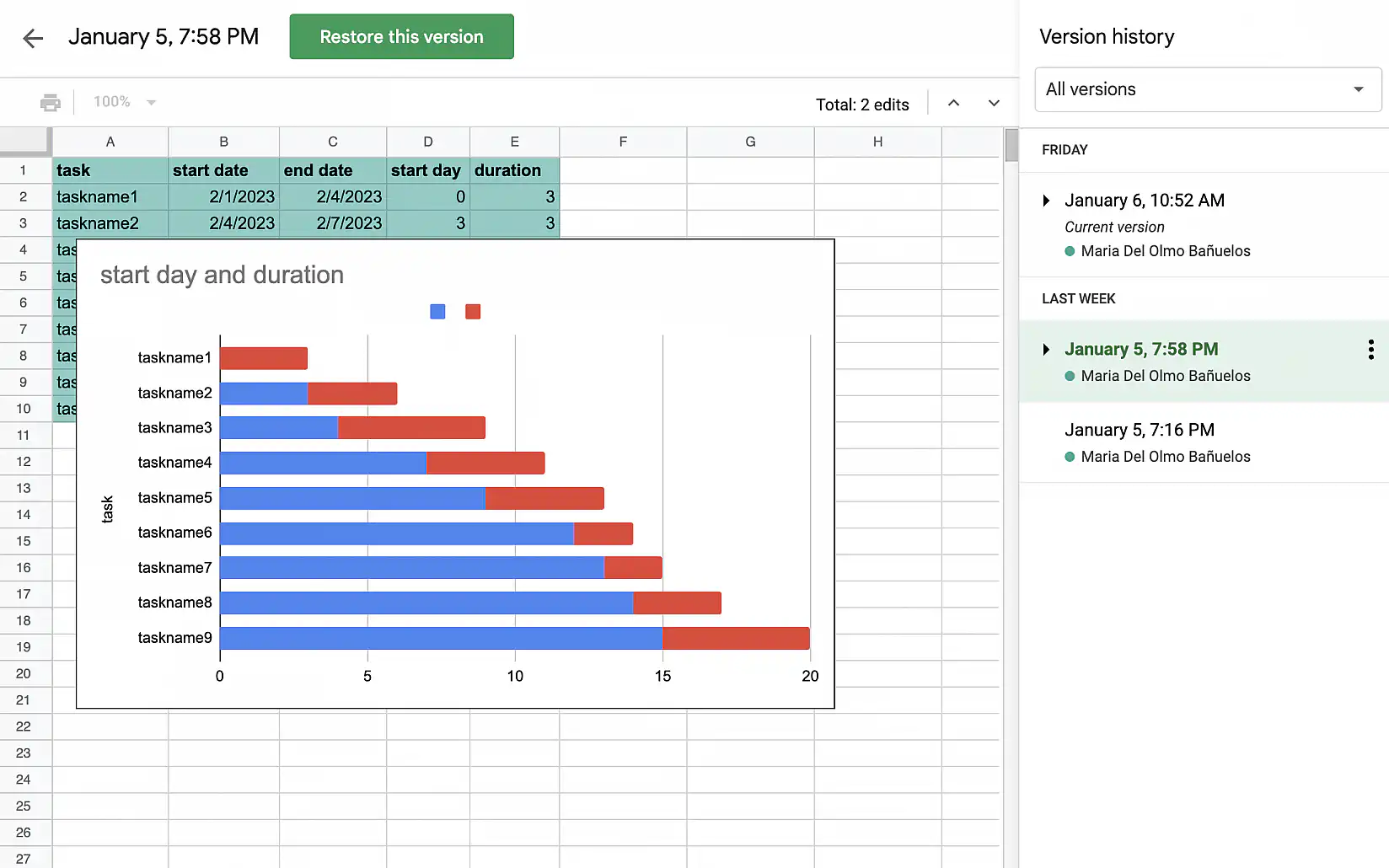
Restore a version in Google Sheets — January 5, 7:58 PM version selected, with Restore this version at the top

3. Click “Restore this version”, then click “Restore” to confirm.
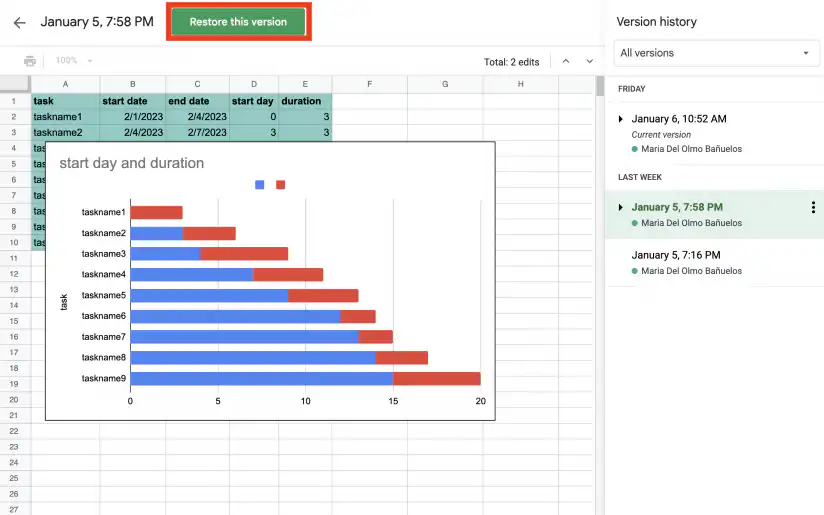
Restore a version in Google Sheets — Restore this version button outlined at the top left

4. Alternatively, you can click the vertical ellipsis to the right of the version you want to restore to get the options. Select ‘Restore this version’.
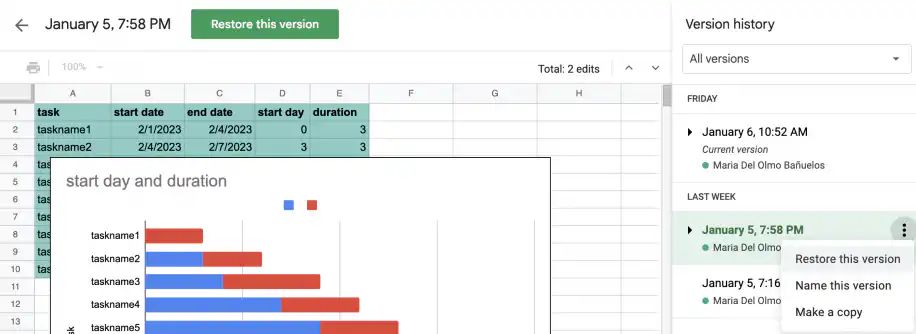
Restore a version in Google Sheets — three-dot menu next to a version with Restore this version

If you work in Excel instead, here’s how to restore a previous version of an Excel file.

How to make a copy of a previous version

If you don’t want to replace the current version, you can always make a copy of past versions.

1. From the version history sidebar, select the version you want to copy.
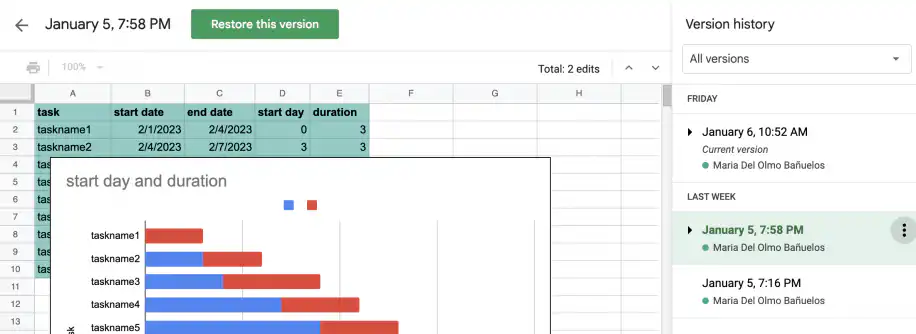
Copy a version in Google Sheets — January 5, 7:58 PM version selected in the sidebar

2. Click the vertical ellipsis to the right of your selection and choose ‘Make a copy’.
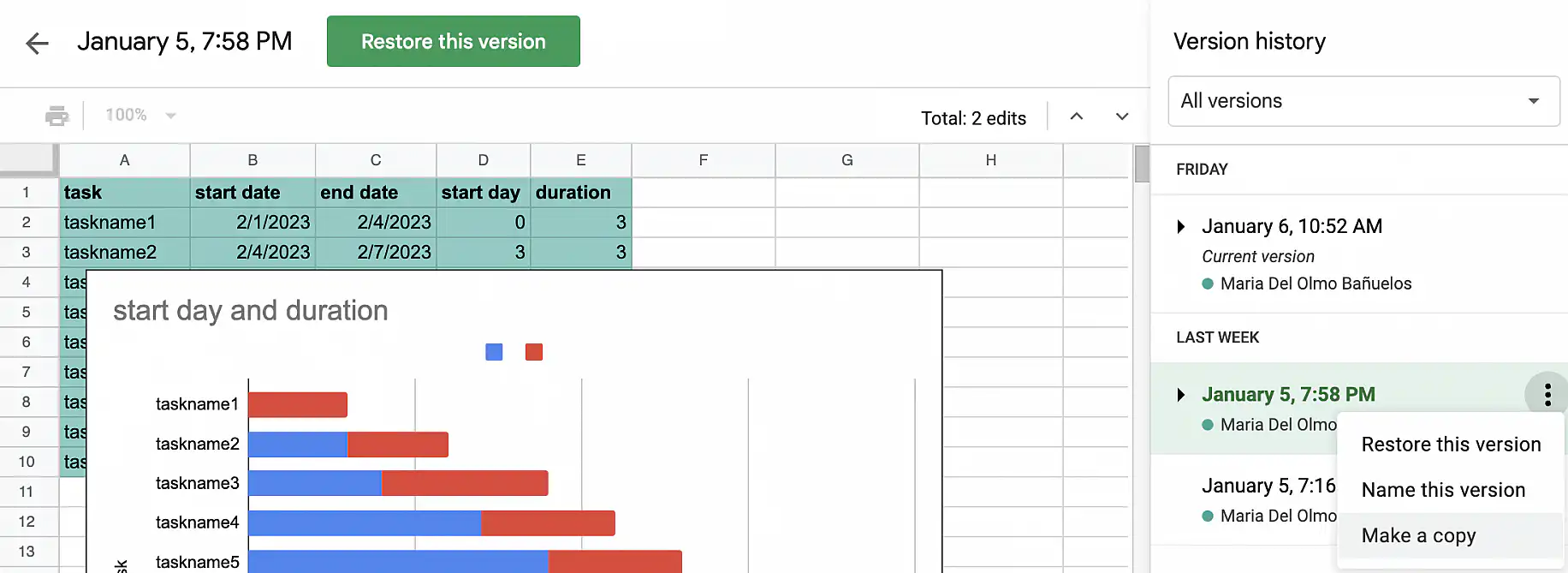
Copy a version in Google Sheets — Make a copy in the three-dot menu next to the selected version

3. You can choose how to name your file and where to save it. To give the same people access to the copy, check the box to “Share it with the same people”.
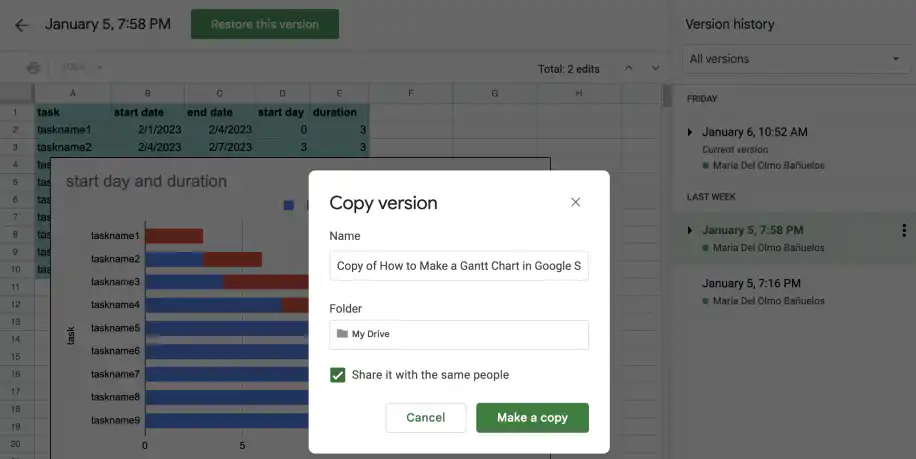
Copy a version in Google Sheets — Copy version dialog with the name, My Drive folder and Share it with the same people checked

How to name a version in Google Sheets

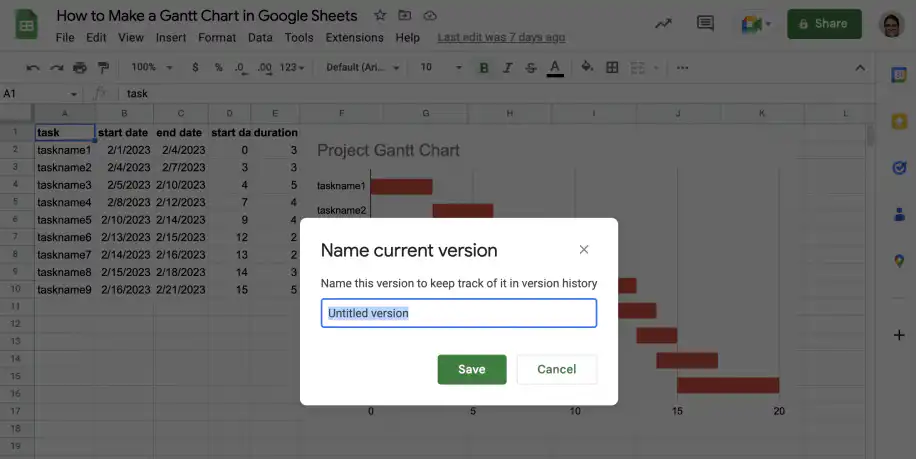
To name the current version of your spreadsheet, go to File > Version history > Name current version.
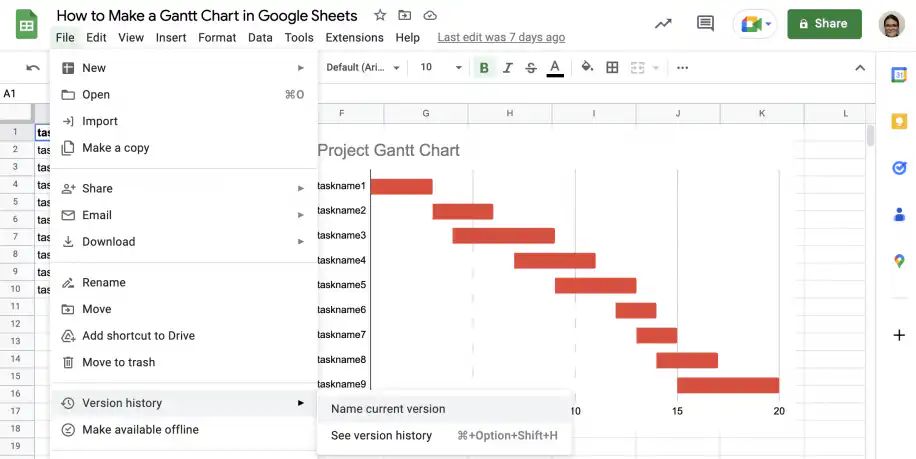
Name a version in Google Sheets — Name current version in the File menu under Version history
Name a version in Google Sheets — Name current version dialog with Untitled version in the name field

To name an earlier version, open version history, click More (the three dots) next to the version, and choose “Name this version”. You can name up to 15 versions in a spreadsheet, and Google doesn’t merge named versions with others. To list only the versions you named, turn on “Only show named versions”.

How to delete version history in Google Sheets

If you own the spreadsheet, you can delete its version history. Deleting is permanent, and it only removes versions that don’t have a name.

To delete all unnamed versions:

  1. Open the spreadsheet and click Last edit at the top right.
  2. At the top of the version history panel, click More (the three dots).
  3. Select “Delete history”, then click “Delete forever”.

To delete only the older versions:

  1. In the version history panel, select the newest version you want to delete.
  2. Click More next to it.
  3. Select “Delete this and older versions”, then click “Delete forever”.

If you’re an editor but not the owner, you can get around this by making a copy. The copy won’t inherit the version history, so you can start a new one.
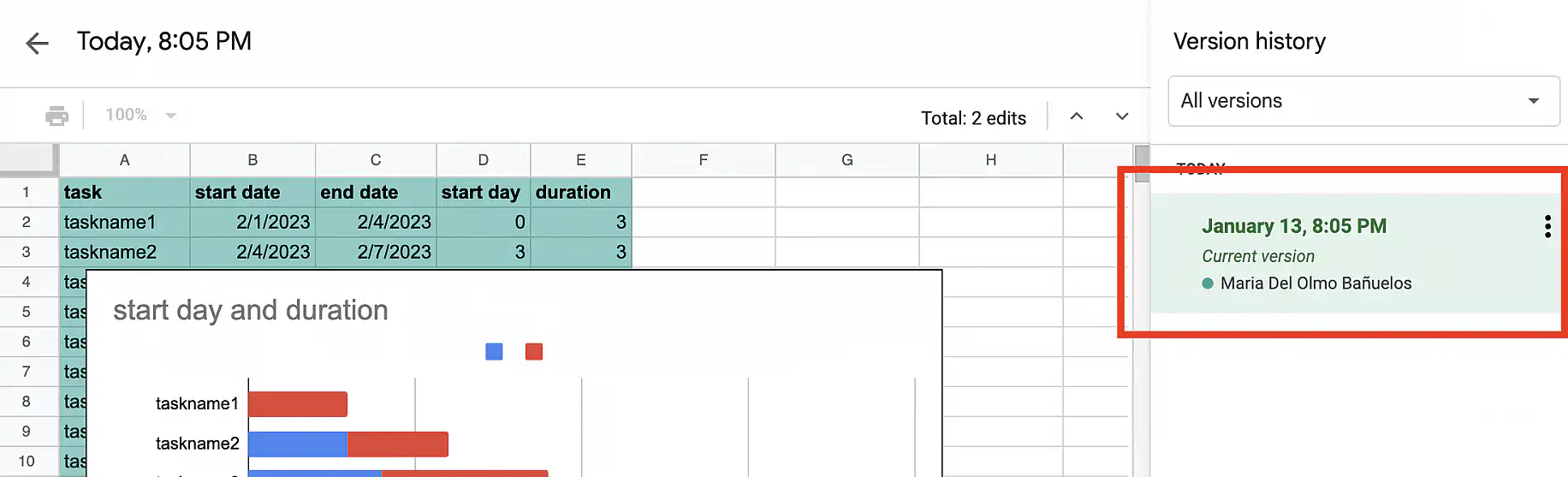
Delete version history in Google Sheets — version history of a copied file showing only the current version

Conclusion

To hear about edits as they happen, get notified when someone edits your Google Sheets file. For other ways to keep a record of changes, check out our guide to track changes in Google Sheets.

You may also like…

google sheets features and formulas

Top 5 dynamic array formulas in Google Sheets 

Google Sheets has evolved beyond basic spreadsheets. With the introduction of dynamic array formulas, users can now manipulate and analyze...
google sheets features and formulas

Mastering the FILTER Formula: 4 Use Cases with Examples

The FILTER formula in Google Sheets is a versatile tool for extracting data that meets specific conditions. Unlike the QUERY formula,...
google sheets features and formulas

Unlocking the Power of SUMIF and SUMIFS in Google Sheets: 4 real-life use cases

The SUMIF and SUMIFS formulas in Google Sheets are indispensable tools for performing conditional summations. They simplify complex...