


Spreadsheet programs like Microsoft Excel and Google Sheets offer various functions designed to look up values in your tables. Both offer HLOOKUP and VLOOKUP for horizontal and vertical lookups, as well as XLOOKUP, which combines them and provides more flexibility. However, using them with multiple criteria can be very tricky, as it requires various levels of nesting. Fortunately, combining the INDEX & MATCH functions allows you to perform flexible and complex lookups using multiple criteria.
In this guide, you will first review the INDEX and MATCH functions and how to combine them for lookups. You will then learn how a small adjustment allows you to use multiple criteria for your lookups, whether vertical, horizontal, or mixed. You have step-by-step instructions on how to look up values using multiple criteria for a horizontal lookup, a vertical lookup, and one with both horizontal and vertical criteria. Finally, you will learn how to combine INDEX & MATCH with other functions, like AVERAGE.
INDEX & MATCH function syntax
Before you get started with lookups based on multiple criteria, it’s a good idea to review the syntax for both functions, as well as the combined syntax.
=INDEX(reference, row*, column*)
- reference: the range of cells from which you want the values returned.
- row*: optional. The index of the row to be returned within the reference range of cells. 0 by default. This is where you add MATCH for vertical lookups.
- column*: optional. The index of the column to be returned within the reference range of cells. 0 by default. This is where you add MATCH for horizontal lookups.
=MATCH(search_key, range, search_type*)
- search_key: the value you want to search for.
- range: the one-dimensional array in which to search.
- search_type*: optional. The manner in which to search.
- 1 is the default. The function assumes the range is in ascending order and returns the largest value less than or equal to the search key.
- 0 finds an exact match. The range does not need to be sorted.
- -1 assumes the range is in descending order and returns the smallest value greater than or equal to the search key.
INDEX & MATCH combined syntax
To use the INDEX function, you need to specify the row and column in your range. The function then returns the contents of the cell where the row and column intersect. In other words, you need to provide the coordinates or cell references.
The MATCH function, on the other hand, searches for a specific value and returns the coordinates or cell reference. In fact, it’s exactly what you need to make the INDEX function dynamic. As indicated above, you can replace the row and column arguments in INDEX with MATCH functions.
=INDEX(range,MATCH(search_key,search_column,search_type),MATCH(search_key,search_row,search_type))
Using the formula above, you can specify the row and column criterion for your lookup, but you’re limited to one of each. Fortunately, you can change this by making a small adjustment to the formula.
Combined syntax for lookups with multiple criteria
Within the MATCH function, you can replace the search_key with “1” and the search_column or search_row with a set of criteria or conditions. Each of these conditions must be within parentheses and joined by a multiplication sign. This forces the function to evaluate each condition and only return “1” if all conditions are met.
Vertical lookup with multiple criteria
Use the following formula for a vertical lookup with multiple criteria.
=INDEX(reference,MATCH(1,(criteria1)*(criteria2)*(criteriaN),0))
Horizontal lookup with multiple criteria
Use the following formula for a horizontal lookup with multiple criteria.
=INDEX(reference,row,MATCH(1,(criteria1)*(criteria2)*(criteriaN),0))
Vertical & horizontal lookup with multiple criteria
Use the following formula for a lookup with multiple vertical and horizontal criteria.
=INDEX(reference,MATCH(1,(criteria1)*(criteria2)*(criteriaN),0),MATCH(1,(criteria1)*(criteria2)*(criteriaN),0))
How to use INDEX & MATCH with multiple criteria in Google Sheets
Combining the INDEX & MATCH functions allows you to perform lookups by matching values using multiple criteria. In other words, it allows you to disambiguate in cases where there are multiple potential matches for a given value. These lookups can be vertical, horizontal, or both.
Fortunately, both functions are available in Microsoft Excel and Google Sheets. Below, you have instructions on how to do a lookup using two criteria: one vertical and one horizontal. In the next section, you have examples with multiple vertical or horizontal criteria. Finally, you have an example combining INDEX, MATCH, and AVERAGE.
1. Set up criteria
1. Open Google Sheets to the spreadsheet where you want your lookup results. In this case, I want them in the same sheet as the data, but you can use IMPORTRANGE to search in other files.
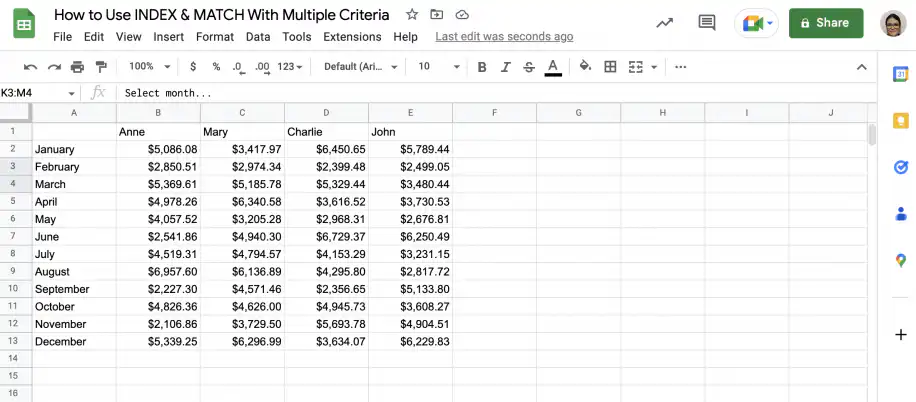
2. Type in the criteria or the values you want to search for in separate cells. In this case, the first criterion specifies the row, and the second criterion is the column.
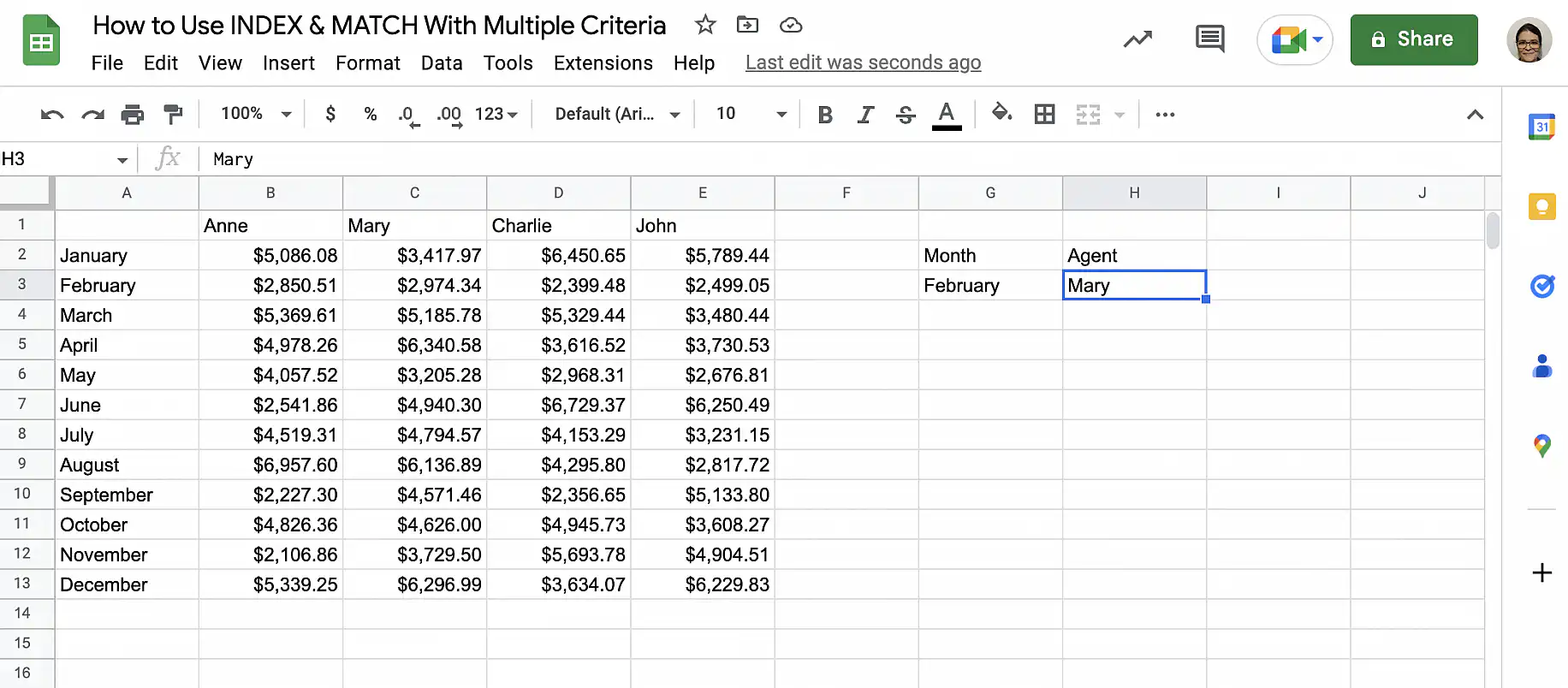
You can easily add drop-down lists in the cells with criteria to make it easier to change them. To learn how to add drop-down lists in Google Sheets, check out this guide on how to add a drop-down list in Google Sheets.
2. INDEX function
1. Type the INDEX formula in the cell where you want the lookup result.
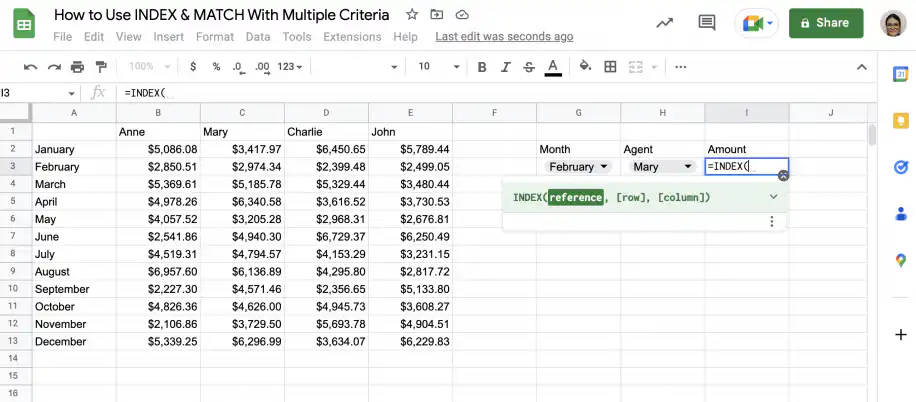
2. For the first argument, select the range of cells containing the table.
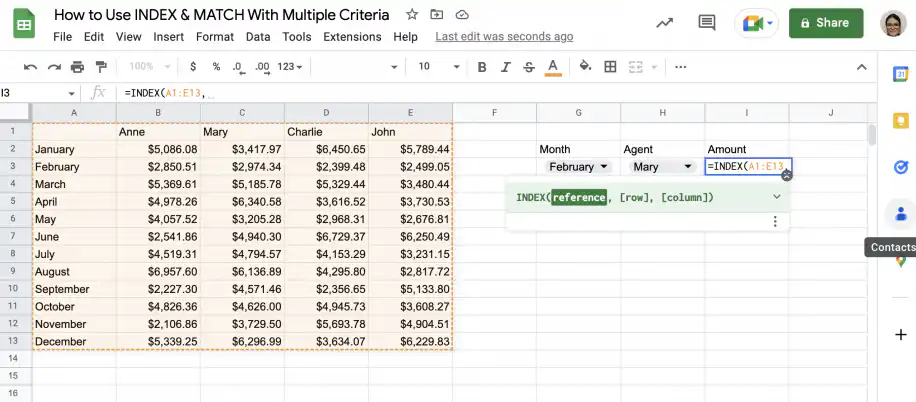
3. MATCH function – vertical
1. For the second INDEX argument, type the MATCH function.
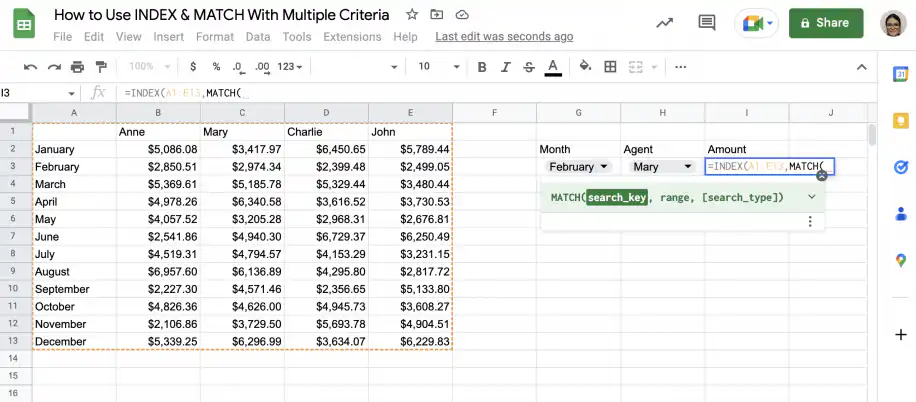
2. For the first argument, select the cell with the vertical lookup value.
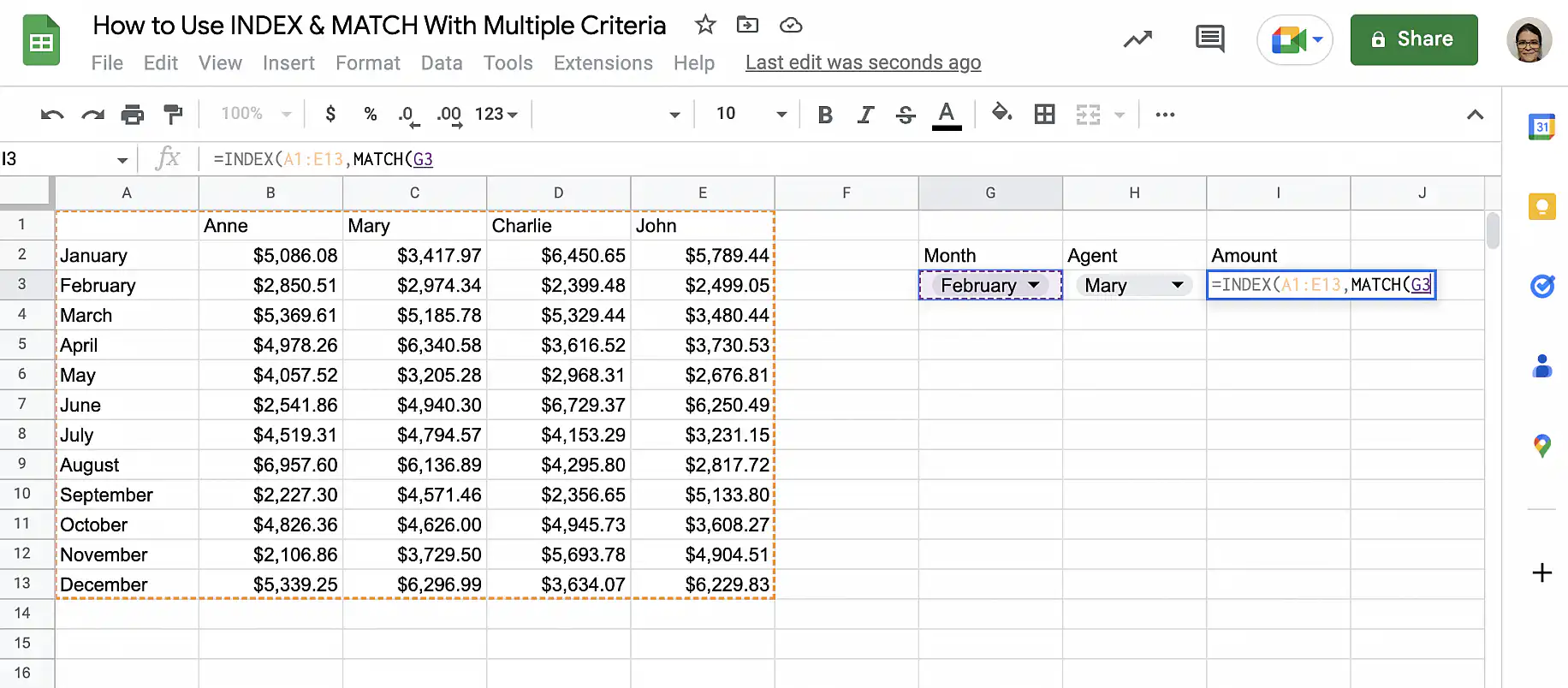
3. For the second argument, select the column you want to search.
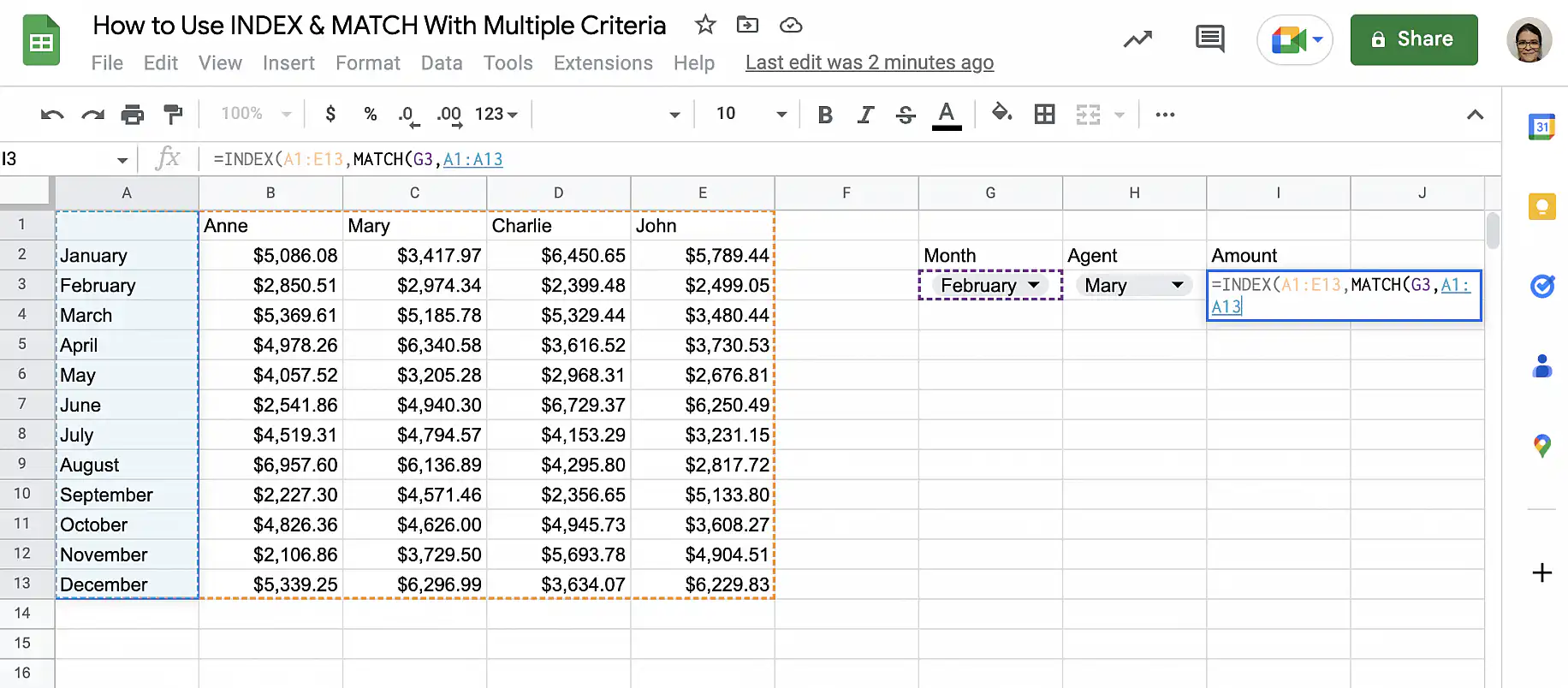
4. The third argument should be “0”, as you want an exact match. Close the parenthesis and add a comma.
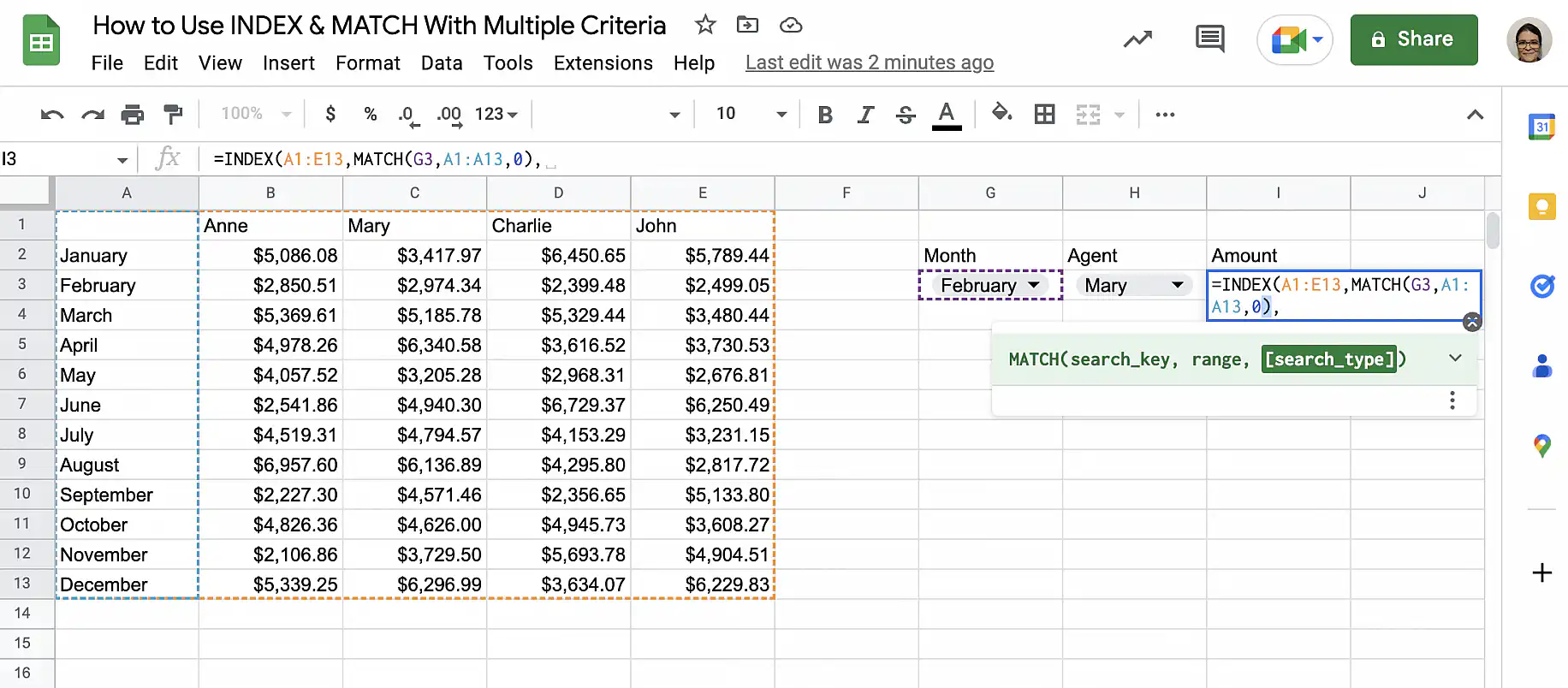
4. MATCH function – horizontal
1. Finally, add another MATCH function. This is the third parameter of the INDEX function, which specifies the column.
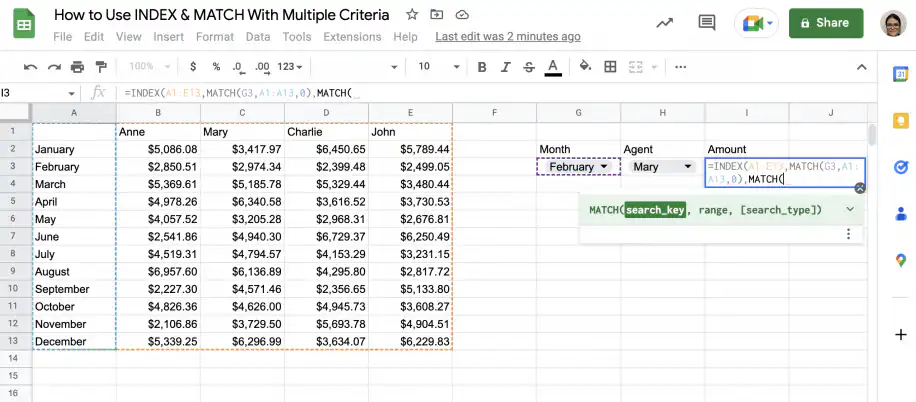
2. Select the cell with the horizontal lookup value as the first argument.
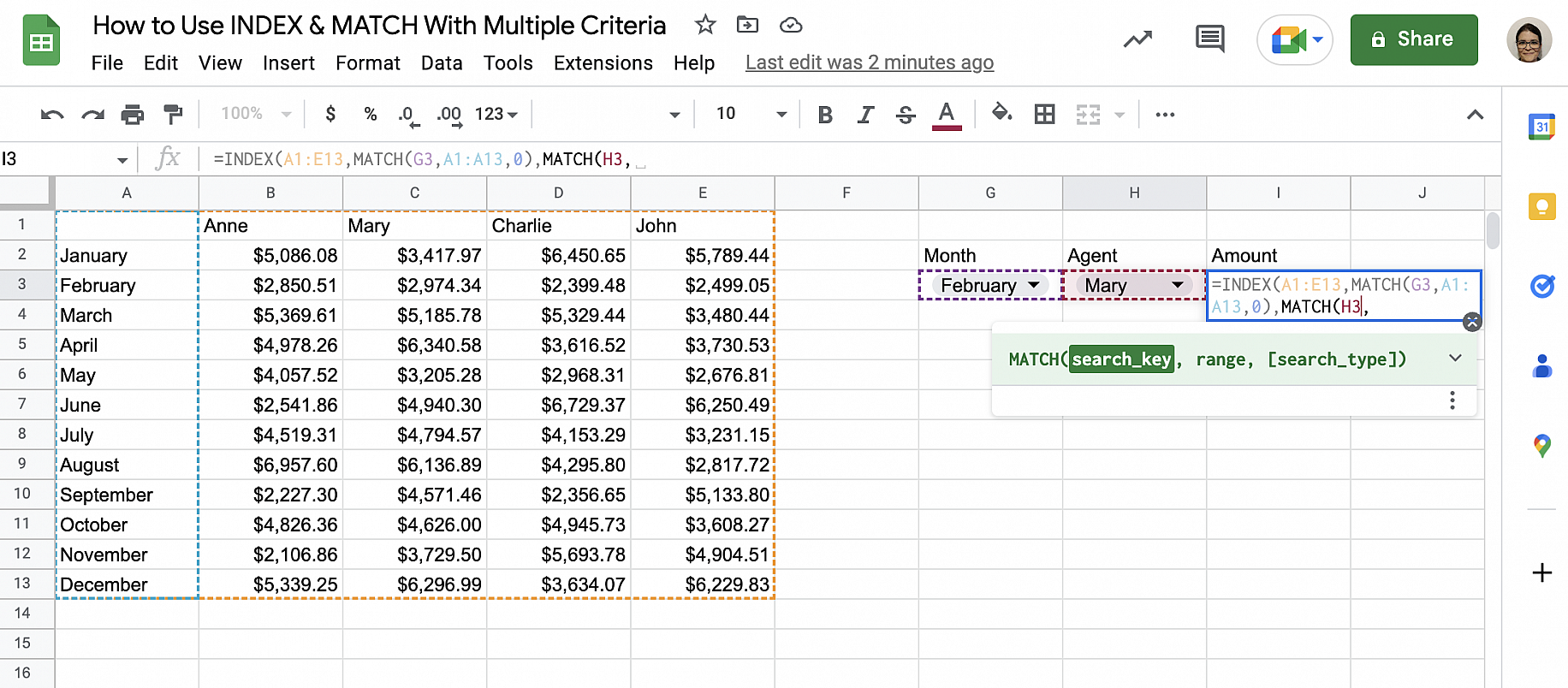
3. Select the row you want to search as the second argument.
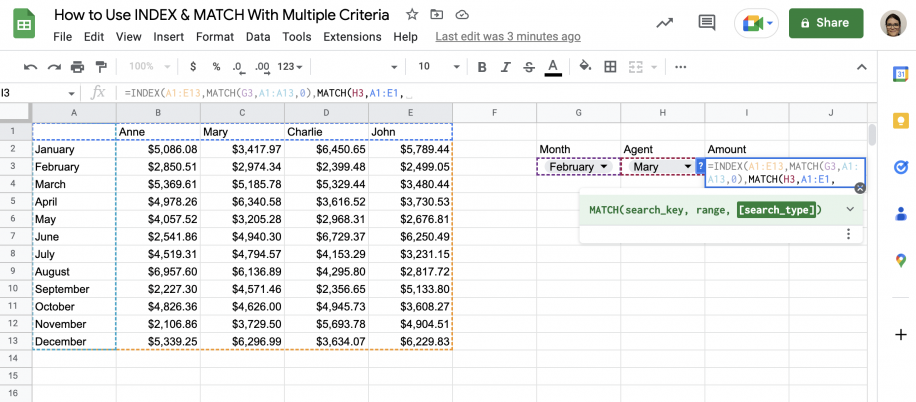
4. Finally, type “0” for the third argument and add two closing parentheses.
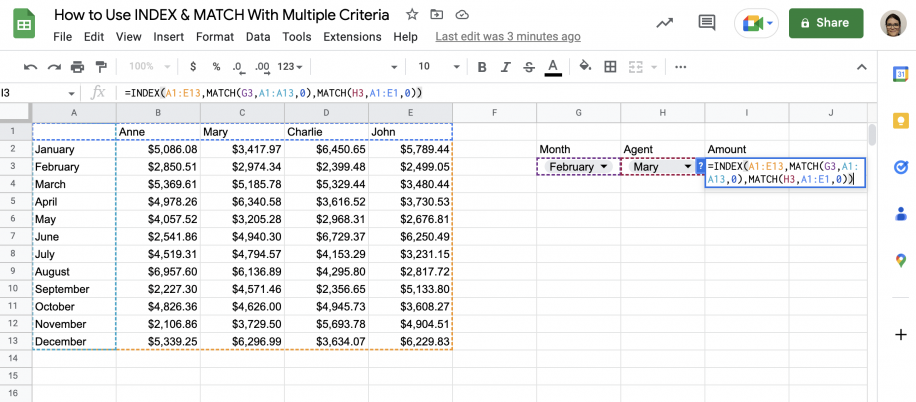
5. Press ‘Enter’ to see the result.
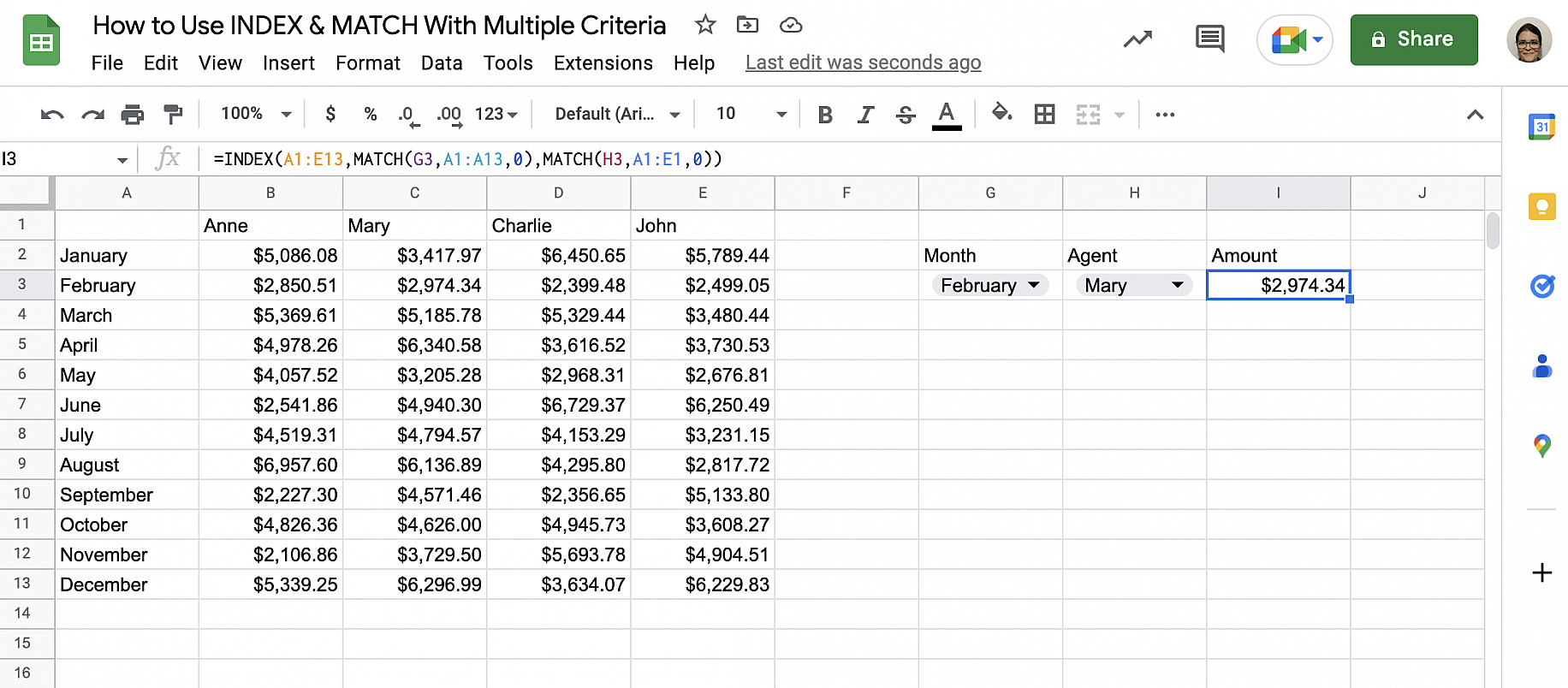
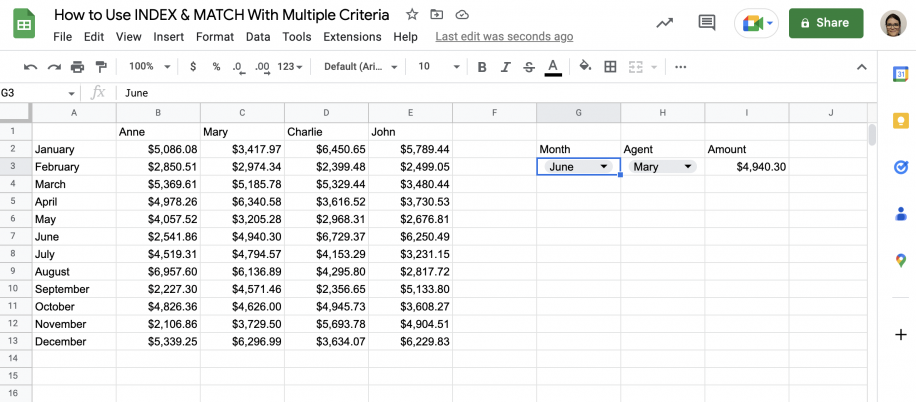
6. The function will automatically recalculate as soon as you change the criteria.
INDEX & MATCH with multiple criteria: examples
In this section, you have two examples. For the first example, you will find a match using multiple vertical criteria and one horizontal criterion. For the second example, you will combine INDEX and MATCH with AVERAGE to get the average price of a specific product from a particular vendor.
Lookup with multiple vertical criteria and one horizontal criterion
1. Open Google Sheets to the spreadsheet with your data.
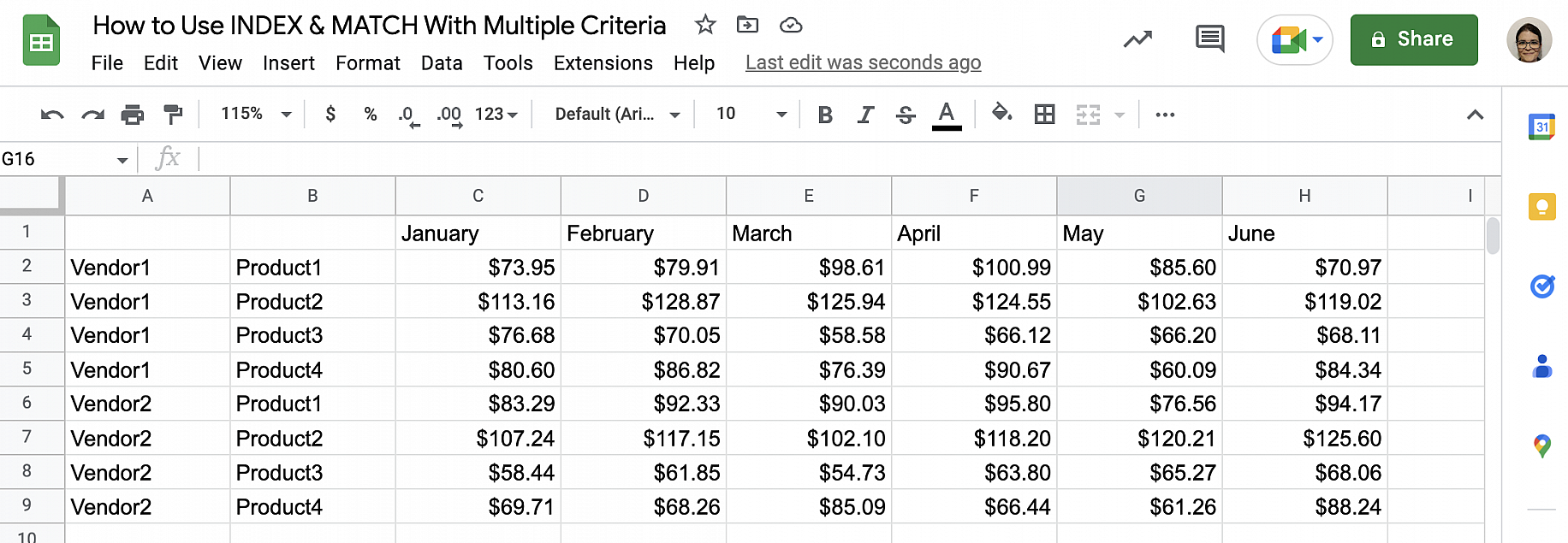
2. Type the criteria into separate cells. I have added drop-down lists to those cells to make it easier to select the criteria.
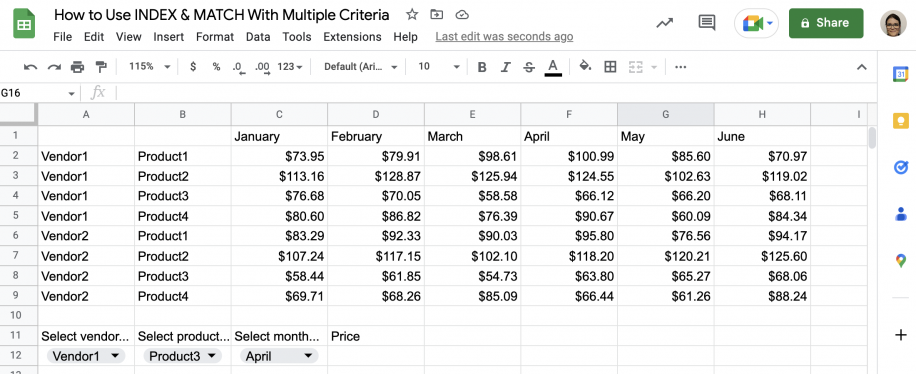
3. In the cell where you want the result, type the INDEX function and select the table as the first parameter.
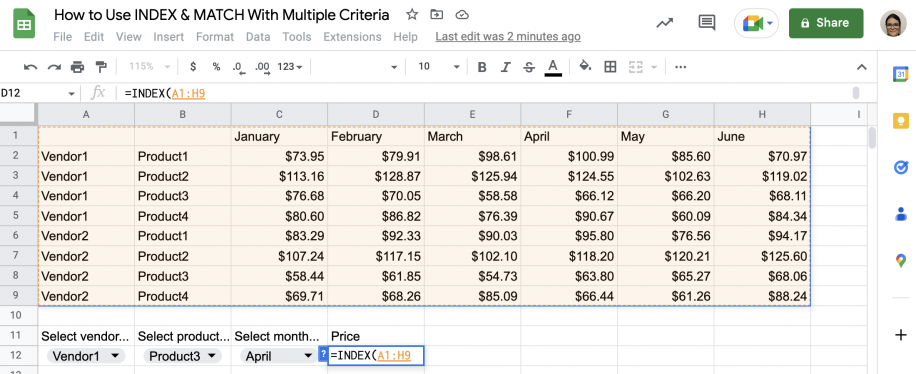
4. For the second parameter, add the MATCH function. Add “1” as the search key.
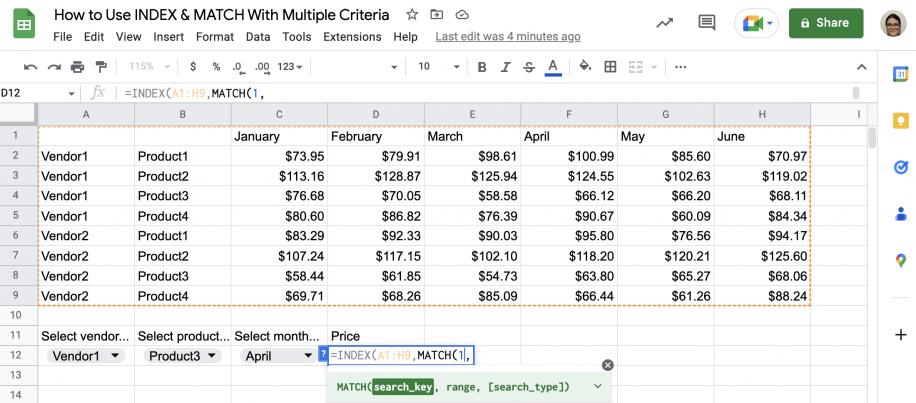
5. After the comma, open the parenthesis and add the criterion or condition. Close the parenthesis and add a multiplication sign.
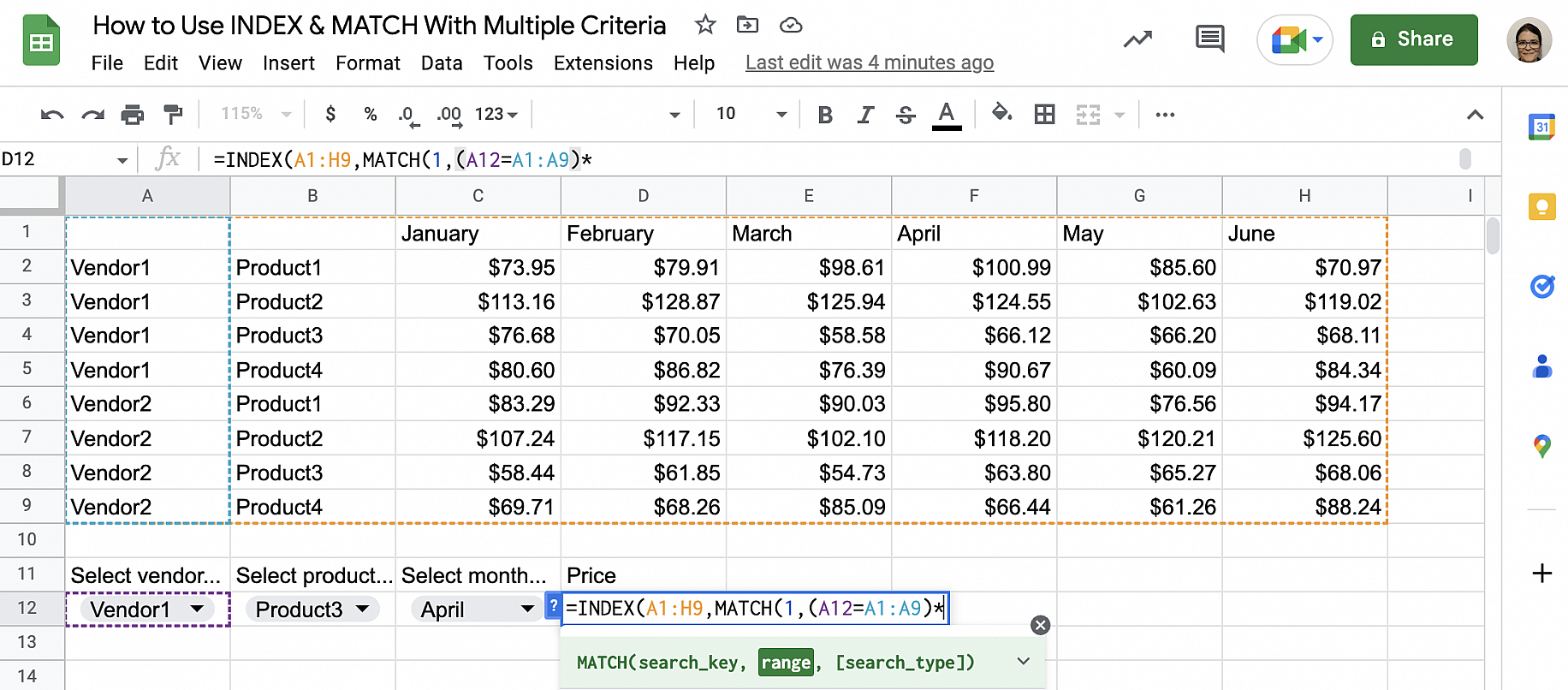
6. Open another parenthesis to add the second criterion. Once done, close the parenthesis and add a comma.
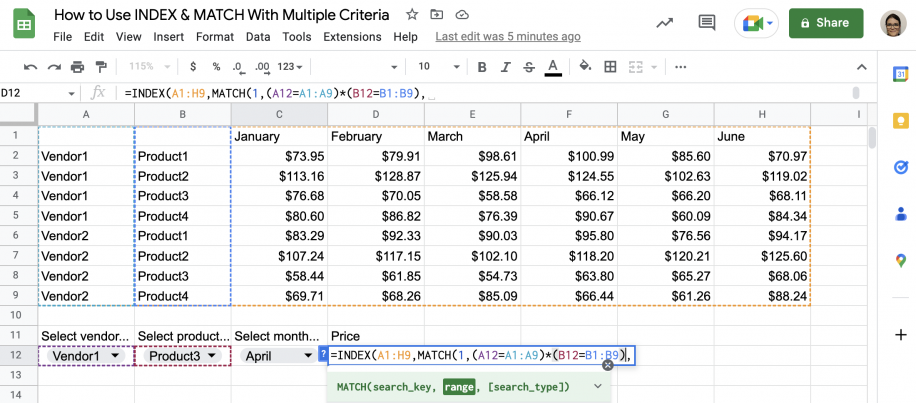
7. Don’t forget to add “0” for an exact match, close the parenthesis, and add another comma.
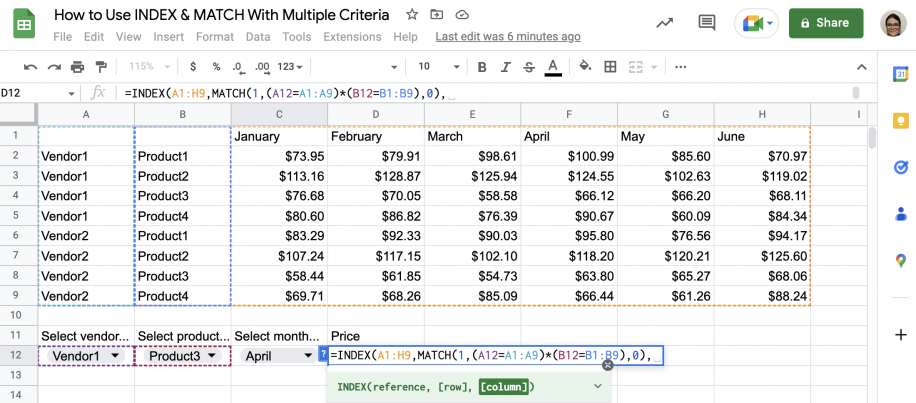
8. Add another MATCH function. Since you only have one horizontal criterion, simply select the search key (month) and the row where it should be matched.
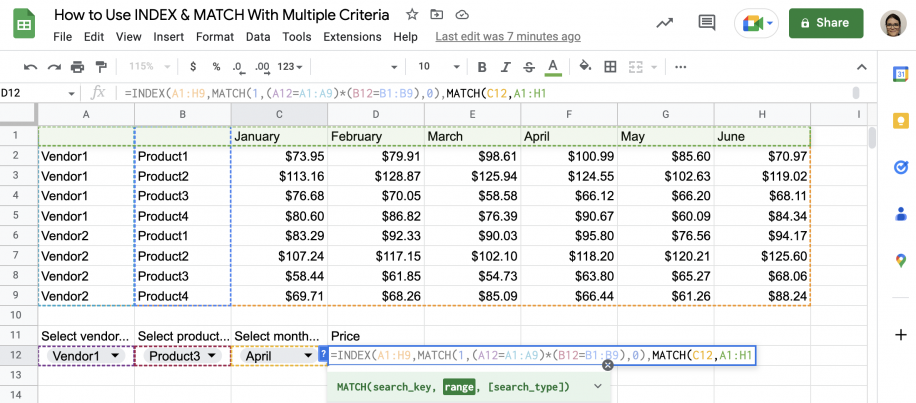
9. Finally, type “0” for an exact match and close both sets of parentheses.
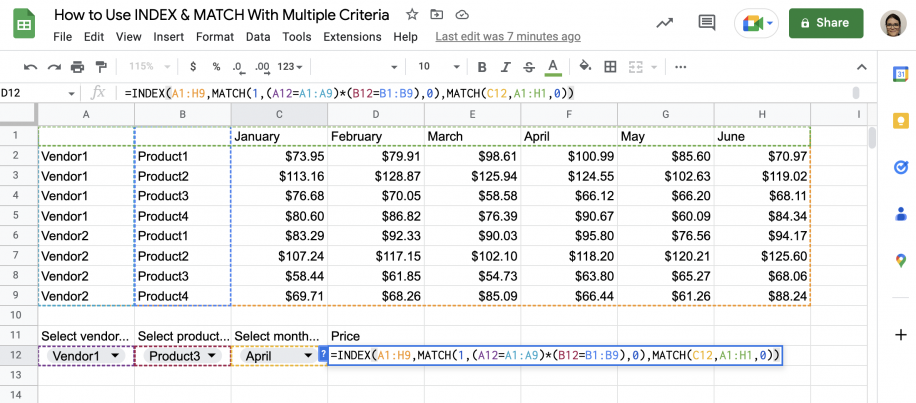
10. Press ‘Enter’ to see the result.
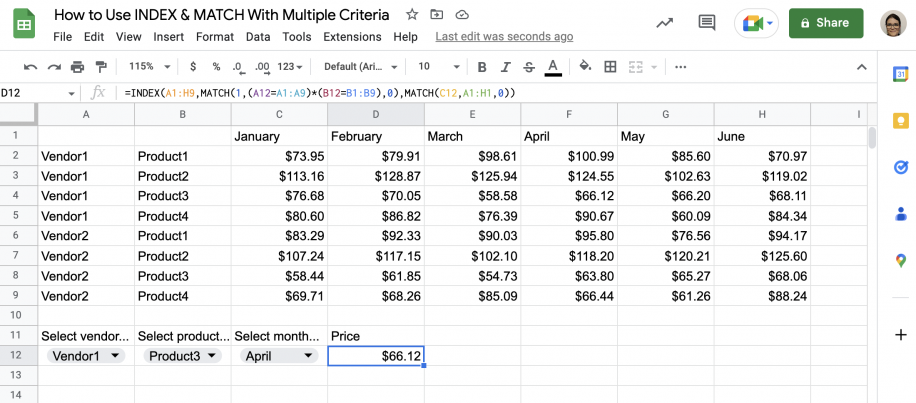
Lookup with multiple criteria & AVERAGE
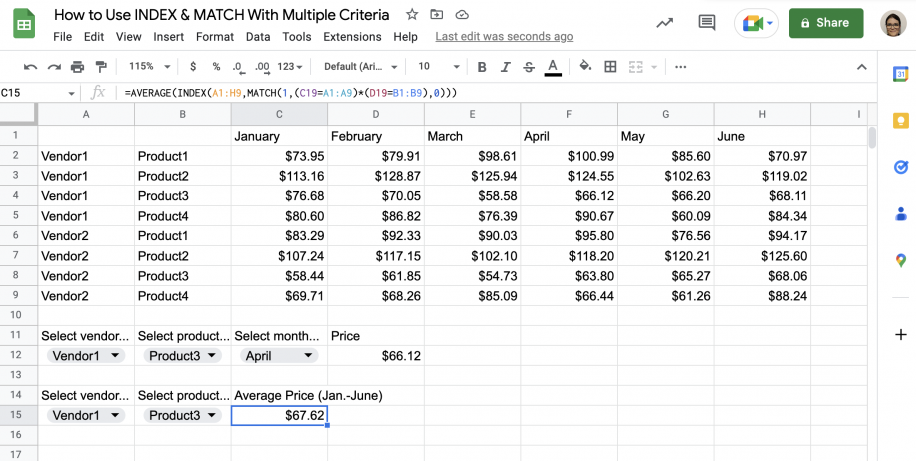
In this example, you will learn how to get the average price for a specific product and vendor over the six months of data you have.
1. In the spreadsheet where you want the result, type the criteria into separate cells.
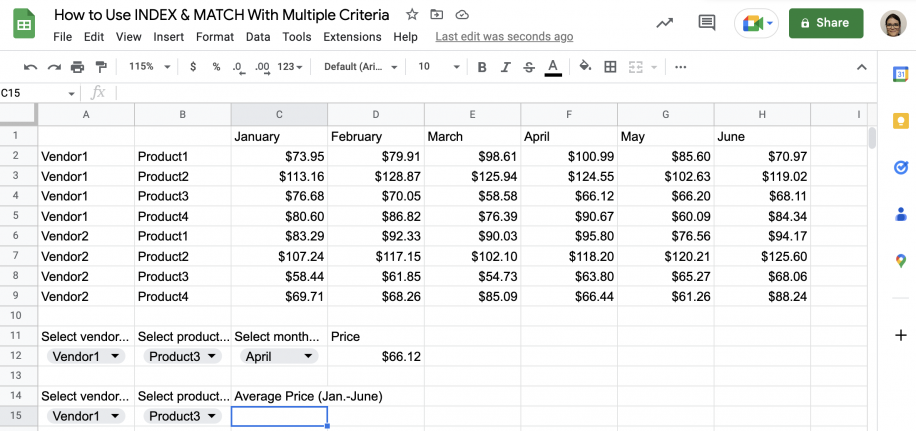
2. In the cell where you want the result, type the AVERAGE function.
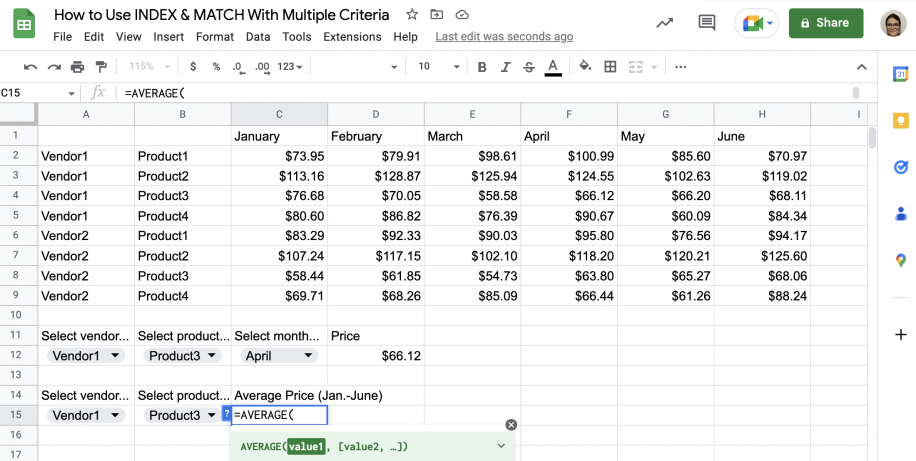
3. Next, type the INDEX function.
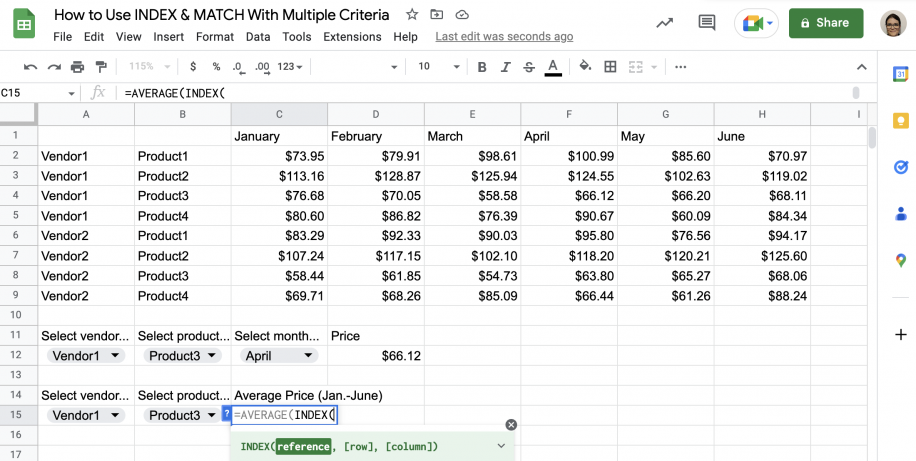
4. Select the table as the first parameter for the INDEX function.
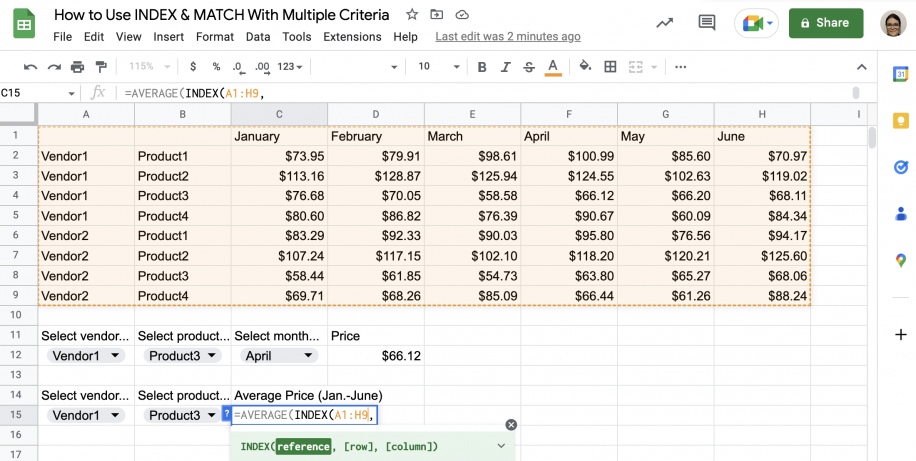
5. Add the MATCH function and type “1” as the search key.
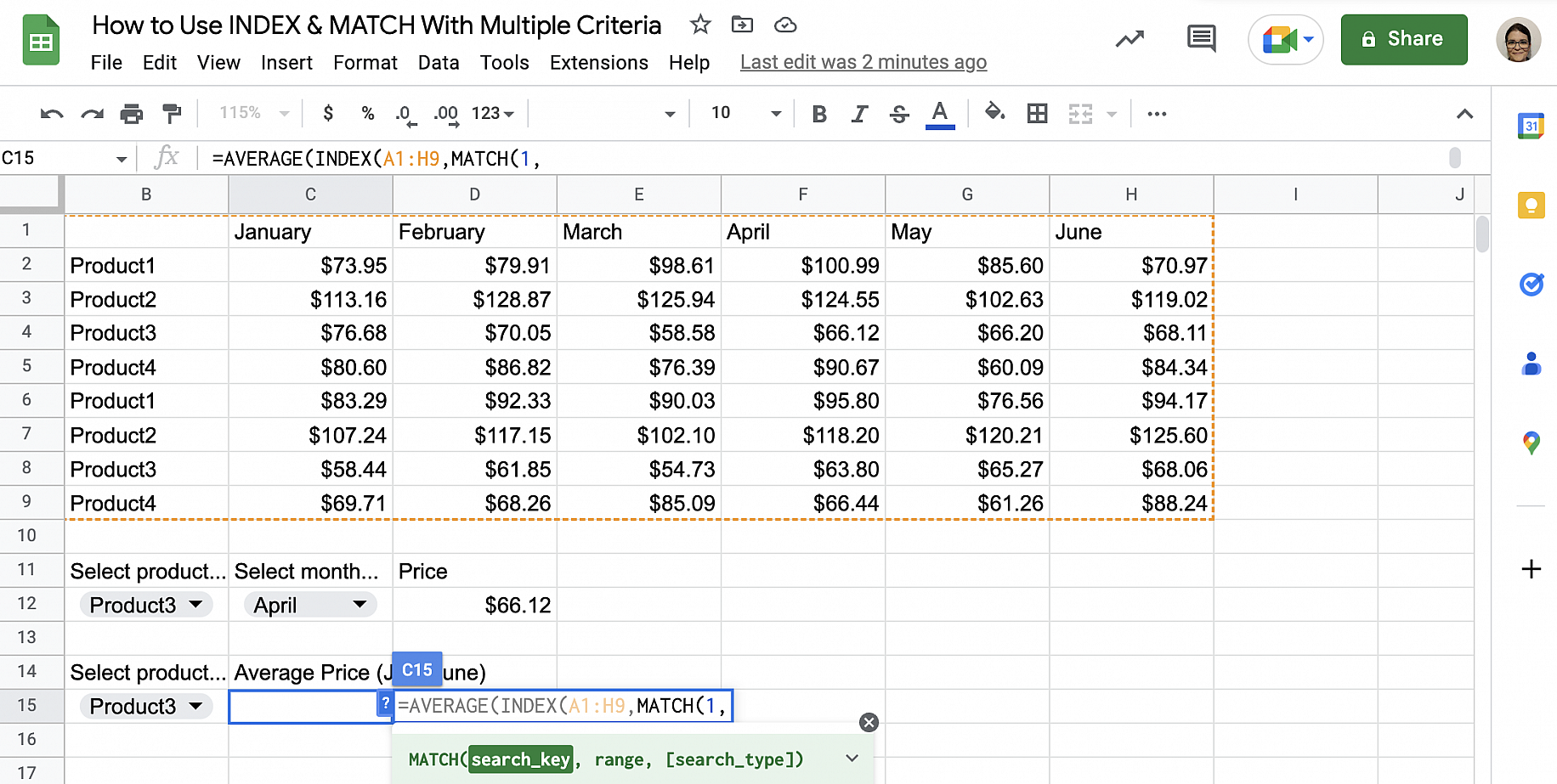
6. After the comma, add each of your vertical criteria between parentheses, joined by a multiplication sign.
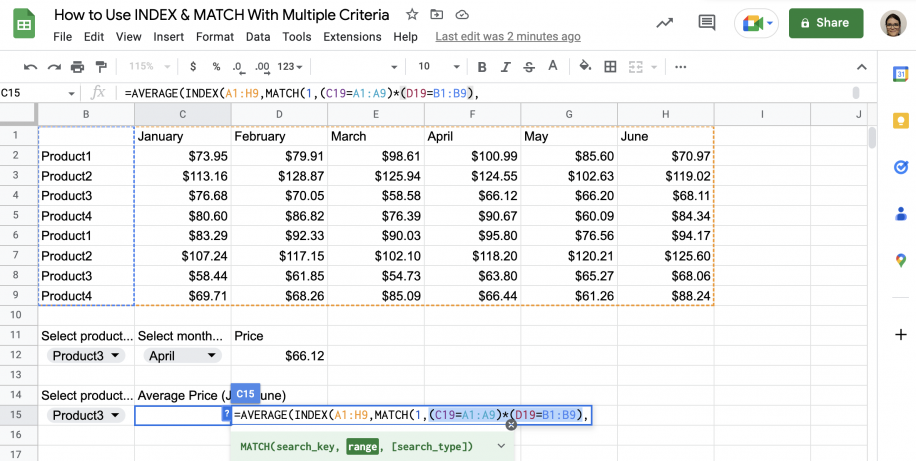
7. After the comma, add “0” for an exact match and close the three parentheses.
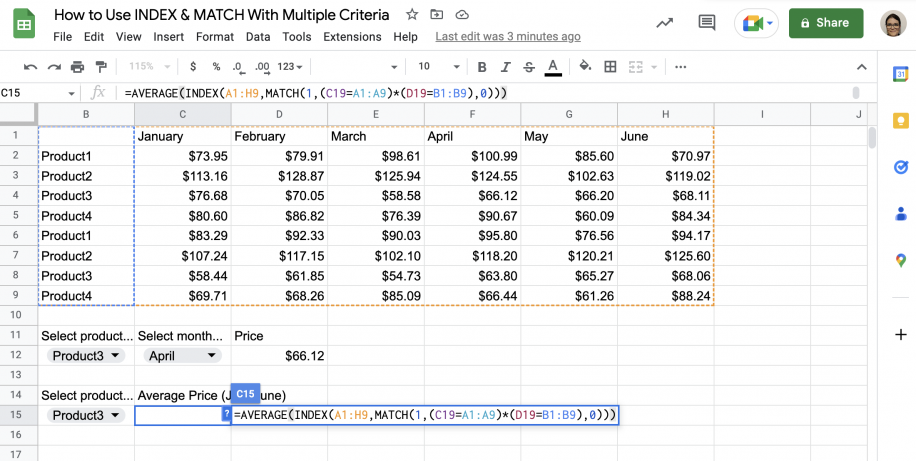
8. Press ‘Enter’ to see the result.
Conclusion
INDEX and MATCH offer a more flexible way of performing lookups in Microsoft Excel and Google Sheets. You can quickly look up values in complex tables using multiple vertical and horizontal criteria. You now know how to use INDEX and MATCH to get values based on both vertical and horizontal criteria, including multiple of each. You also know how to combine the INDEX and MATCH functions with others so that you can incorporate the calculation directly into your lookup formula. If you need to add up the values in every row that meets your conditions, rather than return a single match, use SUMIFS with multiple criteria.
To learn more about other lookup functions, check out these guides on:

 English
  Español
  Português do Brasil
  Français