


As a cloud-based tool, Google Sheets is fantastic to collaborate on spreadsheets with multiple team members. Google Sheets offers a ‘Share’ feature that allows you to share your entire Google Sheets files with others. Although this is useful in some cases, the majority of the time you want to only share specific parts of the spreadsheet with others. Unfortunately, Google Sheets does not offer a way to do this. So how can we export specific data from Google Sheets? The Sheetgo add-on is the best tool for the job.
Ready to streamline your data?
Why export data from Google Sheets?
The ‘Share’ feature in Google Sheets isn’t necessarily the best way to share your data. The main reason is that there is no way to control exactly what people have access to – they are able to view the entire spreadsheet. In the majority of business situations, spreadsheets contain a lot of important, private data that needs to be protected.
With the Sheetgo add-on, you can send specific data from spreadsheets that allows you to keep data private. Let’s say I’m creating a spreadsheet detailing each of my employee’s performance for the year. I can’t use Google’s ‘Share’ feature because each employee would have access to the other employee’s private performance data. So, using the Sheetgo add-on, I can make sure that this data remains private, only sharing specific data with the corresponding employee.
How to export data from Google Sheets
With the Sheetgo add-on for Google Sheets, you can choose exactly how much data you want to share. Sheetgo will export your specific data to a new or existing spreadsheet, which you can then share with recipients.
Sheetgo offers two ways to export specific data from Google Sheets. Firstly, you can use export a specific tab from your spreadsheets. Secondly, you can use the Filter features to select specific columns or groups of data to export. Let’s look at both versions and how to use them within the Sheetgo add-on.
How to automatically export a tab from one Google Sheet to another
Let’s use the example mentioned above. I have a Google Sheets file dedicated to my employee’s performance during the past year. There is a tab dedicated to each employee, containing extremely private data.
I want to export each specific tab to a new spreadsheet which I can send to the corresponding employee.

1. Install Sheetgo
Firstly, you need to install the Sheetgo add-on into Google Sheets. Do so by clicking the blue button below. It takes you to the Google Workspace Marketplace where you can directly install the add-on. Make sure you sign up to Sheetgo.
Alternatively, open Google Sheets and head to Add ons > Get add-ons. Search for Sheetgo, click on the result and click the Install button.
Now that the add-on is installed, simply open it by heading back to the Extensions and Add-ons menu and click Sheetgo > Start. The add-on should open up on the right-hand side of your screen.

2. Choose tab and export data
Under the Export data section, click Select data.

As you can see below, our open file is automatically selected. Now, choose the tab you wish to export. In this example, I want to export Garry’s performance data, so I’ll select his tab.
You can also expand the Settings to enable transfer formatting.
Once finished, click Continue.

Connect, merge, filter or split your spreadsheets
3. Choose destination
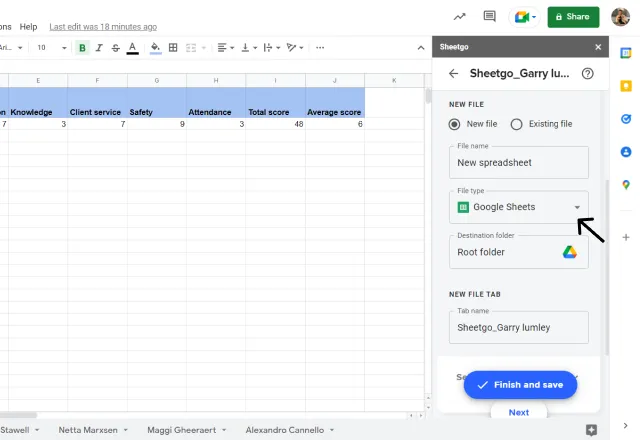
Scroll down to the Send data section and select the type of file you wish to export your tab to.
In this example, I want to export my data to another Google Sheet.

You can choose to export your data to a new or existing sheet. You can also edit the destination of the file, as well as the file name and new file tab.
Once you’re happy with everything, click Finish and save.
Your data has been successfully exported from Google Sheets. You can repeat this process again for any other tabs you wish to export.

How to export selective data to another Google Sheet automatically
Sometimes you want to even more selective about the data you export than just a simple tab. Perhaps there are only certain columns or rows of data that we want to export from Google Sheets. Or perhaps we want to export the rows that contain a certain number. The Sheetgo add-on offers a Filter feature which allows you to filter down the data you wish to export even further.
To demonstrate this, let’s imagine that I have a Google Sheets file with all employee performance data in one tab.

My boss has sent over different types of data he wants to see:
- The data of employees who scored a total of 50 or over
- Columns containing the names of the employees and their average performance score only
- The data of the lowest scoring employee (in red)
I can use any of the Filter functions within the Sheetgo web app to filter specific data to meet each of these requests, rather than simply by tab.
In order to use these filters, follow Steps 1 and 2 in the instructions above, then use one of the 3 filter options we will now look at below.
Option 1: Filter by condition
The Filter by condition function allows you to create either single or multiple conditions that Sheetgo tests your data against. Any data that fulfills the condition(s) will be exported.
With the filter condition, I can achieve request one by my boss – exporting the data of employees who scored a total score of 50 or over.
Once you have selected your Google Sheets file and selected tab, scroll down to the Filter data section and select Filter by condition.

Here you can choose to create a single or multiple conditions. For this example, I can create one single condition. Then, choose the column, condition type, and value.
In order to create my condition, I need to select Column J (Total score), the condition “is greater than or equal to”, and type in the value ‘50’.
Once finished, click Continue.

Continue through the steps as normal, adding your destination folder. Once completed, press Finish and save.
As you can see, Sheetgo has exported the data of only the employees who scored 50 or more as their total score.

Connect your spreadsheets to your data sources
Option 2: Filter by query
The Filter by query function allows you two write queries similar to SQL. For this filter function, I can achieve the second request from my boss – to send over only the employee names and average score columns.
Once you have selected your Google Sheets file and selected tab, scroll down to the Filter data section and select Filter by query.

As you can see, Sheetgo has already made this section easier, by creating buttons for each column. Simply add the columns you wish to export.
For example, I need to select Column A and K.
Once you’re happy with your query, click Continue.

Continue through the steps as normal, adding your destination folder. Once completed, press Finish and save.
As you can see, Sheetgo has successfully exported only Column A and K from my original spreadsheet.

Option 3: Filter by color
Finally, the Filter by color function allows you to select specific data based on cell color. Using this, I can therefore fulfill the final request for my boss – to send over the data of the lowest scoring employee. Both the highest and lowest employee are in color; the highest in green, the lowest in red. So, using this filter, I can easily select the data in the red cells to export.
Once you have selected your Google Sheets file and selected tab, scroll down to the Filter data section and select Filter by color.

Choose the column where you want to filter by color. In this example, it doesn’t particularly matter which column we choose. Then, from the dropdown, choose your chosen cell color.
Once finished, click Continue.

Continue through the steps as normal, adding your destination folder. Once completed, press Finish and save.
As you can see below, Sheetgo has exported Alexandro’s data, the correct employee who had the lowest score.

Automatically export data from Google Sheets
And there you have it! With the Sheetgo add-on, you can export a wide range of selected data to suit your needs. Sheetgo’s Filter features are a great asset to have when filtering down your data in a variety of ways.
Now you know how to export data automatically, why not learn how to import? Check out our blog post on How to import specific columns to Google Sheets.
Alternatively, check out our related blog posts below!
Editor’s note: This is a revised version of a previous post that has been updated for accuracy and comprehensiveness.


 English
 Español
 Português do Brasil
 Français