


The Google Sheets SEARCH function returns the position of a substring within a text. It is the right tool if you need to find a specific word, letter, or number.
When it comes to Google Sheets string functions, the FIND formula is closely related. It also returns the position of a substring within a string. The only difference is that FIND is case-sensitive, while SEARCH is not.
To check whether a cell matches a pattern, such as any number or one of several words, use REGEXMATCH in Google Sheets.
Note: If you want to learn more about other Google Sheet functions, we have a post with 100+ Google Sheet Functions
Syntax
=SEARCH(search_for, text_to_search, [starting_at])
- search_for – the substring that you need to look for within the text.
- text_to_search – the main text string within which to look for the first occurrence of the search_for substring.
- starting_at (optional) – the position in text_to_search from which the function starts to search.
How to use SEARCH Google Sheets
As covered in the syntax, this function needs both the string and substring. But the third parameter, [starting_at], is optional. You only need to use this if there are multiple occurrences of the same substring.
Let’s go over the examples in the image below to get a better understanding of the SEARCH function.

Example 1
The formula searches for the string “Hello”, which incidentally happens to occur in the very first position. As a result, the function returns 1.
=Search("Hello", "Hello, there!")
As you can see from this example, the SEARCH function identifies the position where the substring starts. The word “Hello” occupies the first 5 characters, but the function tells you where it starts.
Example 2
The second function searches for “,” and finds it in the third position of the main string. This formula uses cell referencing instead including the text directly.
=Search(B3, A3)
Example 3
This third function is quite interesting. Here I am looking for an empty space within the main string. However, instead of leaving the starting_at parameter empty, I gave it a value of 10.
=Search(" ", A4, 10)
As you can see, the function ignored the first two occurrences of the space character (at positions 5 and 9) and returned the next immediate occurrence after the 10th character..
Example 4
The fourth example demonstrates how the SEARCH function finds partial matches. It also illustrates that being case insensitive is the main difference between this function and the FIND function.
=SEARCH("eat", "THAT'S GREAT NEWS!")
Example 5
The last example shows that even if the main text is alpha-numeric in nature, the function still works.
=SEARCH("1", "Alpha178625")
SEARCH function in action
Let’s explore some practical cases where the SEARCH function could come in handy, either by itself or in combination with other functions.
SEARCH function for conditional formatting
Use this function within a conditional formatting rule. If the formula returns a number the keyword was found, and you can give the cell containing it a specific format. This is useful for scanning through customer feedback or other text data.
=SEARCH("keyword", A2:A)
To set up the conditional format, open the Format cells dropdown, select Custom formula is, and input the formula. Adapt the keyword and range according to your needs.
Categorizing data with SEARCH
This formula tags entries as “Product X” if the keyword “product_x” is found in the cell. You could even nest several IF statements to apply several possible tags based on a number of keywords.
Amongst other things, this can be used to segment customer feedback or sales data based on product mentions or categories.
=IF(ISNUMBER(SEARCH("product_x", A2)), "Product X", "Other")
List all values with a specific substring
This function filters the range A2:A100 to include only those entries that contain the substring “Keyword”. This can be useful to single out all values that contain a particular substring.
=FILTER(A2:A100, ISNUMBER(SEARCH("keyword", A2:A100)))
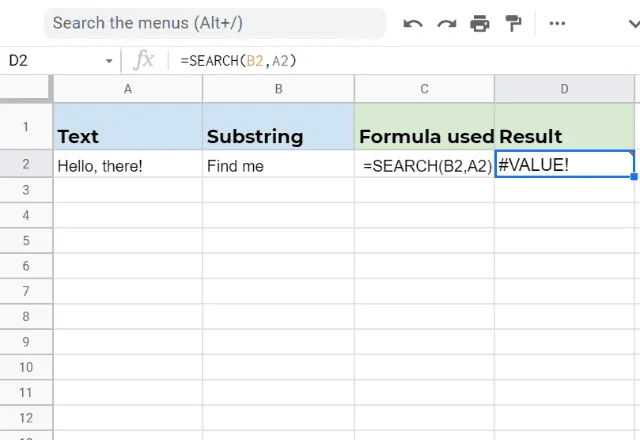
SEARCH function error
If the substring doesn’t occur in the text, the function returns a value error as shown below. To learn how to handle errors like this check out How to use the IFERROR function in Google Sheets.
Final thoughts on SEARCH
The SEARCH function is a powerful tool that can greatly enhance your data management and analysis capabilities.
From highlighting important keywords in vast datasets to creating dynamic lists, SEARCH can be adapted to a wide array of tasks.
Editor’s note: This is a revised version of a previous post that has been updated for accuracy and comprehensiveness.

 English
 Español
 Português do Brasil
 Français