Get help

Help center

Guides and answers

Contact support

Write to our team

Sign in to

Workflows

Build processes with your team

Automations

Connect files and automate tasks

One system, four parts

AI agents

Virtual Employees that work 24/7

Automations

Connect files and automate tasks

Workflows

Build processes with your team

Data Space

Trusted data sharing and control

Solutions by department

Finance

Reports, budgets, and reconciliations

Inventory and manufacturing

Stock, orders, and production in one view

HR

Timesheets, attendance, and reviews

Project management

Status and workload across projects

Sales and CRM

Leads and deals kept up to date

Education

Student records and school data

Finance

Turn manual finance work into reports that update themselves.

What Finance teams automate

  • Track payables and receivables
  • Build cash flow statements
  • Compare budget against actuals

Inventory and manufacturing

See stock levels and automate ordering.

What inventory and manufacturing teams automate

  • Track inventory across multiple sites
  • Connect sales, purchasing, and warehouse data
  • Link a barcode scanner to your sheet

HR

Run recruitment, attendance, and OKR tracking from your sheets.

What HR teams automate

  • Track recruitment and onboarding
  • Record team OKRs and results
  • Track check-ins, check-outs, and leave

Project management

Assign tasks and track hours without manual updates.

What project teams automate

  • Assign tasks and track status changes
  • Estimate effort and log hours worked
  • Track milestones across projects

Sales and CRM

Track leads and sales performance with automated reports.

What sales teams automate

  • Track and convert leads
  • Set sales goals and track team metrics
  • Monitor sales KPIs on dashboards

Education

Automate attendance, grades, and school purchasing.

What schools automate

  • Track attendance and notify parents
  • Record and compare class grades
  • Track inventory lent to students and staff

Find a use case

By department

How each team uses Sheetgo

By industry

How each industry uses Sheetgo

By company size

Small, medium-sized, or large

Learn

Blog

Guides and product news

Customer stories

How teams like yours use Sheetgo

Help center

Guides and answers

Why Sheetgo

Compare

How Sheetgo compares with other tools

Security

How we protect your data

Trust center

Our compliance details

Sign in to

Workflows

Build processes with your team

Automations

Connect files and automate tasks

One system, four parts

AI agents

Virtual Employees that work 24/7

Automations

Connect files and automate tasks

Workflows

Build processes with your team

Data Space

Trusted data sharing and control

Solutions by department

Finance

Reports, budgets, and reconciliations

Inventory and manufacturing

Stock, orders, and production in one view

HR

Timesheets, attendance, and reviews

Project management

Status and workload across projects

Sales and CRM

Leads and deals kept up to date

Education

Student records and school data

Find a use case

By department

How each team uses Sheetgo

By industry

How each industry uses Sheetgo

By company size

Small, medium-sized, or large

Get started

Templates

Ready-made workflows to start from

Learn

Blog

Guides and product news

Customer stories

How teams like yours use Sheetgo

Help center

Guides and answers

Why Sheetgo

Compare

How Sheetgo compares with other tools

Security

How we protect your data

Trust center

Our compliance details

Help center

Guides and answers

Contact support

Write to our team

Workflows

Build processes with your team

Automations

Connect files and automate tasks

How to use the DCOUNTA formula in Google Sheets

The DCOUNTA formula in Google Sheets counts the number of values in a table-like array or range that meet specific criteria. It is similar to an SQL database count query. The ‘D’ in DCOUNTA stands for ‘Database’, therefore this is a Database COUNTA formula. Whereas the DCOUNT function only counts numeric values, DCOUNTA counts both numeric and text values.

39

An importrange alternative, more efficient and easier to manage

Start free trial

Syntax

DCOUNTA(database, field, criteria)

  • database – the array or range containing the data you want the formula to operate on. The first row must contain the labels for for each column and you cannot use merged cells.
  • field – the column containing the values you want the DCOUNTA formula to count. This can be a text label or a numeric index when the first column is 1.
  • criteria – an array or range containing the criterion/criteria that the formula uses to filter the database values before counting.


How to use DCOUNTA Formula

Let’s take a look at a few examples. To illustrate the formula in use, I’ve used sample data from a nutrition website.
DCOUNTA formula 1

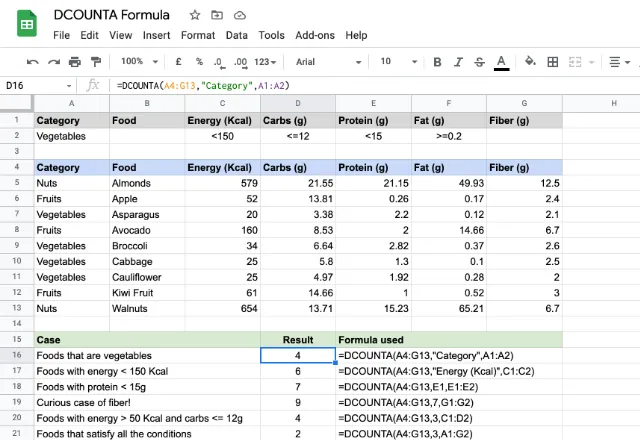
You can see that the data set is in a labeled tabular format spanning cells A4 through to G13. And the criteria are entered in cells A1 to G2. This is my key.

Looking at the cases illustrated above, you’ll notice that it’s possible to specify one or more criteria to filter the counting process. For example, the case in row 7 counts the values in the “Protein (g)” column, subject to the criteria in cell E2. The case in row 9 counts the values from the “Energy (Kcal)” column, subject to the criteria in cells C2 and D2. The last case in row 10 includes all the criteria from A2 through to G2, and apparently there are two rows that satisfy all of these conditions, hence the result 2.

The case in row 8 is an interesting one! I didn’t specify anything in cell G2, but gave that reference to the DCOUNTA formula. The result is 9. Why? Because the formula counts everything in the “Fiber (g)” column as there is no criterion/criteria to filter out the rows.

Avoiding DCOUNTA problems

One thing to keep in mind is correct labeling. Take a look at the screenshot below:
DCOUNTA formula 2

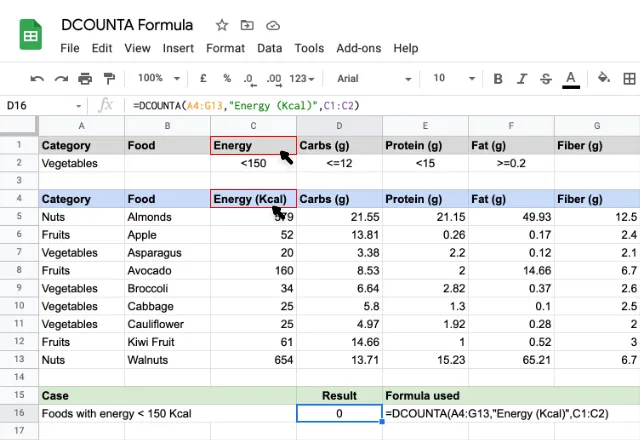
There’s nothing wrong with the formula but the result is incorrect. The problem lies with the labels. A missing or mismatched label prevents DCOUNTA formula from working. In the above example, the labels for the two parameters didn’t match so the formula returned a count of zero.

Using Google Sheets like a database

DCOUNTA is one of several Database functions in Google Sheets. If you organize your data in the correct tabular format, you can use these formulas to deliver results from a specific range of cells, a bit like a table in a database.

If you want to use Google Sheets like a relational database, it’s possible to go a step further and connect separate Google Sheets files. This enables you to push and pull data between them, and combine data in an automated workflow. Check out our guides on how to combine multiple Google Sheets to learn more.

39

Automate data transfers beyond Importrange

Find out how

You may also like…

google sheets features and formulas

How to find nominal interest rate using Google Sheets

Sarah is a young professional making significant financial decisions. From credit cards to mortgages, student loans, and investment...
google sheets features and formulas

Pull Google Calendar data into Google Sheets using Apps Script

This post was originally published in our community forum. Objective : This guide demonstrates how to use Google Apps Script to pull data...
google sheets features and formulas

Using the PROPER function to capitalize the first letter of each word in Google Sheets

Note: This post was originally published in our community forum. Ever found yourself needing to clean up a list of names, titles, or any...