Get help

Help center

Guides and answers

Contact support

Write to our team

Sign in to

Workflows

Build processes with your team

Automations

Connect files and automate tasks

One system, four parts

AI agents

Virtual Employees that work 24/7

Automations

Connect files and automate tasks

Workflows

Build processes with your team

Data Space

Trusted data sharing and control

Solutions by department

Finance

Reports, budgets, and reconciliations

Inventory and manufacturing

Stock, orders, and production in one view

HR

Timesheets, attendance, and reviews

Project management

Status and workload across projects

Sales and CRM

Leads and deals kept up to date

Education

Student records and school data

Finance

Turn manual finance work into reports that update themselves.

What Finance teams automate

  • Track payables and receivables
  • Build cash flow statements
  • Compare budget against actuals

Inventory and manufacturing

See stock levels and automate ordering.

What inventory and manufacturing teams automate

  • Track inventory across multiple sites
  • Connect sales, purchasing, and warehouse data
  • Link a barcode scanner to your sheet

HR

Run recruitment, attendance, and OKR tracking from your sheets.

What HR teams automate

  • Track recruitment and onboarding
  • Record team OKRs and results
  • Track check-ins, check-outs, and leave

Project management

Assign tasks and track hours without manual updates.

What project teams automate

  • Assign tasks and track status changes
  • Estimate effort and log hours worked
  • Track milestones across projects

Sales and CRM

Track leads and sales performance with automated reports.

What sales teams automate

  • Track and convert leads
  • Set sales goals and track team metrics
  • Monitor sales KPIs on dashboards

Education

Automate attendance, grades, and school purchasing.

What schools automate

  • Track attendance and notify parents
  • Record and compare class grades
  • Track inventory lent to students and staff

Find a use case

By department

How each team uses Sheetgo

By industry

How each industry uses Sheetgo

By company size

Small, medium-sized, or large

Learn

Blog

Guides and product news

Customer stories

How teams like yours use Sheetgo

Help center

Guides and answers

Why Sheetgo

Compare

How Sheetgo compares with other tools

Security

How we protect your data

Trust center

Our compliance details

Sign in to

Workflows

Build processes with your team

Automations

Connect files and automate tasks

One system, four parts

AI agents

Virtual Employees that work 24/7

Automations

Connect files and automate tasks

Workflows

Build processes with your team

Data Space

Trusted data sharing and control

Solutions by department

Finance

Reports, budgets, and reconciliations

Inventory and manufacturing

Stock, orders, and production in one view

HR

Timesheets, attendance, and reviews

Project management

Status and workload across projects

Sales and CRM

Leads and deals kept up to date

Education

Student records and school data

Find a use case

By department

How each team uses Sheetgo

By industry

How each industry uses Sheetgo

By company size

Small, medium-sized, or large

Get started

Templates

Ready-made workflows to start from

Learn

Blog

Guides and product news

Customer stories

How teams like yours use Sheetgo

Help center

Guides and answers

Why Sheetgo

Compare

How Sheetgo compares with other tools

Security

How we protect your data

Trust center

Our compliance details

Help center

Guides and answers

Contact support

Write to our team

Workflows

Build processes with your team

Automations

Connect files and automate tasks

How to use the IFERROR function in Excel

No matter how great you are with spreadsheets, sooner or later (most likely sooner) you’re going to run into an error. This happens all the time, so it’s no surprise that Excel has a function specifically to handle errors. The IFERROR function prevents error messages from cluttering your spreadsheet, and even lets you customize what you want to happen when an error occurs. And of course, when there’s no error, the IFERROR function lets your spreadsheet work like normal – it just steps in to handle any errors that pop up!

Syntax

=IFERROR(value, value_if_error)
  • value is the item that’s being checked for an error
  • value_if_error is what the function returns when there is an error. This can be a text string, number, blank cell, or even another formula

How to use the IFERROR Excel function

Custom error message

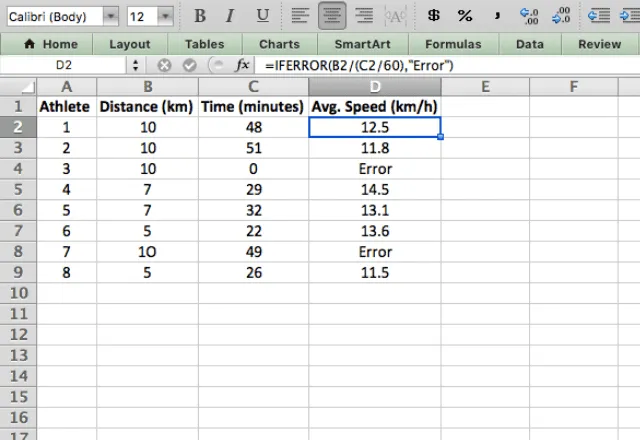
To see the IFERROR Excel function in action, take a look at the example below. I have some running times and distances for a group of athletes, and I’ve written a formula to show their average speed.

Unfortunately, the data has some errors that translate into error messages in column D.

iferror excel 1

There’s no question that this looks messy. Obviously the best thing to do is to fix the errors in the data, but sometimes that’s not so easy, especially with large and complex datasets.

So instead, I’ll use the IFERROR function.
iferror excel 2

Now instead of an Excel-generated error message, I get a text string that tells me there’s an error. This is achieved with the formula =IFERROR(B2/(C2/60),"Error").

All I’ve done is added the IFERROR function with the formula I was already using as the value parameter, and the text string “Error” as the value_if_error.

Turn errors into blanks

What if you don’t want any error message at all? You can make the value_if_error a blank cell by typing “” to create an empty string.

Now instead of error messages, there’s nothing at all in those cells. Much cleaner!

iferror excel 3

IFERROR with VLOOKUP

One of the most common uses of IFERROR is in combination with the VLOOKUP function. When you use VLOOKUP to search for an exact value, you’ll get a #N/A error if the function doesn’t find a match. You can replace the error with a customized message to make your spreadsheet more comprehensive and professional!

In this example, I’m using VLOOKUP to find the sales of an employee. I search the spreadsheet for Gary, but that name isn’t in the data, so I get an error.

iferror excel vlookup error 4

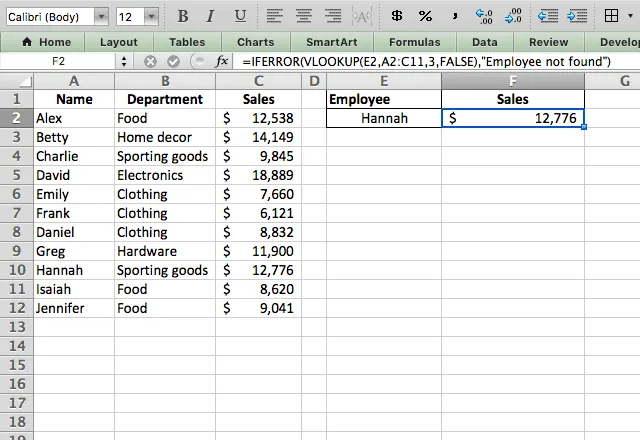
Now I’ll add the IFERROR function to the VLOOKUP function with the formula =IFERROR(VLOOKUP(E2,A2:C11,3,FALSE),"Employee not found").

Now instead of a #N/A error, I get an error message telling me that the employee name wasn’t found.

iferror excel vlookup custom error message 5

And in case you’re wondering, if the employee name is there (so there’s no error in the VLOOKUP) the function works normally!
iferror excel 6

The IFERROR Excel function is very simple, but it works wonders by making your spreadsheet free of unwelcome error messages!

Tips when using IFERROR in Excel

  • If you’re adding it to an existing function, just put IFERROR( before the existing function, and then ,value_if_error) after it
  • The IFERROR function handles all types of errors in Excel
  • If the cell that you’re evaluating is blank, it does not count as an error
  • IFERROR also works for array functions
You may also like…

Excel INDIRECT function — Excel logo and fx icon above =INDIRECT on a light gray background

Excel INDIRECT function: formula and examples

Use the INDIRECT function Excel provides to turn text into a cell reference. See the syntax and examples with SUM, AVERAGE, ROW, and other sheets.

How to round off numbers in Excel — Excel icon next to .00 rounded to .0

How to round off numbers in Excel with the ROUND function

Learn to round off numbers in Excel with ROUND, ROUNDUP, and ROUNDDOWN, to any number of decimal places or to the nearest whole number.

Excel FILTER function — Excel logo next to a report icon with a red funnel on a blue background

Excel FILTER function and examples

Learn how to use the Excel FILTER function to filter data by text, number, and date, with multiple conditions, and together with UNIQUE and SORT.