



Online tools are offering more advanced features for data structuring and analysis as more businesses are using cloud-based environments to store data. Spreadsheet applications such as Google Sheets and Microsoft Excel allow users to perform basic mathematical calculations and solve problems in finance or statistics, which usually require large amounts of data.
In this article, you’ll learn about Google Sheets as a cost-effective alternative to standard database management systems, practical examples of Google Sheets as a database, and a step-by-step illustration of how to use Google Sheets as a database.
Can Google Sheets be used as a database?
Although it’s mainly known for its spreadsheet capabilities, you can use Google Sheets as a database for websites or smaller apps. Unlike more complex database management systems (DBMS) such as PostgreSQL and MySQL, Google Sheets is flexible, it doesn’t require installation, it lets you store a decent amount of data, and it’s free.
As your business grows, so will your data, and this may require you to start considering a full DBMS. Now, let’s see why users opt for Google Sheets as a spreadsheet database.
Why use Google Sheets as a database?
There are many reasons to use Google Sheets as a database, but they mainly relate to the following aspects:
- Data loss won’t be an issue: Google Sheets is a web application, which means that your data will always be accessible online. If you need to recover data or quickly restore to a previous version, it won’t be an issue.
- Easily manage user rights: Managing access rights in Google Sheets is possibly the easiest of all. In a few steps, you control which users can view, edit, or comment on your data.
- Use it for free: Similar to other Google products, Google Sheets is free to use with a Google account. Each spreadsheet holds up to 10 million cells.
- It doesn’t require training: If you haven’t used a spreadsheet application yet, you’ll find that most apps are straightforward to use. As Google Sheets is free to use, your team can leverage its functions to the fullest at zero cost.
- Benefit from cost-effective data visualization: The difference between data and a database is the structure. Google Sheets offers built-in features to format and structure data in quick and easy ways.
Why not use Google Sheets as a database?
Although there are many reasons why Google Sheets can be used as a database, there are also a set of drawbacks that you’ll need to consider:
- It’s not fully scalable: If you’re starting with a small database, you might find Google Sheets as the best solution. However, as your data grows, you may begin to encounter issues that slow down the response time.
- Query options fall short of a DBMS: Although the query format in Google Sheets is similar to regular SQL queries, the overall query mechanism is limited compared to most DBMS.
- Simultaneous work is limited: Although Google Sheets allows for multiple editing, the response time and overall performance will be affected when several users work on data simultaneously.
All in all, Google Sheets offers a wide range of database functions that can help you build databases for various purposes, including a client database or a website.
Google Sheets database examples
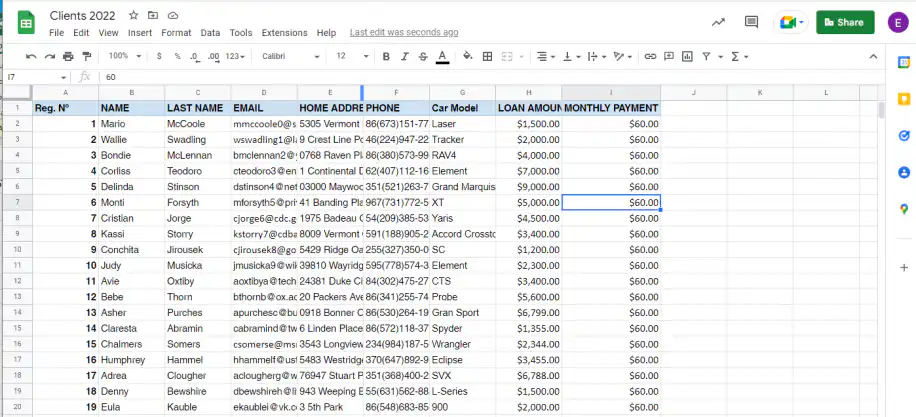
Google Sheets client database. If you’re a small business, then Google Sheets might do the trick since you get the main spreadsheet functionalities and online features. Using Google Sheets to create and keep track of your customers can be done automatically. Google Sheets API can also help you to add, delete, or update your customer base with new information. Below is an example of a client database in Google Sheets:
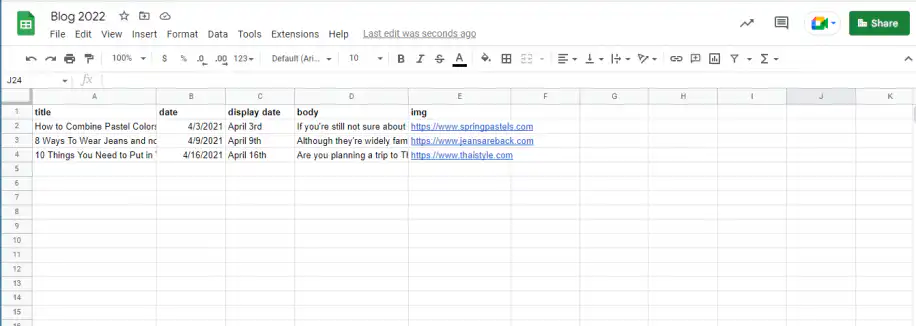
Google Sheets as a database for a website. Let’s say you have a blog site and would like to keep all content in Google Sheets, so you can automatically upload it to your blog site. You simply need to access Google Sheets API to connect your website to the spreadsheet. This flow makes it easy to add, edit, or remove posts. Below is an example of using Google Sheets as a database for a blog site:
How to use Google Sheets as a database?
To use Google Sheets as a database, you need to make sure you fulfill these requirements:
- You have a Google Cloud account
- You use Python 3.10.7 or later
- You have a basic understanding of programming languages
Enable Google Sheets API
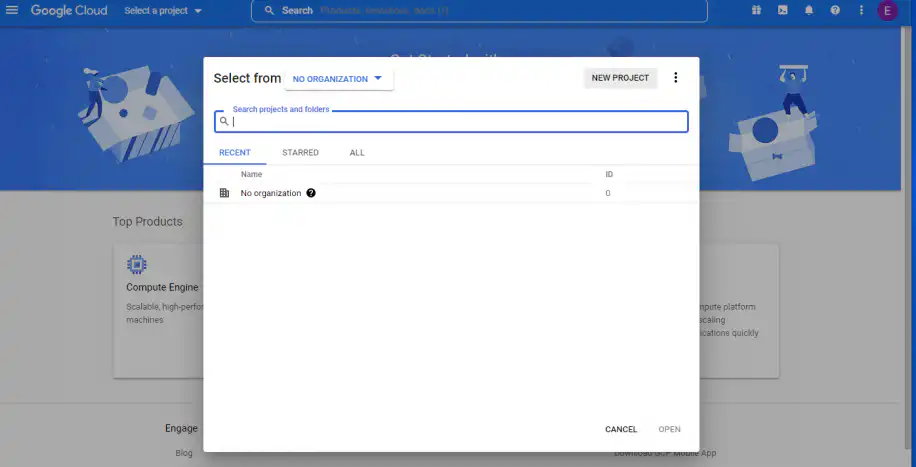
1. Go to Google Cloud Console and click on “Select a project” from the top-right corner.
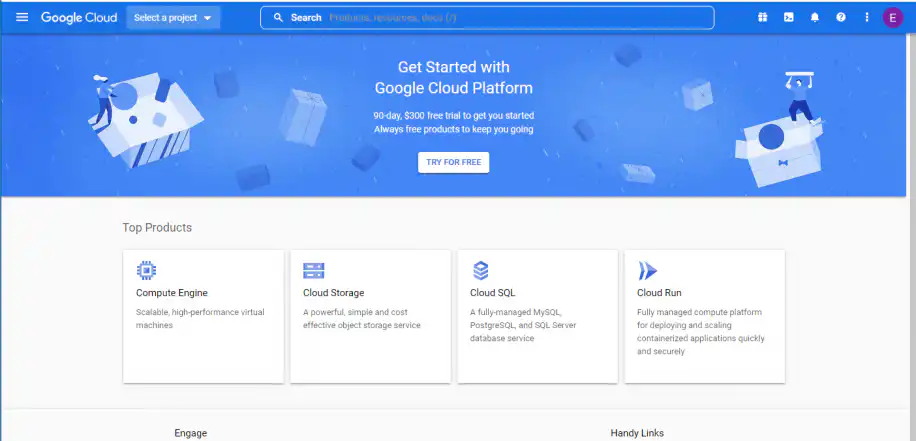
2. Click “New Project”.
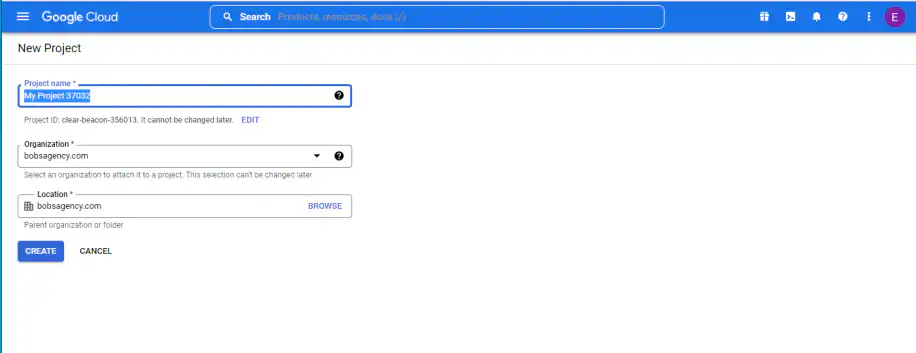
3. Name your project and click “Create”.
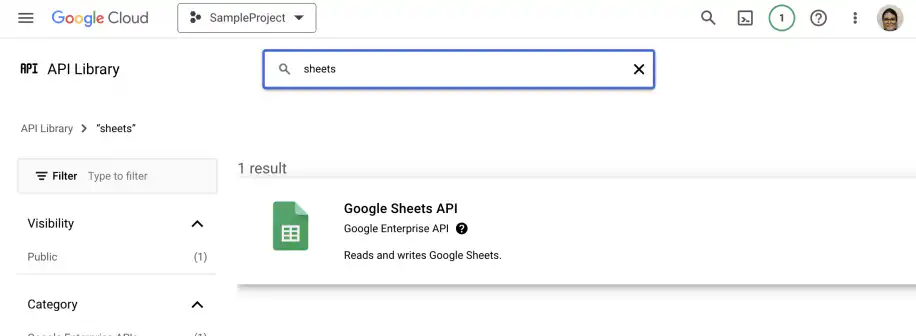
4. Type in “Google Sheets” in the search bar and click on the “Google Sheets API”.
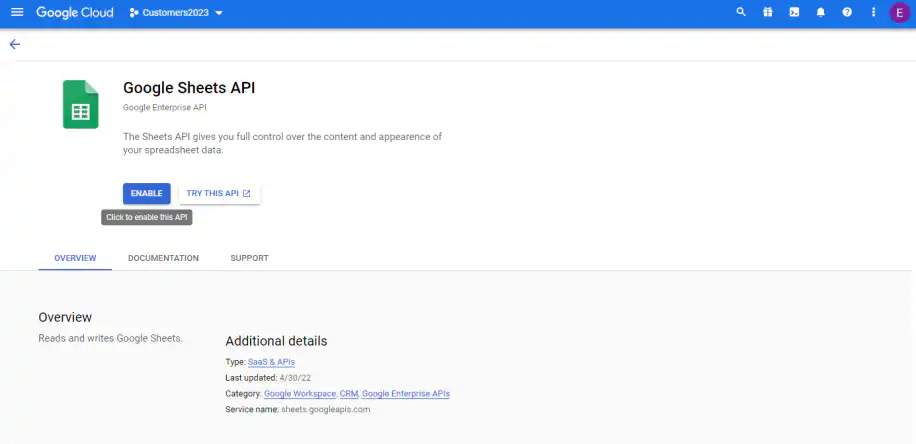
5. Click on “Enable”. When the API is enabled, you’ll get a confirmation message.
Create a service account
1. In the “Credentials” section on the left, click “Create Credentials”.
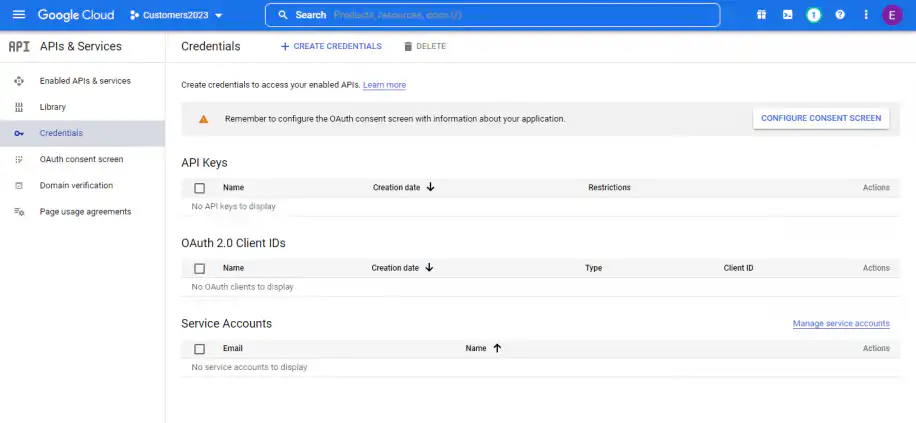
2. Select “Service Account”.
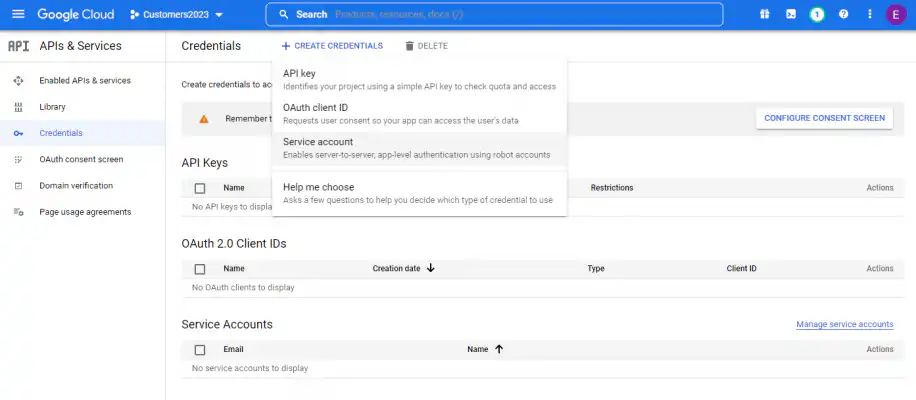
3. Name the service account and click “Create and Continue”.
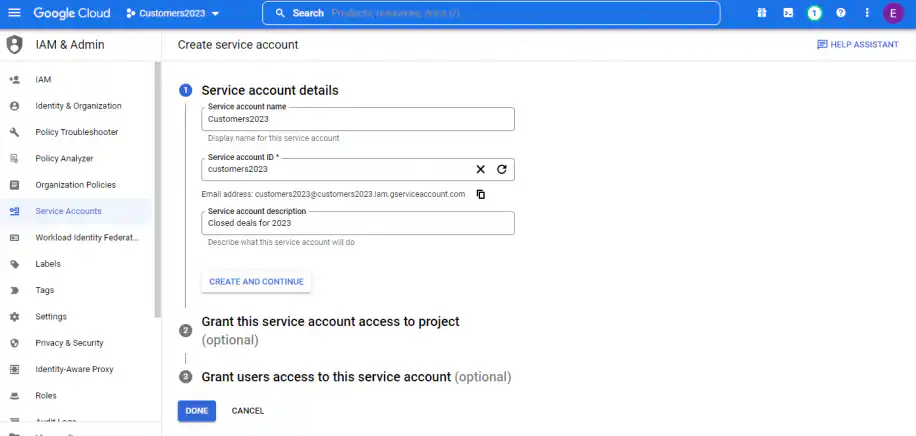
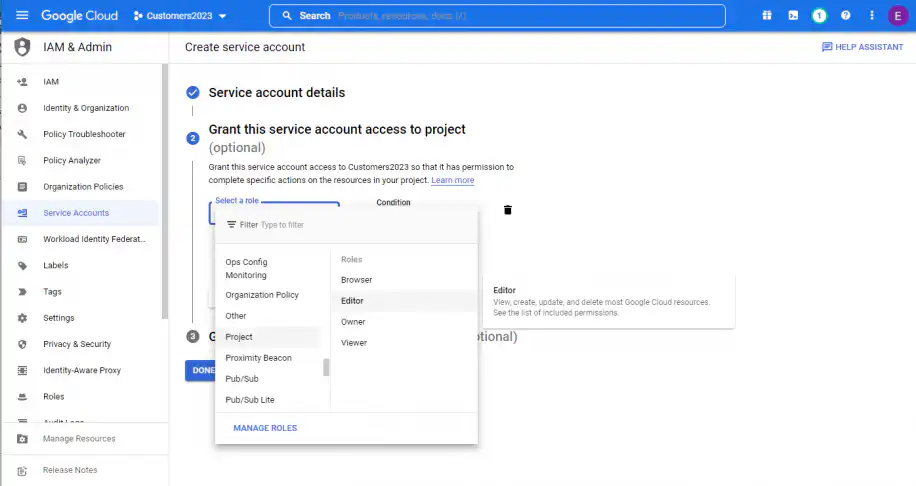
4. Click on “Select a role”.
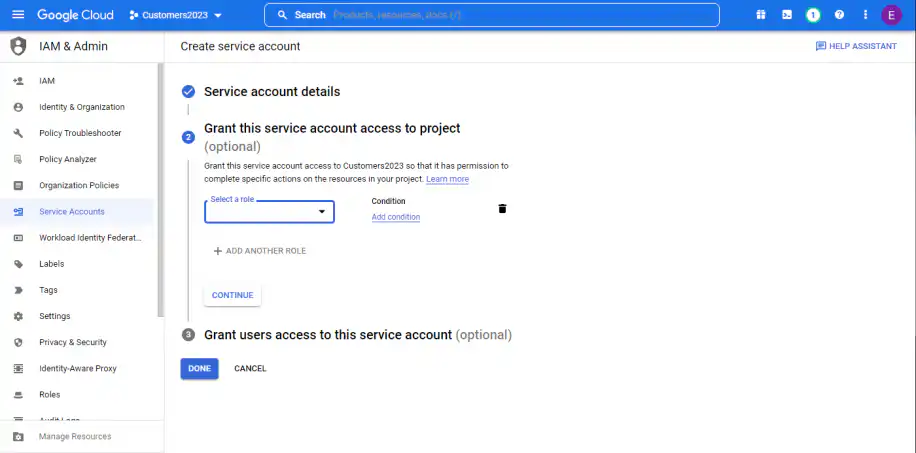
5. Then Project > Editor. Click “Continue”.
6. Optionally, you can grant access to users or groups, so they can perform actions on this service account. Once finished, click “Done”.
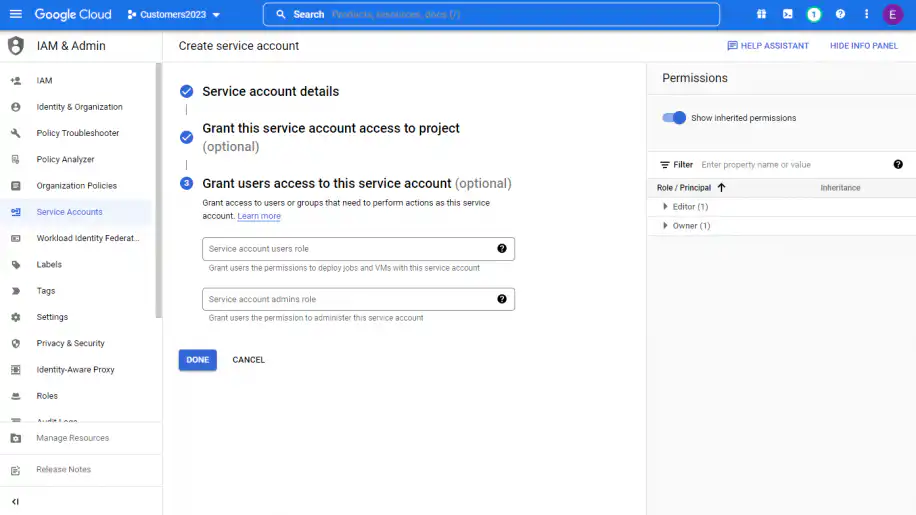
Once you create your service account, you need to create a key. This allows you to connect to the API automatically.
Create a service key
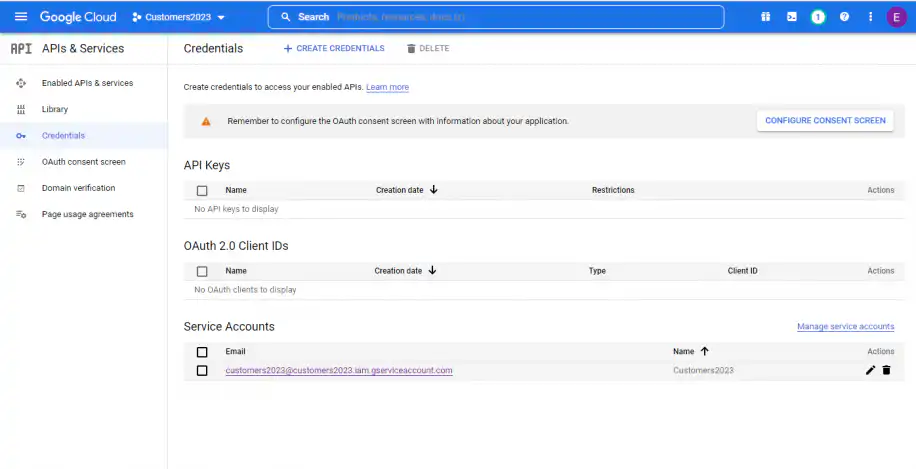
1. In “Credentials”, click on your service account name.
2. Go to Keys > Add Key > Create new key.
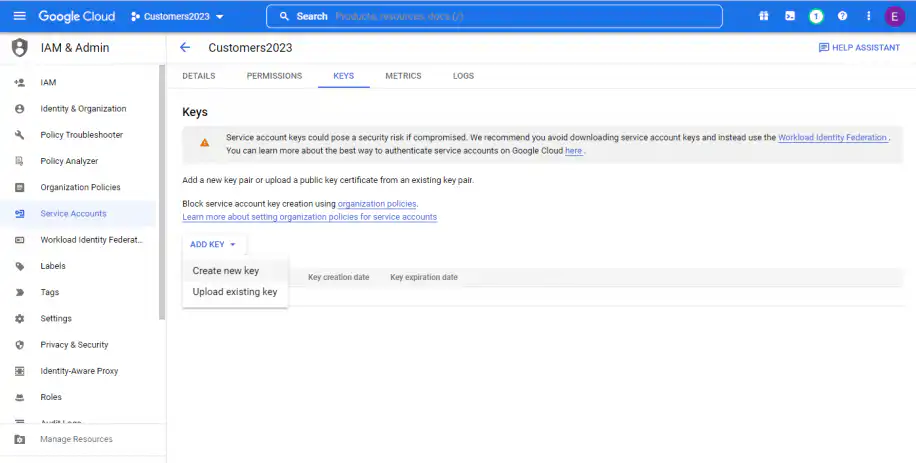
3. Select the option “JSON” and then “Create”.
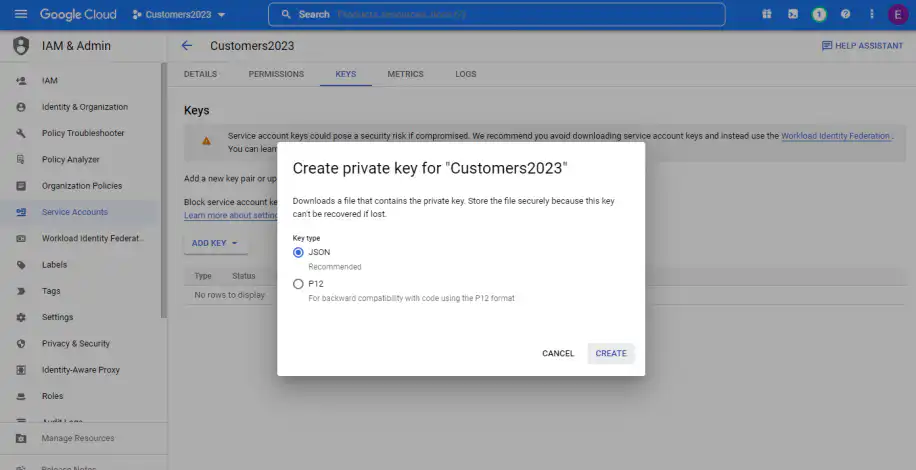
You should see how this action has downloaded a JSON file to your computer. Rename this file to protect it further. Take into account that it contains confidential information which allows your app to authenticate with Google and access the API. What’s more, make sure that this file is safely stored so only you can access it.
Conclusion
Creating a database in Google Sheets is the most suitable option for small businesses, as it’s free and offers the basic features for a database through the Google Sheets API. However, if you need to work on a larger database, you’ll soon notice disadvantages such as scalability, query mechanisms, and simultaneous editing.
As you’ve seen, Google Sheets API allows you to use Google spreadsheets as a database for your website or customer base. This allows you to add, edit, or remove data in your spreadsheet connected to your external source. You’ll simply need to enable the Google Sheets API, create a service account, and create a service key. Alternatively, Sheetgo, an AI-powered data automation platform, works on top of your spreadsheet files, so you can move data between them without code.
A few habits keep a sheets database clean. Use data validation so every entry follows the same format, and pull the records you need with the QUERY function. To add rows without writing code, you can connect Google Forms to Google Sheets or push data to your sheet with a webhook.

 English
 Español
 Português do Brasil
 Français