


If you want to pull online data into Google Sheets from a website, IMPORTHTML Google Sheets formula is a great tool to have up your sleeve. It imports data from a table or list on any webpage without you having to copy-paste or adjust the data using other formulas.
Copy-pasting tabular data from the internet into a spreadsheet can generate formatting issues. For this reason, IMPORTHTML is an easier way to import data from sites like Wikipedia directly into your spreadsheet while retaining the correct layout. In addition, this formula ensures your data is always up-to-date. Google Sheets refreshes the formula on its own, so when the website changes, your sheet catches up within about an hour. Here’s how to use the formula.
IMPORTHTML syntax
IMPORTHTML(url, query, index)
- url – this is the address (uniform resource locator) of the web page containing the table or list you want to import. This can take two forms.
- A valid and fully qualified location in the form of text (enclosed in double quotes). For example: “https://en.wikipedia.org/wiki/Demographics_of_the_world”
- Or it can be a reference to a cell (such as B1) within Google Sheets, where the url is stored.
- query – this will be either “list” or “table” depending upon the structure of the data. Use “table” for data inside an HTML table (the <table> tag). Use “list” for a bulleted or numbered list (the <ul> or <ol> tag).
- index – the index number identifies the list or table within the web page. Note that the indexes for lists and tables are treated separately. Both a table and list can exist with same index number. The count starts at 1, so 1 is the first table (or the first list) in the page’s HTML.
IMPORTHTML returns the table or list starting in the formula cell and fills the cells to the right and below, so leave that area empty. For example, =IMPORTHTML(B1, "table", 2) imports the second table on the page whose URL is in cell B1.
How to import data from a webpage into Google Sheets
Option 1: IMPORTHTML(url, “table”, index)
Take a look at the screenshot below. I want to import data into cell B3, so this is where I enter my IMPORTHTML formula.

Make sure that the url is valid, i.e. enclose the url with double quotes and hit Enter.
While Google Sheets fetches the table data, it displays a Loading notification. Wait a few moments. The bigger the table, the longer it might take to finish the data import.
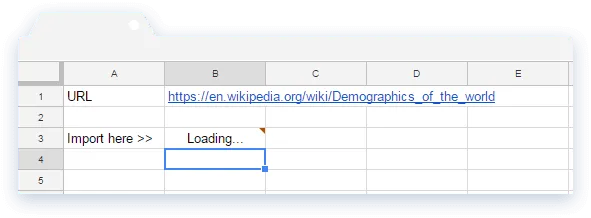
While the data import is in progress, cell B3 looks like it has returned an error. See the little red speck on the top right hand corner of the cell. However, it isn’t an error, just a transient state. Hover the mouse over the cell to see the following description:

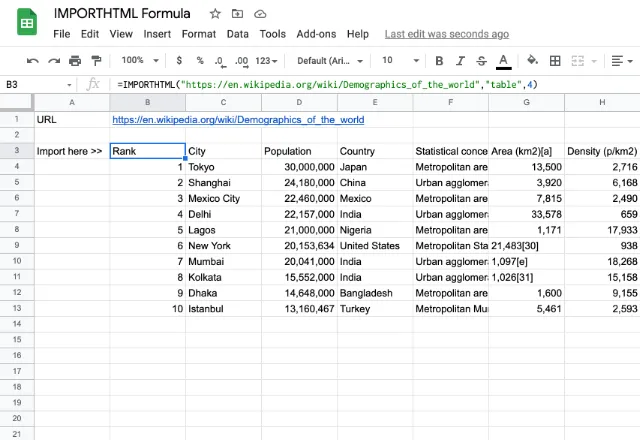
As soon as Google Sheets has finished loading the data, the red speck disappears. You’ll notice the data extends from the formula cell (B3) to the right and further down the spreadsheet.
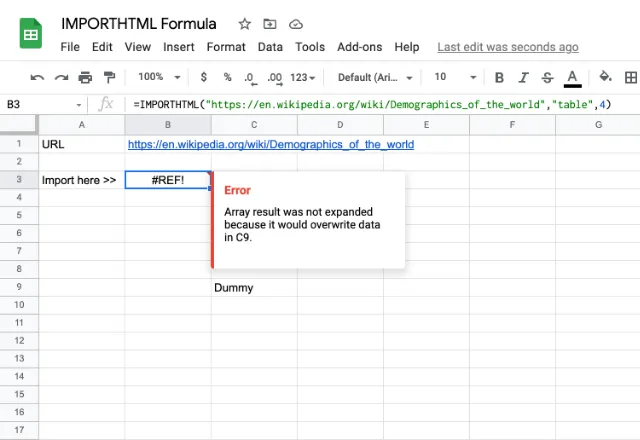
Make sure you leave enough room in the spreadsheet for the entire table of data. If you don’t, IMPORTHTML formula might cough up a #REF! error. Take a look at the following image to see what happens when I have data in cell C9.
Option 2: IMPORTHTML(url cell reference, “list”, index)
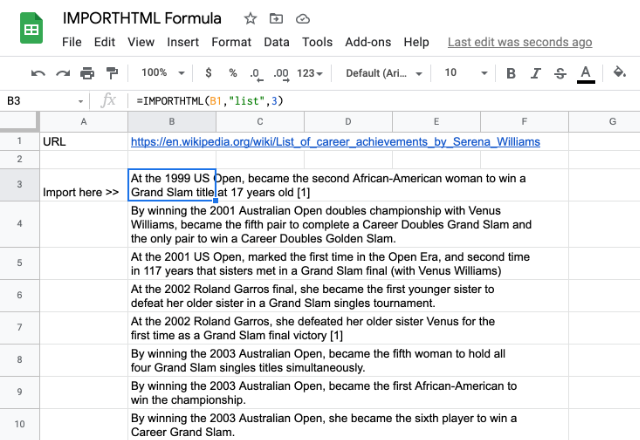
In this example, I have stored the url in cell B1. This is the url to the HTML page containing the list we want to import. I’ll refer to that cell in the IMPORTHTML Google Sheets formula, which I enter into cell B3. The result is the same except this time I want a list instead of a table.
How to find the index of a table or list
The index counts tables and lists in the order they appear in the page’s HTML. Tables and lists are counted separately, and the count starts at 1. On a short page, try 1, 2, 3 and so on until the right data appears.
On a page with many tables or lists, use your browser’s developer console to see the numbers:
- Open the page in Chrome. Press Ctrl + Shift + J on Windows, or Cmd + Option + J on a Mac, to open the Console.
- To number the tables, paste this code and press Enter:
var i = 1; document.querySelectorAll("table").forEach(function (el) { console.log(i++, el); }); - Hover over each result in the Console. Chrome highlights that table on the page. The number next to it is the index to use in IMPORTHTML.
- For lists, run the same code with “ul, ol” in place of “table”.
The Console shows the page after its scripts have run. If a table appears there but IMPORTHTML can’t find it, the page probably builds it with JavaScript. See the next section.
Google Sheets IMPORTHTML not working
When IMPORTHTML fails, the cell shows an error. Click the cell and hover over the red triangle in its corner to read the message. These are the usual causes.
#N/A error: could not fetch the URL
Google’s servers fetch the page, not your browser. If the page needs a login, sits on a company network, or blocks automated visitors, the fetch fails. Check the address too. It must start with http:// or https://, and the page may have moved since you wrote the formula. To test, open the URL in a private browser window. If you have to sign in there, IMPORTHTML can’t read the page either.
The table loads with JavaScript
IMPORTHTML reads the HTML that the server sends. It doesn’t run the page’s scripts. Many sites build their tables with JavaScript after the page loads, so the table you see in your browser isn’t in that HTML, and IMPORTHTML returns an error saying the imported content is empty. To check, right-click the page, choose View page source, and search for a value from the table. If it isn’t there, look for a CSV download on the site and import that file with IMPORTDATA instead.
Wrong data: the index has changed
If the formula returns a different table than you expected, the index is off. Sites change their layout, and a new table near the top of a page shifts every number after it. Find the index again with the steps above. An index higher than the number of tables or lists on the page returns an error.
#REF! error: the result would overwrite data
IMPORTHTML needs empty cells for the whole result. If any cell in that range already holds a value, you get #REF!, as shown in Option 1 above. Clear those cells or move the formula.
The data doesn’t refresh
Google Sheets recalculates IMPORTHTML on its own about every hour, so the cell can lag behind the website. To force a refresh, edit the formula and press Enter.
Other ways to import data into Google Sheets
IMPORTHTML only reads tables and lists. Google Sheets has other import functions for other sources:
- IMPORTXML pulls any part of a web page or XML file with an XPath query.
- IMPORTRANGE pulls a range of cells from another Google Sheets file.
- IMPORTFEED imports an RSS or Atom feed.
Looking for more timesaving formulas and tricks in Google Sheets? If you regularly need to import data from .csv or .tsv files from the web, see how to use the IMPORTDATA formula in Google Sheets.
To combine data from many spreadsheets, Excel files, and other sources and keep it updated on a schedule, Sheetgo, an AI-powered data automation platform, connects them without formulas.

 English
 Español
 Português do Brasil
 Français