


In descriptive statistics, the statistics used to describe a variable or set of values usually focus on two aspects related to distribution: central tendency and dispersion. The mean, median, and mode are three measures commonly used to describe a dataset’s central tendency. Each one represents a different type of “average” or “middle” value and is more appropriate for specific circumstances and data types.
In this guide, you will learn about the three central tendency measures: mean (average), median, and mode. You will learn what each one is and what it tells you about the distribution of values in your dataset. You will also learn how to calculate them and how to use Google Sheets to find them. Finally, you have examples of each statistic.
What is the difference between mean, median, and mode?
- The arithmetic mean of a set is calculated by adding all the values and dividing by the number of values.
- The median is the middle value in your dataset, found by ordering the values from smallest to largest.
- The mode is the most frequently occurring value in your dataset.
While all three describe a dataset’s central tendency, each measures a different aspect. In the next sections, you will learn about each central tendency statistic, when it’s appropriate to use them, how to calculate them, and how to use Google Sheets to calculate them for you.
What is the mean of a dataset?
The arithmetic mean or average is probably the central tendency measure that most people are familiar with. Usually referred to as the average rather than the arithmetic mean, it is a popular measure in any field where statistics are considered important, like finance, academic performance, or sports.
How do you calculate the mean?
To calculate the mean of a dataset, simply add up all the values and divide by the number of values. You can only calculate the mean for numerical values, as it involves addition and division.
Use the following formula to calculate the arithmetic mean, represented by x̄ (x bar).
x̄ = (x1 + x2 +…xn) / n
How to find mean in Google Sheets
You can find the mean easily in Google Sheets by using the AVERAGE function.
1. Open Google Sheets to the file with your dataset.
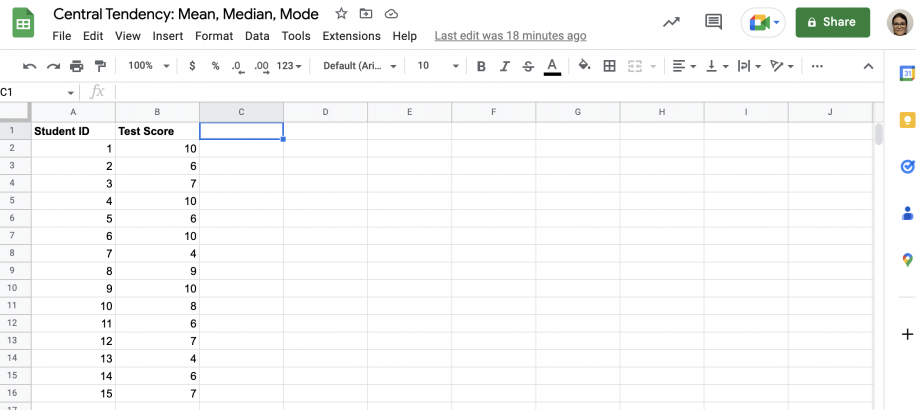
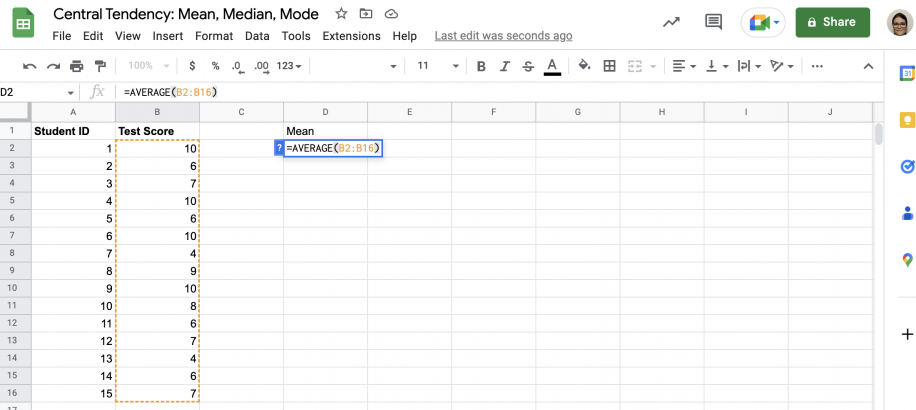
2. In an empty cell, type in the AVERAGE formula.
![How to find mean in Google Sheets — =AVERAGE( typed in cell D2 under Mean with the AVERAGE(value1, [value2, ...]) hint](https://static.sheetgo.com/wp-content/uploads/2026/10/find-mean-google-sheets-type-average.png "=AVERAGE( typed in cell D2 under Mean with the AVERAGE(value1, [value2, ...]) hint")
3. Select the range of values, close the parenthesis, and press ‘Enter’.
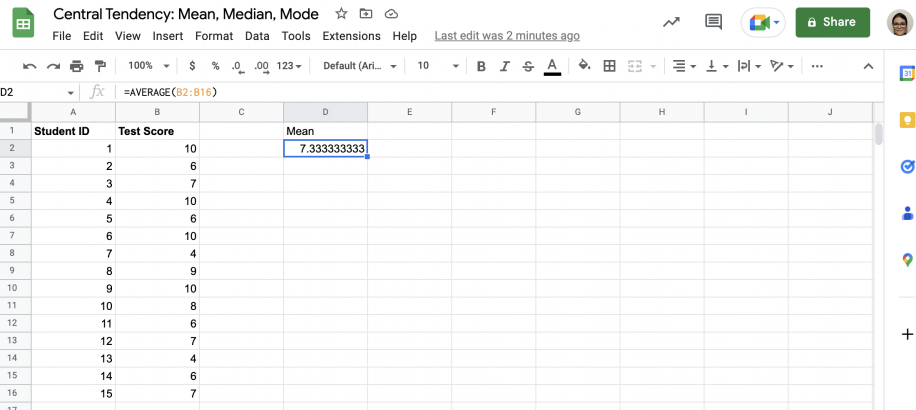
4. That’s it. You have the average value for your dataset.
To average only the values that meet a condition, use the AVERAGEIF formula in Google Sheets, or the AVERAGEIFS formula when you have more than one condition.
What is the median of a dataset?
The median of a dataset is the middlemost value, found by ordering the dataset in ascending or descending order.
How do you calculate the median?
To find the median, you need to order the values in your dataset from smallest to largest. The middlemost value is the median, which has exactly the same number of values above and below it. If you have an even number of values, calculate the average of the two middle values. In Google Sheets, the SORT formula can put the values in order for you.
How to find median in Google Sheets
Follow the steps below to learn how to find the median for datasets with an even and odd number of values.
1. In Google Sheets, open the spreadsheet containing your dataset.
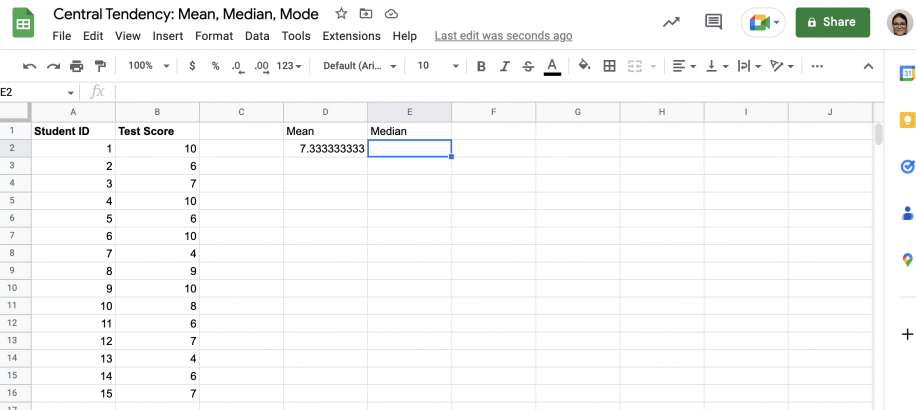
2. In an empty cell, type in the MEDIAN function.
![How to find median in Google Sheets — =MEDIAN( typed in cell E2 with the MEDIAN(value1, [value2, ...]) hint](https://static.sheetgo.com/wp-content/uploads/2026/10/find-median-google-sheets-type-median.png "=MEDIAN( typed in cell E2 with the MEDIAN(value1, [value2, ...]) hint")
3. After selecting your dataset, close the parenthesis and press ‘Enter’.
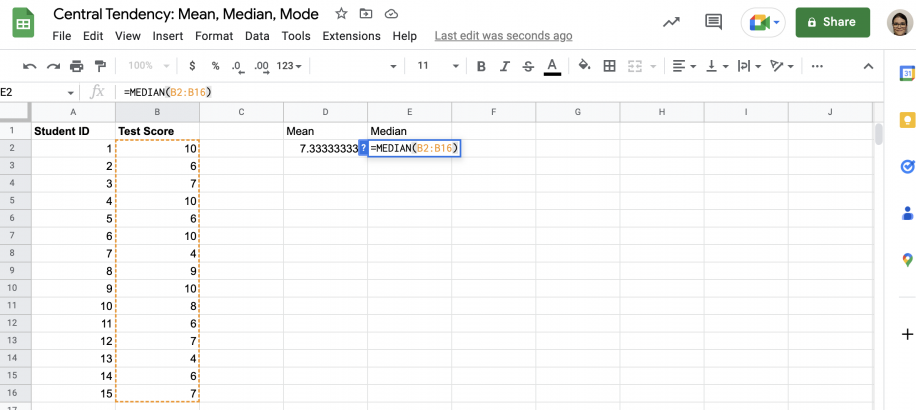
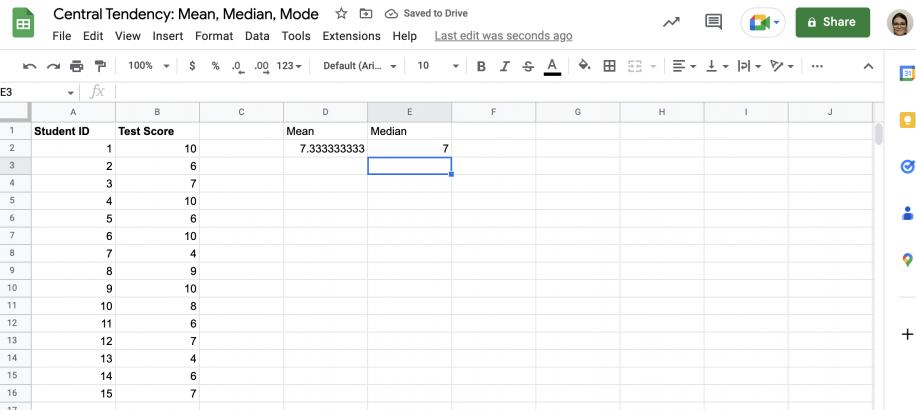
4. That’s it. The median for this dataset is ‘7’.
What is the mode of a dataset?
The mode is the value that appears most frequently in the dataset. The mode can be found for non-numerical values as well as numerical ones. A given dataset may have no mode, as there may be no repeated values. Alternatively, it may have one or more modes: unimodal, bimodal, trimodal, or multimodal.
How do you calculate the mode?
To find the mode, order the values in your dataset to group them. Count the number of occurrences for each value. The most frequently occurring value is the mode. You can find the mode for different types of data, as you are simply counting occurrences.
How to find mode in Google Sheets
There are two mode functions in Google Sheets. The first is MODE, which works for unimodal sets. However, if you suspect there may be multiple modes, you should use the array function MODE.MULT, as it will find all the modes. Follow the steps below to find the mode using both functions.
1. Open the spreadsheet with your dataset in Google Sheets.
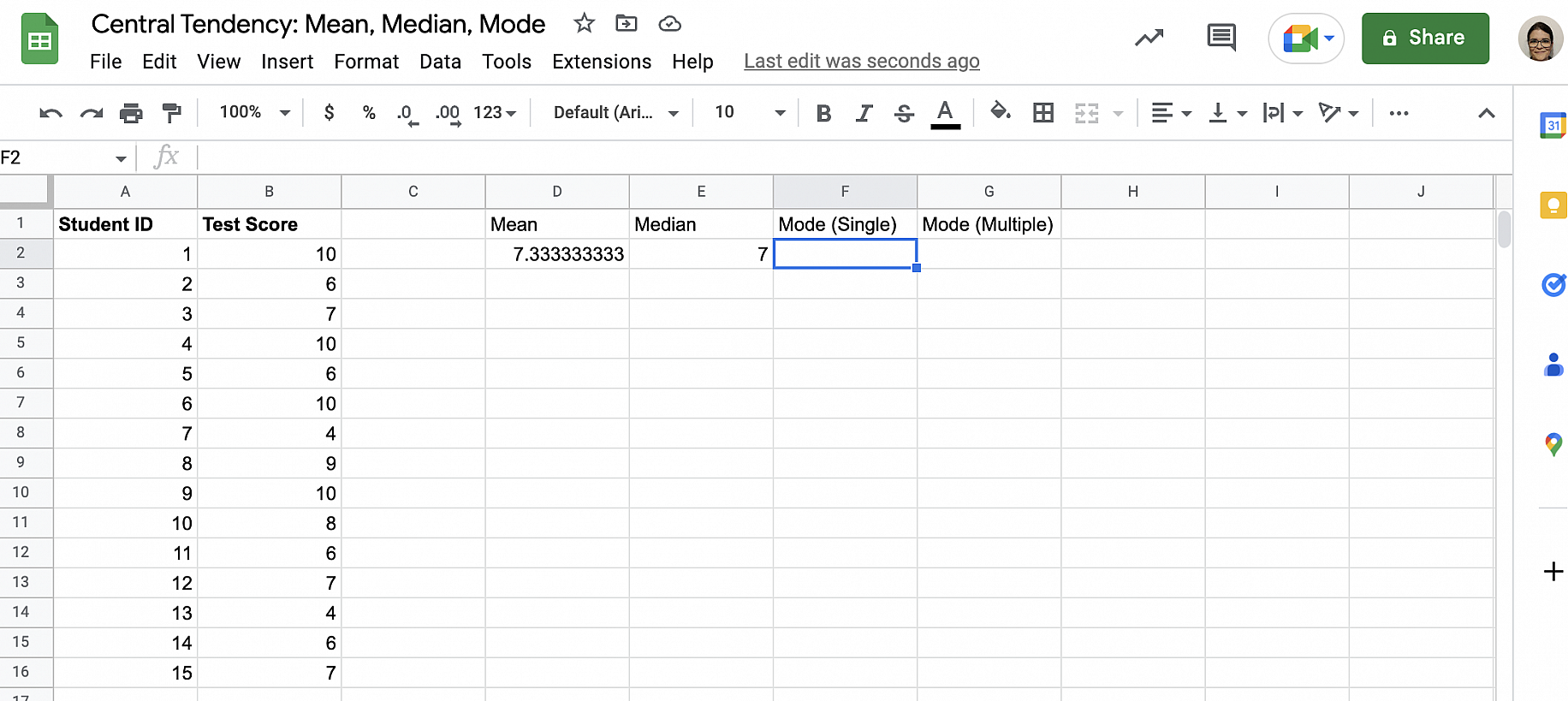
2. Type the MODE function in an empty cell.
![How to find mode in Google Sheets — =MODE( typed in cell F2 with the MODE(value1, [value2, ...]) hint](https://static.sheetgo.com/wp-content/uploads/2026/10/find-mode-google-sheets-type-mode.png "=MODE( typed in cell F2 with the MODE(value1, [value2, ...]) hint")
3. Select your dataset, close the parenthesis, and press ‘Enter’.
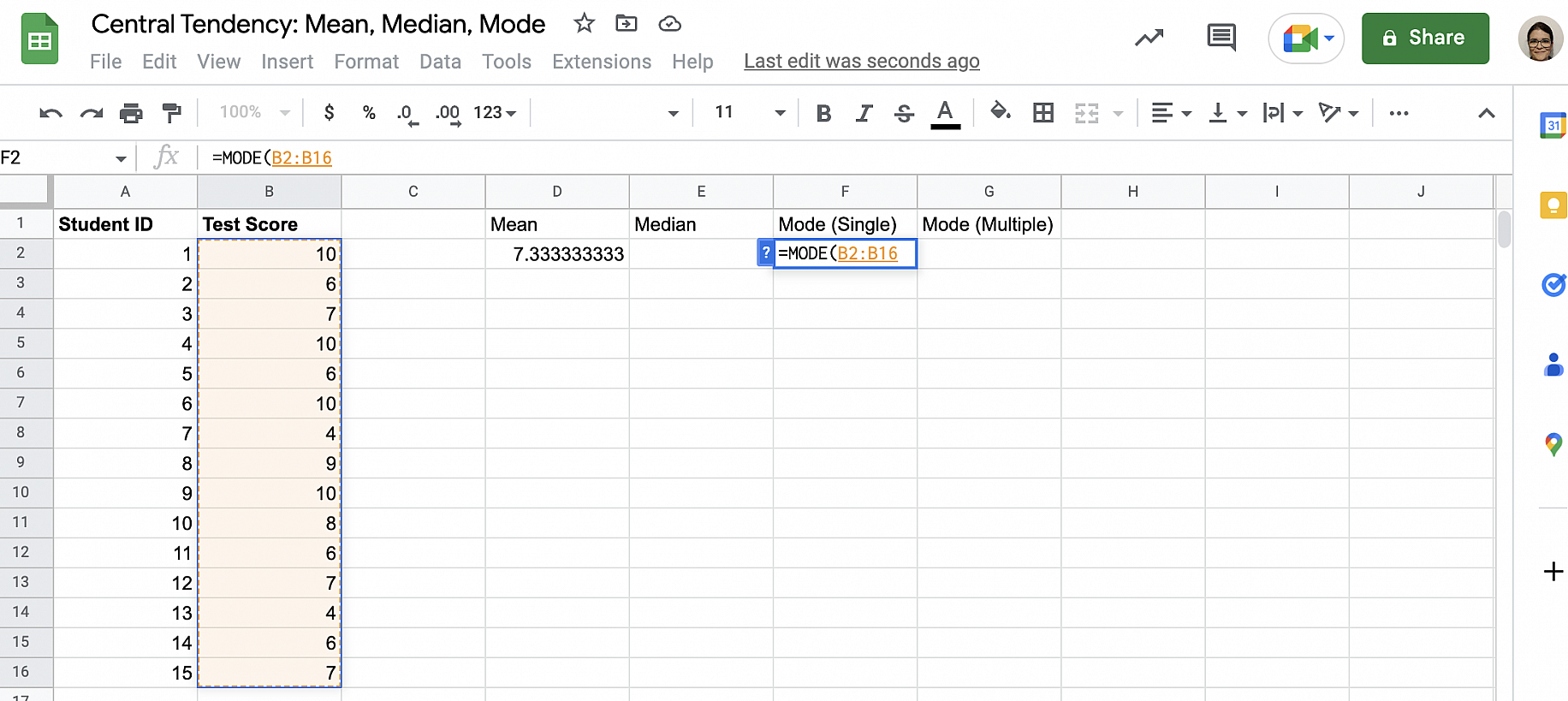
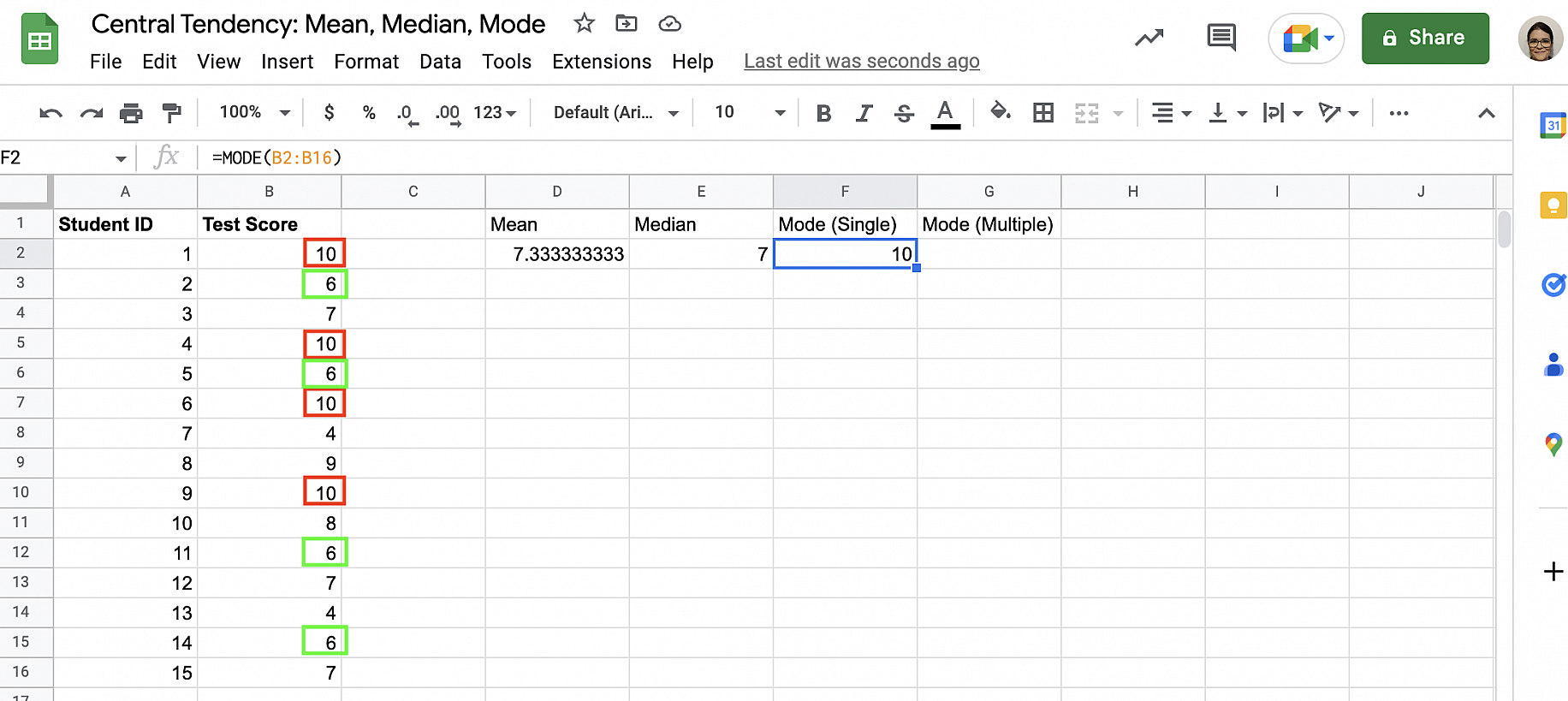
4. As you can see, the mode is ‘10’. However, if you look at the dataset, it has two modes, ‘10’ and ‘6’. Let’s use MODE.MULT to get the complete result.
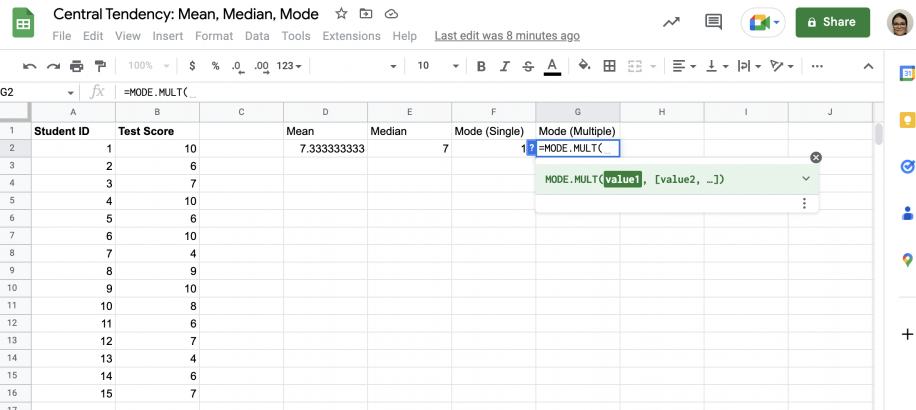
5. Type in the MODE.MULT function.
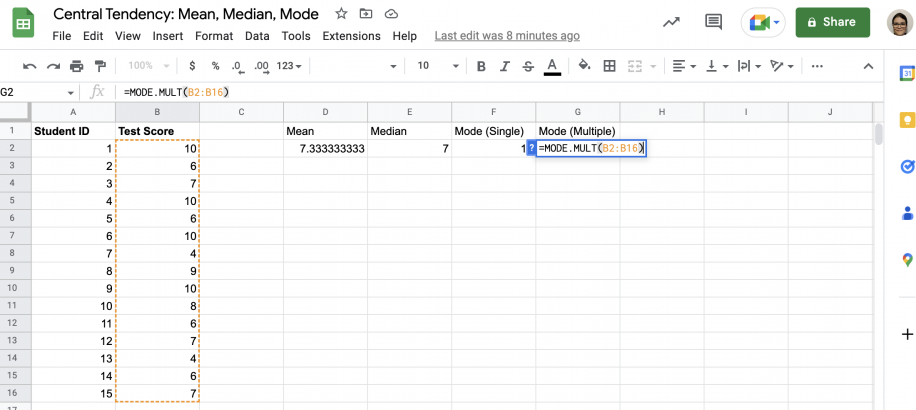
6. Select the range of cells containing the dataset and press ‘Enter’.
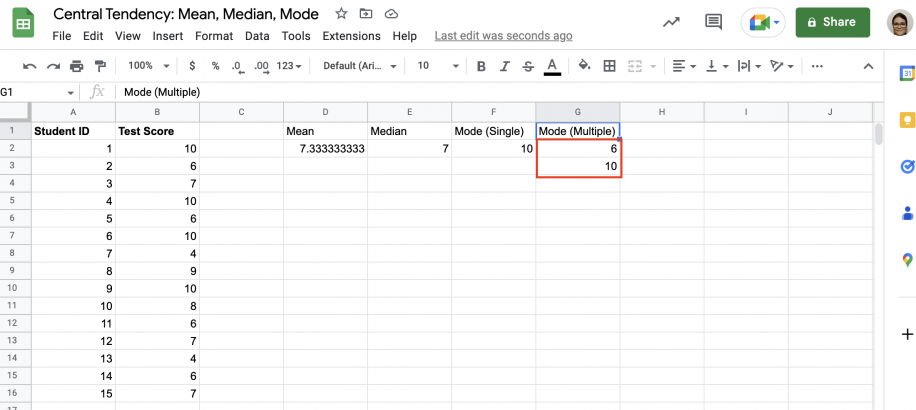
7. That’s it. You now know that the dataset is bimodal, and you have both modes.
Conclusion
The mean, median, and mode are three measures of central tendency. Although all three focus on the ‘average’ or ‘middle’ values in a dataset, each takes a different approach. The arithmetic mean, or average, is probably the best-known of these three, as most people come across it regularly in their everyday lives. You’ve seen that they’re easy to find, although the median and mode require that you do a little ordering and counting. However, if you’d rather skip that, you can find the mean, median, and mode by using the relevant functions in Google Sheets.
You now know what the mean, median, and mode are and what they can tell you about your dataset. You know how to work out the central tendency measures manually and that the calculations are simple. However, you also know there’s a quicker way to find them. In Google Sheets, you know how to find the mean using the AVERAGE function and the median using the MEDIAN function. You also know there are two options for finding the mode: MODE and MODE.MULT. The first will only find one mode, so if you suspect there may be additional modes, it’s best to use MODE.MULT.
The mean, median, and mode describe the center of your data, but not how spread out it is. To measure spread, see how to use the STDEV formula in Google Sheets to measure dispersion, and the PERCENTILE formula in Google Sheets to see where a value falls in the range.

 English
  Español
  Português do Brasil
  Français