




If you have been using Excel over the last few years, you have probably come across an Excel file that won’t save or other related issues that can take up hours to solve. Although the most recent version of Excel under the Microsoft 365 subscription plan is an improvement in many functionality aspects, the sharing violation error still remains.
Often, users experience the same type of error message when saving new edits to a shared file – “Your changes could not be saved to ‘Filename’ because of a sharing violation”. Although Excel offers support for this sharing violation, it may not be the ideal workaround solution for some users.
In this guide, you’ll understand the meaning of a sharing violation in Excel and how to fix it using 5 different methods, depending on your situation.
What is a sharing violation in Excel?
A sharing violation refers to any attempt made by an application to access content that is being used by another. In Excel, this occurs when another user opens a spreadsheet. If Excel tells you the file is locked for editing instead, the cause is usually the same. As this error has remained since Excel 2007, there are many workaround solutions available that have proven to be successful.
How to fix sharing violation error in Excel?
If you have recently encountered a sharing violation error in Excel, you’ll find the following methods to fix it useful. Note that these steps illustrate solutions for sharing violation errors in Windows 10. Although the methods illustrated in this article are adaptable for most operating systems, the Microsoft Q&A Community offers specific solutions for the Excel sharing violation error on Mac.
Enable indexing for file folders
If you haven’t enabled the indexing permissions in Excel, there is a higher chance that your files will prompt the sharing violation error. Follow these simple steps to enable indexing for File Folders.
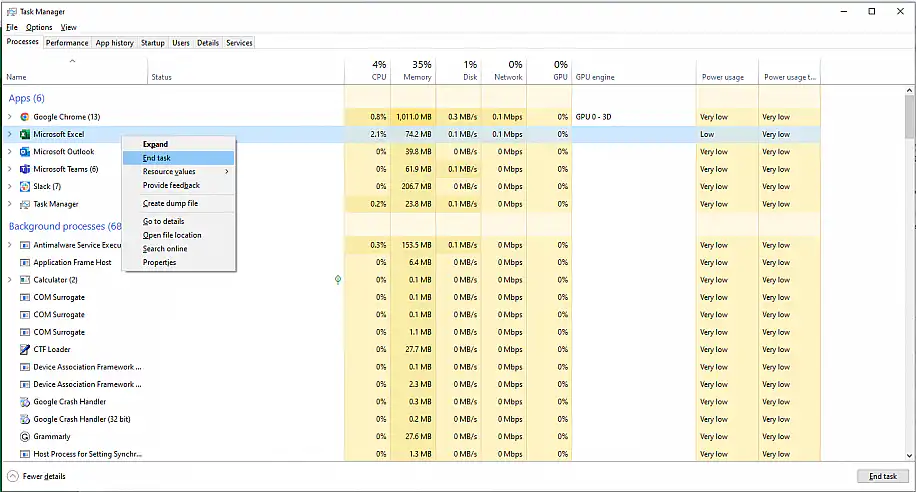
1. Close the Excel application fully. You can do this by pressing Ctrl + Alt + Del and selecting Task Manager. Then, select “Excel” and click on “End Task”.
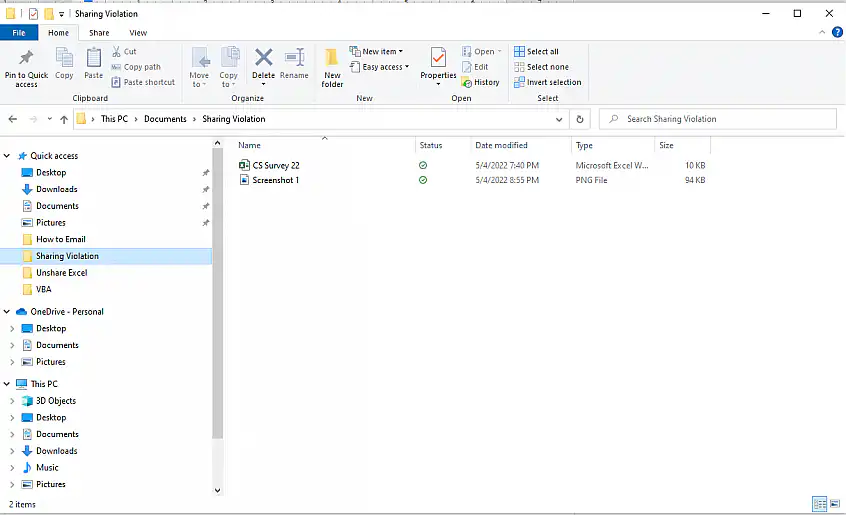
2. Use the Windows key + E shortcut to launch the “File Explorer”.
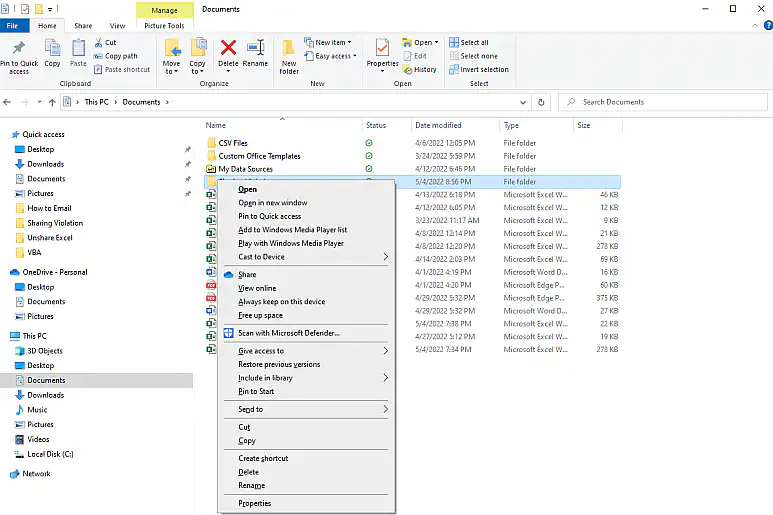
3. Go to the folder containing the Excel file that prompts the sharing violation error. Right-click on the folder and select “Properties” from the drop-down list.
4. Click on “Advanced”.
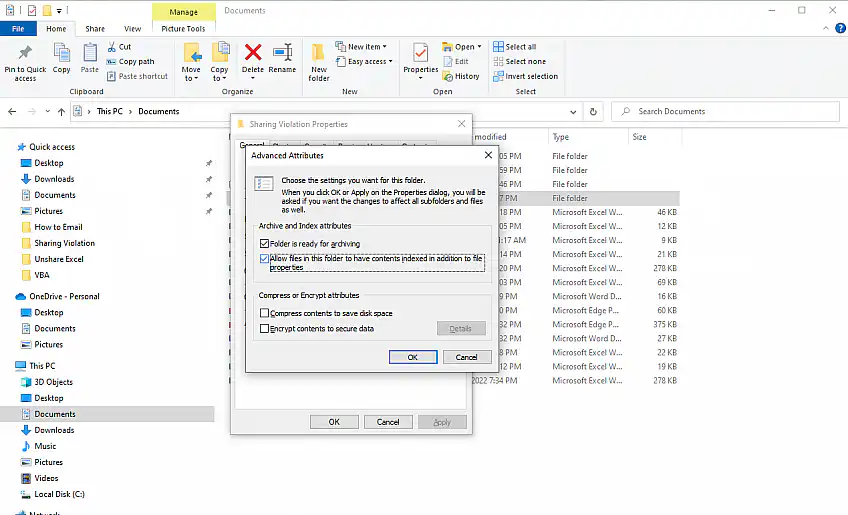
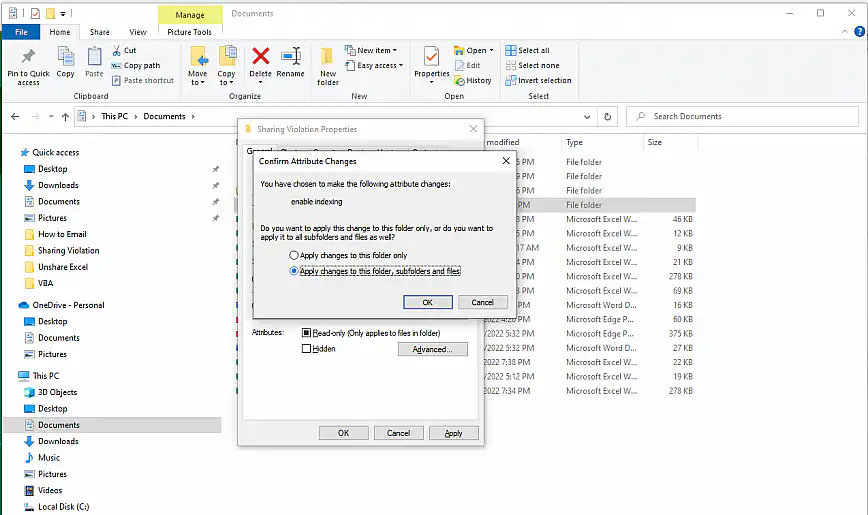
5. Go to “Archive and Index Attributes” and check the box next to “Allow files in this folder to have contents indexed in addition to file properties”. Click “Apply” to save changes and “OK” to finish.
Disable antivirus program
If you have installed third-party antivirus software on your computer, it may be blocking other users from editing the file, despite its shared status. Here’s how to uninstall your antivirus to avoid the sharing violation error.
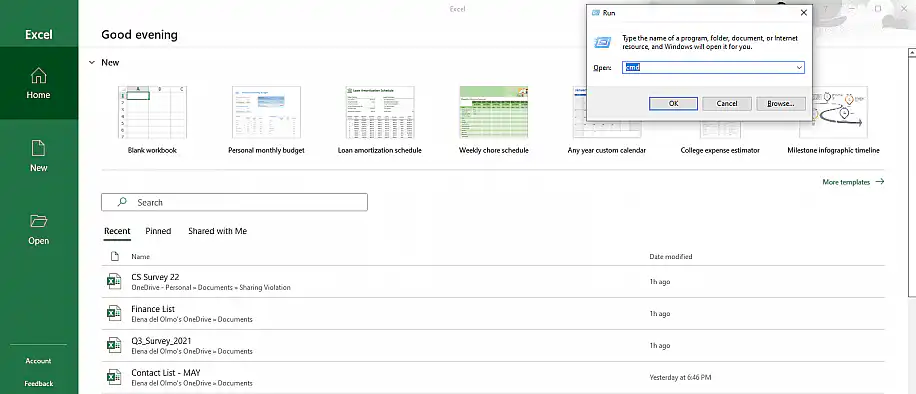
1. Use the Windows key + R shortcut to launch the “Run” program and write “appwiz.cpl” in the “Open” field box. Click “OK” to launch “Programs & Features”.
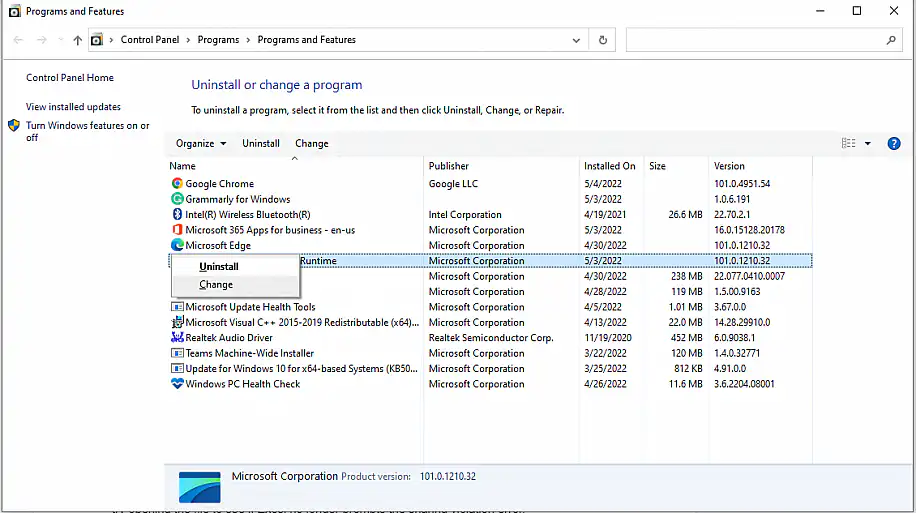
2. Browse through the list and right-click on your antivirus program. Click “Uninstall”.
It may take a few moments to complete this process. Once it finishes, restart your computer and try opening the file to see if Excel no longer prompts the sharing violation error.
Sharing Wizard
This is probably one of the most overlooked error sources. However, if the “Sharing Wizard” option isn’t enabled, you will easily get the sharing violation error in Excel. Follow these steps to enable the Sharing Wizard feature.
1. Use the Windows key + E shortcut to launch the “File Explorer”.
2. Select “View”, located at the top, and click “Options” to the right. Click on “Change folder and search options”.
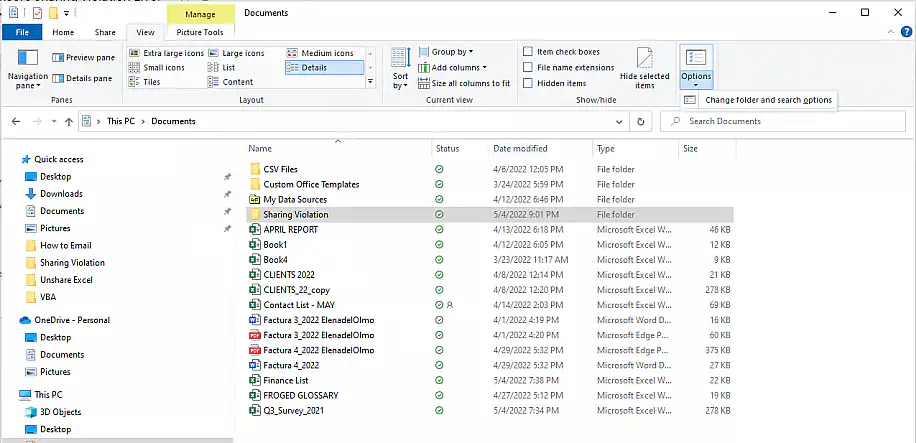
3. In the “View” tab, tick the “Use Sharing Wizard (Recommended)” among the available options.
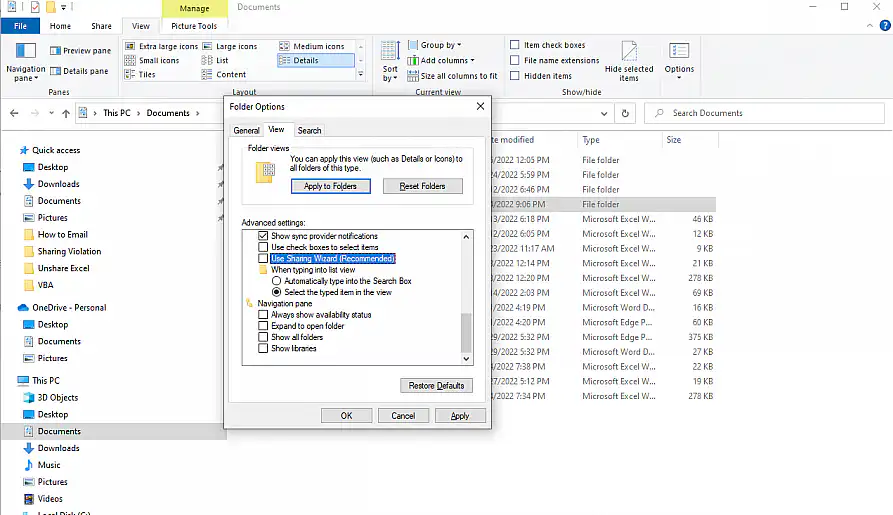
4. To save changes, click on “Apply”, then “OK” to close.
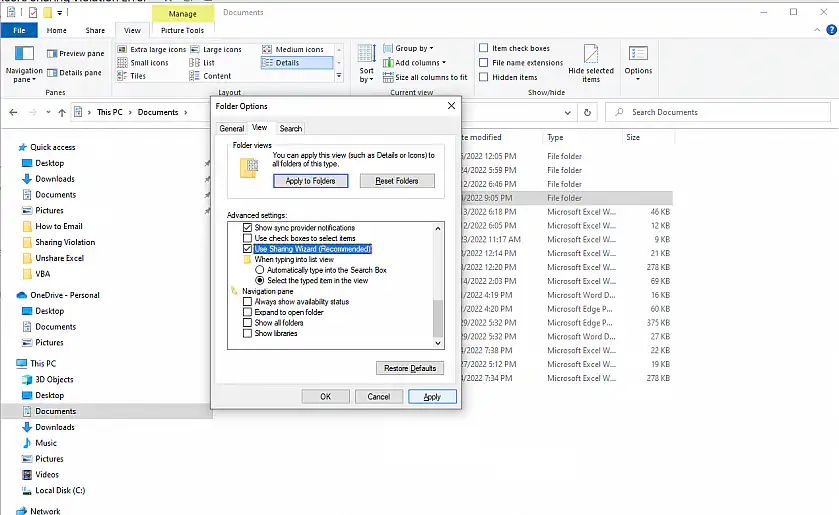
As in the previous method, it’s always recommended to restart your computer to check if the error has been successfully solved.
If the error kept Excel from saving your latest edits, you may still get them back with AutoRecover. You can both recover a file that was never saved as well as a file that has been saved at least once. Here’s how to use AutoRecover in Excel.
Save file to a different location
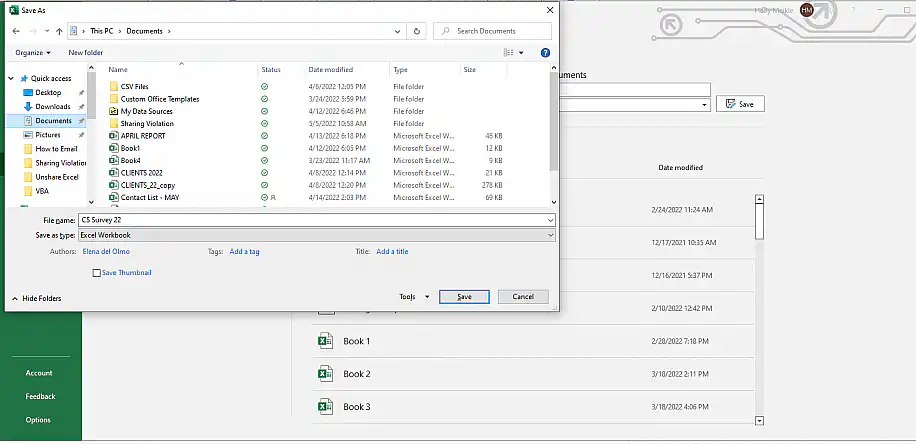
If you are certain that you lack access to the file or you work externally, then chances are you’ll be able to resolve this issue by saving the file in a different location. Simply note that this is a copy of the original file, so you’ll need to keep track of that alternative version. This is how you can save a file in a different location.
1. In Excel, go to File > Save As (Save a Copy if the file is stored in OneDrive).
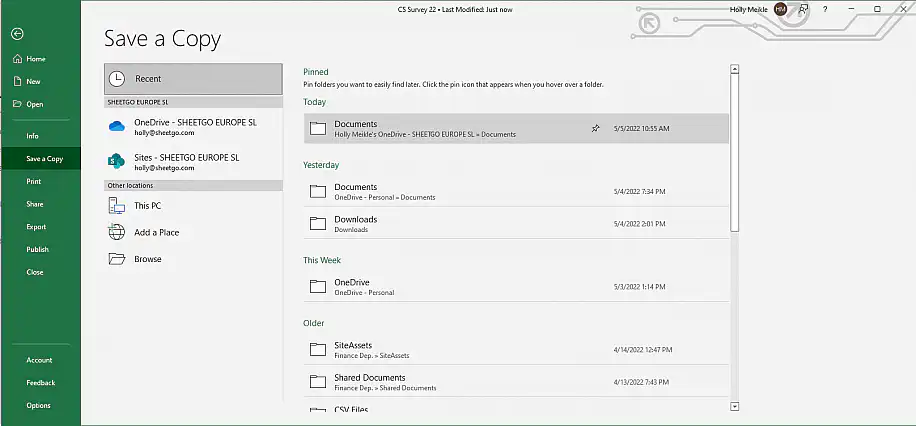
2. Select “More Options…”.
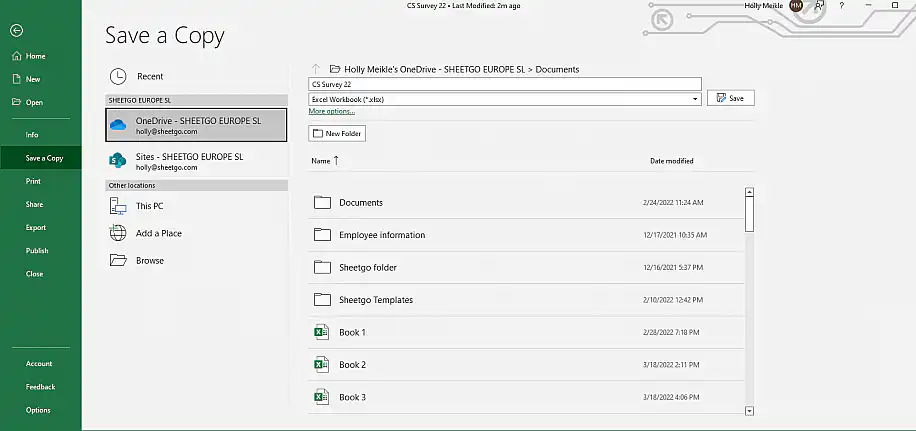
3. Choose a different folder from the left-side menu and click “Save” to finish.
Rename file
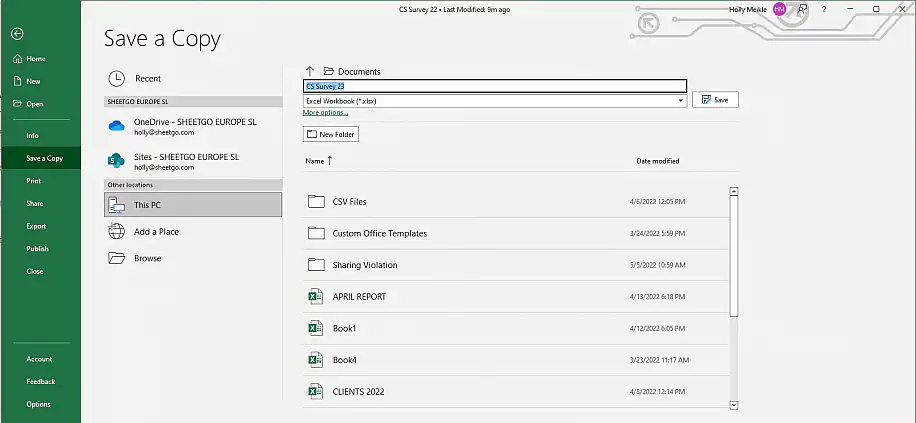
Although it might seem like the most unlikely error source, we may be saving the file using a character that is incompatible with Excel filenames. Moreover, it could be a simple typo. This is how you check the name of the file and quickly rename it.
1. Follow the first step from the previous method.
2. Enter a different name for the file and click “Save” to the right to finish.
If you want to learn more about the different file types and name formats supported in Excel, visit this Microsoft support page.
Conclusion
If your job is computer-based, understanding the cause of errors is always useful. If you rely on spreadsheets, then it is a must. Excel is still the go-to application for complex tasks involving data storage, management, and analysis. This is why fixing a sharing violation error should take the least amount of time possible.
You should now feel comfortable with the concept and be able to fix any sharing violation error message in Excel using any of the five workarounds illustrated in this article. If the file opens as read-only instead, here’s how to remove read-only from Excel. What’s more, if you’re looking to have all your business processes automated in one place, Sheetgo, an AI-powered data automation platform, connects your spreadsheets into automated pipelines and keeps your data ready for AI.



 English
 Español
 Português do Brasil
 Français