




Google Sheets is a powerful and versatile tool that you can use with different types of data, including text. When working with text, you’re likely interested in more than just matching string literals (exact strings of characters). Fortunately, a regular expression – regex – allows you to search for abstract patterns in text.
Nowadays, regular expressions are very widely supported, not just in programming languages but also in text editors and text processing programs, as well as many other programs. Google Sheets has three functions that let you work directly with regular expressions.
This guide will focus on the first function, but you have examples of all three: REGEXMATCH, REGEXEXTRACT, and REGEXREPLACE. After reviewing the function syntax, you have a reference guide with the basics for writing regular expressions. However, the best way to learn is to dive into the examples with step-by-step instructions. Once you get the hang of regular expressions, you’ll use all three functions like a pro.
What is the REGEXMATCH function in Google Sheets?
The REGEXMATCH function in Google Sheets allows you to check whether cells contain a string matching a pattern given by a regular expression. The function returns TRUE if the pattern is matched and FALSE if it isn’t.
REGEXMATCH function syntax
The REGEXMATCH function has the following syntax:
=REGEXMATCH(text,regular_expression)
- text: the text you want to search.
- regular_expression: the string literal or string pattern that you want to match.
Special characters for regular expressions
If you’re going to write regular expressions to match string patterns rather than string literals, you need to know about the special characters and character classes. You can think of regular expressions as ways of describing abstract patterns in text. These patterns can combine string literals and special characters to represent different types or classes of characters.
Don’t worry about memorizing any of it, though. The best way to get the hang of regular expressions is to work through simple but detailed examples like those in this article. Below is a list containing different types of special characters you can use to build regular expressions.
Anchors
- ^ matches the start of the text in which you want to match the regular expression.
- $ matches the end of the text in which you want to match the regular expression.
Metacharacters
- . matches any single character except a new line.
- | matches the character before it or the character after it.
- \ indicates that the character after it is being used as a literal and not as a special character.
Character classes
- [ ] matches any character from a set of characters.
- [^ ] matches any character not contained in the set.
Shorthand character classes
- \w matches any word character – i.e., any letter, digit, or underscore.
- \W matches any non-word character – i.e., any character that isn’t a letter, digit, or underscore.
- \s matches any whitespace character, including spaces, tabs, and line breaks.
- \S matches any character that isn’t whitespace.
- \d matches any digit from 0 to 9.
- \D matches any character that isn’t a digit from 0 to 9.
Group
- ( ) groups parts of your regular expression. For example, to apply a quantifier to a group of characters.
Quantifiers
- {n} matches the preceding expression exactly n times.
- {n,m} matches the preceding expression a minimum of n times and a maximum of m times.
- ? matches the preceding character or group 0 or 1 times.
- * matches the preceding character or group 0 or more times.
- + matches the preceding character 1 or more times.
How to use REGEXMATCH in Google Sheets?
You can use REGEXMATCH to check whether a text contains a specific string or string pattern expressed as a regular expression. Pass the text or the cell containing it as the first parameter of the function and the regular expression as the second parameter: REGEXMATCH(text,regular_expression).
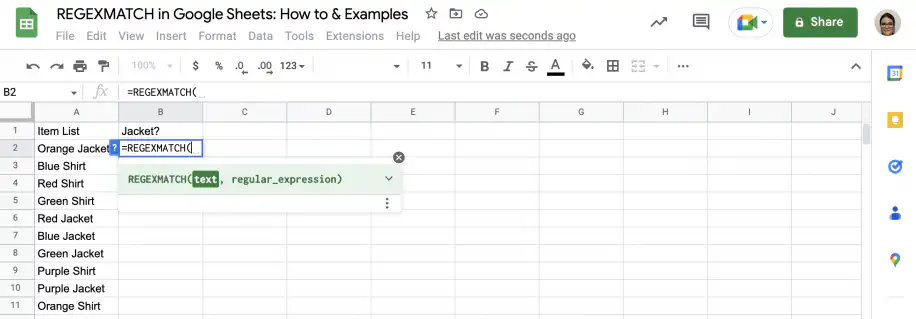
1. Type function
In an empty cell, type the REGEXMATCH function.
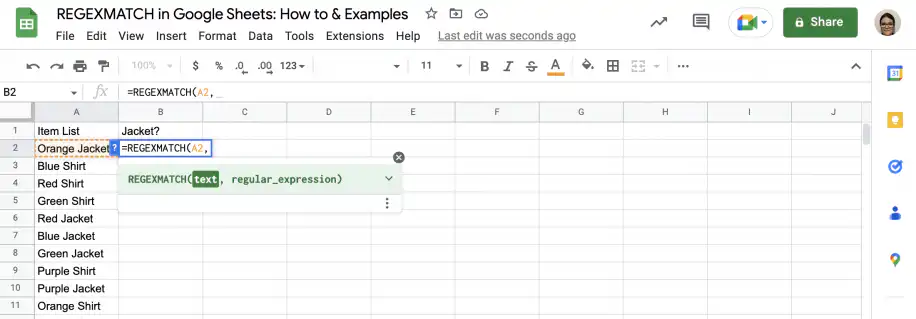
2. Add text
Type the text between quotation marks or select the cell containing the text.
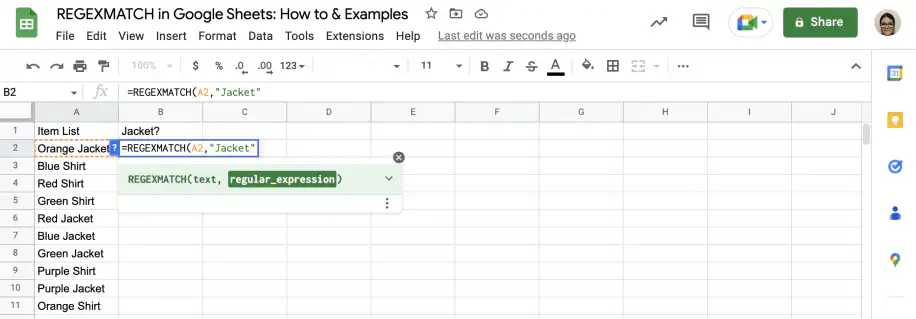
3. Add regular expression
After the comma, type the regular expression between quotation marks or select the cell containing it.
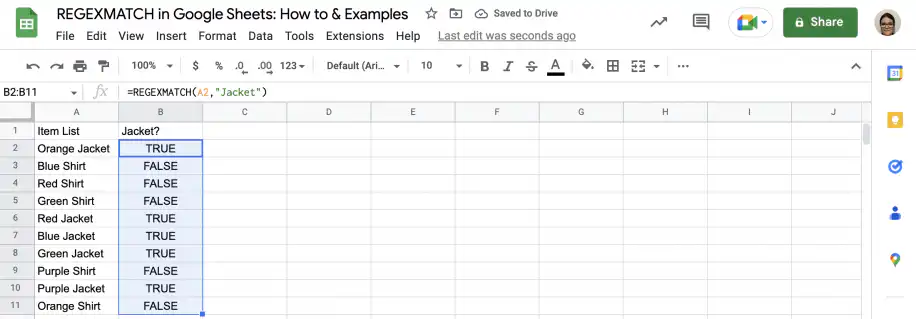
4. TRUE/FALSE result
Close the parenthesis and press ‘Enter’ to see the result. Grab the fill handle and drag it down to the last cell you want to check.
Examples of REGEXMATCH in Google Sheets
Below, you have examples of using REGEXMATCH to check for string patterns that combine literal characters with special characters.
Regex example 1. Match words
Follow the steps below to use REGEXMATCH to check a text and match any of the words you specify using the OR symbol (|).
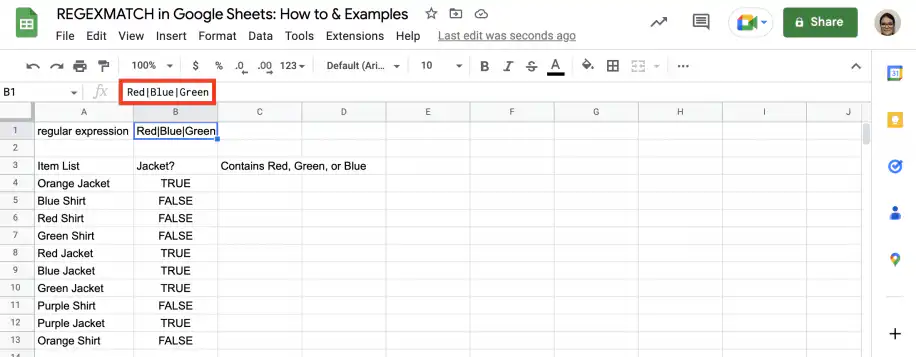
1. First, type the regular expression into an empty cell to avoid worrying about quotation marks. In this case, you want to match one of the following words: red, blue, or green, so the regular expression is “Red|Blue|Green”.
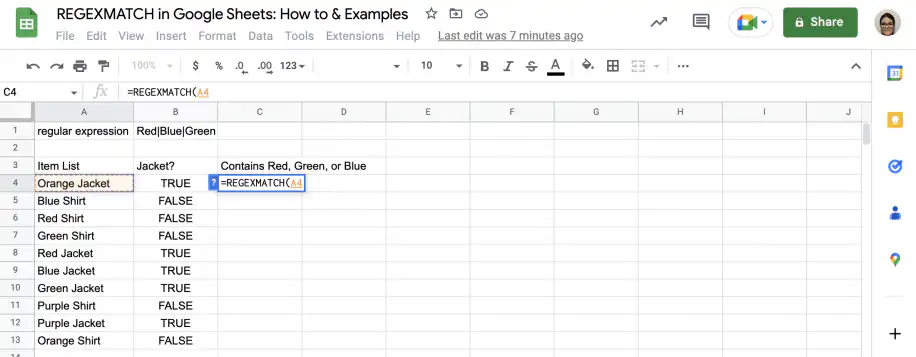
2. Type the REGEXMATCH function and select the cell containing the text you want to check.
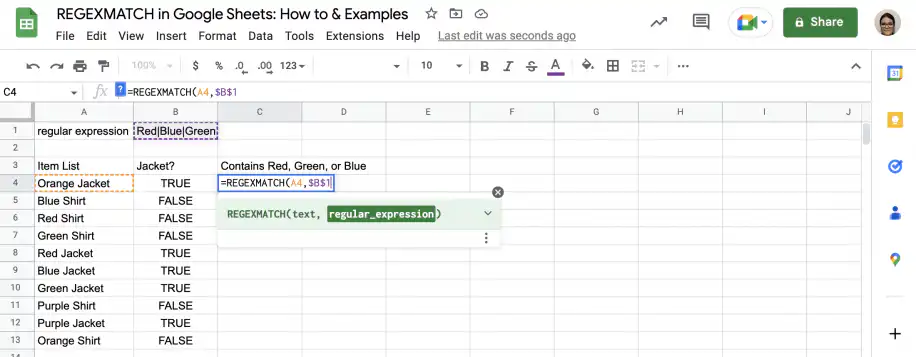
3. After the comma, select the cell containing the regular expression using absolute referencing.
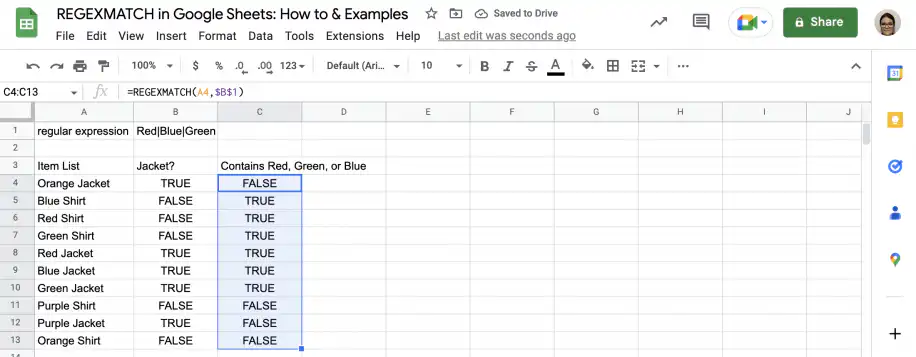
4. Close the parenthesis and press ‘Enter’. Grab the fill handle and drag it down to the last row.
Regex example 2. Match numbers
Follow the steps below to check whether a text contains any numbers.
1. In an empty cell, write the regular expression you want to use. In this case, you want to match numbers with one or more digits: “[0-9]+”.
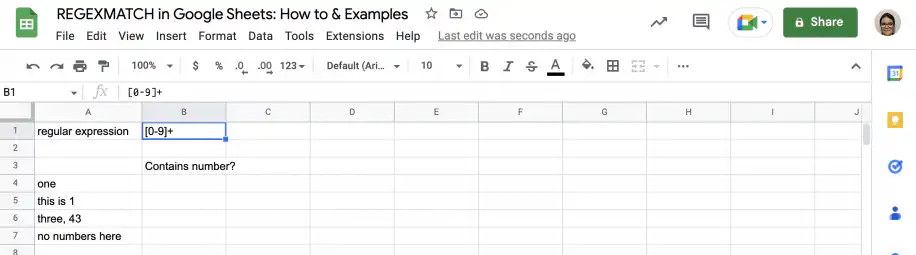
2. Type the REGEXMATCH function and select the cell containing the text.
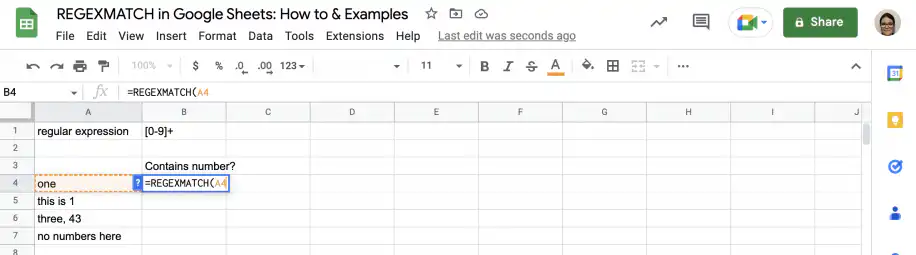
3. After the comma, select the cell with the regular expression using absolute referencing.
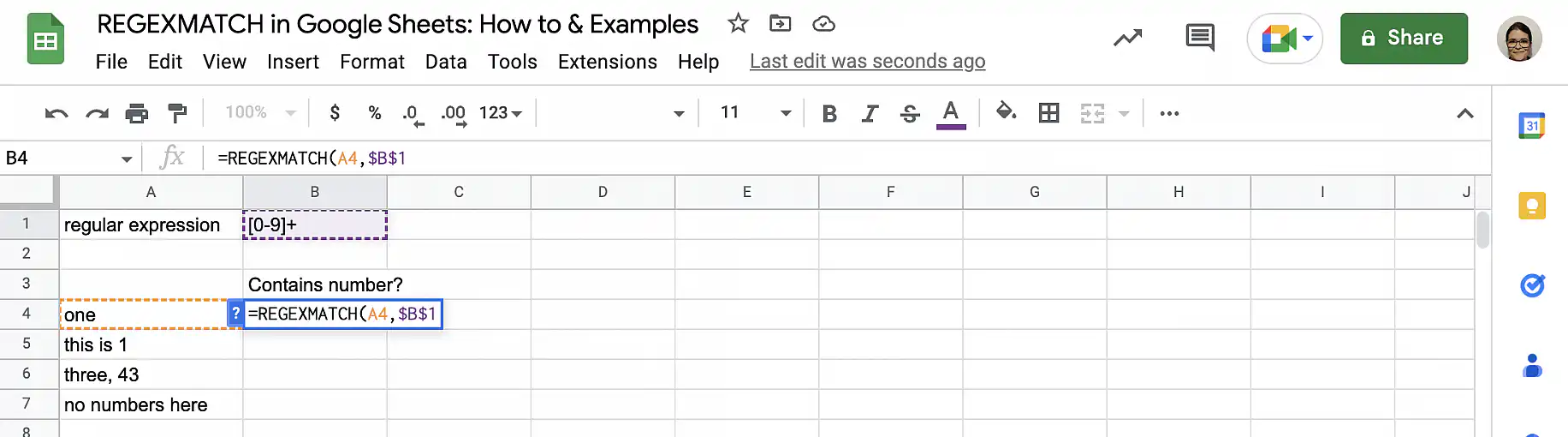
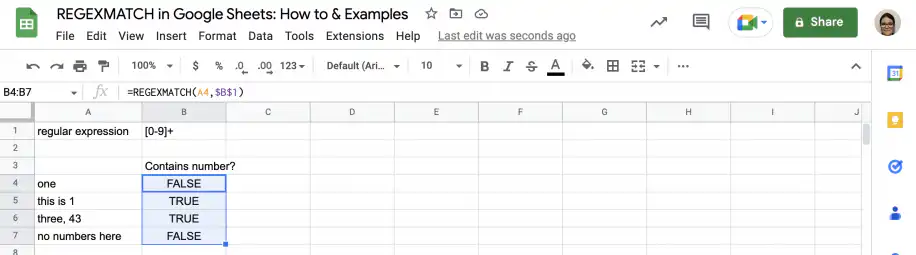
4. Close the parenthesis and press ‘Enter’ to see the result. Grab the fill handle and drag it down to check the rest of the cells.
Regex example 3. Starts with & ends with
Follow the steps below to match based on the text’s start and end. In this case, I want to match sentences that begin with a capital letter and end with a period. In between, there can be any number of characters of any type.
1. Write the regular expression you want to use in an empty cell. In this case, you want an uppercase letter at the beginning, followed by any number of any type of character (^[A-Z].*). Additionally, you want the last character to be a period, so you must precede it with a backslash to use it literally (\.$). The complete regular expression is as follows: “^[A-Z].*\.$”.
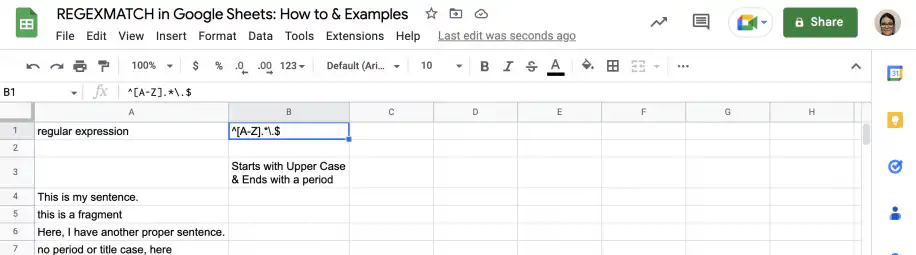
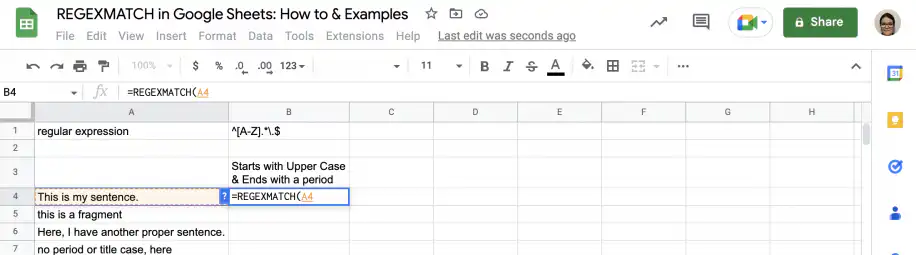
2. Type the REGEXMATCH function and select the cell containing the text.
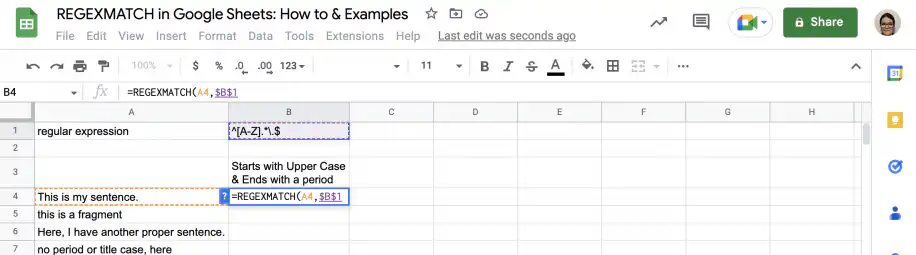
3. Select the cell with the regular expression after the comma, using absolute referencing.
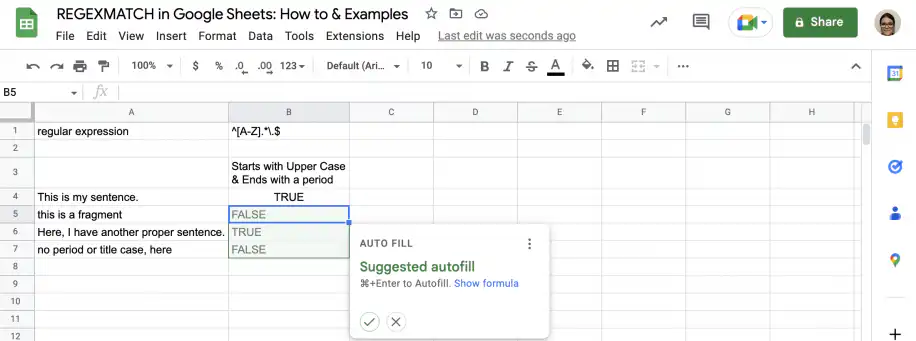
4. Close the parenthesis and press ‘Enter’, then accept the suggested Autofill to copy the formula down.
What is the difference between REGEXEXTRACT and REGEXMATCH?
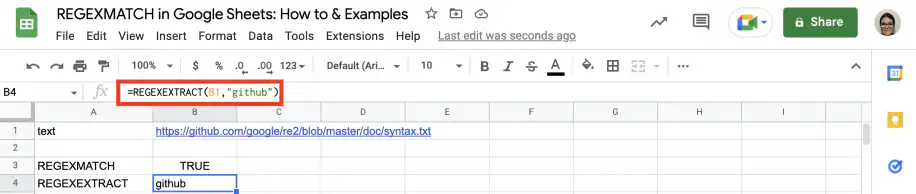
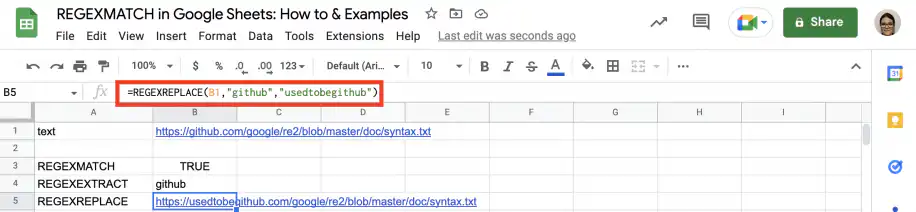
There are three functions directly related to regular expressions in Google Sheets. While the REGEXMATCH function checks whether or not a string pattern is present in a text, REGEXEXTRACT extracts the matching string from the text. If you want to replace the matching string, you can use REGEXREPLACE.
REGEXMATCH

REGEXEXTRACT
REGEXREPLACE
Conclusion
As you have seen, regular expressions offer an effective and efficient method for pattern matching. The strict and versatile syntax allows you to describe complex, abstract patterns that combine fixed and variable elements. Their compact and abstract nature can make them look scary at first, but now that you know how to read them, you can see how powerful they are. In Google Sheets, you can use regular expressions with the three REGEX functions, which can be combined with other formulas and built-in functions.
You now know about the REGEXMATCH function in Google Sheets and the related functions REGEXEXTRACT and REGEXREPLACE. You know how to use all three functions using simple regular expressions to find exact and partial matches. You have step-by-step instructions on matching one word from a list, matching numbers, and matching the start and end of a string. Finally, you have a reference guide summarizing the syntax for regular expressions so that you can work on more complex expressions.
Because REGEXMATCH returns TRUE or FALSE, it also works inside other formulas. Wrap it in an IF function to return your own labels, or use it as the condition of the FILTER function to keep only the rows that match. To find a plain word without a pattern, the SEARCH function is enough.

 English
 Español
 Português do Brasil
 Français